Yahoo! for iPhone adds voice search

Speak up…Fans of speech recognition will be interested to hear that Yahoo! has added a voice search facility to its popular iPhone client. Disappointingly though, the new feature, which works in a similar way to the speech input within the Google Mobile App, seems to be hard of hearing.

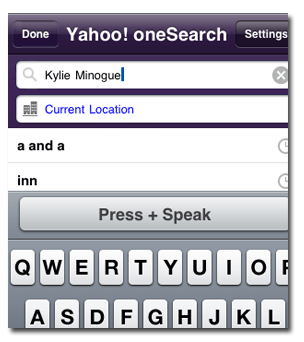
Keen to further my knowledge of Australian music, I started by politely requesting “Kylie Minogue”. The program immediately returned an error saying it hadn’t understood me. I asked again, this time speaking louder and slower. Still nothing. After five attempts that returned errors, Yahoo! finally produced the results – for “a and aa”. Not only was this a million miles away from what I’d requested but I now looked a fool in front of the whole office. So, I thought I’d make things a bit easier for the voice recognition engine (and for my reputation) and said “hello”. Yahoo! thought I’d said “inn”. I tried “software” and it thought I said “cotton”.

I’m not sure whether it’s a general weakness in the functionality, or if it’s my refined English accent that’s causing the problem, but something’s definitely not right here. It annoys me that a company with a reputation such as Yahoo! would take the trouble to introduce such a potentially revolutionary function, and make it so poor as to be completely unusable. The voice search in Google isn’t much better, and that’s after having apparently added special support for English and Australian accents.

If you’ve managed to get the voice search in Yahoo! for iPhone working I’d be very interested to hear from you to find out what accent you have. And while you’re at it, could you find out Kylie Minogue’s tour dates for me?

How to: Extract audio from YouTube videos

A while ago a friend of mine asked me how to extract the audio track from YouTube videos and, to be honest, I didn’t know how to reply. I had downloaded some videos from YouTube (there are a bunch of programs that can help you with that) but never considered the possibility of extracting audio from them. The question caught my attention and I started looking for the solution, which didn’t take me long. As Apple would say, if you want to extract audio from a YouTube video, there’s a app for that.

How to: Extract audio from Youtube videos

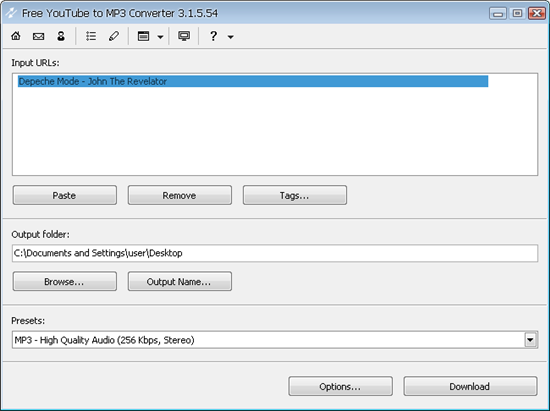
This app is called Free YouTube to MP3 Converter and lets you extract the audio track from any video on YouTube to MP3 (three different quality presets available) or WAV. It’s really simple to use: all you have to do is copy the URL of the video and paste it on the program’s interface. After a short analysis the program will display the video’s title and you’re good to go: click on the “Download” button and the video soundtrack will start downloading.

Free YouTube to MP3 Converter features a few configuration options with which you can change the output folder and the file’s name, as well as edit the file’s tags.

Team Fortress 2 free weekend from today!

The lovely people at Valve, one of the best developers around at the moment, are offering a free weekend of multiplayer mayhem in Team Fortress 2. If you’re unacquainted with it, it’s possibly the best multiplayer team shooter out there, with great balance and an emphasis on fun gaming.

The game is available for pre-loading now, and the free weekend should start sometime today, finishing next Tuesday. You’ll have to install Steam, Valve’s download manager, but that’s no bad thing as there’s some fantastic stuff there.

How to: DJ with a laptop

Why not use your laptop (or desktop) as turntables at a party? With a little practice you can get a much better mix than simply sticking an iPod on shuffle. Plug your laptop into the stereo, and turn up the volume. Here’s my guide to learning to DJ with a laptop!

Software: There is lots of DJing software out there, but the free program Mixxx is pretty much as good as any available. This tutorial was done with the Windows version, but it’s the same on Mac and Linux too.

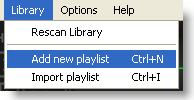
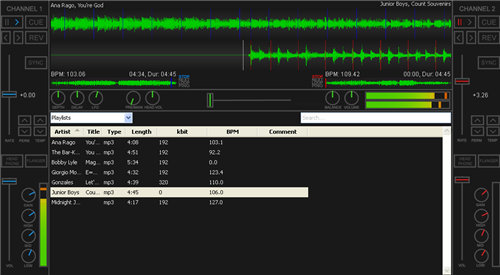
Playlist: Once you’ve installed Mixxx and imported your library,  it’s a good idea to create a playlist of tracks you like. Click on library and create playlist or you can even import one from iTunes. Select ‘playlist’ from the drop down menu above the library, and your playlist will appear.

Mixing: Right click on your first track and choose Load in Player 1, and do the same for your second track, but load in Player 2! Now you’re ready to start. After a few seconds, Mixxx will have estimated the BPM of your tracks, and it’s pretty accurate. Clicking SYNC on player 2 will alter the speed of that track to equal the first(if you want to), or you can use the pitch sliders to alter BPM too. While you can control Mixxx with the mouse, it’s much easier to do so with the mouse and keyboard. The most important keys: D and L play/pause Player 1 and 2 respectively.

Move the cross-fader to the left (it’s the slider in the centre of Mix) and hit D to start the music. Clicking and holding on the wave for player 2 (the static one), you’ll find you can drag it left to right. Use this method to line up the centre marker with the start of the music (you have to be gentle!). When track one is near the end it’s time to mix. If you’re trying to beat-match be patient, as it may take some practice! If not, start track 2 as you are moving the cross-fader from the left, and track two will fade in as track 1 fades out.

For beat-matching, move the cross-fader to the centre, and hit L on a beat, which will start track 2. If you are in time, track two will be playing and it will sound good. If so, slide the cross-fader gently to the right, and hit D to stop track1. Right click on track 3, load it into player one, and repeat the above process!

Tips: Use the channel 1 and 2’s volume and tone controls to get things sounding right – some tracks are naturally louder than others, so might need turning down.

In general, the better you know your tracks, the better you’ll be able to mix them, and the more you practice, the easier it becomes.

You don’t need to beat match – sometimes it sounds good if you jump from one track to another, flicking the crossfader so there is no transition between songs. Give it a go!

Have you used Mixxx, or would you recommend another application? Leave us a comment! If you don’t like Mixxx, you can try the free Virtual DJ Home Edition.

Flock embraces Twitter and Facebook

flocklogoIt’s been a while since we’ve heard anything from the developers at Flock but they’ve just announced the release of Flock 2.5 which, unsurprisingly for a browser with a heavy focus on social networking, showcases impressive enhanced integration with Twitter and Facebook.
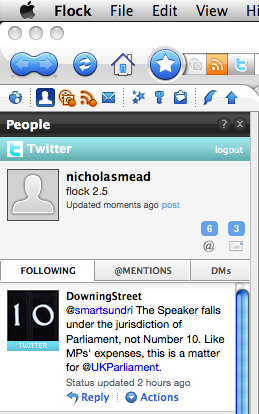
Shawn Hardin of the Flock team says:

Flock 2.5 makes sharing and discovering content fast and easy. You just drag and drop URLs, photos, videos, text or other things you find on the web to a friend’s Twitter, Facebook, MySpace or other profile in Flock’s People Sidebar and it’s instantly shared. And now Flock comes with Twitter Search right in MyWorld, so you can keep up to date on all the topics you’re most interested in and save them in the best place possible, your Flock browser.

Flock screenshotThere’s no need to use a separate twitter client with Flock because you have one built into the left navigation bar – and pretty impressive it is too. Probably the stand-out features are the fact that you can simply drag and drop images into your tweets and you can define keywords for twitter searches that Flock will automatically monitor for you.


Meanwhile Facebook users have been catered for with a Facebook Chat client that goes with you wherever you go. So even if you’re surfing other websites, you can still chat to contacts in a Facebook Chat style client that sits at the bottom of the browser. Finally, another nice innovation is FlockCast which enables you to update several social networking features at once – perfect for social networking addicts who can’t be bothered visiting each site separately.

Although I’m increasingly impressed by each release of Flock, I still find the browser overwhelming in terms of the amount it tries to fit in. However, I guess this is inevitable for a browser that integrates so many social networking sites. However, as Twitter and Facebook grow, I wouldn’t be surprised to see it really take-off one day. Note that at the time of writing, version 2.5 is only available for download in US English language but presumably other languages will follow shortly.

How to: Publish your blog on Amazon Kindle

Unless you’ve been living under a rock for the past few months, you surely have heard about Kindle, the famous eBook reader powered by Amazon. After the success of Kindle 1.0, they launched a second generation of the device – which looks much better than the first one – and have recently released a larger version as well, the Kindle DX. It seems then that the eBook market is definitely taking off, so why not take advantage of that? With the new Amazon Kindle Publishing for Blogs service you can make your blog available to Kindle readers and turn it into a valuable source of revenue.

Publish your blog on Amazon Kindle

Kindle Publishing is really simple. All you have to do is head to their website and create an account – note this account is different from your regular Amazon user account. Filling in all the form take a while because there’s quite a few details to provide, including payment information. You can choose between electronic transfers or checks, but the first one requires an US-based bank account and tax reporting number. Once you create your account, you’ll be redirected to your personal dashboard. You’re now ready to start adding blogs! Continue reading “How to: Publish your blog on Amazon Kindle”

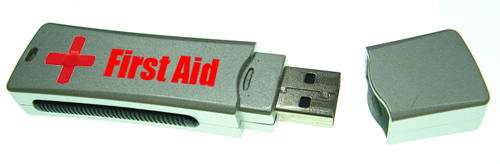
Build a First Aid USB kit

I’m sure you’ll find this situation familiar: last Saturday I met a group of friends to have dinner and watch the Eurovision contest together. But as soon as I walked through their flat’s door, one of my friends grabbed me by the arm and begged me to fix his computer.

Build a First Aid USB kit

Yes, it happens: once your friends find out you work with computers, they presume you can fix whatever problem they have with it, from an unimportant spyware element to a serious Windows Registry issue. And as you can’t really do anything about it without being rude, you’d better adapt to the situation. How? Easy: creating a First Aid kit for computers you can carry anywhere with you.

All you need is a large-sized USB memory device (you can buy a 4 or 8 GB memory key for a pretty decent price these days) and load it up with a collection of portable tools you can use to analyze, optimize and fix any computer your friends ask you to. Here are the tools I’d include in that First Aid USB:

  • HWiNFO32 – Performs a highly detailed hardware configuration analysis
  • Revo Uninstaller – Removes any unwanted applications from the computer
  • ClamWin – A handy portable antivirus tool
  • Recuva – Recovers accidentally deleted files
  • CCleaner – Powerful system cleaner and optimizer
  • Registry Defrag – Portable Windows Registry defragmenter
  • Comodo System Cleaner -Complete suite with cleaning and repairing tools
  • Glary Utilities – Pocket-sized toolkit for PC maintenance
  • Defraggler – Portable defragmenter with support for single files and folders

The Times Reader – The future for newspapers?

times2.pngIt’s no secret that the printing industry is in decline and print outlets are having to find new ways of reaching their readers. The internet is obviously playing a big part in this but the downside is that you lose that authentic broadsheet newspaper reading experience. Having tried the latest version of The Times Reader however, I think the newspaper industry might finally have found a true way forward that balances the best of both worlds.
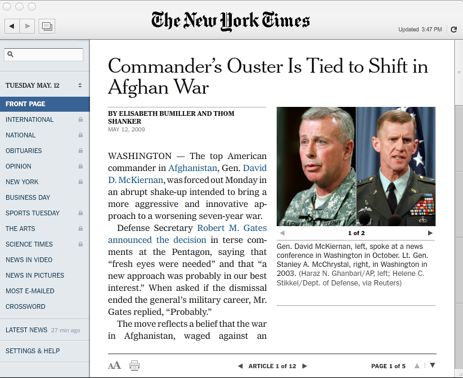
The New York Times Reader was released over a year ago but it was based on Microsoft’s Silverlight platform and didn’t really impress. Now the company have switched to the far superior Adobe Air platform, it looks like a much more attractive product. Although the reader is free, only subscribers of The New York Times can access all sections but four sections (Front Page, Business, News in Video and a Classic Crossword) are available for free. All sections update every 5 minutes with the latest news.

screen-capture-times-front

On using The Times Reader for the first time, print nostalgics will be struck by just how realistic it is to having the paper in your hands. There’s a sense of elegance at the space offered by a newspaper layout compared to the condensed, busy pages on the internet edition. Navigating is simply a case of dragging pages around with the mouse or scrolling through pages with arrows. Hyperlinks are preserved as is multimedia content and even crosswords. Continue reading “The Times Reader – The future for newspapers?”

Fax for free with Fossi

Fossi LogoIf you’ve got a modem inside your Mac, did you know that you can send faxes absolutely free? Unfortunately for Intel Mac users, the modem is no longer included in new Macs but you can still send faxes very cheaply via an online faxing account such as eFax.
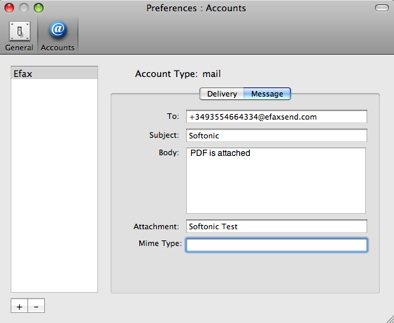
However, you’ll need a fax interface to do so and there aren’t many out there for free. Fossi is one of them and it makes sending faxes very easy. It even enables you to send them straight from your print dialog. Unlike similar applications such as Pagesender, there is no trial period although Fossi is far more basic and has limited help support. It does however integrate with Address Book and supports Growl alerts for when your faxes are sent.

Fossi is extremely simple to use and is divided into two tabs – General and Accounts. In the General tab, you only have to enter the prefix of the country you are sending the fax to. General is where you do all of your composing including entering the number. In the General tab, by clicking on the plus or minus symbol, you can add online faxing accounts to associate with Fossi such as eFax or Sipgate.

Fossi screenshot

If you don’t want to use the online services, you can configure it to use your own modem if you have one although this is where Fossi is a bit unhelpful. The Help file is all but non existent leading you to a forum that only offers advice for connecting to a Sipgate account. However, with a little trial and error, you should be able to set it up. You can at least click on “Test” to see if the connection is working before sending faxes.

Friday Timewaster: Paper Moon

If you enjoyed the highly polished Scary Girl, you have to check out Paper Moon. From the same company that brought you Off Road Velociraptor Safari, this is a cute and atmospheric platform game. Developers Blurst are fast becoming the kings of the browser game, concentrating on quality and quirky games, instead of the usual lazy casual games that flood the internet.

Paper Moon is played against the clock, and it’s a bit of a challenge to make your way through but with its 3D paper style visuals, and gentle puzzles, it’s well worth a try. You’ll need to download the Unity plug-in for your browser too.