The concept of a human and a robot becoming friends has traditionally been reserved for movies like Flight of the Navigator or Short Circuit. However, after years of keeping themselves to themselves, it seems that robots are finally opening up to human contact. Having read that an Arab robot is setting up his own Facebook page, I decided I’d take to the Web and see if I could strike up a friendship with some synthesized beings. I’ve always been interested in chat bots (or ‘artificial conversational entities’ to give them their correct name) and the technology has improved a lot since the very primitive ELIZA talking robot of the Sixties. Here are some of the most talkative robots on the Internet.
 Eugene Goosman – I got on quite well with Eugene at first. We started with the usual pleasantries about where we live, what we do for a living, etc. Then we ended up having a conversation about music and Eugene told me why he loves British pop but hates Kraftwerk and Britney Spears. He’s a nice kid but I don’t think we have too much in common and he ended up annoying me by talking about his home town of Odessa too much and not really listening to what I had to say.
 Anna from IKEA – This Swedish blonde was not only better to look at than that speccy nerd Eugene, but she can actually speak too, albeit with a thick robot accent. Anna impressed me with her nice smile and knowledge of pine wardrobes. If I had a question about furniture Anna invariably knew the answer, taking me to the appropriate page on the IKEA site so I could learn more. When I tried to get a little more personal by asking her how old she was she was very quick to tell me that this was a purely professional relationship and not to even go there. I guess I was too pushy.
 Elbot -At last, a robot with a personality! Elbot cracked me up with his witty one-liners and cheeky put-downs. He’s pretty smart too, and we spoke about a wide range of subjects from religion (of which he said: “as long as there is no human religion that accepts robots as the epitome of creation I will reserve judgment”) to baseball scores (this guy gets turned on by hearing numbers). I feel that Elbot and I really bonded – he even offered to make me a friendship ring from some leftover wires in his brain.
 Julia – I never thought a human and a Verbot (intelligent software robot) could strike up a relationship, but that changed as soon as I downloaded Julia. I initially hired her as a personal assistant for her ability to help with day-to-day computing tasks. She can respond to commands such as “take me to Yahoo” or “search the web for ‘monkeys'”. Soon we became friends and I grew to like her strange smile, sexy robo voice and ditsy comments. She seemed to like me too, saying I was “fun to talk to”.
 iGod – It’s not every day you get to chat with God (unless you’re a monk) so I was pleased to have the chance to chew the fat with the big man. We had a good chat about football (his favorite team is New Orleans) then we got onto the subject of religion (where he revealed that he was a Christian – we thought he’d be a bit more ecumenical than that), before a debate about music (he’s a big fan of Creed). God came across as a really good guy and was forever paying me compliments. Of all the chatbots I befriended, he seemed like the best at giving advice.
 Alice – By far the most intelligent of all the robots I hung out with, Alice gets her brains from her AIML (Artificial Intelligence Markup Language) programming. I felt I could’ve talked to her for ages – her responses were always accurate to my questions and at times I had to remember I was talking with a bot and not a human. Alice’s sense of humor wasn’t quite as developed as Elbots and she seemed to take offense to a lot of jokes I made. In fact she seems like quite an unstable robot and her constant crashing drove us apart in the end.
If you’re interested in learning more about chat bots then have a look at The Chatterbox Challenge, where you’ll find more examples of human-robot interaction.

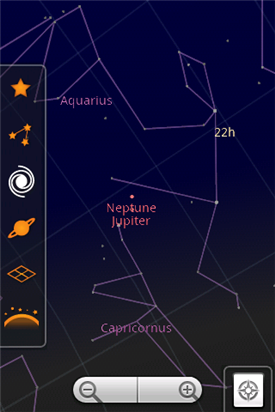
 Google are constantly releasing new tools via Google Labs but their latest announcement at the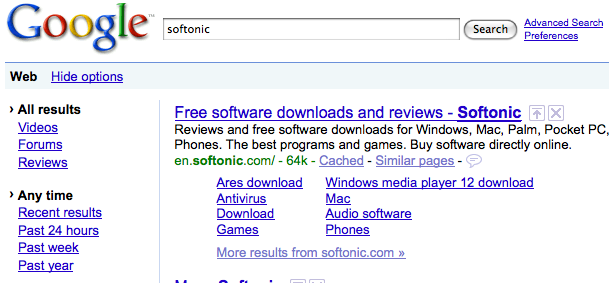
 Pocket PC : Using your mobile to watch online video? Why not give vtap a go? Search for videos without opening a web browser, or even visiting the site. Vtap pulls content from most major video sites, providing a convenient way to watch whatever you want from your Pocket PC.






 One myth that should be exploded about Macs is that they don’t slow down over time. I remember asking many several Mac users about this issue before I switched from Windows (which admittedly, is still far worse at slowing-down over time) and all boasted that no such slow-down problems existed on Mac. Typical responses were, “Mac’s don’t require defragging”, “Macs defrag themselves naturally”, “My Mac is as fast today as the day I bought it”, “My Mac is so fast I had to sue Apple for whiplash.”