Friday timewaster: Bullet Time

This one’s for people with super human reactions! Bullet Time is a super fast shooter from Terry Cavanagh, developer of many wierd and wonderful indie game experiences.  Here, your challenge is to survive as long as you can. You save up “bullet time”, so when you hold the space bar, the game slows, giving you temporary breathing space. You fire automatically, leaving you free to concentrate on movement. So far, I’ve only managed to survive 20.33 seconds. Can you do any better?

How to: Embed useful data on your desktop

Your desktop is the first thing you see when you start your computer, so why not use it for something more useful than just displaying a cute picture? There are some tricks – and software apps as well – for embedding interesting information (calendars, to-do lists, CPU data) on your desktop, so that you always have it at hand. Here’s a list of five elements you may want to have on your desktop, from a simple text file task list to a fully featured system monitoring tool.

To-do list

Embedding a to-do list in your desktop background is easier than it seems. All it requires is a simple text file that contains your list and an old Windows feature: Active Desktop. The trick consists of creating a very simple HTML document in a text editor with your list, and then using Active Desktop to show it on top of your wallpaper.

A sample HTML to-do list would look like this:

How to: Embed useful data on your desktop

Now, open the Display Properties window by right-clicking anywhere on the desktop and select the Desktop tab. Then click on Customize Desktop and go to the Web tab. Here you’ll be able to select a webpage to display on your desktop, i.e., the HTML file you just created. Continue reading “How to: Embed useful data on your desktop”

The 10 worst tech ads of all time

I’m more than a little excited about the launch of the Palm Pre this weekend. However, I’ve just watched the commercial for the new wonder phone and it’s almost made me not want to buy the device on principle. It’s got to be one of the corniest ads I’ve ever seen – it says nothing of the benefits of the Palm Pre and looks more like a shampoo advert than a pitch for a piece of cutting-edge technology. Then I started thinking though, that this isn’t the first awful commercial for a tech product. In fact, there’s been some real doozies throughout history, and many that were far worse than the wishy washy Palm Pre spot. Here are some of the worst:

10.  Pole Position – I suspect Atari’s ad for its cutting edge racer from 1982 was a designed to be a little tongue-in-cheek. But it took some guts for them to mix in-game footage with shots of a family racing around a go-kart track. See if you can spot which is real and which is computerized:

[youtube]http://www.youtube.com/watch?v=Om84Zc4-KcQ[/youtube]

9. X-Box 360 Rock Band 2 – Truly one of the strangest adverts I’ve ever seen, I’m not sure what the thinking was behind this one. We see a shot of a woman with a moronic grin spread across her face then the camera pans around to reveal the back of her head has been hollowed out and a band is playing rock in her brain. Very weird. See it (and loads more) after the jump… Continue reading “The 10 worst tech ads of all time”

Google Chrome arrives on Mac

google-chrome-logo.pngGoogle entered the browsing wars with Google Chrome for Windows just under a year ago and according to a study by Net Applications, it’s already become the fourth biggest browser out there with almost 2% of the market. Mac fans can now try Google Chrome for themselves although it’s worth noting that this is strictly a developer release meaning some features (such as bookmarking and Flash movies) are not working yet.

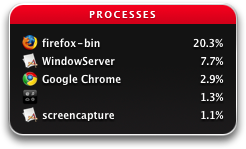
This release only works on Intel Macs and is prone to bugs and instability but it’s enough to give you a good idea as to what the finished product will look and feel like. The first thing I noticed about Google Chrome is that it’s unbelievably lightweight. While Firefox was consuming anything from 20-30% of my Mac’s CPU, Chrome barely registered on the scale occasionally touching 3%.

Chrome CPU usageFor anyone who’s plagued with Firefox memory leaks and crashes, this alone is surely going to be a compelling reason to give Chrome a go. As you’d expect, Google Chrome also features a type of tabbed browsing which improves on Firefox’s slightly cramped user experience.

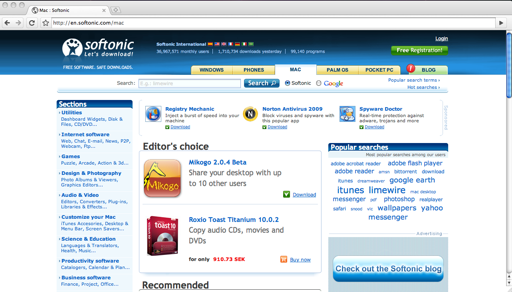
Google Chrome is also extremely quick. Surfing the Softonic site, page loads took less then a second and all images were loaded very quickly. YouTube in particular loaded with lightening speed but unfortunately, because the Flash player is disabled in this developer release, it wasn’t possible to test watching videos.

Chrome Mac screenshot 1

However, sometimes, it simply produced nothing when trying to find the YouTube homepage and maybe this is one of the bugs Google are working on. Overall however, the handling of sites using JavaScript in particular was mightily impressive. I also like the way that when you open Chrome, it displays windows of your most visited sites so you can click on them to go straight to them.

Google Chrome for Mac most visited

If only there were more extensions for Google Chrome, I’d seriously consider converting when the final build is released. Before that happens though, it will need to get much more popular. Based on this first proof, Safari and Firefox may well have a real fight on their hands.

How to fix DownloadHelper conversion errors

VideoHelper logoMy favorite tool for downloading YouTube clips on Mac is the DownloadHelper extension for Firefox. It’s convenient, quick and even converts videos into the format of your choice while it downloads. For a while however I’ve been plagued with a “Conversion requires external application” error message when downloading certain clips.

The exact error read: “Conversion requires an external application that appears to be missing on your system. Configure conversion? > Cancel > OK.” When I selected OK, it opened the Preferences for DownloadHelper highlighting in red the location path for the selected converter option which is either FFMpeg or MEncoder.

I eventually found the start of the solution was to install the ffmpegX video/audio encoder for Mac. ffmpegX is basically a Mac OS X graphic user interface designed to operate more than 20 video and audio processing tools including ffmpeg which is a very fast video and audio encoder.

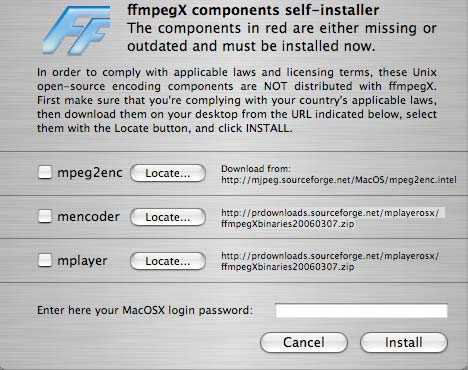
For the purposes of correcting the DownloadHelper error, you don’t actually need to use the ffmpegX interface. You do however need it to use it to install the mpeg2enc binary for ffmpegX. Once you’ve installed ffmpegX, you’ll be immediately taken to the main interface where you’ll be prompted to load 3 binaries. You only need to load one binary to fix DownloadHelper – the mpeg2enc binary – which can be found here.

screen1.jpg

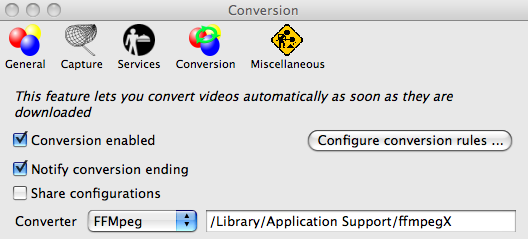
You don’t have to worry about the mencoder or mplayer binaries but you do need to check the box next to mpeg2enc and locate the binaries that you’ve downloaded onto your hard drive. The resulting installation places the binaries in your Mac’s application support library. The final step is to re-open your DownloadHelper preferences (in Firefox’s Tools menu) and enter the path where the binaries are located. For most people, it will be “/Library/Application Support/ffmpegX”:

screen-capture1.png

When the DownloadHelper logo animates next to the URL bar while you are using YouTube, you should now be able to download videos again with it. However, it hasn’t worked perfectly for me. For some reason, videos are being downloaded to a temporary file on my Mac rather than the directory I’ve configured downloaded files to be saved in DownloadHelper. In addition, the files are not being converted to QuickTime format they were previously. However, I can sort-out all of this by manually moving the files and converting them myself later. The important thing is that this work-around allows you to download YouTube clips again using DownloadHelper.

Six apps to organize tasks more efficiently

Six apps to organize tasks more efficientlyWe all have a lot of work to do everyday. Some of that work consists of one-off tasks which you do and then immediately forget about and some of recurring events that you need to remember according to different periods of time. Inevitably, there comes a time when you need help organizing all these tasks and making sure you don’t forget any of them.

Just as in many other areas in our life, software can lend you a hand here. There are literally hundreds of apps out there which can help you organize tasks, create to-do lists and manage a personal calendar with reminders, so that you keep track of all your work and don’t miss anything important. I’ve been searching the web and found a few of them, each one with different characteristics, to suit different users and needs.

To-Do Desklist – The basic task app: create a list of tasks and events with diverse priority levels and the program will warn you with sleek desktop reminders on the set date and time.

ErgoNotes – A more advanced organizer that lets you manage tasks and lists in hierarchical trees, includes a calendar and a built-in search tool, and features support for encryption.

ReminderFox – Another way to manage work: this extension for Firefox and Thunderbird will remind you of all date-based tasks and events, without having to use a full calendar app.

ATnotes – A handy app for your pending tasks: create virtual sticky notes with them, with support for reminders and keyboard shortcuts. Oh, and they are fully customizable as well.

Chandler – A powerful task organizer for those who are looking for something else. It lets you share and track notes, manage tasks and events and includes a complete calendar tool.

ThinkingRock – The quintessential organizer, based on the famous GTD methodology. Manage all sorts of tasks, events and appointments effectively and don’t die trying.

Today’s downloads for Windows, Mac and Mobile

Lose weight on your BlackBerryBlackBerry: Did you know that BlackBerrys can help you lose weight? Or at least they can if you install Health & Diet Manager on them. This app allows you to take control of your nutrition and overall health, to help you lose weight and give you more energy. Health & Diet Manager helps you manage all kinds of aspects of your daily life, from tracking your health related stats (pulse, blood pressure, hours slept, etc.), to creating an action plan for your eating and exercise.

VirtualBox logoMac: Nowadays, having a Mac doesn’t mean you have to do without Windows. In fact, you can use both at the same time if you run one in a virtual environment like VirtualBox (now updated to version 2.2.4). With VirtualBox, you can install any version of Windows (as long as you have the boot disk), Linux, Solaris and just about any other operating system you can think of. Best of all, it’s absolutely free to use!

Download WipeWindows: Whenever you use any application on your computer, you leave certain traces on the system that not only compromise your privacy but also take up valuable disk space. With Wipe you can easily get rid of those usage traces, deleting history items, auto-complete entries and recent document lists in just two clicks.

How to: Fix “USB port drawing too much power” errors

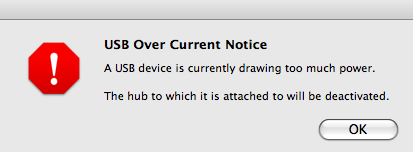
I recently lost the USB cable for my digital camera and so tried to connect it to my Mac with another one that I thought was exactly the same. However, when I connected the camera, I received the following warning:

USB Over Current Notice

My immediate reaction was that there was something wrong with the USB port. However, I tried to connect the camera with the same cable, to a Windows laptop and received exactly the same warning. Most forums suggested that the problem was due to a short-circuit in the cable but I knew this wasn’t the case because it worked fine with an older camera I have. One unlucky forum user spent 1 hour on the phone to Apple trying to solve the problem and even resorted to reinstalling OS X!

8 pin USB cablesHowever, I found the solution was much simpler than that. I bought a new cable and hey presto, it worked fine. So what was the problem with the original cable? When I compared them, I noticed that the “faulty” cable had a slightly bigger coil at the end of it (pictured here in grey) than the new one that worked. I presume that this somehow “supercharged” the power being drawn from the USB port when the camera was connected.

What I don’t understand is why the USB cable needed to draw any power at all from the port at all. The camera is powered by its own lithium battery and so doesn’t need any extra power from the cable in order to transfer photos to the Mac. The moral of the story is, if you do ever encounter the USB Over Current warning, don’t panic. Change the cable first before you call Apple or presume your USB ports are fried!

Full review: The Sims 3

The Sims 3The Sims is the kind of game you either love or hate. I fall into the first category but at the same time I know people who get bored of playing it after two minutes. I’m not sure whether the long-awaited third iteration of the title will make them get to love the game. But I do know that this new version of the popular game franchise will thrill all Sims fans worldwide, and will surely meet whatever expectations they had about The Sims 3.

While maintaining the game’s main structure and storyline, The Sims 3 includes many new features. To begin with, there’s only one town to play with when starting the game – unlike The Sims 2, where you could choose between three. The next logical step is creating your first sim, and the moment you enter the all-new sim editor you begin to realize how much better The Sims 3 is than its predecessors.

The insanely detailed sim editor is a powerful tool with which you can create sims and customize them in every way you can think of. When designing their body and facial shape, you can use simple templates with pre-defined physical characteristics, or go a bit deeper by customizing specific areas: nose, chin, eyes, ears, etc. You can even add freckles, beauty spots and other small details.

The Sims 3

As for clothes, there’s quite a wide choice – just like previous editions of the game – only that this time you can customize many of the available pieces of clothing with colors and patterns of your choice. Oddly, bikinis have disappeared from the girls’ swimsuit menu. There are also many more accessories (sunglasses, earrings and the likes) and generally speaking, much more detailed options to create your sim. For example, you can set color highlights for hair, as well as define eyelashes length!

Besides physical appearance, the editor also helps you define your sim’s personality. You no longer need to distribute points among several fixed criteria. The Sims 3 lets you select up to five personality traits from a wide variety of them, regarding different areas in a sim’s life such as the personal, professional or social areas. Some of these traits are brave, friendly, ambitious, coach potato, friendly, charismatic, mean, neurotic, good sense of humor, commitment issue, dislikes children or loves the outdoors, among others. Depending on your choice of traits, you’ll be given a selection of five possible life goals from which you can choose one for your sim. Again, there are many more options than in previous versions of The Sims. Continue reading “Full review: The Sims 3”


How To: Upload iMovie ’09 projects to YouTube

imovie logo 1One of the best innovations in iMovie ’09 has been the improved ability to upload directly to YouTube. Before, you had to export your clips to QuickTime format and then compress the video for web streaming but now all of this is done for you in one go. The only downside is that iMovie ’09 doesn’t allow you to upload in HD format which is one feature Apple will hopefully add to the next release. For every other format, editing and sharing your video clips via iMovie has never been easier and you don’t even have to visit the YouTube site. Here’s a step by step guide about how to do so:

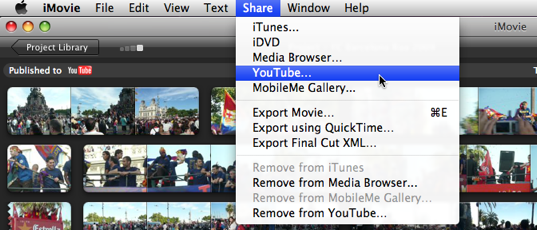
1.  Once you’ve completed your project, go to the “Share” option in the main menu bar and select “YouTube…”

imovieuploadyoutube.png

2. Enter your account name and password. Below this you can add title, keywords and a description for your video.

iMovie screenshot 3

3. Select the size to publish your video i.e. Mobile, Medium, Large or HD although as mentioned earlier, you can’t select HD.

iMovie screenshot 5

4. Click “Next” and you’ll be given a warning to ensure that you’re not uploading copyrighted material. Click “Publish” and iMovie automatically starts uploading your project to YouTube.

iMovie Uploaded YouTube screenshotRemember that YouTube clips can only be a maximum of 10 minutes. If you select the largest size to publish, expect to wait around 10 to 15 minutes while the whole process is completed for a 10 minute movie clip. When it’s done, iMovie issues you with the YouTube link where you’ll find the video although it may take another 5 minutes or so to appear. In addition, even when it does appear, you may receive a warning when watching it that it’s still not fully completed uploading and therefore the quality may be degraded until it is.

From start to finish then, you need between 20-30 minutes for a large size 10 minute clip to be fully uploaded in all its glory. Note that you’ll also notice a handy “Published to YouTube” message in the top left of your project window to let you know that you’ve definitely uploaded it. You can also remove the video from YouTube at any time by going back to the “Share” menu and selecting “Remove from YouTube…”.