Recover deleted files With Recuva

It’s remarkably easy to delete files from your PC accidentally. Even with all the fail-safes and precautionary measures in place, all it takes is a few poorly-placed miss-clicks, and your precious files are relegated to the inky blackness of the void – never to be seen again. Or are they? Enter Recuva with its incredible recovery skills.

Recuva DOWNLOAD

While it’s easier than ever before to delete important files, it’s also easier than ever before to recover deleted content. In the article that follows, we’ll use Recuva to snatch those all-important files out of the void’s clutches. 

How to recover deleted files with Recuva

  1. Download Recuva

    How to recover deleted files With Recuva

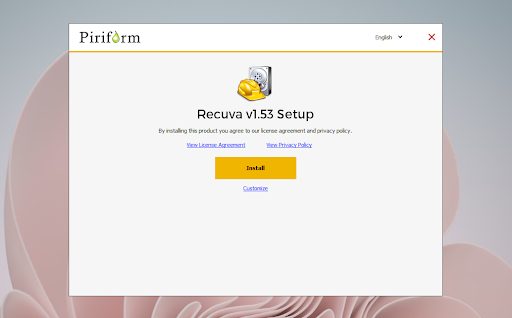
    Your first step is naturally to head to the link in the introduction which will take you directly to Recuva’s download page on our website. You can download Recuva’s executable file in a couple of easy clicks.

    All you need to do to install Recuva is click on the executable file and let the utility make changes to your system. Once the install wizard has run and the installation has completed, the utility will save a shortcut to your homescreen. 

  2. Run Recuva

    How to recover deleted files With Recuva

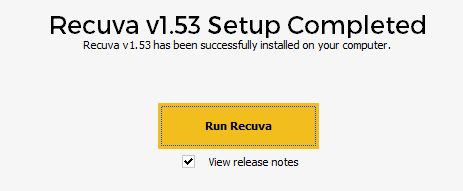
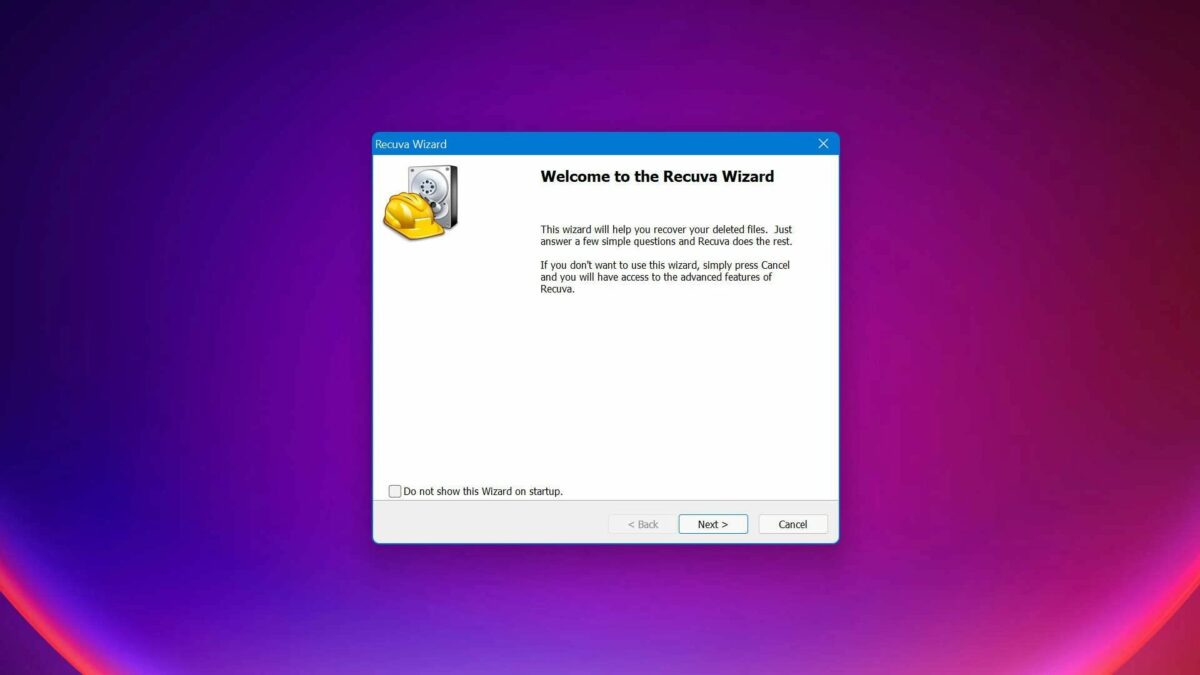
    Directly after the installation has completed, you’ll get a pop-up prompting you to run the utility for the first time. If you happen to ignore this, or need the utility again after you’ve used it the first time, you’ll just need to click on the homescreen shortcut, as you would with most other utilities. Once Recuva opens, you’ll notice how simple the interface is. Your use of the utility, from start to finish, is a guided prompt-led experience.

  3. Select files to recover

    How to recover deleted files With Recuva

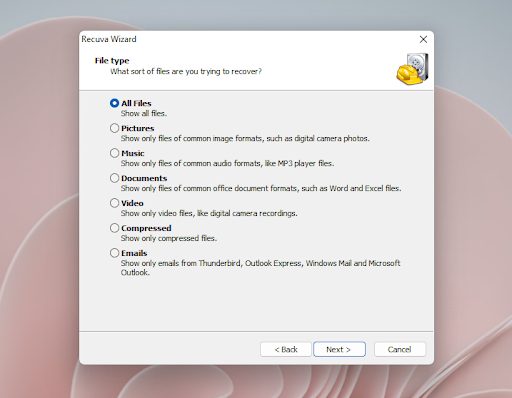
    The first interface you see will ask you to select the type of file you’re trying to recover. This is the most basic information you should know. However, if you’re simply looking for anything that may have been deleted from your system, you can leave the selection on ‘All files.’ If you’re looking for a specific file only, indicating this in the dedicated space within this interface will likely save you some time.

  4. Select the last known file location

    How to recover deleted files With Recuva

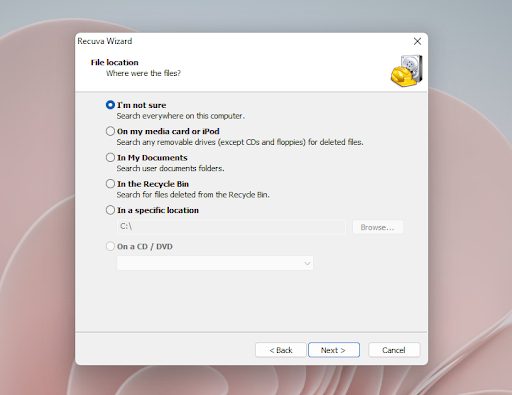
    In most accidental deletion cases, you’ll know which type of file you’re looking for, and you might even know the location where this type of file was stored. The next interface is where you specify the particulars of this. Here, you can choose a location so broad as your Documents folder or Recycle Bin, but you can also enter a specific location directory path if you know exactly where your file was. If you don’t know where your file was stored, you can simply select ‘I’m not sure’ and the utility will search your entire computer and all associate drives.

  5. Start Scanning

    How to recover deleted files With Recuva

    All you need to do on the next interface is hit Start. You’ll see there’s an option to enable a deep scan here, but this isn’t necessary until you’ve scanned your computer at least once. Deep scans take a lot longer than the already advanced search protocols that Recuva employs and should be your last resort when unable to find a specific file.

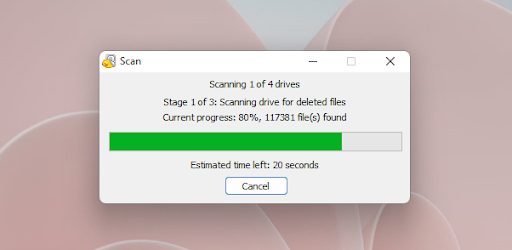
    You’ll now see a progress bar in the signature Windows 11 style. You’ll also see other information here that may be pertinent such as how many files Recuva has found so far. These searches don’t take terribly long; a scan of my system was completed in less than five minutes.

    For the purpose of this article I’ll pretend that Recuva didn’t find the file I was looking for. In this case, it might be time to pull out the big guns. Exit Revuca and restart the utilty from your homescreen again. Revert to steps 1-5 again, but when you get to step 5 the second time around, check the box that enables a deep scan. Next, simply click Start to begin the deep scan and wait for the results. You may be waiting over an hour.

Essential plug-ins for your Symbian phone

HandToday’s Symbian smartphones are more like digital swiss army knives. They arm you with tools for listening to music, browsing the web, watching videos, and managing your files. However, as you’ve probably noticed to your frustration before, not all Symbian phones support all formats. This means you can have all manner of problems opening multimedia, accessing web content, or viewing files you’ve transferred from your computer. Help is at hand though, and there are a few crucial add-ons you should download and install in order to improve your smartphone experience. Here’s a quick run-through of what you need.

Video

If you have downloaded movies in DivX format then you might be wondering how to watch them on your phone. The answer is simple: install DivX Player Mobile. The program lets you watch DivX, AVI or MPEG movies in the player window or in full-screen mode. Control elements such as Play, Pause, Stop, Fast Forward and Rewind, as well as the volume can be controlled easily via buttons.

Another very popular video add-on is SmartMovie. It’s getting a bit long in the tooth now, and the interface looks very dated. However, it’s perfect for cropping and shrinking movie files to be stored and played on your phone. It also helps you install codecs onto your device that let you play video files you wouldn’t otherwise be able to.

Nokia Video Converter is also a massively popular app, and is designed to take care of all your video conversion needs. The app is designed to convert movies from popular files formats and DVDs in just a few clicks, preserving picture and sound quality as best it can. The application’s interface is very clearly labeled with large buttons for adding video, adding DVD, playing, and converting.

Continue reading “Essential plug-ins for your Symbian phone”

Today’s downloads for Windows, Mac and Mobile

Download Firefox 3.6Windows: Firefox releases are something we always look forward to. The all new Firefox 3.6 brings a handful of new features and enhancements that will improve your user experience and web browsing: support for full screen HTML5 videos, better Javascript performance, the latest Gecko engine and seamless integration with Personas.

BumpiPhone: Exchanging contact details with someone is a notoriously annoying process. It normally involves rummaging around for business cards or frantically trying to remember your own phone number. Thanks to Bump these days could soon be behind us. This innovative app (which, incidentally was the billionth app downloaded from the App Store) allows you to exchange contact information simply by bumping into another iPhone.

Virtual DJ logoMac: Virtual DJ is a complete music mixing application for your desktop, allowing you to dump your vinyl turntables for a laptop. Looking like a classic DJ set-up, with a mixer and two decks, Virtual DJ will be instantly accessible to DJs and newcomers alike. There’s a BPM counter to help you judge transitions between tracks, and the visual wave display also helps to cue up your music so that you sound like a pro.

Friday Timewaster: Gravity Hook

Gravity Hook managed to pass me by, which is a great shame. With an extremely simple mechanic, it’s very addictive once it ‘clicks’.

You start the game as a subterranean human, in a craft equipped with a Gravity Hook, and you want to know how far down you are. The space above is filled with mines that explode on touch – you can drag yourself towards them, but must let go before you hit, flinging your craft upwards, to hook onto the next mine. It takes a few goes to get the hang of it, but when you do you’ll be swinging your way upwards with ease. Play it in your browser here.

5 great gadgets for Windows 7

Desktop gadgets were introduced in Windows Vista as a a collection of system add-ons that offer you various functions and services, from calendars and calculators to photo slideshows and simple desktop games. Gadgets are also available on Windows 7, where they’re no longer locked up in the sidebar and can be freely arranged on your screen. Installing gadgets in Windows couldn’t be easier: right-click anywhere on the desktop, select Gadgets, choose the ones you like and drag and drop them on the desktop. If you want to download more, click the Get more gadgets online link and have a look at Microsoft’s online gadget repository. We’ve already selected a few of them for you!

5 great gadgets for Windows 7Twitter Explorer

As you can infer from its name, Twitter Explorer is a simple yet handy gadget that lets you keep track of tweets on your desktop. Check your timeline, post messages, send replies and retweets… all in a customizable interface with various themes and sizes.

5 great gadgets for Windows 7Now Playing

Another self-explanatory gadget name! Now Playing displays the current playing song on your PC, either as album artwork or as text. It works with Windows Media Player, iTunes, Winamp, Foobar and others. You can also control the player, rate songs and customize the gadget with skins.

5 great gadgets for Windows 7Speed Test

This highly customizable gadget lets you monitor dozens of elements on your system: CPU and RAM usage, download speed, hard drive space and activity, WiFi signal strength, battery charge status and many more. It also features a bunch of skins and backgrounds.

5 great gadgets for Windows 7MultiSearchIt

MultiSearchIt lets you search from almost any web search engine, database, shops or other online service you can think of. Search Google, Yahoo!, YouTube, eBay, Amazon, the Wikipedia and more!

5 great gadgets for Windows 7WeatherBug

With WeatherBug you receive the latest information about weather conditions in real time, from anywhere in the world. The gadget features both the current weather status and detailed forecasts from 8,000 tracking stations all over the world, and also lets you access weather webcams and severe weather alerts.

Top 5 Firefox add-ons for music lovers

foxytunes.pngI love reviewing Firefox add-ons; they’re the perfect software – small, fun and useful. I’ve noticed that there are loads of music add-ons out there, and so you don’t have to sift through the silt to get the gold, I’ve done it for you.

For pure listening pleasure, you can’t go wrong with FoxyTunes. No, it’s not new, but there’s a reason why it’s gone the distance – it’s practically perfect. It seamlessly links your music player to Firefox, so you get the best of both programs without even leaving the browser.

If you’re the kind of person who prefers to be surprised, you may well be a Last.fm fan. If you do use this handy service, then you need to download Fire.fm as soon as you can. This add-on will gives you access to the complete Last.fm library from within any webpage you’re viewing.

Personally though, I’m a Spotify user, and I know lots of you are too. Spotify Search is the perfect add-on for people like us: if you’re reading about a cool-sounding group online, one click on the Spotify Search icon will allow you to search for and display all of the Spotify results for the artist. In fact, Jon pretty much sums it up in his review – “Spotify Search…should be a no brainer for Spotify users”!

Play Them All is one browser enhancement add-on that has me very excited. This cool little add-on detects all the .MP3 links on any given webpage and converts them into a playlist for you to enjoy. This one looks like it could be a winner for dedicated music fansfirfm.png who spend a lot of time online looking for new music and inspiration.


If you’re a radio fan, you could do worse than checking out radiotic. It’s still in the early stages of development and hasn’t got a vast selection of stations, but it supports quite a few and provides the variety that lots of people who listen to online radio are hoping to find. The developers mention that they are taking user requests, which means even more stations are sure to be added. And who knows, the next one could even be your personal favorite!

Personal finance software for Macs

If you want to get your personal finances in order, then the good news is there are plenty of options on Macs. Whether it’s sorting it out your own personal debts or just keeping a tighter grip on whats coming in and out, there is plenty of financial software to suit all budgets and experience. With the recent news that Quicken for Mac might well disappoint dedicated users, here are five excellent alternatives:

iBank logoiBank is probably one of the best finance apps there is for Macs and a serious rival to Quicken. iBank’s Aqua interface not only looks great but it allows you to manage bank accounts, credit cards and investments, analyze income and like Quicken, can directly connect to your bank to download transactions. The latest release has been made even better by the addition of an iPhone app too.

Squirrel logoSquirrel is an excellent alternative to iBank if you prefer something that still allows you to connect to your bank account but uses a stunning iTunes or Front Row style interface. Squirrel allows you to preview accounts, reports and budgets and most importantly, supports online bank connections. Reports created in Squirrel can be printed or saved to PDF and you can import files in OFX format.

Moneywell logoMoneywell is all about setting targets and simplifying how you manage your personal finances. Your money is displayed in buckets listed down the left side of the program window to give you a clear overview of your finances. You can create buckets for any sort of income and expense such as transportation, education or clothing. The right part of the interface shows details for a specific item while the center shows general info.

iFinance logoiFinance is an elegantly-presented and highly-polished finance application that allows you to monitor your income and outgoings, as well as stocks, in a very easy to use interface. Down the left-hand side you have your Funds, Budgets and Stocks, followed by Diagrams according to the period you want to monitor. Click on each subsection within these categories to display data on the right-hand side, which is the main window.

2t_debtinator-icon.jpgDebtinator lets you handle all of your debts in one single place. It collates several accounts into one tidy window so that you see where your money is going every day. Adding new entries is simple and fast and you can setup handy transfer rules which prevent you from worrying remembering to move money from one account to another.

IGF unveils student games winners

The twelfth annual Independent Games Festival has released the winners of the Student Showcase category. Don’t think that “student” equals amateurish or poor quality – there are some amazing games in the list, and some will no doubt go on to be commercial titles like DigiPen’s Narbacular Drop, which turned into the wonderful Portal.

The best thing about the list? Of the ten finalists, only two are unavailable, but the other eight are free to play!

There are cool puzzle games (Continuity, Puzzle Bloom and and Puddle), strange 3D experiences (Devil’s Tuning Fork and Dreamside Maroon), art games (Spectre and Ulitsa Dimitrova), and the adrenaline rush that is DigiPen’s Igneous. All are great reasons to be excited about game development, mixing experimentation with great playability.

Dive in and get playing!

iPhone essentials: for keeping fit

If you made one of those ‘new year, new you’ resolutions and vowed to keep in shape in 2010, then the chances are that your appetite for exercise has already waned and you’re back on the chips again. Don’t lose hope though, because with a bit of help from your iPhone you can rejuvenate your fitness plan and have some fun too. I’ve picked out ten essential free apps for anyone who wants to lose that unsightly bulge that built up over the Holidays and won’t go away. Clicking any of the links will take you to that program on the App Store, via iTunes.

Watch what you eat with Lose it!

Lose ItCounting calories is a classic weight loss tactic, but it only works if you’re vigilant. Lose It! makes it much easier to track exactly what’s going into your mouth. It allows you to set up a daily ‘calorie budget’ and then helps you to meet this by offering a tool that keeps count of the calories in everything you it. Simply select whatever you eat, from the extensive food database in the app, and Lose It! will keep a daily tally of your calorie intake.

Get trim and toned with Virtual Trainer

Virtual TrainerUnfortunately, diet alone isn’t going to make you fit, and you’ve got to put a bit of physical effort in too. Virtual Trainer is a great tool for getting into shape, be it general fitness, weight loss, or muscle development. The app comes with more than 120 fitness programs of between 6 and 60 minutes each. Each has its own detailed 3D video animation, along with detailed descriptions of what you should be doing.

Train like an athlete with NikeWomen Training Club

Nike Training ClubThe NikeWomen Training Club app is a tool to accompany your training program on the site of the same name. It lets you create customized workouts and training drills to focus on five key fitness areas, namely: cardio, core, strength, balance, and flexibility. It contains instructional videos from professional trainers, and uses a unique points system for a bit of added incentive. You can even invite your friends and ‘compete’ against them.

Continue reading “iPhone essentials: for keeping fit”

Even governments hate Internet Explorer

Internet Explorer logoIt’s come to something when even the State has to speak out on how atrociously bad a piece of software is. In this case, the French and German governments have seen fit to declare Microsoft Internet Explorer a security threat and issued official statements advising users to switch to Mozilla Firefox or Google Chrome.

Surprise surprise however; the British government has decided to go along with the Americans on this issue. The Americans being Microsoft and the issue being the gaping security holes in IE.

The British government have decided not to endorse this view and recommended that instead users take a look at getsafeonline.org. And would you believe it, apart from sounding like some kind of online contraceptive, getsafeonline.org has been set up by both the British government and Microsoft, amongst others.

While I don’t generally agree with states sticking their nose in on such issues – and most are absolutely years behind on this one – I do think powerful interests need to take a stand against Microsoft. They have cunningly managed to ensure that Internet Explorer has found its way into almost every home computer by bundling it with Windows and it’s taken until the release of Windows 7 for users to be spared having it pre-installed when they purchase their machine.

Ok, so I’m a Mac user and a bit biased on this issue. But today I’m once again a little ashamed of my government: so vive la France and well done Germany!