New features in Adobe Creative Suite 5

Last week I had the chance to attend the official presentation of the Adobe Creative Suite in Barcelona. People from the Adobe headquarters in Spain showcased many of the new features in all Adobe apps, doing live test with sample documents, videos and images. We could see the the amazing effect of content-aware tools in Photoshop, the helpful coding utilities in Dreamweaver and the new online CS Live services.

New features in Adobe Creative Suite 5

The new Creative Suite 5 is presented in five different versions: Design Standard, Design Premium, Web Premium, Production Premium and Master Collection – each one of them with different app configurations, aimed at different types of users. CS5 includes 15 updated products, 1 new application (Flash Catalyst), 250 new features and a pack of online services, and it has required 85 million lines of code and 18 months of work.

According to Adobe, the Creative Suite 5 has been developed with two kinds of customers in mind: independent developers and designers, and for the first time, companies. Their purpose with this new CS edition is to remove any creativity boundaries, help you be more productive and accurate, and also make core processes in design and editing easier and faster.

Let’s take a closer look to all the exciting features and enhancements included in the new Creative Suite 5.

Photoshop

New features in Adobe Creative Suite 5

Photoshop is undoubtedly the one app that everyone is looking forward to with every new release of Adobe’s Creative Suite. The all new Photoshop CS5 has met all our expectations, including new tools that simplify difficult, repetitive tasks and make photo editing easier for everyone. Some of the new features are an enhanced selection tool (with improved edge definition parameters), the amazing content aware setting in the Healing Brush and the Fill tools, the new Puppet warp functionality, a whole new set of brushes that behave and react like real-life brushes dipped in oil paint, an enhanced Camera Raw module to work with RAW images, and an improved HDR management utility. If you want to see more, don’t miss the preview of Photoshop CS5 we wrote a few weeks ago.

Continue reading “New features in Adobe Creative Suite 5”

Give Vista a Windows 7 theme

Do you want to give your creaky old Vista system a makeover, but aren’t ready to make the move to Windows 7? Here’s how to apply a theme that will give you that shiny 7 look!

1: Download and install VistaGlazz. This app will apply the patches necessary to allow you to use custom themes in Vista, and it’s extremely easy to use. So, open VistaGlazz and click the central icon. This will tell you that you need to apply two system changes, and then allow you to make both together, after which your PC will restart.

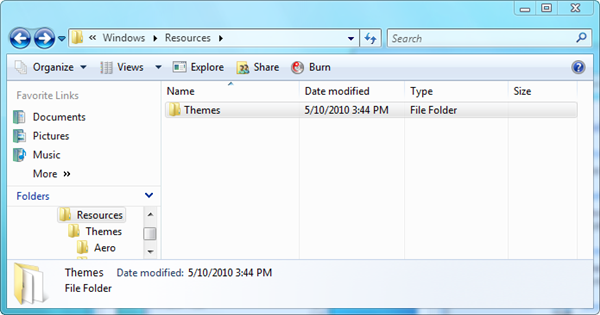
2: For now, Vista will look just the same, so download the Windows 7 theme from here. Unpack the file, and drag the folder to C:\WINDOWS\Resources\Themes:

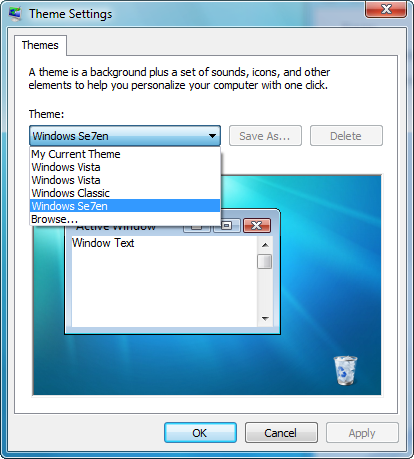
3: Now all you need to do is apply the Windows 7 theme. Right click on your desktop, and choose Personalize. A menu will pop up, and you should click on Themes. 

If you don’t see the Windows 7 theme, click Browse, and select it from C:\WINDOWS\Resources\Themes. To finish, click Apply, and after a few seconds, your Vista desktop will be transformed into a Windows 7 lookalike!

Is iPhone Doomed to Glorious Irrelevance?

forget-the-iphone-450.png

The news I’d been waiting for finally turned up this week. During the first quarter of 2010, Android overtook iPhone to reach 2nd place in the US smartphone market, behind Blackberry. To many observers, this will come as no surprise – Android is available on an ever-increasing roster of devices while the iPhone is just… the iPhone. It’s also worth pointing out that new iPhone models are always released in June, so there’s a possibility that this change will be reversed in Q2/Q3 – though how many consumers are aware of this, I’m not sure.

Still, the evidence does seem to suggest that Google’s ‘one platform, many devices‘ strategy might end up making the difference in achieving market dominance for a mobile OS. Both RIM and Apple are dedicated to proprietary, closed platforms, RIM on a line of Blackberry handsets, Apple on effectively a single phone. While it’s tempting to say that perhaps RIM will eventually release Android devices – their OS is so old, it would make sense – I don’t believe that’ll happen any time soon.

What I do believe is that within two years, Android will overtake both Blackberry and iPhone – and, yes, Symbian – to become the world’s dominant mobile phone operating system. In fact, Android will probably claim as much as 50% of the US market. This will be due mainly to Google’s strategy rather than any particular consumer swing towards Android. Though as it approaches 50%, Android will start to feel some customer loyalty and OS awareness, I suspect that like Symbian, many of its users will be completely unaware of its name.

But Google’s catch-all strategy won’t just make Android more popular. It’ll also actively drive users away from iPhone. Why? Because when half the people you know share data, games and more on one platform, that becomes the de facto platform for your social group. iPhone – like Mac – has achieved this sort of dominance in some very influential social sets (like people working for tech companies, in new media and in marketing, advertising and PR) but as the continued dominance of Blackberry indicates, Apple has failed to make serious inroads to become the phone of choice for many professionals in more traditional industries.

Finally – and perhaps most importantly – Apple is not great at constant innovation within one product line. That’s hardly surprising because no single company seems to be able to achieve the ‘permanent revolution’  dream of a continually exciting device. Apple’s history makes its own shortcomings all too clear: the company regularly introduces exciting new products which attract a loyal user base… and then, save for occasional refinements like a faster processor, leaves those devices and moves on to new product lines. In two years, the iPhone will be slightly better than it is now. But it’ll still be an iPhone. And the iPhone, for all its brilliance and all the impact it has had, will be getting old by then. Apple will either have to innovate an entirely new phone device (no, not the iPad) or the iPhone’s user base will grow more slowly and eventually settle. Just like Mac.

Top 5 World Cup iPhone apps

If you’ve got World Cup fever and you’ve got an iPhone, then here are 5 top downloads and applications to celebrate the beautiful game and the biggest footballing show on Earth:

fifa10.pngJust like the ‘real’ FIFA 10, FIFA 10 for iPhone is a fully licensed simulation that lets you play in competitions from a wide range of World leagues, ranging from the Scottish Premier League to the Brazilian League. There’s also a wide selection of international teams, and you can compete for the ultimate prize, the FIFA World Cup.

x2football.pngWhile FIFA 10 may have the name and brand, many may find that X2 Football 2009 has the gameplay. This excellent soccer simulation looks and feels a lot like Pro Evolution Soccer, only a little scaled back, of course. The control system in X2 Football 2009 will feel very comfortable and familiar for anyone who has played a football game on their console. Note that you’ll have to upgrade to the full version to play matches.

Football Manager.pngIt’s hard to imagine a mobile version of the game could be anything like as in-depth as the original, but Football Manager Handheld 2010 offers a surprisingly rich management experience. You can take control of a team from a choice of 34 leagues across 11 different countries. You get to set tactics, pick formations, issue team and individual instructions, organize training, scout players and make transfers.

espnthumb.jpgIf you’re simply interested in following the real thing, then ESPN 2010 World Cup is one of the best ways of following the World Cup live. The sheer amount of information it offers is staggering. In fact, if you try to read everything on it the World Cup would probably be over by the time you’ve finished. The main screen lets you browse different categories, including: Teams, News, Fixtures, Venues and Tournament History.

africa.pngIf you want something even closer to the action, then how about the Southafrica2010 World Cup Soccer Cup Tracker. SouthAfrica 2010 is specially designed to provide you with moment-by-moment coverage of all the games. The app features something called Gamecast which delivers all the essential and crucial moments during a match as it happens. News is delivered via all four official FIFA RSS feeds so you’ll be the first to know.

Last chance to grab BumpTop for free!

bumptoplogo.pngWhen Google decides to buy the rights to an application then you know they’ve got some big plans in the pipeline. This time they’ve bought BumpTop for Mac and BumpTop for Windows – a relatively anonymous free application which adds 3D aspects to your desktop. You’ve got exactly one week to still obtain the application for free before it is taken offline completely and Google start work on transforming it.
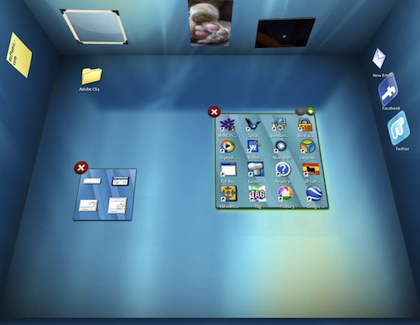
BumpTop turns your desktop 3D so that you can switch from one side to another depending on what you want to do or what you’re working on. However, BumpTop is much more than just a flashy desktop app. It helps you in a variety of other ways from allowing you to put sticky notes on your desktops to a powerful search tool for finding files and folders. One particularly handy feature is the ability to create piles of files and folders in order to keep your desktop more organized although this has largely been made redundant by the introduction of Stacks in OS X.

bumptopwin.png

In an announcement on the BumpTop website, the developers said:

More than three years ago, we set out to completely change the way people use their desktops. We’re very grateful for all your support over that time — not just financially but also through all the encouraging messages from people who found BumpTop inspiring, useful, and just downright fun.

Today, we have a big announcement to make: we’re excited to announce that we’ve been acquired by Google! This means that BumpTop (for both Windows and Mac) will no longer be available for sale. Additionally, no updates to the products are planned.

It’s clear that Google are thinking 3D desktops are the way forward but whether or not it will remain free remains to be seen so hurry up and download your free copy from Softonic today!

Lyrics plug-ins for popular audio players

As a Spanish native speaker, I find myself often checking lyrics for my favorite songs in English. But even if your mother tongue is English, there are always certain words you don’t quite understand – because the background drums are too loud, or the singer has a strange accent, or they simply made the word up.

Lyrics plug-ins for popular audio players

Bob Dylan’s handwritten lyrics for It ain’t me babe (oddsock)

Luckily most media players today have a special plug-in, created precisely to search the web and retrieve the lyrics for whatever song you’re currently playing. So if you ever wonder what the heck they’re saying in any specific song, here’s a list of a few lyrics plug-ins you can use with a bunch of popular media players:

Friday Timewaster: Tremerz

Remember the excellent comedy B-movie Tremors? Developers Tom Fulp and Johnny Utah have recreated the killer worm scenario in arcade game form with this great little flash title, Tremerz.

Using the mouse to move your Kevin Bacon-like hero, you’ll run and jump through the frontier style town picking up survivors, who’ll then follow you as you try to avoid the attacking killer worms! Die, and it’s back to the start, which is the only really frustrating thing about Tremorz. Otherwise it’s a fun piece of casual browser gaming. How long can you survive? Find out here.

How to: Create a system restore point

A restore point includes a backup copy of the Windows Registry and all important system files. Restore points are automatically created from time to time, and also after installing or uninstalling certain applications. But you can also create them manually if you want, following these easy steps:

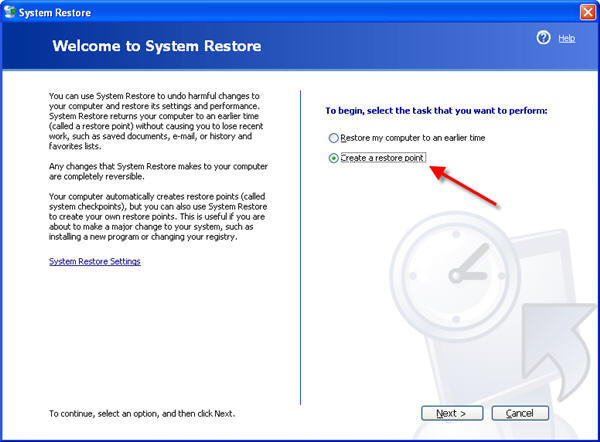
1. Open the Start menu and go to Accessories > System Tools > System Restore.  In this window, select Create a restore point and click Next.

How to create a system restore point

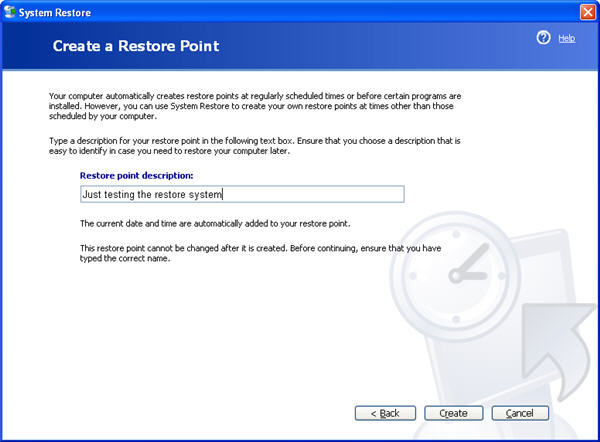
2. Enter a name for your restore point. You can use a descriptive name that reminds you of the reason why you created the restore point, such as “before deleting Registry keys” or “before installing the X application”.

How to create a system restore point

Continue reading “How to: Create a system restore point”

How to turn on parental controls on your iPhone

Worried about what your kids are doing on the iPhone? Did you know you can activate parental controls on the iPhone to block them from accessing certain content? It’s easy to forget that with the Apple device connected to the internet it’s possible for little eyes to be seeing all the kind of inappropriate stuff that we worry about them coming across when they are using a computer.

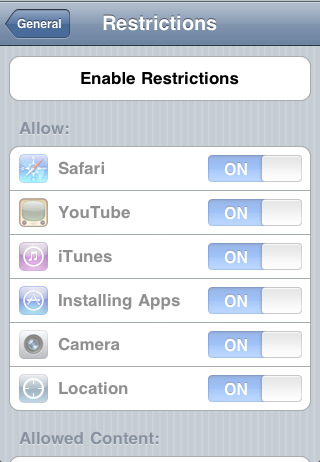
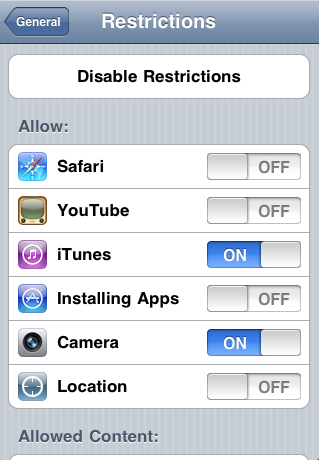
The parental controls in the iPhone aren’t that obvious at first, but once you know where they are you’ll find the features very easy to use. To start, go to the Settings menu and click General, then Restrictions. You’ll be presented with the following screen:

Parental controls 1

Now click the big Enable Restrictions button and enter a four-digital passcode.

Parental controls 2

Now it’s a case of unchecking the iPhone features you don’t want your kids to access. Options include the ability to disable Safari, iTunes, App Store, and more.

Parental controls 3

Continue reading “How to turn on parental controls on your iPhone”

An easy way to create video tutorials

If you’ve ever tried to explain how to do something on the computer to someone on the phone or via IM, you know how difficult it can be – especially if that person is not very tech-savvy. In those cases, the best option is probably creating a video that explains the whole thing step by step. The only problem is that recording a screencast takes a long time and can be quite difficult … unless you use Capture Fox.

Capture Fox

Capture Fox is a handy Firefox add-on that lets you record any activity on the screen to video in a couple of clicks. Despite being a browser add-on, you can use it to create all sorts of screencasts, even beyond the borders of the Firefox interface. It’s definitely one of the easiest ways to capture screen activity, and if you don’t need a high-quality output, a really handy and quick way to create video tutorials.

To create a screencast with Capture Fox, open Firefox and go to Tools > Capture Fox > Settings. This will open up a window where you can configure different options for your video recording: area to record, video quality, frames per second, audio and video codec, etc. You can also choose to record your own voice with a mic, and set the Firefox window to minimize automatically when the recording starts.

Capture Fox

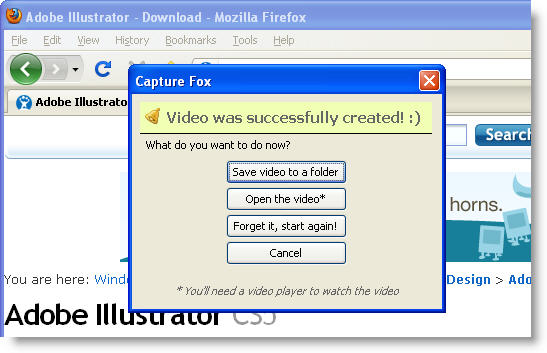
When you finish recording the video (by clicking the icon in the bottom right corner), Capture Fox will display a new message window from which you can choose to play the video right away, save it to a selected folder or delete it and start all over again.

Capture Fox

As you can see, creating a screencast with Capture Fox hardly takes any time and doesn’t require any extensive video editing skills. The add-on definitely lacks some features – like the ability to zoom in and out, and support for keyboard shortcuts – but it makes computer tips and tricks much easier to explain.