Celebrate Bookmark Sync in Opera with the chance to win a new MacBook

The recent Opera update saw the addition of bookmark sync, a returning feature that again puts the app on par with Firefox and Chrome. Below we explain how it works, and you can also enter our free drawing to win a new MacBook .

Opera aims to be different. It uses the same technology that drives Chrome, yet uses fewer resources and has some unique features. It’s also independent – not coming from Google, Microsoft or Apple like Chrome, Internet Explorer and Safari, it doesn’t have to serve their interests.

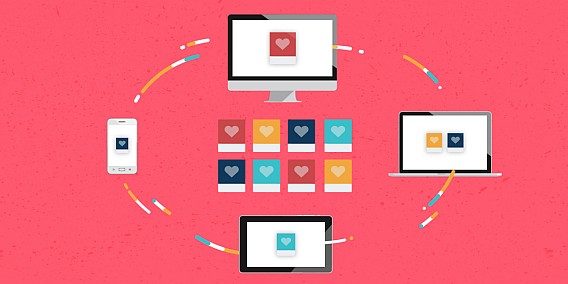
All the major browsers now feature synchronization, and now Opera joins the club, meaning you can access your own browser data wherever you log in, on any desktop, laptop or mobile device.

To celebrate, Opera is giving away the new Macbook

Enter the draw below – the more actions you complete, the greater your chances of winning!

Why would you want to sync bookmarks?

Imagine you’re reading this article on a computer, but you want to stop and read it later on your tablet at home. You could email the link to yourself, or trust you can find it again by searching the web.

To avoid this, you can create an account with your browser, which will save your bookmarks and other browsing data to the cloud. Then, whenever you sign in to your account, you’ll be able to continue browsing where you left off on another device.

How does this work in Opera?

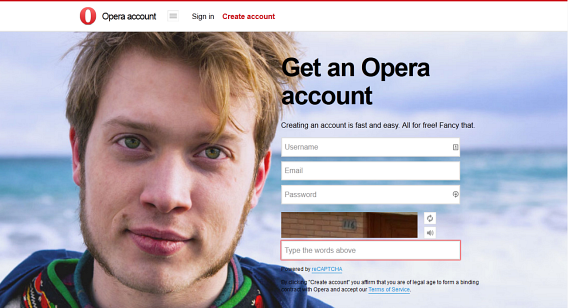
With Opera, you create an Opera account. This is totally free, and not only saves and synchronizes your bookmarks, but also your open browser tabs. It only takes a minute to create an account – but remember to choose a strong password. Once your account has been created, you can sign into any Opera browser and see your bookmarks and open tabs.

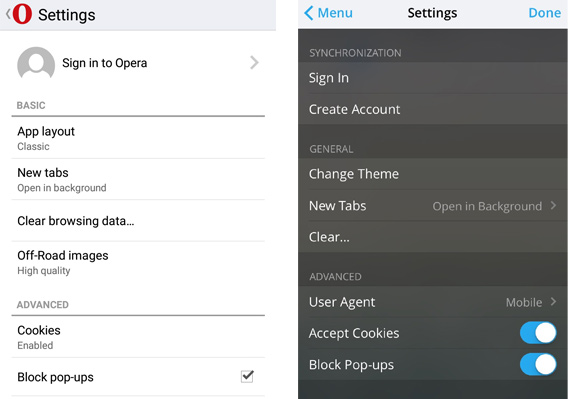
To sign in, open the Settings menu in Opera, and click/tap ‘Sign in to Opera.’ Simple! As long as you have an internet connection, synchronization will be instantaneous.

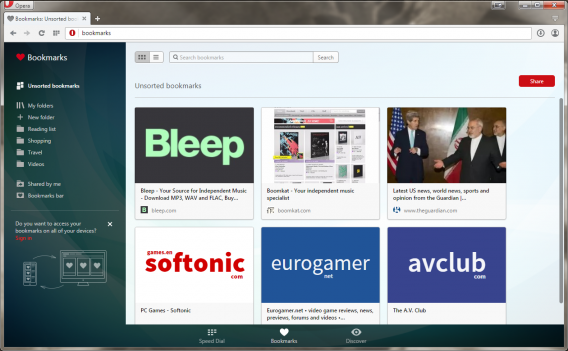
There’s a new Bookmarks manager screen, where your bookmarks are shown as images, which you can reorder by dragging them around. It’s easy to use and looks great.

The best in tech: what you missed this weekend

If you weren’t glued to your smartphone, or constantly checking Twitter/Facebook/other news app or social network of choice over the weekend, it’s possible you may have missed some interesting articles. Well not to worry, help is at hand, as we select some of the most interesting reads in tech from the weekend that should help brighten up your day.

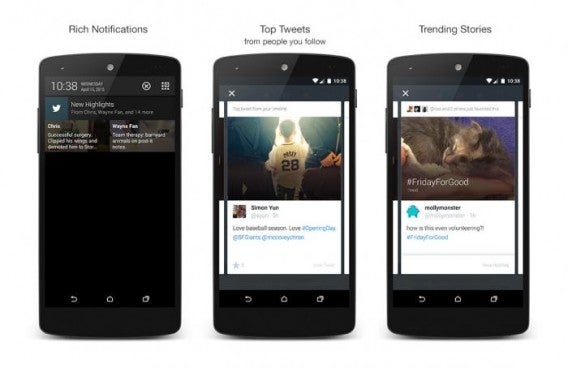
Twitter’s new Highlights service gives you a daily digest of curated tweets

We don’t all have the time (or desire) to check Twitter constantly, something which the social network has addressed in its new Highlight service. If you opt in, you will receive push notifications twice a day with popular Tweets from your network, as well as trending events and news. There is also a new Highlights tab within the app, meaning you can check out the curated content at any time.

Seven of Twitter’s 11 top executives tweet less than once a day

Maybe the Twitter Highlights service was designed to help the company’s executives, many of whom aren’t regulars users of the social network themselves. According to analysis carried out by web developer Si Dawson: “The typical executive at Twitter has tweeted less than once per day since they joined the social network”.

Facebook is making 3 big changes to its News Feed algorithm

Bad news for publishers, good news for regular social network users, as Facebook updates the algorithm that decides which posts will show up in your News Feed. The big changes include hiding posts that your friends have liked or commented on while showing you more content that your friends have shared.

See the Apple Watch torn down to its minuscule parts

apple watch

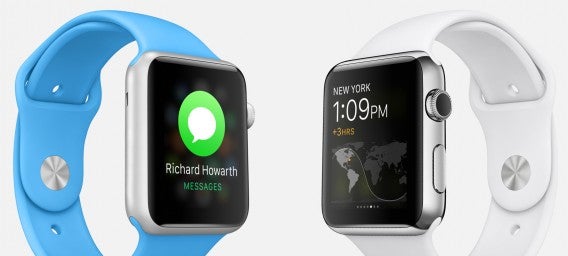
One of the big stories of last week was, of course, the release of the Apple Watch. And if you’d like to take a deeper dive into what exactly makes up this smartwatch, you’ll want to check out this video that takes the watch apart and shows you just what is inside

This is how Uber will take over the world

It seems like Uber is constantly in the news for one controversial decision or another, so it can be easy to forget exactly how successful the company has actually been. And now it is continuing its hyper local approach in markets that represent a huge opportunity but present a dizzying range of challenges. Examples include its UberGo hatchback-based cheap car service and UberAuto auto-rickshaw service in India, as well as UberSuperCar luxury car rental service in Singapore.

What’s coming and going on Netflix for May 2015

If Mad Men, Better Call Saul, and House of Cards just aren’t enough to quench your Netflix streaming thirst, you’ll be happy to know that a slew of new series and movies are being added in May. And in an interesting twist, it will stream a new series called Between weekly, rather than giving you access to all episodes at once.

Related Articles

Five Apps to Try This Weekend

App of the Week: Google Handwriting Input

Diary of a fat man – Part 2 of the Noom chronicles

Follow me on Twitter: @karenmccandless

The way we pay: are mobile wallets the future?

We carry these incredibly powerful but comparatively small computers around in our pockets all day, so it seems like a logical step that we should be able to pay with them. However, while many of us have had smartphones for years, paying with our cellphones has yet to really take off. Forrester believes this will change, as it predicts that US mobile payments will grow from $52 billion in 2014 to $142 billion by 2019. Fellow research company IDC paints a different picture, with its own report suggesting that most people don’t have a strong desire to pay with their phones. This is even in the case of mobile wallets, which add in loyalty programs, coupons, and rewards.

Whether or not mobile wallets have a bright future or not remains to be seen, but many of the big tech companies have already entered the market. We profile some of the main companies vying to become the mobile wallet provider of choice.

Apple Pay

apple pay

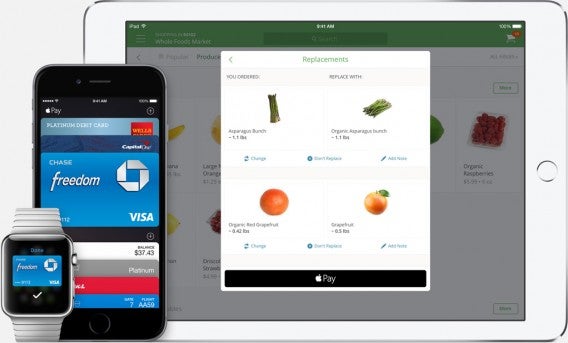
Of course, when Apple brings out a product in a certain category, it tends to raise its profile a great deal, even if said product is not on par with the competition. When the company first unveiled Apple Pay to the world in September and announced it would be built into iPhones and the Apple Watch, there was a media storm of attention, while Forrester predicts that 2015 will be the year of Apple Pay. And the stats are there to back this up, with Apple CEO Tim Cook announcing in January that the service already accounted for two out of every three dollars processed through contactless payment systems. Add to that the fact that the number of supported bank and credit union accounts has significantly increased since launch, and that customer satisfaction levels are, so far, pretty high. An impressive debut.

Google Wallet

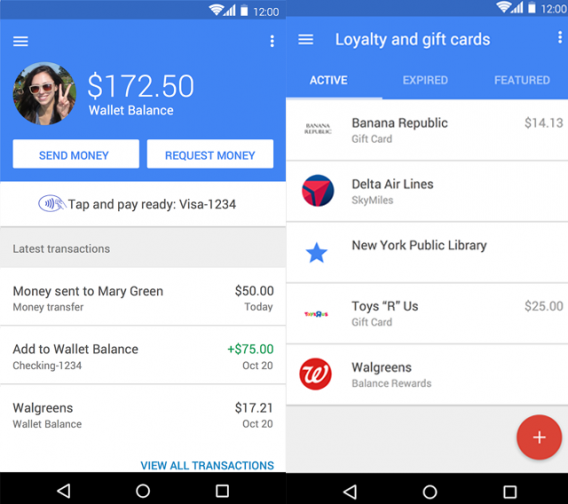
The Google Wallet has been around for some time and, while it may be used for purchases in the Play Store and in other online stores, it has never taken off as an in-store payment method due to some complaints from network providers. But the company has been ramping up its activities in recent months, no doubt driven in part by the popularity of Apple Pay. In February, it signed a deal with Verizon Wireless, T-Mobile, and AT&T to pre-install the mobile wallet on their cellphones in the US. In the same month, it announced that it had bought Softcard which provides point-of-sale technology with the aim of increasing usage of Google Wallet’s tap and pay feature, which has been available since 2011. More recently, Google has been signing partnerships with retailers such as Dunkin Donuts that allows customers to pay before entering the store.

Samsung Pay

In March, Samsung threw its hat into the ring by announcing that it will be launching a new payment service called Samsung Pay. It allows people to make payments from their Visa or Mastercard accounts but using their phone instead of a card. What makes the Samsung announcement important is that the service will work at a lot more retailers than both Apple Pay and Google’s Wallet because it supports both traditional card readers, as well as newer contactless terminals. Samsung Pay will come pre-installed on Galaxy S6 phones.

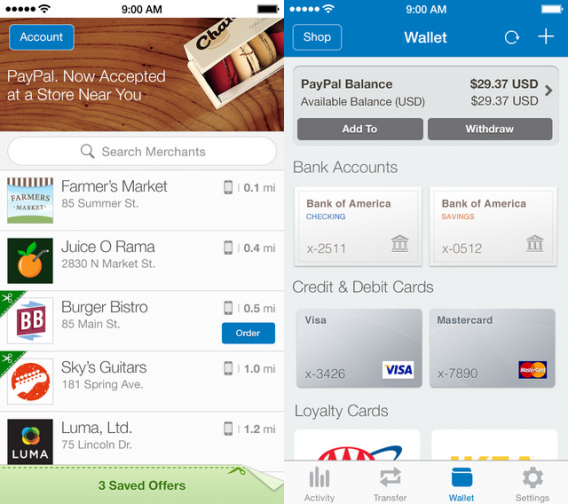
Paypal

Google isn’t the only company that is stepping up its mobile wallet offering due to the launch of Apple Pay. In March, PayPal bought mobile payments company Paydiant, which is behind mobile payment apps from retailers including Subway. The company has already had some success in the market, as its mobile payments volume grew 68% in 2014, from $27 billion to $46 billion.

CurrentC

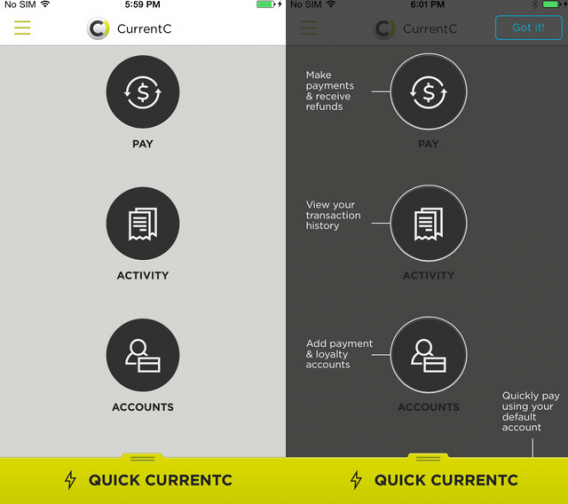
The mobile wallet space is not just reserved for the big name mobile companies, retailers are also chasing their own slice of the pie, most notably in the form of mobile wallet app CurrentC. MCX, the group behind this mobile wallet, is spearheaded by Walmart and scans QR codes rather than using NFC technology, which is only present in a small amount of retailers at the moment. CurrentC also stores your loyalty programs and promotions in the app.

Starbucks

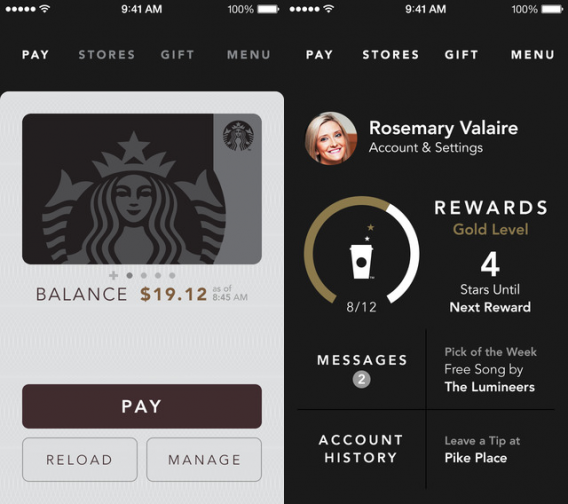
It may be Apple that generates all the headlines when it comes to mobile wallets, but Starbucks’ own mobile wallet app has been an immense success for the company. The coffee company’s mobile app, which allows you to pay for your coffee with a tap/wave of your phone, is not only used for payment but also for generating loyalty points. This is an added value that the likes of Apple Pay and Google Wallet have yet to address and point to the continuing success of Starbucks’ mobile wallet app, at least in the short term.

Microsoft

While Microsoft may not be yet be in the mobile payments market itself, the company has applied for payment licenses in all 50 states in the US. Currently, it’s Windows Phone platform is far behind both iOS and Android in terms of user adoption so that doesn’t give it as strong a base to launch a mobile offering from. Although this is an issue, the company is looking to address this problem by building Windows 10 for desktops and phones from the same code base.

Yoyo

Aside from the big names in the mobile space, there are a number of other smaller niche players in the space, such as British mobile wallet startup Yoyo. The company currently only offers its service to universities in the UK, but it is growing rapidly and is second only to the Starbucks app in the UK in terms of mobile wallets. Having recently received $10 million in investment, Yoyo – like Starbucks – processes payments using QR codes and is more than just a payment platform, as it also lets you earn loyalty points at retailers when you pay using the service.

Related Articles

Best shopping and deals apps

Apple announces Apple Pay digital wallet

Apple Watch: everything you need to know

Follow me on Twitter: @karenmccandless

Five Apps to Try This Weekend – April 24th 2015

Welcome back to Softonic’s Five Apps to Try This Weekend, our series that does exactly what you expect it to, and provides the perfect video to watch if you have no plans until Monday.

This week we start with Titan Souls (PC|Mac), the challenging 2D top-down action game that demands speed and strategy. It could have you tearing your hair out all weekend – but in a good way. If you are a gamer who is looking for something slightly more relaxed we also have Hearthstone (PC|Mac|Android|iOS), the popular card battling game that has just been released for smartphones.

Default player


brightcove.createExperiences();

If you are more interested in poetry, social networking, and photography, then Hykoo (iOS|Android) could be what you are looking for. This visual haiku app allows you to create poetry through pictures and then share them with friends. It is kind of beautiful.

Next up, we have one for Facebook fanatics who want to continue chatting free of distraction from news and other update noise. Messenger for Desktop (PC|Mac) is an unofficial app that does just that, letting you chat freely with your contacts.

Finally this week we have Google Handwriting Input, an app that can translate your penmanship into digital text. Oddly impressive, but not the most efficient method of text entry.

That’s it for this week. Do subscribe to our channel and we will see you again next week.

Related Stories

Five Apps to Try This Weekend – April 17th 2015

Five Apps to Try This Weekend – April 3rd 2015 (kind of)

Five Apps to Try This Weekend – March 27th 2015

Follow me on Twitter: @DoFuss

Diary of a fat man – Part 2 of the Noom chronicles

Before you read this week’s diary of a fat man, let me just check that you had a look at last my last entry about Noom (iOS | Android), because everything I said there about the app’s functionality holds true. Its intuitive interface and evolving list of my personal habits, continue to improve. It has legitimately helped me improve my habits and reawakened my desire to be fit and healthy. My positive impressions left me wanting to dive deeper into Noom’s features, which is exactly what I have done this week – right up to the point of the subscription purchase page.

Moving beyond the base functions of simple data entry and tracking, takes you into Noom’s deeper philosophy – it is not a diet app but a lifestyle coach. This doesn’t mean that you won’t have to change your food habits, there is a good chance that it will recommend you eat different foods and less of them, but it won’t prescribe your meals. Instead it takes a holistic approach, with the goal of altering your health far beyond reaching a desired weight.

Get motivated

To aid in this goal the free app asks daily questions and lays out information to reinforce the right kind of thinking about eating and exercise. In many cases I was already aware of the information it passed on, but some of it did certainly remind me of forgotten wisdom and points out more of Noom’s underlying principles.

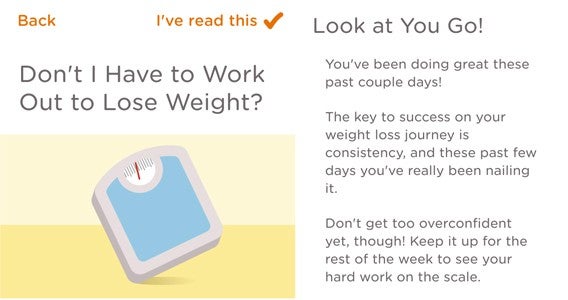
The most informative of these was learning just how Noom categorized foods. Rather than breaking things down into the traditional groups of the food pyramid, it color coded them Red, Yellow, or Green. As you would expect (at a base level), green is better for you than yellow, and red is pretty poor. But that doesn’t mean a day of green is well balanced or filling, so Noom recommends that you eat a good mix (around 50% green, 35% yellow, and 15% red). This may not reveal all of the nutritional information, but it does provide a guideline that is easy to follow.

Do it!

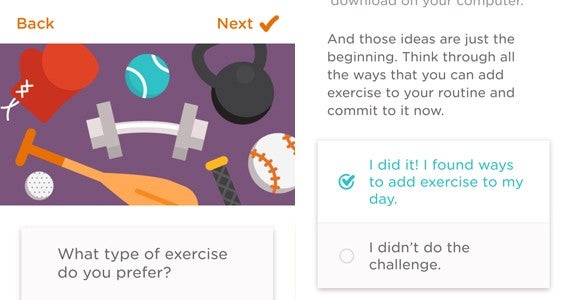
That’s the food, but there is also a good range of other tips to help you change your lifestyle. These are sometimes words of motivation, while others set simple challenges like getting off the bus one stop early to walk a little further to work one day.

One of my favorite of these tidbits was not to push yourself too hard with physical activity. Surprisingly good advice for me, as I have perhaps launched myself back into the gym a little too hard in the last weeks, and have started to feel the effects. The reason for this call for moderation again plays back into the idea of Noom not being a diet, but a lifestyle. If your regimen isn’t sustainable (and injury free) and you burnout and give up, which ultimately has worse impact on your overall health.

Ease up.

This was all so good, I thought “why not, let’s subscribe”. I clicked the Go Pro option and was lead through a number of well-targeted questions to start constructing my personal plan (and get me more invested) before delivering me to the payment options. The basic monthly subscription is $11.99 ($59.99 for the year) which feels a tad steep without more evidence of how the upgrade would benefit me (particularly as the base app currently offers me more than enough). The end result: I am sticking with the free option for the moment.

No, no, no.

Noom has the capability of offering a positive long term change to your lifestyle. Perhaps, if you need the extra support and more tailored help, then the premium subscription may make sense – but until you reach a plateau in your weight loss, it’s hard to recommend the subscription.

Next week it is back to my usual two week loop of exercise and food tracking apps. That will be starting with Runtastic Road Bike Tracker (Android|iOS) – so I can track my ride home each day. And then the following week… who knows. It’s going to be hard to and find something better than Noom, but I will try.

Related Stories

Diary of a fat man – Noom Coach (no more excuses)

Diary of a fat man – Fitivity (sometimes walls get in the way)

Diary of a fat man – MyPlate (sometimes life gets in the way)

Follow me on Twitter: @DoFuss

App of the Week: Google Handwriting Input

Softonic’s App of the Week highlights some of the coolest, most unique, and popular apps that have been released for Android, iOS, Windows, and Mac. This week we are looking at Google Handwriting Input, the handwriting recognition app that is good enough to recognize even my penmanship.

Letting you use your finger or any implement recognized by a touch screen, this inelegantly named input tool allows you write naturally onscreen and then magically transforms it into legible text. Drawing on Google’s huge number of users, and its experience digitizing books, its accuracy is impressive – especially considering it can recognize 82 languages and emojis.

With a great user interface and gesture-based controls, Google Handwriting Input is the best option out there for those looking for a more traditional method of writing on their Android device.

Related Stories

App of the Week: Grand Theft Auto V

Google Handwriting Input review

Google Voice Search review

Follow me on Twitter: @DoFuss

Why choosing the best eBook app is difficult: DRM

I like to be able to give definitive answers when it comes to ‘the best apps’, but with eBook reading apps, it’s simply not possible. There are tons of choices, but unfortunately the best designed ones cannot be used with the DRM (digital rights management) protected eBooks, sold by the biggest stores.

So the chances are, you’re going to use Kindle, Nook or iBooks some of the time if you buy new eBooks, depending on the platform you’re using. None are bad, but all of them have competing apps that do the basic job of being nice to read, better. Here are our favorites:

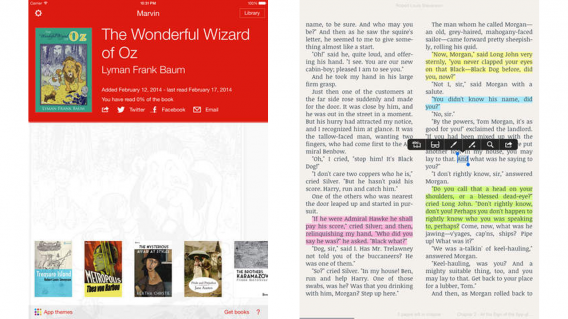
iOS: Marvin

It’s not free, though there is a limited free version, but it’s beautifully made and is the nicest reading experience you’ll get on iOS. Marvin’s settings and personalization are where it wins. You can change the brightness and warmth of your screen with a single or double finger drag up or down a page, and there’s even an ‘extra dimming’ option you can toggle. Anyone with sensitive eyes who’s tried reading on an iPad at night will love this.

On top of that, you can choose fonts and so on, and change the color of the background and text of your book. With Marvin, you really can make eBooks look just how you want. Marvin links with Dropbox, Calibre, public domain book archives like Project Gutenberg, and the web.

Download Marvin

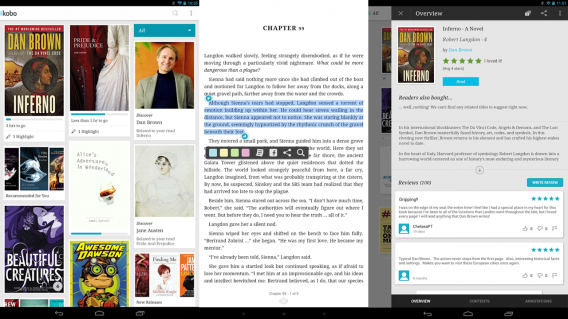
Android: kobo

For Android, I deferred to the advice of colleagues. Aldiko is good, and is more open format-wise but kobo is a nicer read, according to our own Karen McCandless. Attractive and well designed, there’s a good selection of free modern and classic eBooks in its store, and you can also import your collection via email or a Dropbox account. As well as it’s design, kobo stands out due to its social and discovery features. It’s more than somewhere to just read your eBooks.

Download kobo

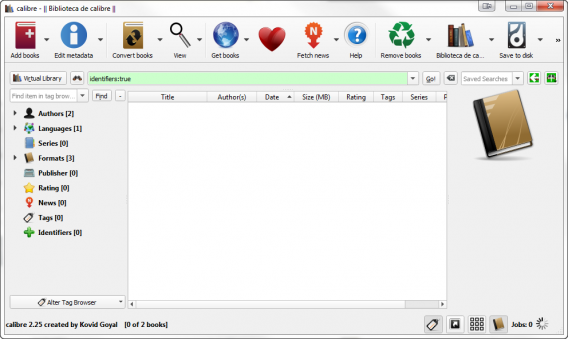
Desktops: Calibre (Mac/Windows)

I’ve never been a fan of Calibre’s look and feel, but there’s no doubting its power, flexibility, and usefulness. It supports pretty much any text format you can throw at it, and neatly organizes your library. You can use it to convert eBooks to other formats too, which is useful for apps like the aforementioned Marvin. There are even plugins available for Calibre that will strip the DRM from eBooks you have bought, so you can use them in any app. However, that is very much a legal grey area, and we can’t safely recommend it.

Completely free, and really powerful, Calibre is easy to recommend

Download Calibre for Windows or Mac

Related Articles

Best free iPad apps

Facebook Messenger now supports apps. Here’s why it matters.

Why video games are good for kids (and you too!)

Follow me on Twitter: @jonathanriggall

Facebook Hello isn’t a dialer replacement

It’s funny that even though you have a smartphone, you don’t make phone calls most of the time. You communicate, but it’s through social networks and messaging apps.

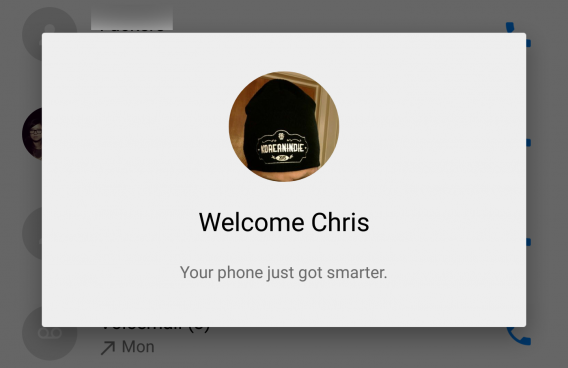
Facebook decided that the dialer on Android could be improved and released Hello. It’s Facebook’s attempt at making your communication a little moreFacebook.” Hello has a similar design to the stock Android dialer (following Material Design requirements). You can still search for contacts, but if they have a Facebook account, you get a slice of profile information along with existing Google Contacts information.

facebook hello smarter phone

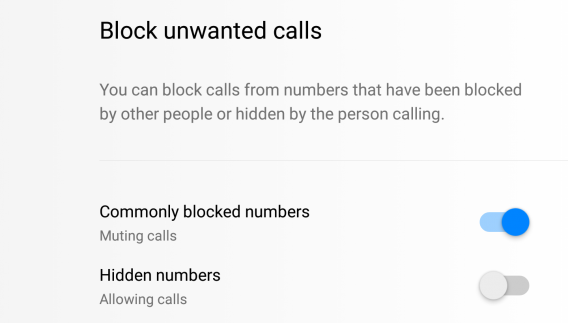
You can also search for businesses in Hello and it will pull information Facebook Pages. You can get business information like locations or the phone number. Hello also says it can block unwanted calls from commonly blocked numbers or hidden numbers. This is something that the Android dialer needs because robocalls are becoming all too common.

Facebook is calling Hello a dialer replacement, but it’s actually more of a new Facebook overlay.

Hello still uses the stock dialer

When I started Hello, I made a call to a standard phone number. Instead of running the call through Hello, it opened the Android dialer to complete the call. This is obvious because my frequent contacts have distinct profile images from my Contacts app.

If Hello is meant to replace the existing dialer, then I expected to see either a Facebook profile image or an empty placeholder. I didn’t expect to see Android’s familiar dialer to complete the call.

Muting is not blocking

facebook hello block mute

Android’s dialer desperately needs a way to block phone numbers and not by creating a contact that sends blocked calls to voicemail. Facebook says Hello can block unwanted calls, but what does the app say? It can mute calls from commonly blocked numbers. So these calls still get sent to voicemail? That’s not a solution.

Hello imports information from the Contacts app

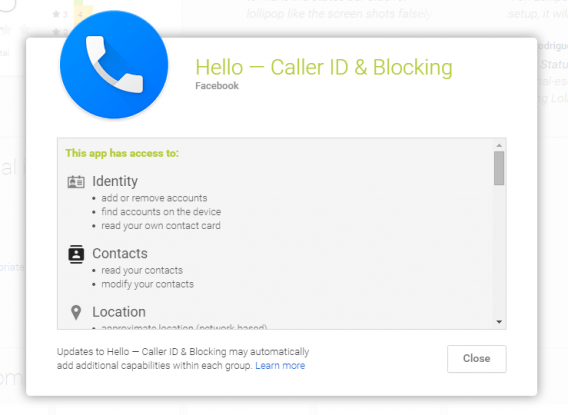
facebook hello permissions

It makes sense for Facebook to import existing contact data from the device into Hello. The app is transparent about access to your contacts in the app permissions. What’s disconcerting is that some of this information is now inside Facebook. If I have a friend who has a personal blog they don’t share and I have it in my contacts info, then Facebook knows about it. According the Facebook’s data policy, it can share general information gained through Facebook but this is an app with a different service in mind. So how does that apply to contact data?

Messenger is built-in for voice calls, but not messaging

facebook hello calls messenger

You can easily call friends through Messenger and it opens natively in Hello. But when you want to send a message, Hello loads Messenger as a chat head (if you have it activated). This means you have Hello open and a Messenger chat head open on the same screen. Shouldn’t have Facebook designed Hello to recognize Messenger within the app and not open another Messenger instance? It’s something that should have been addressed.

Searching for businesses is slow

facebook hello business search

Android’s stock dialer can already search for businesses and places in the app. Hello improves this by pulling data from a Facebook Page. But not all Facebook Page information is useful. If I’m looking for more information about a place or business, I’m more likely just to use the Google Search app which gives me more information not limited just to Facebook.

The stock dialer is fine

After using Hello, I’m less convinced that it’s a dialer replacement and more an overlay like Facebook Home was. It’s not a launcher, but adds a Facebook touch to a common function. Hello is a new app and Facebook could improve it, but considering existing Facebook apps, it’s obvious it is fishing for users and seeing who bites.

Related Articles

4 ways to save energy with your PC for Earth Day

Meet our app: Softonic Turbo Booster

It’s good to talk: top tools for business communication

Follow me on Twitter: @chrislikesrobot

Greenlight Spotlight: Tormentum – Dark Sorrow

Welcome to Softonic’s Greenlight Spotlight, a new column where I highlight games that I have caught my eye on the community voted Steam Greenlight program. The beauty of this crowd voted platform is that it has resulted in a broader range of game’s making it through Steam’s clearing process for better and, occasionally, worse (yes, not all these game will be good).

With it being such an open and diverse environment, the games that I will focus on here should either have gained a certain amount of attention/infamy, or simply have caught my eye – which is exactly what happened this week with Tormentum – Dark Sorrow on PC and Mac.

Landing on the store page I was instantly drawn to this point-and-click adventure’s grim hand painted art, and I knew I had to play it. Reading Tormentum’s description only further enamored me to its style, as it cited both H.R. Giger and Zdzislaw Beksinski as its visual influences. These artists blending of industrial, organic, and often sexual imagery, gives a slick violent look to the world, providing the perfect setting to the bleak adventure.

In honestly though, for me, its art style did more than just set the stage, it evoked the sense of playing within the Dark Souls fiction. This was a feeling quickly reinforced by Tormentum’s similar story setup (you begin in a dungeon thanks to a mysterious mark), or the resemblance the lead character had with my mage in Dark Souls. Whatever the reason, the effect was absolute – for me this became a side story to a game I adore, showing me a different side to that world. Like an amazing fan fiction, it entranced me.

You shall not pass!

Of course, Tormentum – Dark Sorrow is a very different game to Dark Souls. Its point-and-click puzzles place a focus on guile and cunning, rather than brutal combat. The strange effect this had for me was that it created a further fascination to this amalgamation world and how people may try and survive in it, albeit only in my head.

You can get a taste of Tormentum from its demo, though this short taster’s puzzles lack the involvements of later conundrums. This area’s linear nature does nothing to show how later challenges expand, layering in unforeseen ways to create depth in the fiction, often resulting in choices that effect later sections of the game and story. This was an unforeseen treat in what I expected would be a simple linear affair with attractive art.

The flames

To really cement my enjoyment of Tormentum, it also features well designed puzzles. Often point-and-click adventure games demand surreal paths of actions, but here the logic seems straightforward – or at least comprehensible. If you need to kill a phallic shaped beast, of course a poisoned spider’s leg stewed with a steak will work. Or perhaps you have to create a spark in a boiler – two ram skulls smashed together should do it. Also, to make sure you are never reduced to clicking randomly around the screen for possible hints, everything you can interact with is politely indicated with a nice glow effect.

Your hero’s battle for freedom is a wonderful one, and something I would never have experienced had I not been combing my way through Greenlight. Certainly give the demo a try, and consider if the look and feel will draw you in, because you don’t have to be a fan of the genre to enjoy Tormentum – Dark Sorrow, just a fan of the world.

Related Stories

Tormentum – Dark Sorrow review

Titan Souls review

Titan Souls gameplay video

Follow me on Twitter: @DoFuss

4 ways to save energy with your PC for Earth Day

Earth Day is April 22. As well as recycling and using low energy light bulbs and so on, another way to save energy is to use our devices more efficiently. Even if you are one of the few people who doesn’t believe in man-made climate change, saving energy means saving money, which no one can complain about!

Computers use lots of energy – in the office workplace, only lighting consumes more – but they are also full of energy saving potential. I’ve researched PC energy usage and myths, and come up with four easy ways to save energy on your PC.

1: Turn off your PC

Some people believe that you will shorten a PCs lifespan by turning it on and off. This is simply untrue and, as an OS will perform useful maintenance during shutdown, it will actually help your computer run better, as well as cutting energy use. If a computer is on for days without a proper shutdown, not only will lots of energy be used, but it will get slower. Some PC parts, such as hard drives, last longer if computers are turned off when not in use, so you also extend the lifetime of your computer by turning it off.

Computers also draw power when turned off – which will surprise many people. Unplugging a computer when not in use therefore also saves energy. This is all manual management, but there are also ways to save energy by changing power usage settings in your operating system.

2: Use power management

When a computer is on, there are likely to be times when it’s not being used, and this is where power management comes in. A lot of energy can be saved by putting the screen into low-power mode, and by letting the computer go into sleep mode.

In Windows, power management is accessed by clicking the Power Options icon in the control panel, while on OS X it’s the Energy Saver icon in System Preferences. With both you can choose from a selection of power profiles, or set up a custom profile. Set the monitor to power down after a few minutes of inactivity, as it only takes a second to wake up and uses much less energy that way (see below). Also, set the hard drive to sleep when possible (easier in OS X, than Windows, unfortunately).

Computers – especially Windows PCs – take a little longer to wake up than screens, so you may prefer to allow more time before your PC goes to sleep. However, a lot of energy will be saved in sleep mode and as it only takes a few moments to wake up a system, it’s not such a bad trade off. On average, desktops use 70W when active and just 9W in low power or sleep mode, which is a huge saving. While laptops already use much less energy than desktops, all of this advice is still valid and can amount to significant energy savings no matter which you use.

3: Don’t use a screensaver

My apologies, but screensavers are an unfortunate and wasteful relic from the days of cathode-ray monitors. Back then, a still image on screen for hours would literally be burned into the screen. An animated screensaver was a sensible solution to that problem. With today’s LCD monitors, however, there’s no reason to have one. LCD monitors use less than a quarter of the energy required for their cathode ray counterparts, and even more can be saved because they are able to switch on much faster.

Screensavers may look nice, but they are unnecessary for LCD monitors that can go into low power mode and wake up quickly. When sleeping, LCD monitors use 90% less electricity than when active – a huge saving that is lost by using screensavers, which keep your monitor running on full power.

4: Watch your multitasking

Do you need all those programs open at the same time? Keeping applications open unnecessarily makes processors work more, creating more heat and increasing the use of cooling systems, all of which use energy. Thoughtfully managing active applications helps efficiency, as computers will run faster and be less prone to crashing.

Check which apps open automatically at startup to see if there are any that don’t need to be running. Some apps, like Spotify, open from start-up by default, but it’s much better to just open an application when needed. When browsing, watch how many windows or tabs are open. Flash and video on a site can make your computer work harder – so try not to keep lots of pages with that type of media open at the same time.

Sources: DssW, Wikipedia

Image: Allison House

Related Articles

10 apps that make you environmentally friendly

Why video games are good for kids (and you too!)

Should my kids be playing this? Parents’ guide to games in 2015

Follow me on Twitter: @jonathanriggall