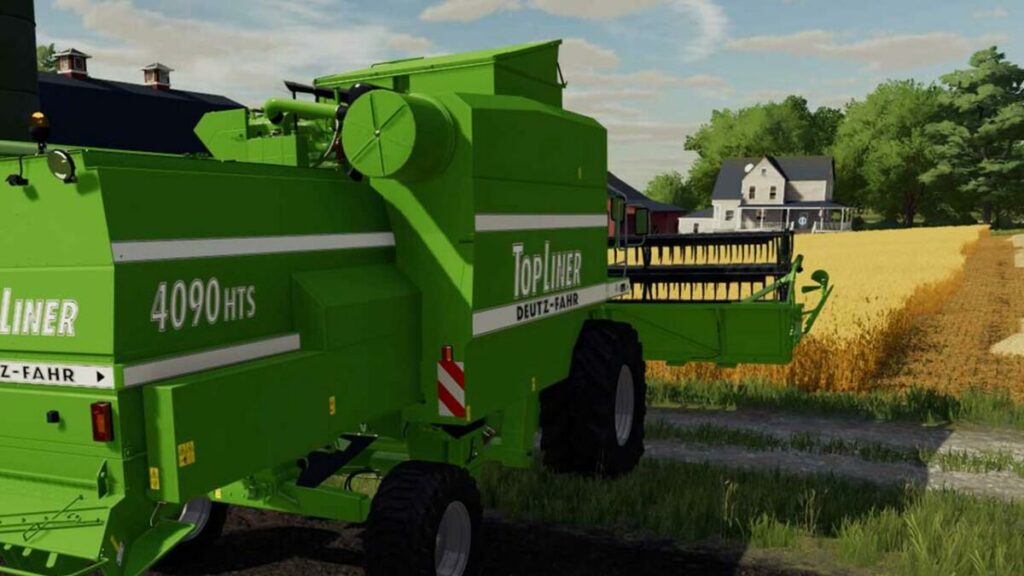
More Steam Players for Farming Simulator 22 than Battlefield 2042

With the holiday season already knocking on our doors, you’d think titles like Battlefield 2042 and the latest Call of Duty: Vanguard would be stealing the numbers for the most number of players. When it comes to Steam, it appears as if Farming Simulator 22 is holding its own against these online shooters, despite being a casual simulation game.

There could be a valid reason for Battlefield 2042 not performing as well on Steam as Farming Simulator 22. Many gamers have complained about excessive bullet spread, while others aren’t happy with the XP farming locations. There are also many players mentioning some missing features.

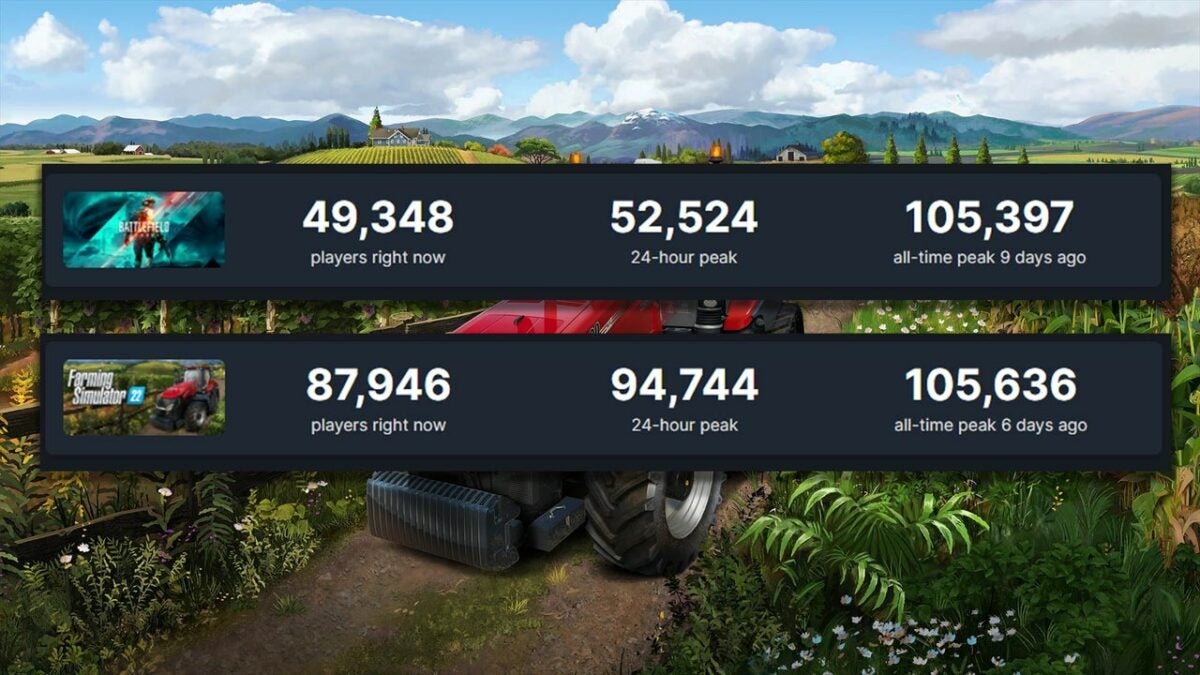
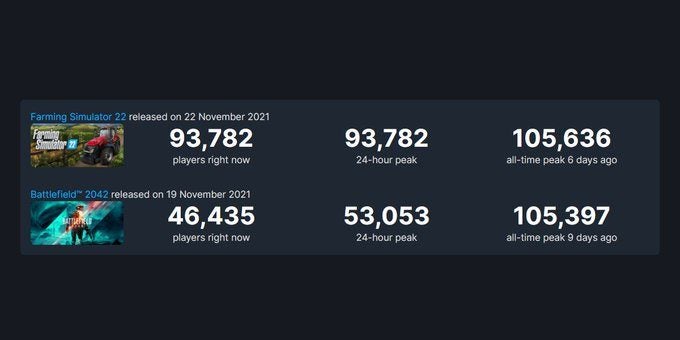
And Farming Simulator 22? Well, SteamDB tweeted a screenshot two days ago showcasing how well it’s doing in comparison to BF2042. The numbers are staggering for how many gamers were active at that time, while the all-time peak for FS22 was more for fewer days.

More Steam Players for Farming Simulator 22 than Battlefield 2042

One aspect to keep in mind is that EA has its own gaming client where you can download BF2042, while you can also access it from the Xbox Games Pass for Windows. While we don’t have enough figures to really compare, it’s still outstanding how well Farming Simulator 22 is doing on Steam.

It’s not surprising to us, though. We’ve been fans of the Farming Simulator franchise for several years while staying up to date with the DLCs and mods. There may not be any intense action, but we love the strategy aspects and developing the land. We’re not the only ones that love it, as the US and UK stated it as one of the “’Top Paid Games” after it was released on Nov 22, 2021.

If you are curious and want to know more about this game, we recommend you read our extensive guide on how to play Farming Simulator 22. Let us know if you plan on joining in on the action.

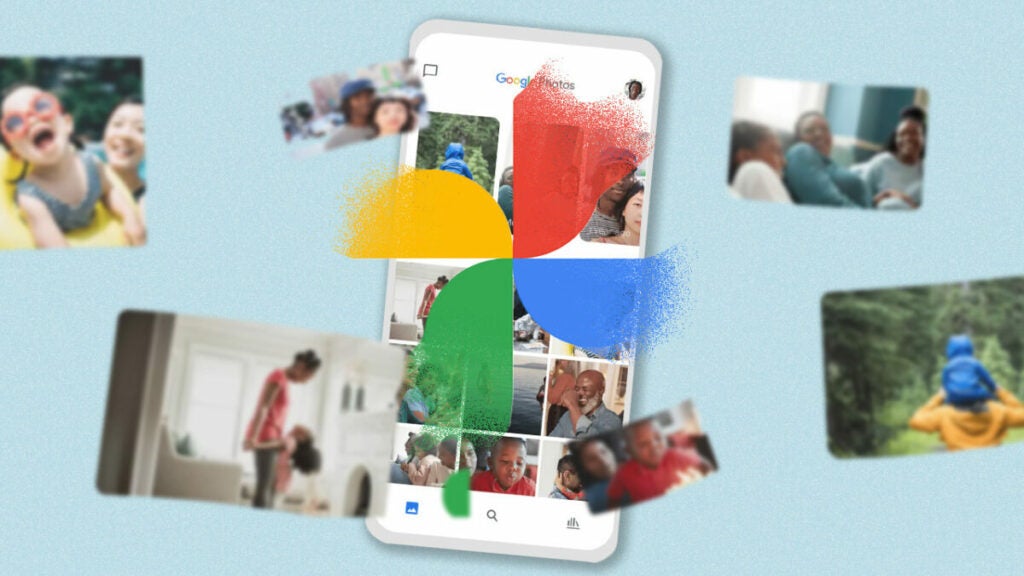
What is Google Photos, how to use it?

Our smartphones are released with better cameras with every new model. And now we get to capture and store all our memories on a device that fits in our pockets. But, we all know the annoying effort it takes to sort through our photos, creating albums, and deleting those that we don’t want. There’s that terrible feeling when we lose precious photos.

Fortunately, Google Photos has amazing features that store all our photos and videos straight to the cloud while using specific AI recognition and location to create albums. We have created an in-depth guide of what Google Photos is and how to use it

What is Google Photos? 

Google Photos is the image gallery part of Google Apps. It allows you to backup all your device’s photos and videos on the Google cloud. It automatically creates albums taken in a specific location or recognizes faces placed in the same album. You can also edit and apply effects to your images.  

These intelligent features of Google Photos set them apart from any other cloud image storage. With the touch of personalization for each user, Google Photos offers a cloud space where we can reminisce on old memories, enjoy cataloged journeys, and document new beginnings. 

How to Set-Up Google Photos 

The first thing and only thing you need to access the Google Photos app is a Google account. Once you have set up an account, download the app onto your device. You will be asked if you would like to back up the photos on your device; once you have confirmed, all content will be automatically backed up onto the Google cloud. 

What is Google Photos How to Use It

How to use Google Photos: top features

Now that you know what Google Photos is, here’s how to use it with its many features and tools.

Automatically Groups Your Photos and Videos in Albums 

Once you have installed the Google Photos app, all images and videos on your device will be automatically uploaded onto the cloud. The AI features of Google Photos ensure that your photos are organized into libraries according to the date you took them, the location where you took them, and who or what appears in them. 

Create Categorized Albums

Enjoy creating albums of celebrations with friends and family, funny pet compilations, and traveling adventures. 

Creating albums according to events or people can be a frustrating task that never seems to end. Fortunately, Google Photo has a fantastic feature to create an album that will automatically recognize a particular face and include it in the desired album. 

You have to select a New Album and select the faces and pets that Google extracts from your images. Once you have confirmed the album, the app will recognize the person’s or pet’s face and add it to the album. 

Plus, these albums can be shared with others by sharing a link with friends and family who can access the albums and view any added photos. 

Intuitive Search Engine 

Google Photos has an intuitive search engine that makes your captured memories easily accessible. If you’re looking for photos from a specific place, all you have to do is search for the image’s location. And et voila. All the photos from that location will pop up. 

You can also search for people or pets by exploring images of extracted faces from all your pictures. Select a face, and all the images featuring them will pop up. This is a quick way to access photos of a loved one (or to easily delete photos of someone you don’t get along with anymore). 

Plus, with the latest image recognition technology, search for things like “coffee,” “plants,” or “car” to access photos instantaneously. 

Endless Storage Space 

Google Photos comes with 15GB of free storage, which will take quite a while to use up. After you have used up the 15GB, you can purchase more cloud space at good prices to keep more captured moments safe. So, you have endless storage for all important documented moments that you would like to treasure.

Images should be 16MB or less to be saved onto the app, and videos are restricted to 1080p. This is enough for most smartphone cameras out there and professional cameras. 

Impressive Editing Tools 

Once the app has backed up your latest photos, Google Photos will offer you editing suggestions to improve the quality and aesthetic of a certain photo. Enjoy editing photos with easy-to-use tools to enhance your photos. Enjoy editing tools that include lighting adjustments, various filters, and rotating and cropping images. 

Also, enjoy creating slideshows and collages from a specific day with your loved ones or pets. Google’s intuitive editing will automatically create slideshows and collages from a recent vacation, outing, or celebration. 

Editing Suggestions for Images

Google has also added a new feature that suggests cropping and adjustments for images that include documents or screenshots. This new feature organizes your albums so that you can easily access important documents without having to zoom in. 

Enjoy Memories and “Rediscover This Day”

Nostalgia is sometimes necessary. Enjoy reminiscing the important events and the small captured moments alike with Google’s “Rediscover This Day” feature. Be reminded of a child’s birthday, an anniversary, or a trip abroad with a range of photos arranged at the top of your albums for quick access. 

If this isn’t activated, you can easily activate it in your Suggestions settings. You can also deactivate this feature in the same place if you’re not the nostalgic type. 

Add New Content Offline 

You can now back up your device’s photos and videos and add new content while you are offline without using any data. Edit albums by adding or deleting without being online. Once you have reconnected, the app will automatically synchronize. 

“Clear The Clutter” 

Going through your albums to delete unnecessary photos and videos can become a tedious activity that takes up way too much time. Google Photos now recognizes certain images and screenshots as unnecessary and recommends them to you to delete. 

“Clear The Clutter” is a favorite feature to save space and time so that you can continue enjoying your life and capturing precious moments. 

What is Google Photos How to Use It

Google Photos: Tips and Tricks

We don’t want you to leave without some tips and tricks on how to use Google Photos. Make sure you read these guides:

Cherish Every Captured Moment 

With Google Photos, you can back up and store every important moment in seconds. Enjoy the clever and intuitive features of this app to make your archived photos and videos easily accessible. Take as many pictures and videos as you want without the stress of sorting through them. 

The CyberGhost Black Friday Deal is Here!

Power, speed, and sweet, sweet savings. CyberGhost has spent well over a decade creating one of the fastest, most robust VPNs on the market. With high praise and positive reviews from sites like TechRadar, vpnMentor, and BestVPN.com, CyberGhost has set the bar for quality from your average VPN service. And did we mention the price?

CyberGhost is hailed as one of the most (if not the most) affordable premium VPN prices on the market, sporting plans that cut the average VPN cost in half. And then half again. With a price tag that would make most other services shiver in their boots, what could they possibly do for Black Friday? Apparently, they’ll cut it down even further.

Experience CyberGhost 8

Experience CyberGhost 8, the latest version of Cyberghost’s elite VPN technology. Never before has VPN protection been so readily available at your fingertips, nor as easy to use. With the click of a button, connect to any and all servers on Cyberghost’s massive 7,400+ server collection, spanning over 90 countries worldwide.

Digital barriers are a thing of the past with CyberGhost shielding your IP. Whether you want to be from Las Vegas or Paris, a couple of taps is all it takes to connect to one of the thousands of servers around the world. This will keep your IP completely anonymous to any site or network that you visit and will allow you to transcend geographical blockades imposed on certain countries or regions.

Want to see what’s available on Netflix in Japan? Easy. Feel like visiting a site that’s blocked in your country? No problem. Even your own internet provider won’t be able to spy on your connection when you’re protected by Ghostie. Plus, you’ll also be protected from sites used for heavy adware, trackers, and malware.

And as we said prior, the speeds are nothing to scoff at. CyberGhost consistently matches and surpasses almost all other premium VPN services on the market, most of which come at around quadruple the price of CyberGhost at the very least. Connections to servers even on the other side of the world are stable and without any crashes or stuttering, and have little to no impact on your typical internet speeds.

Anonymity for All

CyberGhost host VPN unlocks the internet’s anonymity once again. For a place dedicated to the ideal anonymous privacy, there seem to be trackers, spies, and logs for everything that you do online.

CyberGhost seeks to restore this privacy to its users in full. With a single subscription, up to seven devices can all use Cyberghost’s shield of privacy at the same time. Browse safely and anonymously across any devices–desktops, laptops, smartphones, smart TVs, game consoles, and even your router–all quick and easy to set up with Cyberghost’s software.

But how can you know if you’re truly invisible online with CyberGhost VPN? CyberGhost has become a pinnacle of transparency in the VPN industry by consistently making its quarterly privacy audits publicly available. CyberGhost keeps no logs on its users. No data is stored. Nothing is tracked and kept without your knowledge. When CyberGhost says transparent, they mean transparent.

A Ghost That Has Your Back

CyberGhost aims to be a service you can rely on. With something as important as your privacy and security, the Ghost has to be at your beck and call. Customer support is available 24/7. You can contact them through live chat or email whenever the need arises, and they’ll handle your issue on the double. Support is offered in English, German, French, and Romanian.

And if you’re still hesitant about taking this unmatched deal, CyberGhost offers a 100% hassle-free money-back guarantee for 45 days after your purchase. The refund is entirely no questions asked. All you have to do is contact customer support to get it taken care of then and there. There’s absolutely no risk in starting your plan today.

83%
Only $2.17/month for the 2-Year Plan

From: CyberGhost Black Friday Deal

What is Facebook Messenger, how to use it?

Facebook Messenger is a free messaging app from Meta’s stable of communication and productivity software. Basically, the messaging function on Facebook was so successful that Meta decided it needed to be a standalone, more functional application. So apart from a way to send messages, what is Facebook Messenger, and how do you use it?

This article will take a peek under the iconic blue Facebook Messenger symbol and explain what this messaging app can do. We’ll take a look at features, functionality, aesthetics, and even list a few things you may not have known the app can do. Prepare to see Facebook Messenger as you’ve never seen it before.

What Is Facebook Messenger?

Facebook Messenger is a messaging and communication application for keeping in touch with your nearest and dearest. Send text messages, photos, videos, voice notes, and even location pins, and do it all for free. 

What is Facebook Messenger, how to use it

How Does Facebook Messenger Work?

Facebook Messenger uses your Facebook friends list as an address book. That way, you don’t need to import or add contacts or even manually input mobile numbers. Facebook Messenger even lets you use it as your default SMS app. You can do everything in one easy-to-use interface. 

The Basics of Facebook Messenger

Using Facebook Messenger is as easy as downloading the app for your mobile device. Once the app is downloaded to your device, you can log in with your Facebook credentials. If you’re already logged in to Facebook on your device, Messenger will give you an option to just click the ‘continue as’ button.

If you want to sign in with a different username, click the button underneath that says ‘this isn’t me.’ From here, you’ll be able to enter the credentials of the Facebook account you want to log in to, and you’re good to go. 

What is Facebook Messenger, how to use it

How to use Facebook Messenger

You probably read that Facebook Messenger is a messaging app and are now thinking, ‘I have a messaging app; why do I need to download another one?‘ For starters, most messaging apps require you to enter your phone number to get started, which means waiting for an OTP to reach your phone, setting up a whole new app, choosing the perfect photo for your profile, and a cute and informative ‘about’ message.

Facebook Messenger lets you skip this process. Your contacts are your Facebook friends, your verification and login information are your Facebook credentials, and your profile photo is imported automatically from Facebook. 

Functionality Features

As you’d expect from a modern messaging app, Facebook Messenger gives you much more than just texting. You have access to all the staples available on other platforms, like texting, video calls, voice notes, location pins, and emojis. But Facebook Messenger is in its own class. For a start, phone calls are now free. 

Any calls you make through Messenger carry the same charge as messages you send; no charge at all. While calls are limited to Facebook contacts at this stage, some features below lead us to believe Facebook might be messing with the default general phone call function in the near future. Let’s take a look at what else makes Messenger unique. 

Default Texting Facility

Facebook Messenger can take the place of your phone’s default short messaging system or texting functionality. This is groundbreaking; you no longer need that pesky message icon that relies on a dedicated SMS bundle in your data plan. And we all know if you need to send an SMS and you don’t have it worked into your monthly plan, you fork out a small fortune for each tet you send. This is because texts don’t use your data balance. Facebook Messenger, however, does. 

Send texts to anyone, anywhere from the Messenger app, and use your data. There is no more need for a dedicated texting plan and no extra costs from texts you sent but didn’t work into your budget. When you open Messenger the first time, it will ask you if you want to use it as your default messaging system. Should you say yes, your texts will be diverted to your Messenger home interface. There is, however, a separate tab for texts so that you don’t have to scroll through Facebook chats to get to a particular message. 

Hidden Messages

Tired of being bombarded on other messaging apps by people you don’t know? Switch to the safety of Facebook Messenger. Messages from people you don’t have any connection with on Facebook are moved to a dedicated folder in your Messenger app. You can easily access this folder through the app’s main interface, but you won’t receive notifications that they’re there. Check on them from time to time to see if it’s anything worthwhile, and instantly delete those you’re not interested in replying to. 

With social media giving people so much access to each other’s lives, cyberbullying has become an even bigger problem. A well-known tactic is for someone to message you because they enjoy your content and get increasingly nasty and abrasive if you don’t respond.

Now you can simply delete offensive messages before they can affect your inner peace. Another brilliant feature is that the other person won’t know that you’ve read their message or that it’s been deleted unless you respond. 

Aesthetics

Aesthetics are important in the digital age. Not only do we want apps and programs to perform well, but we also want them to be less intrusive and have a better effect on our moods. Researchers have studied the profound impact colors have on the human psyche, and now, you can benefit from that research. 

The ability to change chat colors is something not all messaging apps have. Facebook Messenger lets you select between flat colors and themes for your chats. Another reason this is an incredible innovation is that you can now color-code your conversations, using a different color for family, friends, workplace colleagues, or international penpals you’ve made on Facebook. The choice is completely yours.

Innovatively, Facebook Messenger now offers specifically curated themes with each update. One update featured themes inspired by Olivia Rodrigo’s debut album Sour, and another used beautiful blues and turquoise hues to celebrate Worl Oceans Day.

You also now have access to animated and static stickers. Over and above the well-known emojis, stickers are a way to communicate without words. Fun animations are another way Facebook Messenger rewards the senses of its users. Each animation comes with its own sound effects, and you activate them by using select emoji.

For instance, using a singular heart emoji will briefly send hearts and bubble effects over your screen. The same effect happens on the other side when someone opens that message. You also now have the option to frame your texts with dynamic animation. 

Due to it being the Messenger powered by Facebook, your Facebook avatar, a little cartoon likeness of yourself that you make, can be used as a sticker in your chats. All visual add-ons like gifs, stickers, and frames are obtained through the ribbon directly above the text box.

Another nifty feature is the ability to use nicknames on Facebook Messenger. We all have nicknames, and if you cant use them, what’s the point, right? Now you can. You can set your own nickname and funny nicknames for people you talk to. Nicknames take effect across Facebook once set. Think of it as a little inside joke between you and your closest. 

Entertainment

Facebook Messenger lets you set a go-to emoji. The default setting is the classic Facebook thumbs-up, but you can set it to anything you like. Here’s a hint: Set the emoji to the basketball and start an actual game of basketball with your friends or family. You can even initiate this basketball game on a group chat. 

If you don’t want to miss out on the latest news, views, and how-tos, why not initiate a conversation with one of Facebook Messenger’s dedicated chatbots? Choose between news updates from your favorite media platforms to bots that give you daily horoscopes, recipes, celebrity updates, and even bots inspired by celebrities themselves. Use the bot search function, and maybe you’ll be able to chat to one of your favorite celebrities, historical figures, or characters from literature and popular culture. 

If your device is a little heavy on used space already, you can simply select the Facebook Messenger Lite app and get the same easy free messaging functionality for a fraction of the space. Because it’s much smaller, it does have slightly reduced functionality, but it works smoothly and is one of the best ways to keep in touch with friends, family, and co-workers.

What is Facebook Messenger, how to use it

Facebook Messenger Lite: As Good as Messenger?

The team at Meta loves giving users access to smaller lite versions of their most successful apps. Facebook, Messenger, and Instagram have all been given the lite treatment. Even apps not owned by Meta have gone to the lite side. Apps like Skype, Google, Pinterest, and even many browsers all have lite options. While lite is marketed as a space-saving option, lite apps work better than their full-size variants in poor network conditions and low-cost devices. So what’s the difference?

Animations

Messenger Lite doesn’t support animations. This isn’t a massive concession when you get better connectivity in all network conditions, but it matters to some. Animations require stronger connections and more memory, so, understandably, the lighter version of the app doesn’t support them. 

Stories

Stories are a way to keep track of your Facebook friends’ lives. Offered by Instagram and Whatsapp as well, stories are short-form videos that you can upload. These have proved brilliant ways to advertise products and get the word out about any business you’re doing, as well as a great way to share moments from your daily life. Messenger Lite doesn’t support stories. This is also largely due to the memory chunk needed to process videos and the network strength videos require. 

Chat Heads

Chat Heads is a nifty feature of Facebook Messenger. Any chats you have open will appear as little head icons on your device’s home screen once Messenger is minimized. You can move these aptly named Chat Heads around and essentially have one-touch access to any number of active chats. To save space, Messenger Lite does not support Chat Heads. While it’s sometimes fun to flick faces around your screen, this is not the end of the world. 

The fact is that Messenger Lite is just as functional as its feature-loaded alternative. All critical functions, including messaging, phone calls, video calls, and the ability to send location pins and various media, are still very much a part of the Messenger Lite experience.

Facebook Messenger tips, tricks, and guides

For even more amazing features of Facebook Messenger, check out the links below:

Send messages to your contacts

While Facebook Messenger has been around for a long time, many new features have appeared to help it compete with other messaging apps. It still remains one of the top ways to connect with your FB contacts and keep in touch with family.
How to play THE WITCHER 3

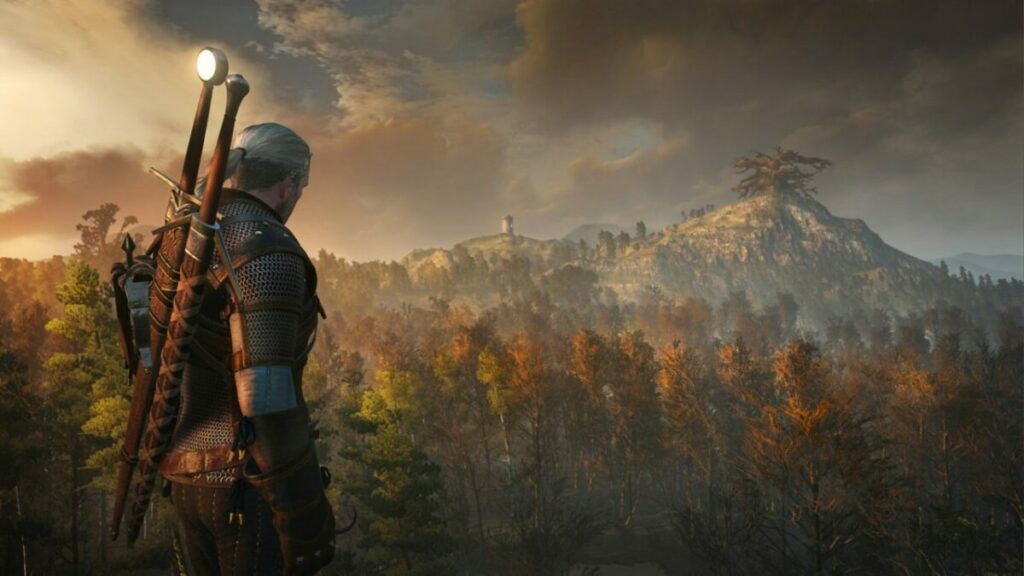
Open World RPGs are hugely popular. And thanks to the massive global success of the Witcher Netflix adaptation, whole new demographics are getting attached to Geralt of Rivia in ways gamers have been doing since 2007. With hordes of monsters to vanquish, and of course, the search for Geralt’s long-lost love, Yennefer, you’re justified in wondering what The Witcher 3 is and how to play it. 

So lace up your leather tights and pick up your swords because we are about to give you the full Geralt of Rivia experience. We’ll take you through the lore and storylines and give you tips and tricks to help you in your exploration of this massive and frankly iconic, open-world role-playing game. 

The Witcher 3: A Comprehensive Guide

The Witcher 3 is hailed as one of the most complex and, at times, overwhelming RPGs around. Even experienced RPG players find it to be a difficult title to immerse themselves in fully. This is why we’ve decided to tell you as much as possible without spoiling the experience. We’ll start with a deep dive into the lore as this will likely be the first time you’re experiencing the vast world of The Witcher game series. 

How to play THE WITCHER 3

The Continent

The Continent is the name of the word in which The Witcher 3 takes place. The game is set during the same time as the Netflix series, so you’ll have ample opportunity to visit your favorite locations. Some of these locations include the Empire of Nilfgaard, the Northern Kingdoms, Redania, the free city of Novigrad, the recently conquered Temeria, the no man’s land of Velen, the Skellige islands, and the Witcher stronghold, Kaer Morhen.

We agree that these names are quite a mouthful, but for the most part, you’ll be too focused on the beautiful scenery each has to offer to be thinking about the Slavonic roots of their etymology. 

Enter A World of Conflict

Surprise! This world is in turmoil too. But there are elves, monsters, and dwarves, so it’s still a good escape from real life. The Continent is the battleground for a war between the Empire of Nilfgaard, ruled by Emperor Emhyr var Emreis, and Redania, governed by King Radovid V. Temeria has recently been conquered. Its capital, Vizima, functions as Emperor Emhyr’s city of residence. 

Your Quest Begins

To everyone’s excitement, you play as Geralt of Rivia, a ruthless but lovable monster hunter – or Witcher – who receives a letter from his long-lost lover, Yennefer of Vengerberg. The letter leads Geralt to meet with Yennefer and travel to Vizima for a rather urgent audience with the Emperor. As it turns out, and here’s where it gets a little complicated, Geralt and Yennefer have an adoptive daughter, Ciri, who is the Emperor’s biological daughter and has gone missing.

Ciri is a Child of the Elder Blood, which basically means she is really important to the Empire because she’s the last heir to an ancient Elven Bloodline. There are thus many creatures, humans and interdimensional beings who want her for various reasons. 

Geralt spends the largest part of the storyline following clues to find Ciri. Most of this involves side quests to find various belongings for other characters in exchange for information on Ciri’s last known location. This is probably the most complex, intriguing, and astoundingly beautiful game of hide-and-seek anyone has ever played. 

Now that we’ve covered the basics of where you are and what you need to do, let’s delve into the actual gameplay. 

How to play THE WITCHER 3

How to play The Witcher 3

Sometimes it’s fun to stumble around a new world in the dark, but in a world as vast and detailed as The Continent, it’s best to have a few tricks up your sleeve. We’ll also give you a rundown of special features in The Witcher. Even if you have the story, character, and political background from the Netflix series, it’s definitely beneficial to know some spells right from the beginning. 

Spell Signs

Witchers are magical beings. Therefore there are spells that you can use to get the upper hand during combat. The Witcher 3 has five spell signs that pack a punch. 

  • Yrden: This is the in-game variant of a casting circle. Once cast, it forms an ensnaring ring around whatever you cast it on and deal damage to its target. 
  • Quen: This is a protective shield that will protect you during battle. 
  • Igni: This one is a short-range projectile blast of fire. You can use this effectively against anything that can burn and any creature that feasts on the dead. 
  • Axii: You can use this spell sign to influence minds. It can incapacitate your enemies in combat and is useful to extract more information than anyone’s willing to give during character interactions. 
  • Aard: Functioning as a telekinetic power, you can use Aard against enemies during combat and blast certain doors and walls open to access special hidden areas. 

Oils

Oils are really useful and are distilled from various natural ingredients and bits and pieces from creatures you’ve killed. Weapons can be anointed with oils to increase their efficacy against certain creatures during combat. Once made, oils are infinitely reusable, but you’ll need to reapply them to your weapons now and then. 

Beast Oil

  • 1x Dog allow
  • 1x Wolf’s liver
  • Gives 10% attack power against beasts

Cursed Oil

  • 1x Dog tallow
  • 4x Wolfsbane
  • Gives 10% attack power against Cursed Ones

Draconid Oil

  • 1x Dog tallow
  • 4x Ergot seeds
  • Gives 10% attack power against Draconids

Elementa Oil

  • 1x Dog tallow
  • 4x Puffball
  • Gives 10% attack power against Elementa

Hybrid Oil

  • 1x Dog tallow
  • 4x White myrtle petals
  • Gives 10% attack power against Hybrids

Insectoid Oil

  • 1x Dog tallow
  • 4x Ranogrin
  • Gives 10% attack power against Insectoids

Necrophage Oil

  • 1x Dog tallow
  • 4x Blowball
  • Gives 10% attack power against Necrophages

Specter Oil

  • 1x Bear fat
  • 4x Arenaria
  • Gives 10% attack power against Specters

Vampire Oil

  • 2x Dog tallow
  • 4x Ducal water
  • Gives 10% attack power against Vampires

Hanged Man’s Venom

  • 1x Dog tallow
  • 4x Arenaria
  • Gives 10% attack power against humans and non-humans
  • Each oil also has an Enhanced and Super Enhanced recipe which requires more ingredients and deals greater damage.

Potions

Potions are consumables that, like oils, don’t need to be remade once you make them. You can replenish them with alcohol by meditating. Potions enhance your performance during tasks and missions once taken. However, they come with a warning; The Witcher 3 has an interesting toxicity mechanic.

So while you can use potions to enhance your performance, you can’t down too many at a time and expect to be okay. Use them with caution. 

How to play THE WITCHER 3

The Witcher 3: Tips and Tricks

With a better idea of how to play The Witcher 3, you should be able to handle the basics. Here are some tips to make sure you succeed in all your missions.

1. Do the Tutorials

The tutorials are there to help you get used to the game’s controls. You’ll learn a few attack functions and how to interact with NPCs and the world around you, so you shouldn’t skip the tutorials. While the controls are fairly standard, The Witcher 3 has more functions and controls than most other open-world RPGs. If you struggle with the PC control layout, try switching to a console controller and see if that makes the gameplay easier. 

2. Do the Side Missions

Some players say that they enjoy the game more when they abandon the storyline and go off on their own. While we suggest this once you’ve played the storyline through, it’s important to remember the value of side missions. These missions are specifically designed to give you loot.

You can pick up loads of cool weapons, upgrades, and ingredients to make potions and oils with. Anything you don’t need, you can sell. Either take the loot to a merchant to get coins in return, or take them to a blacksmith so that he can take them apart and maybe give you pieces you need to upgrade the rest of your weaponry. 

Side missions also give you experience points in the form of levels to give you a better chance when you face off with the really tough monsters. 

3. Keep an Eye on the Bounty Board

The bounty board, a yellow blip on your HUD, is where you can see the contracts you can do. These sometimes stand apart from the storyline and advance your levels just like the side missions do. 

4. Keep Track of Your Bestiary

Your Bestiary is a guidebook of the monsters in the game. Once you confront a monster, it’s added to your Bestiary, sometimes with information on how to beat it and what it’s vulnerable to. Not every monster will have its vulnerabilities so easily laid out, but the Bestiary also contains additional interesting information about the monsters you face. 

5. Repair and Enhance Your Weapons

It should come as no surprise in a game as well thought out and complex as The Witcher 3 that your weapons don’t have infinite durability. You need to upgrade your weapons whenever you can to give yourself a better edge against enemies. Also, keep track of how much of a beating has taken. The last thing you want in battle is to be let down by your trusty blade. 

6. Use the Right Sword

This is a new one for anyone exploring The Witcher for the first time. Geralt carries two swords on his back. One is a pretty standard longsword; the other is made from silver. The silver sword is effective against monsters; Your longsword is effective against humans. So if you’re wondering why you aren’t doing much damage to your enemies, you might be using the wrong sword.

How to play THE WITCHER 3

Netflix’s The Witcher TV series

There’s some history to how The Witcher spread from the original books by Andrzej Sapkowski. The games are seen as sequels to the books, continuing the stories for the fans.

When it comes to the Netflix show, it mostly covers scenes and events from the books, which is why the timeline with the games isn’t exactly the same. However, there are some inspirations from the games, such as Geralt’s deep voice and some of the fight scenes.

The Game that Has it All

The Witcher 3 is about as comprehensive as an open-world role-playing game gets. You won’t regret trying this game out with a seemingly infinite world that is fine-tuned to the most minute detail to explore and weather effects, reflections, and mechanics to bring it all together.

There’s a reason it’s one of the most highly-regarded RPGs in existence. Hopefully, we’ve given you enough reasons, tips, and tricks to pick up your sword and help Geralt on his quest to find Ciri.

How to play SEKIRO: Shadows Die Twice

Sekiro: Shadows Die Twice is brought to you by the Japanese developers, From Software and published by Activision. The game involves stealthy ninja battles and tight combat with intense bosses in a fictional world based in the 1500s Japan’s Sengoku period. Playing as the main character, Sekiro, the “one-armed wolf,” this game is designed to challenge your combat skills in action-packed gameplay. 

Use these 10 useful tactics to master how to play Sekiro: Shadows Die Twice, from combat tips to upgrading skills. 

What is The Story Line of Sekiro?

Sekiro, the game’s protagonist, is a  Shinobi or ninja, who served the Divine Heir, Kuro. Kuro was kidnapped by Genichori, Isshin Ashina’s grandson, to protect the fallen clan of Ashina from Kuro’s immortal army. The protagonist lost his arm during a battle with Geinchiro.

After recovering, the Shinobi receives a prosthetic arm from the strange Sculptor. The prosthetic arm is called Sekiro, or the “one-armed wolf.” The protagonist takes on this name as his own. Playing as Sekiro, players take revenge against Genichoro’s men.  

How to play SEKIRO Shadows Die Twice

How to play Sekiro: Shadows Die Twice

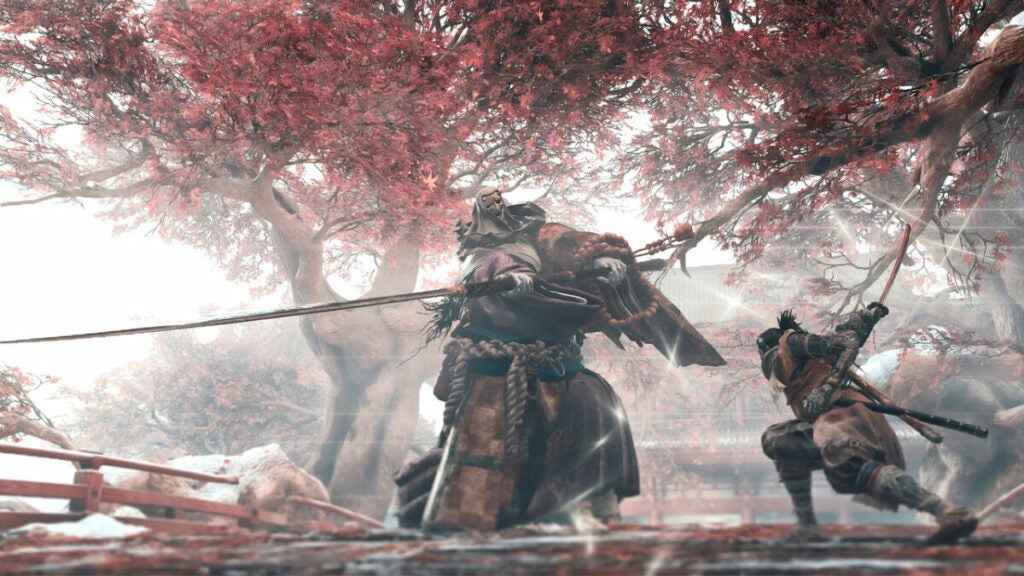
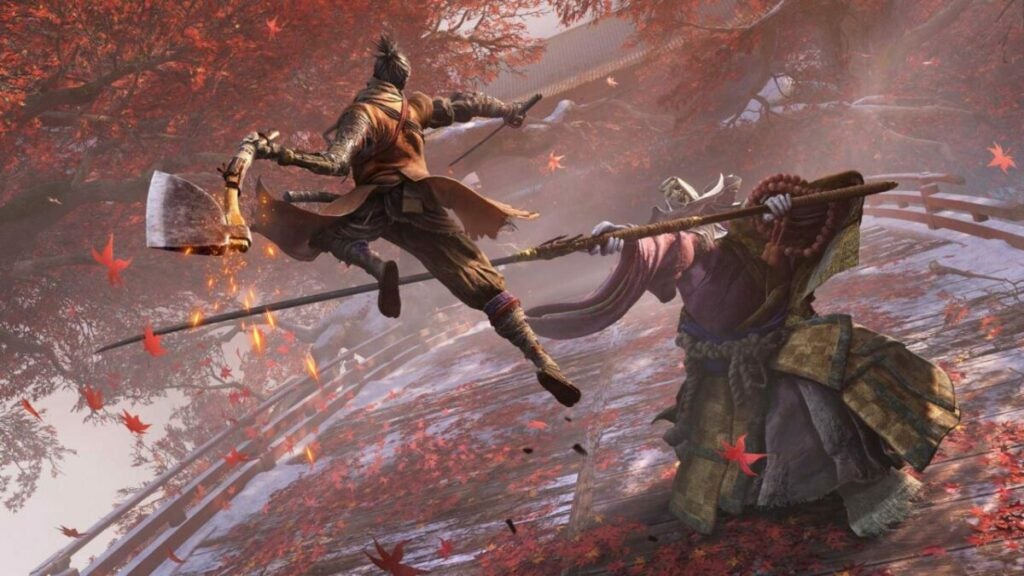
The main combat features of the game are the prosthetic arm and the stealth ability. The prosthetic arm is a powerful tool in the game; it can be used as a grappling hook and deflect attacks. It can also be upgraded to obtain new skills such as ninjutsu, martial arts, and swordsmanship. The stealth ability allows players to sneak up on unsuspecting enemies and explore fortresses without being heard or seen. 

Players can also discover items during the game to increase health and upgrade Sekiro’s skills. Completing quests or side-quests also unlock upgrades. Enjoy ranged and melee attacks, parry, counterattacks, and deflecting attacks by leaping or rolling. When the character dies during combat, players begin at a check-point with lost experience points. Collect resurrection items from the gameplay, which players can use to revive themselves. 

Just watch out for the Headless Sekiro locations, as these bosses are challenging to defeat.

How to play SEKIRO Shadows Die Twice

Sekiro Guide: tips and tricks

With a better idea of how to play Sekiro: Shadows Die Twice, here are some tips and tricks to improve your gameplay.

1. Don’t rush gameplay

From the beginning, take your time to explore the large map of Sekiro. There are many useful items to collect and side-quests that will help you upgrade your character for future combat, so thoroughly explore the interior of every building and dead-end. Essential items like tools to upgrade the prosthetic arm are often hidden in strange and hidden places. Don’t rush through the game without exploring every area you venture through. 

2. Get used to deflecting attacks 

Deflecting is the major strategy to follow in Sekiro. Besides attacking and dodging enemy attacks, deflecting by hitting the block button during an attack will protect you from about 90% of the attacks. Without deflecting, you will not win and most probably die. Deflecting also breaks down the posture of your enemy attacker. 

The more you deflect, the more your enemy’s posture bar fills up. Once their posture bar reaches the maximum amount, you can perform a death blow. A death blow is a one-hit kill of your enemy. Deflecting is vital later on in the game with the stronger bosses, so start practicing your deflecting skills from the beginning. 

3. Stealth is your best weapon 

Like all ninjas, stealth is Sekiro’s greatest weapon. Use your stealthy abilities to sneak up on enemies and to hide while exploring and collecting items. Crouch and stay close to walls to keep your enemies unaware of your presence. Enemies have an awareness bar, so take note of those to ensure they don’t know the ninja is near.

4. Upgrade your prosthetic arm 

The prosthetic arm is equipped after the tutorial section. There are many upgrades for this prosthetic tool throughout the game. The protagonist is the only character with such a tool, so players have an advantage over the other characters. 

Spirit Emblems, found throughout the map, are required to enable prosthetic tools and upgrades. Each upgrade has different abilities that affect each boss differently. This is where your creativity comes into play. Experiment with different upgrades to see what works best for each enemy boss. Combat in this game is difficult, so using your prosthetic arm can really help you enhance your combating skills. 

5. Use the Mikiri Counter

The Miriki Counter is vital for easier fights with mini-bosses. The Miriki Counter is the ability to counter enemy thrust attacks by directly evading them, so don’t be afraid to get close to your enemies. This ability is received early in the game so practice at the Dilapidated Temple with your ally.

6. Deflecting prevents your posture bar from filling up

The more hits your character takes in a fight, the more your posture bar fills up. When the posture bar reaches its capacity, your character has to take a breath which means you cannot attack or deflect hits. You can prevent this by deflecting at the right moment.

It may seem scary when an enemy is close, attacking you with a huge weapon. But, if you deflect at the right time, your posture bar will not break. Bonus hint: if the enemy doesn’t attack you at the moment your posture bar breaks, the bar will begin at zero again. 

7. Use the block button 

Using the block button will also reset your posture bar back to zero. If the enemy is attacking you and your posture bar is reaching its capacity, hold in the block button to refresh the posture bar. Fortunately, this doesn’t decrease your energy or your enemy’s posture bar. 

8. Buy Spirit Emblems

The game’s currency, Sen, is rewarded to you after fighting enemies, or you can find them throughout the game. Spirit Emblems are items that upgrade your prosthetic arm and power its abilities. So, it’s always a good idea to have a few of them saved up for when you need them. You can purchase Spirit Emblems from the Sculptor’s Idols which are green statues positioned at the save points in the game. 

Sen can also be used at the Memorial Mob, the merchants spread across the game. You can upgrade materials for more tools here and buy items like Gourd Seeds which gives your character more health. 

9. Move onto new areas if you get stuck 

This is a difficult game because of the intensive one-on-one combat battles from the beginning of the game. So, you may get stuck fighting a mini-boss where you keep on dying. If this happens, just move on to another area. 

Occasionally, there are items that you find in another area that will help you upgrade your prosthetic arm abilities so that you can go back and win the fight. Sometimes, moving onto another area gives you the new skills and experience you need to conquer a battle from the previous area. 

10. Don’t die too many times.

When your character dies, you respawn at a checkpoint with fewer experience points and Sen. Experience points, and Sen are rewarded for killing enemies. With enough experience points, your character receives a skill point. Skill points are used for new skills and upgrading abilities. 

So, if you are close to a new skill set or reaching enough experience points for a skill point, avoid moving on to a new area. Rather use the Sen for upgrading and earning enough experience points to upgrade before you fight a boss and potentially die. Dying too many times will prevent you from properly progressing in the game. 

How to play SEKIRO Shadows Die Twice

Embrace the Shinobi

Sekiro: Shadows Die Twice is the perfect game for players looking for a game that will challenge their combative skills. The extreme combat and creative strategizing of this game will keep you entertained for hours. Embrace the Shinobi within and enjoy the “one-armed wolf”’s world. 

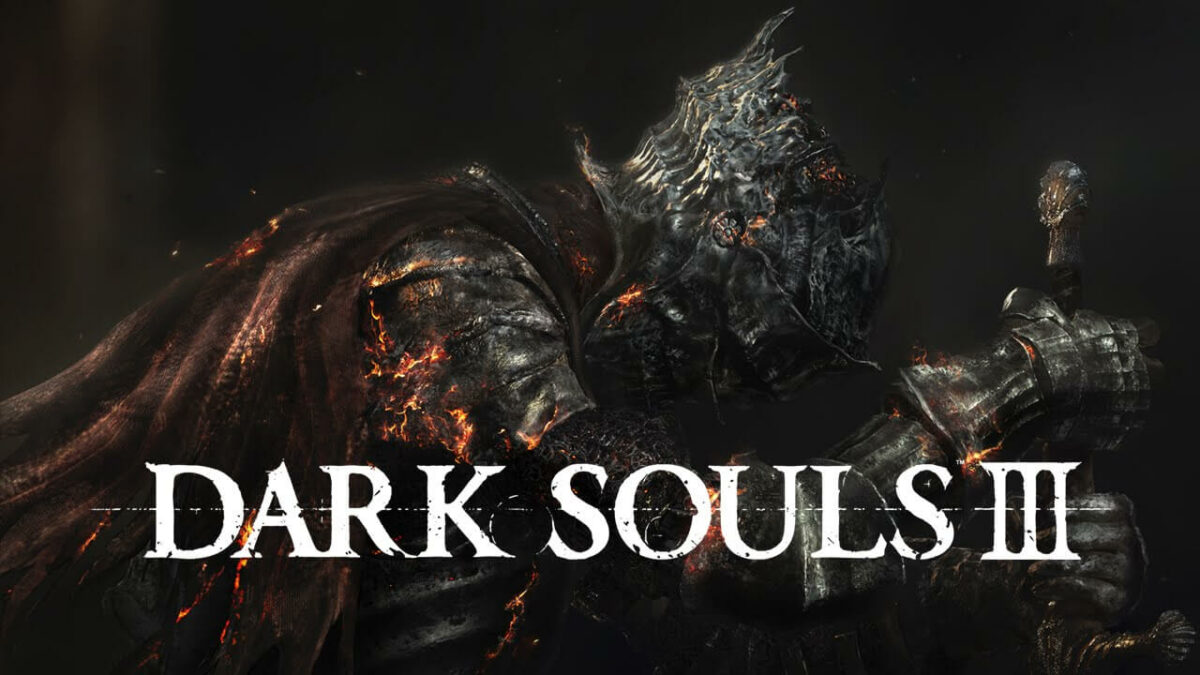
How to Play Dark Souls III

If you’re not familiar with role-playing games set in dark dystopian kingdoms during tumultuous times, what better place to start than Dark Souls III? Between bosses that seem to morph into tar-covered tentacle monsters and NPCs just hanging around looking depressed, you’re sure to wonder what’s going on and how exactly Dark Souls III works. 

On our first blind playthrough, we felt the same. Luckily, we adapted to the ashen surrounding and quickly learned how to play Dark Souls III. Get your scimitars and claymores ready because we’re about to show you the best way to start like a pro, and level up your weapons to defeat bosses the smart way. 

How to Play Dark Souls III Like a Pro

Once you get to grips with your open-world surroundings and adversaries around every corner, you’ll find it’s a pretty straightforward and enjoyable game. The trick is getting started the right way, and yes, there is one. 

How to Play Dark Souls III

Welcome to Lothric

Your first step toward victory is to press start on the initial screen. Once you do this, you’ll immediately be thrust into an exciting cinematic introducing you to the lore and backstory. So that you don’t feel lost, here are the basics: Lothric is in decline. A has tolled signaling all that the First Flame, the custodian of the Age of Fire, is dying. What approaches now is the Age of Dark, which brings with it the undead, and when has the word ‘undead’ ever meant anything good? 

Your Quest

You play as the Ashen One, part of the undead crew who failed to become a Lord of Cinder and is therefore called an Unkindled. You have risen, and now your quest is simple; Restore Prince Lothric and all the defiant Lords of Cinder to their thrones and link the fire. Prince Lothric was supposed to do this but backed out of his destiny, as Royals do, and now it’s up to you. Fair warning, these Lords are the epitome of defiance. 

Among the ranks of the Lord of Cinder are the Abyss Watchers, warriors sworn by the Old Wolf’s blood, an oath that linked all their souls together to protect the land from the horrors of the Abyss but who were locked in fearsome battle with one another; Yhorm, a giant who once conquered the people he ended up sacrificing his life for; and Aldrich.

A clever nod to Cthulhu, an Eldritch terror from the mind of H.P Lovecraft, Aldrich resembles an octopus and became a Lord of Cinder even though he had a ravenous appetite for men and gods. 

The Best Way to Start Dark Souls III

Dark Souls III gives you a choice between 10 classes to start from. The classes are knight, warrior, mercenary, herald, assassin, thief, sorcerer, cleric, pyromancer, and the fun sounding one called deprived. Most players believe that there is serious thought involved in which class to start with; There isn’t really.

Each class definitely has its perks, but they are all fairly equally matched to start with. However, if you’re into magic, start with one of the classes that give you instant access to magical abilities, like pyromancer, sorcerer, or cleric. 

The knight and warrior classes are the best for taking damage, so if you think you’re likely to be hit more than you hit other entities, take one of these as your starter. The knight class also lets you carry heavier armor and comes with a longsword that deals brutal blows. Therefore, if we were to pick a class for starting Dark Souls III from the beginning, we’d definitely go the knight route.

It’s a much more forgiving class on newcomer players. You will be able to build your character up exactly how you desire as you go, and when you get far enough, you can even reclass your character and try the others on for size. 

Here are some brilliant starter aspects to a few of the classes:

Thief: The thief has a high luck score. This is important early on in the game as you don’t have many other skills. Your primary weapon is a dagger, which beginners often find difficult to use effectively, so luck will definitely come in handy.

Cleric: As it can in most games, the cleric can heal itself. It’s a decent fighting class, but definitely not the best. As a cleric, you’ll also have a strong starting point when it comes to sorcery. 

Warrior: If all you want out of a starter character is brute force, strength, and a double-handed battleax, this is the way to go. You’ll blow through enemies like a tornado and even deal a good amount of damage to bosses. 

How to Play Dark Souls III

Dark Souls III: Tips and Tricks

Here are a few tricks we worked out when we learned how to play Dark Souls III. We hope they’ll help you too.

Exploration Holds the Key to Success

The Kingdom of Lothric hardly looks like a place anyone in their right mind would willingly explore. But we gamers are different; we run at sharp pointy objects and use chasms and cliffs as parkour; At least in-game. Exploring Lothric to its limits will certainly reveal many helpful tools and accessories, not to mention upgrade pieces.

Do things you’d never do in reality, like hitting solid walls repeatedly; Sometimes, they aren’t all that solid, and they lead down new and exciting pathways. Check around every corner, break every chest wide open, give yourself every opportunity to get the best gear

Sometimes Running is the Best Option

Dark Souls III isn’t like other games where areas are locked behind obvious barriers, taunting you until you reach a high enough level; It’s far more terrifying. Dark Souls III basically gives you the run of whatever part of the world you find yourself in. You will no doubt come across entities that are far above your class.

You likely won’t be able to kill creatures like the oversized crystal lizard on your first try, so it’s good to remember that it’s okay to run. More than okay, it’s practically mandatory. IF you’re facing a particularly stubborn boss that just will not die, the same logic applies; Run to safety. Once you’ve recharged and your character isn’t wetting itself anymore, you can take another crack at it a fight. 

Reading is What? Fundamental

From character class descriptions to glowing messages on the floor; Read everything you see. You’ll probably come across some cool loot and weapons by not just looking at the pictures. Item descriptions are particularly important as these can lead to a deeper understanding of Dark Souls III’s lore and gameplay and even reveal new quests. 

Talk to all the NPCs You Meet

We understand the hesitance to talk to people, and we sympathize. But in the context of Dark Souls III, it’s imperative that you exhaust every NPCs dialog. This means talking to them until they start repeating themselves. NPCs can guide you to special items, give you quests and lead you down pathways you wouldn’t have known about in the game. Some NPCs in Dark Souls III are even known to open up alternative endings if you talk to them. 

Upgrade Your Gear

There’s a blacksmith in the Fire Link Shrine who can perform wonders on your weapons. For reasons unbeknown to us, many people avoid him. Whether it’s because of the way he swings his hammer or that he looks like Santa Claus saw the darkness in the world and left the toy business for hardcore weapons, we don’t know. However, it’s a massive mistake to ignore not-so-jolly St. Nick because he can have you swinging above your weight class and attacking bosses more effectively, with the right upgrade pieces, of course. 

Don’t Overload Yourself

You’ll no doubt discover the benefits of rolling around Lothric instead of walking, especially now that we’ve mentioned that it’s an option in your controls. However, an interesting game mechanic means that if you load yourself up with too much loot, weaponry, and special objects, you won’t roll away as quickly as you’ll likely need to.

This isn’t Minecraft; Your character does not have suspiciously deep pockets and endless strength. Extra weight will slow you down considerably and make it far more difficult and dangerous to escape from anything you’re not kitted out to fight. 

How to Play Dark Souls III

All in all, A Brilliant RPG

From the beautiful graphics to the stunning gameplay and deep lore, Dark Souls III is a brilliant RPG title. It is the perfect culmination of a gripping series and expertly weaves the entire trilogy together with an intricate yet powerful story. The world’s most brilliant minds couldn’t imagine a more fitting swan song to the Dark Souls Trilogy. Simply put, Dark Souls III is a masterpiece.

What is Adobe Acrobat Pro? How it works

When it comes to professional PDFs and documents for businesses and freelancers, there are few apps that work as well as Adobe Acrobat Pro. It’s come a long way from its humble beginnings, and there’s so much more you can do with it today.

If you’re new to the document editor, join us on a journey as we show you what Adobe Acrobat is and how it works. We’ll also explain how it differs from the standard version and how to get it for free.

What is Adobe Acrobat Pro?

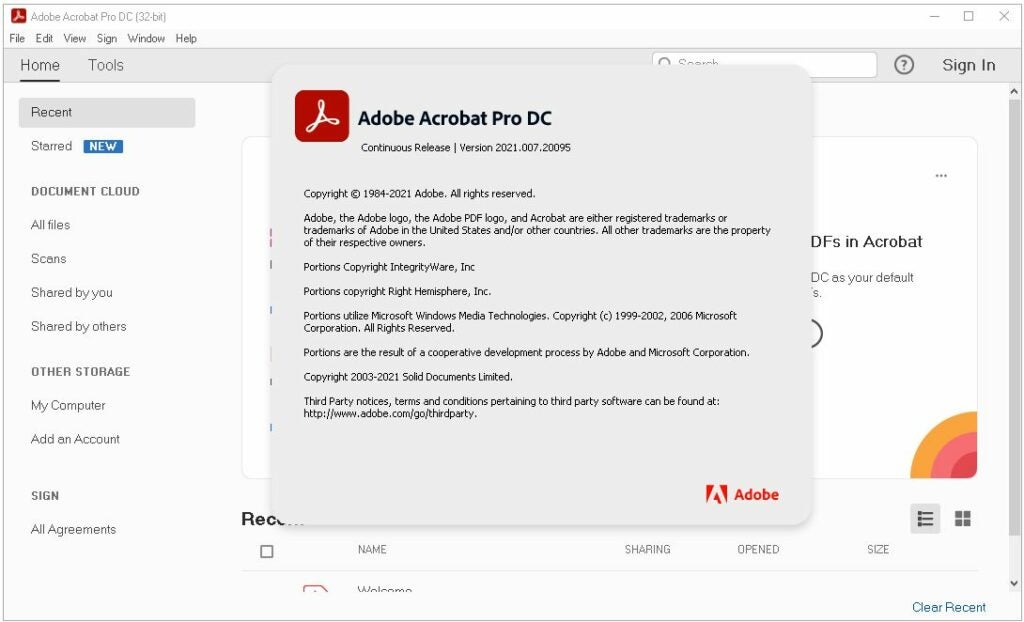
Adobe Acrobat Pro is a document editing tool that lets you add and change content. With optical character recognition (OCR), you can convert scanned text and images to be able to edit them. It also lets you search for terms among the text, depending on the quality of the scan. It’s an upgraded version of the standard Acrobat DC package.

What is the difference between Adobe Acrobat Standard and Pro?

The standard version of Acrobat DC only lets you perform basic tasks. You can create, view, and edit PDFs, while you retain the ability to sign documents. The Pro edition has additional functions, such as converting scanned files to images and text that you can edit, adjust, and search with OCR.

What is adobe acrobat pro How it works

How Adobe Acrobat  Pro works

While the primary attraction to Adobe Acrobat Pro is the conversion of scanned documents, it provides plenty of other features you can use. The brand has gone made great advancements in how you can manage your PDF documents, working better than some Microsoft apps we’ve become used to.

Here are some of the features you can enjoy:

  • Create any PDF from scratch with text and images
  • Easily edit a PDF document
  • Convert from one format to another (PDF, DOC, etc)
  • Share PDF documents with colleagues and collaborate
  • Sign documents electronically
  • Scan files and convert to PDF for editing
  • Delete, arrange, or re-order pages
  • Compress PDFs
  • Extract and insert pages from other sources

How much does Adobe Acrobat Pro cost?

At the moment, the Pro version of Adobe Acrobat is $17.24 while the standard one goes for $14,94 on a monthly subscription. You’ll need to pay an annual cost, which automatically renews unless you cancel it. 

How to get Adobe Acrobat Pro DC for free

Adobe Acrobat Pro DC has a free trial available for seven days. While you won’t have to pay in this period, it will charge you the monthly fee to your credit card if you choose not to cancel the membership. It tracks your Adobe ID to ensure you don’t abuse this process. 

Here’s how you can sign up for a free copy of Adobe Acrobat Pro:

  • Access the free trial page
  • Select “Get Started”
  • Insert your Adobe ID or email address
  • Select the Pro plan and enter your payment details for when the trial expires
  • After the download, open the executable file 
  • Let the installation wizard run
  • Enjoy your free version of Adobe Acrobat Pro
What is adobe acrobat pro How it works

Adobe Acrobat Pro tips and tricks

Now that you’ve worked out what Adobe Acrobat Pro is and how it works, we have some tips to share with you. These tricks will make your life easier when developing documents for your business.

How to delete pages

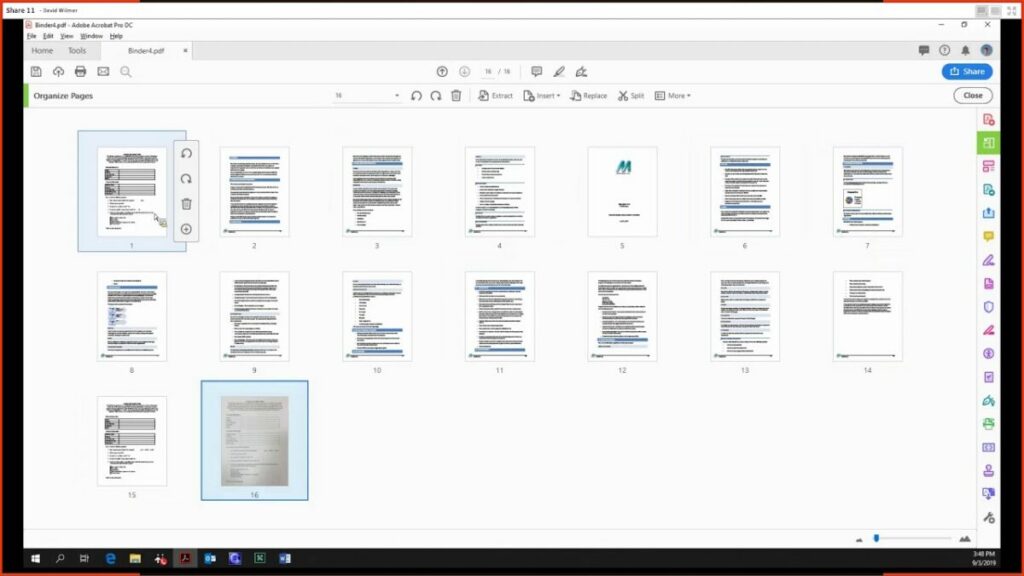
Deleting a page in Adobe Acrobat is easy when you know which buttons to click. First, head to Tools and then Organize Pages. You can also check the right pane for this option. Choose all the pages you want to remove from the viewing pane and click on the delete icon. It will ask you to confirm before performing the function.

How to draw

The only way to draw on Adobe Acrobat is by inserting a comment. When you head to the Comment panel, you’ll see several drawing tools, such as the pencil and free form functions. You can also edit line thickness and colors. When you’re done, make sure to save the PDF.

How to add fonts

One way to add fonts to Adobe Acrobat is by selecting Type and then Add Fonts. If you’re connected to Creative Cloud, you’ll be able to upload fonts from your PC into the cloud for use on your PDF documents. 

How to convert a document

Adobe Acrobat has an online function for converting a document, but you can also do it inside the program. Head to Create, and then PDF from File. Choose which file you want to convert and click on Open. You can also select Settings to change any configurations. When you’re done, the PDF will open from the previous format.

How to sign a document

When you receive a PDF to sign, there are a few steps to follow in Adobe Acrobat. Firstly, select the Sign icon at the top, followed by Fill & Sign. The program will detect where the fields are, and you can choose if you want to complete them with your full name, signature, or initials.

Top-notch PDF program

Adobe Acrobat Pro brings many new features to the table, but it’s only worth using for professional reasons. It can make your work run smoothly, and you’ll see a return on your investment if you use it on a daily basis. Make sure the try the trial version first to see if it will meet your needs.

How to play Farming Simulator 22

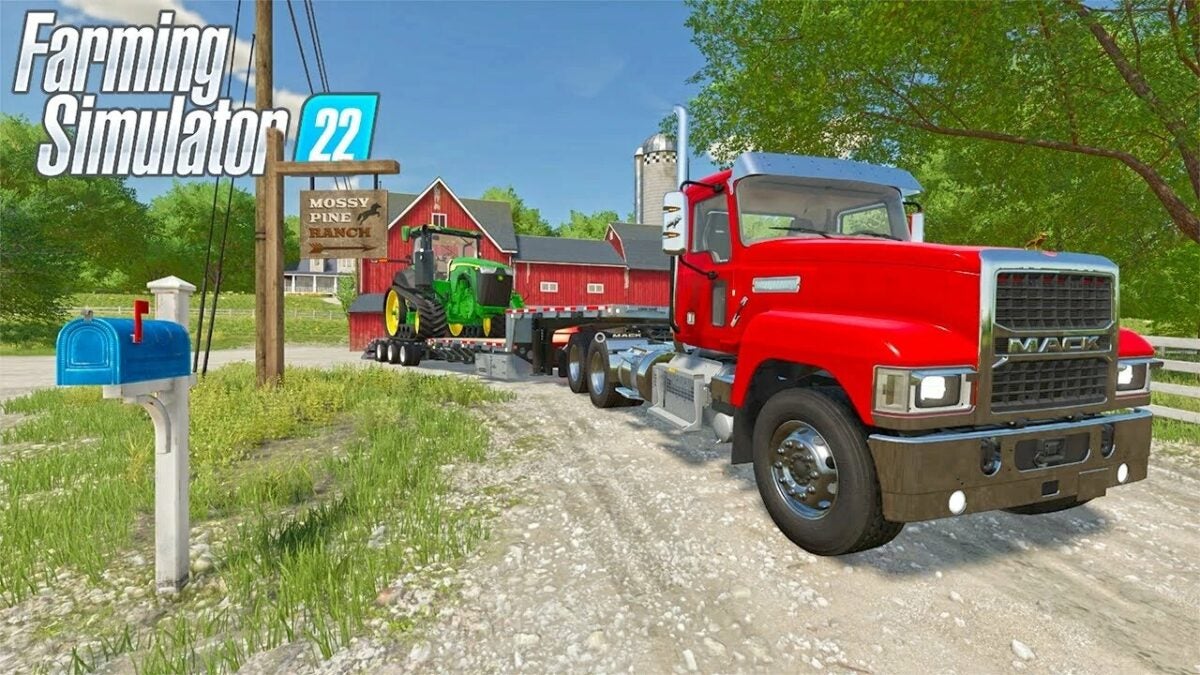
GIANTS Software released Farming Simulator 22 on November 22, 2021, bringing with it new gameplay elements and the latest farm vehicles and equipment. There are solo and multiplayer modes, while you can also enjoy mods made by the gaming community.

If you’re ready to cultivate lands and harvest crops, let’s show you how to play Farming Simulator 22 so you can learn the basics.

What is Farming Simulator 22?

Farming Simulator 22 is an open-world farming simulation game where you have land to sow seeds and harvest crops. It also has animals for you to provide different products, such as milk and wool. There are contracts you can accept to work on other farms, but you’ll have the opportunity to buy the land and develop it for more profit.

How to play Farming Simulator 22

What’s the point of Farming Simulator?

The primary objective of Farming Simulator 22 is to grow and sell crops and products to make as many in-game funds as possible. You’ll have several tools and equipment at your disposal, each one equipped for a specific purpose. Ultimately, you want to own as much land as possible for the best financial bottom line.

How to play Farming Simulator 22

How to play Farming Simulator 22

Learning how to play Farming Simulator 22 is easy if you’ve tried the previous games in the franchise. Most of the game mechanics are the same, with a few exceptions. If you’re new to the series, here are a few basic tips for getting started.

How do you start off in Farming Simulator?

To play Farming Simulator 22, you need to buy, download and install it. You’ll need at least 35 GB of space on your PC with 8GB RAM. It only works on Windows 10 and higher.

When you start a new game, it will ask you which mode you’d like to play. They rank as easy, medium, and hard and will affect how much money you begin with as well as some economic factors. There are also three maps in different countries.

As soon as you’ve selected a difficulty, you can create a character. The choices started with gender, but you can browse clothing and physical attributes after that. Give your new character a name, and you’ll enter the farming world.

What are the steps?

On the easier modes, you’ll have one piece of land you can start with. It’s best that you look around at the buildings and equipment you have to see what you have to work with. When you’re ready to get your virtual hands dirty in Farming Simulator 2, these are the steps you’ll need to follow:

  1. Plow: You’ll need to prepare the land the first time you plan on using it. It’s best if you check the crop requirements to see whether you should use a plow or a subsoiler. 
  2. Cultivate: After you harvest crops, you’ll need to cultivate the soil to prepare it for sowing. It’s usually considered the first step, depending on if plowing is necessary.
  3. Sow/plant: To grow crops, you need to sow the seeds into the cultivated land first. When you attach a sower to a tractor, you can select which type you want to plant.
  4. Fertilize: If you want better yield and improved crops, you should fertilize the soil with nutrients. There are various types of fertilizers from which you can choose.
  5. De-weed: Weeds will appear between your crops now and again, so you’ll need to remove them. If the crops are still young, you can use a de-weeding attachment. Otherwise, you’ll need to perform some chemical spraying.
  6. Lime: After harvesting crops a few times, the soil starts to lose its natural resources, and normal fertilizer isn’t as effective. You’ll need to spray some lime over the soil to assist.
  7. Harvest: With your crops ready, you can now harvest them. Make sure there’s a trailer nearby to transport them when the harvester is full.
  8. Sell or store: You’ll have two options
  9. Remove withered crops: If you’re too late in harvesting, your crops will wither and become unusable. You’ll need to cultivate the land to remove the waste.

Different vehicles, equipment, crops, and animals

Another step in learning how to play Farming Simulator 22 is getting to know your resources. Pause the game and take some time to work through the vehicles and equipment. There’s even a guide on what each of them does, which will help you in the long run.

You should also pay attention to the details and prices of the different types of crops. For instance, you can collect straw after harvesting wheat and oats that you’ll feed to some of your animals. There’s also a profit from mowing grass and baling them into hay or silage blocks. 

Finally, pay attention to the requirements of various animals. While they’ll provide a steady income, you’ll need to supply them with food, straw, and water to keep them happy. If you don’t have these in stock, you’ll have to buy some.

Purchasing land

As soon as you have a hang of things and your money is doing well, consider purchasing more land. You’ll be able to grow and harvest more crops and thereby derive a greater income. Start with the most affordable ones and work your way up. 

How to play Farming Simulator 22

Farming Simulator 22: tips and tricks

You now have the foundation of how to play Farming Simulator 22. Once you have the hang of it, you may want to look at some advanced techniques. Here are some tips to consider.

Use workers carefully

When farming lands, you have the option to have a worker do it for you. You’ll pay them wages, depending on the activity. You’ll need to see if you’ll still make a profit; otherwise, you might as well just do it yourself. Quick tasks like fertilizing and cultivating generally take up more money and won’t yield a decent return on investment if you outsource them.

Sell what you don’t need

As soon as you start playing Farming Simulator 22, look at which buildings and equipment on your land you don’t need. You can make some extra money by selling them, which you can use for decent vehicles and improvements. When you earn more income, consider selling old tractors for better ones.

Accepting contracts

You’ll notice on the dashboard that there’s a tab for contracts. If you want to make some dough quickly (pun intended), accept one and complete the task as quickly as possible. We usually start the day dealing with our own lands before spending the rest of it on contracts. It’s an excellent way to maximize profits. 

Check the market before selling

We know you’re eager to make some money, but have a look at the market for your crops and animal products. It will work in your favor to find the stores that will pay the most for them at that time. Remember, the rates change based on demand, so always ensure you head back to see the current buying price.

Cut some trees

If you have trees on your land, you can cut them down and sell the wood. You’ll need some forestry equipment, which you’ll be able to afford later in the game. In the beginning, consider spending some time chopping them down to size with a chainsaw and placing it in the back of your trailer.

Watch the seasons

A new feature introduced in Farming Simulator 22 is the seasonal cycle. The weather and climate will change over time, and it will have a massive impact on your crops and when you can harvest. Make sure you have everything in place for when the snows of winter arrive!

Look at the mods

Game modders love producing new content for Farming Simulator games. You won’t need to install them separately, as you can access them in the game itself. Have a look at which features you’d like to add to your farm.

How to play Farming Simulator 22

Cross-play multiplayer

No matter which platform you choose to play Farming Simulator 22 on, you’ll be able to join your friends online. You have the choice to compete for the most income and land, or join forces and manage the farms together. All you need to do is connect with your friends or join a server to play with others.

Let’s get farming!

As you can see, Farming Simulator 22 is more than just a casual game. There’s plenty to do, and it just depends on how much time you have to do it in. You can get lost for hours growing and harvesting on your farm. There are even social channels dedicated to online competitions!

Hawkeye: Everything you need to know about Marvel’s new miniseries

The wait is over. On Wednesday, November 24, we finally get to enjoy the premiere of Hawkeye, the fifth series from the Marvel Cinematic Universe (MCU) to debut on Disney+. In it, we’ll catch up with Clint Barton for a new adventure that will see him face down a threat from his past.

Still don’t have Disney+? No problem, because now is the best time to subscribe to the platform. Don’t miss your chance to sign up for 20% off the annual subscription rate this November. That way you’ll get two months of Disney+ for free!

Save 2 months with annual subscription at Disney+ SUBSCRIBE NOW
9

All about Hawkeye

Set in New York City, Hawkeye takes place after the Blip that happened in Avengers: Endgame. In it, we’ll catch up with Clint Barton (Jeremy Renner), who has come to the city to spend Christmas with his family. He’ll also be attending a special event, as he has been invited to see the Steve Rogers (Captain America) musical on Broadway.

But what promised to be some quiet days with his family will turn into one of his riskiest missions yet. An enemy from his past will show up, ready to ruin all his Christmas plans. Will he succeed?

Kate Bishop, Marvel’s new hero

But Barton won’t be alone at these difficult times, as he’ll team up with the young Kate Bishop (Hailee Steinfeld). A 22-year-old archer, Hawkeye’s biggest fan and an aspiring hero, she’ll become Clint’s biggest supporter in this new series, which, as usual for Marvel, has all the makings of a new hit on Disney+.

Kate will make her first MCU appearance as Barton’s counterpart. A witty, refreshing character, her admiration for Hawkeye will cause her to want to constantly demonstrate her full potential. Despite being a tough fighter, Bishop is a rookie hero with a charming comical side that promises to win over fans of the series.

When does Hawkeye come out?

You’ll be able to watch the first two episodes of Hawkeye on November 24, exclusively on Disney+.  The series has a total of six episodes that will be released on the platform every Wednesday.

Want to know when you can watch the first episode of Hawkeye? Here’s the release schedule so you don’t have to miss a second of the adventures of Clint Barton and Kate Bishop.

Episode 1: Wednesday, November 24
Episode 2: Wednesday, November 24
Episode 3: Wednesday, December 1
Episode 4: Wednesday, December 8
Episode 5: Wednesday, December 15
Episode 6: Wednesday, December 22

A star-studded cast

We can’t forget to mention that Hawkeye has an amazing cast to support Renner and Steinfeld. The series also stars Vera Farmiga, Fra Fee, Tony Dalton, Cahn McClarnon and Alaqua Cox, playing Maya López in her first major role.

Hawkeye amazing cast

Still not a Disney+ subscriber? Don’t miss this offer!

The Hawkeye series is exclusive on Disney+, so you’ll need to sign up for this streaming platform to follow its adventures. Still not a subscriber? Take advantage of this special offer to get a 20% discount on your annual Disney+ subscription! That way you can enjoy two months of this incredible platform and its enviable catalog, completely free. What are you waiting for?

Disney+ offer: Save 2 months with annual subscription SIGN UP NOW
9