Breaking the Mold: Meta’s Unanticipated AI Function Revealed

Meta has announced the launch of what will be its first artificial intelligence feature in one of its social apps.

Despite Meta (formerly Facebook) having developed its own AI named LLaMA, the company has not yet implemented any AI function in its products. While there is an Instagram chatbot in development (with an uncertain release), other social media platforms like Snapchat have already taken the lead in AI implementation.

Instagram DOWNLOAD

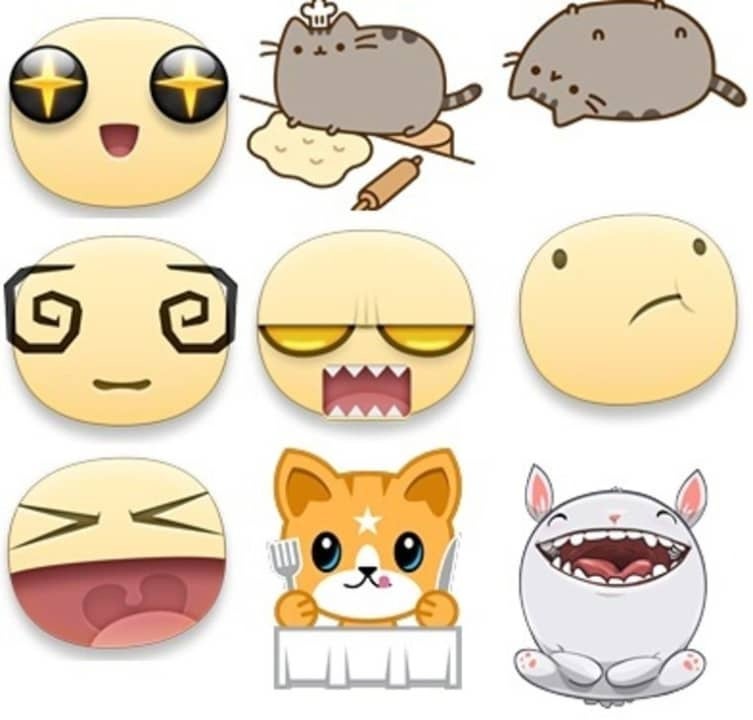
Now, Meta wants to catch up in the midst of the AI revolution and offer its users the first AI-powered feature in one of its products: AI-generated stickers for Messenger. Yes, that’s right, perhaps it’s not the AI feature that users were expecting in a Meta app.

Messenger DOWNLOAD

In a meeting accessed by The Verge, Meta’s VP of AI, Ahmad Al-Dahle, explained to employees that the company will leverage its image generation model to allow users to create stickers from text messages. Currently, the feature is being tested internally, but it will likely be released to the public in the near future.

“With AI-generated stickers, our users can have infinitely more options for self-expression, cultural representations, and even trend relevance,” Al-Dahle states. “Of course, stickers are just the tip of the iceberg.”

The VP of AI also states that Meta is “working on AI models that will transform any image you want in any way you want.” Among the possible functions, there would be the ability to “change the aspect ratio of your photo” or turn a photo “into a painting.”

This marks a first step for Meta in implementing artificial intelligence into its social media ecosystem. However, considering Zuckerberg’s ambitions, we can almost certainly expect to see many more AI functions in the coming years.

Messenger DOWNLOAD

Some of the links added in the article are part of affiliate campaigns and may represent benefits for Softonic.

Meta looking to bring automatic end-to-end encryption to Facebook Messenger

The end-to-end encryption protecting WhatsApp’s messages is one of the app’s most popular and headline-grabbing features. Privacy is a big issue these days and more and more users are becoming fearful about what could happen if their private messages fall into the wrong hands. It is in this context that Meta has announced it is testing protecting Facebook Messenger chats with end-to-end encryption by default too.

Messenger Download Now

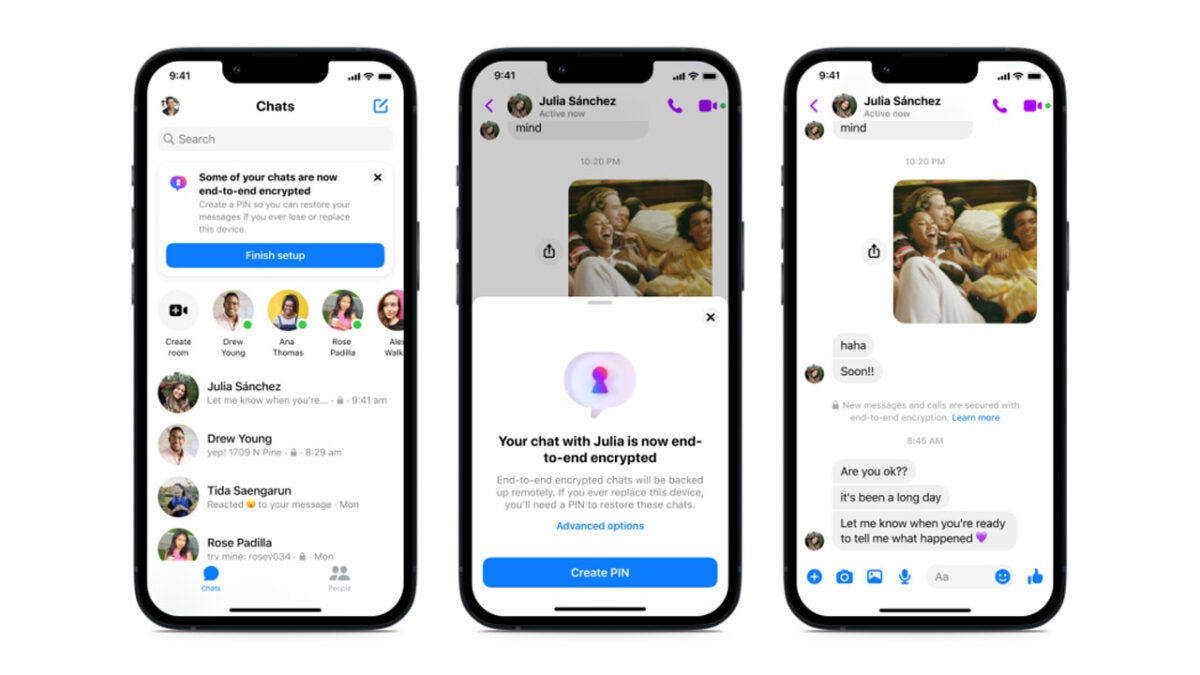
In a Meta blog post, the company has announced that it is testing automatically applying end-to-end encryption to Messenger chat threads on top of tests of a new secure storage feature on Messenger to back them up.

The test to begin automatically encrypting chats will roll out to some users on Android and iOS in the coming days. This means users won’t have to opt into the feature and that all messages will be end-to-end encrypted by default. Meta said:

“This week, we’ll begin testing default end-to-end encrypted chats between some people. If you’re in the test group, some of your most frequent chats may be automatically end-to-end encrypted, which means you won’t have to opt in to the feature. You’ll still have access to your message history, but any new messages or calls with that person will be end-to-end encrypted.”

Meta is going to also begin testing the new secure storage feature this week on both its Android and iOS apps. When it comes into play, the feature will mean Meta won’t have access to your messages unless you report them to the company. The feature will also allow you to import your messages to new devices and will be protected by a 2-step verification feature.

This move from Meta is very much a work in progress as the company looks to move towards a future where all personal messages and calls are protected by end-to-end encryption. According to the Meta blog post, the social giant is hoping to be able to roll these features out to all users at some point in 2023.

In other recent news, Meta is looking for help training its new AI chatbot. Would you like to help Meta train an AI?

Beware of these chatbots on Facebook Messenger that are spreading phishing scams

Unfortunately, we have seen a lot of scams going around recently, with many different types of malware popping up in all sorts of different places.  More than ever, you need to be vigilant when going about your daily business online. This point is only reinforced further by today’s news as researchers have discovered Facebook Messenger chatbots that are running phishing scams. Let’s dig a little deeper into this story.

Facebook Messenger Download Now

Threat detection and response specialists Trustwave have released a report into what it calls Interactive Phishing. This type of threat sees malicious actors using Facebook Messenger chatbots to steal victims’ credentials and gain access to their accounts. They specifically target managers of Facebook Pages so that they can take control of them and spam users.

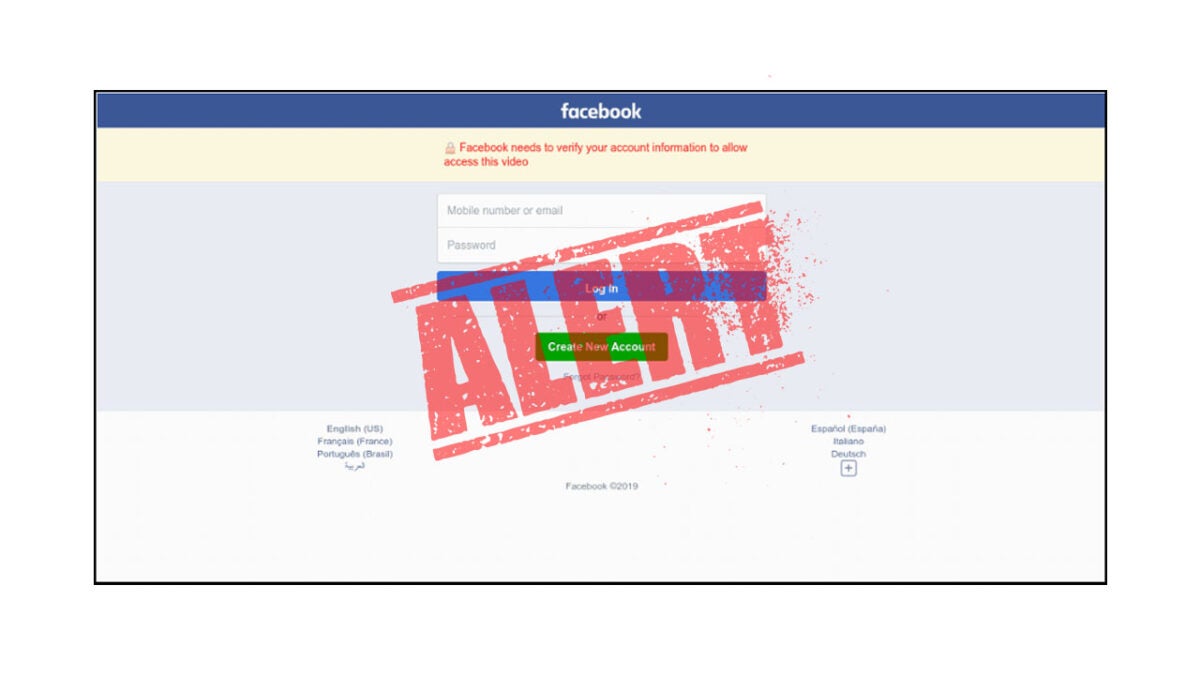
Interestingly, these scams begin via email. Potential victims receive emails saying that their page has breached Facebook’s Community Standards and has been scheduled for deletion. The email includes an Appeal button, which leads to a link that has been shortened using Meta’s own link shortener. Clicking this link launches Facebook Messenger and a conversation with a chatbot called Page Support.

All is not right with this page, however, and this is where your own vigilance comes into play. Trustwave says this about the page that is supposedly an official Facebook support page:

“… closer inspection of the profile owning the page will reveal that this is not an actual support page. The profile used is just a normal business/fan page with zero followers and no posts. Even though this page may seem unused, it had a “Very Responsive” badge which Facebook defines as having a response rate of 90% and responds within 15 minutes. It even sported a Messenger logo as its profile picture to appear legitimate.”

Not everybody spots these signs, however, and once victims hit the Appeal Now button in the Messenger chat they are taken through a conversation that ends up with them putting all of the page’s login credentials into an online form. This includes their password. The scam even sends over a prompt to include a code that the user will receive on their mobiles as the scammers try to log into their account from another device. Once this happens, all the details are then put onto a spammer database.

As we’ve already mentioned, it is more important to remain vigilant these days. To prevent yourself from falling victim to phishing attacks like this, download and review our phishing attack detection infographic.

Facebook Messenger users targeted by massive phishing scam

Phishing scams are when scammers try to lure you to a fake site or download an infected file by trying to make it look like something else. We are seeing all sorts of innovative and harmful phishing scams at the moment such as fake job offer scams and Android trojans hiding in APK download files. Unfortunately, cybersecurity specialists have discovered another scam that is targeting Facebook and Facebook Messenger.

Facebook Messenger Download Now

PIXM, an anti-phishing firm in New York that focuses on AI-related cybersecurity issues has released details of a campaign that has been active on both Facebook and Messenger since September last year. They say the campaign reached a peak in April and May but that it is still very active now.

According to PIXM, the scam involves Messenger users being repeatedly redirected from the Meta app and ending up on phishing landing pages filled with malicious links and files. Then, as well as targeting the unwitting victims who end up there, the phishing campaign also accesses their contacts lists and uses automated tools to further spread the phony redirection requests to other users.

In this way, the campaign has been able to lure millions of Facebook and Messenger users to the phishing pages and tricking them into handing over their account details. PIXM reports that 2.7 million users had accessed the campaign’s phishing landing pages in 2021, rising up to 8.5 million users this year. These were spread across over 400 phishing landing pages identified by the cybersecurity specialists.

Unfortunately, although PIXM has reported the scam to authorities and many of the pages have been taken down, there are still many sites from the campaign that are still active. This is particularly worrying as some of those 405 sites had seen up to 6 million visits on their own. Even though it has been discovered and highlighted, this is still very much an active campaign.

As always with these cases, you need to be extra vigilant about the links you click on, no matter where you find them. To make sure you have the best chance of spotting a fake link or redirect, check our infographic guide to spotting phishing scams.

Image via: PIXM

The Messenger app is getting a new voice calls tab

Messenger has been around for what seems like forever. Ever since Facebook forced you to download a separate for chatting to your Facebook friends on your mobile, it has been one of the biggest messaging apps around. Being so old and so established means that it is not often that we see big fundamental changes coming to Messenger but today that is exactly what we have. Let’s take a look.

Messenger Download Now

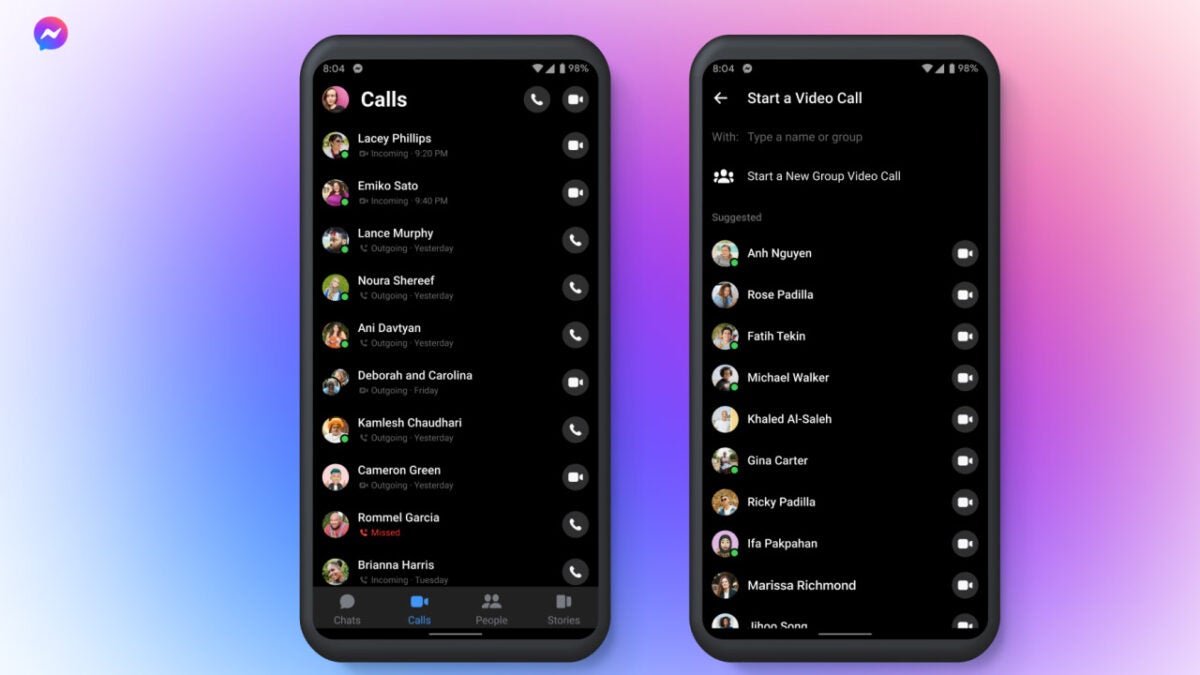
Meta has announced that it is adding a new Calls tab to the Messenger app that will be found in between the Chats tab and the People tab at the bottom of the screen.

It seems a little crazy to think that this feature is only coming now when you consider that Messenger has had voice calls since 2013. However, it is worth noting that Messenger isn’t supposed to be a fully-fledged communication app like say, for instance, WhatsApp. It is the app for the messaging function of a social network. It would be much easier to understand this if Facebook hadn’t forced us all to download two separate apps in the first place.

Still, though, this is an important update that will change how many people use the Messenger app. Meta says it is implementing the change because the COVID-19 pandemic has forced many people to work from home, meaning hundreds of millions more audio and video calls are being made every day. The company says it has seen a 40% increase in daily callers since the pandemic began in early 2020.

One interesting worth watching out for is how this change will affect WhatsApp. Although they have always had similar features, this update now makes Messenger and WhatsApp more direct competitors as it is now much easier to make calls on Messenger. Up until now, you had to start a call from within a Messenger chat itself.

If you want to get even more out of the Messenger app you should our ultimate guide to Facebook Messenger.

Image via: Meta

You can now type shortcut commands on Messenger

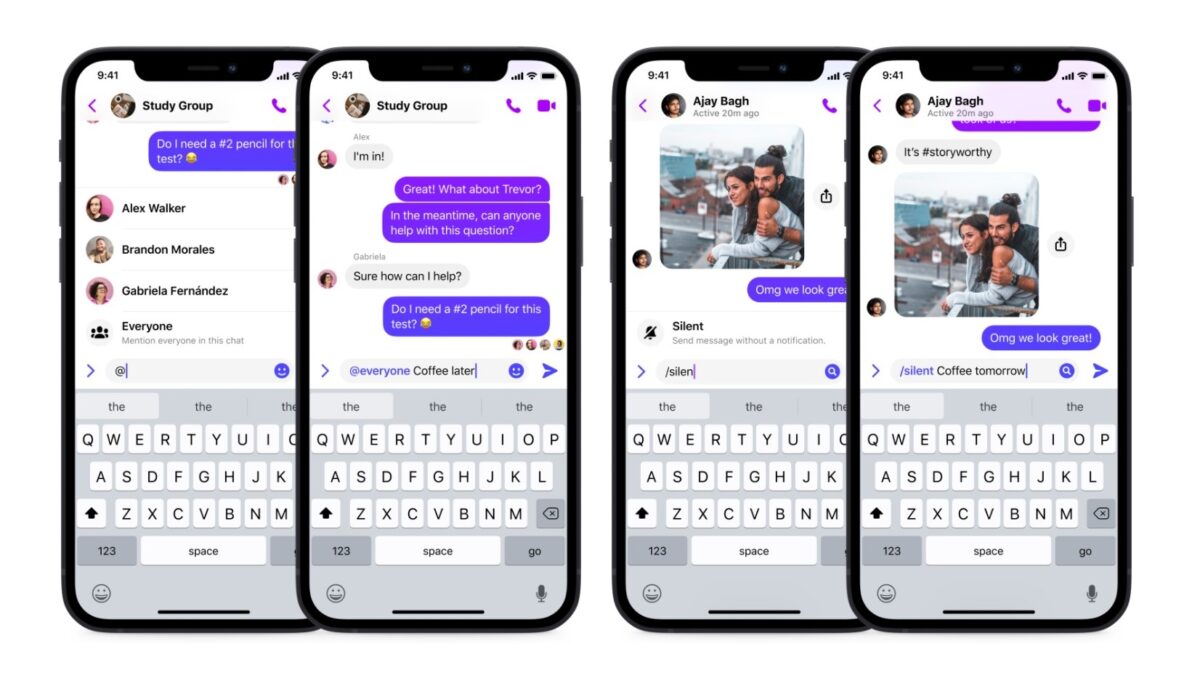
Popular instant chat app Messenger has recently launched a new shortcuts feature, which is a command system similar to Slack’s commands. With it, you can tag everyone in a group chat and silence your messages so they won’t be notified. This is currently available on both Messenger for Android and Messenger for iOS

Even with Messenger being one of the most widely-used communication apps, Meta still continues to make improvements to its features in order to stay in the competition. The addition of chat commands isn’t a new concept but it’s definitely going to set Messenger in a more efficient and creative direction.

There are two shortcuts you can do so far: “@everyone” and “/silent.” The former is similar to the current “@” feature that lets you tag someone but instead, it tags every member of a group chat. Meanwhile, the latter is for sending messages that aren’t urgent and so won’t disturb anyone with pop-ups or notifications. This is great for groups with different time zones.

Messenger plans to roll out more shortcuts in the coming weeks. So far, four have been revealed: “/pay”, “/gif”, “/shrug”, and “/tableflip.” Coming soon to iOS and Android in the US, “/pay” will be Messenger’s own built-in payment system, letting you send and request money in your one-on-one chats. “/Gif” is simply an easier way to access the GIF feature and is coming soon on iOS.

Meanwhile, “/shrug” and “/tableflip” are for instantly pasting the popular kaomojis, “¯\_(ツ)_/¯” and “(╯°□°)╯︵ ┻━┻”, respectively in your message—and are also coming to iOS for now. Messenger plans to add more shortcuts within the year, but there’s no news yet on when they’ll be available on PC.

These new shortcuts are bound to make things much easier for users—if not a good reason to prefer Messenger over its competitors. In case you’re interested in knowing more about the app, here’s a guide on how to use Facebook Messenger.

Image credit: Messenger News

What is Facebook Messenger, how to use it?

Facebook Messenger is a free messaging app from Meta’s stable of communication and productivity software. Basically, the messaging function on Facebook was so successful that Meta decided it needed to be a standalone, more functional application. So apart from a way to send messages, what is Facebook Messenger, and how do you use it?

This article will take a peek under the iconic blue Facebook Messenger symbol and explain what this messaging app can do. We’ll take a look at features, functionality, aesthetics, and even list a few things you may not have known the app can do. Prepare to see Facebook Messenger as you’ve never seen it before.

What Is Facebook Messenger?

Facebook Messenger is a messaging and communication application for keeping in touch with your nearest and dearest. Send text messages, photos, videos, voice notes, and even location pins, and do it all for free. 

What is Facebook Messenger, how to use it

How Does Facebook Messenger Work?

Facebook Messenger uses your Facebook friends list as an address book. That way, you don’t need to import or add contacts or even manually input mobile numbers. Facebook Messenger even lets you use it as your default SMS app. You can do everything in one easy-to-use interface. 

The Basics of Facebook Messenger

Using Facebook Messenger is as easy as downloading the app for your mobile device. Once the app is downloaded to your device, you can log in with your Facebook credentials. If you’re already logged in to Facebook on your device, Messenger will give you an option to just click the ‘continue as’ button.

If you want to sign in with a different username, click the button underneath that says ‘this isn’t me.’ From here, you’ll be able to enter the credentials of the Facebook account you want to log in to, and you’re good to go. 

What is Facebook Messenger, how to use it

How to use Facebook Messenger

You probably read that Facebook Messenger is a messaging app and are now thinking, ‘I have a messaging app; why do I need to download another one?‘ For starters, most messaging apps require you to enter your phone number to get started, which means waiting for an OTP to reach your phone, setting up a whole new app, choosing the perfect photo for your profile, and a cute and informative ‘about’ message.

Facebook Messenger lets you skip this process. Your contacts are your Facebook friends, your verification and login information are your Facebook credentials, and your profile photo is imported automatically from Facebook. 

Functionality Features

As you’d expect from a modern messaging app, Facebook Messenger gives you much more than just texting. You have access to all the staples available on other platforms, like texting, video calls, voice notes, location pins, and emojis. But Facebook Messenger is in its own class. For a start, phone calls are now free. 

Any calls you make through Messenger carry the same charge as messages you send; no charge at all. While calls are limited to Facebook contacts at this stage, some features below lead us to believe Facebook might be messing with the default general phone call function in the near future. Let’s take a look at what else makes Messenger unique. 

Default Texting Facility

Facebook Messenger can take the place of your phone’s default short messaging system or texting functionality. This is groundbreaking; you no longer need that pesky message icon that relies on a dedicated SMS bundle in your data plan. And we all know if you need to send an SMS and you don’t have it worked into your monthly plan, you fork out a small fortune for each tet you send. This is because texts don’t use your data balance. Facebook Messenger, however, does. 

Send texts to anyone, anywhere from the Messenger app, and use your data. There is no more need for a dedicated texting plan and no extra costs from texts you sent but didn’t work into your budget. When you open Messenger the first time, it will ask you if you want to use it as your default messaging system. Should you say yes, your texts will be diverted to your Messenger home interface. There is, however, a separate tab for texts so that you don’t have to scroll through Facebook chats to get to a particular message. 

Hidden Messages

Tired of being bombarded on other messaging apps by people you don’t know? Switch to the safety of Facebook Messenger. Messages from people you don’t have any connection with on Facebook are moved to a dedicated folder in your Messenger app. You can easily access this folder through the app’s main interface, but you won’t receive notifications that they’re there. Check on them from time to time to see if it’s anything worthwhile, and instantly delete those you’re not interested in replying to. 

With social media giving people so much access to each other’s lives, cyberbullying has become an even bigger problem. A well-known tactic is for someone to message you because they enjoy your content and get increasingly nasty and abrasive if you don’t respond.

Now you can simply delete offensive messages before they can affect your inner peace. Another brilliant feature is that the other person won’t know that you’ve read their message or that it’s been deleted unless you respond. 

Aesthetics

Aesthetics are important in the digital age. Not only do we want apps and programs to perform well, but we also want them to be less intrusive and have a better effect on our moods. Researchers have studied the profound impact colors have on the human psyche, and now, you can benefit from that research. 

The ability to change chat colors is something not all messaging apps have. Facebook Messenger lets you select between flat colors and themes for your chats. Another reason this is an incredible innovation is that you can now color-code your conversations, using a different color for family, friends, workplace colleagues, or international penpals you’ve made on Facebook. The choice is completely yours.

Innovatively, Facebook Messenger now offers specifically curated themes with each update. One update featured themes inspired by Olivia Rodrigo’s debut album Sour, and another used beautiful blues and turquoise hues to celebrate Worl Oceans Day.

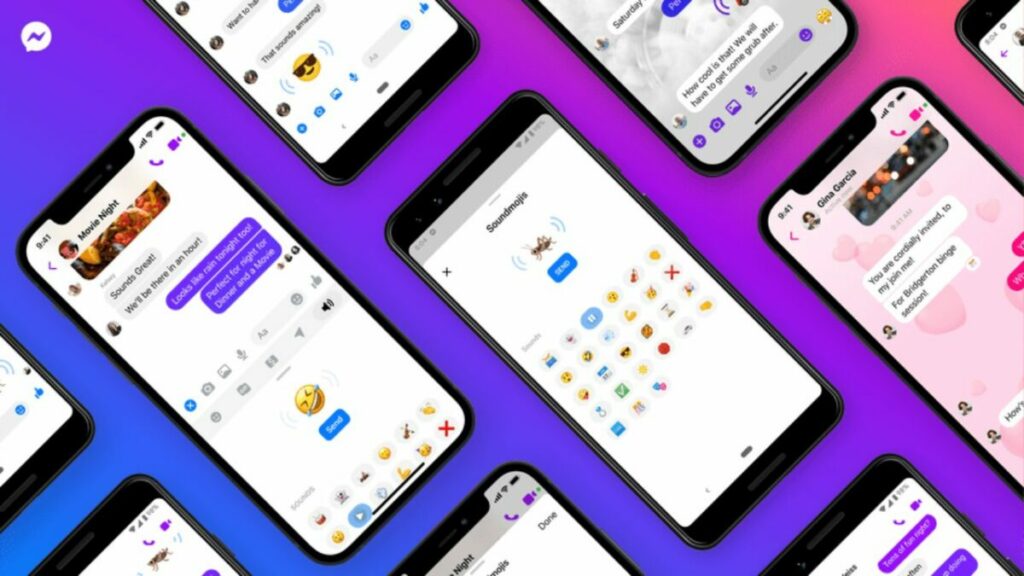
You also now have access to animated and static stickers. Over and above the well-known emojis, stickers are a way to communicate without words. Fun animations are another way Facebook Messenger rewards the senses of its users. Each animation comes with its own sound effects, and you activate them by using select emoji.

For instance, using a singular heart emoji will briefly send hearts and bubble effects over your screen. The same effect happens on the other side when someone opens that message. You also now have the option to frame your texts with dynamic animation. 

Due to it being the Messenger powered by Facebook, your Facebook avatar, a little cartoon likeness of yourself that you make, can be used as a sticker in your chats. All visual add-ons like gifs, stickers, and frames are obtained through the ribbon directly above the text box.

Another nifty feature is the ability to use nicknames on Facebook Messenger. We all have nicknames, and if you cant use them, what’s the point, right? Now you can. You can set your own nickname and funny nicknames for people you talk to. Nicknames take effect across Facebook once set. Think of it as a little inside joke between you and your closest. 

Entertainment

Facebook Messenger lets you set a go-to emoji. The default setting is the classic Facebook thumbs-up, but you can set it to anything you like. Here’s a hint: Set the emoji to the basketball and start an actual game of basketball with your friends or family. You can even initiate this basketball game on a group chat. 

If you don’t want to miss out on the latest news, views, and how-tos, why not initiate a conversation with one of Facebook Messenger’s dedicated chatbots? Choose between news updates from your favorite media platforms to bots that give you daily horoscopes, recipes, celebrity updates, and even bots inspired by celebrities themselves. Use the bot search function, and maybe you’ll be able to chat to one of your favorite celebrities, historical figures, or characters from literature and popular culture. 

If your device is a little heavy on used space already, you can simply select the Facebook Messenger Lite app and get the same easy free messaging functionality for a fraction of the space. Because it’s much smaller, it does have slightly reduced functionality, but it works smoothly and is one of the best ways to keep in touch with friends, family, and co-workers.

What is Facebook Messenger, how to use it

Facebook Messenger Lite: As Good as Messenger?

The team at Meta loves giving users access to smaller lite versions of their most successful apps. Facebook, Messenger, and Instagram have all been given the lite treatment. Even apps not owned by Meta have gone to the lite side. Apps like Skype, Google, Pinterest, and even many browsers all have lite options. While lite is marketed as a space-saving option, lite apps work better than their full-size variants in poor network conditions and low-cost devices. So what’s the difference?

Animations

Messenger Lite doesn’t support animations. This isn’t a massive concession when you get better connectivity in all network conditions, but it matters to some. Animations require stronger connections and more memory, so, understandably, the lighter version of the app doesn’t support them. 

Stories

Stories are a way to keep track of your Facebook friends’ lives. Offered by Instagram and Whatsapp as well, stories are short-form videos that you can upload. These have proved brilliant ways to advertise products and get the word out about any business you’re doing, as well as a great way to share moments from your daily life. Messenger Lite doesn’t support stories. This is also largely due to the memory chunk needed to process videos and the network strength videos require. 

Chat Heads

Chat Heads is a nifty feature of Facebook Messenger. Any chats you have open will appear as little head icons on your device’s home screen once Messenger is minimized. You can move these aptly named Chat Heads around and essentially have one-touch access to any number of active chats. To save space, Messenger Lite does not support Chat Heads. While it’s sometimes fun to flick faces around your screen, this is not the end of the world. 

The fact is that Messenger Lite is just as functional as its feature-loaded alternative. All critical functions, including messaging, phone calls, video calls, and the ability to send location pins and various media, are still very much a part of the Messenger Lite experience.

Facebook Messenger tips, tricks, and guides

For even more amazing features of Facebook Messenger, check out the links below:

Send messages to your contacts

While Facebook Messenger has been around for a long time, many new features have appeared to help it compete with other messaging apps. It still remains one of the top ways to connect with your FB contacts and keep in touch with family.

The best tricks and tips for Facebook Messenger

Who could have predicted it? After what has seemed like forever, Facebook’s exclusive messaging service, Facebook Messenger, has finally taken off. Although it’s been on the social media platform from the start, it wasn’t until a few years ago that the app finally earned a place on the phones of millions of people around the world.

That milestone didn’t come easy. First it had to make lots of improvements and go through a necessary transition: letting people use the Messenger app independently of the Facebook app (something many users had been clamoring for).

So if you’ve fallen under its spell to the point where you’re a frequent Facebook Messenger user, check out our top tricks and tips to improve your app experience on Android or iOS.

Messenger iOS DOWNLOAD FREE
8
Facebook for iPad or iPhone

Get a bigger “Like” button

Many of us have a love-hate relationship with the “Like” button. But beyond the controversy that has surrounded this aspect of the social media platform for years, this icon has a hidden feature in Facebook’s messaging service. If you want to send a big thumbs up to a friend, one that will occupy almost a quarter of their display, just tap it, hold it, and the icon will get bigger. Pretty cool, huh?

Change your default emoji

When Emojis arrived a long time ago… it was clear that they were here to stay. They’re all over social media, websites, forums (in fact, that’s where they originally came from), and above all, messaging services. Emojis are especially useful on the latter platforms, and Facebook Messenger is no exception.

If you want to change the default emoji in the app (which is always the “Like” button), follow these two steps. First, tap the “Information” button in the upper right-hand corner of your chat (or the person’s name, depending on how it appears; it all depends on the Messenger version you have installed). Next, tap “Emoji” to select the one you prefer. How easy is that? From now on, instead of the “Like” button, the emoji of your choice will appear on the right.

GIFs galore

We’re big fans of looped animated images, popularly known as GIFs, on social media and messaging platforms. Who would have predicted they would become so popular? They were created almost two decades ago, but they’re gaining more fans by the day… so let’s make the most of them!

To send a GIF, tap the emoji button and select the tab clearly marked “GIFs.” Using the search bar that appears, you can search Facebook’s huge database for the best GIF for your chat at any given moment. See? It’s not that hard.

Facebook DOWNLOAD
9
The Most Important Social Network

Hidden games

Did you know Facebook Messenger has a ton of hidden games you can play by yourself or with one of your friends? These games are also popular on other apps and programs, since they’re an easy way to stay entertained in any situation (and they’re sure to raise a smile).

This isn’t the first time we’ve discussed them on Softonic. Check out this post to find out how to unlock them all. We promise that they’re easy to access!

Create a room

One of Facebook’s latest major additions in terms of messaging has been video chat rooms. Well, they’re not exactly new, but they have become one of Facebook’s most exciting features in these times of confinement because of their potential to connect millions of people around the world through their cameras.

Messenger Rooms are video conferencing rooms where you can connect with other people through links. And that’s the key (quite literally): you need a link to join a group chat, otherwise, we’re sorry to say you won’t be able to access it.

The best thing about video chat rooms is that people can join them whether or not they have a Messenger account. They don’t need to download the app, log into a Facebook account or anything like that. That said, the room creator needs to be signed into Messenger or Facebook, logically.

To create a room on your smartphone, tap the option at the bottom called “People” The first thing you’ll see is “Create a room.” Tap it, followed by the “Try it” button and “Share link.” That’s all there is to it! Now you can share the link with whomever you want to invite into your room for some fun conversation.

Keep in mind that a Messenger Room can be locked or unlocked once a call starts. Also, the room creator can remove any unwanted participants, any participant can leave the room if they feel uncomfortable, and participants can report the room name if they believe it violates Facebook’s community standards. If you have blocked someone on Facebook or Messenger, they won’t be able to join a room you create, and you won’t be able to join theirs if they are logged into their Facebook or Messenger account.

Also, the rooms feature lets you choose from two types of sessions: for anyone with the link (anybody who has the link can join your room, even if they don’t have Facebook or Messenger) and only for Facebook users (only people with a Facebook account can join your room).

Set nicknames

We’ve all had a nickname at some point of our lives, and in fact, many of us probably still do. When we were kids, it was normal for friends to call each other by names that will probably stick with us until the day we die. The Facebook Messenger app remembers nicknames, so if you want to assign your old friend the nickname you called him in grade school, or around the neighborhood, you can.

Just find the “Information” button or tap that person’s name to access the chat options. Then look for the option clearly marked “Nicknames.” It’s a piece of cake. You can change that person’s name to their old nickname. Oh, and you can even assign yourself a nickname!

Search in conversation

Every so often, the person you’re chatting with shares some vital information, the kind that you know you’re going to need in the future. But life gets in the way, you forget to write it down, and you end up kicking yourself, because as your conversation with that person continues, the information gets lost in the chat. If you ever need to recover information from your conversations, there’s a very easy way to do it.

Just go into the chat and tap the “Information” button on the upper right side (or tap the person’s name). Under that field, look for the “Search in Conversation” option. The chat will display a search bar that you can use to find all the information you need. Our advice: make sure your search terms are as specific as possible, avoiding general words. That’s all there is to it.

Facebook Lite DOWNLOAD
8

Enable dark mode

We always say dark mode is the best option for any chat. You’ll not only extend your battery life, but also reduce eyestrain and headaches from too much glare, etc. In short, there are only advantages.

A growing number of apps have night mode as the predetermined setting from the operating system. In other words, if you enable it there, you don’t need to enable it in the app. However, if you have any issues, Messenger has integrated it as an option as well.

To enable it, just open Messenger and tap your profile photo (upper left side). “Dark Mode” is one of the first options that will appear. Here, you’ll be able to choose from three modes: “Enable,” “Disable” and “Use system setting.” The latter field will appear if you have enabled it from your operating system. But if your firmware doesn’t allow it, just select “Enable.”

Change the color

If for some reason your smartphone doesn’t let you enable night mode with the above options (you get an error message or have some other issue, which can happen), you can always change the color of your chat.

This process is easier than it may seem. Just tap “Information” or the person’s username and then “Color.” Then you can choose your favorite tone, such as black to simulate night mode, or pink to make your chat more eye-popping than ever. The choice is yours.

Partial blocking

In general, when you block someone on a social media platform, that person can no longer contact you. And they can no longer see your content, profile picture, information, etc., either. That’s the usual when you block someone, isn’t it? Well, on Facebook Messenger, it’s a bit different.

This app has an interesting blocking feature, one you might find useful. Facebook Messenger lets you partially block users; in other words, you can make your profile invisible to a person, but they can still contact you. Tap “Information” again and look for the last option on the list, called “Block.” When you open it, you’ll see the two options we mentioned.

The first one is “Block on Messenger.” When you block someone on the messaging app, they’ll only be blocked on Facebook Messenger, not on the social media platform itself. So you will no longer be able to receive calls or messages from this user (and if you unblock them in the future, the good news is that any messages sent while they were blocked won’t be resent). Another thing to keep in mind: you and the blocked person can still view each other’s profiles, exchange messages on posts and communicate through group calls (because in the end, other people are involved).

And the second option is “Block on Facebook.” This is a bit more categorical and definitive, as we mentioned above. If you select this option, you will no longer be friends with that person on the platform. And this user will be blocked on Facebook Messenger too. In short, option one only blocks them on Messenger (not on Facebook), and option two blocks them on both.

Hide your status

One of the most controversial aspects of messaging services is how “nosy” they are. Let us explain. These apps are constantly sharing information about every little thing you do: when you open the app, a green dot appears; it shows how long ago you were active; if you’ve read your messages, etc. But you can get away from prying eyes on Facebook Messenger.

Just tap your profile picture again and look for “Active Status.” In general, it should appear as “On” by default, but you can modify this option by moving the slider to “Off.”

When you turn it “Off,” your friends and contacts will no longer see when you’re online or if you were recently active; in other words, they won’t have any information. In turn, you won’t be able to see whether your friends or contacts are active (the typical law of reciprocity in these apps). By the way, you need to disable that option on Facebook as well. Otherwise, you’ll appear as “Active” on the platform.

See shared media

Have you ever stopped and thought about how many videos, photos and other files your contacts send you? We’re sure the answer is “a lot,” since messaging services are always blowing up our phones.

WhatsApp makes it really easy to go back and view all the files a person has sent us… and Facebook Messenger is no different! Just tap the “Information” icon (username) and go to one of the last options on the list: “Shared Media.” Tap it and you’ll see all the items you have shared to date.

Switch accounts

If you’re a “normal” user, this option probably won’t interest you. However, if you have a business with a separate account or a professional profile, having more than one Facebook account is pretty standard. In these situations, Facebook’s got you covered.

On Messenger, you can switch accounts without having to enter your email and password over and over. Just tap your profile picture (upper left side) and scroll down to the bottom. There you’ll see the “Switch account” option. If you tap on it, “Create new account” and “Add account” will appear. Once you enter your email and password, the account will be saved on Messenger forever, and you only have to tap on it to switch accounts.

Enable secret conversations

Our final trick/tip (or however you want to call it) is perfect for anyone who’s a bit guarded about their personal information: secret conversations. Messenger can enable these types of conversations with any user, to the point where Facebook itself won’t even know your chat exists.

To enable a secret conversation with another user, you don’t need to use any strange settings. Just tap the person’s username (or the “Information” button) and scroll down to “Go to secret conversation.” When you tap it, Messenger will start a new conversation with that person, and everything you type will be absolutely secret.

And that brings us to the end of our review of the best tricks and tips for Facebook’s instant messaging service. We hope these features make your experience on Facebook Messenger faster and easier, because in the end, that’s what counts, isn’t it?

Messenger iOS DOWNLOAD FREE
8
Facebook for iPad or iPhone

Facebook Messenger tips and tricks

Do you use Facebook Messenger a lot? These tips and tricks will help you get a lot more out of the Facebook messaging app.

Facebook Messenger has been around for years now and has grown into a truly monumental app. It can do all sorts from shopping to games and is now so much more than a mere messaging app. The thing is though, with so many headline-grabbing features these days, it is easy to miss some of the more nuanced little Facebook Messenger tips that will make it a much better app to use day in and day out.

Today we’re going to go through some of the best less well-known features and tools for Facebook Messenger. Quick and simple tips that will make your life on Messenger much easier. Let’s begin

Facebook Messenger tips

These Facebook Messenger app tips and tricks will all help you get more out of the app and enjoy using it more.

Messenger Lite

Yep, our first Messenger tip actually involves downloading a different app. The Messenger Lite app cuts out all the advanced features fluff so that if you only ever use Messenger to send and receive messages, this is the app for you. Messenger Lite will only take up minimal space on your phone and will need a lot less processing power and system memory to run properly. Downloading Messenger for anybody who only uses the app for its core functions, but it is particularly useful for anybody using an older or less powerful Android smartphone or iPhone. The only thing to remember, however, is that some of the tips we share below might not apply to Messenger Lite.

Messenger Lite Download Now
9

Mute notifications

This little trick allows you to stop annoying notifications breaking up your day all the time. If you’re working, watching a film, reading a book, or simply doing anything that requires concentration, muting notifications on Facebook Messenger is a necessity. This particular tip is targeted at particular contacts, meaning if you have a particular guilty party who messages you all the time, you can silence their pings for a limited amount of time or until you activate them again. To do so hit their name in your contacts list, go to notifications, and hit Mute.

Pin group chats

If like us, you’re on group chats a lot talking to a lot of people at once, you’ll find this little tip very useful indeed. Messenger allows you to pin your group conversations to the top of your inbox so that they’re always there sitting at the top of your messages. To do so all you need to do is find the group chats you’re looking to pin, select it, and then hit the pin icon. You can even assign these pinned conversations special names or give them group photos so they’re even easier to identify.

Share music

With Facebook being such a huge global company, there’s no surprise that it has plenty of collaborative partnerships with other online sites and services. One industry that pairs particularly well with Messenger is the music industry as you’re always looking to share that last track you love with your friends. Step up all the major streaming sites like Spotify, Amazon Music, and Apple Music. Messenger is paired with all of them, meaning when you’re listening to track on any of those networks, all you have to do is hit Share and the option to ping it to your contacts on Messenger will appear.

Block someone

We’ve all wanted to do it at some point, most of us probably have on one network or another. Blocking contacts is almost like a last resort that comes when people are just too annoying, or in some even worse situations, downright abusive. To block a contact on Messenger, go to the People tab and tap on the name of the contact you want to block. From here you’ll see the Block option, which will give you the chance to block just their messages or to enact a complete block across all of Facebook. Be careful with this one though, because people are sensitive creatures at the end of the day, and we should all try to protect the mental health of our fellow internet users.

Create a poll

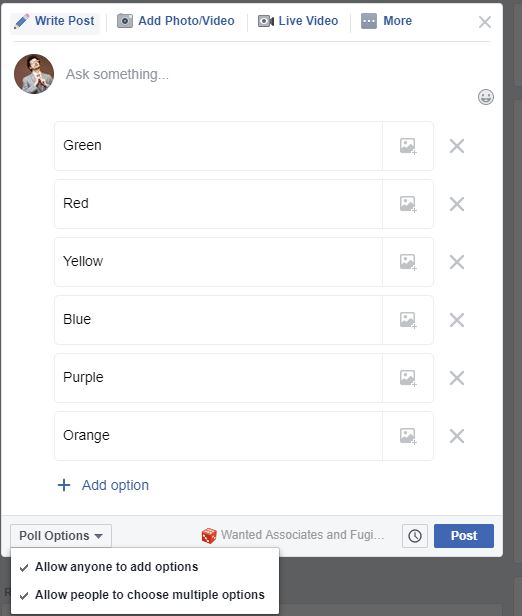
Polls are useful tools for everyone and aren’t just the playthings of political strategists. Asking your Messenger contacts to take part in a quick poll is a quick way to ask for many opinions on a single issue you’re dealing with. Obviously, however, polls are a group only function so to start a poll you need to select the group you want to poll and then hit options button that lies in the bottom left of the screen. From there hit the Polls button, type out your question, and then hit Create Poll.

Take back the messages you sent by mistake

This is another trick born of something that we’ve all done. Whether it be a simple typo or sending a full message to the wrong person, every single one of us has sent a message that we’d like to take back. Fortunately, Facebook understands this need and has built a delete message feature into Messenger. Now, whenever you send a message on Messenger you have 10 minutes to undo sending so that nobody who hasn’t seen it will ever see it. To do this all you need to do is hold your finger down on the message you want to delete and then select Remove for Everyone. You can then rest assured that your message has been wiped. You’ll be left with a short message saying You removed a message but you can then get rid of that too by holding your finger down on that and clicking Remove.

How to translate instantly within WhatsApp and Facebook Messenger

Translate text instantly with WhatsApp and Google Translate!

Translate

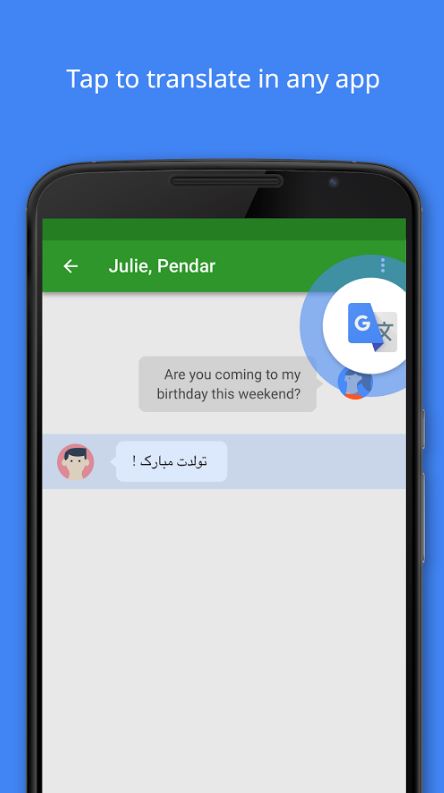
Google has launched a brand new feature for the official Google Translate app, which enables users to translate texts from within instant messenger services such as WhatsApp and Facebook Messenger.

Google Translate Download now ►
8

Tap to Translate is about revolutionizing the way you communicate with your friends who speak a language different to your own, and allows you to translate your messages without leaving the app you’re currently using, in record time!

Tap to translate in any app

If you’ve received messages in a different language via WhatsApp or any other messenger for that matter before, you’ll know how time-consuming it is to have to copy and paste a message into an external app to translate it (unless of course, you know the language).

WhatsApp Messenger Download Now ►
8

With Tap to Translate, all you have to do is simply tap the message you wish to translate to get it in your language, as well as tap your own message to translate it for others to understand! It’s great if you’ve got a WhatsApp group for university or work that’s full of international members who tend to switch between languages during the conversations.

As it works within most apps, you’ll never get lost in translation again!

Check out the official video below to learn how to do it!