Winamp new beta version for the relaunch of app

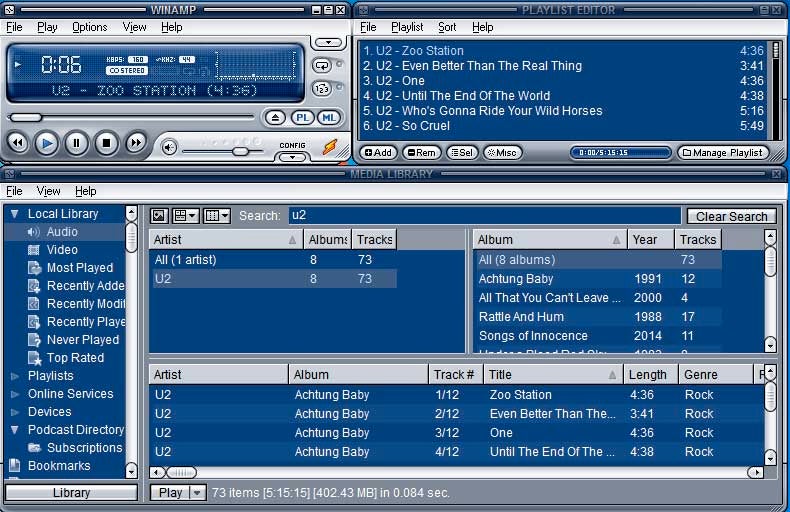
Do you remember Winamp that we used to use for playing MP3 songs on Windows computers? We haven’t seen many updates since 2013, but all of that is about to change. The music platform is about to receive a massive facelift, and the Winamp beta version will let you test the new upcoming features.

How to sign up for the Winamp beta testing

If you want to sign up for the Winamp beta version, you need to visit the official site, which will take you to the testing area. The latter will ask you for your name and email address, after which you’ll receive an email about your interest. As soon as the beta is available, you’ll be able to test the key features. 

Winamp new beta version

Regular updates about Winamp expected

It looks like the days are over for not receiving regular updates on this platform. There was a leak in 2018 about a new version, but nothing really came of it back then. Well, if you look at the new and upgraded Winamp site, it’s clear that they’re serious about it now.

Jeremy Scheppers, the head of product development for Winamp, indicated the excitement of the team for the release. They’re eager to see what feedback they get and how they can improve the app further.

Something musical this way comes

We didn’t think we’d hear about Winamp again, but it seems the development team is gearing up to show us something new. There’s no clear indication of which features will make an appearance, but we can’t wait to test it ourselves. We’ll update you as soon as we have more news.

Spotify now offers lyrics for your favorite songs

Listening to all your favorite Spotify songs is one thing. Being able to sing to them correctly is another. It seems like the music company is aware of this, as it now has lyrics for all tracks featured in its library. 

Spotify partnered with Musixmatch to make this possible after many members requested the functionality. It may mean that everyone who searches for lyrics on YouTube music videos will no longer need to. It also means your shower-singing sessions will sound a whole lot better.

How to access lyrics on Spotify

Whether you have the free or Premium version of Spotify on your phone, PC, or TV, you’ll have access to the Lyrics. Let’s take a quick look at how you can open it for any songs you enjoy.

Mobile app

  • While on a song, tap on “Now Playing View”
  • When the song is playing, scroll to the bottom
  • Lyrics will be visible, moving to the words of the song
  • You can also tap on the share button to send the lyrics to your friends

Desktop app

  • Head to the “Now Playing” bar
  • Select the microphone icon
  • The lyrics will now appear on your screen

TV app

  • Head to “Now Playing View”
  • On the right corner, select the lyrics button
  • Toggle it to enable to see the available lyrics
Spotify now offers lyrics for your favorite songs

Some tips on how to use Spotify

If you’re encouraged to use Spotify now thanks to the new lyrics function, you may want to learn how to use it first. Here are some helpful tips so you can catch up with everyone else using the app:

Spotify now offers lyrics for your favorite songs

Words to your music

Now that you have the lyrics to songs on Spotify, you can sing properly to your heart’s content. Sure, you could just Google the words too, but this is much more efficient, and you won’t need to leave the musical application. What makes it more exciting is that it automatically scrolls as the music plays! What more could you ask for?

Halo Infinite multiplayer beta starting on Xbox and PC

Gamers worldwide are gearing up for the launch of Halo Infinite on December 8, 2021. What makes it exciting are the various multiplayer modes expected for the science fiction action shooter. 

You won’t need to wait until then for the latest details. Microsoft and 343 Industries have provided beta testing until then, letting players check to see if there are any issues before launch. So let’s see what the Halo Infinite beta entails with some tips on how to get started.

What is the Halo Infinite beta?

The Halo Infinite beta is an early access version of the full game that will launch on December 8, 2021. You’ll be able to play Big Team Battle, Arena, Academy Training, and the Halo Infinite Battle Pass. It will give you the chance to provide feedback before the final release at the end of the year.

Halo Infinite multiplayer beta

How long is the Halo Infinite beta?

If you have Xbox or PC, you’ll have live access to the Halo Infinite beta. You can also play it on Xbox Cloud Gaming if you have an account. You’ll need to download and install it before you can obtain any of the content, but it’s free of charge. The closing date of the beta will be when the game launches on Dec 8. 

Halo Infinite multiplayer beta

How to play Halo Infinite: beginner tips

Whether you choose to play on Steam, Xbox, or Xbox Games Pass, you’ll have free access to the Halo Infinite beta. However, you’ll need some tips if this is your first journey into the Halo universe. 

Learn the different weapons quickly

You’ll notice how many guns you’ll have to work through when you spend enough time on Halo Infinite beta. It can be easy just to shoot your way through your opponents, or vice versa, without paying attention to your firearms or gadgets. However, you stand a better chance of winning if you apply the right weapon in every situation.

For instance, there are grapple hooks you can use to reach areas quickly. There’s also the Repulsor, which explodes against any surface for when you find yourself in a tight spot. You can also use it to blast a vehicle into someone’s virtual face.

Pay attention to the map layout

Many gamers have already started the Halo Infinite beta, so they’ll already know their ways around the modes and maps. If you’re starting out, ignore the initial deaths so that you can work out what the lay of the land is. As soon as you become familiar with it, you’ll have better matches with more kills.

Optimize your graphics settings

If you’re playing Halo Infinite beta on your PC, you’re better off customizing the graphic quality. Some apps related to your graphics card can set it up for you automatically, such as GeForce for NVIDIA computers. Spend some time tweaking the settings for the optimal experience.

Put as much gaming time aside as you can

The Halo Infinite Battle Pass is set to have 100 tiers, which means you’ll need plenty of gaming time to unlock new content. There’s no indication of how long the first season will be, but it’s best to rack up as many points as you can during the beta for practice. By the time the first tiers arrive, you’ll be ready for the action.

Halo Infinite beta: pros and cons

While we’re all excited for the new Halo Infinite beta experience, there are some pros and cons of the game. Yes, we know they’ll probably update it upon launch, but these pointers are worth noting.

The good

  • Impressive graphics and effects
  • Smooth transitions between various areas on the map
  • Excellent gameplay mechanics
  • Massive focus on environmental physics
  • Some weapon effects let you be creative with how you play
  • Excellent array of weapons and gadgets to start with

The bad

  • Concern that the tiers will become grinding gameplay, like the latest Call of Duty titles and Diablo 3
  • You and other players will look similar for a few months until new content drops
  • Slow tier progression in beta 
  • Few options are available for playing the various modes

Will your Halo Infinite beta progress carry over?

Microsoft and 343 Industries confirmed that your Season 1 progress in Halo Infinite beta will carry over to the official game when it launches. You won’t lose any of your content, which means you’ll have an advantage over noobs that didn’t play the early access version.

Can PC and Xbox play Halo Infinite together?

Other great news is that Halo Infinite is cross-platform. What that means is that gamers on PC and Xbox will be able to battle it out together online, much like the latest Call of Duty titles. We’ll have to see if there’s a difference in performance and killstreaks across the various platforms.

Halo Infinite multiplayer beta

Are you ready for the launch of Halo Infinite?

If you’ve played Halo since the first game ever hit PCs and consoles, you’re undoubtedly excited for the Halo Infinite beta. While the multiplayer section is free, you’ll need to pay for the campaign mode. Still, we’re bound to see loads of action before December arrives.

What Is PowerPoint and How it Works

PowerPoint is one of the most popular programs in the Microsoft Office suite, alongside Word and Excel. This powerful presentation tool is available on Mac, Windows, Android, and iOS.

However, when opening Microsoft PowerPoint for the first time, you will see a lot of tools and settings, which can be pretty overwhelming. Don’t let the fear of a new program overcome you. With the beginner’s guide, you’ll soon be able to create striking presentations with PowerPoint quickly and easily.

What Is Microsoft PowerPoint?

Microsoft Powerpoint is a robust program for creating slideshows and presentations. If you have a big sales pitch coming up, you might want to consider adding a Powerpoint presentation to visually illustrate what you are pitching. The same goes for other business meetings, lectures, and seminars.

You can include various media into your presentation, such as graphs that display data visually, videos to add more clarification, and more. This means that you have helpful visual aids to add to your arsenal of tools.

What Is PowerPoint Used For?

Many people have asked what a PowerPoint presentation is? And what can it be used for? A PowerPoint presentation is a term given to those slideshows created in the program that can be used for presentation purposes. The software is often used by businesses, lecturers, public speakers, and even students. It is a great way to enhance any information that you present.

The Basics of Using PowerPoint

Now that you have a better idea of what Microsoft PowerPoint is let’s look at how to get started with the program.

Using the PowerPoint Ribbon

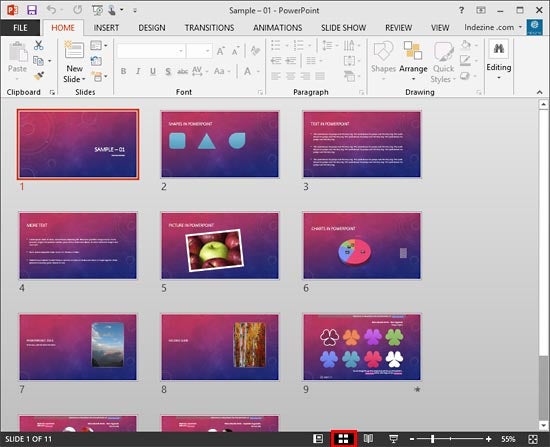
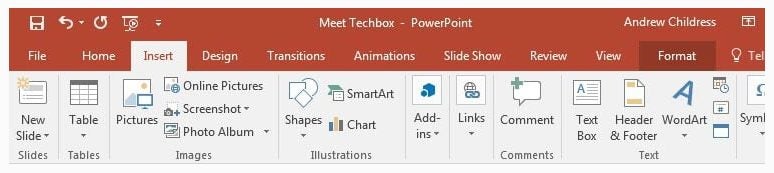
You will find the ribbon menu across all of Microsoft Office’s programs. It is located at the top of the screen, just below the main menu. It is essentially another menu that contains all the specific tools which can be used on your slides. By clicking on a different tab in the main menu, you will see different tools become available in the ribbon. The ribbon makes it faster to access specific tools such as adding slides, transitions, images, and more.

What Is PowerPoint and How it Works

Starting a Project

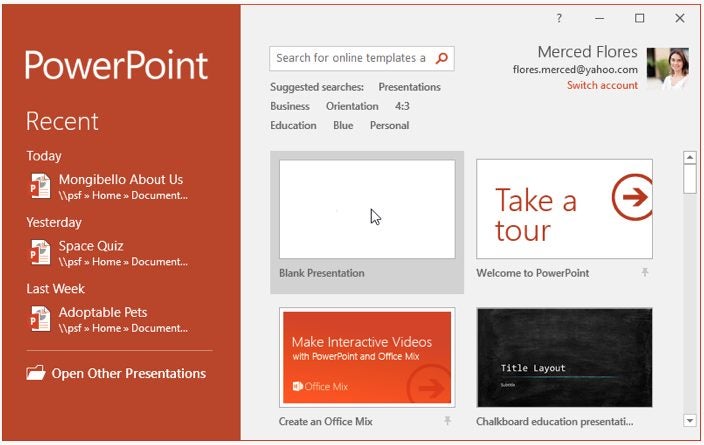
When you open PowerPoint, the first window you come across will be asking you if you want to open an existing project or start a new one. If you start a new project, you can choose a blank presentation or use one of the many templates to help you get started. There is even a helpful tour that you can take that walks you through using the program.

What Is PowerPoint and How it Works

Inserting a New Slide

Slides are the individual sections of your presentation where you can add your content. One slide will be displayed, and then it will move on to the next one in a slideshow. You don’t want to have all your content on a single page. Instead, you want to spread the content over different slides.

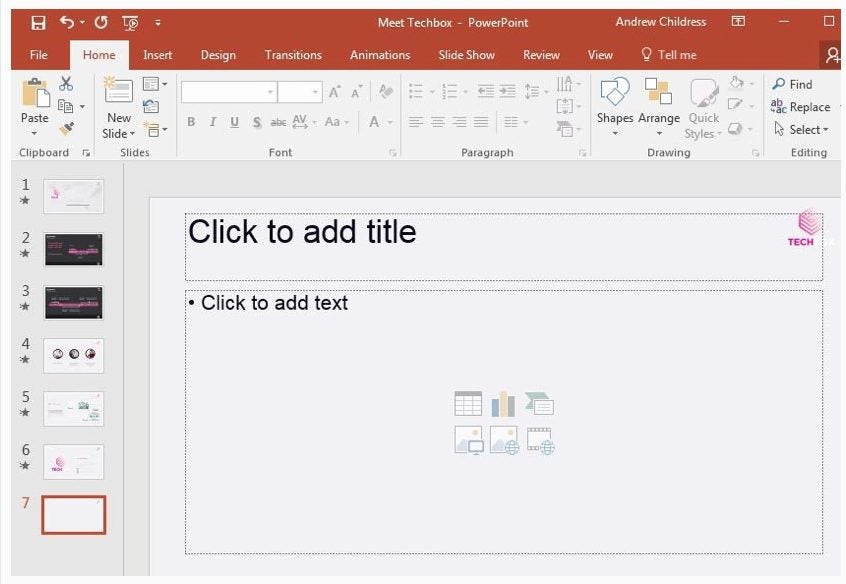
You may often find that you have to add slides to your current presentation. To do this, click on ‘Home’ in the top menu, and then in the ribbon, click on ‘New Slide’. By clicking on the down arrow below the ‘New Slide,’ you will see different slide options which you can choose from.

What Is PowerPoint and How it Works

Inserting Content

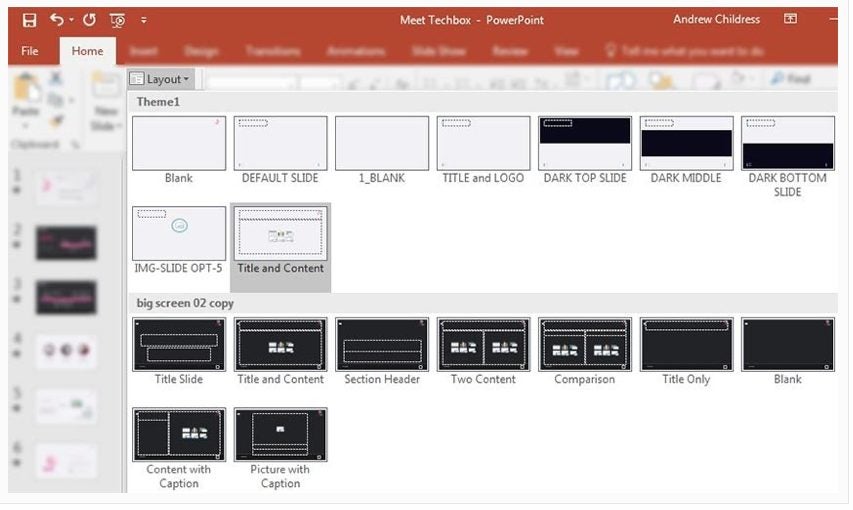
You could choose to add content manually by inserting images, text boxes, etc., from the ‘Insert’ tab. Or you can choose to click on a slide to select the one you are busy with, then click on ‘Home’ in the menu and then ‘Layout’ in the ribbon. This will give you different layout templates that already contain text and image boxes that you can use.

What Is PowerPoint and How it Works

Inserting Graphs and Diagrams

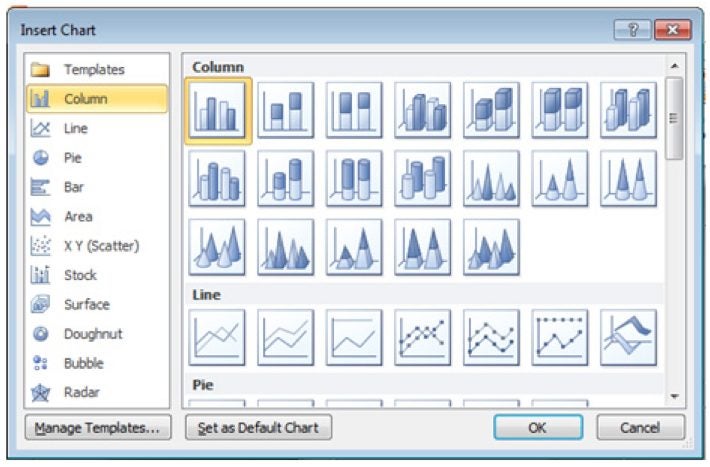
Graphs and diagrams are a great way to display a lot of data visually. To add a graph or diagram to your presentation, click on ‘Insert’ in the menu and ‘Graph’ in the ribbon. A new window will open up, asking you what type of graph you’d like to add.

Choose the option that makes the most sense for your data, and click ‘Ok’. Don’t worry; you can change the graph type later if you’re not happy with it. Now you’ll be taken to an Excel spreadsheet where you can insert the data to be used in the graph. 

What Is PowerPoint and How it Works

Inserting Audio

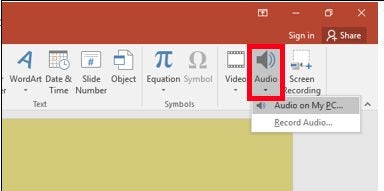
If you want to add audio such as music to your presentation, you can do so from the Insert menu. Here, you can click on ‘Audio’ in the ribbon and choose the audio file you want to add.

What Is PowerPoint and How it Works

Inserting Video

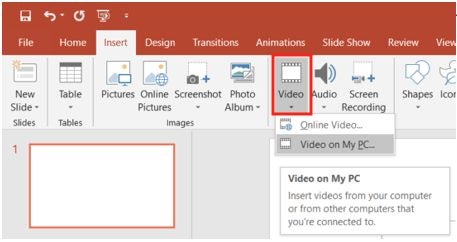
You can also add videos to your slides. You can do this from the ‘Insert’ menu as well. Here, you can click on the ‘Video’ option to add your video file to the slideshow.

What Is PowerPoint and How it Works

More Tips and Tricks for Microsoft PowerPoint

If you want to start using PowerPoint for your slideshows and presentations, here are a few more guides to get you started with the powerful software.

What is Microsoft 365 and how it works

Microsoft 365 is a subscription service for business, family, and home computer users that has absorbed Office 365. It’s a cloud-based service that will provide you with the computer capabilities you need, whether you’re a business, individual, school, or charity. There’s a subscription plan to suit every user. You can subscribe to different versions like Microsoft 365 Personal, or Microsoft 365 Family, Microsoft 365 Business, and Microsoft 365 Enterprise, all tailor-made for users in those categories.

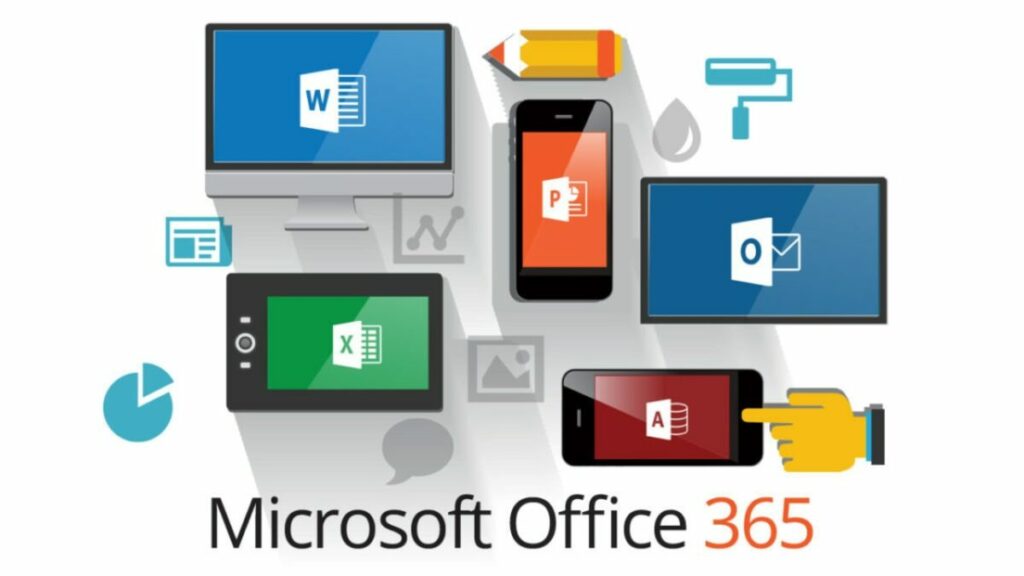
The options include the secure Outlook email and calendar app, OneDrive cloud storage, other apps listed in this article, advanced security, and useful templates. You can install Microsoft 365 on different devices, including PCs, tablets, Macs, and phones.

Can you still get Office only?

Because Microsoft 365 absorbed Office 365, Microsoft has created another option for people who still want the office suite separately. Called Office 2021, it has home, student, and business versions and includes Word, Excel, PowerPoint, OneNote, and Microsoft Teams. However, it is now a subscription service and cannot be bought outright as before.

How to use Microsoft 365

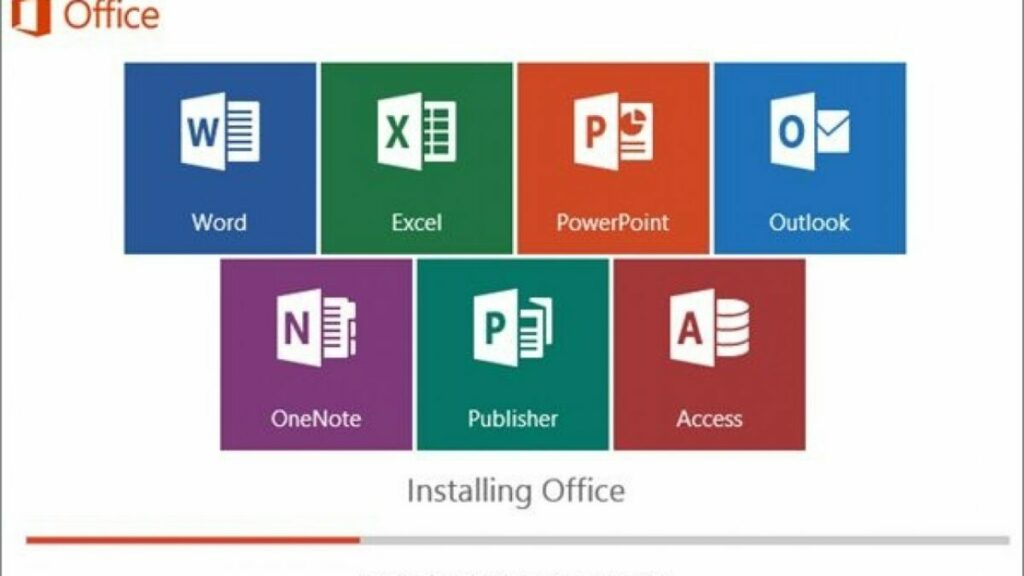
Microsoft 365 includes the traditional suite of apps from Office 365, which it has absorbed. It has also added others so that you can do just about anything. This is what the apps are for:

  • Word: Millions of people use the best-known word processor around.
  • PowerPoint: Display your ideas to an audience in an office or an educational scenario.
  • Excel: The standard spreadsheet for creating, viewing, and sharing information files.
  • One Note: Digital notebook. You can record audio or type.
  • Access: Create a database for storing all the information you want to keep.
  • Publisher: App for page layout and design, including styling text, borders, and pictures.
  • Microsoft Editor: Corrects grammar and spelling and gives style suggestions.
  • Microsoft Teams: Connect with everyone in your life via chats and video calls.

How much is Microsoft 365?

For individuals, Microsoft 365 Personal is $6.99 per month or $69.99 per year.

For families and households of up to six people, Microsoft 365 Family is $9.99 per month or $99.99 per year.

Office Home and Student 2021 is $149.99 and includes Word, Excel, PowerPoint, OneNote, and Microsoft Teams for PC and Mac.

Office Home and Business 2021 is $249.99. It comes with everything in Office Home and Student 2021, plus Outlook for PC and Mac and the rights to use the apps for business purposes. Subscribers will automatically receive updates to the apps.

What is Microsoft 365 and how it works

How to add fonts to Microsoft 365

Using cloud fonts is the best way to get new ones into your Microsoft 365 programs and apps. They’re stored on Microsoft servers until you need them. You may have seen cloud fonts. They show in the font lists in Microsoft 365 for Windows and Mac. Look for an icon that has a cloud and arrow.

Microsoft 365 will automatically download and install a cloud font in a few minutes If you open a document that uses a cloud font. Unlike other fonts, there’s no need to switch to the font installation part of Windows or macOS. Once you’ve installed a cloud font, it’s a standard font, available in any Microsoft 365 app, and the cloud icon vanishes.

You download a custom font through the operating system. In Windows, go through the system’s Fonts folder in the Windows Control Panel. On a Mac, use the Font Book to add a font and then copy it to the Windows Microsoft Compatible folder.

New features in Microsoft 365

Microsoft 365 has introduced a few cool new features. More are expected in the future, perhaps like a password manager. It has made existing apps like Microsoft Editor and Microsoft Teams available in the package and has also added a few that are brand new.

Money in Excel

This new feature allows you to connect your credit card and bank account from Excel. Then you can download details like your transactions and import them into a budget spreadsheet. This is part of a Microsoft move to assist with life in general and work and school.

Family Safety

Microsoft 365 has extra security features, including Microsoft Family Safety. It’s an app for Android as well as iPhone that allows parents to manage screen time on Windows, Xbox, and Android. It also has location-sharing capabilities like notifications when family members arrive at school or work or leave home.

What is Microsoft 365 and how it works

Create projects easily

Microsoft 365 is carrying on the company’s long-standing tradition of providing outstanding computer software for students, homes, and businesses. The software giant never stops making changes and improving, upgrading, and adding to its products. Microsoft 365 is a perfect example. It has built on Office 365 and its predecessors, maintaining what was good and adding new features in its continuous quest to improve.

What Is Microsoft Office And How Does it Work?

If you’ve been around computers for a bit, I don’t doubt that you’ve heard about Microsoft Office Or Office 365? You might even be using these products at the company office without even realizing it. But what is Microsoft Office?

In this guide, we’ll be looking at the difference between Microsoft Office and Office 365. We’ll also be looking at what software is included in this package.

What Is Microsoft Office?

Microsoft Office is a suite of programs specifically for business productivity. Each application included serves a specific purpose to its users. For example, MS Word is a powerful word processor that can be used to draft letters, business proposals, contracts, and more. MS Excel, on the other hand, is a spreadsheet program that can be used to set up budgets, business financial plans, and more.

Microsoft Office has been around for a long time, and the first version was released in 1990. New versions of Microsoft Office are released regularly, with the latest version being Microsoft Office 2021, which is available for Windows and Mac computers. Microsoft Office can be bought as a one-time purchase, and there are different bundles available depending on what combination of programs you need. These bundles include Student, Individual, Business, and Family.

What Is Microsoft 365?

Microsoft 365, now known as Office 365, is a cloud-based subscription version of Office. This means that it includes all the same programs we love, with handy cloud solutions as well. With the subscription, users pay a monthly or yearly fee to use the products. This includes all the bug fixes and version upgrades automatically without having to pay extra. If you go for the once-off options and a new version is released, you’ll have to buy the new version in order to upgrade.

Microsoft Office

Who Uses Microsoft Office?

If you work in any type of office, chances are you might already be using some of Microsoft Office’s programs. However, it’s not just those who work in offices that use these programs. Creatives, such as writers, might also use Office. In fact, Office is used by more than a million companies worldwide.

Microsoft Office

What Is Included in Microsoft Office?

Now that we’ve covered what Office is, we can look at the different programs more closely. Remember that these programs are usually sold as bundles whether you buy once-off or go with the subscription. This means that if you need specific programs, you’ll have to check to make sure they’re included in the bundle you are buying.

What Is Microsoft Word?

As we mentioned briefly, MS Word is a powerful word processing tool. With this program, you can easily create various documents, letters, memos, tests, questionnaires, reports, business plans, proposals, and more. If you need to do anything with text, then Word should be your go-to.

What Is Microsoft Excel?

MS Excel is a spreadsheet program that can be used to store and evaluate data. This program is beneficial when it comes to evaluating and manipulating numerical data. MS Excel can be used to create budgets, invoices and quotes, business financial plans, costing evaluations, monitor payroll, and much more.

What Is Microsoft Powerpoint?

Microsoft Powerpoint is a presentation graphics program that allows users to create digital slideshows. You can use these slideshows to present data at sales pitches, informational meetings, seminars, lessons, and more.

What Is Microsoft Publisher?

MS Publisher is a desktop publishing tool that allows users to create documents with more complex page layouts, usually for printing. These documents include menus, brochures, magazines, newspapers, newsletters, and more.

What Is Microsoft Access?

Microsoft Access is a database management tool. It can be used to collect and store structured forms of data. Its uses include collecting and storing personnel or student data, stock and inventory, custom orders, and more.

What Is Microsoft Outlook?

Microsoft Outlook is an email and personal information management system. It allows you to send and receive emails, manage your calendar, set up meetings, create to-do lists and manage tasks, store contacts, and more.

What Is Microsoft Teams?

Microsoft Teams is primarily a communications platform that allows users to communicate with each other via text or video conferencing. It also provides file storage, file sharing, and application integration.

What Is Microsoft Onedrive?

MS OneDrive is a cloud-based storage platform. With OneDrive, you can store any data in the cloud and access it from anywhere, and keep it protected even if something happens to your computer.

What Is Microsoft Sharepoint?

Microsoft SharePoint is a collaborative platform that allows Office users to share and collaborate on different projects created in any of the other Office programs. It is ideal for company teams that need to work together on projects. However, many companies also use it for a range of other uses.

Microsoft Office

Helpful Guides and Tutorials

If you need more help in understanding Office and its various uses, here are a few more helpful guides.

What is CANVA and how it works

Millions of people worldwide use Canva because it makes it easy to create quality material. There are many tutorials both within Canva, and on the internet, so you’ll never be at a loss if you need help or guidance on a project.

Discover Canva CONSULT

Let’s show you what Canva is and how it works.

What is Canva?

Canva is an online design tool that makes it possible for anyone with no design experience to create a vast range of attractive items from logos, social media posts, brochures, posters, and calendars to certificates and magazine covers.

It’s a great way to unleash your creativity because Canva offers extensive resources to help you do so. There are thousands of templates, images, and fonts at your disposal. You can even upload your own photos and use them in your design

What is CANVA and how it works

Getting started

You can sign up to Canva by entering your email address and choosing a password or using a Google or social media account. You can start with a free personal account to check out and learn the program and later choose one of the other available options if you need them:

  • The Free option offers everything you’ll need to make your own designs.
  • The Pro version costs $9.99 a month. It contains more resources like templates, graphics, and photos. It allows you to create your own templates and upload your own fonts.
  • The Enterprise option costs $30 a month and is for corporate users. It offers group resources and unlimited cloud storage.

Once you’ve signed up, Canva will present a demonstration to show new users some basic information about the program. You can put your name, username, website, and email address in your profile if you want to. You can choose to remain private and select only specific designs to make public.

What is CANVA and how it works

How CANVA works

The best way to see how Canva works is to create your first design.

  1. Select a template

    You’ll find templates on the Canva home page, arranged according to category:
    Under Social Media, you can choose from Instagram Story, Instagram Post, Facebook Post, Facebook Cover, Twitter Post, and Pinterest Graphic.
    Under Personal, you can select Invitation, Card, Resume, Postcard, Planner, and T-shirt. Under Business, there’s Presentation, Website, Logo, Business Card, Invoice, and Proposal.

    Under Marketing, you’ll find Poster, Flyer, Infographic, Brochure, Newsletter, and Menu. Under Education, there’s Lesson Plan, Worksheet, Certificate, Storyboard, Bookmark, and Class schedule.

  2. Add elements

    Here are some elements you can add:

    Graphics and Vectors: Shapes, frames, stickers, or icon, add character to a template.

    Stock Images: Canva has millions of images for you to use, or you can upload your own photos.Color Palettes: Most templates have a color palette.

    Fonts: Chosen by Canva’s designers.

    Page Layouts: There will be several layout options for you to use.

  3. Create your design

    On Canva’s screen, you’ll see different versions of your template. Select the one you want. Now make the design your own by changing the background color, modifying the layout, and changing the text. Remember that you can customize every element you use in your design to suit your own preferences. Play around and experiment until you like the way your project looks. That’s it. You’ve created your first design.

  4. Export it

    You can post your design on social media sites like Twitter, Instagram, or Facebook, save it as a JPG or PG file on your PC, print it, or send it to Presentation Mode.

Size matters

It’s essential to make your design the right size for where you want to send it. All the platforms require specific formats. It’s best to find out what they are and use them so that you don’t end up with photos obscured by text or vice versa. Here are some examples of required dimensions:

  • Cover Photo for Facebook: 851 x 315
  • Header for Twitter: 1500 x 500
  • Channel Art for Youtube: 2560 x 1440
What is CANVA and how it works

What makes Canva stand out?

Canva is extremely popular in more than 190 countries. It has 30 million active users and more are joining up every day. Its best feature is that anyone can use it to design whatever they want to without any training or knowledge of design.

Everything is set up to make the process painless, including a vast library of resources at your fingertips. You can use it on a PC or a mobile phone or tablet, and it has an entirely free version. You also retain ownership of all your designs in Canva.

Painting a new canvas

If you want to bring out your inner designer or just make your social media posts livelier or your letters more interesting, you can’t go wrong by using Canva. You get access to vast resources to help with your design, and it need not cost you a cent. The program has an intuitive interface, so it’s also fun and easy to use.

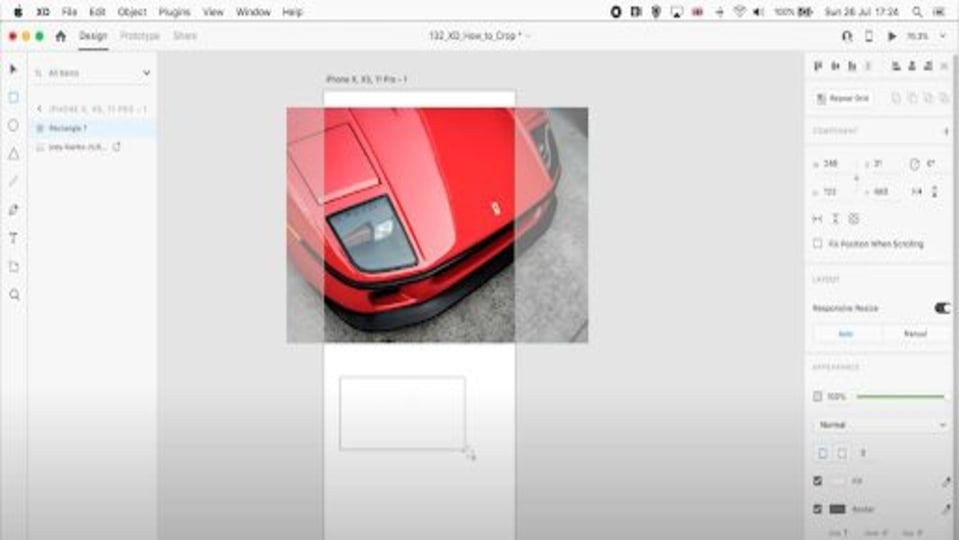
What is Adobe XD and how to use it

Adobe XD is a sophisticated design tool that allows teams to easily interact and work together from planning all the way to the final product. It’s a vector-based UX (user experience) platform that enables teams to create and share designs. It has cross-platform compatibility with other Adobe Creative Cloud apps like Photoshop, InDesign, and Illustrator.

Previously known as Adobe Experience Design CC, it was first announced as Project Comet in October 2015 at the Adobe Max conference. It was officially launched with the name we know in October 2017. Let’s look at how to use Adobe XD.

What is Adobe XD used for?

Adobe XD is intended for developers and designers who want to work in vector format because it allows them to scale their design up without losing resolution or detail. It’s also invaluable for teams that want to collaborate on creating their designs. They can work together effortlessly using Adobe XD because they can link their artboards, share their work, including links to specifications and designs, and give and get feedback to and from other team members without exiting the program.

What is Adobe XD and how to use it

What can you design in Adobe XD?

  • Websites: You can use stacks, padding, navigation patterns, scrolling, and a repeat grid to bring life to any websites you design on Adobe XD.
  • Apps: With features like responsive resizing, set artboard sizes for standard devices, and auto-animate and drag triggers, Adobe XD makes creating great app experiences easy.
  • Games: You can import art and test game elements in Adobe XD using a Bluetooth game controller and gamepad triggers. Then have users interact with the controller before you write any code.
  • Marketing campaigns: Designing a marketing campaign is a breeze in Adobe XD. Import elements from Photoshop and Illustrator and design any campaign you can come up with.

How does Adobe XD work?

Using Adobe XD allows designers to create prototypes that look like the finished product. Designers can communicate their vision while contacting their team and getting feedback during every facet of the project from inception to delivery. Adobe XD has features that save time and workflows that free designers to concentrate on creating. Designers and their teams worldwide are using Adobe XD for everything from wireframing to handing over the finished product.

What is Adobe XD and how to use it

Tweaking designs and layouts

You can finish your intensive tasks faster with AdobeXD. You can make buttons, build cards, add hover and toggle, create interactions, exchange and resize content, and make different versions of components to try out and instantly send your changes to different designs. Choose from a wide variety of fonts. Create voice commands, add animations to create motion effects and scrolls, and access areas of your designs by clicking. Build interactive carousels.

Adding innovations

Exchange graphics and colors. Store creative assets from Illustrator, Photoshop, and more and save them to the cloud. Access your files from anywhere at any time. Link components to documents. Use shared character styles and colors. Access shared logos. Add music and effects to your designs to make them pop. Work easily with Paper, Slack, Jira, Dropbox, Teams, Microsoft, Zeplin, and others. Use more than 200 plugins. Automate your tasks. Connect to XD tools.

Live Preview

A big help with prototyping in XD is the live preview. If you change your designs or transitions Adobe XD immediately previews them in a separate window. If you don’t have the device you’re designing for, you can use the preview window to see your changes on your pc. If you’re using a smartphone or tablet to design on, you can plug it into your pc and get a live preview.

Repeat Grid

Repeating content like a carousel of cards, a photo gallery, or a list of contact numbers, can take time to maintain. A Repeat Grid makes it easy. You can automate repeating content so that an object or group of objects can be repeated vertically and horizontally. You can override text and imagery to update your content by dragging new images and text files onto the Repeat Grid.

Voice prototyping

Adobe XD is the first experience design platform to offer voice interaction. You can use voice commands and get speech and audio playback. You can design voice assistants, applications accessible by voice commands, and more. If you’re building a skill or workflow for Alexa or Google Assistant, you can preview it directly on a compatible device.

How much is Adobe XD?

The price of Adobe XD depends on whether you’re going to pay for the whole Adobe Creative Cloud apps package or purchase Adobe XD separately. As a single app, it costs US$9.99 a month. If you want to use other Adobe apps too, the package costs US$52.99 a month. There’s a free trial option with limited capabilities.

How to add fonts to Adobe XD

Use the Creative Cloud desktop app. Run it by tapping its icon on the taskbar in Windows and the menu bar in macOS. Click the Fonts icon. In the fonts window, click on Browse Fonts. You’ll go to fonts.adobe.com. Look for the font you want. Click the View Family button. You’ll go to another page.

Click the Activate Fonts drop-down icon. Activate the font family, weights, or styles. To access the fonts, open the Creative Cloud desktop app and go to the font list. You’ll see them in the Active fonts list.

What is Adobe XD and how to use it

Fantastic collaboration tool

If you’re a designer or part of a design team that wants a sophisticated tool that will do everything you need to easily as well as give you access to other Adobe products, you can’t go wrong with Adobe XD. You’ll work in vector format and collaborate fully with other team members without any difficulties, which will make any task you undertake go smoothly.

How to play FALLOUT 4

If you love Bethesda games like Skyrim, you’ll have heard of the post-apocalyptic action game Fallout 4. You’ll find it available on PC, PS4, and Xbox One, bringing adventure and horror to fans worldwide. What makes it such a pleasant experience is that you’ll spend hours exploring The Commonwealth.

Let’s show you how to play Fallout 4 so you can join the fun. We’ll also provide some tips and tricks, as well as how to use mods.

What is Fallout 4?

Fallout 4 was released in 2015 by Bethesda as an action RPG set in an alternate world as a post-apocalyptic wasteland. You play as a unique character that you can customize before you head out into The Commonwealth. As with Skyrim, it features a Creation Club with items made by modders and approved by the publisher.

The story of Fallout 4 starts in 2077 where nuclear bombs explode in your area. You take shelter in Vault 111, where you, your wife, and your son are cryogenically frozen. When you awaken in 2287, your wife has been murdered and your son is gone. You move out into the new wasteland to find out what happened to the world and your family.

How to play FALLOUT 4

How to play Fallout 4

Before you head into the action, there are some things you need to know. Here’s a couple of aspects to helo you play Fallout 4. 

Getting started

Firstly, you’ll need to decide where you’d like to download Fallout 4. For PC, it’s easy to acquire as long as you buy the game first. The console versions are available on the PlayStation and Xbox stores, and you can install them directly onto the systems.

How Fallout 4 works

Fallout 4 delivers a vast open-world that you’ll explore while fighting enemies warped by radiation and collecting items. You’ll need these objects to either enhance your character or craft new weapons and armor. While you’ll progress through the linear main story, there are also plenty of side questions for various factions.

There’s also a building mechanic in Fallout 4. You’ll find workshops and settlements, which work differently. In a workshop within a small town, you can upgrade and build while requiting workers to help you. You’ll also receive some side quests.

In settlements, you’ll have a few workers or farmers just helping to sustain the land and produce food, which you’ll need to survive. You’ll receive a message when an enemy is attacking the land, and you’ll need to fast-travel to get there on time to save them.

You’ll also meet some factions or leaders along the way. They’ll give you unique quests for special items that you won’t be able to acquire anywhere else. You’ll need to finish all their missions for the 100% completionist achievement.

Key bindings and controls

It’s essential that you pay attention to the key bindings and controls. In the beginning, it may be tricky remembering where everything is on your keyboard or controller. However, it won’t take long before you get the hang of playing Fallout 4.

What is the main goal in Fallout 4?

It’s easy to become distracted in the vast Commonwealth and everything it has to offer. The main purpose of Fallout 4 is to find out what happened to your son. All your primary quests will lead you towards that answer, but you’ll need to help others along the way. It means killing monsters and enemies and finishing missions.

How to play FALLOUT 4

Fallout 4 tips and tricks

Now that you’ve seen how to play Fallout 4, we want to provide some tips and tricks to make the experience more pleasant. Here are a few things you should know before heading out into The Commonwealth.

Fallout 4 doesn’t follow past games

Firstly, you don’t need to worry about missing out on previous titles. Fallout 4 has its own storyline that has no connection to the past games. Therefore, you can continue if it’s your first Bethesda game in this series.

Good and bad graphics

While Fallout 4 presents stunning graphics for its time, there are a few moments where it looks terrible. You’ll see a glitchy moment now and again, while some proportions go completely off at other times. We don’t blame it for having these issues, as it’s such a massive game.

Watch your environment

The top aspect to keep in mind is that you’re in a post-apocalyptic world where there is radiation everywhere. Even in your power suit later on, you’ll hear a click sound to let you know the environment is dangerous. Don’t run into new areas without first checking if it’s safe.

Don’t skip mission dialogue

We know how frustrating it can be to listen to the NPCs talk when you’ve played for over 20 hours already. However, there are many missions that require you to perform a specific function or respond in a certain way. It pays to take your time and hear what they have to say. 

Search everything

When you’re in the Wasteland, take your time searching every nook and cranny for items. There are unique weapons and objects hidden away, which may fetch you a good price or improve your stats. 

Save regularly

Fallout 4 has an autosave mechanism to ensure you don’t lose data when you die. However, it doesn’t save regularly, and you may need to redo many of your missions or search massive areas over again. It’s a pain, but save as often as you remember.

Take your time

When you’ve invested a full week on Fallout4, you may feel the need to just get to the main mission. Even if you’re a beginner, we know it can be intimidating when you see the large map. Take your time and investigate every location. It will level you up and make the ending so much easier to complete.

Focus on a single settlement or workshop

It can be tempting to upgrade every single settlement you come across. You’ll soon see how overwhelming it can be to protect them all and spread your resources. Save this task for the end, and start with only one workshop where you place all your focus.

Enjoy some side quests

Don’t rush to finish Fallout 4. If you get through the story too quickly, you might not be powerful enough to beat the bosses later on. Do yourself a favor and do some side quests for the factions. You’ll have better stats and weapons, and the ending will be a walk in the post-apocalyptic park.

How Fallout 4 mods work

One last aspect we want to cover for how Fallout 4 works is modding. Many online sites have plenty of mods for you, such as Fallout 4 Nexus. These files add items to your game, such as unique weapons and armor. You can also improve the weather and lighting, or make the visuals look more realistically.

Generally, you’ll download the Fallout 4 mod folder to the location on your PC where you have the base game. After you extract the files, you’ll need to launch the game through a special mod platform. Once done, the scripts will run, and you can enjoy the new experience.

How to play FALLOUT 4

Get ready for a long adventure

We hope you have enough patience and stamina for Fallout 4, as it takes long to complete it. Sure, you can run through the main missions, but you’ll be missing out on so much. We recommend you take as much time as you need before heading to the end.

What is GRAND THEFT AUTO and how it works

Also known as GTA1, Grand Theft Auto reached popularity quickly when it hit PCs in 1997 and 1998 in various countries. For its time, the gameplay was easy to learn and players had fun stealing vehicles and mastering crime. Of course, it’s nothing like modern titles today, especially GTA V and the latest remastered GTA The Trilogy.

If you’ve never managed to play it and you’ve recently gotten your hands on a copy, here’s a guide on what Grand Theft Auto is and how it works.

What is Grand Theft Auto?

Grand Theft Auto is a top-down role-playing crime action game where you take the role of one of the eight characters that only differ in appearance. You’ll start in Liberty City, but you’ll make your way across other locations as you progress in the story. The main objective is to complete missions for gang lords and NPCs, and steal vehicles while you’re at it.

What is GRAND THEFT AUTO and how it works

How Grand Theft Auto works

Of course, explaining what Grand Theft Auto is becomes an oversimplification. The real meat is discussing how it works. Here are the primary aspects you need to know before getting started.

Different cities 

GTA has several locations in the game, but you’ll need to start in Liberty City. You’ll meet Robert “Bubby” Seragliano, initiating the Gangsta Bang and Heist Almighty. There are several missions you need to complete, ending with a need to escape the town.

You’ll end up in San Andreas for the second portion of Grand Theft Auto. Here, Uncle Fu will discuss quests for Mandarin Mayhem while El Burro will talk to you about Tequila Slammer. Both require you to perform several tasks to gain their favor.

Finally, you’ll receive a call from Samuel Deever, a cop in Vice City who needs your help. While you’re there, you’ll also hear from Brother Marcus who sends you on killing sprees. This location is the final one for the last quests. 

Weapons and items

It’s in the first Grand Theft Auto where the theme is set for the weapons in the entire franchise. You’ll see many of the firearms that became staples in future titles. They included fist, pistol, machine gun, rocket launcher, and flamethrower. There was only one type of each and not different variations like in GTA 5. 

Completing levels

The basic gameplay of how Grand Theft Auto works consists of levels. You can view each of the cities as levels, and you’ll have five lives to reach a specific score limit. The score is also a money meter, so you can use it to buy items in the game.

When you reach the score target, you’ll need to drive to a specific point to complete the level and move to the next one. You’re free to run around and do as you wish, but the missions are the main source of points. You’ll also have a multiplier that increases whenever you complete quests.

Damage and limited lives

There are two mechanics that you’ll only find in the first two GTAs. The first is that you’re basically killed as soon as you are hit by a bullet. Secondly, you only have limited lives, after which you’ll have to restart the level. It made the game so intense, and you feared any NPC killing you.

What is GRAND THEFT AUTO and how it works

Grand Theft Auto tips and tricks

Now that you know what Grand Theft Auto is and how it works, we have a few tips to offer. These tricks are minor, but understanding them will go a long way in completing the game.

Earning points

As mentioned, you’ll need points to complete the levels. There are many actions you can take towards increasing your score meter. For instance, you can ram cars and kill the police. Another way is to steal vehicles and sell them. However, you’ll earn the most from completing missions, and they add multipliers that make the smaller actions more valuable.

Completing missions

There are a few ways in which you’ll receive missions. The most common one is via telephone calls at booths you’ll pass. The other is entering specific vehicles and letting the occupant know if you’re accepting the quest. You won’t be able to leave the mission unless you pass or fail it. 

Most missions have no time limit, so you can take as much time as you need to complete them. You can even go do other things so long. However, there are a few that involve police chases or have time limits. 

Wanted dead or alive

No, we’re not referring to the infamous Bon Jovi song. One of the most captivating elements in all the Grand Theft Auto games is the wanted level. If you make a transgression, you’ll obtain one star. There are four wanted levels, which is where the police force pulls out all the stops to get you. The only way to clear your record is at a spray shop or with a cop bribe token.

Multiplayer action

Even though it was early days for the franchise, Grand Theft Auto has a multiplayer component. Gamers would connect PCs over LAN and find weapons to kill each other. It was a fun way to pass the time when done with the missions.

GTA DLCs

In 1999, Rockstar Canada released Grand Theft Auto: London 1969 as an expansion to the first game. It added 32 new missions and brought new vehicles and weapons. It was followed by its own expansion later that year called Grand Theft Auto: London 1961 with even more content.

What is GRAND THEFT AUTO and how it works

Other GTA Guides

If you enjoyed this guide, you may want to take a look at these:

Living the high life

As you can see, there are loads to do in Grand Theft Auto! Even though the latest titles have more realistic visuals and better gameplay, it’s good to go back to a classic. We hope you have fun trying it out.