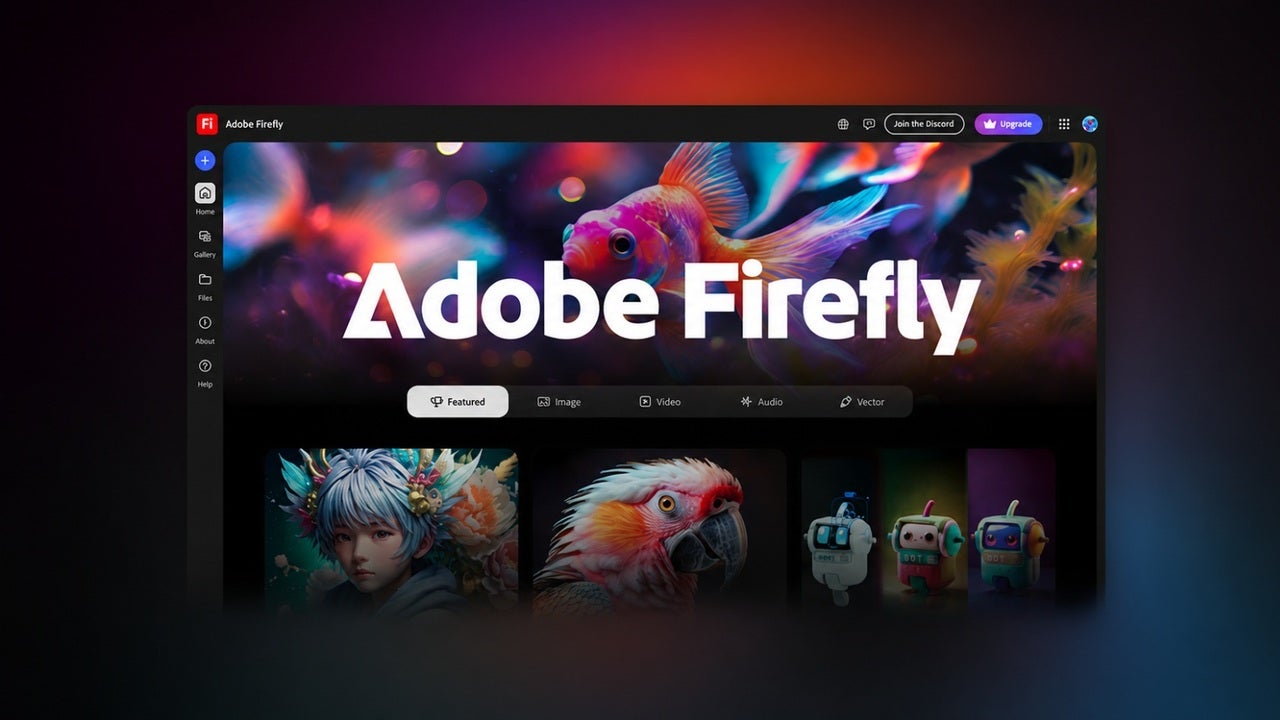
You need to create a video for a social post, product page, or presentation, but the only asset you have is a still image. Sounds familiar? Organising another shoot may not be practical, the client doesn’t have assets to share and simply adding a basic zoom effect can make the result feel more like a slideshow or a home video than a professional product.
This is where Adobe Firefly’s AI Video Generator can help. Adobe Firefly lets you upload an existing photo, illustration, or render and use it as the starting point for a short video clip. The best part is that it’s designed to be very straightforward to use. You can describe what should move, guide the direction of the camera, and refine the result without having to recreate the scene from scratch.
Imagine you have an image of a product. With Firefly’s AI Video Generator you can add a slow camera move to the asset. It also helps you make the background of a campaign image feel more atmospheric, or even turn an existing brand asset into B-roll for a larger edit. Your video, your choice.
Whether you are working to a tight deadline or simply want to get more mileage out of the assets you already have, here is how to turn a photo into a video with AI using Adobe Firefly.

Adobe Firefly AI Video Generator
Download1. Choose a Suitable Source Image
First of all, start with a clear image that gives Firefly useful visual information. Make sure it’s high quality. A product photo, campaign still, landscape, illustration, or 3D render can all work.
Before uploading it, it’s recommended to decide what you want to do with the video clip. You might want the camera to move slowly toward or from a product, leaves to shift in the wind, or light to travel across a surface. Knowing beforehand what motion you want makes it easier to write the prompt and choose camera settings.
An image with some space around the subject may also give the generated camera movement more room without pushing important details out of frame.
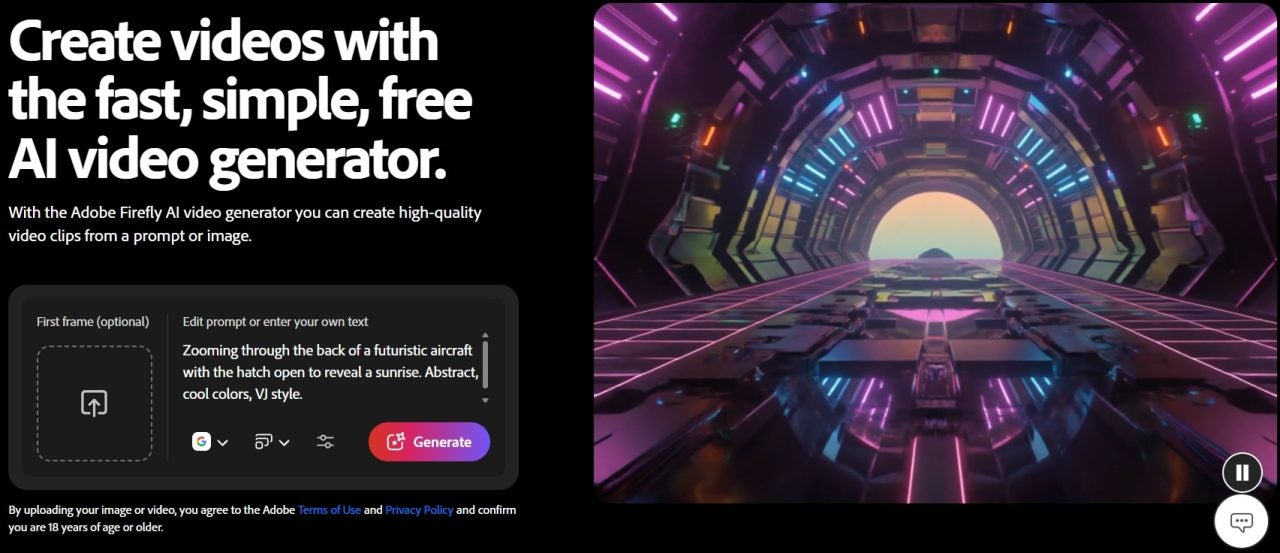
2. Open Generate Video and Upload Your Image
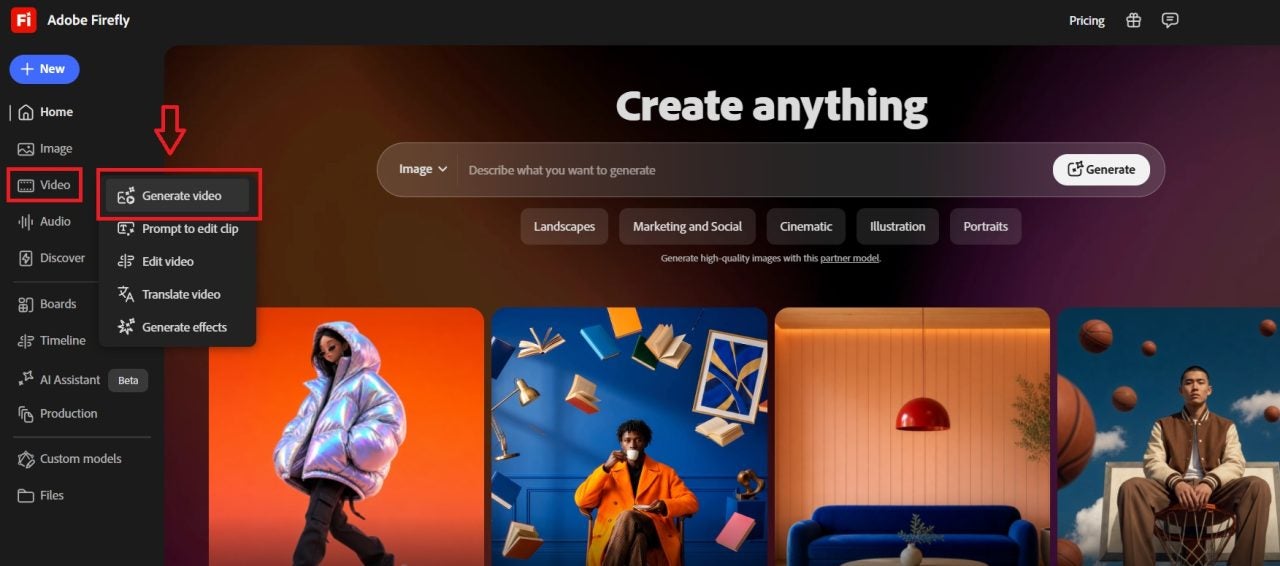
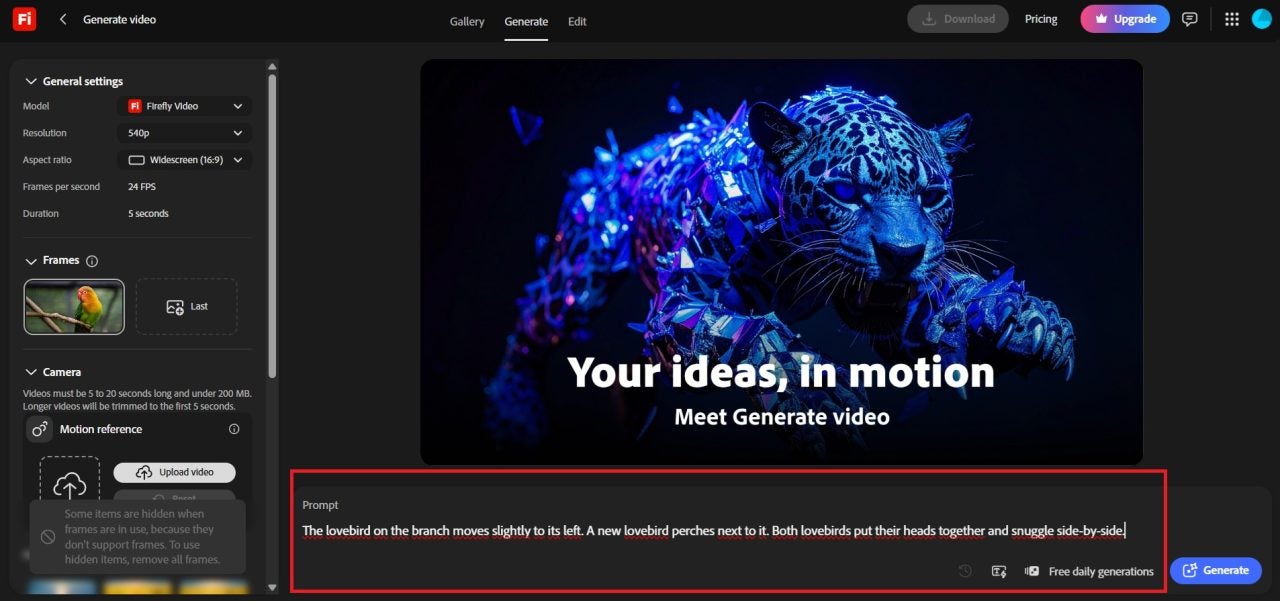
Open Adobe Firefly, choose Video, and select Generate video. In the general settings, select the Adobe Firefly Video model and use the image-to-video workflow.
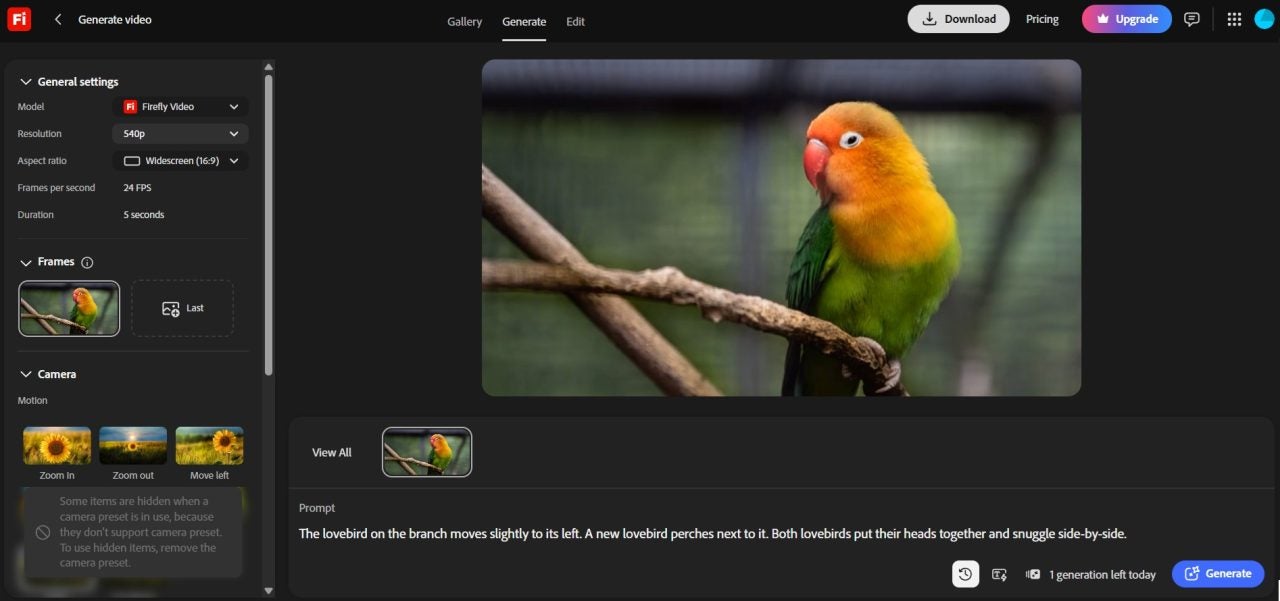
Upload your still as the first frame. This picture acts as a fixed visual point that guides how the generated video begins. Firefly supports still photography as well as illustrations, concept art, and 2D or 3D renders, making the workflow useful no matter what kind of creator you are.
If the image does not match your selected aspect ratio, we recommend adjusting the crop carefully. Also keep the main subject, logo, or packaging details within the frame so they are visible in the final video.
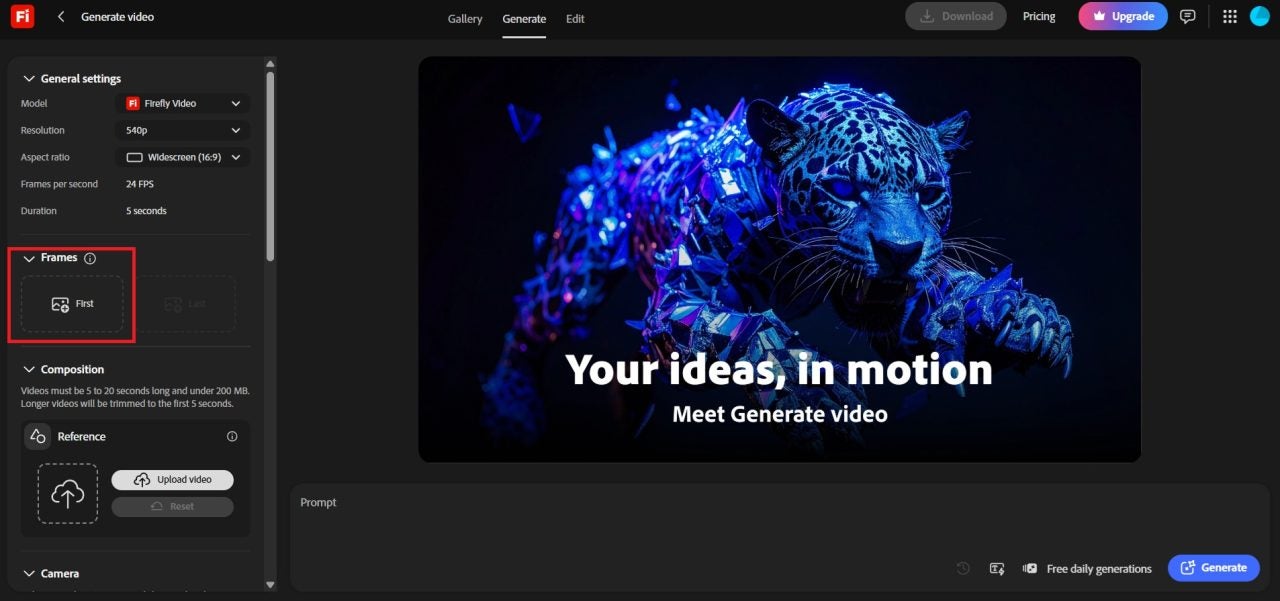
3. Add an Optional Final Keyframe
A single first frame, along with a text prompt, is enough to generate motion and a full video clip. Additionally, you can upload a last frame to have more control over the result of the shot. This way, both images act as the starting and ending points of the generated clip.
Other than that, having two images will also help when creating a transition between two product positions, moving from a wide composition to a closer view, or guiding a visual change toward a planned final image.
To get the best results, it is recommended to use start and end frames with compatible subjects, lighting, and composition. Otherwise, the AI model will need to invent more information between them, and the results could end up not being what you expected.
4. Describe the Motion in the Prompt
The image you uploaded provides Firefly’s AI Video Generator with the visual foundation for the clip, while the written prompt needs to explain what should happen in it. To write a good prompt, describe the subject’s movement, environmental motion, and intended mood. Think of the prompt as a written storyboard for the shot you want to create.
For example, try something like:
“Soft morning light moves across the bottle as condensation forms on the glass. Leaves in the background sway gently. Premium product-film look”
To get the best results in your final video, focus on the motion instead of repeating every detail that’s already visible in the image. You can describe in your prompt things like fabrics moving, steam rising, reflections shifting, a person turning slightly, or background elements responding to wind. Be concise, but also, try not to overlook any important detail that you want for your video.
Simply start with one primary action and generate a video. If the final clip wasn’t what you expected, refine the wording to add the changes you want to apply. Remember as well that clear directions are usually more useful than a long list of unrelated movements.
5. Direct the Shot with Camera Controls
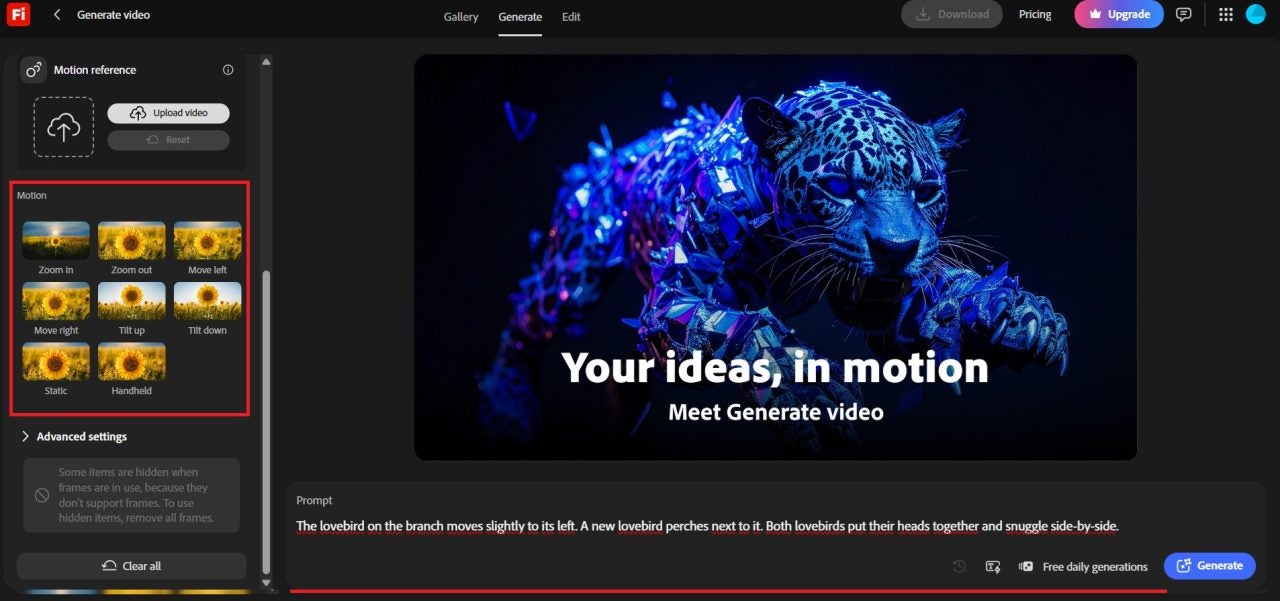
Firefly AI Video Generator includes some camera controls that can help you bring life to a still image beyond a simple written prompt. If you generate a video from a first frame still, you can adjust camera motion.
Camera motion controls include Zoom in, Zoom out, Move left, Move right, Tilt up, Tilt down, Static, and Handheld. You can guide the movement of the camera with these controls and give the video a more deliberate direction.
The controls you have access to will depend on the frame setup. If you’re turning a photo into a video with a first keyframe, that disables shot size and camera angle options. Additionally, if you add a final keyframe, the aforementioned motion controls also become unavailable, because Firefly will need to generate a transition between those two fixed stills.
Camera motion can help produce an output that may align more with your own vision for the video were you to film it yourself. Try to avoid combining excessive subject movement and camera movement in one short clip, because you might end up with a result that feels unfocused.
6. Choose the Format and Generate
Decide on and select an aspect ratio for the final placement. Vertical or square formats might work better on social media where they are more likely to be seen on mobile, and widescreen can work well on certain web designs or for presentations.
Then, choose your preferred resolution and generate the clip. Firefly supports 540p, 720p, and 1080p output with the Adobe Firefly Video model.
Once you’ve generated your clip, it’s time to review the results. Start by checking the consistency of the subject(s). Pay careful attention to edges and branding details, if present. Finally, consider whether the motion and direction aligns with what you had in mind. If not, available camera motion controls, see if that helps first.
The first video you generate may only be a starting point, try generating variations on the original idea or tweak some of the concepts slightly. In any case, try to change, add, or remove only one instruction at a time so you can see which change brings it closer to realizing your idea.
7. Refine the Result in the Built-in Editor
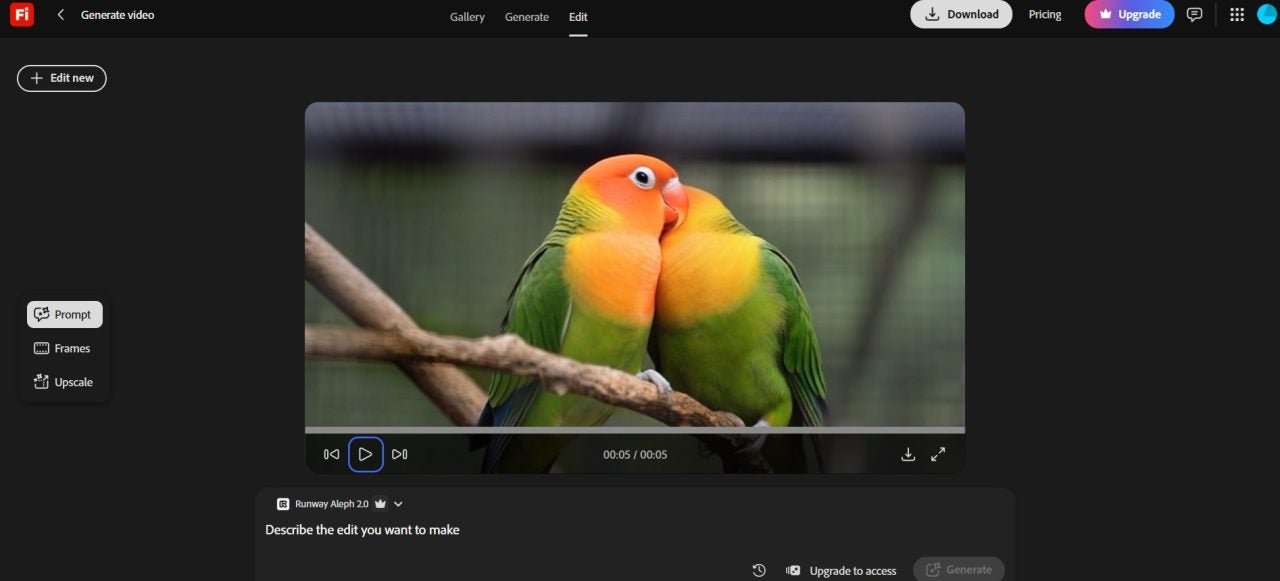
The Firefly video editor allows you to continue working on the video in a timeline from your browser. Here, you can arrange and trim clips, layer media, refine timings, and combine with either more generated footage or your own videos, images, and audio.
The editor can help turn a generation into a usable social post, product sequence, or short piece of a B-roll. You can keep the strongest section, place several generated shots in sequence, or combine them with your existing campaign assets.
If you need to go even deeper, selecting the Edit > Open in Premiere desktop option enables a more detailed post production pipeline. When used, Firefly can send the generated media directly over to Premiere. These features help provide a seamless experience to continue tweaking color, sound, titles, transitions, and pushing a larger production timeline beyond the original generation.
Where Image-To-Video Generation Fits
If your brand has visuals available that are going unused, Firefly might help breathe extended life into them. A product still can become a slow-pan video or engaging detail shot. What were previously static illustrations could become motion concepts for a pitch, or a more lively storyboard. A previous campaign’s photography assets might be reusable as short social clips.
A photo to video workflow can potentially help to create B-roll to fill in gaps, especially when a new shoot is not possible.
Adobe Firefly Video model outputs are designed to be commercially safe, because the model is trained on licensed and public-domain content. With that said, teams should still review all results for accuracy, suitability, and their own brand or legal requirements.
Adobe Firefly AI Video Generator
TRY FIREFLY AI VIDEO GENERATORTurn a Still Image Into a New Video Asset
The most effective way to use an AI image to video generator is to begin with a clear intention. Choose a strong source image, define one main movement, direct the camera, and refine the result through controlled iterations.
Adobe Firefly AI Video Generator
DownloadAdobe Firefly’s AI Video Generator can help transform a static asset into motion, with options to edit the clip in the browser or continue the work in Premiere. Try it now and discover a straightforward and practical way to get more value from existing creative assets without starting every video project from scratch
