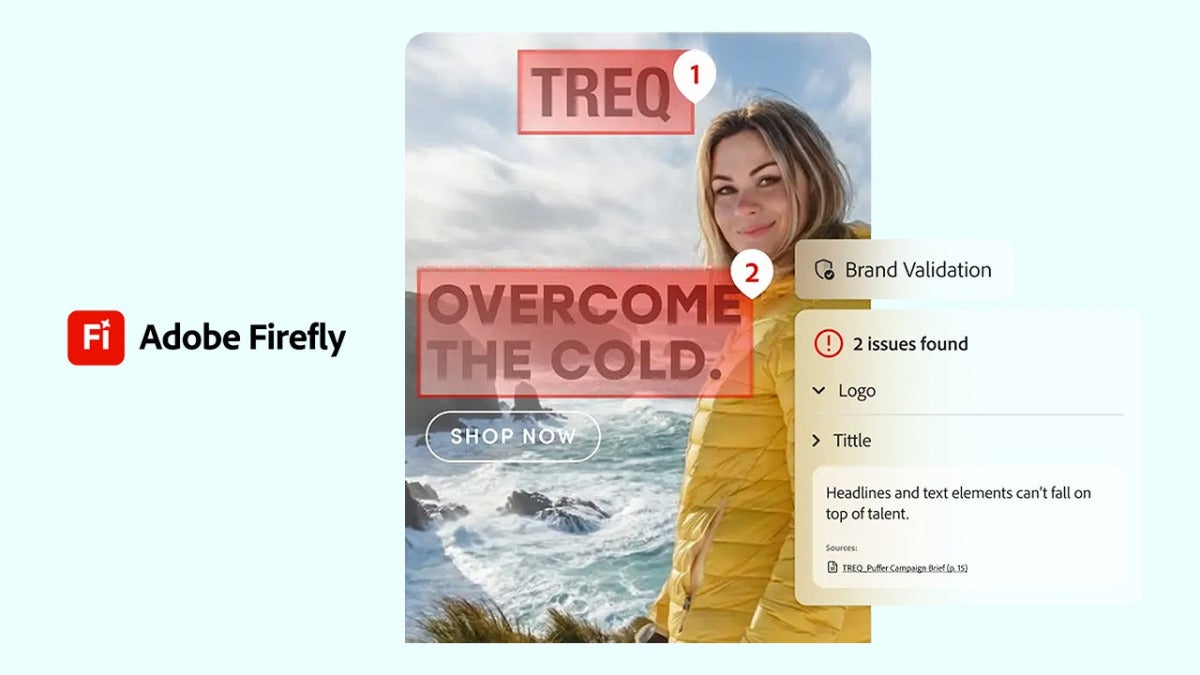
Getting an AI image now is easy enough. The harder part starts right after: making it match a specific visual style, then getting it into shape for professional use without it falling apart. That’s usually the point where more generic tools start to show their limits. Adobe Firefly, Adobe’s generative AI platform, is aimed at that part of the process. It gives you tighter control over the output, and it plugs straight into apps like Adobe Photoshop and Adobe Premiere. That’s where Firefly begins to pull away from broader, more general AI tools.

When do generic AI tools work well?
If you judge an AI tool only by the first image it spits out, you’re skipping the part that matters. The real test is what happens once that image is in front of you. How far can you push it? A quick way to tell whether a model fits your workflow usually comes down to two things:
- Style repetition: For image generation, especially in professional work, keeping the same visual style from one result to the next matters a lot.
- Corrections: When you need to fix something, adjust it, or keep refining it, solid correction tools save time.
Generic AI tools still have their place. They’re often easy to test, quick to use, and great when you’re experimenting. The trouble starts when the work has to move past rough ideas and into something you’ll actually use.
Firefly, designed to keep your images consistent
Adobe Firefly does more than generate images. It’s a group of AI tools built to work across Adobe’s wider ecosystem.
On the platform itself, a few features stand out:
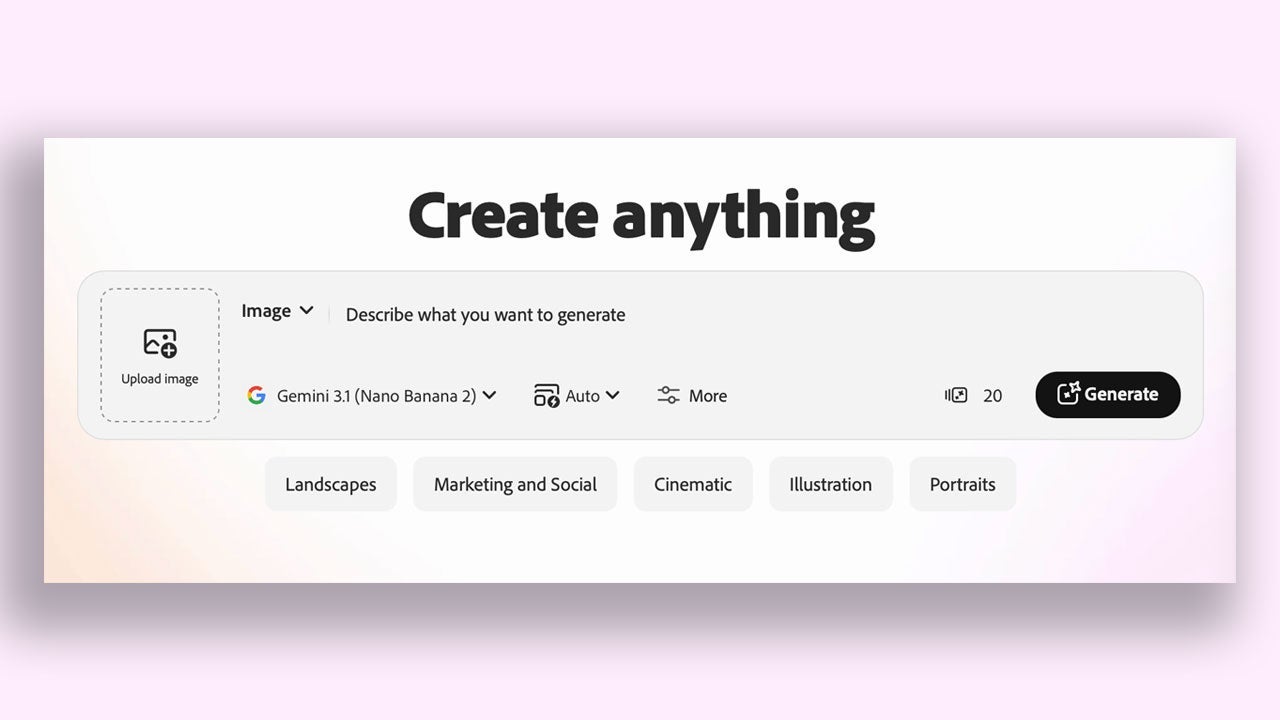
- Generate image: This is usually the first thing people notice, and it’s the first option you see when you open Adobe Firefly. Type a description, and you’ll get images back in seconds. Adobe also lets you choose between its own Firefly models and third-party ones, including ChatGPT and Gemini.
- Generate video: Firefly can make videos too, and it can help edit clips along the way. That’s especially useful for content creators or anyone who needs extra footage to support a project.
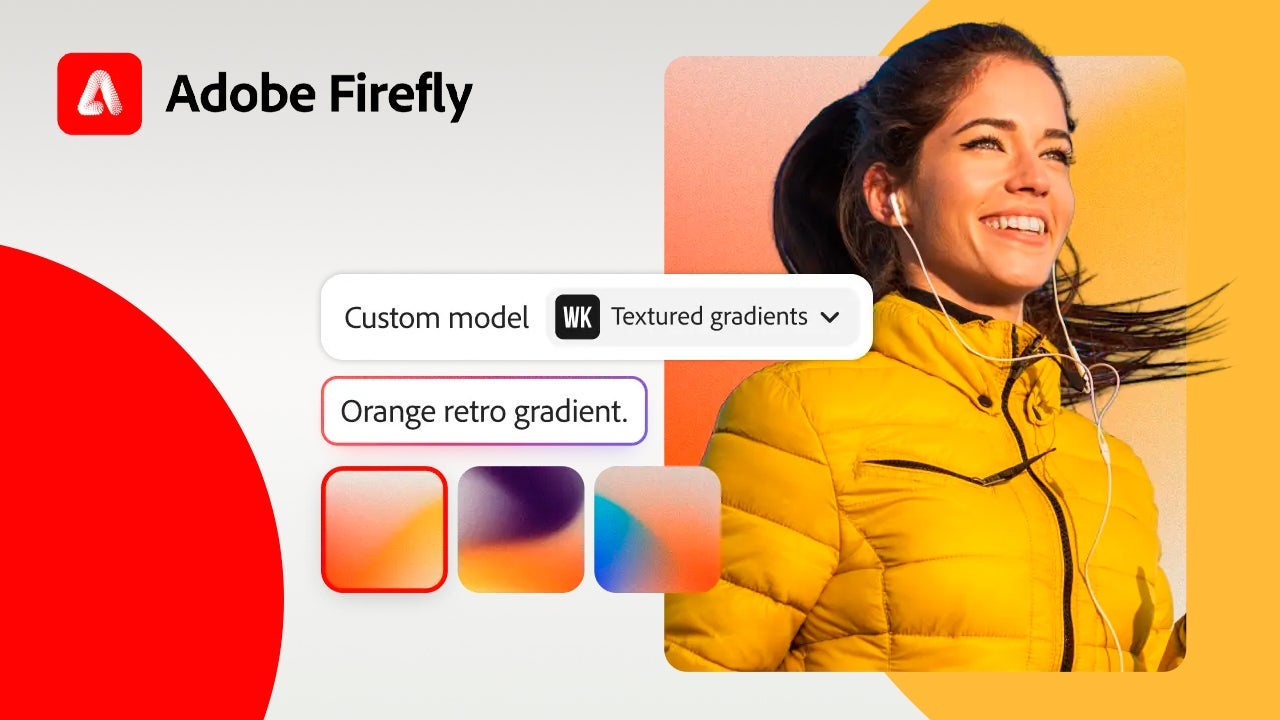
- Custom Models: This is one of the clearest ways Firefly sets itself apart. Adobe lets you create custom models trained on your own content.
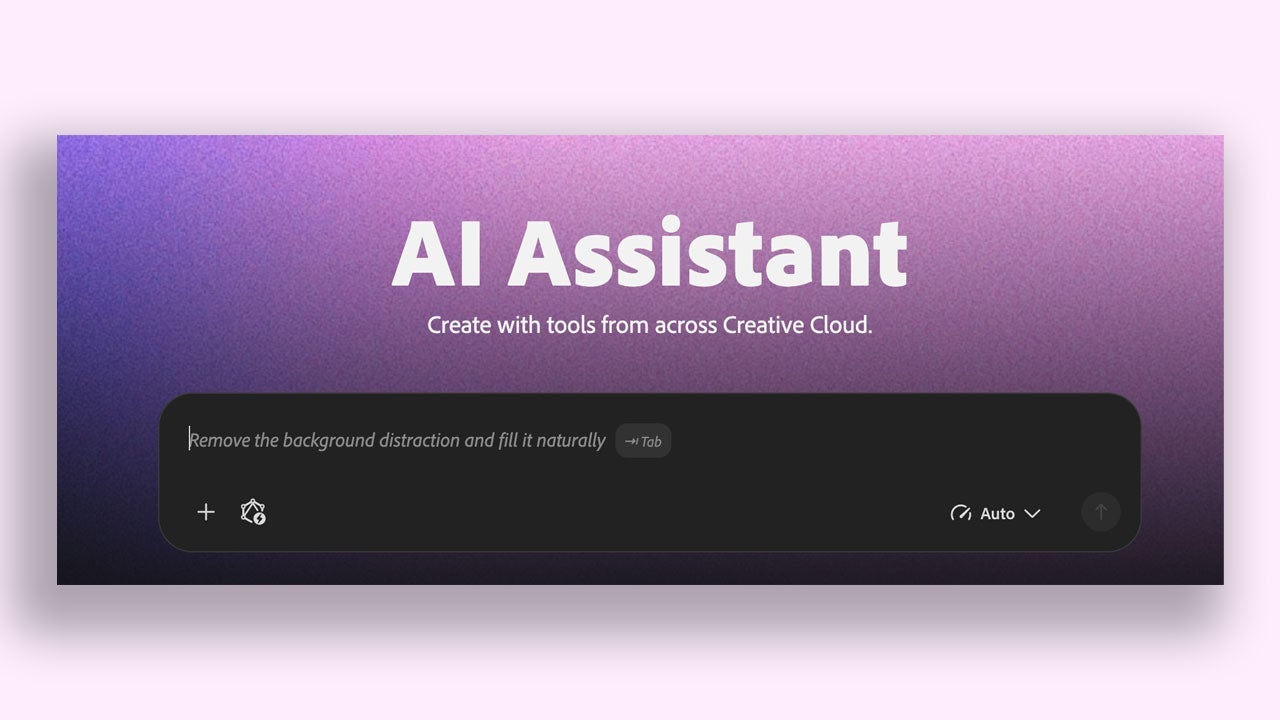
- AI Assistant: Firefly also includes a conversational agent that helps you create and edit content through written prompts. The AI Assistant connects with other Adobe Creative Cloud apps, including Adobe Photoshop, Adobe Lightroom, Adobe Illustrator, and Adobe Premiere, so it can carry out what you’ve asked for.
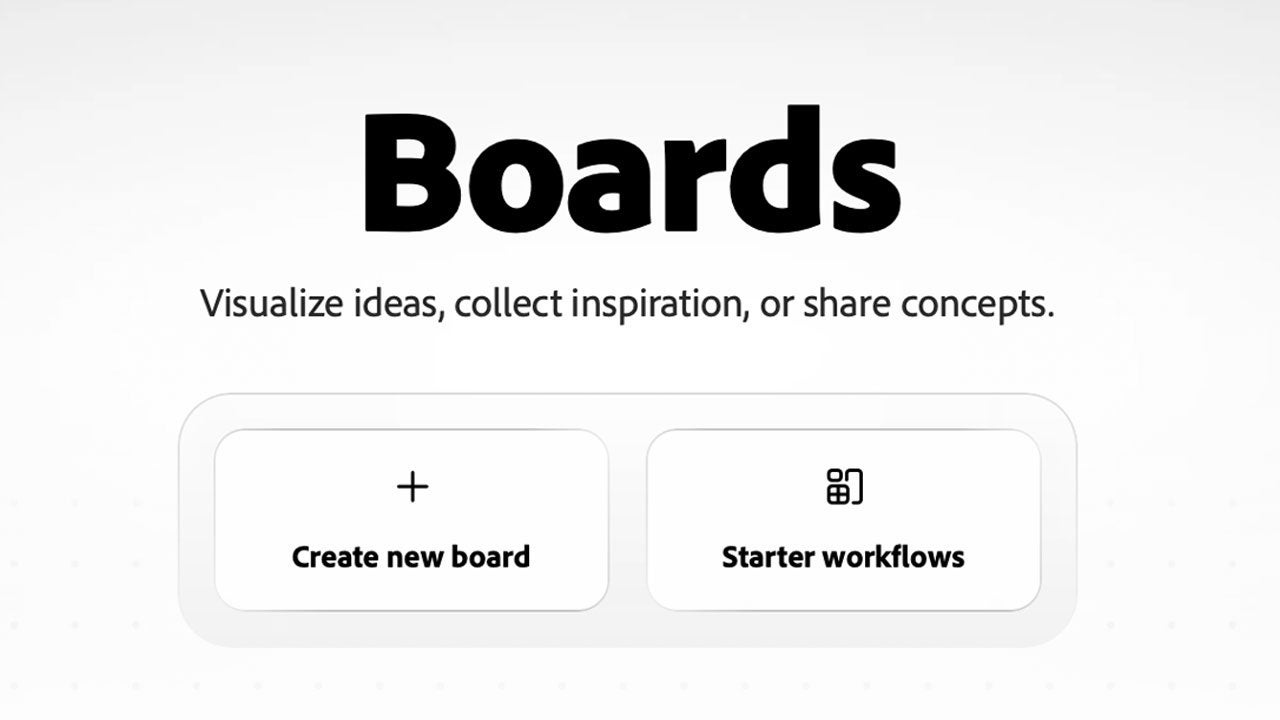
- Firefly Boards: A shared canvas where you can collect references, generate variations, and work through ideas visually.
How Firefly works with Photoshop
An AI-generated image becomes a lot more useful when a professional can open it, edit it properly, and turn it into a finished asset. Firefly connects with Adobe Photoshop through features like these:
- Generative Fill: Select an area, then describe what you want to add, change, or fill.
- Generative Expand: Extend the canvas and let the AI complete the missing parts.
- Generative Upscale: Raise an image’s resolution so it can hold up at larger sizes.
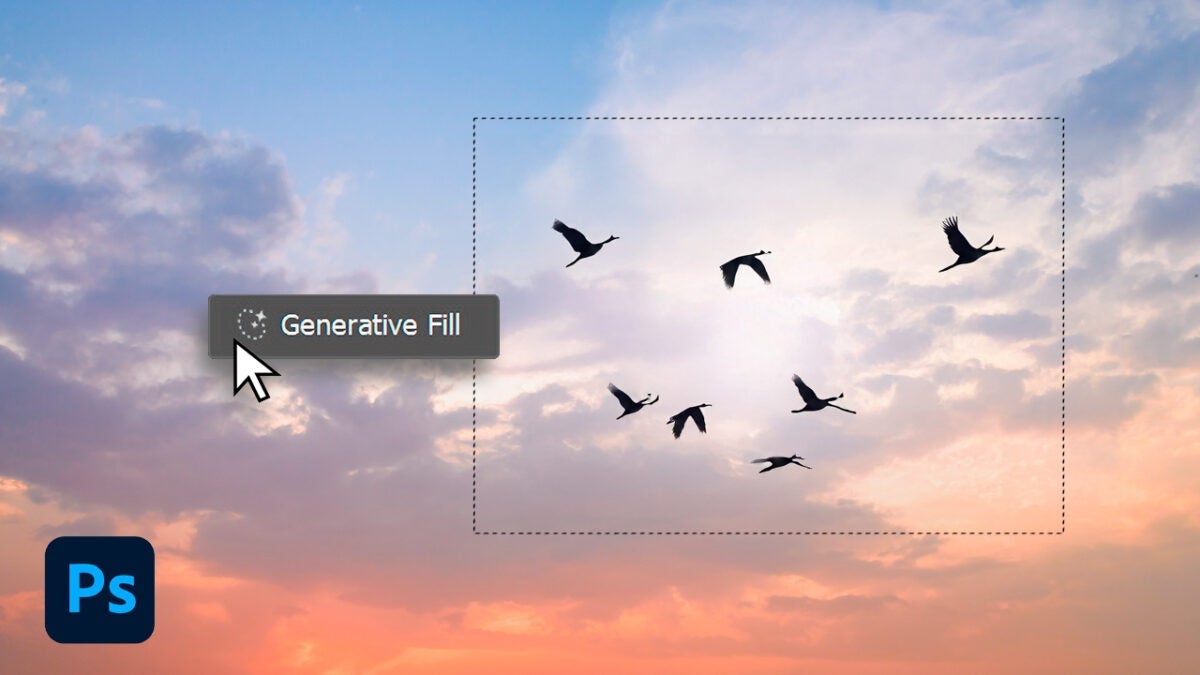
You can also open Adobe Photoshop documents in Firefly Boards, make variations there, and send the versions you choose back to Adobe Photoshop for final edits.
From image to video with Firefly and Premiere
Images are only part of the picture. Video matters just as much. Adobe Firefly can generate short videos on its own, and it also ties into Adobe Premiere:
- Send directly to Premiere: From Adobe Firefly in your browser, you can send images and clips straight to Adobe Premiere on desktop.
- Firefly Boards from Premiere: Inside Adobe Premiere, you can build mood boards and storyboards for Firefly Boards.
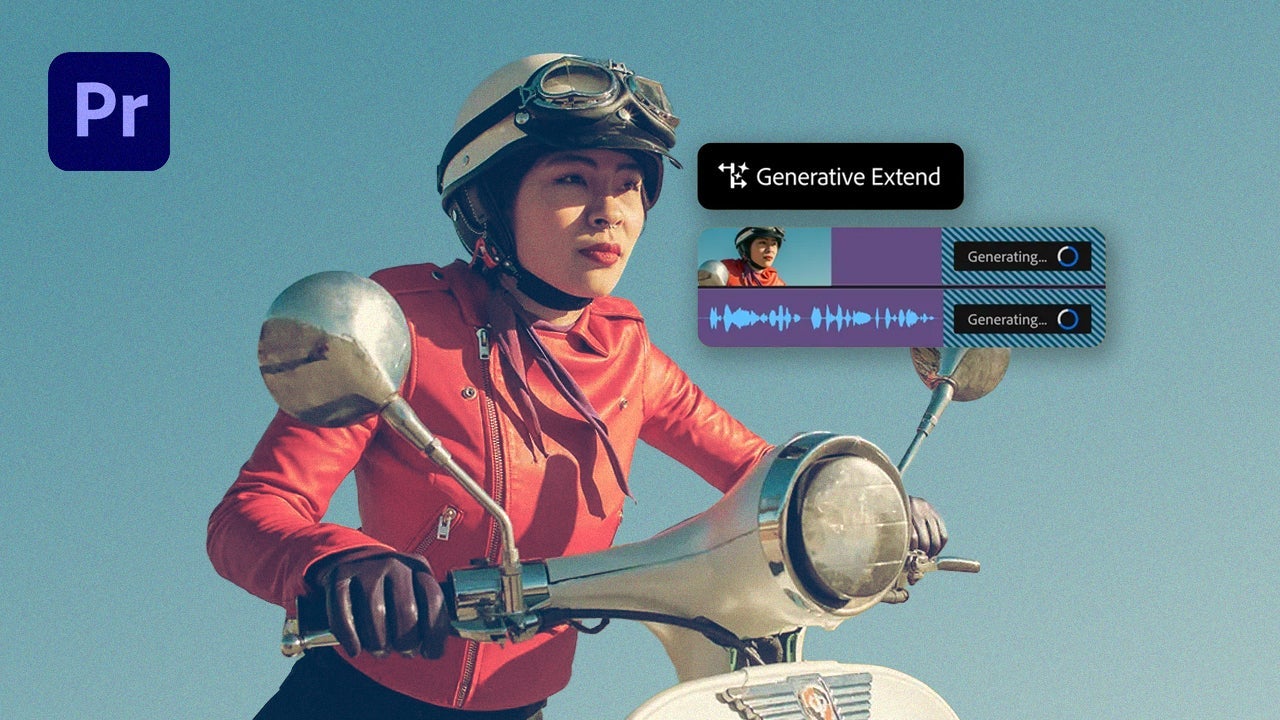
- Generative Extend: Add a few seconds to a clip by generating new frames.
Security and legality
If you plan to use images and videos commercially, legal risk matters. Adobe Firefly was built with that in mind.
- Firefly models are trained with licensed content: According to Adobe, Firefly models were trained on images from Adobe Stock and on public-domain content. That’s why Adobe presents Firefly as a tool for commercial use.
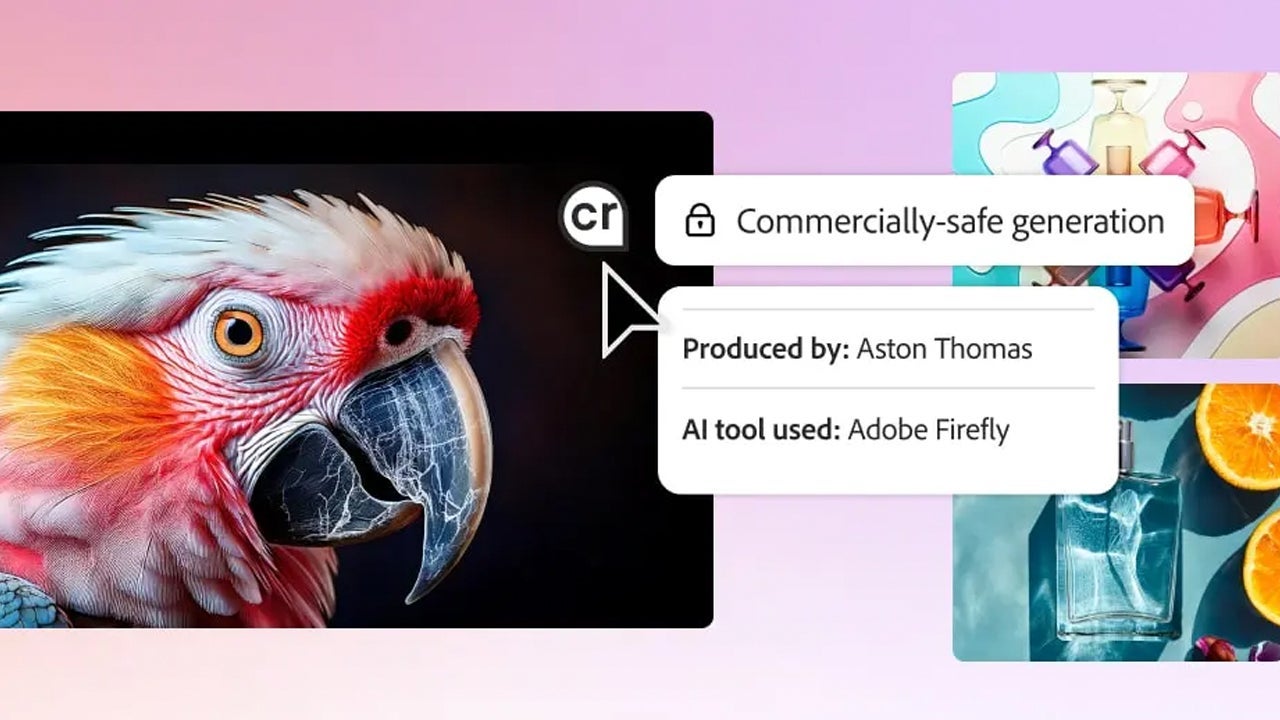
- They have Content Credentials: According to Adobe, Content Credentials are metadata attached to a file that show where it came from, who created it, or whether AI was used to generate it.
- Your files are yours: Adobe says it doesn’t use your content to train its own models or the models of other companies.
Which option makes more sense for you?
That really depends on what happens after the image is generated. In general, Adobe Firefly makes sense in situations like these:
- If you’re a freelancer: You can send generated images into Adobe Photoshop and turn them into final files. You’ll get the most value from Firefly if you already work inside the broader Adobe ecosystem.
- If you’re a designer or video editor: The first thing you’ll probably notice is how naturally it works with Adobe Photoshop and Adobe Premiere. You can use tools like Generative Fill, Generative Expand, and Generative Extend to move faster without giving up quality.
- If you’re part of a team: Custom Models and Firefly Boards can make collaboration much easier.
If all you need is a quick image and you don’t want to spend much time on it, almost any AI tool will work. If the final result is headed for professional use, Adobe Firefly starts to look like the better fit.
