How To Merge PDF Files With Adobe Reader

When the world went online, software developers had a field day to stay ahead of the pack. Today we’re bombarded with options, including from which web browser we use to how we save files and send them around on the internet.

Although having so many choices is fantastic, it does present its own set of problems. Just because you love the program you’re working on doesn’t mean the next person does too. Compatibility across various working platforms has quickly become the modern-day dilemma when working remotely and sharing files.

Fortunately, creating PDF files from any type of content has dealed with this issue to a large extent. You can now save your images and text files in PDF format. As long as the recipient has a PDF reader installed, the communications are streamlined and resolved.

What is a PDF document?

You can divide PDFs into three categories depending on the original creation of them. How you create the PDF file will also determine whether others can gain editing rights after sharing it. ‘True’ PDFs the originals you create digitally in Word or Excel, and the originator then saves it into PDF format. It’s the original, so to speak. 

‘Locked’ PDFs are scanned or snapshot images and others can’t edit them. Regardless of the type of PDF file you have saved on your PC, it would help if you could merge all the information in one application, such as Adobe Reader. There are excellent free PDF Readers available to download free and safely.

Step 1: Download Adobe PDF Reader

If you don’t have an Adobe PDF Reader app yet, you can download it for iPhone, Android, Mac, and Windows. It’s free and safe to download for all devices.

Step 2: Open the Adobe app

When you’ve installed the new Adobe app, open it on your device.

Step 3: Combine the files

From here, it’s quick to complete. Click on ‘Tools’ > ‘Combine Files’ > ‘Combine Files.’

You have to select the command ‘Combine Files’ twice to kickstart the merging process. Adobe will now combine all your documents into one single file, making it effortless for you to access your work.

However, if this app won’t work for you, there are plenty of other excellent, free PDF Readers available to download safely.
How To Update Chrome

We live in a fast-paced world, and our internet browser needs to stay ahead of the game. With more of our devices connecting to a single network, a browser like Google Chrome can cope with the increased traffic while providing adequate security and speed.

Although some browsers can be challenging to master, Chrome has a magical way of accessing whatever you need in an instant without redirecting or allowing annoying pop-ups. You can access and load web pages with video material or heavy graphics across various pages without any difficulty. 

All changes and updates happen in the background, so you’re always sure of the latest safety protocols without concern. Of course, it helps to have the Google search bar at your fingertips. It’s some of the reasons why we love Chrome.

It’s available for all your devices powered by Android, iPhone, Mac, and Windows. Chrome is free and safe to download, so if you’re looking for a fast and secure browser, it’s one of the best currently available.

Why should I keep Chrome updated?

It would be best to keep Chrome updated to prevent dropped connections or slow upload/download times. The developer also continuously improves and adds features while fixing bugs and errors. So keep your Chrome updated to prevent any interruptions or loss of data. Chrome updates run automatically whenever you switch your device on and off, but you can check and push manual updates too.

How to know if I need to update Chrome?

Chrome updates typically run automatically each time you close and reopen the browser. If you can’t find the ‘Update Google Chrome’ icon under ‘More,’ it means that you’re on the latest version.

Step 1: Open Chrome

Before you can update your browser, you’ll need to open it to access more features. The default screen will load before you can proceed.

Step 2: Click the ‘More’ button

On the top right of the screen, you’ll see a ‘More’ button. You’ll need to select this to open more options and see if there’s an update available.

Step 3: Select ‘Update Google Chrome’

If there’s an update, you’ll see this option in the menu. If it’s unavailable, it doesn’t mean that Chrome is broken; you have that latest version installed.

Step 4: Reload Chrome to complete the update

Finally, you’ll need to reload Chrome once the update is complete. You’ll see new features, and the browser may be faster.

What else can I use?

Variety is the spice of life, and many users have more than one browser, picking the best of their features for various applications. It’s not necessary to go to this extent, but it’s not a bad idea if you want to separate your private life from your gaming life, for instance. Although Chrome is superb in all it offers, you can also consider Firefox, Microsoft Edge, or Internet Explorer as alternatives.

How to Watch Netflix and Hulu with ExpressVPN

Isn’t it amazing how rapidly technology changes how we do life daily? Whatever we can dream of, it can happen. The impossible becomes our reality overnight, and then we scramble to stay ahead and get the latest tech integrated into our everyday lives.

In the ‘90s, we watched movies where entire homes were run by AI and almost became a living organism. Now we’re living in that age, and we don’t think it’s weird at all. Go figure.

Are you using a VPN?

So, we all have WiFi at home; that’s a given. Our phones, entertainment hubs, PC’s, and tablets are all connected and synced. We’re being responsible and connecting to the Web using the best VPN to stay anonymous and, yes, to connect to various other country’s Hulu and Netflix offerings. If you aren’t doing it yet, we highly recommend that you consider downloading ExpressVPN, NordVPN, or PIA soonest. The benefits are tremendous.

Is ExpressVPN slowing down my internet?

What can ruin your day is when your WiFi isn’t connecting as it should, and Netflix can’t upload your favorite series while you’re waiting with a pizza on the couch, ready to binge-watch the Marvel collection.

There are many factors at play, but the chances are that you must resolve a slow internet connection with your ISP before looking at ExpressVPN to find fault. With more than 3,000 servers globally, its speed is untouchable. After countless tests conducted, ExpressVPN still reigns at the top for breaking geoblocks, speed, seamless streaming, and 256-bit security. As a matter of fact, it actually increases torrenting speeds.

Step 1 – Sign up for ExpressVPN

If you want throttle-free streaming on Netflix and Hulu, your first step is to get ExpressVPN.  You can buy a discounted subscription to ExpressVPN now from a trusted provider and also enjoy the first three months free.

ExpressVPN Download
9

Step 2 – Download ExpressVPN

Once you’ve downloaded ExpressVPN, you can connect to any server in the specific country you want to access. If you’re on holiday in the UK, you can still link to a server at home and watch Netflix USA.

Step 3 – Log into your regular Netflix or Hulu account.

Once your VPN is connected, you can proceed as normal to log into your Netflix or Hulu account and continue watching your series and movies.

How to Use Plex

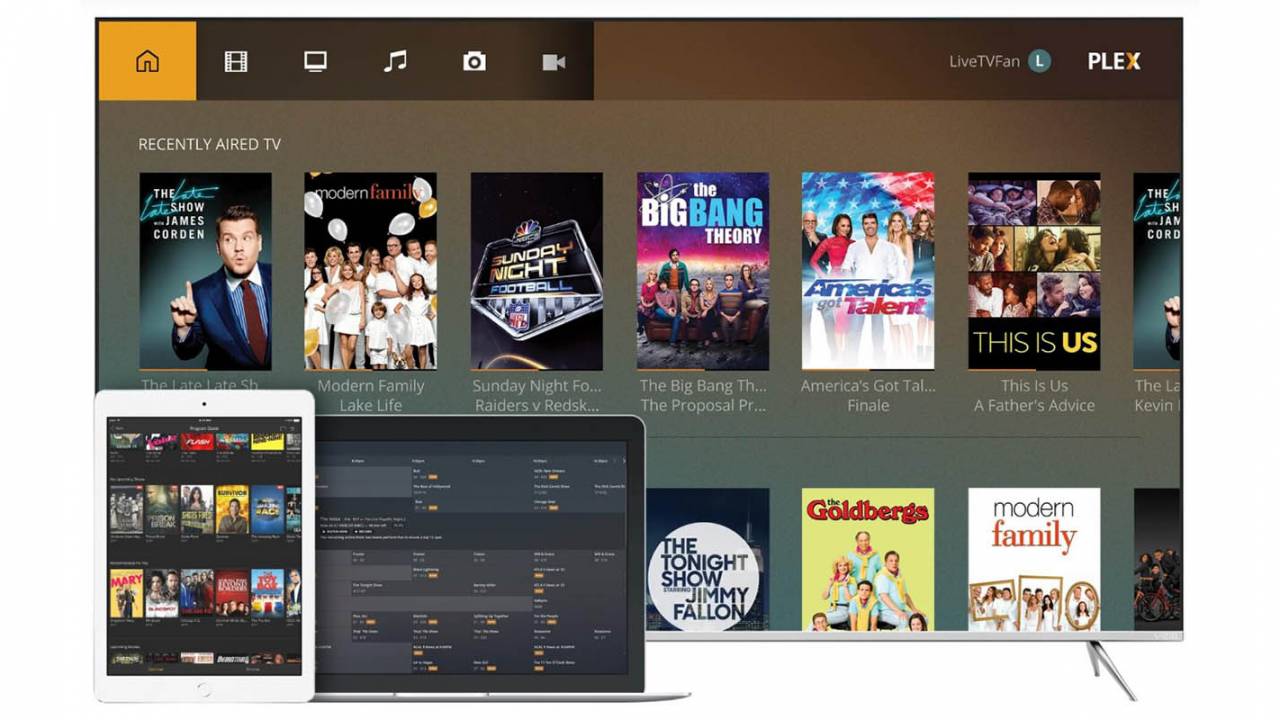
If you landed here due to the comPLEXities you’re experiencing using Plex, rest assured you’re not alone. Plex is one of the best entertainment hubs currently available, but get ready for a steep learning curve, guys and gals. The excellent news is that once you’ve mastered it, you’ll have a superb looking tool to manage your multimedia on one platform.

Why choose Plex?

Well, firstly, it’s free and safe to download on Android, Mac, iPhone, and Windows. There’s an array of reasons why you want to grab the manual and get it mastered, such as:

  • It’s a multi-lingual platform
  • It’s an open-source development.
  • You can customize Plex with a variety of third-party plug-ins, such as Netflix.
  • It optimizes all your media in one place.
  • You can stream between devices.
  • You can stream and record free TV channels.

How to get started and use Plex?

Let’s begin your journey with this entertaining app:

  1. Install the app on all your devices you want to connect to Plex, starting with your primary PC or laptop.
  2. When the installation is complete, select ‘Launch’ to redirect to a new browser window.
  3. Create your new Plex account by following all prompts. If you skip this step, you’ll only access limited functionality. It’s advisable to complete your new account and make use of the full suite of features.
  4. Add your libraries by following the straightforward prompts on Plex. It’s handy at this point to know that you can continue following more setup steps while your media syncs from all devices.
  5. You can choose the option to send all user data to Plex automatically moving forward. It’s a great time saver when you have multiple devices. 
  6. In the L-side menu, you’ll see a notice to ‘Claim your current network.’ Click on the alert to identify your server in the future.
  7. Click on the alert next to ‘Remote Access’ > ‘Enable Remote Access.’ It allows all other devices to connect to your Plex hub.
  8. Select the ‘Channels’ option on the side menu. Click on each channel you want and press ‘Install.’
  9. Now you can move on to your other devices and follow the setup prompts. It’ll show you how to share media between devices.
  10. You can customize your account to your heart’s content. Don’t worry; you can’t break Plex, so be creative and have fun creating your playlists.

Other platforms to consider

You can also consider another open-source multimedia platform such as Kodi or Stremio.

How to Make a Quiz on Google Classroom

Most teachers had to pick up the pace and join the new age of virtual teaching recently. If you fall into this category, you’ve probably met the superb teaching tools that Google Classroom offers. With 2021 still wobbling under the pandemic’s extreme pressure, many parents and teachers have come to accept that virtual teaching is here to stay. 

Once you’re used to teaching virtually, it might get harder to return to a brick and mortar classroom. Even when you do, Google Classroom’s advantages can help you streamline and monitor your student’s assignments.

What is Google Classroom?

Google Classroom is a free app that allows you to interact with your students in a virtual environment, assign tasks, like quizzes, and do one-on-one tutoring or group studies. It has loads of productivity tools that help you stay connected with all your students and track their progress. It integrates seamlessly with all other Google applications offering you one user-friendly platform to teach from.

The best part about using Google Classroom is that it’s free and safe to download, and you can easily use it from your mobile device to keep in touch while you’re on the go. 

How to create a quiz on Google Classroom?

  • Launch your web browser and navigate to Google Classroom.
  • Sign in on your Google account.
  • Select an existing class, or ‘Create a class.’
  • Once you’re in the classroom, tap on the ‘Classwork’ button.
  • Choose ‘Create’ > ‘Quiz Assignment.’
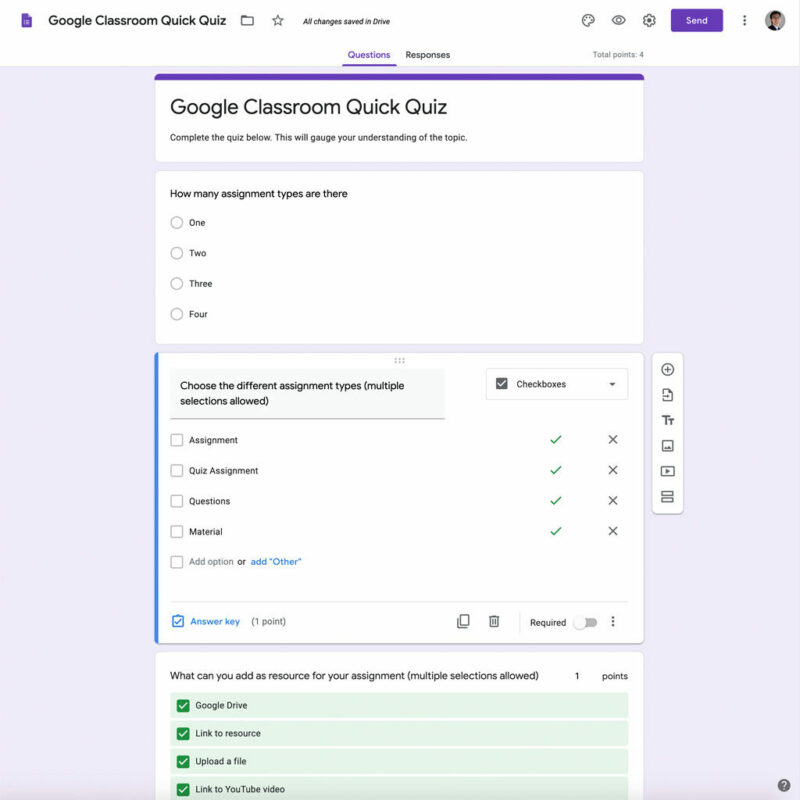
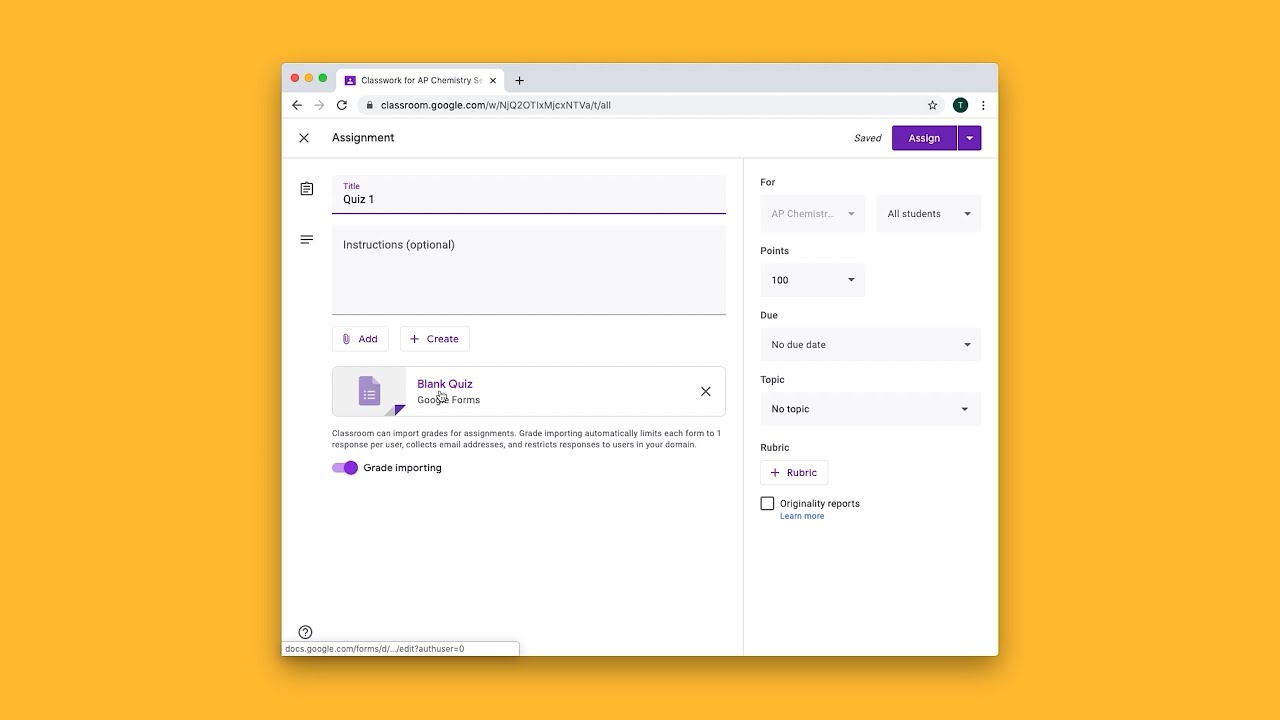
  • You’ll find that the quiz form looks exactly like the standard assignment form. The difference is that it has a blank Google form to serve as your quiz form.
  • Name your quiz in the assignment menu and type in all relevant instructions.
  • You can also attach additional files to the quiz by clicking on ‘Add.’

How to share a quiz in Google Classroom?

  • Once you’ve created the quiz, save it.
  • Press the ‘Visible To’ tab.
  • Click on ‘Share on Google Classroom.’
  • In the new pop-up window, log in to Google Classroom again.
  • Please select the class you want to share the quiz with and click on it.
  • The quiz will now be visible to the members of that classroom.

Are there more apps like Google Classroom?

Other apps also allow you to share group information such as assignments and grades online. College professors often use Canvas to assign tasks virtually, while Moodle offers loads of features and plug-ins.

How to turn off Chrome Notifications

We are spoilt for choice today when choosing a default Web browser. With excellent options available such as Chrome, Firefox, and Opera, it’s genuinely a matter of personal taste that decides which one you apply. 

That said, more than 310 million Web surfers (that’s almost 40% of the total market share) all opt for Google Chrome presently, and for a good reason. Most Steamers also use Google Chrome as it’s quick and easy to migrate to Chrome on all devices powered by Android, Mac, and Windows. Chrome is omnipresent due to its robust features, expansive extension possibilities, and dedicated mobile apps.

Okay, so now that we know why Chrome is such a firm favorite, we can get down to the business of managing the non-stop and disturbing onslaught of notifications. We understand how disruptive it can be if you’re busy with a significant attack in your favorite game, and Chrome feels it’s necessary to tell you that you have to run a security check. As if you don’t know it already, right?

How to disable Chrome notifications

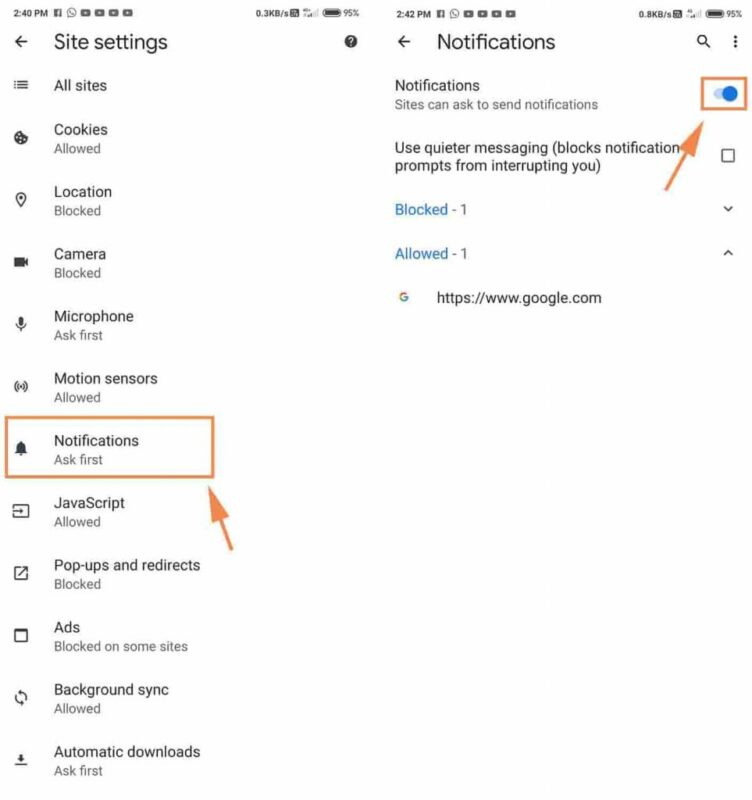
  • Open Chrome on your device.
  • Go to ‘More Settings’ in the top R corner.
  • Go to the ‘Privacy and Security’ tab > click on ‘Site Settings.’
  • Click on ‘Notifications.’
  • Here you can manage the notifications. ‘Allow or Block All’ > select each site individually and turn it ‘On’ or ‘Off.’

How to block a website in Chrome

If you want to block a website from contacting you altogether or preventing your eight-year-old from seeing unsavory sites when researching school projects, follow the steps:

  • Search for the Chrome extension to ‘Block Site’ and add it to your browser.
  • Select ‘Add Extension’ in the pop-up box.
  • Find the new extension icon on the top R corner of your screen.
  • Open the website that you want to block – don’t feel bad; you can undo it later.
  • Click on the extension icon and select ‘Block this Website.’

How to unblock a website in Chrome

If you need to access the blocked site again, you can undo your previous actions effortlessly.

  • Click on the ‘Edit your List’ tab in the top R corner of your screen.
  • All your blocked websites will appear with a minus (-) next to them. Press on the minus to unblock that specific site. It will turn into a plus sign when the site is freed.

How to Share Games on Steam

We’ve all been bummed out at one time or another because we may not sell our Steam accounts. Maybe you needed some extra cash, and you’re sitting with a massive game collection worth thousands. Well, we’ve made peace with this fact and moved forward. Although you can’t sell your account, you’re more than able to share your games on Steam with family and friends. 

If your little brother has been on your case about a game you have, it’s time to practice the age-old saying: sharing is caring. So, get your family or friends to register personal Steam accounts on Android, Mac, or Windows now, and let the family games begin.

How to share my games on Steam?

Before you can allow other players to access your games library, you have to make a few quick setting changes on your account. Then, in a few clicks, your little brother can download whatever game of yours he wants directly from your collection. As easy as that.

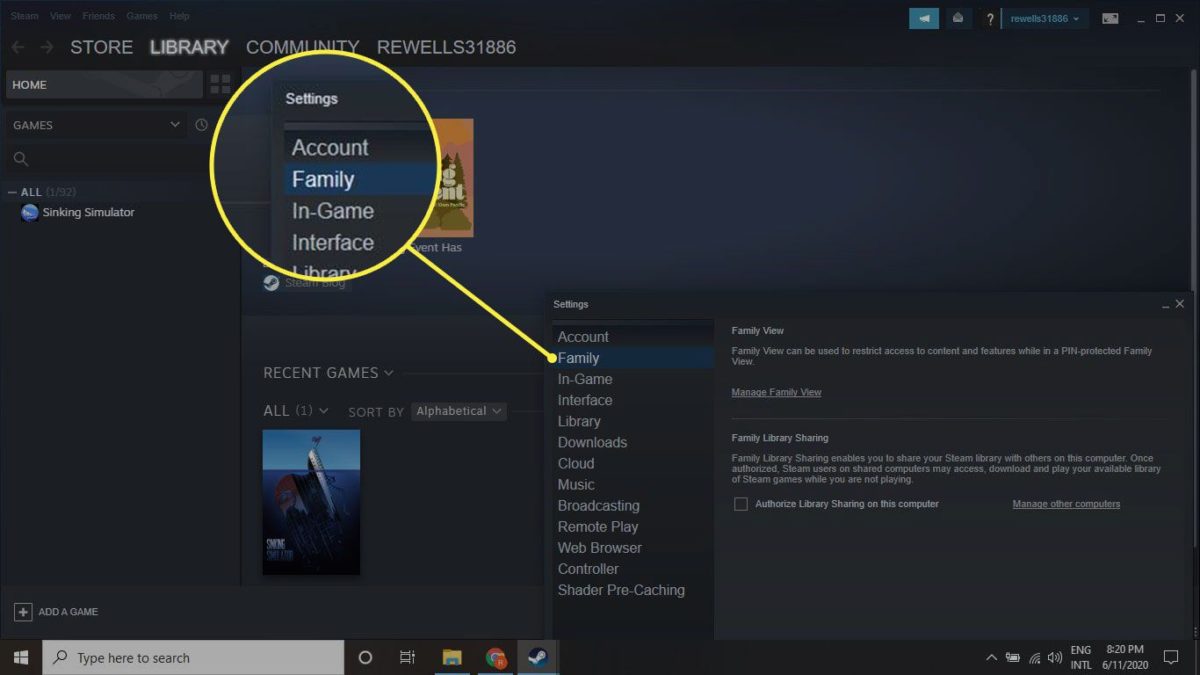
  • Click on ‘Settings’ in your Steam menu.
  • In the ‘Account Tab,’ you must turn on ‘Steam Gaurd.’
  • Now, log into your Steam account from the family member’s device.
  • Click on the ‘Steam Menu’> ‘Settings.’
  • Select the ‘Authorize library sharing on this device’ option.
  • Log out of your Steam account on the device and let the owner sign in to their Steam account. Your game library will be available to them to play on.

Can I play a shared Steam game with other players?

The profound answer to this simple question is no. It’s crucial that you only share your Steam games with people close to you, preferably under the same roof. Steam doesn’t allow the same Steam library to be used on various devices simultaneously. We understand Valve’s reasoning for this decision. If we could share our game libraries with multiple people and all play together, nobody would be buying games anymore. So, choose your friends and family you want to share with wisely and take turns having fun.

Other gaming platforms like Steam?

Xbox Beta is another excellent gaming platform that offers interactive gaming with users from around the globe. Also, take a look at what GOG Galaxy provides you in organizing and accessing all your gaming platforms on one site.

How to Refund a Game on Steam

If you’ve ever been to a Black Friday sale, you’ve undoubtedly experienced buyer’s remorse, as we all have. It’s all the hype of not missing out that often crashes out credit cards in an unguarded moment. A rather clever acronym for this is FOMO (fear of missing out), and yes, we all have it to a degree. Although this tongue-in-cheek reference brings a smile to your face, what you need is a refund.

When may I request a Steam refund?

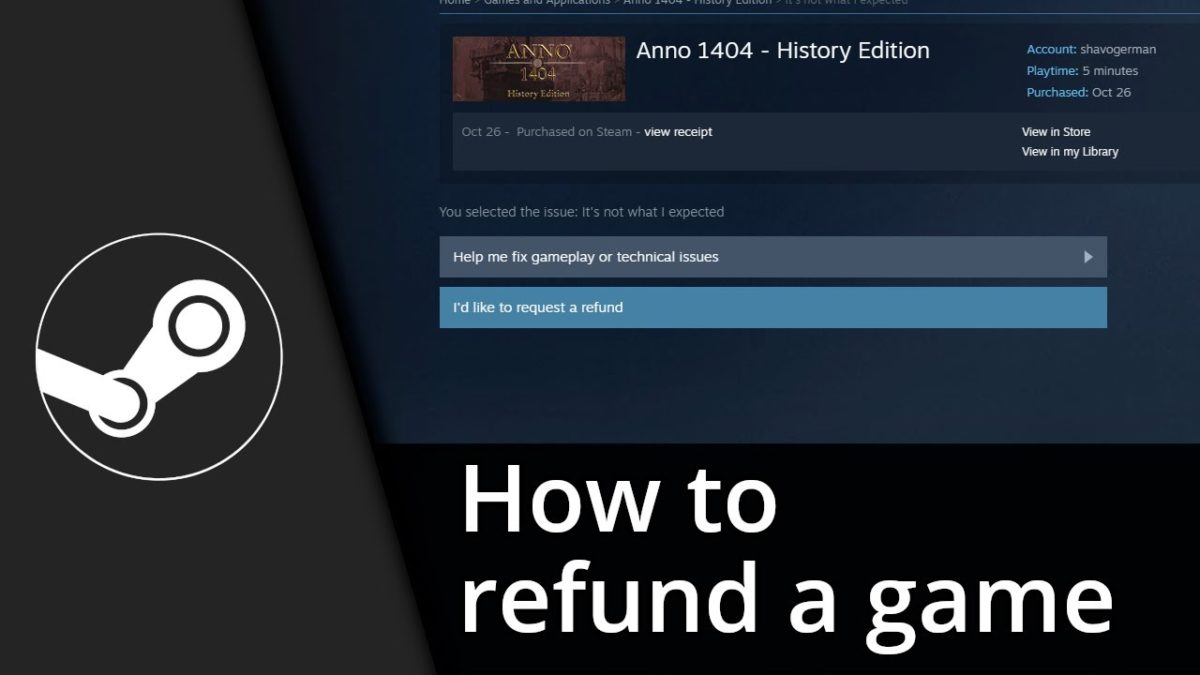
Fear not, fellow Steamers, as Valve undertakes to refund you when the buying rush is over, and you realize you need another week’s food more than the latest game. As long as you’ve played less than two hours and bought it less than 14 days ago, you’re eligible for a refund.

Of course, there are other valid reasons for requesting a refund that’s also acceptable, such as not enjoying the game, an accidental purchase, or technical issues. You can supply your reasons when following the refund process online on your Steam account.

How to request a refund on Steam?

  • Go to help.steampowered.com and use your Steam account to log in.
  • Select the option for ‘A Purchase.’
  • From the list of recent purchases, you can click on the relevant one you want to return. This list only displays all purchases that fall within the 14 days and are valid for a refund.
  • From the drop-down options, choose the reason why you want to return the game.
  • Click on the tab that reads ‘I’d like to request a refund’ and complete and submit the form provided.
  • Next, you must select the original method of payment you used for the purchase.
  • You’ll receive a confirmation email that your request is submitted.

How long will I wait for my Steam refund?

It typically takes up to 7 days for the refund to be completed, whether you log in via Windows, Mac, or Android. International refunds can take longer. If you’re in the United States and have been waiting more than seven days, you should make sure that you haven’t already used the credit to make more purchases. If that’s not the case, you can repeat the process to request a refund as described above.

Other marketplace platforms like Steam

Variety is the spice of life, and for gamers, that means hunting down the best prices for your games and accessories. You can also take a look at what GOG Galaxy and the Epic Game Store has to offer.

How Much Is My Steam Account Worth?

In the ’80s and ’90s, we collected CDs, DVDs, and Playstation game disks. Whoever had the tallest shelf full of these collectibles was hailed as the king of the tech revolution. You alphabetically sorted many of these collections, and a monetary value would always be a part of your bragging rights. 

As with all things, advanced technology quickly eradicated the need to pile up plastic on our shelves. With the launch of Steam in 2003, our libraries went online. Although Steam has been around for almost 20 years, it wasn’t until 2018 that you could put an accurate price on your collection. If you haven’t joined the digital gaming era yet, remember you can download Steam free for Android, Mac, and Windows.

Calculate the value of my Steam account

If you’ve been collecting game titles for many years, it’s always good to know the value of your investment. Yes, we call it an investment as it has contributed to your emotional wellbeing over the years by providing hours of fun and joy.

Although you’re not legally allowed to sell your Steam account (after hours of reading the fine print, it’s sad to say: it is what it is), it’s still valuable to know how much you’ve spent and how much it’s worth in current times.

SteamDB offers a popular tool to use for calculating your Steam account’s value. It adds up all the games in your Steam community profile and calculates its ‘account worth’ by using each game’s current price. It’ll give you an estimated value in your local currency.

Step 1. Enter in your Steam account

  • Set your Steam profile to ‘Public.’
  • Open a new window and visit SteamDB.info by selecting ‘Sign in via Steam.’
  • Select the blue ‘Sign in through Stream’ again.
  • Select the green ‘Sign in’ button.

Step 2. Check the value of your account

  • View the block in the top R corner to find your actual Steam value (in green) and your current Steam value (in red.)

Another excellent tool is available to help you sort your Steam collection and keep a well-recorded inventory. If you want to look at alternatives for Steam, you can consider GOG Galaxy.