
Love Vine and Instagram Video style clips, but want them right in your chat app? The newest update for LINE on iOS (3.9.0) introduces Snap Movie, which allows you to create short videos, add background music, and send it to your contacts. While this feature is only on iOS at the moment, it will be released later for Android and other platforms. I’ll show you how to access and use Snap Movie, which will let you share your creations with all your friends.
Starting a Snap Movie
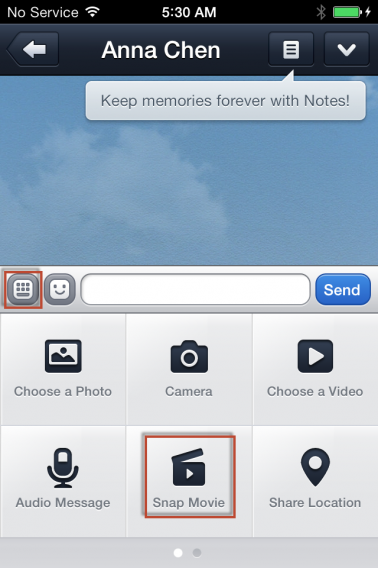
Snap Movies can be created in the chat menu. Tap the plus icon at the bottom, which will bring up a list of attachment options, and select “Snap Movie”.
Snap Movies can be up to ten seconds long. Tapping the screen will record a single second, or you can long press to record all ten seconds. If you don’t like what’s been recorded, you can cancel the video by tapping the “X” at the top right.
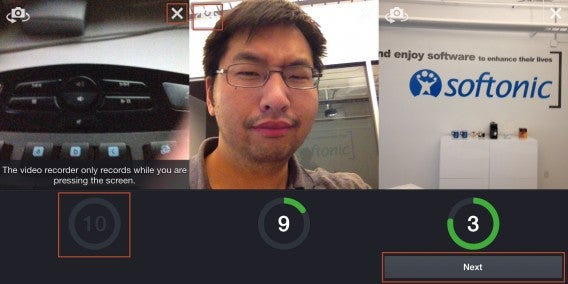
By default, Snap Movie uses the device’s back camera, but you can hit the camera flip icon on the upper left to switch to the front camera. If your video is less than 10 seconds, hit the “Next” button to move to the next step. Full length clips will automatically complete and move on.
Music and Preview
You’ll be taken to the BGM menu where you can choose to use the original audio, or add a background track. You will first need to download the song by tapping the corresponding button on the right. This should be fairly quick, though it does depend on the speed of your data connection. Take a listen to the audio and once you’ve found a track you like, hit “Next”.
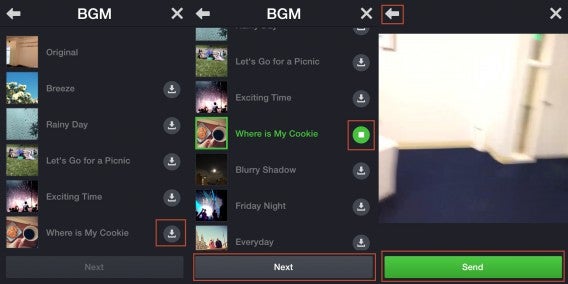
You’ll be able to preview the full creation of your Snap Movie along with the music. If want to go back and change something, hit the back button in the upper left. If you like what’s been produced, hit “Send”.
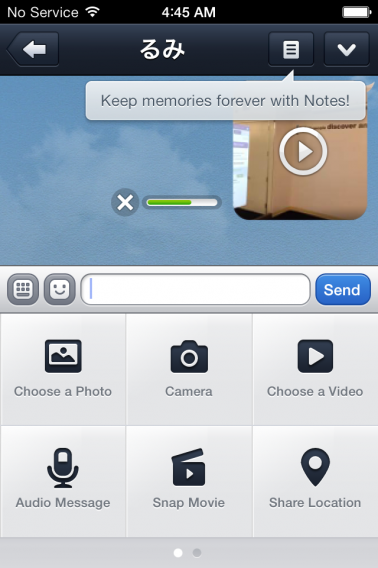
The video will be sent to your friend, and will also be saved onto your device. This means you can send your Snap Movie to others by using the normal “Choose a Video” option. You can also watch, move, or upload the video file via other apps on your iOS device.
Being able to make short self-created movies and send them to your LINE contacts is fun and convenient. However, Snap Movie lacks the more sophisticated features of Vine and Instagram Video. LINE Snap Movies can’t be as easily edited, lacks filters, and doesn’t allow direct sharing to social networks.
For a comparison of more flexible video apps, you might want to check out Vine vs. Instagram Video and also how import and share your own videos on Instagram. If you need a refresher on other LINE features, check out how to register LINE on devices and add in your various contacts.

 ZKleener cleans your hard drive from all kinds of junk files, protecting your privacy and at the same time recovering some valuable disk space. Simply select the scanning method you’d like to use and let ZKleener do the rest. Plus, you can tweak the way it works by using extension filters to add or remove file types from ZKleener’s cleaning frenzy.
 There are a lot of times when I want to take a screengrab of the site I’m on, be it for posterity, to use for a blog post or for work purposes. However, I often simply can’t be bothered to load up a
  Jumpcut is a clever little program that remembers everything you’ve cut and copied throughout the day. Think of it like having the history of your clipboard available at any time. The program fits right into your menu bar and can be activated by way of hotkeys. If you work alot with text Jumpcut should definitely lighten your work load.
 Not long ago, webcams were mainly used for holding videoconferences over the Internet. Now there’s a wide choice of software applications that allow you to make the most of your webcam, ranging from surveillance tools to image-capture utilities and also featuring fun webcam apps like Snap.