
5 great apps for sports fans

Keep track of your favorite teams with these awesome apps.

nfl

Today’s society is incredibly fast-paced. That means it’s not uncommon for the big game to happen at the same time as a family function, overtime at work, or an outing with friends. So does that mean you should avoid all screens until you have a chance to sit down and watch that highly anticipated game? No way!

After all, you can get all of the info you need right at your fingertips. Thanks to those little mobile friends that live in our pockets, you never have to take a break from your favorite sports. Here are five of the top sports mobile apps.

5 great apps for sports fans

ESPN SportsCenter Download Free ►
8
ESPN is the powerhouse of sports apps. You can customize the app to feature all the leagues and franchises you love. Stay up to date on breaking sports news, get the latest scores, and read professional analysis. While the app itself is free, you can also stream live games for only $5 a month.

the Score Download Free ►
7
This user-friendly app provides live score updates and allows you to view upcoming schedules of games. Within the app, you can follow specific players or entire teams. It's also a piece of cake to share your favorite sports info with your friends right from the app.
CBS Sports download free ►
10
CBS offers all the same features as the ESPN app. Along with stats, updates, news, and more, you also receive access to video streaming — plus you can listen in on live broadcasts.
Thuuz Sports download free ►
7
On Thuuz Sports, you can track your own fantasy sports, customize the sports news you want to see, and get personalized notifications about games. The app also features a fun excitement feature that allows you to rate how excited you are on a scale of 0 to 100.
Yahoo Sports Download Free ►
7
The app formerly known as Sportacular is now Yahoo Sports. This handy program features stats and live score updates. Best of all, you can customize the notifications you receive from the app. You can set it to alert you when games start, when specific plays happen, and more. Some NFL games are also available for streaming.

Whatever sport you love, you’re sure to find an app that keeps you in the loop while you go about your day. Try one of these today!
How to use Apple’s new Screen Time controls

iOS 12 came with this cool new feature. Here’s how to use it!

As our phones become more addictive, Apple is doing its part to reduce the time we spend on our smartphones. They’re doing this via their new feature: screen time controls. The service is also helpful as a parental control.

How to use Apple’s new Screen Time controls

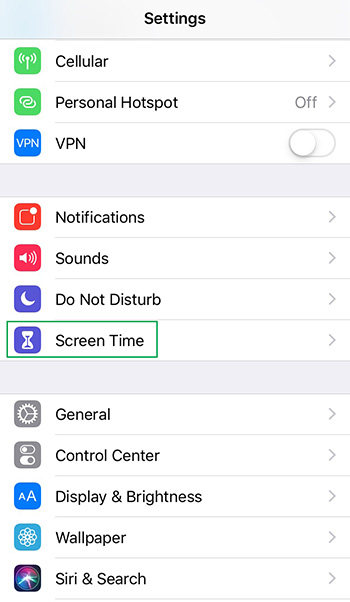
As a part of iOS 12, there will be a section in settings called Screen Time. Just go into Settings and you’ll see it right below Do Not Disturb.

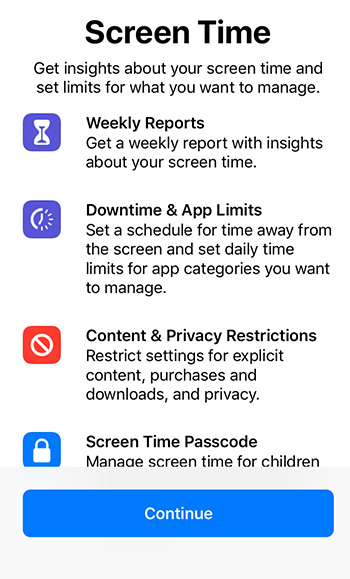
Here, you will find a breakdown of how much time is being spent on all iOS devices linked to one iCloud account. It also will break down the usage day by day and for the past week. You will receive automated weekly reports about this each Sunday, giving a full rundown of the week. Finally, this feature will break down how often your phone is picked up and which apps you visit most frequently.

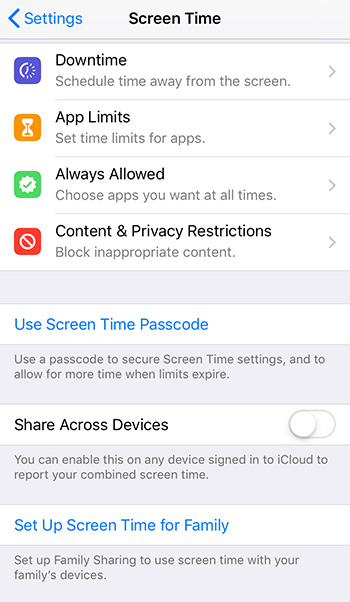
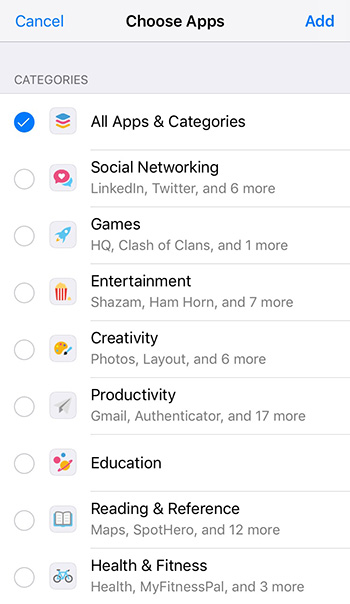
After all these insights are compiled, you can then set limits for specific apps or categories that exist on a 24-hour cycle. Once inside Screen Time, click App Limits, then choose Add Limit. Then, customize the allotted time. You can limit everything or specific categories like social networking or games or entertainment. Or limit just one app. You can even make this limit different depending on the day of the week.

Once these limits are set, your device will provide alerts regarding usage, specifically when the allotted time is almost up. Once that time arrives, the app will lock you out for the remainder of the day. Of course, there is also the option at that point to approve more time for the app if desired.

Another component of this feature is called Downtime. Here, you can set scheduled times when your device locks itself down and restricts access to a wide range of apps (leaving available only communication apps such as Phone, Messages, and FaceTime). This is particularly useful, for instance, around bedtime as a fail-safe way to force yourself to stay off of your device and to truly unplug.

This is just the tip of the iceberg with this useful and intriguing new setting. However, it’s enough to make anyone think about just how much time they’re spending on their smartphone. Take advantage of these features on your Apple device to lead a more unplugged lifestyle!

Facebook adds a mentorship feature to some groups

Discover how Facebook is using mentors to change groups.

facebook

Facebook is known for making changes to the site and app on a regular basis. After all, changes help the platform to evolve and keep up with the growing and changing demands of those who use it. However, a recent feature change has attracted some special attention: the addition of Mentorship to select groups.

Facebook adds a mentorship feature to some groups

What is the mentorship feature?

This feature had previously been available as a professional networking tool on the platform, but it’s recently been rolled out in groups that are focused specifically on parenting, professional, and personal development.

You may be wondering how this works. The administrators of groups that are a part of the Mentorship feature are the ones who create the Mentorship program. Their main responsibility centers around pairing individuals interested in the program with mentors.

While this may seem like a lot of responsibility, Facebook does make it easier on the admins — the company provides a guided program for them to follow, including suggestions on communication and so on.

The benefits

For some, it may seem awkward to place mentees with a mentor — particularly depending on the topic or content of the group. However, it’s the belief that putting the responsibility on the group admins makes it easier and takes some of that strangeness away.

This feature comes free of charge. As of right now, there’s no subscription fee, nor is there any type of compensation for being a mentor.

What’s next?

You may be wondering what to expect. As of right now, it’s believed that the idea is to roll out this feature further across the platform over time.

While the scope of the mentorship program is more limited right now, eventually it is something that could cover groups such as fitness, support groups of violence or disasters, and more. The possibilities are endless!

You won’t believe how much charities have earned through Facebook’s birthday fundraisers

Have you contributed to a Facebook birthday fundraiser? You’re not alone.

facebook

You’ve probably seen this on your Facebook feed: friends asking for donations to support a cause in particular to celebrate their birthday. These charities might help alleviate child hunger, illnesses, or another cause near and dear to your friend. And while you’ve likely come across these on your feed, you probably don’t yet know just how effective these campaigns are.

Facebook claims its birthday fundraisers feature raised $300M in its first year

Impressive donations

Interestingly, these campaigns have been quite beneficial to the charities they support. In its first year, Facebook’s birthday fundraisers feature raised a whopping $300 million. That’s a lot of goodwill!

Another important note about these fundraisers is that since November 2017, Facebook waived the fees on these donations. That means all the proceeds go to the nonprofits, which almost makes up for the Cambridge Analytica thing.

Popular causes

You may be wondering what charities were the most popular for these campaigns. Some of the top beneficiaries include St. Jude’s, the Alzheimer’s Association, the American Cancer Society, Share Our Strength – No Kid Hungry, and the ASPCA. All of these are noble causes worthy of a birthday bump.

How to get involved

How does this feature work? Users receive a notification about two weeks before their birthday asking them if they’d like to invite friends to donate. At that point, the Facebook user gets to choose a charity that they want to support. As their big day draws nearer, they can promote their cause and solicit donations from friends, setting a particular goal they’re looking to reach for the charity.

Celebrities have even participated in this socially responsible social media feature. For instance, Stephen Curry celebrated his 30th birthday on the platform by raising an astounding $82,512 for the charity, Nothing But Nets, which works to combat childhood malaria.

All in all, this is a fabulous feature that Facebook is only working to grow and refine. Consider using it on your next birthday to support a great cause, just as thousands of others have done.

How to make Google Chrome run faster

These 4 steps will make Chrome fly!

Has your Google Chrome been a little sluggish lately? Here are several things you can do to speed up your browser!

How to make Google Chrome run faster

1. Update Chrome

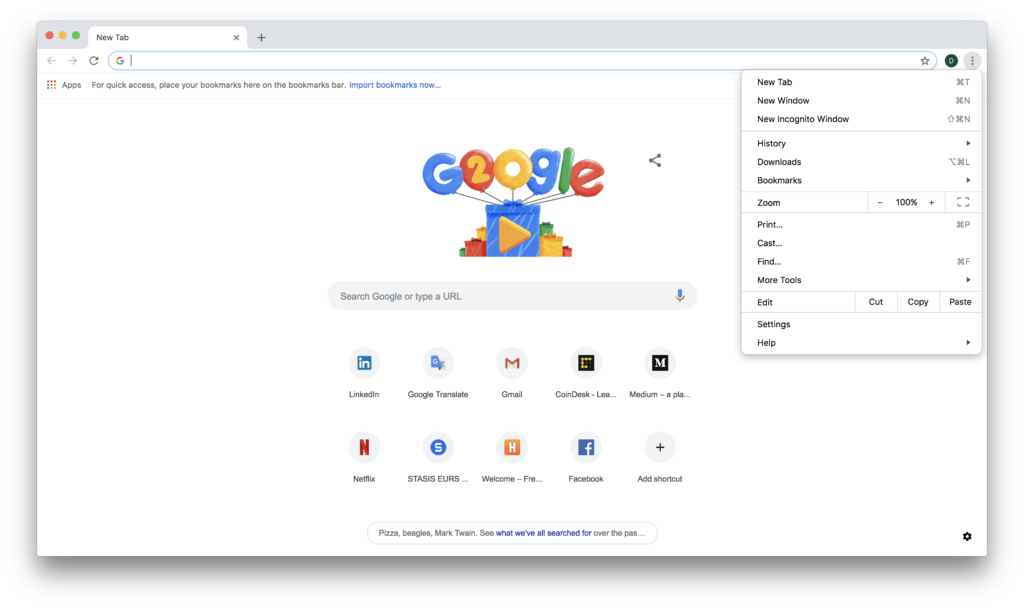
One thing that can slow down Chrome is using an outdated version. Chrome will always run fastest when you’re using the latest version, so be sure to update it! Chrome normally updates automatically, but you can check to see if there’s an update available by clicking on the More button in the top right corner of the browser (it looks like three vertical dots). If an update is available, you’ll see an option that says “Update Google Chrome.” If you don’t see this option, then your browser is already up-to-date.

2. Close tabs

The more tabs you have open, the harder Chrome has to work. Closing tabs that you’re not using can help Chrome run as quickly and efficiently as possible. To close a tab simply click the X in the right-hand side of the tab. If you’re using Windows, Linux, or Chrome OS, you can also close a tab by holding the “Ctrl” and “W” keys down at the same time. On a Mac, hold down “⌘” and “W” at the same time.

Google Chrome Download Free
7

3. Let Chrome pages open faster

Did you know that you can make your web pages open faster on Google Chrome? All you have to do is turn on network action predictions and select “page prefetch.” Once that setting is turned on, Chrome will automatically preload any links you might open to save you loading time.

To do this you first need to open Chrome. Click the More button at the top right corner of the browser and go to Settings. Once you’re in Settings, click the Advanced button at the bottom of the screen. Finally, find the “Privacy and security” section and turn on “Use a prediction service,” which will help you load pages more quickly in Chrome.

4. Check for malware or viruses

Finally, ensure there isn’t any malware slowing down your Google Chrome. These directions only work for removing malware on a Windows computer. First, you need to open Chrome then click More at the top right. Go to Settings. After that, click Advanced, which will be at the bottom of the screen. You will see a “Reset and clean up” option, where you should click “Clean up computer.” Finally, click “Find” and Google Chrome will scan your computer for unwanted software and offer to remove it for you. In order to remove the malware, all you have to do is click Remove.

How to turn on weather notifications through Facebook

Facebook can send you weather notifications. Here’s how to set it up.

Most people need a few minutes to scroll through all the apps on their phone because of all the clutter. But now you may be able to remove one. If you use Facebook and a weather app, you no longer need both! That’s because Facebook allows you to easily turn on weather notifications on your device. The feature is easy to use and just as detailed as any other weather app you are using.

In 2017, Facebook began launching weather greetings. When you opened the app for the first time in the morning, your news feed showed a brief message displaying the weather for the day. But now you can get a bit more out of it. Here’s how.

How to turn on weather notifications through Facebook

Where to find weather on Facebook

The new feature is a type of extension to the previous weather greetings. Now, if a weather greeting pops up, you can click on it and it will take you to an extended version with more information. Or if it is the middle of the day and you want to check the weather, you can navigate to the link.

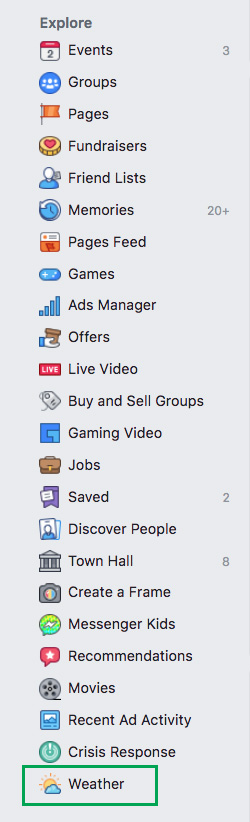
This link is located along the left-hand side of your screen, under the Explore column. Listed as “weather,” this simple little link takes you right to a page that displays the weather as it is now as well as a full five-day forecast. It is quite easy to access.

facebook weather

Facebook Access Facebook
7

Want to be notified?

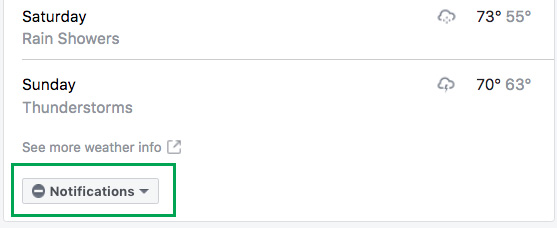
Another step you can take is to request notifications for weather reports. That way, Facebook will provide you with updates when something comes up, such as a severe storm warning. You can turn this feature on or off in the weather section.

facebook notifications

What you need to know

When using Facebook for weather updates, you should keep a few things in mind. First, it will display weather for the area your Facebook is set to. If your location is set on your mobile device, this can update. But if you have a location locked in your profile, you may need to update that to get more information. You can also request information about another location within the extension.

If you don’t want to use a weather app and you don’t want to search for info online, Facebook is a simple and straightforward way to get the forecast. You are not going to find live radar here, but it is a good tool for those who use Facebook heavily.

4 Gmail hacks you probably don’t know about

Gmail has tons of features you may not know about. Here are four of our favorites.

Gmail offers a ton of features for its users, and Google is continually improving them or adding new ones. Plenty of Gmail features are simply functions you’d expect — like having the option to customize your tabs or create multiple inboxes. However, there are some other things you can do in Gmail that aren’t so widely known.

4 Gmail hacks you probably don’t know about

1. Boomerang for Gmail

If you haven’t used Gmail with Boomerang, you haven’t really used Gmail. Seriously, this is a really cool add-on that can save you a ton of time and hassle — especially if you have any kind of business or side hustle going on.

Boomerang is Chrome extension for Gmail. Install it and you’ll be able to schedule your emails to be sent out at any time. You can also have an email re-sent to you. This second feature is great for those important emails you just don’t have time to deal with right now. Simply tell Gmail to send it again later, and you can go about your business without the risk of forgetting to come back to it.

2. Quick unsubscribe

You know how you normally have to go through this whole process when you want to unsubscribe from someone’s email list? Often you need to click through to some external site, where you have to explain why you’re leaving (and often endure some passive-aggressive chiding for your decision to unsubscribe). No more! Gmail lets you cut and run without all the drama. As soon as you get said unwanted email, click on the sender’s name and then select “unsubscribe.” Done and done.

Gmail Access now
8

3. Going back in time via Gmail

Ever send an email and immediately wish you could take it back? You can actually do that with Gmail. Set this up by going into your “Settings” and selecting “Enable Undo.” Now, whenever you send an email, you’ll have an “Undo” button that lets you cancel the whole thing out. You’ll have a very short window to retrieve the offending email (generally no more than 30 seconds), but still — it’s practically time travel.

4. Using Gmail offline

What? Checking your emails without an internet connection? Yes, that’s a thing. You can even respond to them (your responses won’t actually be sent until you’re back online, though). However, this doesn’t happen automatically. Access the offline section of your Gmail settings and select “enable offline mail.” You’ll need the latest version of both Chrome and Gmail to do this. Before recent updates, this feature was only available through a Chrome extension.

How to use the 4 best features in the new Gmail

Gmail just got better. Here’s how to use all the new bells and whistles.

Have you noticed that your Gmail updated? With the new update comes some pretty cool new features that will make your Gmail experience better than it’s ever been.

4 great features in the new Gmail

1. Snooze your emails

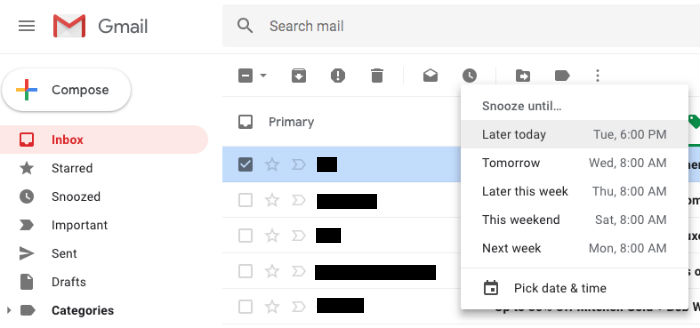
With the new Gmail update, you can now snooze your emails so that you can get back to them later. Before the Gmail update, the only options for your emails was to keep them unread or mark them as read and hope you remembered to get back to them later. This new snooze feature simply removes emails from your inbox and brings them back later. This feature will work very well for any email that you know you need to respond to but you don’t have time for at the moment.

Gmail Access now
8

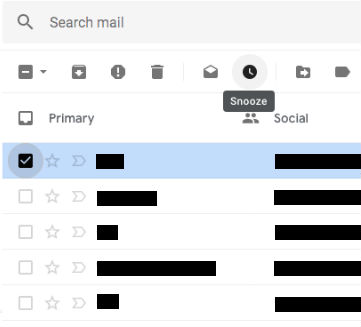
To activate the snooze feature, first select the email you want to snooze. You can do this by pressing down on the email in the Gmail app to select it, or by checking the box to the left of the email you want to select when on Gmail in your web browser.

Once you’ve selected the email, click the clock icon that appears in the toolbar (below the search bar in your web browser). You’ll then be able to snooze the email for a specific length of time. Once snoozed, the email will then be moved to the “Snoozed” label in your account.

2. Smart compose

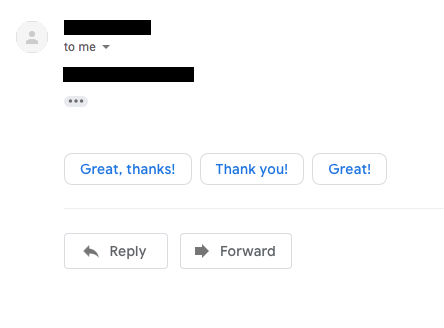
Have you noticed that Gmail will prompt you with some possible responses at the bottom of an email? This new predictive text feature will give you some possible responses to emails. In addition, this new Gmail feature can save you time when sending short responses. Now you can simply click the “Thank you” prompt at the end of an email and it will send it in response. For anyone who stresses out over how to reply to an email, the smart compose feature of Gmail is a godsend!

To use smart compose, simply click on the appropriate text bubble that appears at the end of an email, right above “Reply.” You can either send this message as is or you can add more text to the email before you send it.

3. Confidential mode

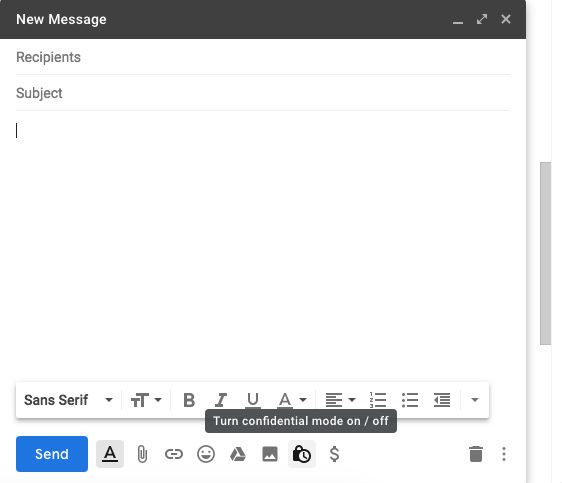
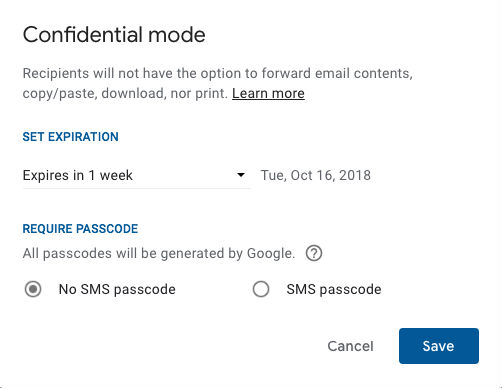
Now, emails can self-destruct after a certain amount of time, just like Snapchats. With the new confidential mode, you can select when your email will expire and delete itself. Of course, this doesn’t keep your emails completely safe as they can always be captured via a screenshot, but if you’re trying to keep a secret, this confidential mode is perfect. For example, if you’re trying to plan a surprise birthday party for your wife, you can send confidential emails so the birthday girl won’t be able to see them if she happens to look at your inbox.

You can use confidential mode whenever you compose or reply to an email. To turn the feature on, you’ll need to click the clock/padlock icon in the bottom toolbar of your email (to the right of “Send”).

You can then set an expiration date for the email or require a passcode. Hit “Save” and you’re good to go!

4. Notifications

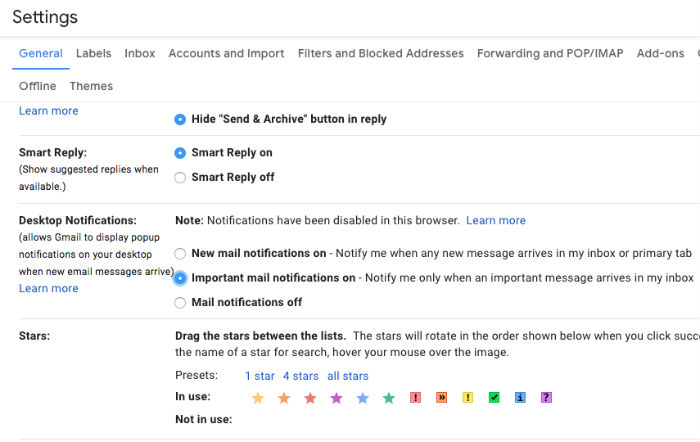
Before the update, Gmail would send you notifications for everything. However, with the new update, you can select to only be notified for important things. On your computer, click the gear icon in the upper-right corner and select “Settings.” Under Settings > General, scroll down to Desktop Notifications. Then select “Important mail notifications on.”

To change your notification settings on the Gmail app, go to Menu > Settings and tap your account. Then scroll down to Notifications and click “High priority only.”

With so many great changes added, be sure to explore the new Gmail and customize it to your liking!