
6 ways to keep up with great deals on Amazon

Amazon is the place to go for, well, just about anything. Books, electronics, clothing, cosmetics, groceries — there’s not much you can’t buy on Amazon. Want to score even better deals on all those items? Try these tips to save more money when you shop on Amazon.

6 ways to keep up with great deals on Amazon

1. Upgrade to Prime

Amazon Prime is a subscription-based service. One of the most enticing and money-saving benefits is the free shipping on thousands of products. If you order from Amazon regularly, your Prime membership will likely pay for itself through the free shipping feature. You also get a whole bunch of additional perks as a Prime member, including unlimited access to thousands of movies, TV shows, and books. Plus, you’ll gain early access to special deals and promotions available only to Prime members.

2. Follow the brands you love

If you love a certain brand or seller on Amazon, start following them on social media. If you aren’t doing this, you’re probably missing out on savings. Brands and businesses regularly post about deals and upcoming promotions on their social media pages.
amazon

3. Explore Amazon Warehouse and Amazon Outlet

Bargain hunters, don’t forget to check out Amazon Warehouse and Amazon Outlet (both accessible from the main Amazon site). Amazon Warehouse features high-quality slightly used goods for deeply discounted prices. Amazon Outlet is where to find price cuts on overstock products.

4. Sign up for price alerts

Got your eye on a certain something and want to strike as soon as the price is right? Just set up notifications to alert you as soon as your item reaches a certain price threshold. You can’t set up price notifications directly through Amazon, but you can monitor the price of items using third-party apps such as Price Alert for Amazon.

5. Use the Amazon app

Never miss a great Amazon deal when you download the Amazon shopping app on your mobile device. You can browse daily deals and promotions from wherever you are. To make the most of it, sign up for price alerts on products you’ve been eyeing. You can also use the app for other useful tasks, like search using voice commands or to scan barcodes to find comparable products on Amazon.

Amazon Shopping Download Free ►
8

6. Check out Amazon Coupons

Just click on the Coupons link on the upper portion of any Amazon page, and you’ll get to an entire section full of coupons for all kinds of different products on the site. You can also check external coupon sites like Groupon and RetailMeNot to look for more Amazon savings.

8
RetailMeNot Coupons Download free ►
7

Do you have any other sweet Amazon hacks to find bargains? Let us know in the comments below!

4 extremely useful Google apps you probably don’t know about

Google offers more than just Maps and Gmail. Get to know these awesome free tools!

There are a lot of Google apps out there — probably more than you can keep track of. Are you curious about some of the most useful Google apps you may have missed? Check out the apps below to find your next favorite.

4 extremely useful Google apps you probably don’t know about

1. Google Keep

This is a great app for keeping track of anything you don’t want to forget. You can use it to write notes, record lists, or store photos and audio. Organize and color-code your keepsakes, too, so they’ll be easier to categorize and find. This app is with you wherever you go, so it’s always accessible when you need it most.

Google Keep also includes location-based and time-based reminders for your notes or lists. This can help with on-time task completion or reminding you to pick up everything you need from the store. You might ordinarily text a friend or family member to ask them to pick something up for you. However, now you can use Google Keep to share grocery lists or errand lists and watch in real-time as the items are checked off by the person you shared the list with.

Google Keep Download Free ►
8

2. Google Express

Rather than searching a bunch of different websites for the product you’re looking for, use Google Express. This website and app allows you to shop at all of your favorite stores — like Target, Ulta, and Costco — in one place. Google Express also works with Google Assistant and voice search.

You’ll still need to reach a specific site’s minimum delivery requirements to receive free delivery on your purchases overall. You’ll typically have 30 days to return any items you don’t want, but check a site’s specific policy or contact Google’s customer support for a definite answer. There are no membership fees for Google Express, and most items you buy will arrive within one to three days.

3. PhotoScan by Google Photos

With PhotoScan, you can use your phone’s camera to scan and save printed photos to your device. The app will scan your photos in seconds, without worrying about glare. You can crop, rotate, or enhance the photos that you take — no need for a second photo-editing app. When you’re done, your photos will be saved to Google Photos for easy access no matter where you are.

Google Photos also offers advanced editing options and tools, in addition to the ability to quickly share your old photos with others. Now you can finally upload that hard-to-capture childhood photo to Facebook!

PhotoScan - scanner by Google Photos download free ►
7
Google Photos Download free ►
7

4. Google Arts & Culture

This free app lets you explore more than 1,200 of the world’s greatest museums, galleries, and institutions. Browse top exhibits, photos, videos, manuscripts, and more. It’s easy to keep track of all your favorite discoveries for inspiration, too. And thanks to the VR option, you can explore faraway museums and galleries as if you’re really there.

Google Arts & Culture Download Now ►
8

This is a great option if you want to take advantage of the experience despite not having any money to travel. Google Arts & Culture also features advanced search options (such as finding a painting that’s from a specific time period), location-based services, translation services, and daily information bites, among others.

6 great features you didn’t know Spotify had

Spotify is capable of more than you’d imagine. Here’s how to supercharge your music!

SPOTIFY

Spotify is one of the most popular music streaming services on the market. However, there are are many features that even avid users of the platform may not even be aware of: Think tips, tricks, and downright cool features that users may be missing out on.

Below, learn the ins and outs of this fan-favorite music streaming service to ensure you get the most out of the app that plays your tunes.

6 great features you didn’t know Spotify had

1. Preview a song

Although this feature is currently only available for iOS users (sorry, Android fans), it’s a great feature that many users are unaware of. Touch Preview allows users to use a long-press on a track as they’re browsing music, prompting a short snippet of the song as a preview. Once a user lifts their finger, the preview ends.

2. Automatically save Shazams

Many Spotify users also take advantage of the music-identifying app Shazam. This is a great way to discover new tracks that will become an instant favorite. Luckily, Spotify makes it easy to save these unearthed tunes to your library. Once you link the two apps, each Shazam will automatically be saved to a new playlist called “My Shazam Tracks.” The rule also applies to SoundHound, which is pretty convenient.

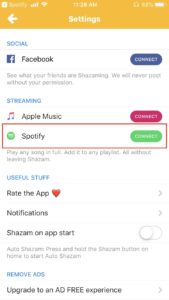
To link Shazam and Spotify, open the Shazam app and go to My Shazam. 

Click the settings icon at the top-left of the screen.

Once you’re in settings, find the Streaming section, where you’ll see an option to connect Spotify.


Soundhound Download Free ►
8

3. Recover deleted playlists

Ever deleted a playlist and then regretted it? Spotify has a little-known feature to fix that. Many users don’t know that it’s easy to restore a deleted playlist. Sign in on the desktop version and click Recover Playlists on the left panel. There, there will be a list of deleted playlists. Simply hit Restore and it’ll be moved back to your library.

4. Get fit with Spotify

Spotify has a program called Spotify Running that is considered a favorite hidden feature. To use this, click on the Running tab from the main menu. Begin your run at your desired pace and — amazingly — Spotify will automatically match a playlist to your running speed to keep you motivated and on pace.

8

5. Refine song quality

You don’t necessarily have to listen to the music that Spotify plays the way it originally sounds. You can refine your audio experience by choosing from four different streaming quality options. This action can be completed in settings, where you can choose from Automatic, Normal, High, or Extreme.

6. Make a playlist collaborative

Whether it’s for a party or just a shared playlist among friends, it’s easy to make playlists collaborative so that a group can add songs to the list for all to enjoy. When you’re on the desktop version of Spotify, right-click on a playlist and choose Collaborative Playlist to make it editable by others.

While these are just six of the many impressive hidden features that Spotify has to offer, these are a great place to start when it comes to making the most out of the app.

4 Google Sheets hacks you might not know about

Make Google Sheets amazing with these 4 easy tricks.

google sheets

Google Sheets lets you create spreadsheets online for free. Plus, the program integrates seamlessly with other Google office programs like Google Docs and Google Slides. With Sheets, you can perform all the standard tasks you’d do with any other spreadsheet program. But there are also some lesser-known features and functions that make Sheets easier and more convenient to use.

4 Google Sheets hacks you might not know about

1. Back up your work easily

Having your Google Sheets files stored in the cloud is great because you can get to them from any device — as long as you have internet access. Another handy option is to back up all your spreadsheets to your hard drive. Just pull up your files and check the ones you want to save on your computer. Then, under the Actions menu, select Download. Here, you can add them all to a zip file that is conveniently stored on your computer for offline access. (Note that you can only backup 2GB at a time).

2. Take advantage of keyboard shortcuts

Keyboard shortcuts are a huge time-saver when working in Google Sheets. Who can remember all of them, though? Good news: It turns out you don’t have to make your own handwritten shortcut legend or have a photographic memory to take advantage of this option. Instead, how about a keyboard shortcut to show you all the keyboard shortcuts?

Just press “command + forward slash” on your Mac or “control + forward slash” on your Windows PC.

This will bring up the mother of all shortcut lists, displaying every keyboard quick-command available for Google Sheets.

Google Drive Download Google Drive
7

3. Easily change currencies

If you’re using Sheets to keep track of your budget or for any other financial information, you should know this little trick: If you want to make calculations using different currencies, just highlight the relevant cells and click on the “123” icon located on the toolbar. Next, select “More Currencies” and choose the currency you’re looking for. Pretty handy, especially if you do business with foreign clients or you’re planning a stay abroad.

4. Use Google Forms

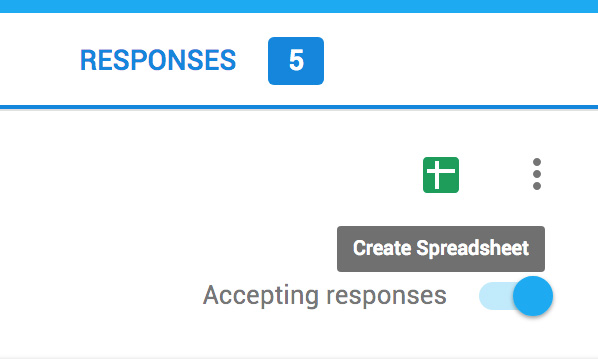
If you’re creating a survey, a sign-up sheet, or any other document that collects feedback from people, Google Forms is your go-to. Forms are simple to share and easy to use, and they always look professional thanks to Google’s handy templates. You can even embed them into your website. But what a lot of people don’t know is that the form results can be sent to Google Sheets. After your participants have filled out the form, the resulting data will automatically be added to your spreadsheet. To do that, just look for the green icon on the responses page. Click the icon and you can create a new spreadsheet or send the information to an existing sheet.

4 alternatives to WhatsApp for chatting with your friends and family

Tired of WhatsApp? Here are 4 great alternatives.

While WhatsApp is a reliable and useful messaging app, it’s important to realize that there are more fish in the sea. If WhatsApp doesn’t seem like quite the right fit, or if you just want to try something new, why not join another service? Here are some of WhatsApp’s competitors.

4 alternatives to WhatsApp for chatting with your friends and family

Similar to WhatsApp in that it uses phone numbers to identify users, this app easily integrates with your address book and connects you to other users that you may know. It also lets you make calls when you have an internet connection.
Facebook Messenger Download Messenger
7
Although many people use Facebook Messenger on a regular basis, it’s not always immediately thought of as a replacement for WhatsApp. However, the Messenger app provides messaging and even calling services over the internet. The only drawback with this service is that it doesn’t let you contact people who aren’t on Facebook.
After recently merging user contacts with old MSN and Hotmail accounts, Skype has the power to connect users with a wealth of individuals. It’s a great way to place a call for free or to send messages reliably using a Wi-Fi connection. One of the biggest differences with this service is that it requires individuals to approve contacts before starting chats.
Kik Messenger download free
7
This is a basic but reliable and free messaging app that competes with WhatsApp. It's easy to use: you just register with an email address and choose a username. From there, you can either message individuals or in groups. Sometimes it’s best to keep it simple.

These apps are all comparable to WhatsApp, while offering a bit of variation. They’re all great picks, so choose the one that suits your messaging needs the best!

8 tips for a better shopping experience on Facebook Marketplace

Here’s how to get your best bargain today!

Facebook Marketplace has become quite a force, as it easily allows members to buy and sell their unwanted items right on the social media platform. Seems mutually beneficial, right? Great deals at your fingertips!

However, shopping on Facebook can get a bit tricky, as it’s important to get a good deal and avoid scams. Below are eight foolproof tips for making the most out of the experience.

8 tips for a better shopping experience on Facebook Marketplace

1. Research what you’re buying

Before completing a purchase, be sure to do your research! You’ll want to understand what the price goes for at a normal store and what defects to look out for. Also, read reviews to ensure the item is exactly what you’re looking for.

2. Don’t buy from a wishy-washy seller

It’s not a good sign if the seller seems to go back and forth and change their mind. Also, avoid buying from someone who frequently increases and decreases the price of their item.

3. Buy from local sellers

Always be sure to pinpoint where the item you’re buying is coming from. Facebook is only supposed to promote sales within a certain mile radius, but just double-check to ensure that it’s accurate when buying the item.

Facebook Access Facebook
7

4. Meet in a public place

Many buyers choose to meet the Facebook seller in person to retrieve their new item. For optimal safety, arrange to meet in a public place, such as a store parking lot or at a library or coffee shop.

5. Fully inspect items

At said meet-up, before you hand over payment, be sure to perform a complete inspection of the item you’re purchasing. Ensure it’s what you wanted, and check for flaws or defects not reported in the listing. This helps to ensure you won’t walk away with a problematic item that leaves you feeling ripped off.

6. Check out seller profiles

Sellers should have a profile listed on the site under “Seller Information”. Check for any mutual friends, determine the amount of time they’ve been on Facebook, and see how many friends they have. If something seems off, chances are the person could be an illegitimate seller.

7. Negotiate with sellers

Many Facebook sellers are looking to both strike a deal and get rid of unwanted items from their home. Try your hand at negotiating in order to get the best possible deal that you can. Don’t be shy!

8. Join a group

Do you really love shopping on Facebook? Join a specialized group that focuses on a particular category, such as furniture or in one central location. This can help you to find more eye-catching products for sale!

These tips make Facebook Marketplace that much more safe, alluring, and beneficial to buyers and sellers alike. Follow them, and you’ll have a new collection of items purchased for a steal in no time.

How to sort data in Google Sheets

Sorting data in Google sheets is easy. Follow us.

Google Sheets

Google Sheets is a relatively easy program when you start out. However, figuring out some of the more advanced features can be tricky. Below, we’ll explain how to sort your data in Google Sheets in just four easy steps.

How to sort data in Google Sheets

1. Open Google Sheets

If you want to sort your data, you’ll first need to open Google Sheets. You can access the program through your Google Drive. If you’ve never used Google Sheets before, keep in mind it is comparable to Excel (or any other spreadsheet program you may have used). After you have opened Google Sheets, simply select the sheet that has the data that you need to organize.

Google Drive Download Google Drive
7

2. Choose your column

The first step to sorting your data is to choose the column of data that you want to organize. Select the column by clicking on the letter at the top of it, right above Row 1. All the columns are organized by letters… so if you’re confused, just look for the row at the top of the screen that lists the letters in alphabetical order.

3. Open the menu

Hover the cursor over the letter of the column you’ve selected. A small arrow should appear to the right of the letter, on the far right side of the column. Click on this arrow to open a dropdown menu.

4. Sort your data alphabetically

Finally, if you want to sort the data alphabetically, click the SORT A–Z button or SORT Z–A button. After you have selected how you want to sort your data, the program will automatically put it in order in the spreadsheet.

Now that you know how to sort your data in Google Sheets, you can get started. Remember to wield this newfound power for good.

4 tips for getting more followers on Instagram

Adding Instagram followers may be easier than you think.

fitness selfie

Who wouldn’t like a little more love on their Instagram posts? Whether you want to grow followers to promote your business or you want to become an Instagram influencer yourself, there are plenty of easy steps to get more followers on Instagram.

4 tips for getting more followers on Instagram

1. Use hashtags

The main way for people to discover you is through hashtags. The best way to include hashtags is in the caption of your post. The rule of thumb is to generally include five to 15 different hashtags on each post. To see which hashtags are most popular, try typing them in and seeing how many posts have used them. In general, it’s a good idea to use a mix of popular and less popular hashtags. This mix of hashtags will ensure that as many people as possible will see your pictures and be more likely to follow you.

2. Perfect your bio

One of the first things that people will read when they come to your Instagram page is your bio. Your bio should be short and sweet while summing up everything you want potential followers to know about you. Many people like to describe themselves in three or four words in their bio. One example of a successful bio is, “Liv, 24. Adventurer, Dog-Lover, Surfer.” You know a lot about that person from just a few words. Having a great bio will definitely increase the number of people that follow you!

3. Create an aesthetic

Having each of your pictures look good together is important. When someone comes to your profile they will likely scroll through and look at all of your pictures together. An Instagram aesthetic means that all of your pictures have something in common visually. For example, do you love pink? Maybe include something pink in each of your Instagram posts. That way when people view your Instagram profile they will be enticed to follow you because of your unique aesthetic. For example, check out @muradosmann, who definitely has his aesthetic on lock:


View this post on Instagram


A post shared by MURAD OSMANN (@muradosmann) on May 15, 2018 at 5:50am PDT


View this post on Instagram


A post shared by MURAD OSMANN (@muradosmann) on Feb 27, 2018 at 8:51am PST


View this post on Instagram


A post shared by MURAD OSMANN (@muradosmann) on Nov 16, 2016 at 8:03am PST

4. Tag your location

Another way for people who don’t follow you to discover you is through your location. If you geo-tag your location in your Instagram posts, people can find your pictures. Whenever you post a picture, be sure to tag the location of where you took it so that as many people as possible will see your posts The more people who see your pictures, the more people who will end up following you.

Oh, and make sure you take great pictures. That helps, too.

How to use Google Home to skip the line at Starbucks

The coffee lover’s ultimate lifehack.

You can do so much with your Google Home already: You can use Google’s virtual assistant to have a lengthy text conversation with your friend without lifting a finger, have last-minute flowers delivered to your mom, and make reservations for dinner. Google Home will play your favorite music on demand, tell you how to make authentic paella, and even dim the lights in your house.

And now, you can even order your favorite drink from Starbucks! Here’s how.

How to connect your Starbucks account to your Google Home

To get started, just tell Google Assistant to “talk to Starbucks.” You’ll be prompted to log in to your Starbucks account. (You can use an existing Starbucks Rewards account if you have one.) Otherwise, you’ll have to create an account. Before you can make purchases directly from Google Home (or any other place you use Google Assistant), you will need to add a payment method — either to Assistant or to your Starbucks account.

You can also connect to Google Home from your Starbucks account. While you’re logged in, just look for the link to link your Starbucks Rewards account with your Google Assistant account.

Now, you’re all set up to order your favorite drink. Just tell Assistant that you want to place an order and it will guide you through the process. You can also customize your order. For instance, you could ask for a dairy-free additive or request extra whipped cream on your pumpkin spice latte.

Google Assistant Download now
8

By default, Google will direct you to the nearest location to pick up your order. If you want to get your goodies from a different Starbucks, just say so.

After you place your order, you can head over to the store to pick it up without having to wait in line. (Try not to notice the looks of envy on the faces of customers who are waiting in line as you saunter past, grab your coffee, and make a beeline for the door).

You can even create a routine and tell Google Assistant to place your order automatically at a certain time each morning. This is a great way to seriously streamline your pre-commute coffee stop.

Anytime you want to skip a day, just tell the assistant to cancel your upcoming Starbucks order.

This Starbucks partnership is just one of many Google has with several companies and services. And the tech behemoth assures us that many more are in the pipeline. This means that you’ll be able to order just about anything right from your home (or your car or your watch or … you get the idea).

How to create a fundraiser on Facebook

Here’s how to use your Facebook network for good!

charity

Are you hoping to start fundraising to support your local animalshelter? Perhaps you want to raise money for a new business venture. Or maybe you’re a Nigerian prince who lost access to his family fortune. No matter what your goals are, there are plenty of tools available to you online to help. Even Facebook offers an easy-to-use tool to help you raise money. Given the popularity of social media these days, this may be exactly where you need to start.

How to create a fundraiser on Facebook

Why Facebook?

Facebook provides an excellent tool for you to use to raise money for a charitable organization or for other needs. And, because Facebook is the largest social media platform today, and because it is easily integrated into just about any other platform, this tool is a practical choice.

How to make it happen

Facebook offers two options for creating a fundraiser. One is to help nonprofits or other charities. The second is to use it for personal causes. You can follow the same basic steps for accessing this information. Here’s a breakdown of what to do.

Raising funds for yourself, a friend, or a nonprofit

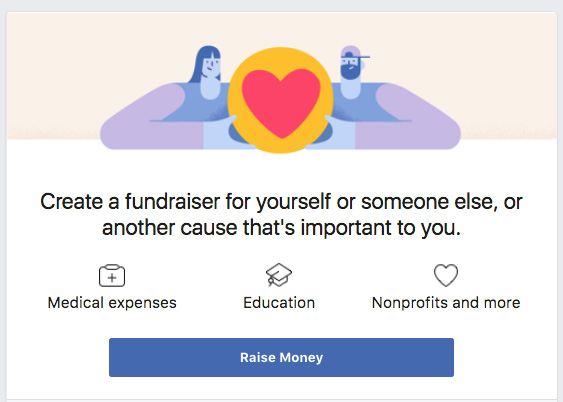
fundraiser

If this is the route you need to take, follow these steps:

  • On the left side of your screen, click the Explore menu to reveal Fundraisers.
  • Then, click Raise Money.
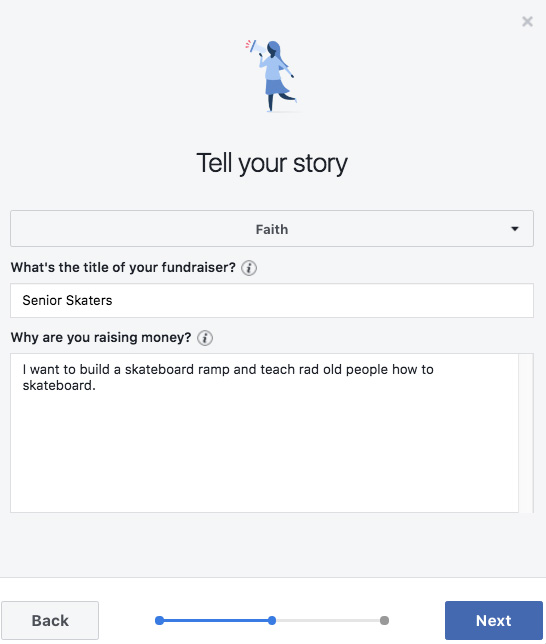
  • You can then choose the type of fundraiser you plan to use. You can choose Friend, Nonprofit, or Yourself.
  • You’ll then need to choose a category, add a photo for the cover, and provide some basic details about the fundraiser.
  • Click Create, and the fundraiser is ready to go.

facebook fundraiser

Funding your fundraiser

Once you complete these steps, you’ll then be able to list your fundraiser on your Facebook page or share the link with people outside of Facebook. The site makes it easy to link a credit card or other funding option. As far as fees go, any fundraiser set up for donations to charitable organizations using the Facebook platform don’t charge fees. Personal fundraisers can be charged a payment processing fee. Depending on where you live, there also may be applicable taxes.

The good news is that the process takes just minutes. Plus, the platform is trustworthy. Facebook may shut down fundraisers it deems are not authentic or scams. What’s left for you to do? Hit up your friend list and remind them why your cause is important!