4 free programs for making posters and banners

Making an advertising poster is a must for any graphic designer. They make the difference between a successful marketing campaign or a product failing miserably in the market. Events, exhibitions, concerts or parties are nothing without a good poster to advertise them. With the rise of digital media, most posters and billboards are made with some expensive image editing software. Is there no affordable program to design a poster with?

In today’s article we are going to offer you a selection of the best programs for making free posters, which will not only help you to create posters as you wish, but also to amaze those who see them thanks to their professional appearance. There are free tools to create posters that have nothing to envy to the great design suites. Would you like to know which ones we like the most?

1. GIMP

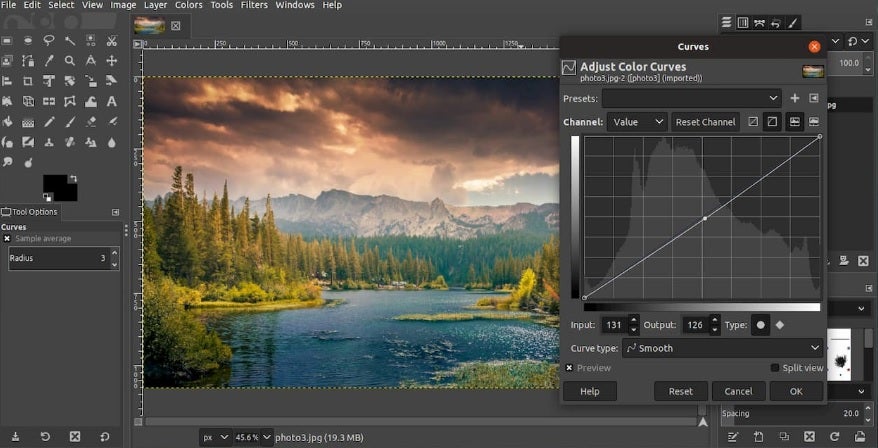
GIMP is already a classic in any list of the best free image editors. The eternal rival of Photoshop is the favorite of illustrators and graphic designers around the world thanks to its good results, wide range of tools and, of course, for being free.

One of GIMP’s strong points is that, being an open-source image editor, it offers unlimited versatility to its user. With it you can not only manipulate photographs for your posters, but also make your own illustrations or designs and thus create the perfect poster.
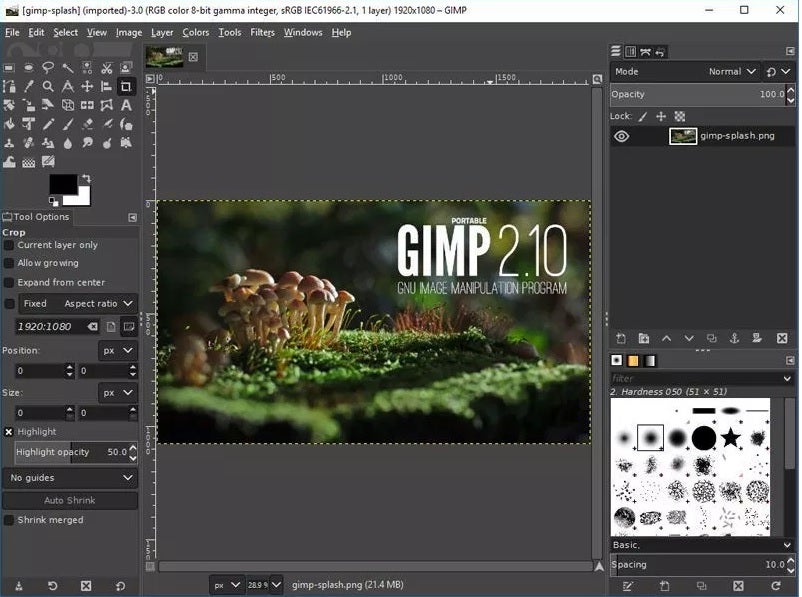
GIMP provides all the basic and advanced options that any photo editing program needs. That is why basically the resulting product you get will be directly proportional to your experience with such programs.

The only drawback of this editor is its high learning curve for those who are not used to this kind of programs. Although a really useful alternative is to download any poster or poster template you find on the Internet and start working with it.

PROS:

  • Includes all the tools to make professional posters
  • It is free and open-source
  • Multi-platform
  • Compatible with most image formats

CONS:

  • High learning curve
GIMP DOWNLOAD
9
Interfaz de GIMP

2. Inkscape

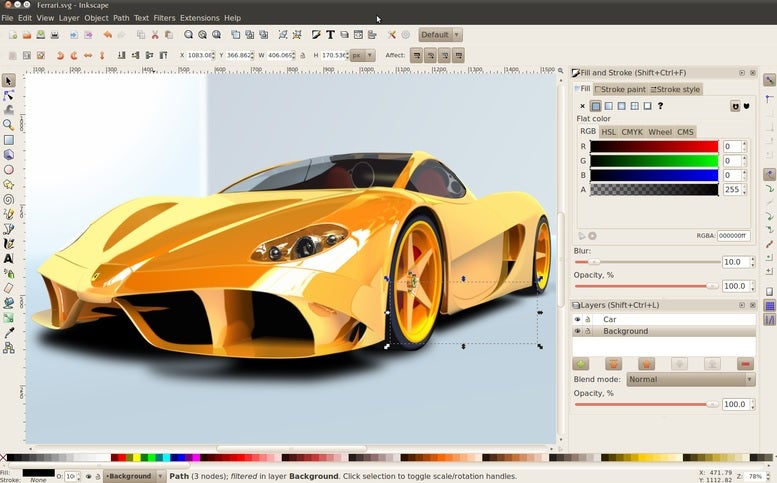
Inkscape is a powerful open-source vector graphics editor and a perfect alternative to paid programs such as Illustrator, Xara Xtreme or CorelDRAW. This graphic design software is ideal for creating all kinds of posters, as well as being widely used in the web design industry.

With Inkscape you will be able to perform any task typical of a drawing or design program. You will find tools as well known as the pencil, cut shapes, add text to images and of course the ability to add layers or clone parts of the image.
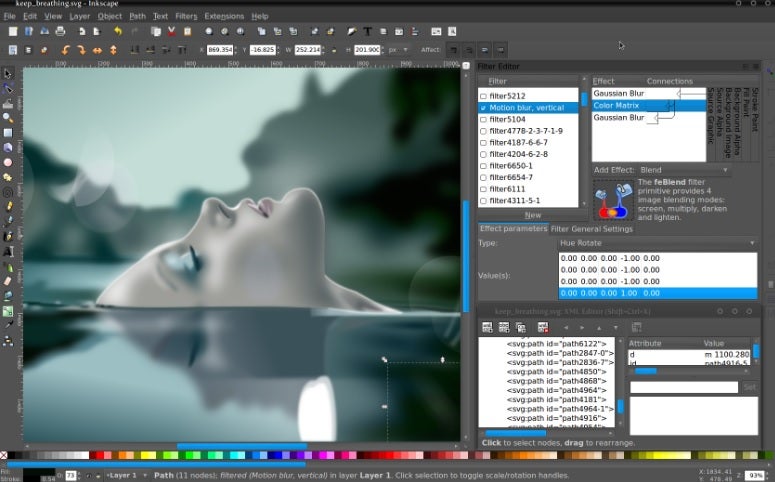
One of Inkscape’s strong points is its high compatibility between files, allowing you to open, edit and save projects in standard formats such as XML, SVG or CSS. In addition to this, it is also possible to work in PDF format and add text to any design, something really essential when making a poster.

Inkscape is a program as complete as GIMP but it is a much more intuitive and easy to use option for those of us who are not experienced in digital illustration.

PROS:

  • Free and open source image editor
  • Includes professional tools for creating posters
  • Allows working with PDF files

CONS:

  • Lacks Pantone palette
  • No preview of filters and effects
Inkscape DOWNLOAD
8
Interfaz de inkscape

3. Canva

If you want to make a professional-looking poster without complicating your life too much, you’ll love Canva. This wonderful online graphic design tool is not only free, but also very easy to use. You can easily access it by simply visiting its website or, if you wish, download its desktop version or for Android and iOS mobiles.

Canva stands out for being a very easy to use program. It has a really simple and intuitive interface, where you can create all kinds of designs in a matter of seconds. Just select the type of project you want to carry out, upload your images and start processing them thanks to its complete selection of tools. We assure you that you will have your poster done in no time.

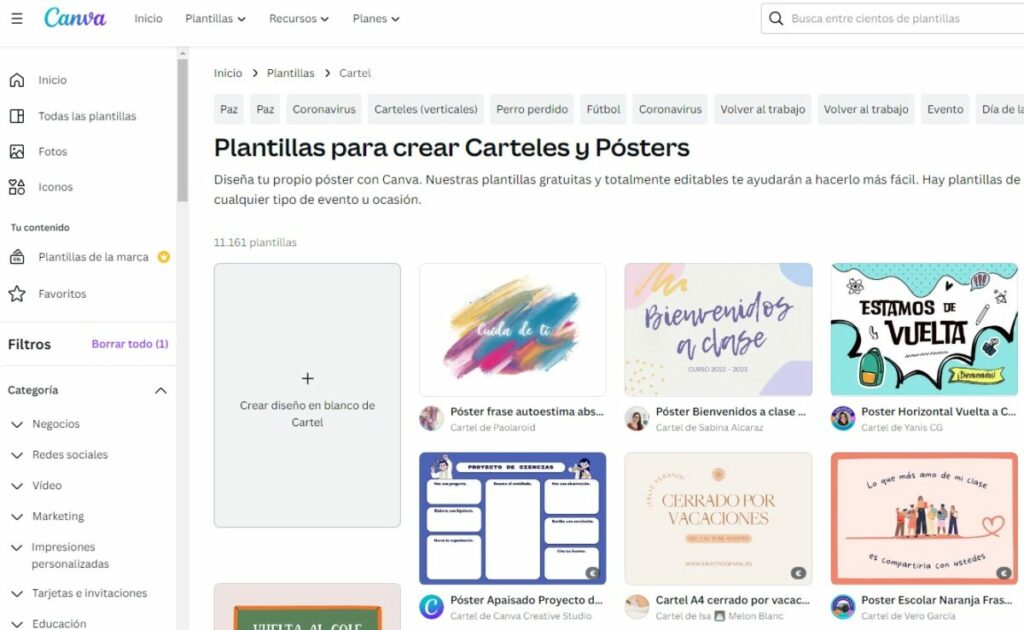
Página oficial de canvas

To create your poster on Canva you will first of all need to register on their website. Don’t worry, the service is completely free. Once in its interface, select the “Templates” option that you will find on the left side menu and slide the project bar until you find “Posters”. Finally, select the template that comes closest to the design you were looking for, upload the images you want to add and edit your poster to your liking.

From Canva you’ll be able to add customized elements to your posters, add frames, shapes, illustrations, etc. In addition, the tool includes a complete selection of fonts, perfect for conveying the message you want. Once your project is finished, you can easily download it in multiple formats, including PDF – ideal for having a poster ready in just a few minutes!

PROS:

  • Very easy to use
  • Multiplatform
  • Includes a good selection of tools to create posters

CONS:

  • It can be somewhat limited
Canva DOWNLOAD
8

4. Adobe Express

It is impossible to talk about creativity and graphic design without mentioning an Adobe program. Since we are talking about free programs, this time we want to talk about Adobe Express (formerly Adobe Spark). This online tool is a real gem for anyone who wants to give shape in a few seconds to any type of design you have in mind. Images for social networks, collages, brochures, logos, posters… All this is at your fingertips from Adobe Express!

In a similar way to Canva, Adobe Express is a perfect option for all those users who are not used to using image editors. Its operation is very simple thanks to its system of templates, all of them completely customizable and in which you can add any image or illustration you want. Besides, being an online tool, you will be able to access any of your projects regardless of the computer or device from which you connect.
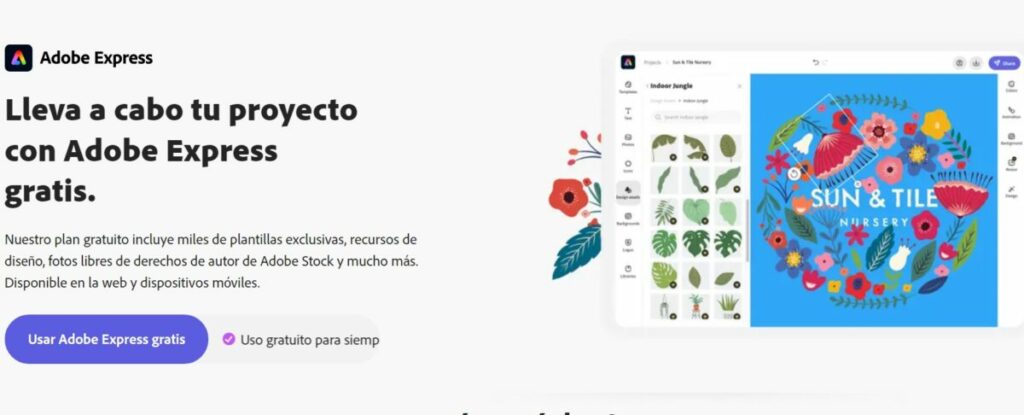
Página web de Adobe Express

If you want to make a poster from Adobe Express, first of all it will be necessary to create an account with Adobe. These are completely free, but if you have used any of the company’s programs in the past, it is very likely that you already have one. Once in the main interface, select the “Poster” option in the “Create a new project” section. This will take you to a very complete selection of poster templates.

Now simply upload the images you want to add to the poster by clicking on “Photos” followed by “Upload photo” and edit the poster to your liking. Adobe Express incorporates all kinds of editing tools with which you can change the background, add shapes, text and even textures. Once your poster is ready, you can easily download it in PNG, JPG or PDF format. All this in a simple, easy and very intuitive way.

PROS:

  • Professional results
  • Allows the use of Adobe Stock images
  • Very intuitive

CONS:

  • Their best templates are available for a fee

Interfaz de Adobe Express

Create a banner or poster easily

We hope we have been able to help you when it comes to downloading a free program to make posters. As you can see, there are totally free graphic design tools that have nothing to envy to the most expensive ones on the market. If we have given you a hand, don’t forget to share the article with your friends on social networks.


Netflix puts an end to multi-accounts: here’s how to cancel your account

Find out how to cancel your Netflix account so you don't have to fall for their new rules on multiple accounts.

Netflix is the platform par excellence for streaming online series and movies. However, since it implemented its new feature that seeks to put an end to multiple accounts, many people are deciding to unsubscribe from the service and even advocate for others such as Disney+, HBO Max or Amazon Prime Video.

Netflix DOWNLOAD

Added to this is the decline in quality of many of its productions and the cancellation of some of its most successful series. All these reasons make more and more people want to leave the platform. But how can you unsubscribe from Netflix?

Whether you want to cancel your Netflix subscription because your 30-day trial has run out or you want to save a little money each month, you will have to follow these exact same steps.

How to unsubscribe from Netflix from its website

The easiest and fastest option to unsubscribe from Netflix is from your PC or Mac browser.

Step 1: Access the Netflix website

Click here. Once on the Netflix website, access your account if it does not open automatically from your browser. To do so, click on Sign In at the top right corner of the screen.

Step 2: Enter your email

Next, enter the email address you used to create your account or the phone number it is associated with and also your password. Once you have done this, log in.

Cómo dar de baja Netflix desde tu PC o su app

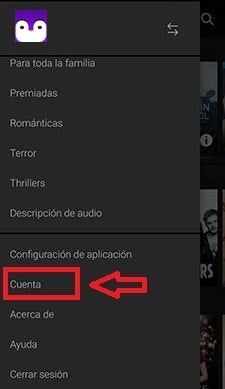
Step 3: Find your avatar

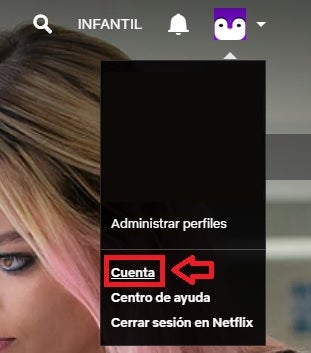
Once inside Netflix, move your mouse over your account avatar. This is located in the upper right corner of the screen. This will open a drop-down menu where you will have to click on Account.

Cómo dar de baja Netflix desde tu PC o su app

Step 4: Cancel your subscription

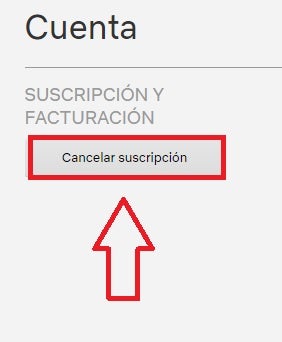
Within your account settings menu you will be able to see all the details of the plan you are subscribed to. To begin the process of canceling your account, click on Cancel Subscription, just below Subscription and Billing.

On the next screen, Netflix will give you the option to think twice and not cancel your service and will offer you a different plan depending on the one you have contracted at the moment. If you are sure you want to unsubscribe from this service, click on Complete cancellation.

If you regret and want to recover your account, Netflix will keep all your data for the next 10 months after your cancellation.

Congratulations! You have now unsubscribed from Netflix.

Netflix DOWNLOAD

How to unsubscribe from Netflix from your app

If you are one of those who have been using Netflix during your bus or subway rides, or you have simply used this service during one of your trips and now want to cancel it, you can also unsubscribe from the app.

Cómo dar de baja Netflix desde tu PC o su app

Step 1: Access the Netflix app

First of all, open the Netflix app and click on the options icon (the three lines in the upper left corner of the screen). You will see how a side menu will appear where you have to click on Account.

Step 2: Cancel the subscription

Then click on Cancel subscription and when Netflix asks you to confirm your decision, click on Complete cancellation. It’s that simple!

We hope this guide has helped you to cancel your subscription and unsubscribe from Netflix.

Discover the Secrets of Mac Customization: Learn How to Change Your Default Apps for Opening Files in Just a Few Clicks!

Do you want to change the default applications used by your Mac? Although Apple computers have an excellent ecosystem of their own apps such as Safari, iTunes or Pages, it is common that if we are former Windows users we want to change them. Something as basic as checking our email or surfing the Internet can be a real nightmare if we don’t use the program we’ve been used to for years.

In today’s article we are going to show you how to change the default apps used by your Mac. The process is very simple but not very intuitive, but don’t worry. With our step-by-step guide you will be able to set the default app you like and associate it with the type of files you want. Here we go!

How to change the default browser on your Mac

Surfing the Internet is, nowadays, an essential activity in the work environment, education or simply to enjoy an idle afternoon in front of your Mac. If you are a regular user of Chrome, Firefox or any other browser, you are probably looking for a way to change Safari. To do so, just follow these steps:

1. Download and install your browser

In order to change the default Mac browser, you first need to download and install the one you want to use. There are very good options to replace Safari, such as Firefox, Opera, Duck Duck Go or even Edge (formerly Internet Explorer). But among all of them the most popular is Google’s browser, Chrome. You can download it quickly and safely below these lines.

Chrome for Mac DOWNLOAD
9

2. Access your Mac’s System Preferences

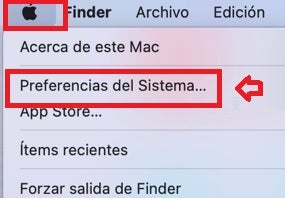
Now that you have your browser installed, simply click on the Apple menu. Once the drop-down menu opens, click on the “System Preferences” option.

preferences del sistema

3. Enter the “General” option

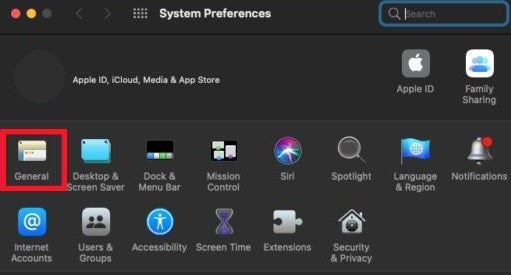
Once in the system preferences window, click on the “General” option. You will find it just below your Apple ID profile picture.

Opción

4. Change your default browser on your Mac

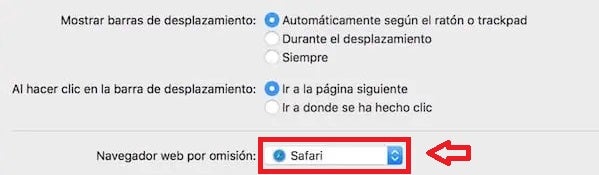
In the new window, look for the “Default Web Browser” entry among the options. You will see that Safari appears by default, but by clicking on it you can set the one you like (Chrome, Firefox, Opera, etc.). Once you have done this, when you click on any link, it will open with the selected browser. It’s that simple!

Cambiar el navegador en Mac

How to change the default email app on your Mac

Although Mail is an excellent app to have your mailboxes always at hand, many do not find it convenient or simply prefer not to have to synchronize their accounts with Apple’s application. If you are looking for a quick and easy method to change the email app on your Mac, simply follow these steps.

Step 1. Download and install your mail app

Before you can change the email app on your Mac, you will first need to download the one you want to use by default. One of the most versatile and popular is Outlook for macOS. You can download it quickly and safely below.

Outlook for Mac DOWNLOAD
9

Step 2. Access Mail preferences

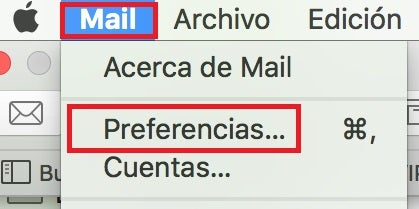
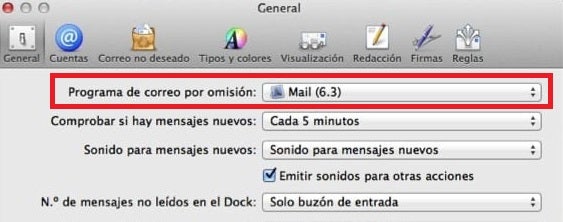
Once you have the app installed, click on the Mail tab next to the Apple button. Then click on the “Preferences” option.

preferences de Mail

Step 3. Change your Mac’s default mail program

Once in the Mail preferences, you will see that in the “General” tab there is the option “Default mail program”. Click on the drop-down menu and select the app that you want to take care of sending and receiving your mail from now on.

Menú de preferencias de Mail

How to change the default app for opening files on your Mac

Apple uses by default its own programs, such as Preview or iTunes, to open images, PDF files or music tracks, for example. Would you like to change this file association and use your favorite apps and programs by default? Just follow these steps.

Step 1. Find the type of file you want to associate with a program

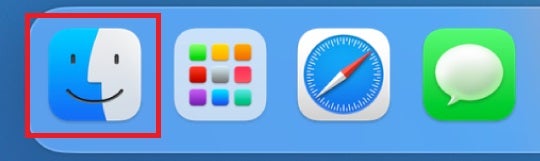
The first step to follow is very simple. All you have to do is open Finder and, once in the Apple search engine, find the type of file you want to change its association.

Finder en Mac

Step 2. Access to file information

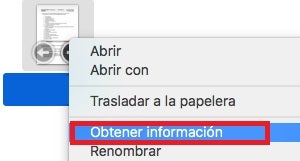
Once you have located the file, right-click on it and select the “Get Info” option. Alternatively you can use the keyboard shortcut Cmd+I.

Get information de Mac

Step 3. Select the app you want to associate to a file

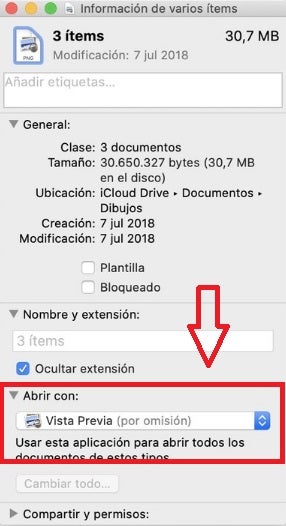
After opening the file information a new window will appear where you will find the “Open with” option. Click on it and select the app you want to associate with the file. Once you have done this, click on the “Change all” option. Now all the files of this class will be opened with the program you have selected!

Cambiar archivos con Mac

Customize your Mac apps to the maximum

We hope we have been able to help you to change the default apps that your Mac uses. As you can see, the process is very simple and in a few minutes your Mac will finally associate all your files with the programs you want. And remember, if you liked this article, do not forget to share it with your friends on social networks.

Say Goodbye to Boring Photos: 5 Free Programs to Create Collages!

Making a photo collage from your PC is never an easy task. First you have to choose the perfect images, resize them and create a good composition from editors such as Photosohop or GIMP. If you are not an expert in them the results are usually disappointing, something that can frustrate you if you have spent several hours on it. Fortunately there are specialized programs with which you can create a collage with photos in the blink of an eye. Would you like to know them?

If you often wonder how to make a collage with photos from your PC, you’ve come to the right place. In today’s article we are going to share with you the best free programs with which you can make a collage of your photos in just a few minutes. Here we go!

1. Canva

Canva is an excellent app and online platform from which you can design, create and publish any type of image, including collages. It is completely free (although it has some paid premium features) and has endless tools and templates to shape your ideas. If you want to make a spectacular poster or photomontage with your photos, Canva is undoubtedly the best option.

PROS:

  • Very easy to use
  • Professional results
  • Hundreds of templates at your disposal

CONS:

  • Some of its functions and templates are fee-based
Canva DOWNLOAD
9
Interfaz de canvas

How to make a collage with Canva

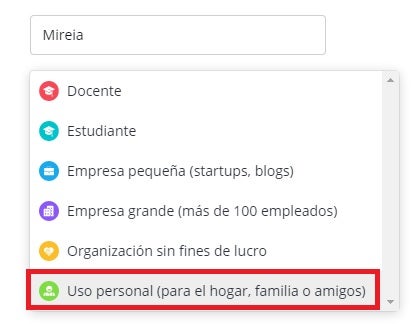
Creating a collage with Canva is very simple, whether you opt for its web version or its desktop application. First of all you will need to open an account on the platform. You will see that there are paid versions of Canva but don’t worry, the program is fully functional from its free version. Simply opt for the “Personal use (for home, family or friends)” option when opening your account.

Cómo abrir una cuenta con canvas

Once your account is open, log in and select the “Photo Collage” option. If you can’t find it, don’t worry, you can create a new project and then type “Collage” in the search engine. You will then see a selection of free collage templates that are really useful and 100% customizable, so you will have your photo collage finished in no time. Choose the template you like the most and think about which photos you want to use.

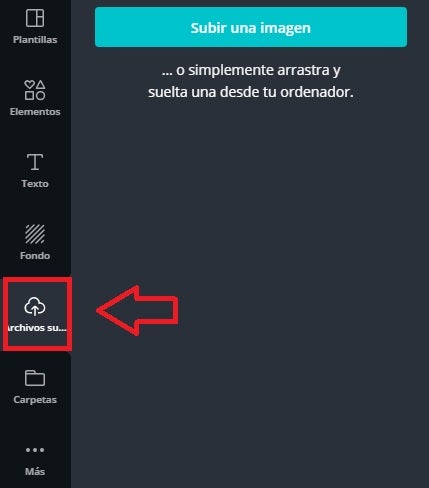
Once you know which images you want for your collage, click on “Uploaded files” and upload your images to Canva. If you prefer, you can also drag and drop them into the dark gray box to upload them all at once.

Cómo subir imágenes a canvas

Once you have finished the previous point you will see how all the images appear in the Canva interface. Now simply drag them to the section of the template you want to create the collage of your dreams. Note that you can resize the images, add text and customize the template to your liking.

Collage con canvas

It’s that simple! Once your project is finished you will be able to save it on your computer or share it on social networks. As you can see, this is an ideal option for making collages in a jiffy.

2. Fotojet

Fotojet is an online tool for creating collages without the need to download anything. It is very similar to Canva, offering a simple and intuitive interface but providing excellent results in a matter of seconds. All in all, it is a very good option for anyone looking for an uncomplicated tool with which to make a great collage without complicating your life.

PROS:

  • Very intuitive interface
  • Offers a good number of free templates
  • No registration required

CONS:

  • Some of its functions are paid
  • No mobile app
Fotojet DOWNLOAD
8
Interfaz de photojet

How to make a collage with Fotojet

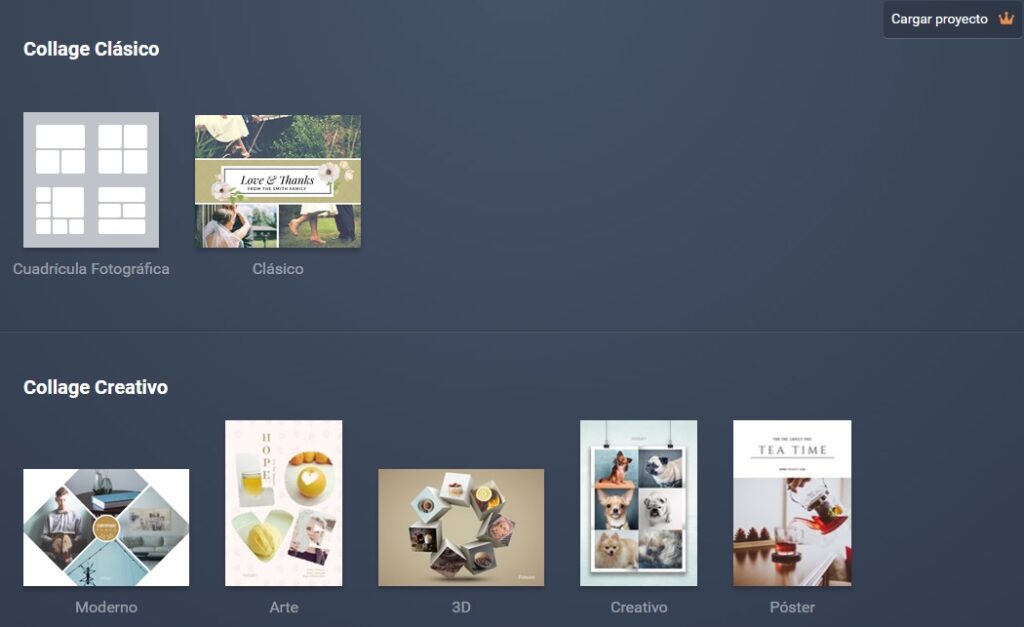
To create a collage with Fotojet, first of all click on the “Create a Collage” button. You will then be presented with a selection of free templates that you can use as a basis to shape your project. You will find the classic grids, templates that use a photo as a base, templates with 3D objects, etc. Choose the one you like best for your collage.

Plantillas de photojet

Once you have selected your template, select each of the spaces for images and upload the photo you want. If you prefer, you can also choose an image from the Fotojet catalog, thus creating a much more complex collage.

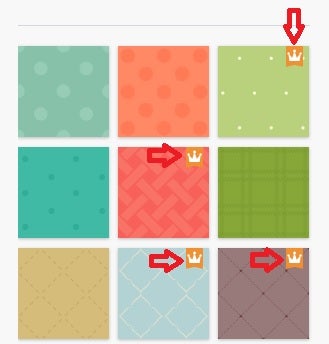
If you have chosen to use Fotojet’s image catalog, you will see that some of the photographs and illustrations have a small crown associated with them. These are premium images, to which only users with a paid account have access. However, they are not really necessary for anything.

Imágenes premium de photojet

Uploading a photo to the collage is very easy. Just click on the blank space you want and select the image from your computer. Once it appears on the screen you can resize and edit it to your liking.

Collage hecho con photojet

It is important to note that Fotojet allows you to add effects and filters to the images once they are in your collage. After finishing it, you will be able to download your creation in PNG or JPG format. As you can see, it is a powerful tool, easy to use and really useful.

3. Fotor

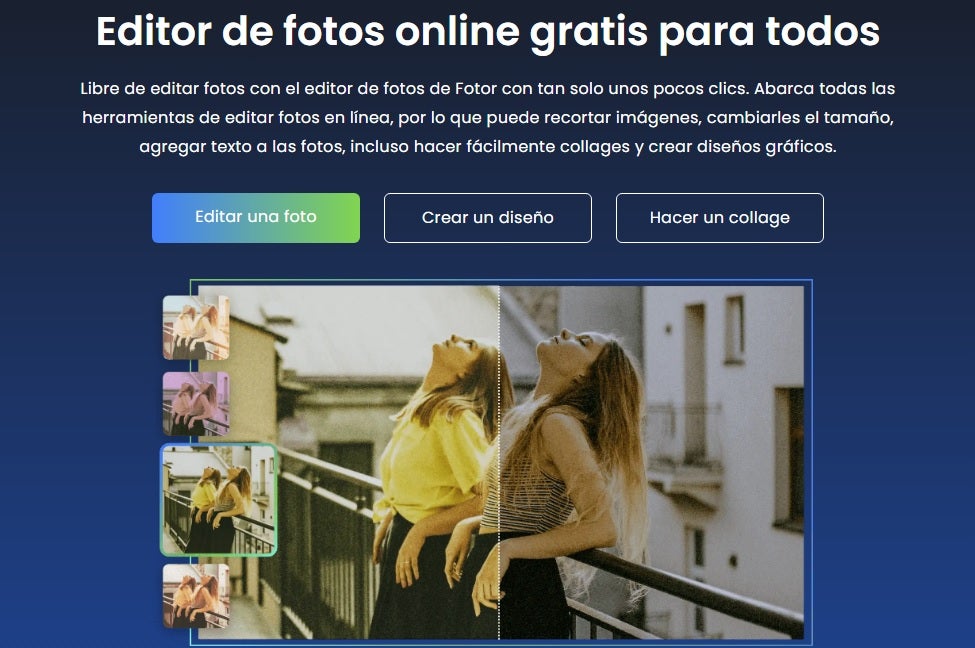
Fotor is a free but very complete photo and image editor. In fact, because of its many tools and good results, the BBC has called it the “Photoshop Light” and an excellent choice for those who can’t afford Adobe software. Offering both an online and desktop version, it is also very versatile, allowing you to create graphic designs at any time and with professional results.

PROS:

  • Very easy to use
  • Elegant interface
  • Professional results

CONS:

  • Lack of automatic saving
Interfaz de photo
Fotor DOWNLOAD
9

How to make a collage with Fotor

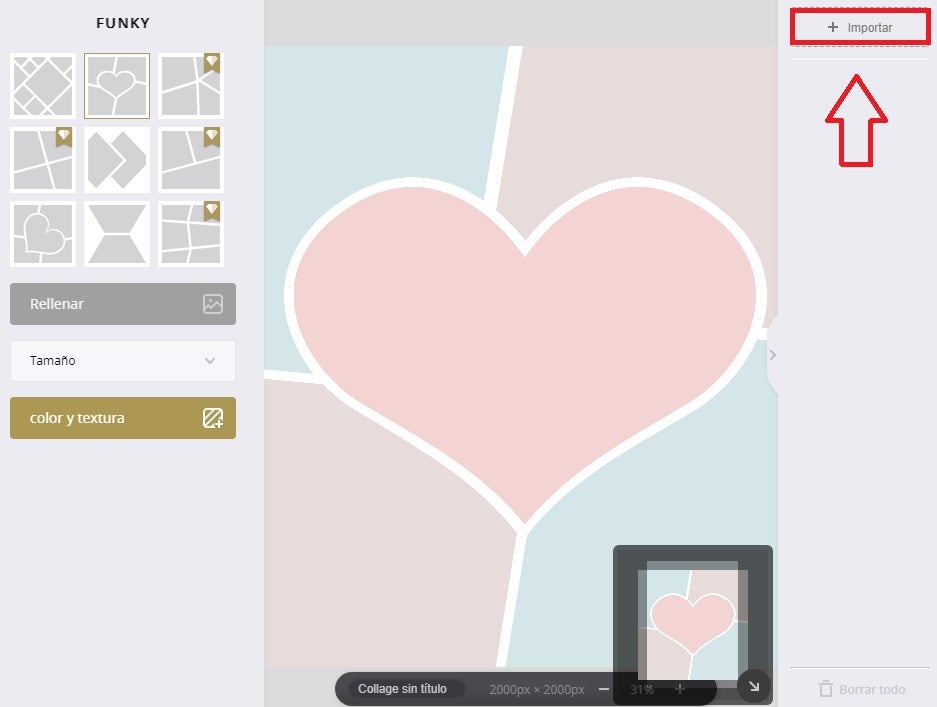
If you want to create your own collage with Fotor, first of all select the “Make a collage” option. Then select the type of collage you want to create and choose one of the many default templates that appear. All of them are fully customizable, so even if you are not completely satisfied with one of them, you can modify it later. You will also see that some templates come with a small diamond. These are the premium templates and are only available to paying customers.

Tipos de collage disponibles en photo

Once you have selected the template, click on the “Import” option in the upper right corner of the screen. From there you can upload all the photos and images you want to add to the collage. Once you have done this, drag the photos to the section of the collage you want them to occupy.

Plantilla de collage de photo

If you are not sure which photo to place where, don’t worry. Fotor has an option called “Fill” (on the left side of the screen) that will place all the photos you have uploaded in the way the program considers optimal. We assure you that it will surprise you!

Collage hecho con photo

Once you have finished your collage you will be able to save it in JPG, PNG and even PDF format. As you can see, although it is not as intuitive as the previous options, it is still an excellent resource for making free collages.

4. Adobe Express

Adobe Express (formerly Adobe Spark) is an excellent option to make online collages without having to download any program. This tool is really easy to use and provides excellent results, although we couldn’t expect anything less from the parents of Photoshop.

PROS:

  • Fully online
  • Over 2000 free collage templates
  • Allows you to use Adobe Stock images

CONS:

  • The best templates are paid templates
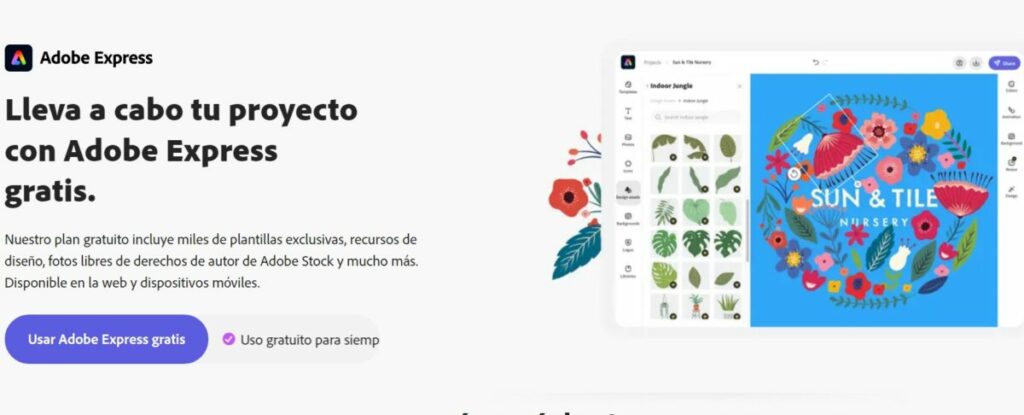
Página web de Adobe Express

How to make a collage with Adobe Express

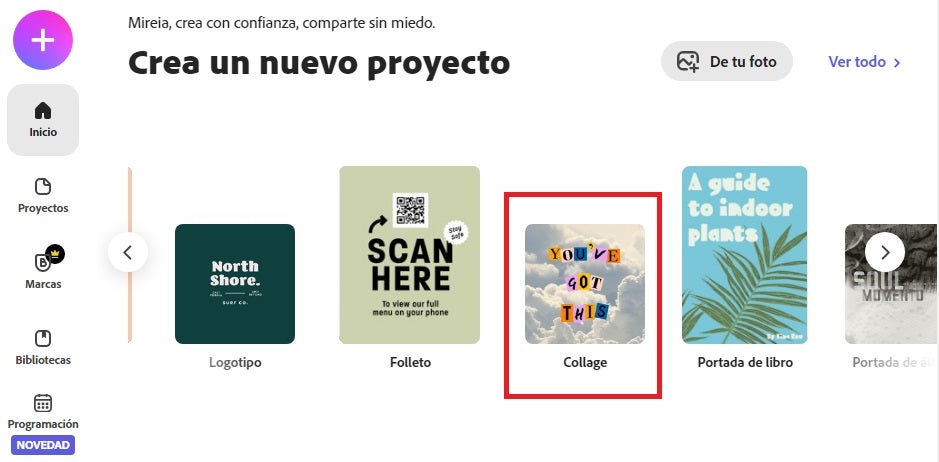
To start using Adobe Express you will first need to log in with an Adobe account. Don’t worry, it’s completely free. Once in the tool’s interface, select the “Collage” option that you will find under “Create a new project”.

Create un collage en Adobe Express

Next, upload the photos you want to add to your collage by clicking “Upload” or select the ones you like from Adobe Stock. Once done, choose the size of your collage and click the “Next” button.

Tamaño del collage de Adobe Express

After that you only have to design your own collage. You will see how all your photos will appear on the screen and you will be able to move or resize them simply by dragging them. You can also choose one of the program’s free collage templates. Once the collage looks the way you like it, you can add text by double-clicking on the image.

Collage hecho con Adobe Express

Once your collage is finished, you will be able to download it by clicking on the “Download” button in the upper right corner of the screen. Simply select whether you want to save the file in PNG, JPG or PDF format and click the “Start download” button. Last but not least, Adobe Express can now schedule your content on social networks.

5. PhotoPad

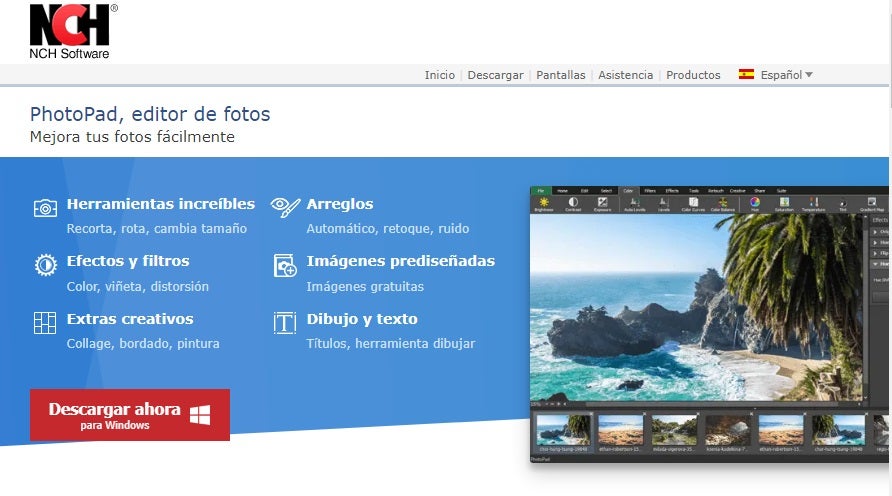
To finish the selection we want to recommend PhotoPad, a free image editor with which it is really easy to edit all your digital photographs. Besides being a really intuitive program, PhotoPad includes as an extra an option to make collages. Thus, this little gem is an invaluable help to make photo collages in just a few seconds.

PROS:

  • Includes all basic editing tools
  • Allows the use of layers
  • Includes many filters

CONS:

  • Very simple in some respects
  • Slow to open large files
PhotoPad DOWNLOAD
7
Página de PhotoPad

How to make a collage with PhotoPad

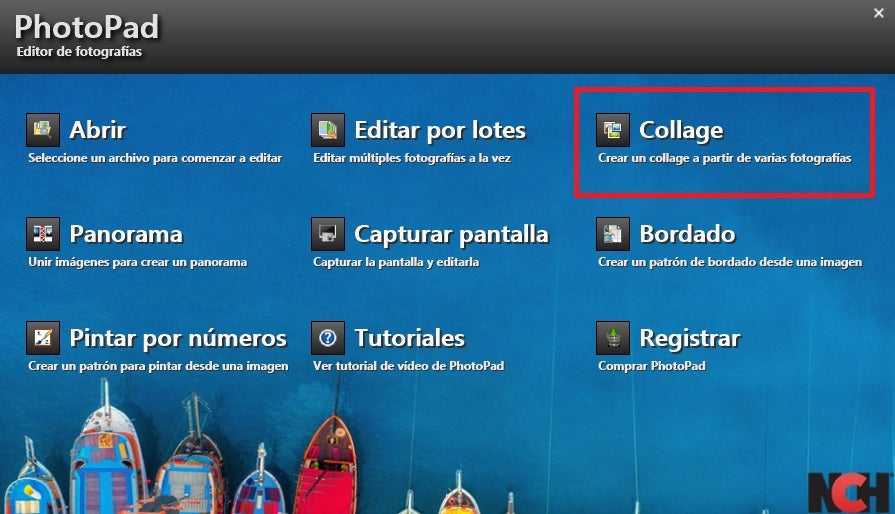
To start creating your collage with PhotoPad simply click on the “Collage” button and click on the “Create” button. Once you have a blank canvas, click on the “Collage” drop-down button on the right side menu of the screen and then click on “Edit Collage”.

Menú de PhotoPad

After choosing the background, select the type of template or grid in which you want to place your images. You will be able to choose the location, spacing and even the shape of each of the spaces where your photos will appear. You will find all this in the menus “Canvas options”, “Background options”, “Design options” and “Image options”.

Once you have done this, all that remains is to choose the photos you want to add from your PC. To do this click on the “Add” button at the bottom of the right side menu.

Collage hecho con PhotoPad

Alternatively, you can double-click on the spaces of the pictures and add them directly. Voilà, your collage is ready. Wasn’t that easy?

Create collages with photos quickly and easily

We hope that our selection of free programs to make collages has helped you. As you can see, there are many options to easily create beautiful montages with all your memories. If you liked the article, don’t forget to share it with your friends on social networks!

Unlock Endless Possibilities for Your Sims 4 Game – Learn How to Install Mods Now!

The Sims 4 is an exceptional life simulator with unlimited possibilities thanks to its mods. These allow you to add free custom content (CC) to your games, such as new hairstyles, clothes, houses, furniture… even remove censorship! Since its first release, mods have always been one of the star points of the Maxis franchise. And with them, anything you can imagine can happen in the life of The Sims. But… Do you know how to install them?

Imagen promocional de Los Sims  4

In today’s article we are going to show you how to download and install mods and CC in The Sims 4. Don’t worry, it’s a really simple process that won’t jeopardize your games, and they’re free! So if you are bored of waiting for the release of The Sims 5… Why don’t you give new life to its fourth part with the best mods? Follow our steps and in a few minutes you will start enjoying all the customized content you can imagine.

The Sims 4 DOWNLOAD
9

What are mods and CC for The Sims 4 and what are they for?

When we talk about mods we mean any modification or custom content that players have created for The Sims 4. These can be downloaded from the Internet and easily added to the game, adding all kinds of improvements and new options. Since its first release, mods have been a fundamental part of The Sims. In fact, the game has one of the largest and most prolific creative communities in the video game world. Thanks to mods, The Sims 4 can be considered a timeless game.

Among the main mods that exist for The Sims 4 we find:

  • Custom Content – Also known as CC (Custom Content). It includes all the objects, clothing, hairstyles, furniture, etc. that a player has created for the game.
  • Game Mods – Refers to those modifications that, instead of adding an object, create new functions for the title. For example a mod to add new personality traits, new jobs, UI functions or simply remove censorship from the game.
Imagen de CC para the sims 4

What do I need to install mods or CC for The Sims 4?

Fortunately, installing custom content in The Sims 4 is very simple. In fact, you’ll only need these three things:

  1. The Sims 4 base game (you can download it here).
  2. The mods or CC files.
  3. A program to unzip files like WinZIP or WinRAR.

If you have all this on your computer, we can start installing mods now!

Distintas relaciones entre Sims

How to install mods and CC for The Sims 4

Installing mods or custom content in The Sims 4 is a very simple process that will only take you a few minutes. All you have to do is follow these steps.

Step 1. Update The Sims 4

Before you start installing anything, you should make sure that your version of The Sims 4 is completely updated. This is important because this way you will ensure that none of the mods or CC that you install will create any kind of incompatibility with the game.

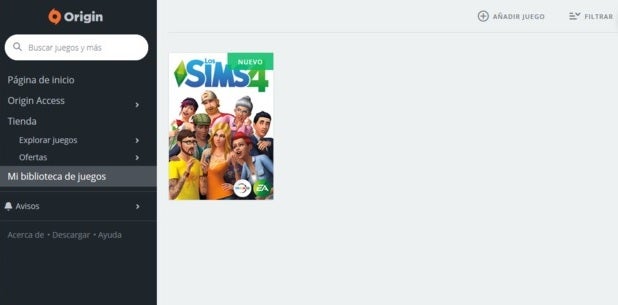
To update The Sims 4 you will simply need to open Origin, find The Sims 4 in your game library and within your options click on the update button.

Step 2. Download the mods or CC

Now that you know you have The Sims 4 updated, it’s time to get downloading the mods or custom content you want. You will find thousands of websites where Simmers will share their creations but we especially recommend the big sites like modthesims to download your files. These are updated very often and you will always have the assurance that the mod you download has been tested by other players and works without any problems.

To avoid unpleasantness it is also recommended that all mods you download are from reliable sites. If you doubt any file, do not hesitate to use some antivirus software to ensure that the file you have downloaded does not contain any type of Trojan or malware that can put your computer in check. If you do not have any installed, we recommend that you try the free version of Avast, it is very reliable and ensures the protection of your computer.

Mod para the sims 4

Step 3. Unzip the mods or CC files

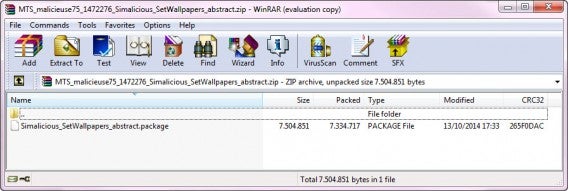
In most cases, both mods and custom content for The Sims come compressed in .ZIP or .RAR format. In order to use them, you will first need to unzip the files and then move them to their folder. You will see that some of these files are in .pyo, .package or .ts4script formats, do not try to unzip them as you will only need to move them to the mods folder.

Descomprimir archivos de the sims 4

Step 4. Organize your mods or CC by folders

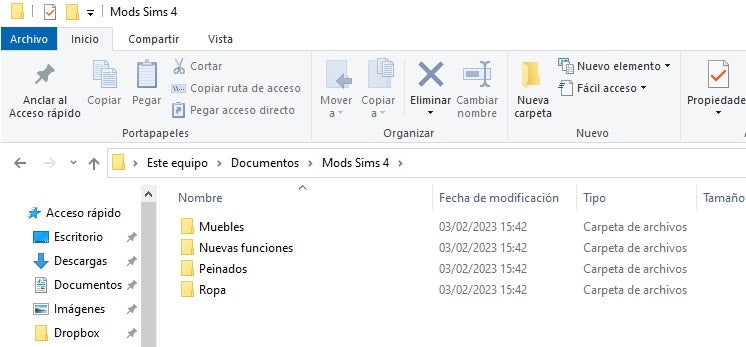
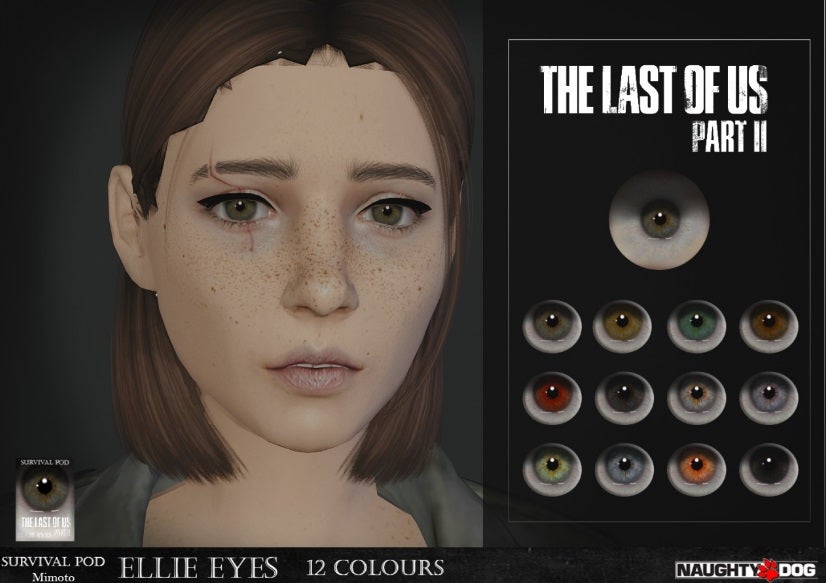
Although this is an additional step, it is highly recommended that you create folders to organize the mods or custom content you want to install. Keep in mind that there are an inordinate amount of mods that you will probably want to download and install and their files will all have generic names. To be able to locate and have control over the added content you install, it is good to classify it by content folders (“Clothes”, “Build mode”, “Modifications in Create a Sim”) or by specific mods (“Rock band t-shirts”, “Eye colors”, “Mod to remove censorship from The Sims”).

Crear carpetas para los mods de the sims 4

Step 5. Copy the mods or CC to the mods folder.

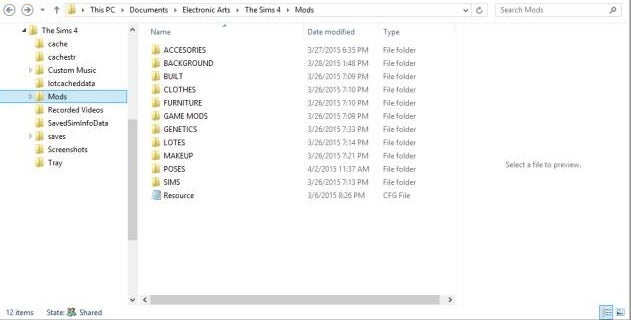
Now that your .ZIP or .RAR file is unzipped, it’s time to copy its contents to the Documents/Electronic Arts/The Sims 4/Mods folder. You will see that by default, in this folder there is a file called Resource.cfg. Do not delete it! This is the file that allows mods to work in the game.

If by mistake you deleted the resource.cfg file, nothing happens. It will be generated again once you start a game in The Sims 4.

Ubicación de la carpeta mods en the sims 4

step 6. Activate mods or CC in The Sims 4

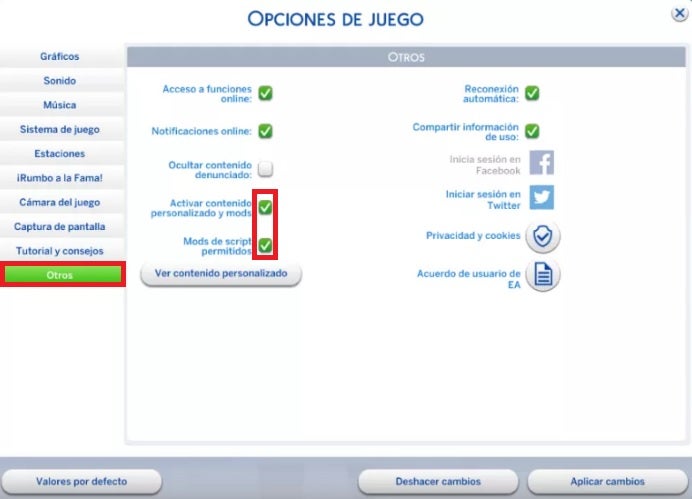
Finally, you need to activate the mods within the base game of The Sims 4. To do this, go to the main menu of the game and press the “Esc” key to access its options. Once this is done, click on the “Others” button that you will find on the left side menu of the screen. Finally, check the “Enable custom content and mods” and “Script mods allowed” boxes. After that the game will ask to restart and all the mods you added in the folder will be active. And enjoy the mods!

How do I know which mods or CC I have installed?

Are you one of those who have added countless files to the mods folder and don’t know exactly what you have installed? Don’t worry! From The Sims 4 you will be able to check which mods are active in your game. To do this go into the game options and click on the “Other” button followed by “View custom content”. You will now be able to check which custom content is active in the game.

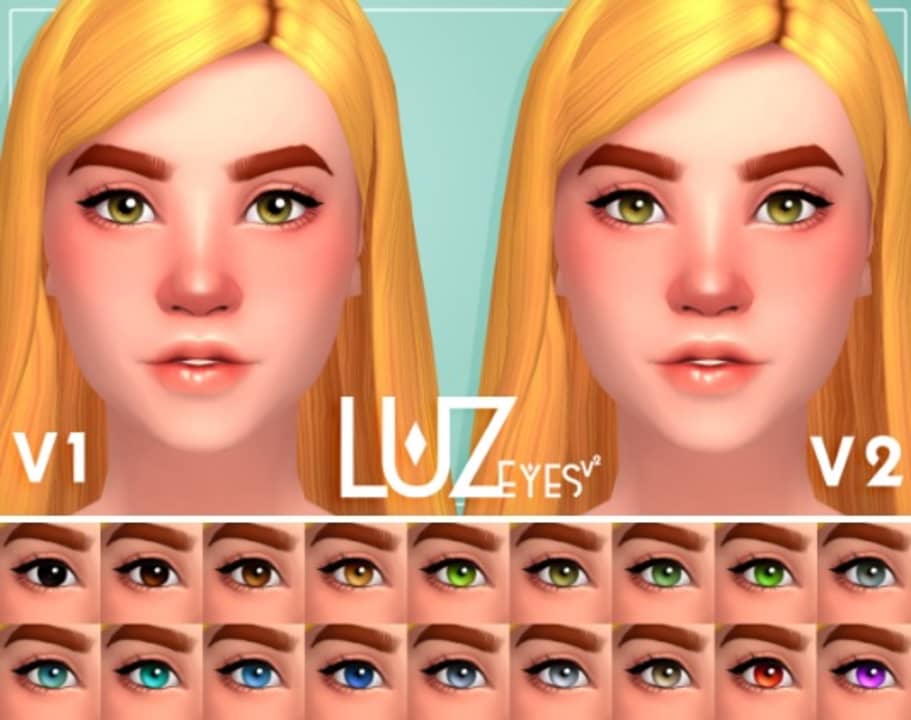
Sims 4 mod de ojos para Ellie

How to delete mods or CC for The Sims 4

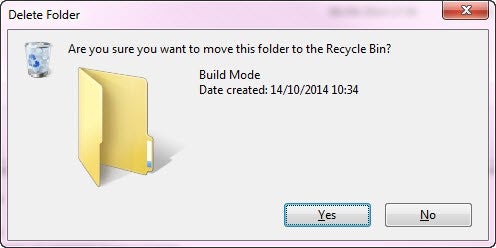
If you are tired of a mod or you think it is giving you problems in your game, simply delete it. To do this, close the game, go to the mods folder (Documents/Electronic Arts/Los Sims 4/Mods) and delete the files manually, whether they are separate files or entire folders. It is for this reason that it is always advisable to copy each mod into a separate folder so that you can locate them later.

How to recover your game, mods and CC if you change PCs

It’s not uncommon that over time, you end up retiring your old computer and buying a new computer. Fortunately that doesn’t mean you have to say goodbye to your Sims and mods. You can create a backup copy of both your mods and your save games and CC from the “Documents/Electronic Arts/The Sims4” folder. Simply create a copy of the “Saves”, “Mods” and “Tray” folders and paste them on your new PC after installing The Sims 4.

What to do when a mod or CC has stopped working after an update in The Sims 4

It is very common that as The Sims 4 is updated some of the mods stop working. In most cases you should not worry because fortunately, the community of Simmers of this video game is very active and will be offering updated versions of the mods. To reactivate them simply access the web page from where you downloaded the mod and see if there is a new version for it. Once this is done, download the updated mod and install it following the steps in this tutorial. It’s that simple!

Mod para añadir nuevos rasgos a Los Sims

Where to download free mods and CC for The Sims 4

Now that you know how to install mods and custom content for The Sims 4, you’re probably eager to start downloading CC left and right. If you have searched the Internet you will have realized that the offer of mods sites for The Sims 4 is really overwhelming. That is why we want to recommend you a list with the best sites to download mods and CC for The Sims 4 of this 2023.

  1. The Sims Resource
  2. ModtheSims
  3. Sims4Updates
  4. Sims4CC (Tumblr)
  5. Maxis Match CC World

If you prefer a selection of the best mods of the moment, read on. At Softonic we have compiled a list with all the mods that we consider essential for a self-respecting Sims player.

  • The Sims 4: improve the game with these 8 amazing mods
  • The Sims 4 essential mods to customize your sims
  • The best Sims 4 mods that change the way you play the game
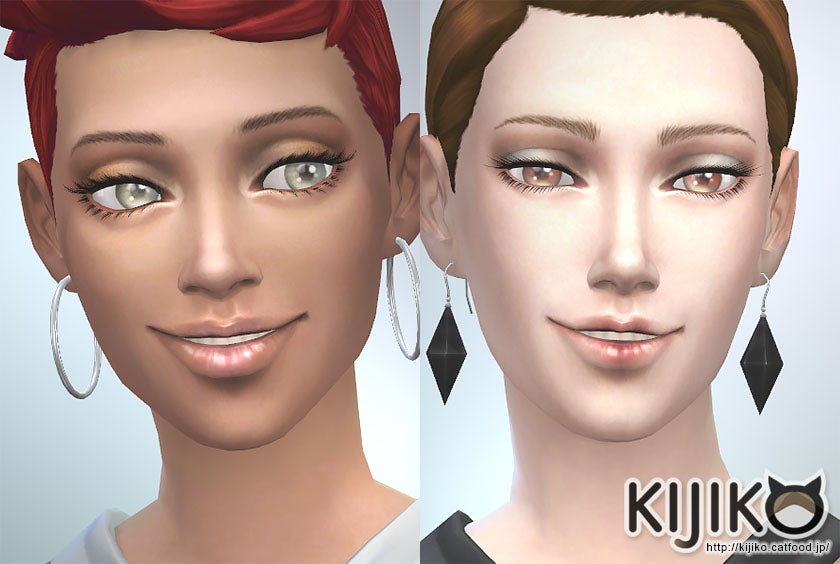
mods de pestañas para the sims 4

Is there any other method to add additional content to The Sims 4?

If the idea of adding user-created mods doesn’t appeal to you, this doesn’t mean that you’ll be stuck with a version of The Sims with fewer options. Maxis offers a very good selection of both expansion packs for the game and additional content to add new features and gameplay to the title. At the moment these are the ones that have appeared on the market:

The Sims 4 Expansion Packs

The Sims 4 Additional Content Packs

We hope that all our recommendations have helped you to get the most out of The Sims 4. If you found it helpful, don’t forget to share this article with your friends through social networks. And remember, the release of The Sims 5 is just around the corner, full of juicy new features!

Fix Your High CPU Usage with This Simple Solution for Windows Modules Installer Worker

Is your computer running very slowly or suddenly getting very hot? If you are a Windows user and lately your PC is not performing as well as it used to, the Windows Modules Installer is most likely the culprit. This process appears in the Task Manager under the name Windows Modules Installer Worker and often makes high CPU usage due to an error. The result? Your PC slows down and no longer runs as it used to.

If Windows Modules Installer Worker is using 100% of your disk and your computer is barely working, don’t worry. In today’s article we are going to help you solve this problem in a quick and easy way. Read on and in no time you will reduce the load on your CPU and your PC will be back to working as before.

Windows 11 DOWNLOAD
9

What is Windows Modules Installer Worker and what is it for

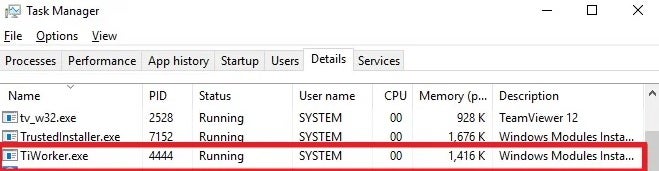
The Windows Module Installer, also known as WMIW or TiWorker.exe, is a fundamental component for the proper functioning of your operating system. It performs the basic maintenance tasks of your computer as well as searching for and installing all the updates that your operating system may need. It is, therefore, a process closely linked to Windows Update.

One of the primary functions of Windows Modules Installer Worker is to ensure that your computer will continue to work after any Windows update. To do this, WMIW updates all Windows files as well as creating a backup copy of any old files that may remain installed.

Panel de control de Windows

Why does Windows Modules Installer Worker consume so much CPU?

As we mentioned in the previous point, the Windows Module Installer is responsible for performing updates to your computer and ensuring that, once completed, it will continue to function normally. This is a resource-intensive and intensive process, so it is quite normal that during an update, TiWorker.exe triggers CPU usage. After the process is finished, the values should return to normal.

If your disk or CPU usage is still at 100% after upgrading your computer, it is likely that there is a bug in the Windows Modules Installer Worker. This would lead to a considerable decrease in your computer’s performance, constant slowdowns, frozen screens and an increase in PC temperature.

How to fix the high CPU consumption of Windows Modules Installer Worker

If your PC is running slow, we recommend that before following any of these methods, you check that the culprit is really WMIW. To do this, open the Windows Task Manager and find out which file is responsible for the high CPU usage. If the file is Tiworker.exe, it is time to get to work with one of these solutions.

Method 1. Use the Windows Troubleshooter

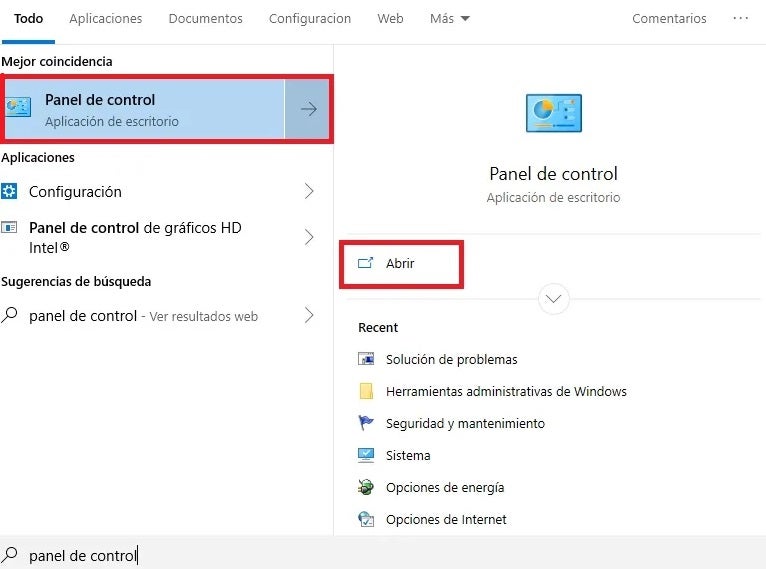
The easiest way to fix the Windows Modules Installer Worker bug is to use the Windows Troubleshooter. To get to the Troubleshooter, first you need to access the OS Control Panel. If you do not know how to get there, click Start and then type “Control Panel”. Click on the result that Windows offers you.

Panel de control de Windows

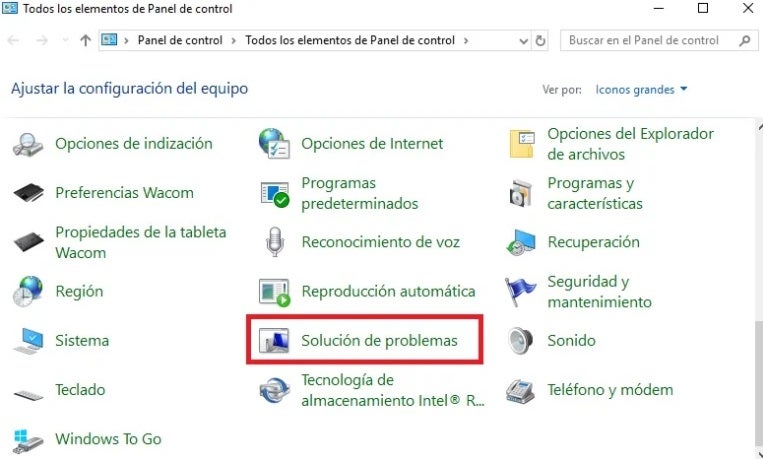
Once in the Control Panel, find and click on the “Troubleshooting” option.

Problem solving de Windows

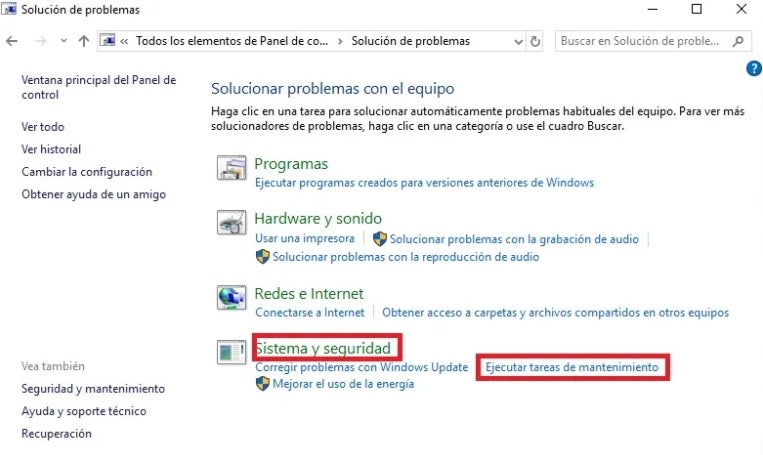
Next go to the bottom of the list to “System and Security” and click on Run maintenance tasks. This will open the Windows program aimed at fixing any problems or errors that your operating system is currently experiencing.

Ejecutar tareas de mantenimiento

Finally, Windows will ask you if you want to troubleshoot your computer as an administrator. Select this option and let the program analyze any problem that is affecting your PC. If everything goes well, Windows will repair the problem with Windows Modules Installer Worker and your computer will work as before.

Method 2. Use the Windows Update Troubleshooting Wizard

If the previous method did not work, we recommend that this time you use the Windows Update troubleshooting wizard. Note that WMIW is closely linked to operating system updates, so an error in Windows Update could be the cause of the problem.

Depending on the version of Windows you are using, you will have to follow these steps.

If you are a Windows 10 user:

  1. Access Windows settings (Windows Key + I)
  2. Select the Update and Security option
  3. Click on Solution of problems followed by Additional troubleshooters.
  4. It pulsates in “To begin to work” and it selects “Windows Update”.

If you are a Windows 11 user:

  1. Access Windows settings and go to “System”.
  2. Click on the “Troubleshooting” option.
  3. Click on “Other troubleshooters” followed by “Most frequently used”.
  4. Select “Windows Update” and run the troubleshooter.

After that, restart your computer and check if the CPU usage has normalized. Remember that it is possible that the CPU usage is at 100% when you start your computer, so before moving on to the next method it is advisable to wait a few minutes to see if the Windows Update fixer has repaired the problem.

Hombre utilizando un portátil

Method 3. Make sure that Windows is not being updated

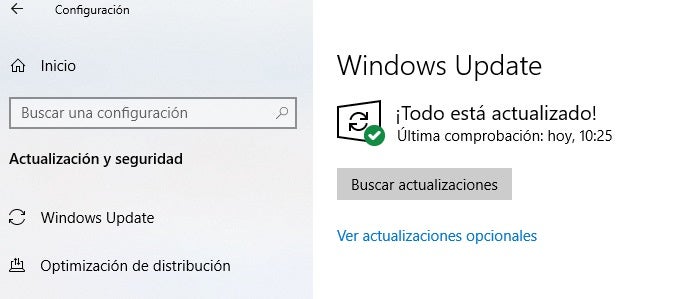
It is common that when your PC is in the process of downloading or installing an update, it will run much slower. Before being alarmed by the high CPU usage of Tiworker.exe, make sure that an update is not being installed. To check, you can access the Windows Update window by going to Settings (Windows Key + I) followed by “Update and security“.

In the new window you will see the Windows Update status. Here you will check if your computer is downloading an update, installing it or if, on the contrary, any of these updates is blocked. If this is the case, you will need to stop the Windows Update service, delete its history and restart its service. Don’t know how? Don’t worry, we have a step-by-step guide to fix the Windows Update can’t check for updates error.

Ventana de windows update

Method 4: Troubleshoot 100% CPU usage in Windows

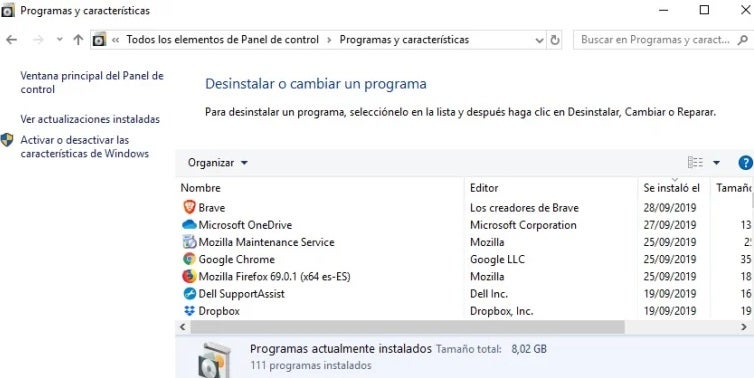
If none of the above methods have worked, don’t worry. There are plenty of ways to speed up your computer and thus reduce your PC’s CPU usage. Tricks as simple as restarting your computer, removing annoying bloatware or disabling startup programs you don’t use can drastically increase the performance and speed of your computer. If you want to know them all, we recommend that you take a look at our guide to tricks and programs to speed up Windows.

Desinstalar programas en Windows 10

Get your PC running like new again

We hope that our article has helped you to solve the problems with CPU usage caused by Windows Modules Installer Worker. This error, despite being quite common, can cause more than one headache due to its annoying consequences. If any of the methods we have shared worked for you, don’t forget to share it with your friends on social networks.
Transform Your PC into a Smart Home Hub with These Easy Steps on How to Use Google Home!

Google Home is able to control and manage all smart devices connected to a Wi-Fi network in your home through a simple application. From it you can receive alerts, create reminders, automate tasks and interact remotely with any device compatible with the Google Assistant. As of today the Google smart speaker app is only available for Android and iOS devices. Does that mean it’s impossible to control Google Home on your PC?

In today’s article we are going to explain step by step how to install Google Home on your PC. You will see that the process is not difficult at all and in a blink of an eye you will be using Google Home on your PC.

Google Home DOWNLOAD
9

Is there a Google Home app for PC?

Unfortunately, there is no official Google Home app for PC or Mac. However, this does not mean that you should give up controlling your smart devices from your computer. There are several methods with which you can implement Google Home on your computer in the blink of an eye. All of them are very simple and very safe. You only need to download an Android emulator or use the Google Chrome browser.

How to install Google Home on your PC with an Android emulator

As we have already mentioned, there is only an official Google Home application for cell phones. At first this may discourage any PC user, but it doesn’t have to be that way. Did you know that you can easily emulate the Android operating system from your desktop computer? All you need to do is download and install an Android emulator on your PC.

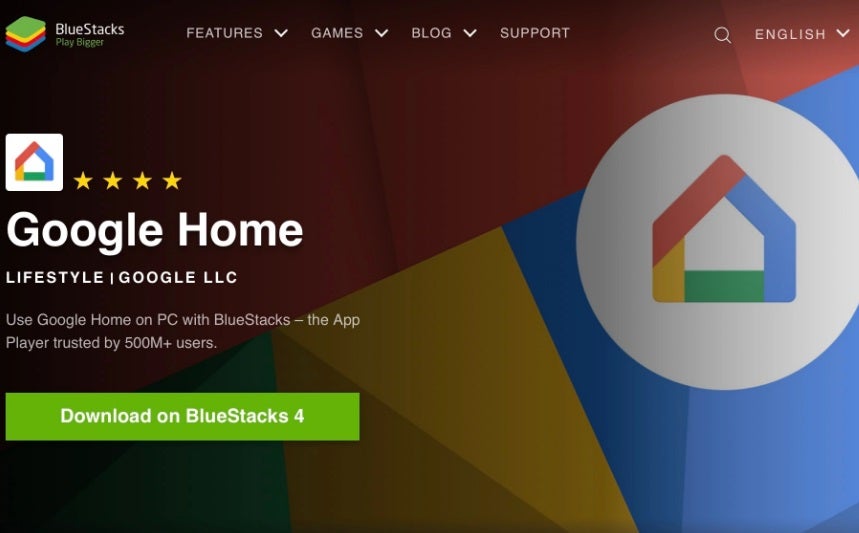
There are a number of free Android emulators such as MEmu or BlueStacks. They perfectly mimic Google’s mobile operating system and make using Google Home very simple. For its ease of use, high customization and good results, from Softonic we recommend that if you want to emulate Google Home opt for BlueStacks and follow these steps.

Step 1. Download and install BlueStacks

To start using Google Home from your PC, first of all you need to download BlueStacks. You can get this application quickly and safely from the same Softonic website. Once you have the file on your computer, double click on it to start the installation process.

BlueStacks DOWNLOAD
9

Step 2. Sign in with your Google account

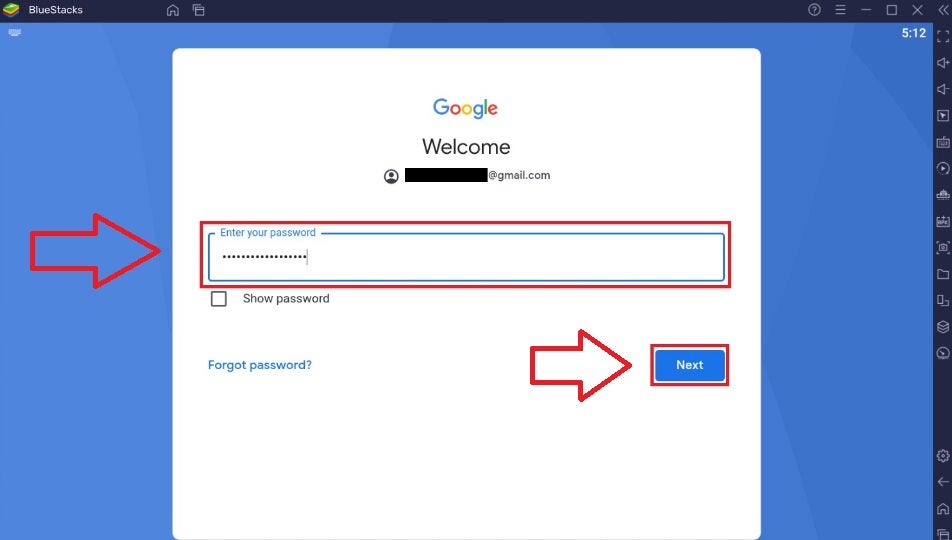
Once you have installed BlueStacks, you will need to configure your browser to start downloading apps from the Play Store. To do this you will simply need to share your Google account credentials with the app.

Step 3. Download Google Home

Once the emulator is configured, you will see that your screen mimics that of an Android device. Access the Google Play Store as you normally would and download Google Home. It’s that simple!

Step 4. Set up Google Home

To finish, you will need to set up Google Home. Open the app from the BlueStacks interface and enter your Google account. You will see that from now on, the process for using Google Home is identical to how it would be from your cell phone, but from the comfort of your PC.

Hombre utilizando un PC
man using a computer

How to use Google Home on your PC from Google Chrome

If you don’t feel like installing an Android emulator, don’t worry. There is a much simpler alternative to use Google Home from your PC. All you need to do is access your devices from the Google Chrome browser. Of course, for this method to work you will need to have paired your devices beforehand from the Google Home mobile app.

To use Google Home from your PC from Chrome you must follow these steps:

Step 1. Download Google Chrome

If you don’t have Chrome installed, the first step to follow is to download and install Google’s browser. You can get it quickly and safely from the Softonic website. If you already have Chrome on your computer, make sure it is updated to the latest version.

Google Chrome DOWNLOAD
9

Step 2. Interact with your devices

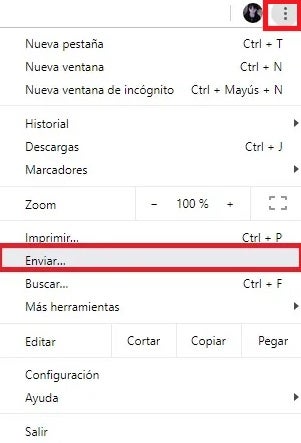
Now that you have Chrome installed, click on “Customize and control Google Chrome“. It is the icon in the form of three vertical dots that you will find in the upper right corner of the screen. Once the drop-down menu is open, click on the “Send” option. You will see that this will open a new selection from which you can interact with all the devices you have paired from Google Home.

Can I control all Google Home devices from my PC?

Yes, if you choose to use an Android emulator such as BlueStacks. They perfectly mimic both Google’s mobile operating system and the Google Home application. Thus, even if you are using Google Home from your PC, you will have at your disposal the same options you have from the Android app.

If you have opted to use Google Home from Chrome, you will still have control over the devices connected to your Wi-Fi network. However, you won’t be able to add new devices and the options to interact with them are much more limited. Still, it’s a very good option for using Google Home from your PC.

Did you find this article useful? If so, don’t forget to share it with your friends on social networks.
Step into the World of LEGO Jurassic Park: Here’s How to Get Exclusive Characters, Vehicles, and Dinosaurs.

Are you looking for LEGO Jurassic World cheats? Would you like to know how to unlock all the characters, vehicles and dinosaurs in the blink of an eye? You’ve come to the right place. The most Jurassic LEGO adventures come to PC, Xbox , PlayStation and Nintendo Switch showing us the nicest face of the first 4 films of the famous dinosaur saga (Jurassic Park, The Lost World, Jurassic Park 3 and Jurassic World). As usual in LEGO games, the title has a host of codes and secret characters with which to get the most out of your adventures. Would you like to know them?

In today’s article we are going to share with you all the LEGO Jurassic World cheats, codes and secrets. But that’s not all! Here you will also find the best Easter Eggs of the game. As you can see, we’ve spared no expense – here we go!

LEGO Jurassic World DOWNLOAD
9

How to enter codes and cheats in LEGO Jurassic World

Before we start, let’s explain how to enter the codes to unlock characters, dinosaurs and vehicles in LEGO Jurassic World. Both methods are exactly the same regardless of the platform on which you play the title.

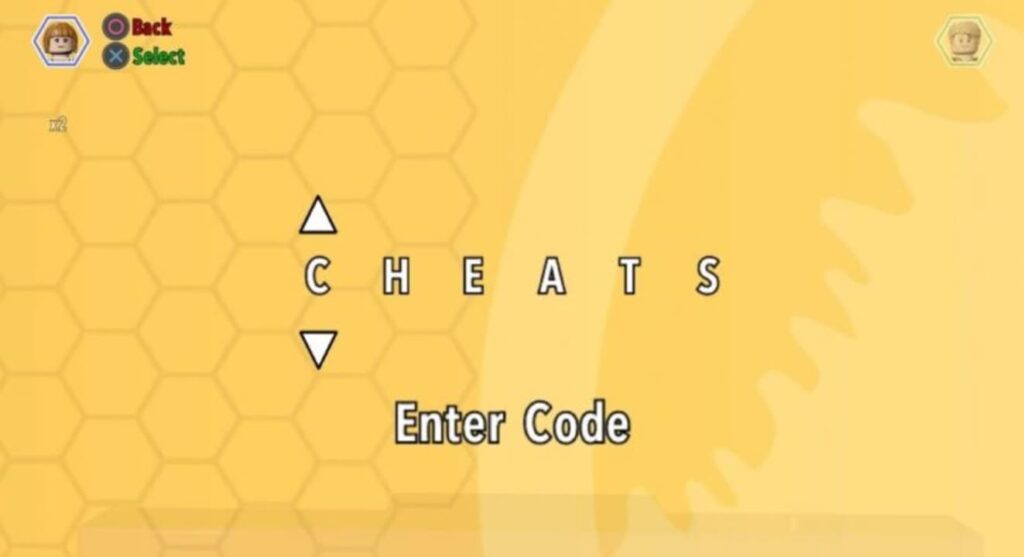
Method 1: Using the Extras menu

The first method of entering LEGO Jurassic World codes is very simple. Simply pause your game and, within the game menu, select the “Extras” option followed by “Enter code“.

Method 2: At the Jurassic World Innovation Center

There is a second method for entering codes that, although not as convenient as the first, is just as useful. All you have to do is go to the Jurassic World Innovation Center and enter the code in the Holoscape console of the island where you are.

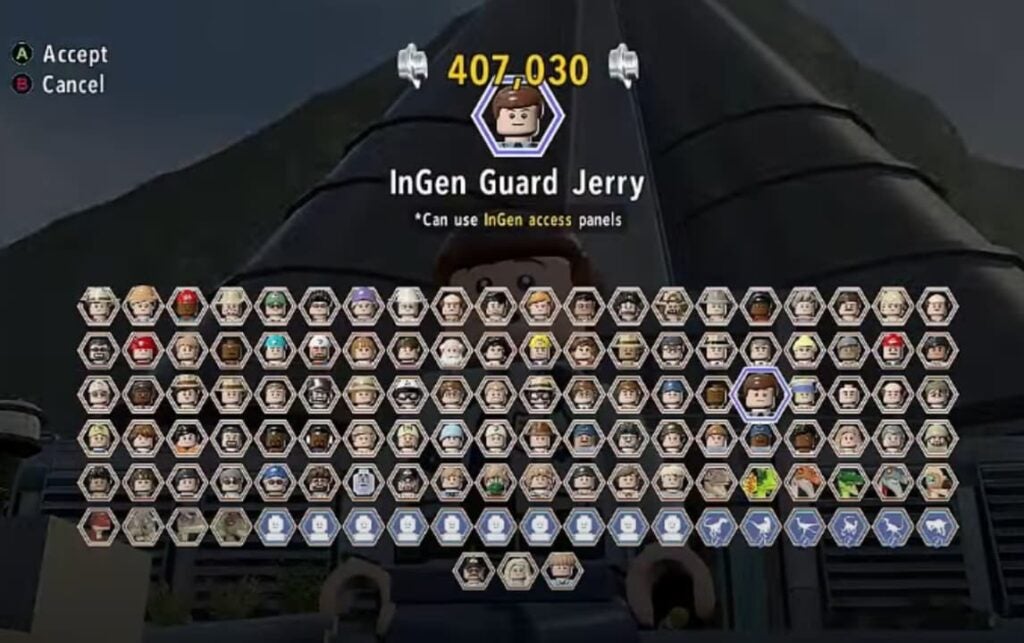
Unlock codes to unlock characters in LEGO Jurassic World

  • Carlos – VK3TP3
  • Carter – 9GESXP
  • InGen Hunter – 38YWVR
  • Scientist (Male) – SKKLWC
  • Scientist (Female) – XVXGXF
  • Jurassic Park Driver – 3FE78R
  • Cooper – 5BETZ5
  • Dinosaur Caretaker Vic or Bob – YQ6S7Z
  • Jenny Raptor Caretaker – SXZ7CC
  • Jurassic World young raptor caretaker – 7VNLJT
  • Dennis Nedry (in Hawaiian shirt) – RAVKRT
  • Dieter Stark – EKCKLC
  • Ellie Degler – AV9DTJ
  • InGen Explorer – 8XL359
  • Jurassic World Ranger – GW9TGH
  • InGen Ranger Jerry – QKBCWT
  • Jurassic Park Ranger (Male) – XJS7UY
  • Jurassic Park Ranger (Female) – 8WY3FV
  • Henry Wu (Jurassic World) – A3HC7E
  • Jimmy Fallon from The Tonight Show Starring Jimmy Fallon – 6MKHSG
  • John Hammond (The Lost World) – PR2R6Y
  • Juanito Rostagno – XTH9A3
  • InGen Mechanic – RMVVB8
  • InGen Mercenary – VZRSD3
  • Nash– BRLNWC
  • Gyrosphere Operator Josh – 9NGZZQ
  • ACU Soldier (Male) – 28SPSR
  • ACU Soldier (Female) – AU25GR
  • S.S. Venture Crewman – 62539J
  • Udesky (Alternate) – PFEBS6
  • Jurassic World Veterinarian – L5AU6Y
  • Jurassic World Fence Guard – BX9Z6R

Codes to unlock dinosaurs in LEGO Jurassic World

  • Anquilosaurio – PAAADT
  • Compsognathus – KAAAWV
  • Dilophosaurio – HAAAVW
  • Indominus Rex – GAAAAC
  • Pachycephalosaurus – IAAADT
  • Espinosaurio – MAAARF
  • Estegosaurio – FAAAVT
  • Triceratops – AAAADC
  • Tyrannosaurus Rex – CAAADT
  • Velociraptor – DDDFAC

Unlock codes to unlock vehicles in LEGO Jurassic World

  • Jurassic Park Classic Car— 3FAND78R

Codes to unlock extras in LEGO Jurassic World

  • Minikit Detector – JYJAFX
  • Earn twice as many pieces – 5MZ73E

How to unlock cheats with red bricks

Red bricks – or special bricks – are a LEGO game classic. These precious commodities are hidden throughout the open-world map and allow you to unlock an assortment of tasty tricks. To redeem any of these 20 red bricks, you must use any Holoscape terminal on the Jurassic World islands and pay for them in studs.
All unlockable cheats with red bricks

  • Tack x 2– 2- 1.000.000.000 tacks
  • Tack x 4– 4- 1.000.000.000 tacks
  • Tack x 6– 3.000.000.000 tacks
  • Tack x 8– 4- 4.000.000.000 tacks
  • Tack x 10– 5.000.000.000 tacks
  • Invincibility– 5.000.000 tacks
  • Minikit detector– 200.000.000 tacks
  • Red Brick Detector– 200.000 tacks
  • Amber Brick Detector– 200.000 tacks
  • Faster construction– 100.000 tacks
  • Attract tacks– 100.000 tacks
  • Collect ghost tacks– 100.000 tacks
  • Compy Mode– 100.000 tacks
  • Destroy on touch– 100.000 tacks
  • 8-Bit Music– 100.000 tacks
  • Costumes for Nedry– 100.000 studs
  • Quick interaction with panels– 100.000 tacks
  • Dinosaur costumes– 100.000 tacks
  • Helium voices– 100.000 tacks

The best Easter Eggs of LEGO Jurassic World

LEGO Jurassic World is full of fun references to the world of cinema. While we enjoy the adventures of Owen, Claire, Dr. Grant or Ian Malcolm, we will find funny details paying tribute to some of the most emblematic moments of the big screen. These are the Easter Eggs that we liked the most.

1. A paleontologist finds the license plate of the Delorean.

2. Marty McFly flees from a Jurassic attack

3. E.T. appear upon arrival of InGen engineers.
4. Tiburon’s boat is docked at the dock
5. Homage to the Back to the Future 2 hologram

Want more LEGO games? It’s not too late to download these titles

Now that you have enjoyed all the LEGO Jurassic World cheats… Why don’t you embark on a new adventure by downloading more LEGO games? And the fact is that this addictive video game franchise has titles for all tastes. From superhero adventures with LEGO Marvel The Avengers or LEGO Batman to the best fantasy with LEGO Harry Potter or LEGO The Hobbit, not to mention the many LEGO Star Wars games!

If you love LEGO but are tired of playing film and comic book adaptations, why not try LEGO Worlds? This open world title is the closest thing to playing with LEGO blocks at home but from your console or PC. With it you can build and give life to your own adventures. The only limit is your imagination.

What to Do When Windows Asks for a Password to Install Programs

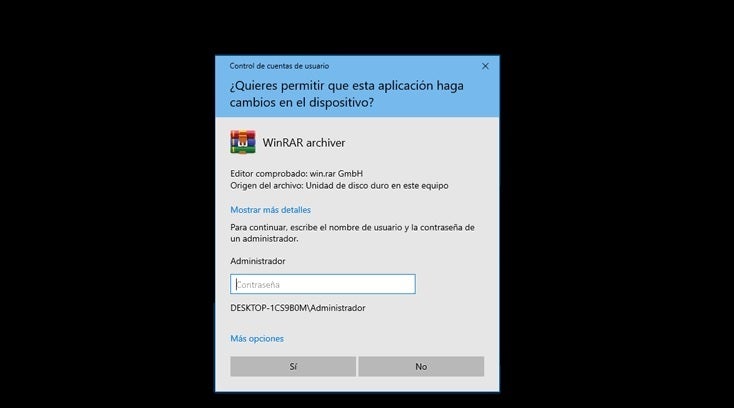
A common problem that a Windows user faces is that when trying to install a program, the operating system asks for a password that it does not know. With this, Windows seeks to prevent any user without permissions from making changes to the computer without the administrator’s consent. While this is an excellent security measure, it can also be a real nuisance. Is there a way to prevent Windows from asking you for the password?

If you feel identified with this problem, you’ve come to the right place. In today’s article we are going to offer you a solution if Windows asks you for a password to install programs and you don’t know it. We hope it helps you!

Windows 11 DOWNLOAD
9

Why does Windows ask for a password to install programs?

The answer is simple: For security. Installing any program makes changes to your computer and, as such, may or may not affect its operation. Imagine for a moment that someone with a user account installs malware on your PC. It will reproduce uncontrollably and probably steal data and files without your knowledge. For this reason, before installing any program, Windows will analyze what type of user makes said request. These might be:

  • Users with administrator permissions– Since the user has administrator permissions, the user can install and make changes to Windows settings. You only have to confirm that you want to start the installation.
  • Users without administrator permissions– The user does not have sufficient permissions to make changes to the system and for that reason installations are prohibited. For that reason, to start the installation you will need to enter the password of the administrator account.
Contraseña de cuenta de administrador

Solution 1: Give your account administrator permissions

As we have already explained, to be able to install programs in Windows without the need for a password, you will need to use an account with administrator permissions. The easiest solution to this problem is for the owner of the computer to grant user permissions to your account. To do this you simply have to follow these steps:

Step 1. Go into Windows settings

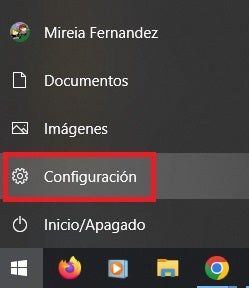
First, access the Windows settings by clicking on “Start” followed by “Settings” (it is the cogwheel icon). Alternatively you can also press the Windows key + I.

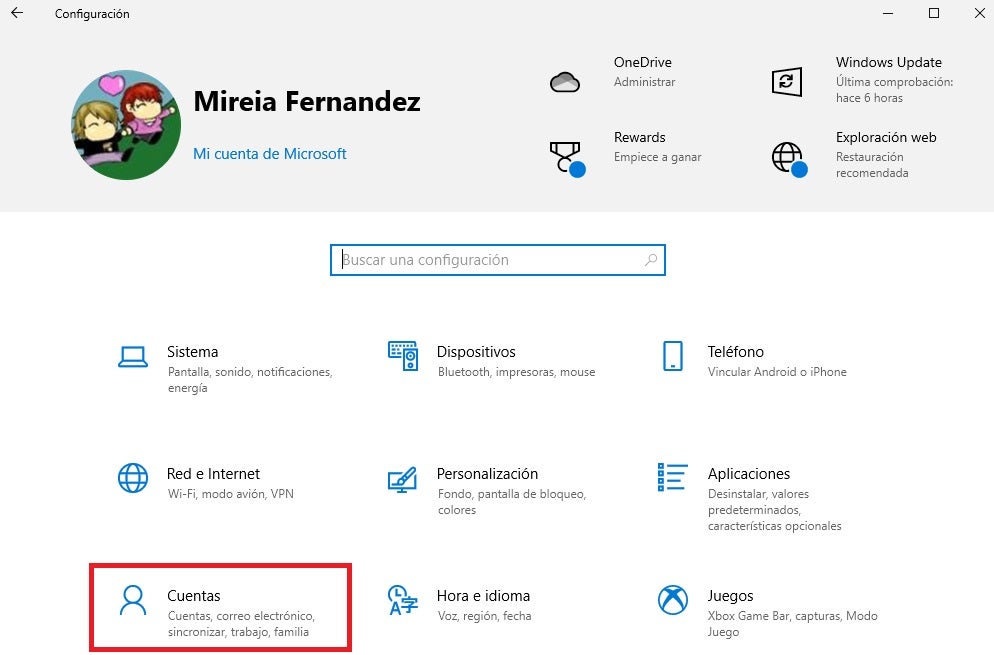
Step 2. Access the Accounts menu

Once in the Windows settings window, click on the option “accounts”.

Setting de Windows

Step 3. Change the type of user account

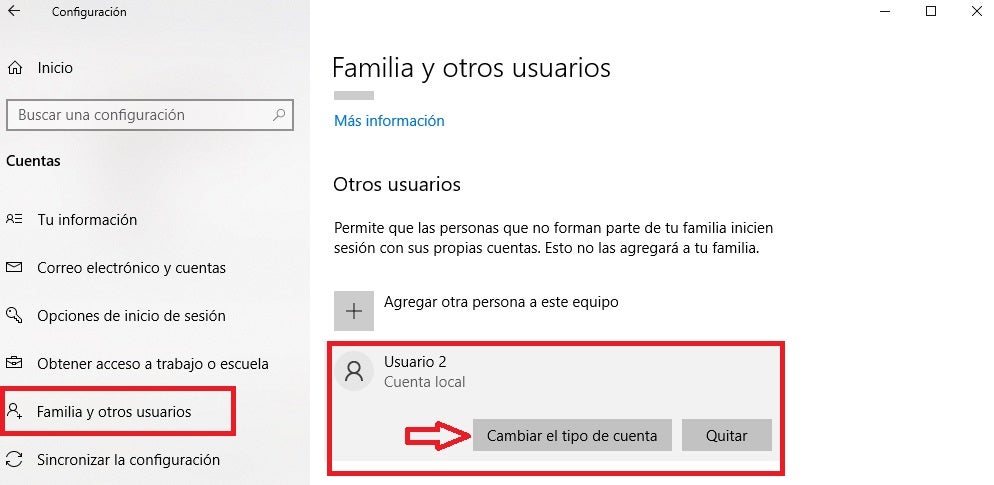
Already in the accounts menu, select “Family and other users” in the left side menu of the screen and click on your username. Then press the option “Change account type”.

Cambiar tipo de cuenta de Windows

Step 4. Grant administrator permissions

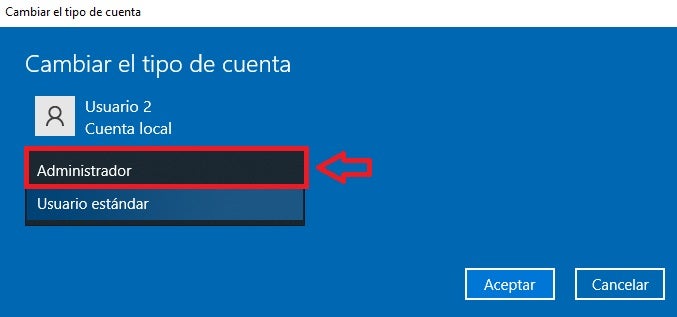
To finish, click on the dropdown menu “Account type” and select the option “Administrator”. After accepting, your user account will have administrator permissions and you will not need a password to install programs in Windows.

Otorgar permisos de administrador a una cuenta

Solution 2: Ask the administrator for the password

This is perhaps the fastest and most obvious solution to this problem. If you are using a computer at home or at work, ask the owner of the computer or the department responsible for the computer you are using for the administrator password. Once you have the password, you will only have to enter it each time you want to install a program.

Portátil con contraseña

Solution 3: Reinstall Windows

If none of the previous solutions have worked or if you simply forgot your administrator password, you will need to reinstall Windows. We know it’s a pretty radical solution, but after that you’ll be able to define a new admin account to which you have access. To reinstall Windows follow these steps:

Step 1. Enter the Update and Security menu

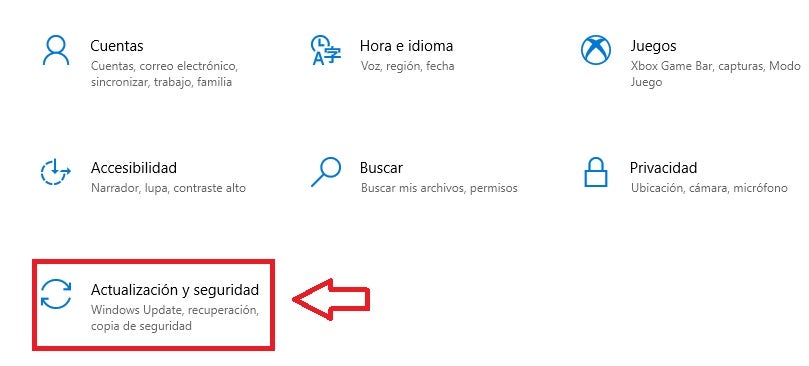
First of all, access the Windows configuration menu (see solution 1 for this) and, once in the window, select the option “Update and security”.

Update and security

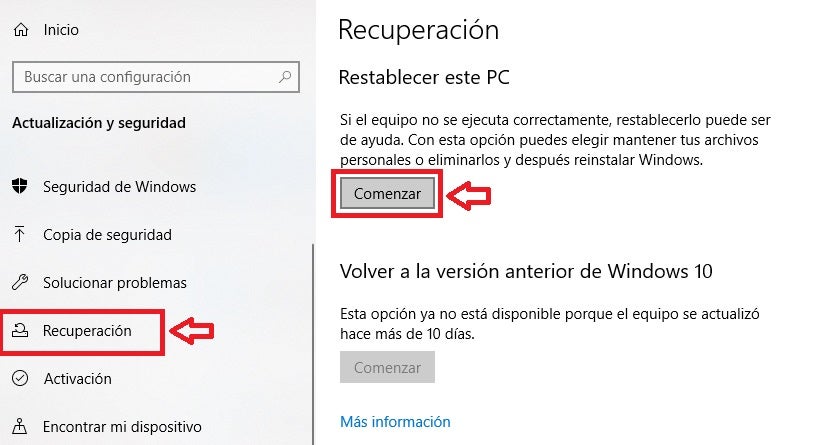
Step 2. Reset your PC

Then select the option “Recovery” from the left side menu of the screen and, within the section “reset this pc”, press the option “To start”.

Restablecer Windows

Step 3. Do a clean install of Windows

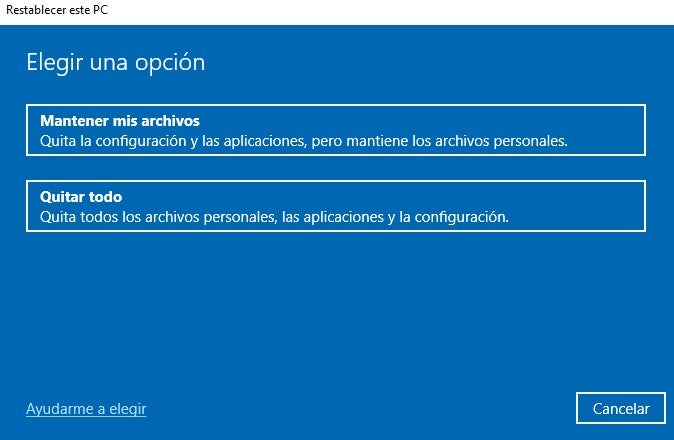
To finish, select “Remove all” to reinstall Windows from scratch. Please note that all your personal files, applications and settings will be completely removed. In this way, once the operating system is reinstalled, you can create a new user account with administrator permissions.

Opciones para reinstalar Windows

50 Sensational Desktop Wallpapers to Download Right Now

Download now these 50 wallpapers for your PC or Smartphone, they are amazing. Landscapes, castles, drawings, futuristic images, sunrises etc. Discover and download them for free here.

Are you looking for a good desktop wallpaper for your PC? Tired of always having the same wallpaper on your Mac or your smartphone? you have come to the right place! And it is that although we do not think about it often, the image with which we decorate our desktop and cell phones says a lot about ourselves, so… Why settle for anything?

At Softonic we have scoured the Internet in search of the best free 4K and HD wallpapers so that your screens look like never before. Here you will find 50 backgrounds covering the most popular themes. Landscapes, series, videogames, anime, star wars, aesthetic-type backgrounds… Don’t worry, we haven’t forgotten about dynamic backgrounds either. Go ahead and try them all!

How to download and customize wallpapers on PC, Mac and mobile

If any of the desktop wallpapers that we offer make you tickle, don’t hesitate to download them and put them on your computer… They are for free! Don’t know how to do it? Don’t worry, it’s very simple. You just have to follow these steps.

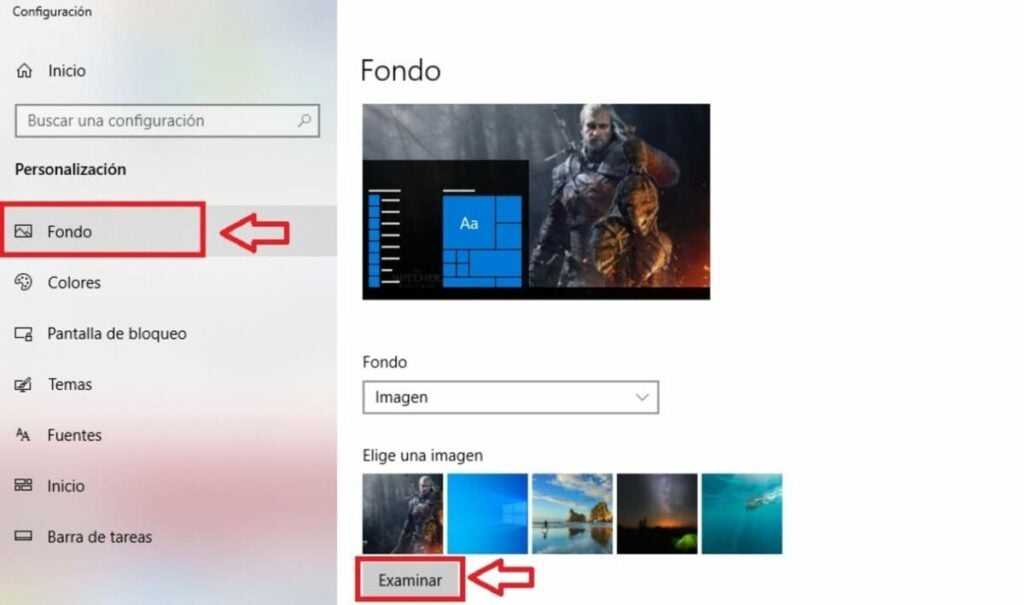
  • On PC– Click on the download link to save the wallpaper to your hard drive. Now simply right click on the desktop and select the “Customize” option. Under the “Background” tab, click “Browse” and select the background you just downloaded.
  • On Mac– Click on the download link to save the wallpaper to your computer. Now select the Apple menu and choose “System Preferences“. Once done, go to “Desktop and Screensavers” and select the “Desktop” option. Open the “Photos” drop-down menu and select the wallpaper you just downloaded.
  • On mobiles and cell phones– Click on the link to download the wallpaper to your mobile. If you are an Android user, access your device’s gallery and set the image you want as wallpaper. If you have an iPhone, go to your phone’s settings, click on “Wallpaper” and select the option “Add new wallpaper“. Then select the image of your choice.

4K and HD wallpapers

1. Nubes coloridas

DOWNLOAD 4K BACKGROUND

DOWNLOAD HD BACKGROUND

2. Anime girl dream

DOWNLOAD 4K BACKGROUND

DOWNLOAD HD BACKGROUND

3. GTA V – Los Santos

DOWNLOAD 4K BACKGROUND

DOWNLOAD HD BACKGROUND

4. Stranger Things

DOWNLOAD 4K BACKGROUND

DOWNLOAD HD BACKGROUND

5. Darth Vader Lightsaber

DOWNLOAD 4K BACKGROUND

DOWNLOAD HD BACKGROUND

6. Fantasy Landscape

DOWNLOAD 4K BACKGROUND

DOWNLOAD HD BACKGROUND

7. Swiss Alps

DOWNLOAD 4K BACKGROUND

DOWNLOAD HD BACKGROUND

8. Fireworks

DOWNLOAD 4K BACKGROUND

DOWNLOAD HD BACKGROUND

9. Ford Mustang

DOWNLOAD 4K BACKGROUND

DOWNLOAD HD BACKGROUND

10. Lion at Sunset

DOWNLOAD 4K BACKGROUND

DOWNLOAD HD BACKGROUND

11. Black dog

DOWNLOAD 4K BACKGROUND

DOWNLOAD HD BACKGROUND

12. Avatar: The Sense of Water

DOWNLOAD 4K BACKGROUND

DOWNLOAD HD BACKGROUND

13. Neytiri (Avatar)

DOWNLOAD 4K BACKGROUND

DOWNLOAD HD BACKGROUND

14. Wednesday (Jenna Ortega)

DOWNLOAD 4K BACKGROUND

DOWNLOAD HD BACKGROUND

15. Pair of keychains

DOWNLOAD 4K BACKGROUND

DOWNLOAD HD BACKGROUND

16. God of War Ragnarok

DOWNLOAD 4K BACKGROUND

DOWNLOAD HD BACKGROUND

17. Elden Ring

DOWNLOAD 4K BACKGROUND

DOWNLOAD HD BACKGROUND

18. Super Mario

DOWNLOAD 4K BACKGROUND

DOWNLOAD HD BACKGROUND

19. The Last of Us (2023)

DOWNLOAD 4K BACKGROUND

DOWNLOAD HD BACKGROUND

20. Arcane

DOWNLOAD 4K BACKGROUND

DOWNLOAD HD BACKGROUND

21. Chainsaw Man

DOWNLOAD 4K BACKGROUND

DOWNLOAD HD BACKGROUND

22. Particle explosion

DOWNLOAD 4K BACKGROUND

DOWNLOAD HD BACKGROUND

23. Marvel’s Spider-Man

DOWNLOAD 4K BACKGROUND

DOWNLOAD HD BACKGROUND

24. Assassin’s Creed Valhalla

DOWNLOAD 4K BACKGROUND

DOWNLOAD HD BACKGROUND

25. Death Stranding

DOWNLOAD 4K BACKGROUND

DOWNLOAD HD BACKGROUND

26. Kitten with flower

DOWNLOAD 4K BACKGROUND

DOWNLOAD HD BACKGROUND

27. The Last of Us 2

DOWNLOAD 4K BACKGROUND

DOWNLOAD HD BACKGROUND

28. Elephant Fantasy

DOWNLOAD 4K BACKGROUND

DOWNLOAD HD BACKGROUND

29. Guardians of the night

DOWNLOAD 4K BACKGROUND

DOWNLOAD HD BACKGROUND

30. Sunset at Alpha Centauri

DOWNLOAD 4K BACKGROUND

DOWNLOAD HD BACKGROUND

Mobile and cell phone wallpapers

1. Anime couple

DOWNLOAD BACKGROUND

2. Astronaut

DOWNLOAD BACKGROUND

3. Lake Tahoe

DOWNLOAD BACKGROUND

4. Leo Messi

DOWNLOAD BACKGROUND

5. Color explosion

DOWNLOAD BACKGROUND

6. Blue Ford Mustang

DOWNLOAD BACKGROUND

7. Kratos and Atreus

DOWNLOAD BACKGROUND

8. Northern Lights

DOWNLOAD BACKGROUND

9. Hello Kitty

DOWNLOAD BACKGROUND

10. Shetland Sheepdog

DOWNLOAD BACKGROUND

Dynamic backgrounds for mobile

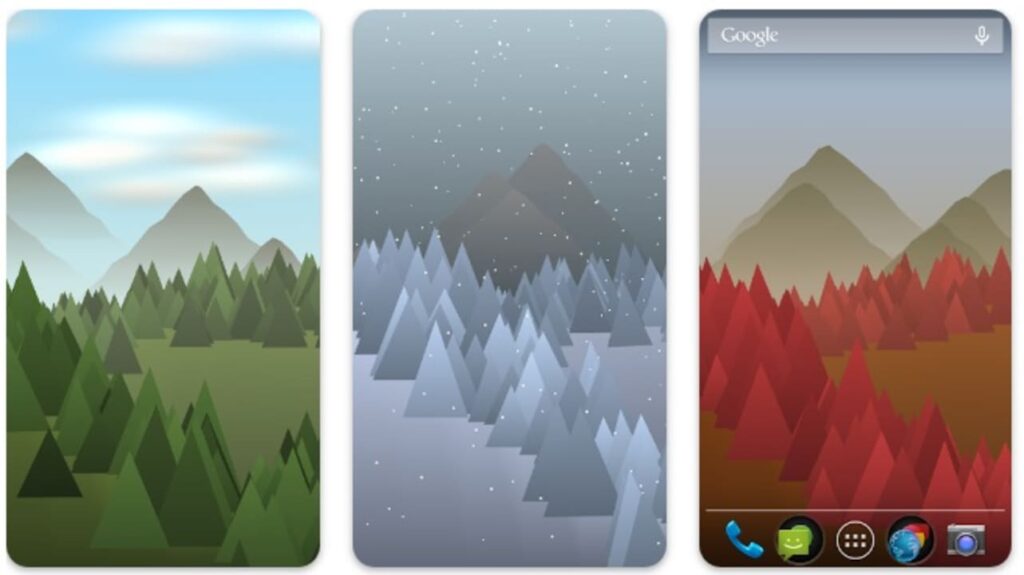
1. Forest Live Wallpaper

Forest Live Wallpaper DOWNLOAD
9

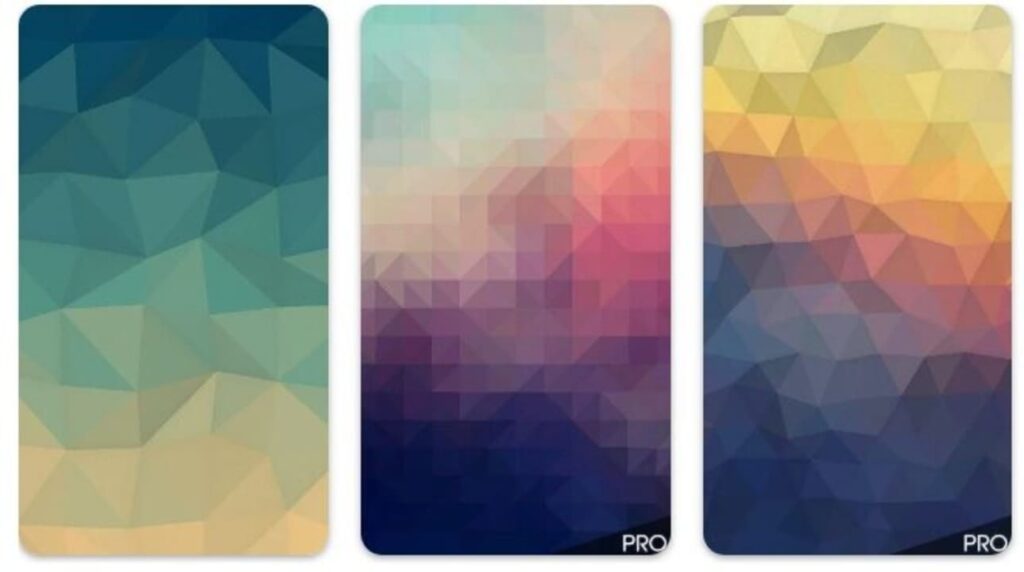
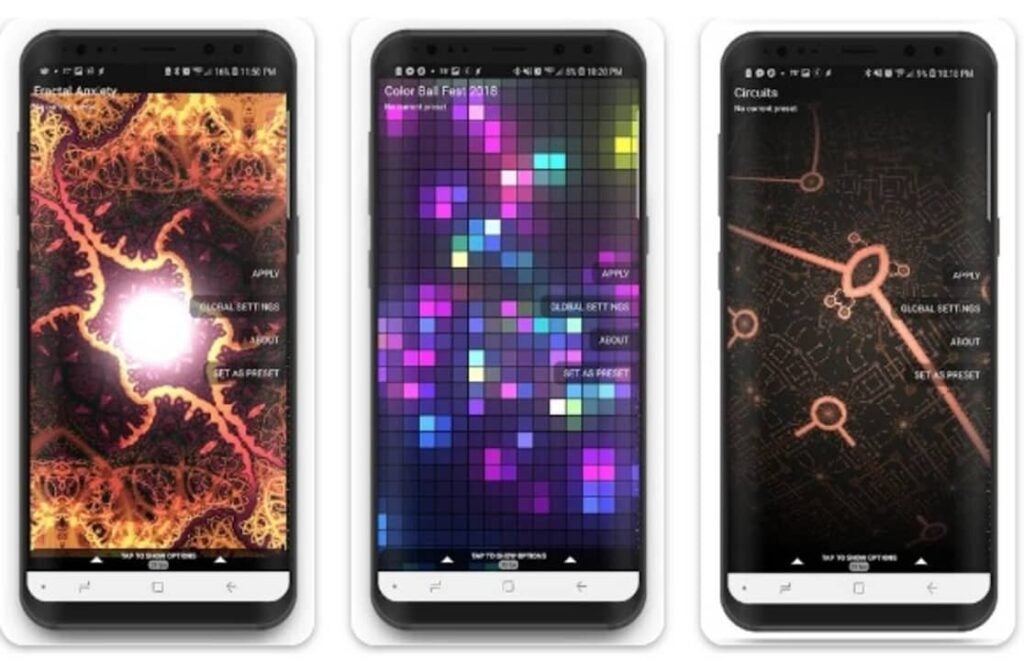
2. Fracta Live Wallpaper

Fractal Live Wallpaper DOWNLOAD
8

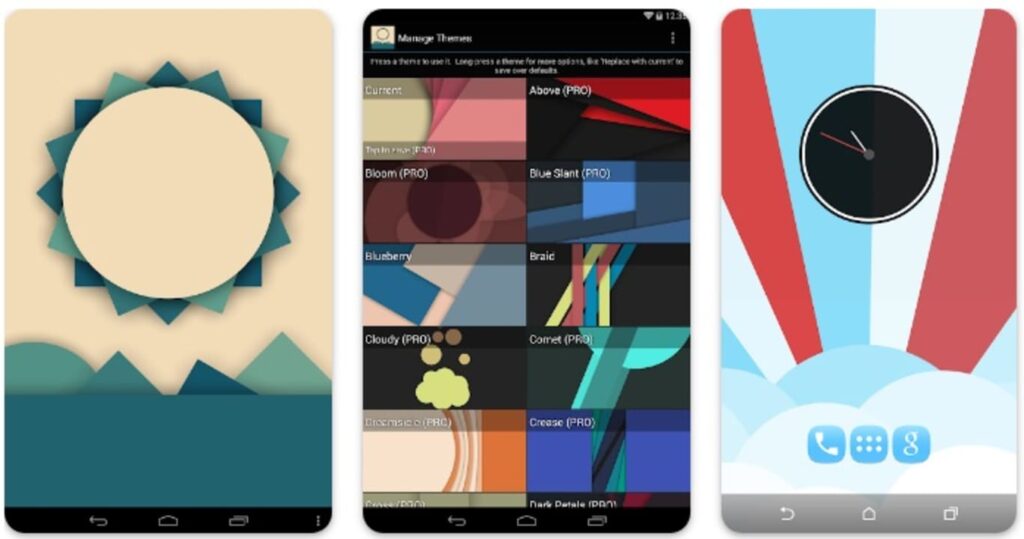
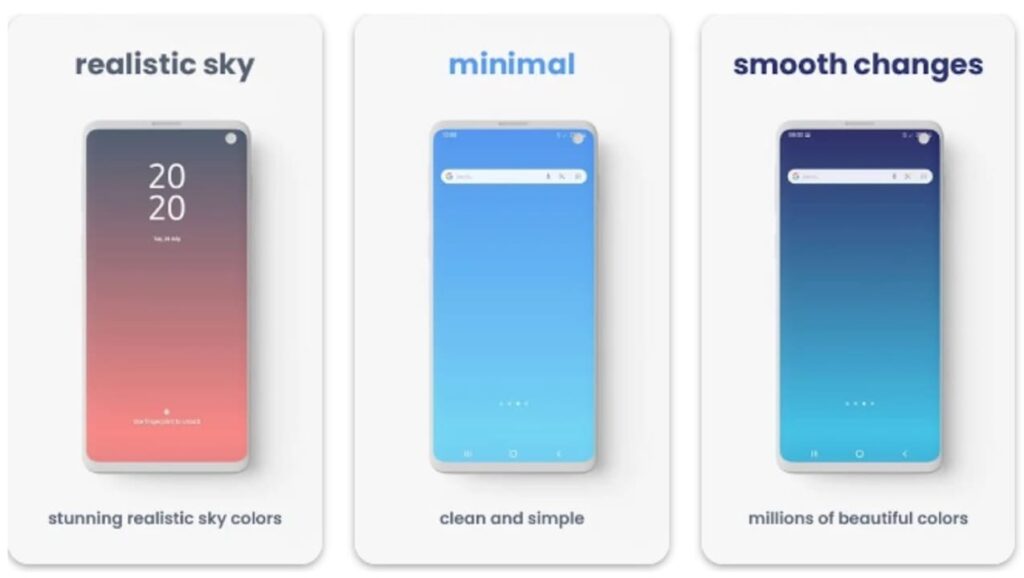
3. Minima Live Wallpaper

Minimal Live Wallpaper DOWNLOAD
8

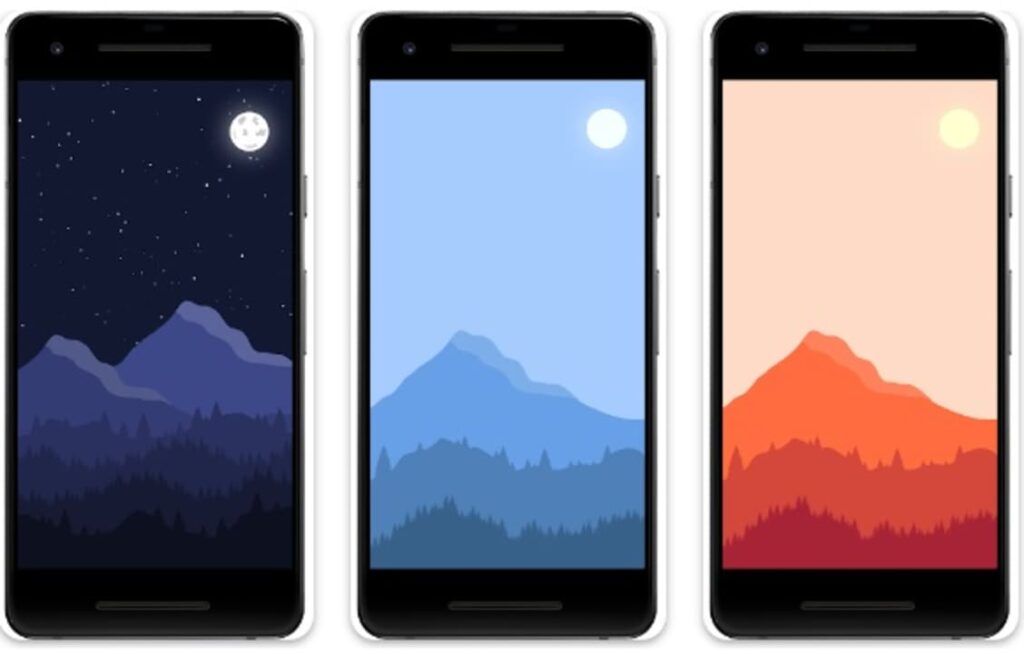
4. 2D Mountain Landscape

2D Mountain Landscape DOWNLOAD
9

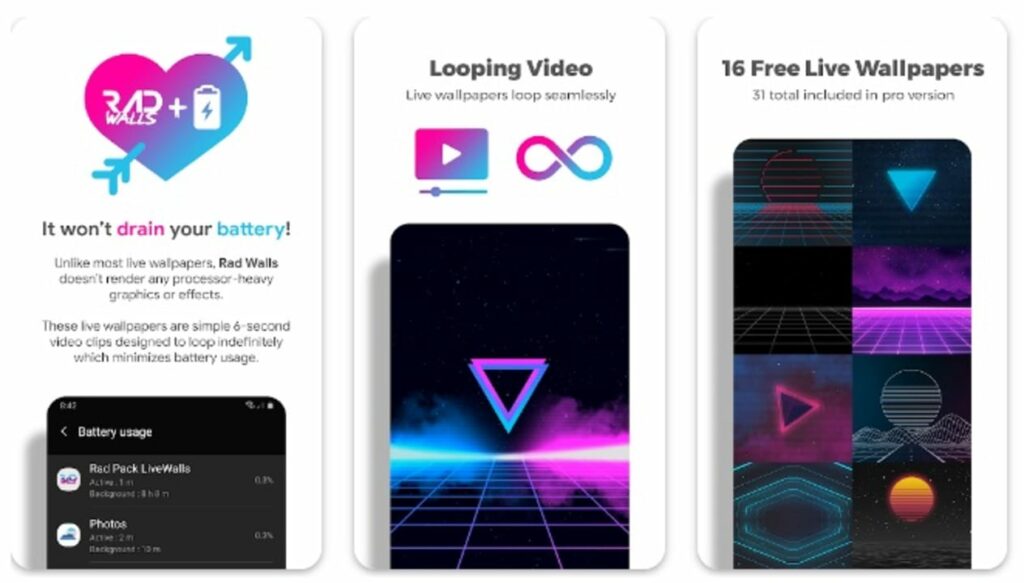
5. Rad Walls

Rad Walls DOWNLOAD
9

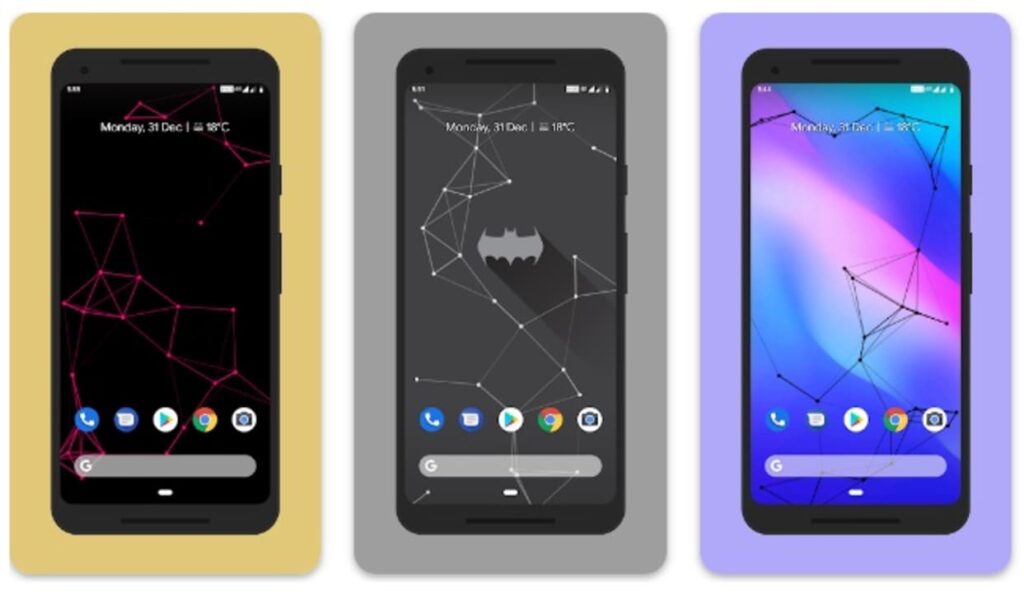
6. Particle Live Wallpaper

Particle Live Wallpaper DOWNLOAD
9

7. Wallow

Wallow DOWNLOAD
8

8. ShaderPaper

ShaderPaper DOWNLOAD
8

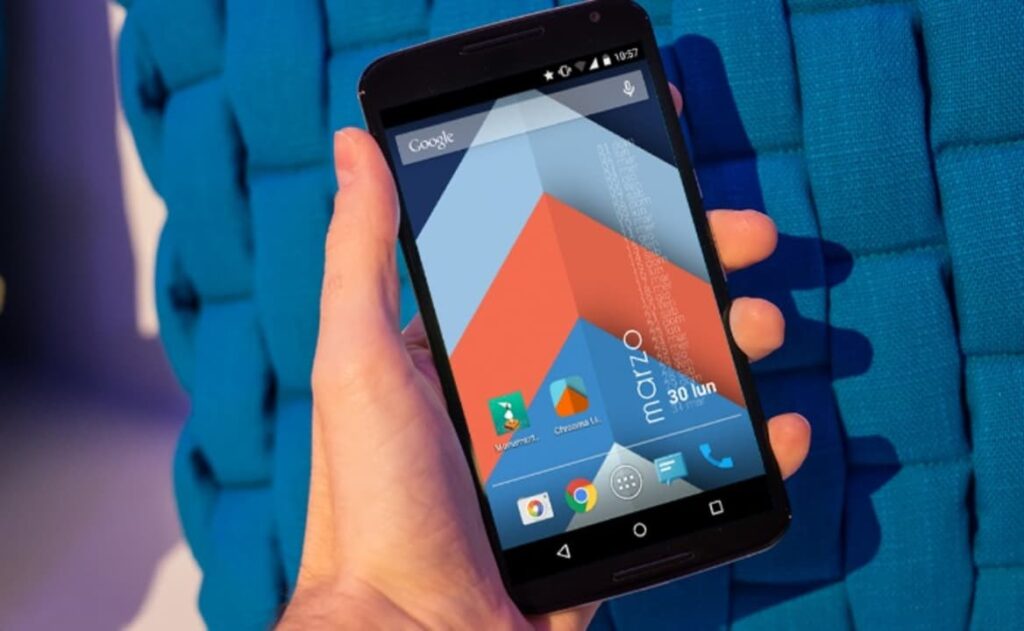
9. Chrooma

chroma DOWNLOAD
9

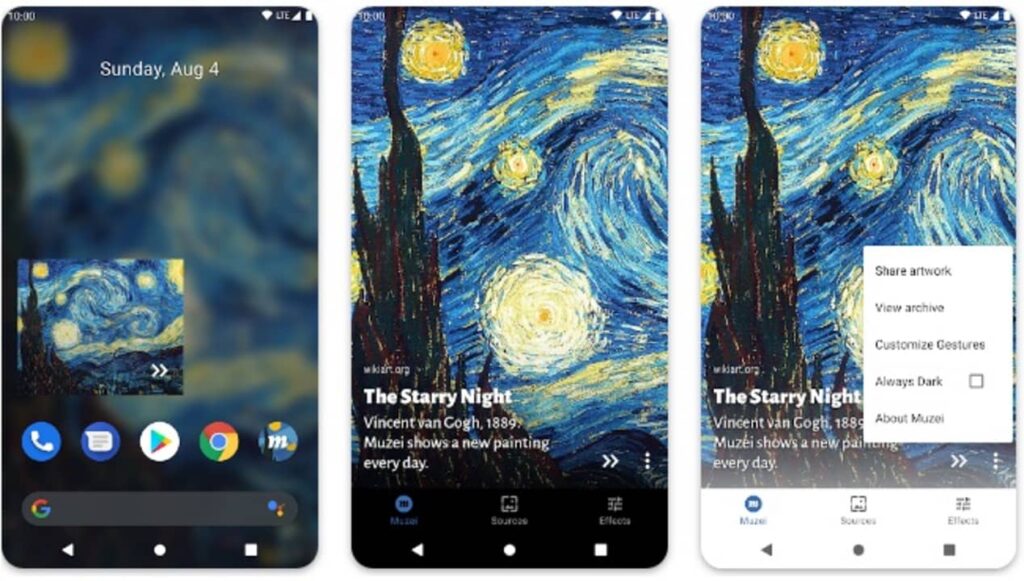
10. Muzei

Muzei Live Wallpaper DOWNLOAD
9

Do you want more free backgrounds to download?

Has our selection become too small for you Don’t worry! There are endless web pages from which you can download amazing backgrounds in just a few seconds. These are the ones we like the most:

If what you are looking for are wallpapers for your smartphone, we recommend that you take a look at our selection of the best wallpaper apps and animated wallpapers. And if you like landscapes, don’t miss these landscape wallpapers. Now you have no excuse for the screen not to look beautiful!