Disney Plus: What’s Coming in December 2021

December has finally arrived. Disney+ welcomes the most magical month of the year with the best family entertainment to celebrate Christmas and the holiday season. New series, movies, documentaries and surprising releases await all of the streaming service’s subscribers. If you don’t want to miss anything, keep reading, because here you’ll find all the new releases that are coming to Disney Plus this December.

You’re still not a subscriber? Don’t worry. Take advantage of this exclusive Disney Plus deal and get 20% off its annual subscription price. That’s 2 months for free! With Christmas coming, you can also buy a subscription as a gift and share some Disney magic with your loved ones. They’ll love it!

Disney+ SUBSCRIBE YA
9

The Book of Boba Fett

Remember the secret ending from The Mandalorian’s second season? On December 29, Disney Plus premieres The Book of Boba Fett, the new and exclusive series set in the Star Wars universe. In it we’ll join the charismatic bounty hunter Boba Fett and the mercenary Fennec Shand on a dangerous mission that will take them to the hot sands of Tattooine. There, they will have to fight to take back the territory that was once ruled by Jabba the Hutt and his crime syndicate. Action, adventure and lots of Star Wars magic await you in this fantastic blockbuster.

The Book of Boba Fett

Welcome to Earth

Join Will Smith on an adventure around the world in pursuit of the most amazing wonders of the planet in Welcome to Earth. This award-winning series from National Geographic will be available to all Disney Plus subscribers from December 8. Mixing dream landscapes, breathtaking pictures and surprising facts about nature, Welcome to Earth invites you to travel around the world without leaving your living room. Are you ready to discover the wonders of the planet?

Welcome to Earth

The Last Duel

On December 15, Disney+ welcomes The Last Duel, the latest film by the Oscar-winning director Ridley Scott. The movie, based on the true story of Marguerite de Carrouges (Jodie Comer), takes place in 14th Century France. After being brutally raped by Jacques Le Gris (Adam Driver), Marguerite’s husband, Jean de Carrouges (Matt Damon), will have to defend his wife’s honour in a trial by combat. However, there’s more than his life at stake since following medieval rules, if Carrouges dies Marguerite will be executed as punishment.

The Last Duel

Ron’s Gone Wrong

Enjoy a dose of lighthearted family fun with Ron’s Gone Wrong, a charming animated movie that will reach Disney Plus on December 15. We’ll meet Barney, a socially awkward 11-year-old with no friends; and Ron, his charming but slightly damaged B-Bot. Have a great time with your little ones watching Ron’s hilarious malfunctions and learn throughout their adventures the true meaning of friendship.
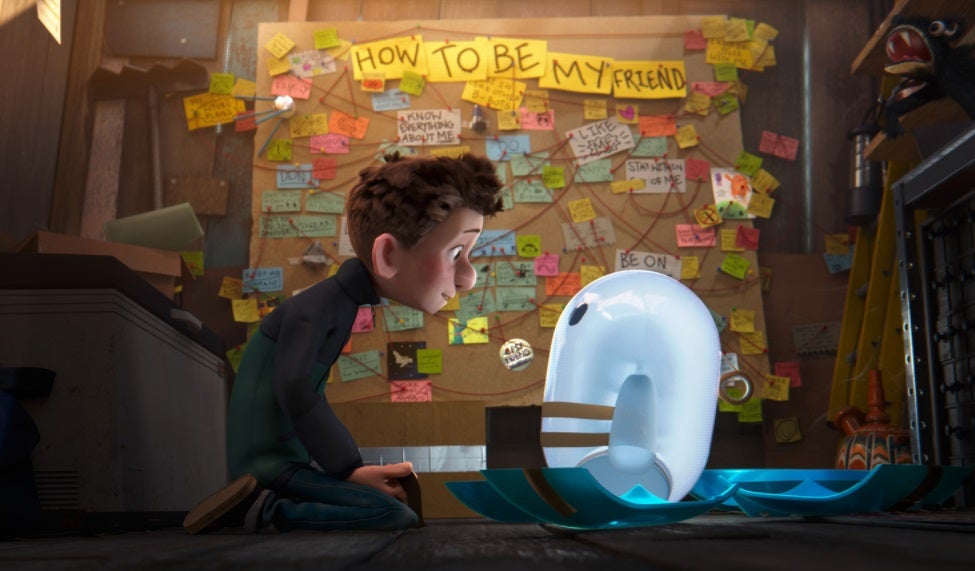
Ron's Gone Wrong

The Wonder Years

On December 22, don’t miss the premiere of The Wonder Years, a reboot of the classic tv series from the late 80s. Prepare yourself for a nostalgic journey through time to 1960s Alabama and see life through the eyes of Dean, a 12-year-old full of imagination and dreams. Through its 8 episodes, enjoy the fun, drama and sweet family moments that await you with the Williams.

The Wonder Years

The Rescue

On December 31, just in time to celebrate the New Year, Disney+ expands its catalogue with the enthralling documentary The Rescue. Join a group of expert cave divers in a daring rescue of twelve boys and their coach from deep inside a flooded cave in Thailand. This National Geographic production not only won the People’s Choice Award at the 2021 Toronto Film Festival, but shows one of the most extraordinary rescues in modern times. There’s never-before-seen material and exclusive interviews with the heroes. Don’t miss it!

The Rescue

Enjoy Christmas with Disney+

December is a month full of new releases, movies and documentaries that will wrap these special holidays with Disney magic. Still not subscribed to the platform? Don’t miss this chance to get two months of Disney Plus for free on all of its annual subscriptions. Merry Christmas and Happy Holidays!


Disney+ SUBSCRIBE YA
9

What’s coming to Disney+ this November

November is proving to be a very special month for all Disney Plus users. We didn’t just celebrate the service’s two-year anniversary on Disney+ Day, but we’re also adding a large number of releases and surprises to its already amazing catalog. With the holiday season around the corner, the streaming service has definitely decided to give us an early Christmas gift in the form of new series, movies and lots of Disney entertainment.

Still wondering what new content is coming this November to Disney+? Don’t worry, in today’s article we’ll share with you everything you certainly won’t want to miss.

Dopesick

Star welcomes to its catalog the award-winning mini-series Dopesick. Based on the bestselling book by Beth Macy, Dopesick will send the viewers into the mining community of Virginia, where a pharmaceutical company is responsible for the worst opioid epidemic in the USA.

Shang-Chi and the Legend of the Ten Rings

Embark on a new epic adventure from the Marvel Cinematic Universe (MCU) with Shang-Chi and the Legend of the Ten Rings. Here we’ll meet Shang-Chi (Simu Liu), a young man haunted by his past in the mysterious Ten Rings organization. Action, adventure and jaw-dropping martial arts meet in Marvel’s latest superhero movie.

Shang-Chi and the Legend of the Ten Rings

Jungle Cruise

The exciting family-fun adventure Jungle Cruise is finally available for free to all Disney Plus subscribers. Inspired by the classic boat ride from the Disney theme parks, Jungle Cruise invites us to meet Frank Wolff (Dwayne Johnsonn), a wisecracking skipper hired by Dr. Lily Houghton (Emily Blunt) to lead her in an exciting expedition down the Amazon river. Their quest is none other than to find the Tears of the Moon, a legendary tree with miraculous healing powers. However, the road will be full of dangers and ruthless rivals that will do anything to reach their goal first.

Jungle Cruise

Home Sweet Home Alone

With Christmas around the corner, Disney releases Home Sweet Home Alone, the long-awaited reboot of the classic 90’s film. In this movie, we follow the adventures of Max Mercer (Archie Yates), a playful and cheeky boy who ends up staying home alone after his family leaves on holiday. But no parents doesn’t mean no problems, since he’ll have to deal with a couple of intruders trying to break into his home to get to a family heirloom. How will they fare against Max’s homemade booby traps?

Olaf Presents

Frozen’s favorite snowman returns in Olaf Presents. This all-new series of animated shorts will bring you back to Arendelle, where Olaf will retell some of Disney’s classics such as The Lion King, The Little Mermaid, Aladdin and Tangled. However, we all know Olaf can’t stay out of the spotlight for long and he won’t just share a story… he’ll also take on the role of all the characters within it! Don’t miss this Christmas exclusive, only on Disney Plus.
Olaf Presents

The best Disney animated shorts

This November, we can enjoy some of Walt Disney Animated Studios’ most awarded animated shorts for the first time on this streaming service. Among them we can find Frozen Fever, Feast, Paperman, Get A Horse! and many more.

Get A Horse!

Ciao, Alberto

In this exclusive 8-minute animated short we’ll once again meet Alberto, Luca’s best friend, and find out how is he’s doing with his new life in Portorosso. Have fun following his adventures while he tries to prove himself to Massimo, his serious but always caring mentor.

Ciao, Alberto

The Simpsons in Plusniversary

Moe’s bar is hosting an amazing party to celebrate Disney+ Day and everyone is invited… everyone, but Homer. Join this crazy short story in which The Simpsons meet the most iconic characters from various Disney franchises for this special anniversary.

The Simpsons in Plusniversary

The World According to Jeff Goldblum

National Geographic proudly presents the second season of The World According to Jeff Goldblum. Enjoy its first five episodes and discover, week after week, the new connections between history and science brought to you by none other than Jeff Goldblum.

The World According to Jeff Goldblum

Under the Helmet: The Legacy of Bobba Fett

Star Wars fans, rejoice! This November you can finally enjoy the release of Under the Helmet: The Legacy of Bobba Fett, an all-new documentary focusing on the origins and legacy of the most loved bounty hunter in the universe.

Under the Helmet: The Legacy of Bobba Fett

Marvel Studios’ Disney+ Day Special

To celebrate Disney+ Day, Marvel Studios explores every MCU TV series available on the streaming service. The documentary also offers a preview into its upcoming titles, as well as many surprising Marvel reveals.

Hawkeye

On 24th November, the newest Marvel Studios mini-series premieres on Disney+. Hawkeye takes place after the events in Avengers: Endgame and follows the adventures of Clint Barton/Hawkeye (Jeremy Renner) and Kate Bishop (Hailee Steinfeld), a young archer he’ll mentor to be his successor.

Hawkeye

Make the most out of November with Disney+

Disney+ embraces November with an endless amount of surprises, releases and new additions to its fantastic catalog. Are you going to miss out on it? Join the streaming service today and you can enjoy a price reduction of 20% on the annual subscription!

Marvel Studios' Disney+ Day Special

20 Great Things You Can Do With Adobe Creative Cloud

Adobe Creative Cloud (CC) is a dream come true for any graphic designer. This powerful suite includes more than 20 programs built for photo and video editing as well as creating digital illustrations. Among them, you’ll find popular and award-winning tools such as Photoshop, Illustrator, and Lightroom. With this amazing collection of software, it’s clear why Creative Cloud is the first choice of professional developers and designers around the world.

With Black Friday around the corner, why don’t you take this chance to get a subscription to Creative Cloud? If you’re still unsure about it, keep reading because today we’ll share with you 20 great things that you can do with Adobe CC.

40% off all Creative Cloud apps Subscribe now
9
Offer available from November 15th until December 2nd, 2021

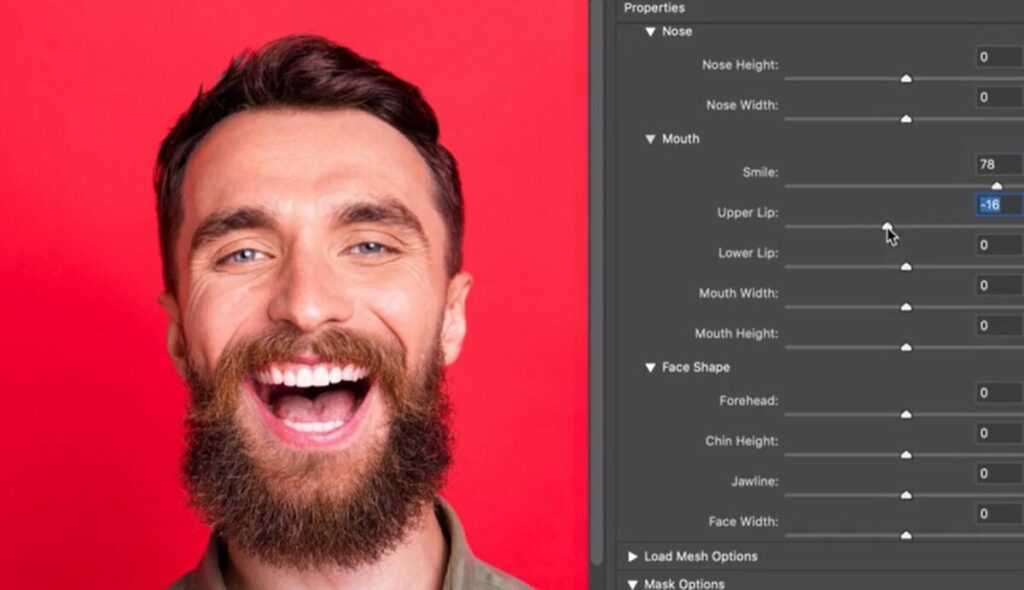
Change facial expressions from any photo

Adobe Photoshop CC lets you scan the facial features of any picture and easily enhance them with its Face-Aware Liquify tool. You’ll also be able to change the expression of your model just by moving a few sliders, making it very easy to get the perfect portrait.

Face-Aware Liquify tool

Fix blurry pictures

There are few things as frustrating as taking a great photo and then realizing it’s blurry. Thanks to the Shake Reduction tool from Photoshop you’ll be able to sharpen your picture in just a few clicks.

Shake Reduction tool

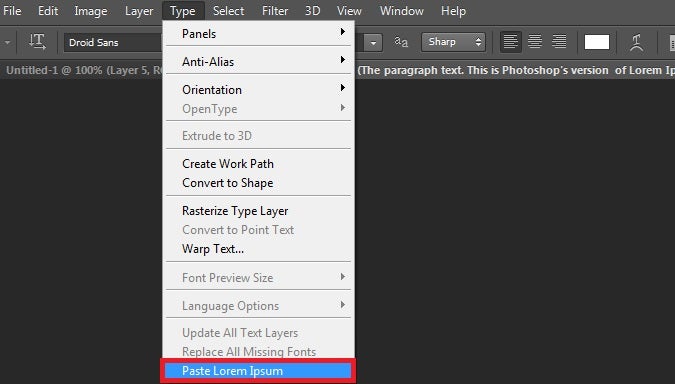
Add dummy text

When testing the layout of text content in a picture, one will typically turn to the well-known Lorem Ipsum placeholder text. Adobe Photoshop CC will save you precious minutes thanks to its tool to automatically add this dummy text into your projects.

Paste Lorem Ipsum tool

Edit your pictures from your mobile

Android and iOS users are able to easily import and edit any picture stored in the cloud with the help of their smartphone thanks to the Adobe Photoshop Fix app.

Photoshop Fix

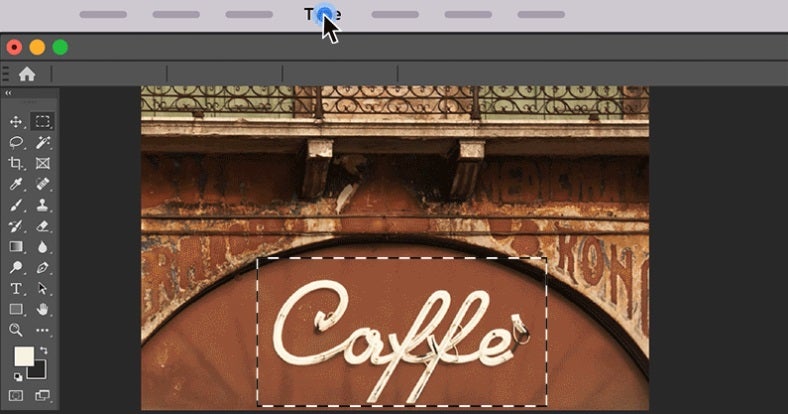
Identify any font from a photo

Photoshop can help you identify any font you find in a picture thanks to its Match Font tool. After uploading the photo, let the software do its magic and compare the mystery font with the ones installed on your computer as well as the Adobe Fonts catalog.

Match Font tool

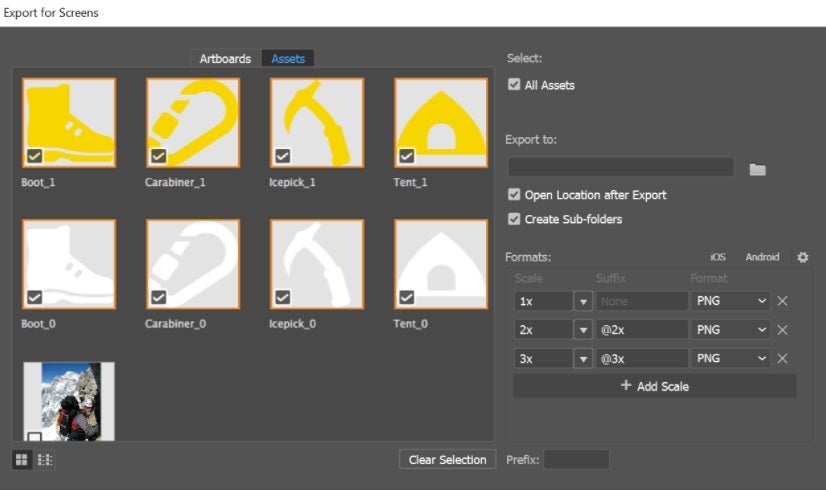
Export and share your assets

If you’re a graphic designer, you’re probably losing a lot of precious time exporting files to share with your clients. Adobe Illustrator CC can help you increase your productivity thanks to its helpful tool to export all your assets in seconds.

Export your assets Illustrator

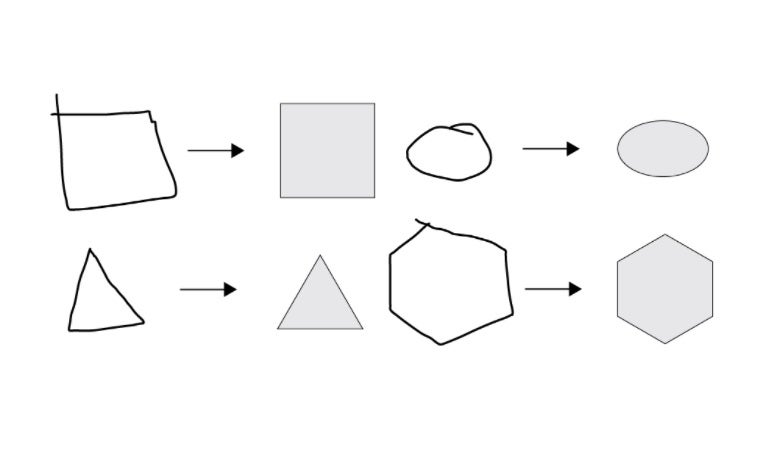
Make perfect shapes

Being able to draw symmetrical shapes is vital for any designer, though it’s not always an easy task. Adobe Illustrator includes a useful tool that will turn any poorly hand-drawn shape into perfect geometric vector art.

Vector art Illustrator

Design your own fonts

Thanks to Illustrator, you’ll be able to quickly design and create fonts that will give identity to your brand or project. Starting from a sketch, just follow Adobe’s step-by-step process and surprise everyone with your personalized fonts.

Font design in Illustrator

Add color and edit your strokes

The Live Paint tool in Illustrator will let you draw and paint like you would on a canvas and then turn every single stroke into a vector. This way you’ll be able to freely turn your ideas into color and then easily edit them with just a few clicks.

Live Paint tool in Illustrator

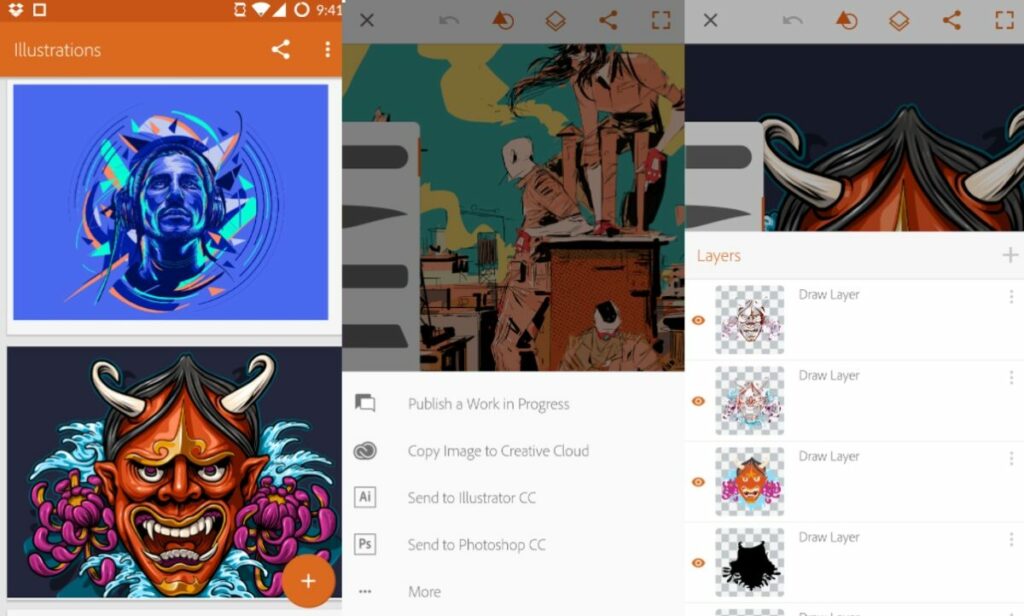
Draw and design from your mobile

With Adobe Illustrator Draw (Android/iOS) you’ll be able to draw, design, and send your projects to Photoshop and Illustrator right from the screen of your smartphone or tablet.

Adobe Illustrator Draw

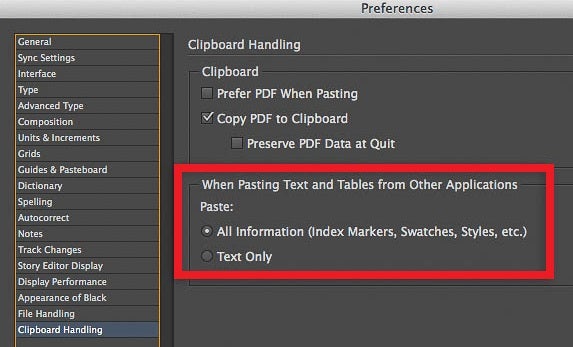
Keep your text’s original formatting

When you copy and paste some text from Word to any Adobe app, it will typically lose its formatting. Using InDesign there’s a workaround to this setback thanks to its option to keep the formatting of all your documents.

Keep formatting Indesign

Create HDR panoramas

Do you want to surprise everyone with a picture of a breathtaking landscape? Adobe Lightroom includes a tool that will let you merge a large number of photos into a single one, creating amazing HDR panoramas.

HDR Panorama

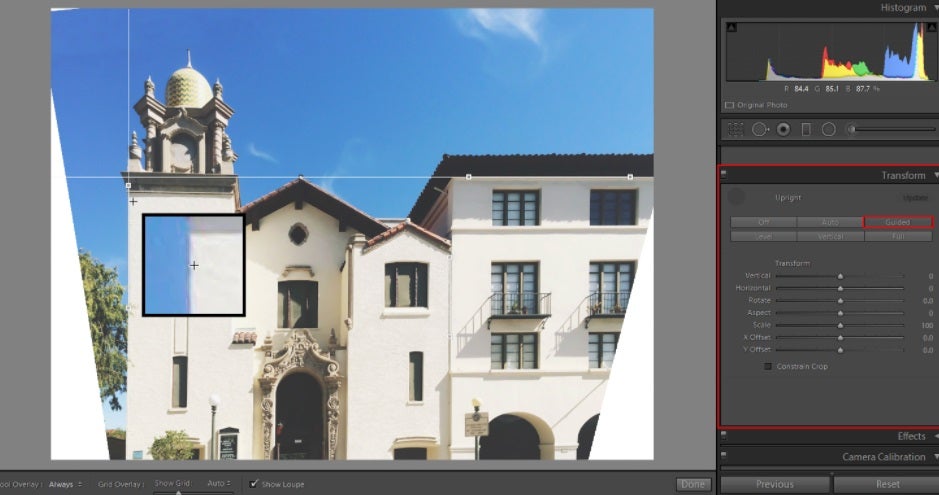
Correct the alignment of your pictures

Thanks to Lightroom’s Upright Guided feature you’ll be able to correct the perspective of any picture in just a few seconds.

Upright Guided

Create a responsive web design

As a web designer, you already know how important it is that your site is responsive. Sometimes this is easier said than done, but don’t worry. Dreamweaver can help you create attractive and responsive websites in record time.

Adobe Dreamweaver

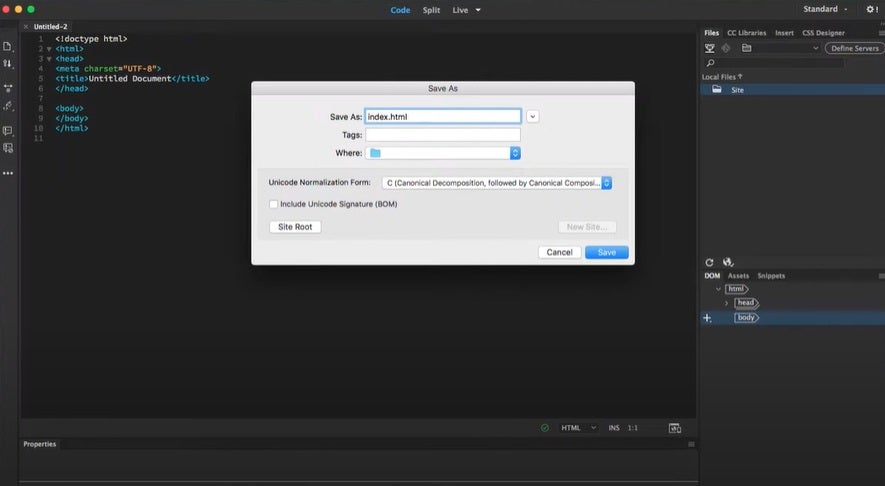
Edit CSS in a visual editor

Dreamweaver includes a CSS Designer Panel that will let you add and edit your site’s CSS as well as see all the changes in real-time.

Dreamweaver Designer Panel

Design and integrate animations

With Adobe Animate you can design and create interactive animations for videogames, tv shows, and websites. You can also make dynamic avatars and doodles, as well as breath life into all of your infographics.

Adobe Animate

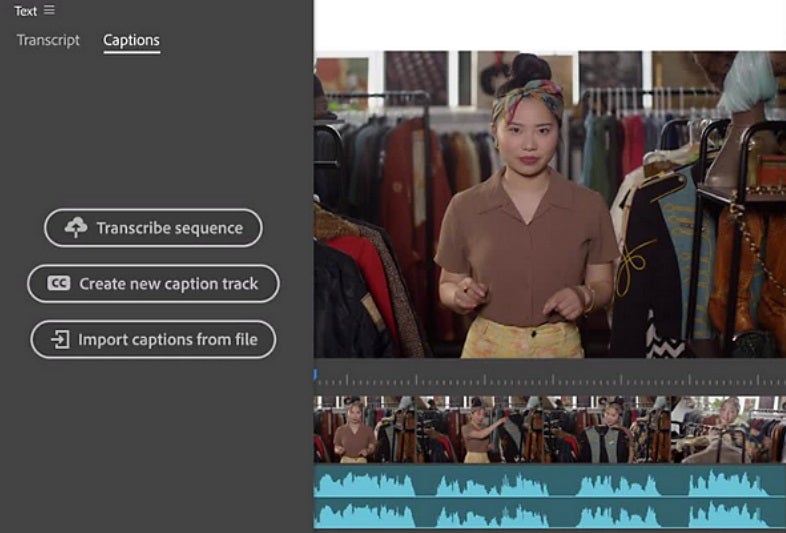
Auto-generate captions

Need subtitles for your videos? Adobe Premiere Pro can auto-generate captions for all your videos with its improved transcription and caption tools.

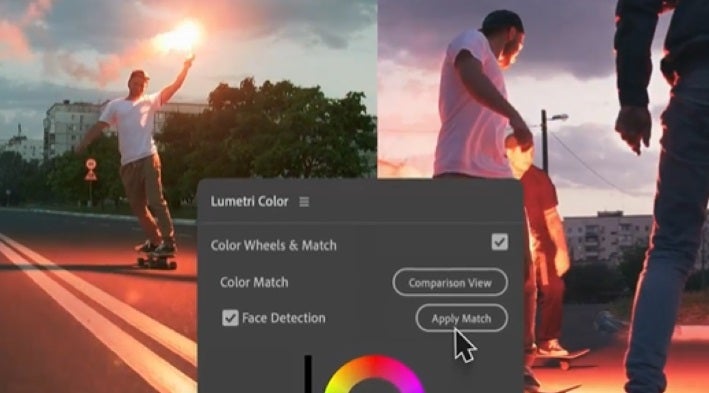
Color matching made easy

Thanks to Adobe Sensei’s AI and the Lumetri Color panel, you’ll be able to easily adjust and edit the color of your videos with Adobe Premiere Pro.

Lumetri Control panel

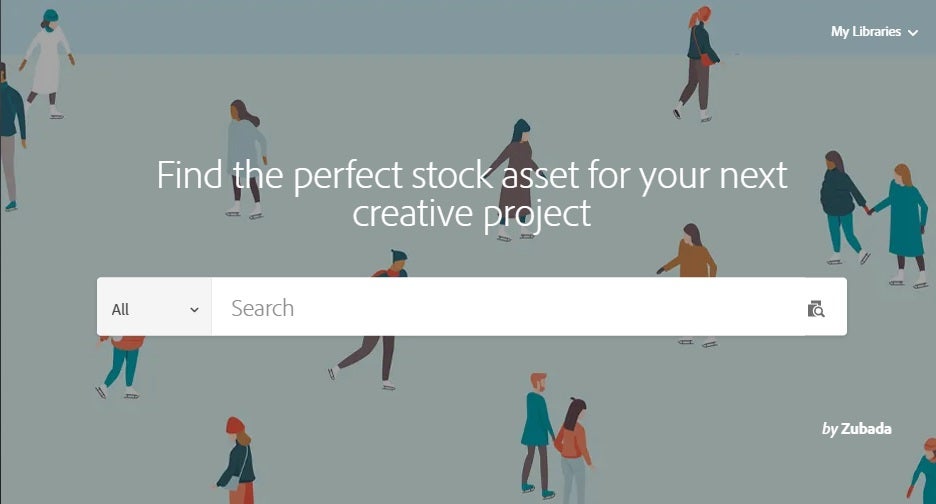
Find perfect images for all your projects

Download stock images and photos, videos, audio footage, royalty-free templates, and vector illustrations suitable for any project with the help of Adobe Stock’s catalog.

Adobe Stock in English

Easily sync with all Adobe apps

Thanks to the cloud, you’ll be able to seamlessly create, edit and synchronize all your projects with the entire Adobe CC suite.

Man with computer

Unleash your creative power

Adobe Creative Cloud is a powerful suite that will help you create anything you can imagine, always with professional results. What are you waiting for?

BLACK FRIDAY OFFER: 40% off all Creative Cloud apps Subscribe now
9
Offer available from November 15th until December 2nd, 2021

Effortlessly Resize and Optimize PDFs with Adobe Acrobat Pro

Adobe Acrobat Pro is a powerhouse for managing PDF files on both Mac and Windows. Despite its vast feature set, resizing and optimizing your PDFs is straightforward. This guide walks you through the process, helping you keep your documents easy to share and store.

Adobe Photoshop Plans GET YOURS NOW

Streamlining Your PDFs with Adobe Acrobat Pro

Large PDFs can be a hassle, slowing down transfers and taking up too much space. Adobe Acrobat Pro makes resizing your PDFs a breeze, ensuring they remain efficient and easy to handle.

Getting Started with Adobe Acrobat Pro

First things first, you need Adobe Acrobat Pro. This functionality isn’t available in Adobe Reader. If you’re only tackling a few PDFs, take advantage of Adobe’s 7-day free trial. For ongoing needs, a subscription is the way to go. Once you’ve installed and activated Adobe Acrobat Pro, you’re ready to roll.

Step 1: Select Your File

  1. Open Adobe Acrobat Pro: Launch the application.
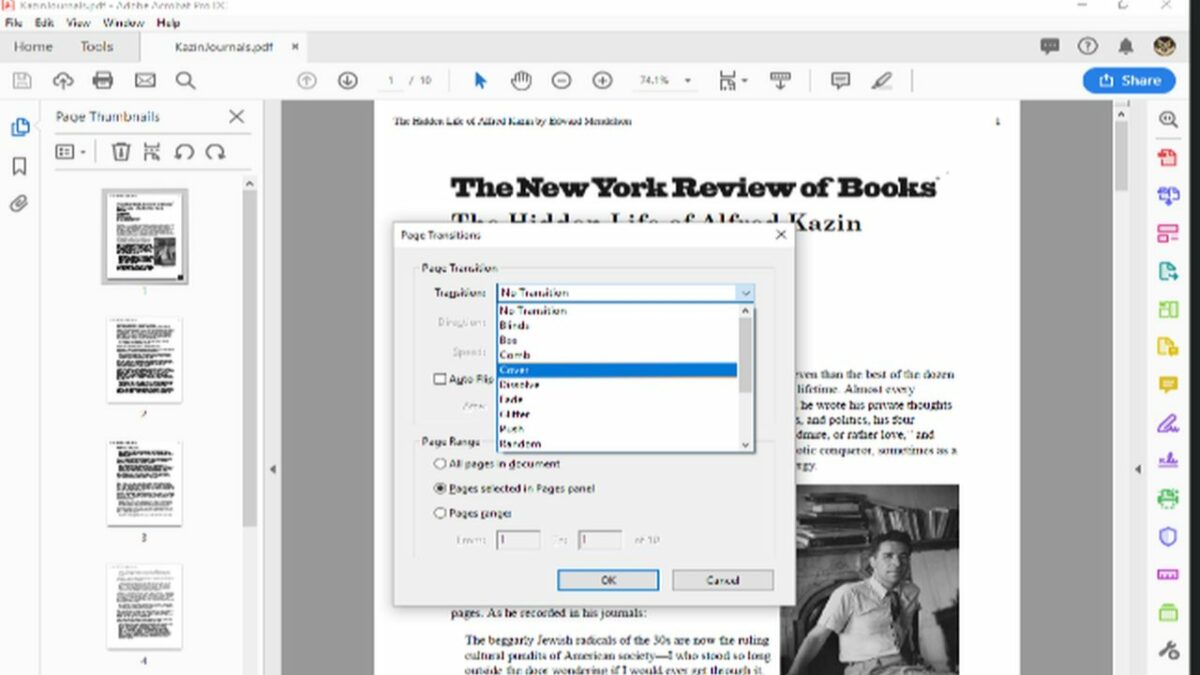
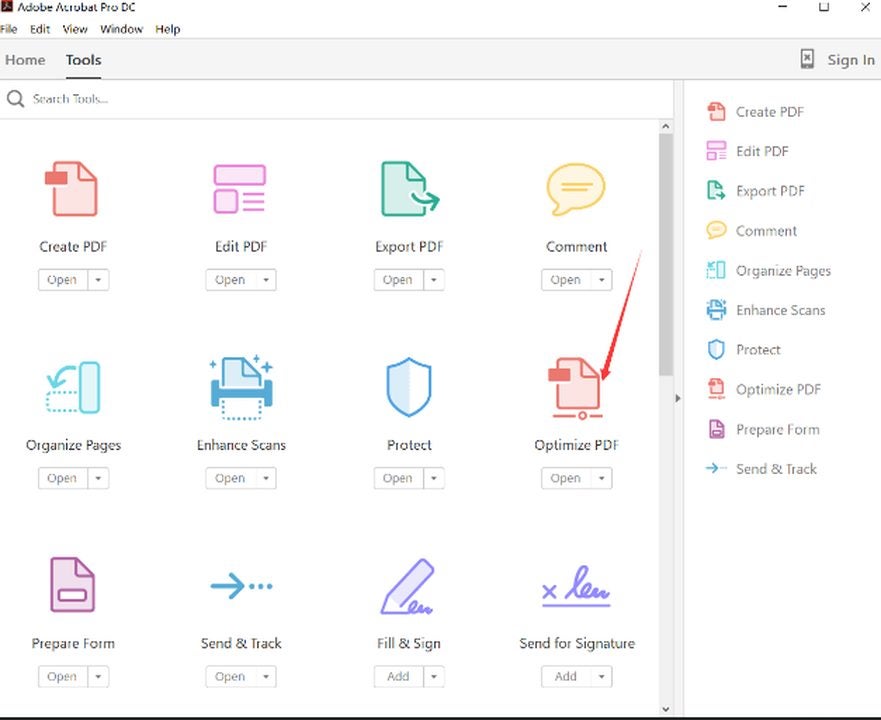
  2. Optimize PDF Tool: Head to the Tools pane and select “Optimize PDF.”
  3. Choose Your File: Use the file selector to find and open your PDF.
Click on optimize PDF to begin the process.

Step 2: Resize Your PDF

  1. Access Resizing Options:
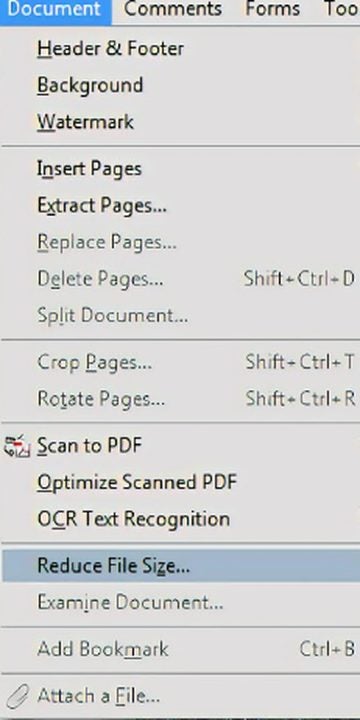
    • Quick Method: Click “Reduce File Size” on the toolbar.
    • Alternative Method: Go to “File” > “Save As Other” > “Reduced Size PDF.”
  2. Advanced Optimization:
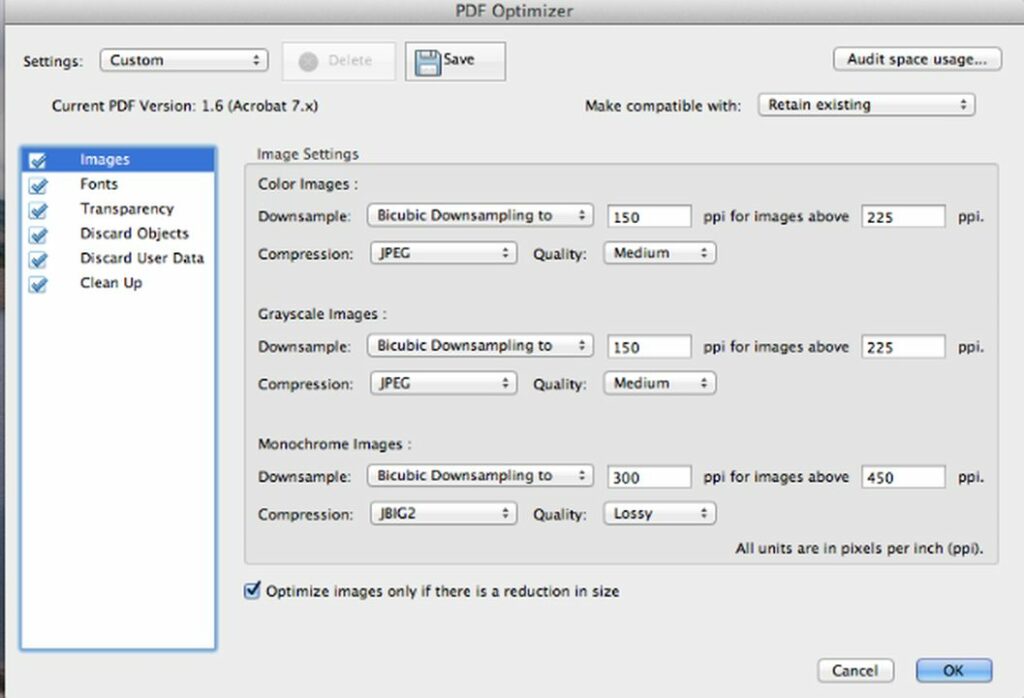
  • Images: Compress and adjust image resolution. Downsampling refers to reducing the number of pixels in images, making them smaller in size while trying to maintain quality.
  • Fonts: Optimize embedded fonts. This means reducing the size of fonts embedded in the PDF, which can help decrease the overall file size.
  • Discard Objects: Remove unnecessary elements. This includes:
    • JavaScript: Scripts embedded in the PDF that might not be needed.
    • Embedded Page Thumbnails: Small previews of pages that are often not necessary and can be removed to save space.
    • Form Fields: Interactive elements that can be flattened into static elements to reduce size.
  1. Fine-Tune Settings: Ensure “Optimize images only if there is a reduction in size” is checked to preserve image quality.
Reduce file size from this drop-down menu.

Unlock the Full Power of Adobe Acrobat Pro

Beyond resizing, Adobe Acrobat Pro offers a suite of tools to enhance your PDF management:

  • Password Protection: Secure your documents by navigating to “File” > “Properties” > “Security” and setting a password.
  • Editing and Annotating: Easily edit text, add comments, and mark up your PDFs.
  • Exporting PDFs: Convert PDFs to formats like Word, Excel, or PowerPoint for flexible usage.
Use this screen to adjust what you want compressed.

Experience the Benefits of Adobe Acrobat Pro

Discover the full potential of Adobe Acrobat Pro today. Whether you need to resize PDFs, secure sensitive documents, or convert files to different formats, Adobe Acrobat Pro has you covered.

Adobe Photoshop Plans GET YOURS NOW

Start your free trial now and experience seamless PDF management:

With Adobe Acrobat Pro, managing your PDF files has never been easier. Take control of your documents today and unlock the full suite of powerful features at your fingertips.

How to change your tab layout in Chrome

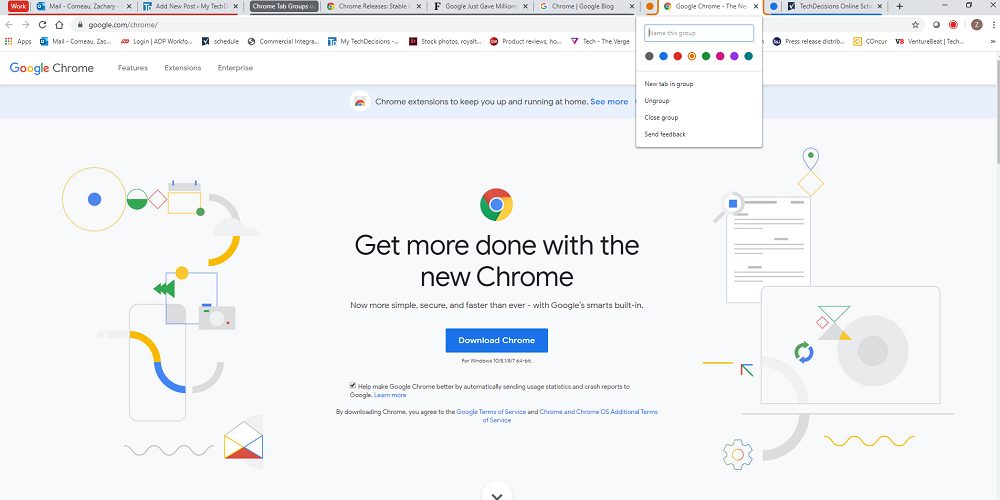
If your job requires multitasking and spending multiple hours browsing the Internet, then you’re probably dealing with an overwhelming amount of open tabs. Fortunately, browsers like Chrome have added a useful feature that will let you change your tab layout and organize them in a few seconds. Do you want to know how to create tab groups in Chrome? Just follow these steps.

Chrome DOWNLOAD
9

How to change your tab layout with Tab Groups

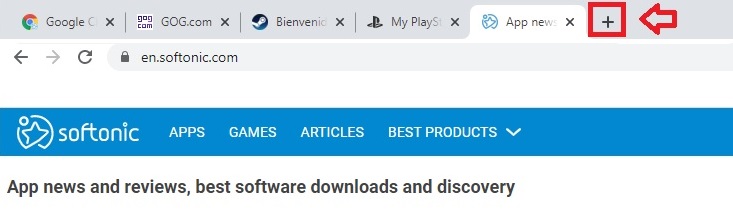
Step 1. Open a few tabs in Chrome

To be able to change your tab layout and group them, first you’ll need to open a few pages. To do so, just click on the “+” button and write the URL of the site you want to visit.

Group tabs in Chrome

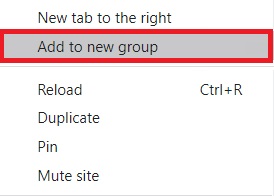
Step 2. Create a new tab group

Now, simply right-click on one of the tabs and select the option “Add to new group”.

Create a tab group

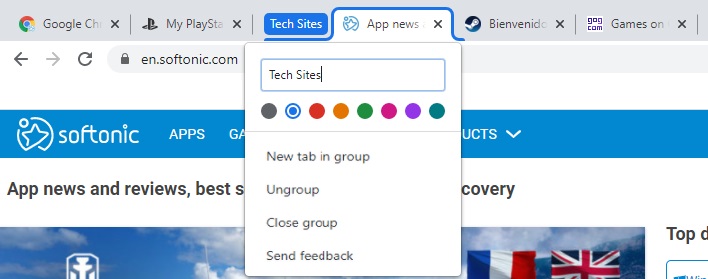
Step 3. Name and add a colour to your tab group

If done correctly, you’ll notice that a circle will appear next to the tab. Right-click on it and name the tab group. You’ll also be able to add a colour to it, making it easier to recognize among the rest of the tabs. After doing so, the circle will disappear and it will be replaced with the name you gave to the group.

Add group tabs in Chrome

Step 4. Add pages in your tab group

Now it’s time to sort all your tabs into groups. To do so, right-click on an open tab and select “Add to existing group”, then choose the group you want to add it to. Alternatively, you can also drag and drop the tab into the tab group until it changes it colour. This way you’ll know it’s been correctly added to the group.

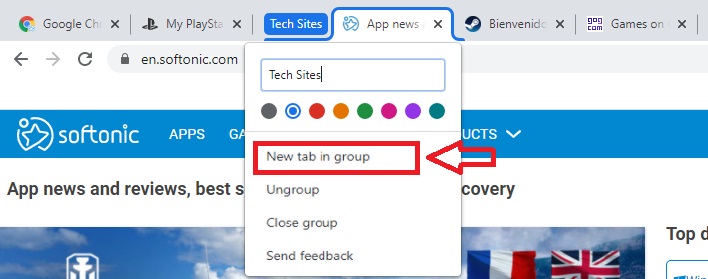
You might also want to open a new tab directly in a group. The process is simple, just right-click on the group tab and select the option “New tab in group”.

How to add new tabs in crome

Organize your tabs easily

With Tab Groups you can say goodbye to all those pesky tabs cluttering Chrome. Just create a tab group, give it a name, a colour and enjoy an organized and clean browser.

How to download movies and TV shows from Netflix

Netflix has forever changed the way we watch movies and TV shows. This popular streaming platform gives us access to an incredible catalog of films, series and exclusives, requiring only a subscription and stable Internet connection. While this is convenient for long sessions of binge-watching at home, online-only access can be a handicap if we want to enjoy our favourite series on the go. Fortunately, Netflix lets you download TV shows and movies to your laptop and mobile devices to be able to enjoy offline. Do you want to know how? Just keep reading.

How to download movies and series from Netflix

Step 1. Make sure your Netflix app is up to date

To be able to download movies and TV shows from Netflix you’ll need to have the latest version of its mobile or Windows app installed.  You can download them below:

  • Netflix for Windows

Netflix (Windows) DOWNLOAD
9

  • Netflix for Android

Netflix (Android) DOWNLOAD
9

  • Netflix for iOS

Netflix (iOS) DOWNLOAD
9

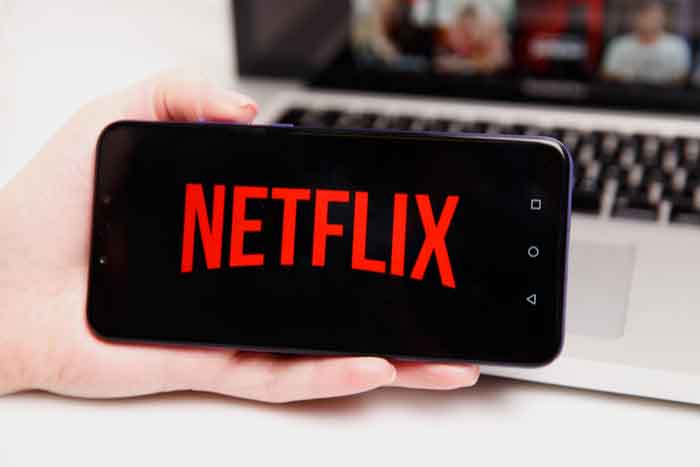
Netflix on a mobile phone

Step 2. Choose a video quality

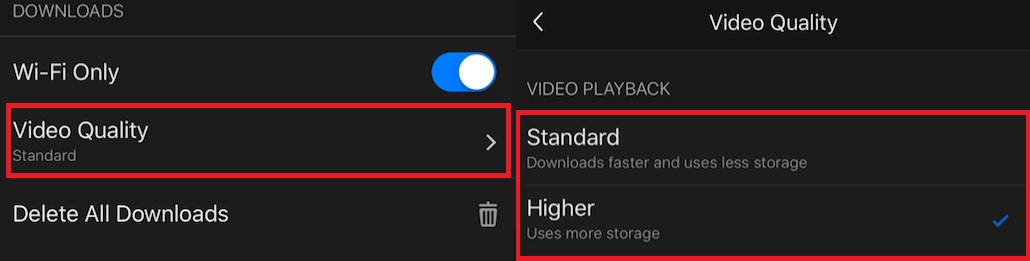
Now it’s time to choose a resolution for the movie or TV show you want to download. First of all, open the Netflix app and tap on your profile icon. Now simply press on the “Video Quality” button and select between Standard/720p or Higher/1080p. Keep in mind that the higher the quality, the more time it’ll take for you to download the movie or show.

Download quality on Netflix app

Step 3. Download your preferred movie or TV show

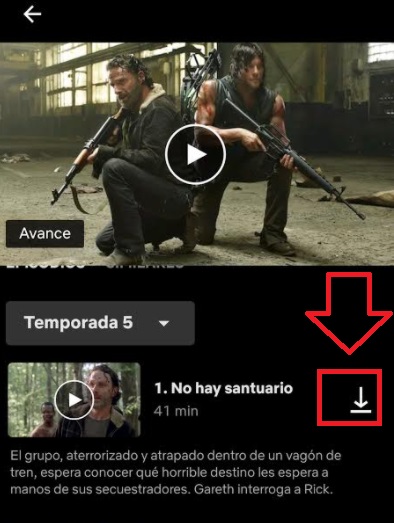
To begin downloading the title you want to enjoy offline, simply click on the “Download” button you’ll find next to the movie or episode. This button looks like an arrow pointing downwards onto a flat line, highlighted in the image below.

Once you’ve done this, the download will start and in few minutes you’ll have the video stored in the “Downloads” section of the app.

Download episodes on Netflix

Enjoy your favourite films and show offline

Downloading movies and series from Netflix is very easy, enabling you to enjoy your favourite titles even without an Internet connection. It only takes a few minutes and is a great way to make the most of your subscription on this amazing streaming platform.

How to record Netflix in 3 easy steps

Netflix is one of the most popular streaming platforms to watch movies or TV shows on demand. Its humongous catalog offers an excellent selection of all-time classics, blockbusters, and exclusives. However, if you’re usually on the go, you’ll find it hard to access this content without an Internet connection to stream it. In today’s article, we’ll teach you how to record Netflix and keep these videos to enjoy wherever you are at.

Netflix DOWNLOAD
9

How to record Netflix on a PC

Step 1: Download a third-party screen recorder

Most PCs include recording tools however, these are usually very limited. If you want to record Netflix we recommend that you download a third-party recorder that supports 4K video such as Wondershare UniConverter.

Wondershare Uniconverter DOWNLOAD
9

Man using a PC

Step 2. Access Netflix

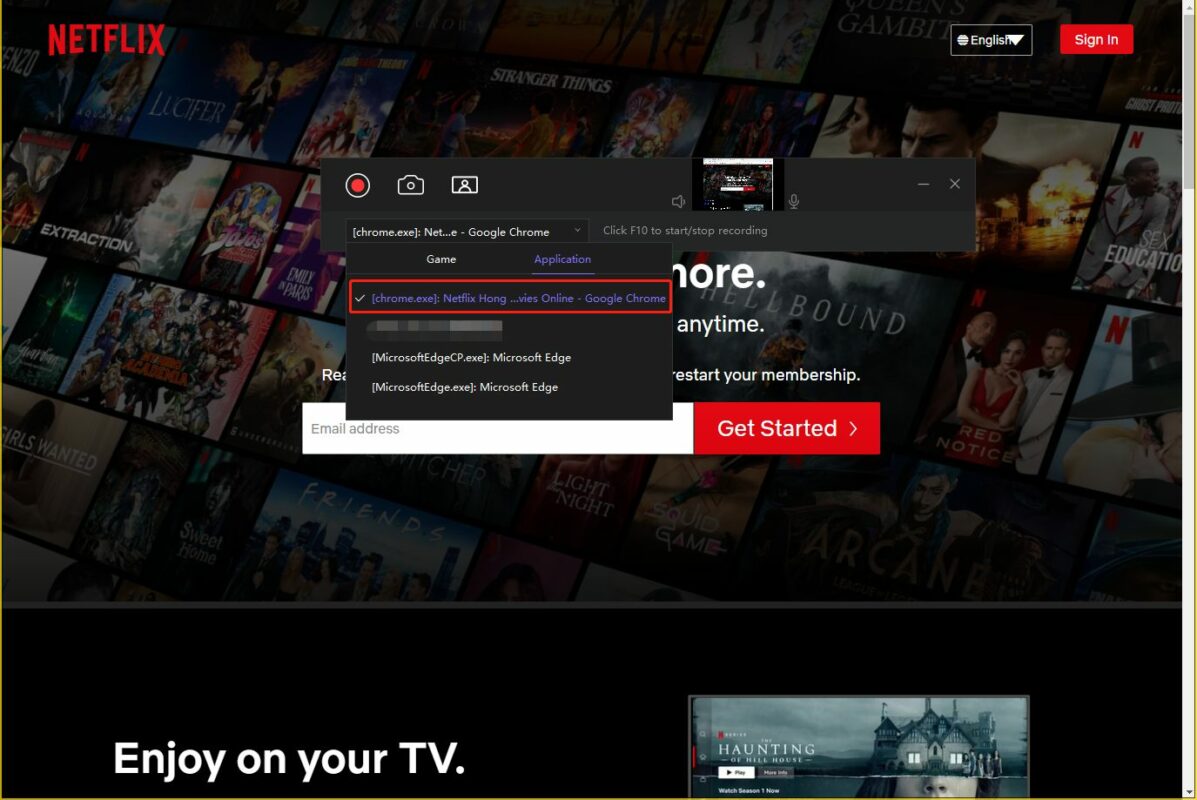
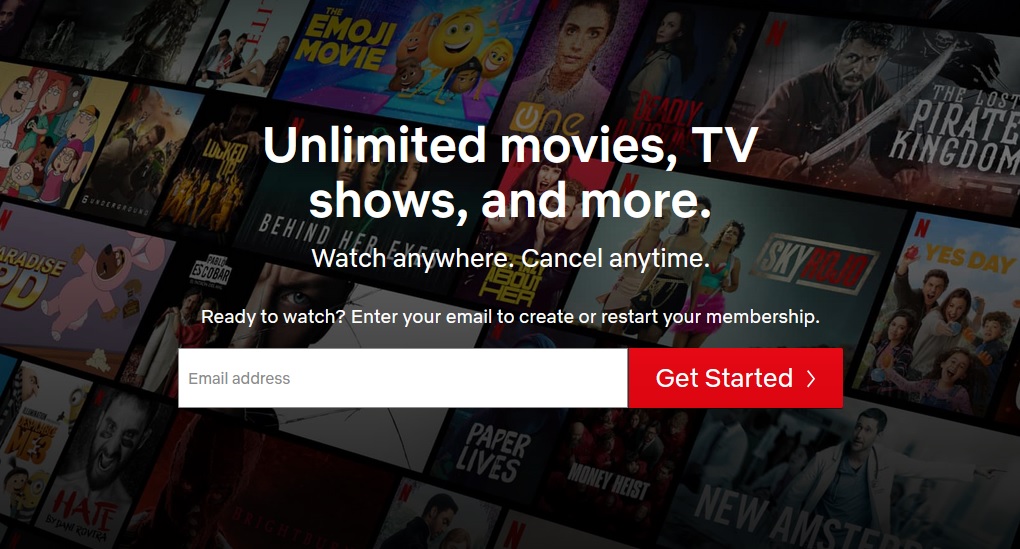
To record Netflix, visit the official site here and log into your account.

How to log in to Netflix

Step 3. Launch Wondershare Uniconverter

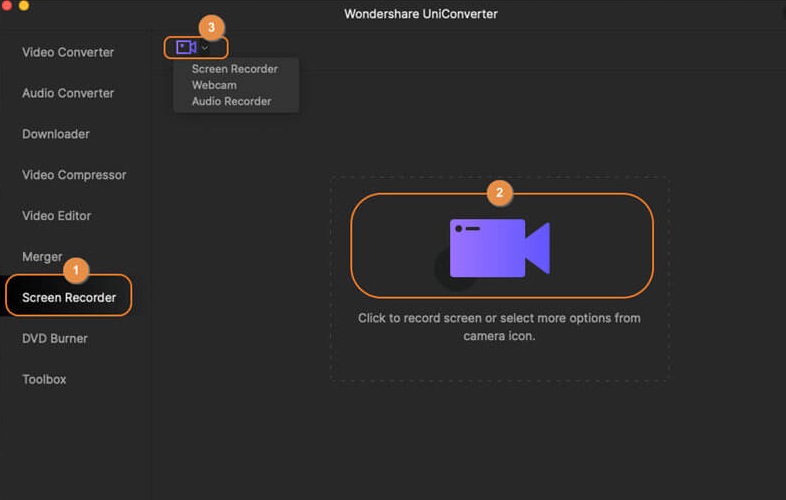
Now launch Wondershare Uniconverter and click on the “Screen Recorder” button.

Wondershare Unirecorder

Step 4. Record the movie or show you want

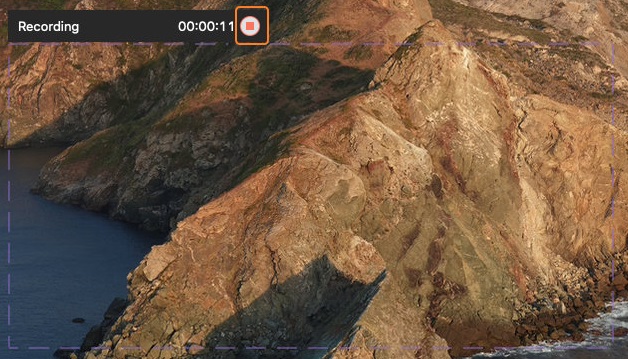
After enabling the screen recorder, you’ll see all its settings on screen. Make sure to set the height and width of the area you want to record and select the quality and frame rate of the video. When you’re done, click on the red button and play the show or movie you want to record.

How to record netflix

How to record Netflix on your mobile phone

Step 1. Download the Netflix app

To be able to record Netlfix from your mobile phone, you’ll first need to download and install the Netflix app.

  • Netflix for Android

Netflix (Android) DOWNLOAD
9

  • Netflix for iOS

Netflix (iOS) DOWNLOAD
9

Step 2. Launch your phone’s Screen Recorder

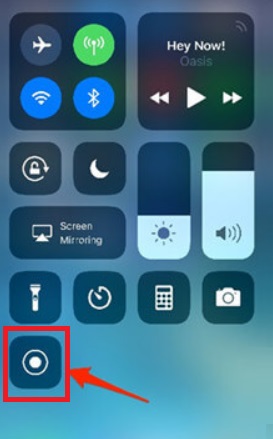
Open the notification drawer from your Android phone, or the control center from your iPhone, and select the Screen Recorder option.

Record on an iPhone

Step 3. Record Netflix

Open Netflix and go to the show you want to record. To start the recording, simply press the red button that you’ll see on the floating control panel of the Screen Recorder.

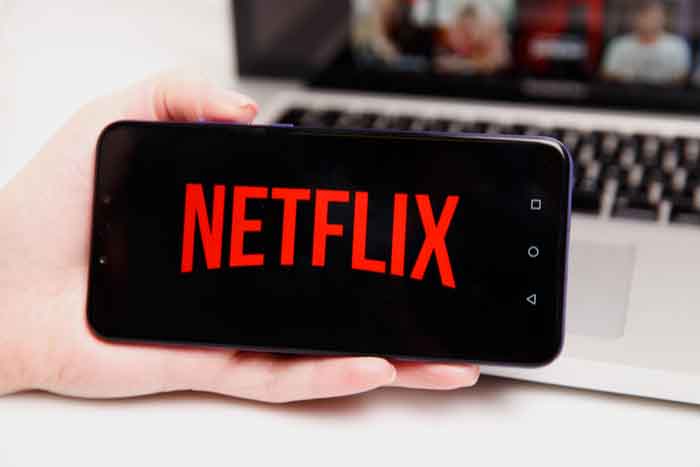
Netflix on Android

Record Netflix in three easy steps

Recording Netflix videos is a very easy process to keep your favourite movies, clips, and tv shows available for watching them later without an Internet connection.

How to set Chrome as your default browser

Google Chrome is the most installed web browser in use today. Its stability, speed and easy access to all Google products are only a few of its many advantages. However, when we buy a new computer or upgrade it to Windows 10, we have to deal with the fact that the preset browser is Microsoft Edge. Luckily, setting up Chrome as your default browser is very easy and it will only take you a few minutes.

Chrome DESCARGAR
8

Steps to Make Chrome Your Default Browser in Windows 10

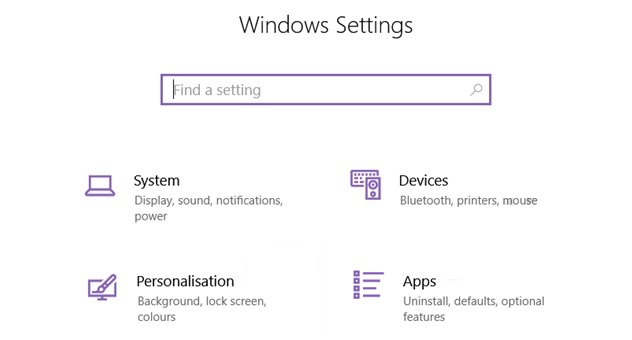
Step 1. Access the System Settings

To set Chrome as your default browser, first you’ll have to open the System Settings. To do that, simply click on the “Start” button (it’s the button with the Windows logo at the bottom left corner of your screen) and then click on “Settings”. If you prefer, you can also use the keyboard shortcut “Windows key + I“.

Windows settings

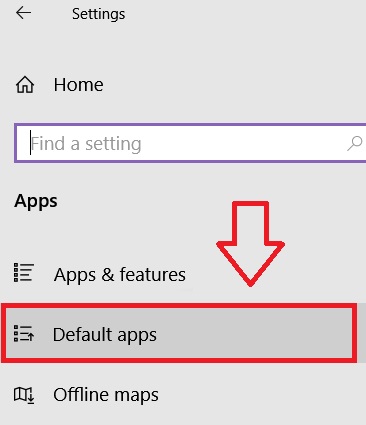
Step 2. Reach the Default Apps List

Once you’re in the Settings window, click on “Apps”. This will take you to a new screen with a left-side pane where you have to select “Default apps”.

Default apps from Windows 10

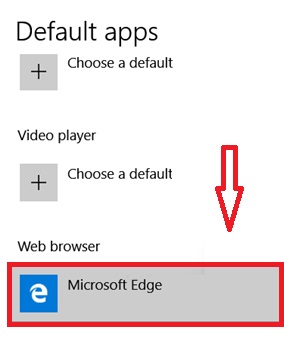
Step 3. Locate the Current Default Browser

In the “Default apps” section you’ll see a list of all the programs that Windows has set as default. Look for the “Web browser” heading and click on the icon underneath it.

Default browser in Windows 10

Step 4. Choose Chrome as Your Default Browser

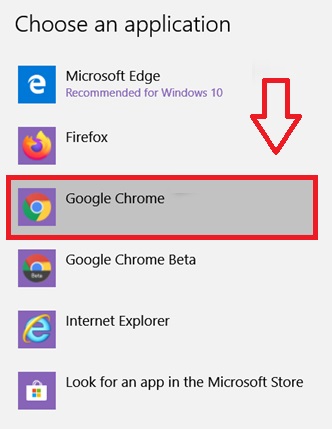
If you’ve followed the steps so far, you’ll now find yourself with a list of all the web browsers that are currently installed on your computer. Look through the list until you find Google Chrome and click on its icon to set it as your default browser.

Setting Chrome as default browser

Step 5. Pin Chrome to the Taskbar (Optional)

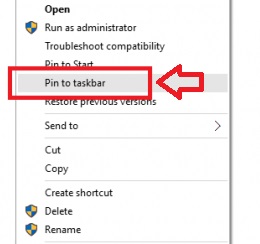
Finally, we recommend that you pin Google Chrome to the Windows Taskbar. To do that, just right-click on Chrome’s shortcut and select “Pin to taskbar”.

Pin to taskbar

The Easiest Way to Access Chrome

As you can see, setting your default browser in Windows 10 is very easy. Now each time you click on a link from an email or external app, Chrome will be the browser that opens.