How to download movies and TV shows from Netflix

Netflix has forever changed the way we watch movies and TV shows. This popular streaming platform gives us access to an incredible catalog of films, series and exclusives, requiring only a subscription and stable Internet connection. While this is convenient for long sessions of binge-watching at home, online-only access can be a handicap if we want to enjoy our favourite series on the go. Fortunately, Netflix lets you download TV shows and movies to your laptop and mobile devices to be able to enjoy offline. Do you want to know how? Just keep reading.

How to download movies and series from Netflix

Step 1. Make sure your Netflix app is up to date

To be able to download movies and TV shows from Netflix you’ll need to have the latest version of its mobile or Windows app installed.  You can download them below:

  • Netflix for Windows
Netflix (Windows) DOWNLOAD
9
  • Netflix for Android
Netflix (Android) DOWNLOAD
9
  • Netflix for iOS
Netflix (iOS) DOWNLOAD
9

Netflix on a mobile phone

Step 2. Choose a video quality

Now it’s time to choose a resolution for the movie or TV show you want to download. First of all, open the Netflix app and tap on your profile icon. Now simply press on the “Video Quality” button and select between Standard/720p or Higher/1080p. Keep in mind that the higher the quality, the more time it’ll take for you to download the movie or show.
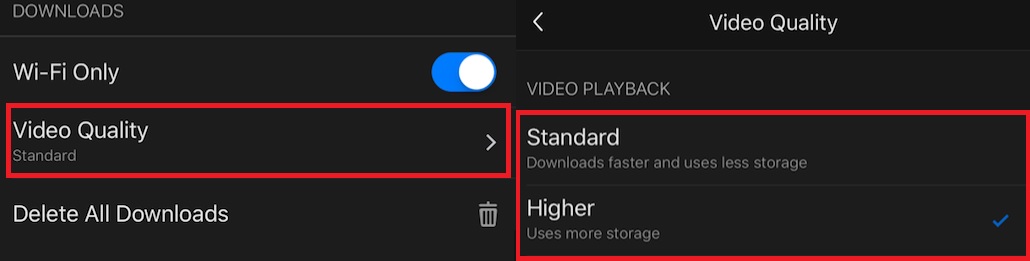
Download quality on Netflix app

Step 3. Download your preferred movie or TV show

To begin downloading the title you want to enjoy offline, simply click on the “Download” button you’ll find next to the movie or episode. This button looks like an arrow pointing downwards onto a flat line, highlighted in the image below.

Once you’ve done this, the download will start and in few minutes you’ll have the video stored in the “Downloads” section of the app.

Download episodes on Netflix

Enjoy your favourite films and show offline

Downloading movies and series from Netflix is very easy, enabling you to enjoy your favourite titles even without an Internet connection. It only takes a few minutes and is a great way to make the most of your subscription on this amazing streaming platform.

How to record Netflix in 3 easy steps

Netflix is one of the most popular streaming platforms to watch movies or TV shows on demand. Its humongous catalog offers an excellent selection of all-time classics, blockbusters, and exclusives. However, if you’re usually on the go, you’ll find it hard to access this content without an Internet connection to stream it. In today’s article, we’ll teach you how to record Netflix and keep these videos to enjoy wherever you are at.

Netflix DOWNLOAD
9

How to record Netflix on a PC

Step 1: Download a third-party screen recorder

Most PCs include recording tools however, these are usually very limited. If you want to record Netflix we recommend that you download a third-party recorder that supports 4K video such as Wondershare UniConverter.

Wondershare Uniconverter DOWNLOAD
9

Man using a PC

Step 2. Access Netflix

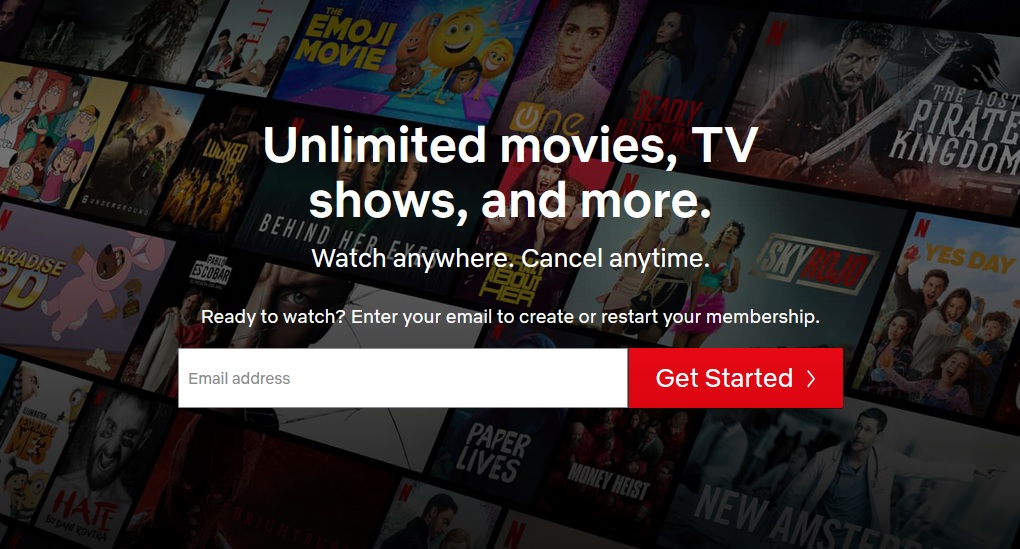
To record Netflix, visit the official site here and log into your account.

How to log in to Netflix

Step 3. Launch Wondershare Uniconverter

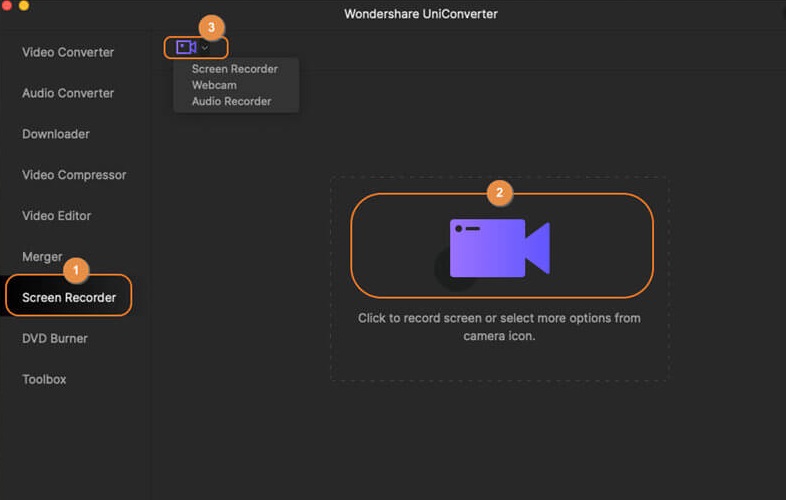
Now launch Wondershare Uniconverter and click on the “Screen Recorder” button.

Wondershare Unirecorder

Step 4. Record the movie or show you want

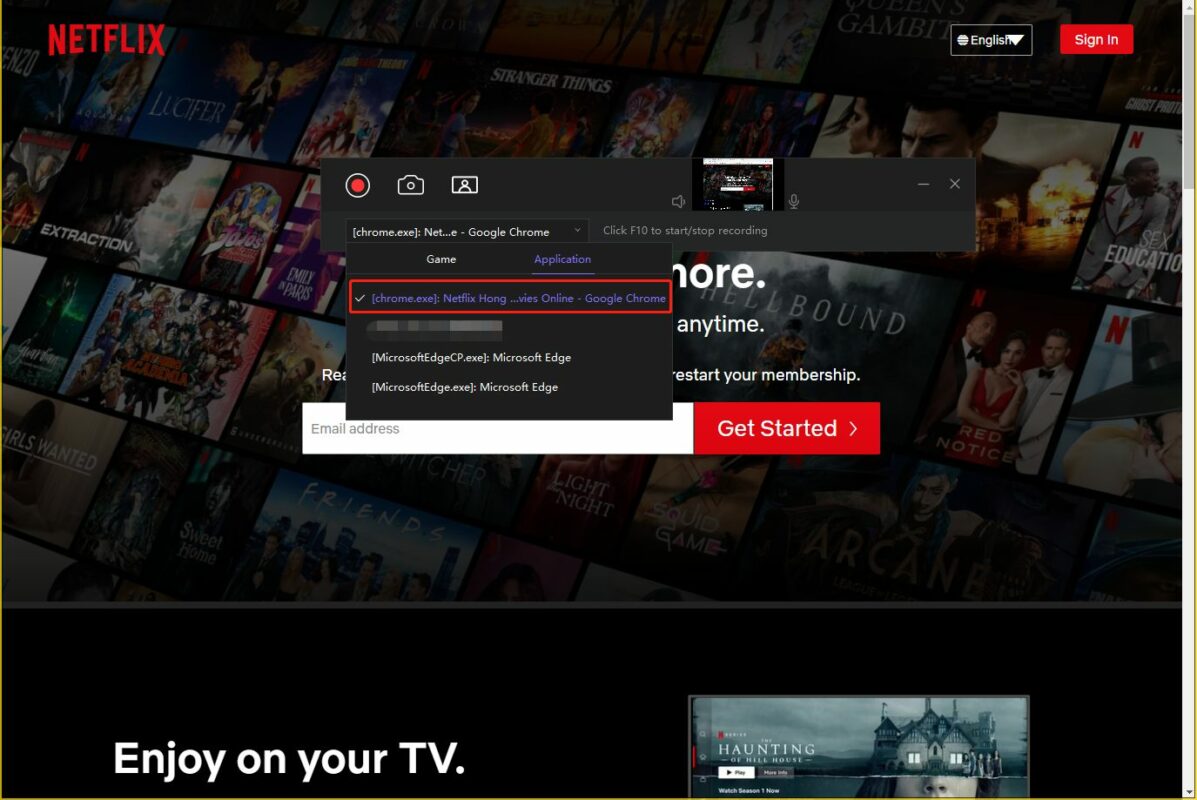
After enabling the screen recorder, you’ll see all its settings on screen. Make sure to set the height and width of the area you want to record and select the quality and frame rate of the video. When you’re done, click on the red button and play the show or movie you want to record.

How to record netflix

How to record Netflix on your mobile phone

Step 1. Download the Netflix app

To be able to record Netlfix from your mobile phone, you’ll first need to download and install the Netflix app.

  • Netflix for Android
Netflix (Android) DOWNLOAD
9
  • Netflix for iOS
Netflix (iOS) DOWNLOAD
9

Step 2. Launch your phone’s Screen Recorder

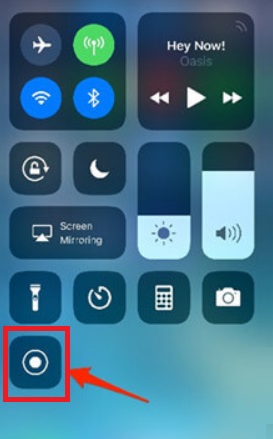
Open the notification drawer from your Android phone, or the control center from your iPhone, and select the Screen Recorder option.

Record on an iPhone

Step 3. Record Netflix

Open Netflix and go to the show you want to record. To start the recording, simply press the red button that you’ll see on the floating control panel of the Screen Recorder.

Netflix on Android

Record Netflix in three easy steps

Recording Netflix videos is a very easy process to keep your favourite movies, clips, and tv shows available for watching them later without an Internet connection.

How to set Chrome as your default browser

Google Chrome is the most installed web browser in use today. Its stability, speed and easy access to all Google products are only a few of its many advantages. However, when we buy a new computer or upgrade it to Windows 10, we have to deal with the fact that the preset browser is Microsoft Edge. Luckily, setting up Chrome as your default browser is very easy and it will only take you a few minutes.

Chrome DESCARGAR
8

Steps to Make Chrome Your Default Browser in Windows 10

Step 1. Access the System Settings

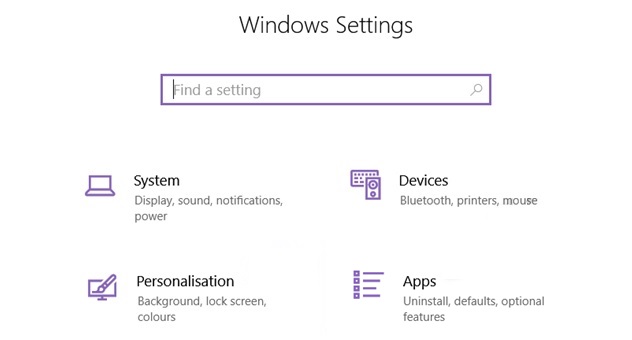
To set Chrome as your default browser, first you’ll have to open the System Settings. To do that, simply click on the “Start” button (it’s the button with the Windows logo at the bottom left corner of your screen) and then click on “Settings”. If you prefer, you can also use the keyboard shortcut “Windows key + I“.

Windows settings

Step 2. Reach the Default Apps List

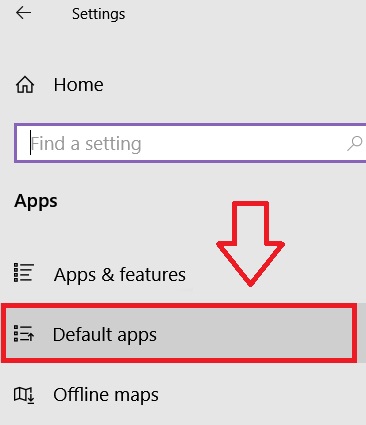
Once you’re in the Settings window, click on “Apps”. This will take you to a new screen with a left-side pane where you have to select “Default apps”.

Default apps from Windows 10

Step 3. Locate the Current Default Browser

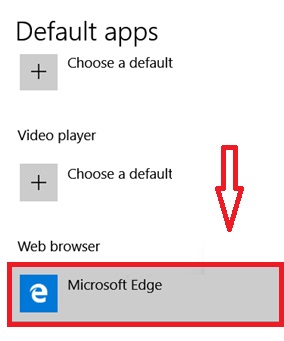
In the “Default apps” section you’ll see a list of all the programs that Windows has set as default. Look for the “Web browser” heading and click on the icon underneath it.

Default browser in Windows 10

Step 4. Choose Chrome as Your Default Browser

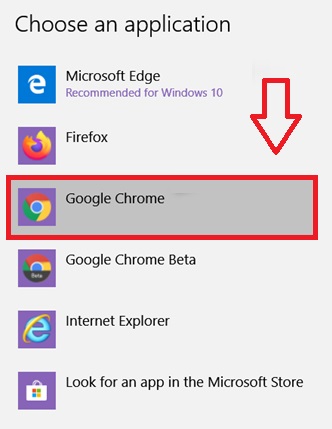
If you’ve followed the steps so far, you’ll now find yourself with a list of all the web browsers that are currently installed on your computer. Look through the list until you find Google Chrome and click on its icon to set it as your default browser.

Setting Chrome as default browser

Step 5. Pin Chrome to the Taskbar (Optional)

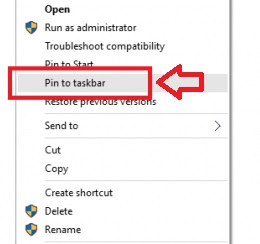
Finally, we recommend that you pin Google Chrome to the Windows Taskbar. To do that, just right-click on Chrome’s shortcut and select “Pin to taskbar”.

Pin to taskbar

The Easiest Way to Access Chrome

As you can see, setting your default browser in Windows 10 is very easy. Now each time you click on a link from an email or external app, Chrome will be the browser that opens.