5 incredible multiplayer games for iOS and Android

In the early 1980s, if you wanted to play the latest video games, you’d have to travel to an arcade. Today, you carry the arcade in your pocket. Your phone is the hottest game platform on the planet. At Softonic, we don’t want you to be stuck playing alone. People from around the world could be your teammates or your foes. 

5 incredible multiplayer games for iOS and Android

Clash Royale

This is by far one of the most played titles for cell phones. Clash Royale has had great success worldwide, with millions and millions of users (not to mention the YouTube channels dedicated specifically to it).

In Clash Royale, the goal is as easy: destroy your rival’s base. However, defending your own base is just as important. This balance of forces, between defense and offense, makes this massive multiplayer game a constant challenge.


Clash Royale Free Download
8


Asphalt Xtreme

It started slow enough, but with every new update and release, it’s gained an audience. Asphalt Xtreme is one of the best video games for people who have a need for speed.

Up to 12 rivals can compete at the same time, not to mention more than 100 unique vehicles. Try it out if you like this genre: we assure you, it won’t disappoint.


ASPHALT XTREME FREE DOWNLOAD
9

FIFA Soccer

Unsurprisingly, FIFA also has its own video game for cell phones. And we have to say: it works well. This version is designed for smartphones, and it’s no larger than 100 MB, so don’t worry about taking up storage space.

Like the console version, this edition of FIFA Soccer is also constantly updated with new templates, classic player cards, and a new focus on the FIFA Ultimate Team. And yes, of course, it has a multiplayer mode so you can beat other people.

FIFA MOBILE SOCCER FREE DOWNLOAD
9

Order and Chaos Online

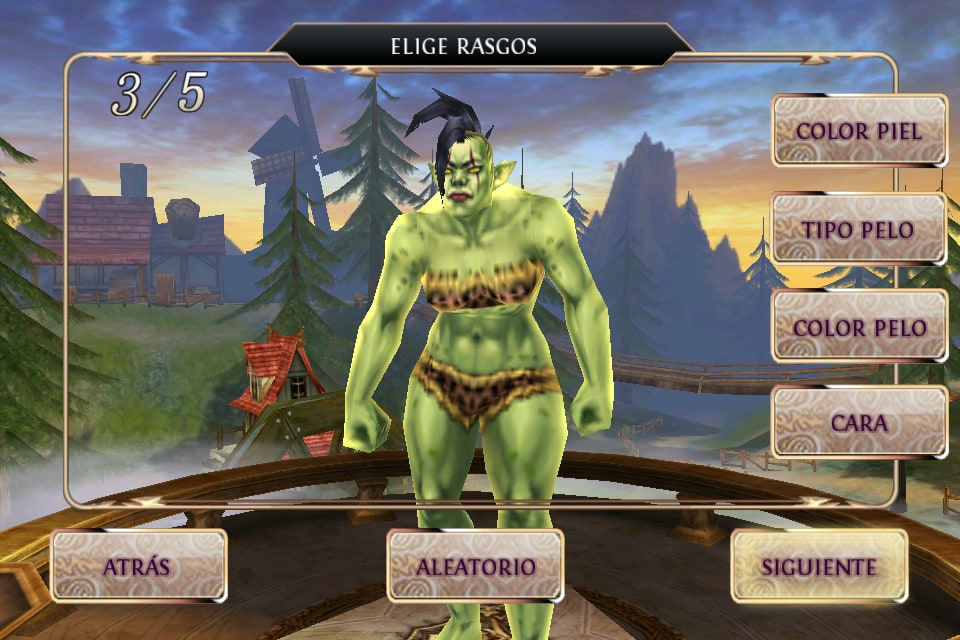
If you’re a fan of World of Warcraft or Guild Wars, with Order and Chaos Online you have a counterpart version for cell phones. This MMORPG combines the best of the genre in the palm of your hand: magic, orcs, elves, and lots of action.

Like any MMORPG, the key is to cooperate with other players to earn victories and achieve different missions.

Order & Chaos Online Free Download
7

Pokémon GO

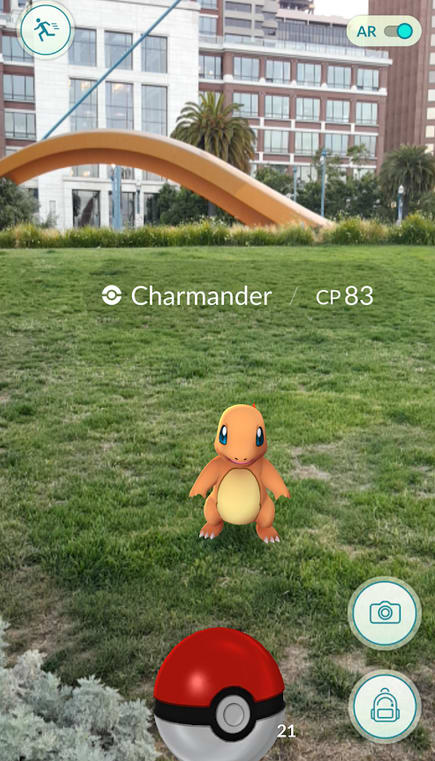
We’ll wrap up with the most one of the most groundbreaking games of all time. It’s a title that changed how we play on our smartphones thanks to its concept: Pokémon GO.

Catching critters has never been more fun than with this game, which brings the best of the saga to our daily lives. You may be saying, “But it isn’t multiplayer.” You’re right, it’s not… yet. That’s why we’ve added it to the list.

Niantic, the app developer studio, already mentioned that in 2018, online combat against other players will be released. So we just have to wait for it to come out. The sooner, the better.

Pokémon GO Free Download
7

5 amazing tricks for retouching photos on Android

You’ve got a photo that you’d like to improve, but you don’t know how. Or maybe you know how you want to improve your snapshot, but it requires Photoshop skills beyond your grasp. What if we told you that you can improve your photography skills with your cell phone?

Today at Softonic, we’re going to tell you about five amazing tricks for retouching photos on Android. Best of all: it can be done within minutes and it’s completely free.

5 amazing tricks for retouching photos on Android

Use WhatsApp

If you think WhatsApp is only good for sending messages, look closer. In 2017, its developers created the possibility of editing photos from the platform itself.

When you go to send a photo to a contact, you’ve got different editing possibilities on the top: to add text, filters, emojis and a long list of options.

It’s quick, simple and direct. The only “problem” with WhatsApp has been there since the beginning: it compresses images and videos, so quality is lost in the final product.

WhatsApp Messenger Download WhatsApp
8

Blur part of the photo

Photo by Ben Bowman

This is one of the most common tricks… and it works pretty well: blurring. If you want to give your photos a special touch, blurring part of the photo could be a good solution.

There are dozens of apps to achieve this effect, but AfterFocus lets you do it within a few steps. Just select the area with your finger that you would like to highlight and the app will do the rest: the part you selected will remain “normal” and the rest will go out of focus.

All this without a professional SLR camera. Not bad, right?

AfterFocus Photo Editor Free Download
7

Blow it up and crop it

Photo by Andrew Sharples on Unsplash

Do you know what the rule of space is? Unofficially, it’s giving the photo’s subject room to “breathe.” For example, if a car is moving from left to right, it’s recommended that the vehicle has “space” or “air” on the right. Thanks to this simple tip, the car will give a sense of movement. Blow up the photo until you get this “rule of space” and then crop it. Framing is the easy part.

Go black and white

Photo by Hoach Le Dinh on Unsplash

We’ve already talked about filters, but now we’ll go straight to discussing snapshots in black and white. This resource is one of the most common in photography, and the reason is simple to explain: because it looks great.

Black and white images give off a certain sense of longing, age, or tranquility. Edit it with any photo retouching program. Play around with brightness and contrast. You can ruin the photo if it ends up too dark, so be careful.

Test it out

Our last tip is by far the best: test it out. Period. Take a photo, open any editing program – even if it comes by default on iOS or Android – and try retouching the photo: change the color, brightness, and saturation. Get familiar with all the bells and whistles until you find some that work.

The best way to learn about photography is to experiment for yourself. Don’t forget to make a copy of the original in case your experiments get out of hand. Now get out there and shoot!

Related Articles:

How to recognize a fake photo

4 tricks to fix your bad photos using Photoshop

10 photography programs to make your pictures stand out

Tips to improve your Google searches and find everything you want

Do you really know how to use Google? This question may seem a little ridiculous, but we really mean it. Most users don’t really know how the best ways to use the most famous search engine in the world.

At Softonic, we want to help make your online searching more efficient, so here are seven tips for improving your Google searches and finding everything you want.

Use OR

One of the most basic commands that Google has and that you should know is “OR.” When do you use it? Well, when you’re looking for two elements, but you don’t have a preference. So, imagine that you want to find something about Final Fantasy VII and Dragon Quest, then you can put Final Fantasy VII OR Dragon Quest.

Add words

With the “OR” command, you can link two terms, but maybe you’re interested in one over the other. In this case, the “+” sign is key. Using the previous example, we would put: Final Fantasy VII +Dragon Quest. This way, when you search for Final Fantasy VII, you’ll also have entries in your results that include Dragon Quest.

Exclude words

Maybe you’re searching for a result that might show a lot of similar results, but you want to narrow it down. You can do this with a very simple command: adding the “-” sign in front of the word. For example, if we want to find something about Final Fantasy VII, but without Dragon Quest in the text, then the command would be: Final Fantasy VII -Dragon Quest.

Use an asterisk for unknown terms

Imagine that you want to search for something, but you’re not sure about it. Google has a powerful algorithm capable of guessing what you’re looking for. And it works well in 99 percent of cases. To use this autosearch, the command is the asterisk (*). Example: Final * VII. If you’re paying attention, Google will put the word replacing the asterisk in bold, in this case “Fantasy.” It’s great for when you have doubts about a specific subject and you need to better define it.

Add ellipses

You’re searching for Final Fantasy VII and don’t want to spend more than 60 dollars on the game, but you know it doesn’t go for under 30. You can search for the price by adding an ellipsis. For example: Final Fantasy VII $30 … $60. With this command, you’ll get some results pretty close to what you want (as far as price goes, of course).

Search for images

This is one of the most overlooked features on Google, which we think is a tragedy. The search has a specific section for searching for images. We’re not talking about putting in a term and clicking “Images.” No, we’re talking about a specific URL for it. This way, you can search a URL to compare images and even upload your own image to see if Google can show you the same or similar results.

Index websites

We’ll wrap up this list with a feature that’s a little more professional, since it’s designed for those with websites. If you want to know what URLs from your website Google has indexed, the command is as easy as “site:www.softonic.com.” With this combination, Google will give you all the results related to your website.

Related Articles:

Top 10 things you should never Google

15 funny Easter eggs from Google

How to delete Google search results

5 uses for an old PC you no longer use

You just switched your old PC for a new one and don’t feel like getting rid of your dusty old dinosaur. Maybe you’ve grown fond of it, spent lots of time with it, want to keep it for sentimental value… or you’re going to put it on a shelf until you find a good use for it. If you’re in the last group, you’re in luck: here at Softonic, we’re bringing you five uses for an old PC you no longer use.

5 uses for an old PC you no longer use

1. Connect it to the TV

If your PC is a laptop, check out this possibility: use it to connect to the TV. Unless you’ve got a brand new TV, it’s probably not a Smart TV, while most PCs from 2008 onward generally come with an HDMI port.

Thanks to this port, you can make the most your TV and laptop: you can connect your PC to the TV and let HDMI magic do the rest. You can watch Netflix, HBO, YouTube, Amazon Prime or any other service. After all, you’ll have everything on your PC available on your screen.

2. As a retro console

Believe it or not, your old PC may work as an improvised retro console. All you need to do is add a lot of emulators and ROMs to have thousands and thousands of past video games at your fingertips.

MSX2, Spectrum, SNES, NES, Megadrive… All the classic consoles can run on any PC from the last decade, so this option is pretty doable (and recommended, by the way).

3. As a text editor

Most customers walk into a computer store and say, “I want a computer to write, read, and little else.”

If these are the features you’ve got in mind, maybe your old computer could be a good tool for this. Microsoft Word, any of its free clones like LibreOffice, Notepad or any text software (see Calibre for example) take up few resources, so you can assign your old PC to just writing notes, stories or articles.

LibreOffice Download LibreOffice
7

4. As a hard drive

If you know how to take apart a PC, you can use your old PC by removing the hard drive. It works as an external drive by buying a simple case for it.

If you don’t know how to take apart your computer, don’t worry: you can do the same thing but by leaving it turned on. By using the cloud and flash drives, you can do wonders so your new computer is always clean and uncluttered.

5. Donate it

This is our last tip: donate it. There are lots of people who need a PC for school or work and can’t afford one. Lots of families worldwide don’t have the spending power, so you can do a good deed by giving yours away to charity. Just be sure you’ve wiped your hard drives or reformatted the computer completely before turning it over.

Related Articles: 

5 uses for a tablet you no longer use

This is what people search about you on Google

If you think social media gives away everything about your day-to-day life, it’s got nothing on Google. Thanks to the autocomplete in Google’s search bar, we’ve got a great idea of what’s really bothering you. 

The folks at Makeuseof created a list of the most popular searches, so here we go: this is what people search about you on Google. (Spoiler: Everyone seems to be wildly insecure.)

Why does my boss hate me?

Does your boss really hate you or does it only seem that way? Either way, millions of workers are trying to get to the bottom of that problem with Google searches. (You’re probably better off asking your boss directly, BTW.)

Given the popularity of this search, maybe all you bosses out there should do a little more to show some love to your workers. Or at the very least, swing by their desk to announce calmly, “David, I don’t hate you,” and then walk away.

Why do my employees keep quitting?

Alright, boss, maybe all your employees quit because they think you hate them. Or maybe it’s the fact that you expect them to answer their emails from you while they’re on vacation. Or maybe it’s something else. Whatever the case, tons of managers are trying to figure out why their employees are jumping ship.

Interestingly, right after supervisors Google why employees leave, they also search “Why do my employees hate me?” Seriously, unless Bob Davis searches Google and finds a blog called Why We (Bob Davis’ Employees) Hate Bob Davis, ol’ Bob is likely to remain in the dark. Try talking to your workers, Bob. They probably have a lot to share.

Why does my wife hate me?

Oh, you thought marriage was going to be easy? “Why does my wife hate me?” or “Why does my wife ignore me?” are the two most repeated searches when one puts “Why my wife…” into Google.

We should note that the fifth result to this question is “Why does my wife love me?” Don’t try to figure out why, amigo. Just be thankful she does. Buy her flowers and give her a back rub.

Why does my husband hate me?

You had to know this was coming. Women’s first query is “Why does my husband hate me?” The second most popular question? “Why does my husband watch porn?” Probably for the same reason he drinks beer and watches football. He’s a man. Men like certain things. 

Why does my dad hate me?

Bosses, husbands, wives… but kids? Kids and teens search Google for “Why does my dad hate me?” And if that doesn’t rip your heart out, we don’t know what will. C’mon, dads, take a page out of Field of Dreams and go play catch. Your kids need some love.

In fact, the second result is “Why doesn’t my dad love me?” and the third is the worst of all: “Why does my dad hit me?” (The searches about mothers are exactly the same. Ouch.)

Why does my kid hate me?

Parents worldwide also worry about their kids, and Google searches reflect that. Without going into detail, parents ask why their sons and daughters hate them. Also, we find the third search pretty funny: “Why does my kid fall asleep while walking?” The answer is obvious: So you can film them and put it on YouTube.

After reading this list, it seems like a lot of people are worried about virtually every relationship in their lives. Google might give you some hints, but you’re probably better off having a conversation and spending some quality time with the people you love.

With Ready Player One hitting theaters these 4 sites will help you practice all the old games from your childhood for free

If you’re reading this post, it’s very likely that you’re in your 30s (or older) and wondering “how can I play those games from my childhood” right? Thinking about the past always brings us positive feelings, especially regarding our childhood. So today at Softonic, we’re going to tug at your heartstrings: four websites to (legally) download games from your childhood for free. However, first some words of advice.

Important

Before we go into the subject, it’s important to note that there are two things we need to clarify. The first is “freeware,” which includes those games that don’t have copyright and are freely accessible, i.e., they’re available to all players. The second is “abandonware” which means games still have copyright, but companies aren’t taking legal action because they don’t care (especially games from the 80s, 90s, etc., which don’t make them any profit).

Now that we’ve explained this important distinction for this article let’s get started!

Abandonia

Possibly the most popular website of all: Abandonia. This site has over 5,000 cataloged video games, which speaks to the great work its creators have done with both abandonware and freeware.

The site has a forum where thousands of users come together to discuss classic video games. Also, the most important part of this website is that every game not only includes the download link but also provides additional info about the developers, company, release date, and other info.

Grand Theft Auto: Vice City Download GTA
8

Clásicos básicos (Basic classics)

The name says it all, don’t you think? On Clásicos básicos (Basic classics), you’ll find all the games from your childhood. And the best part is that the project is done in a completely selfless way by its creators, so if you want to donate money to it, you can.

Likewise, there’s also a forum for you to get answers to your questions, although we should note that it’s pretty abandoned (truth be told).

Archive

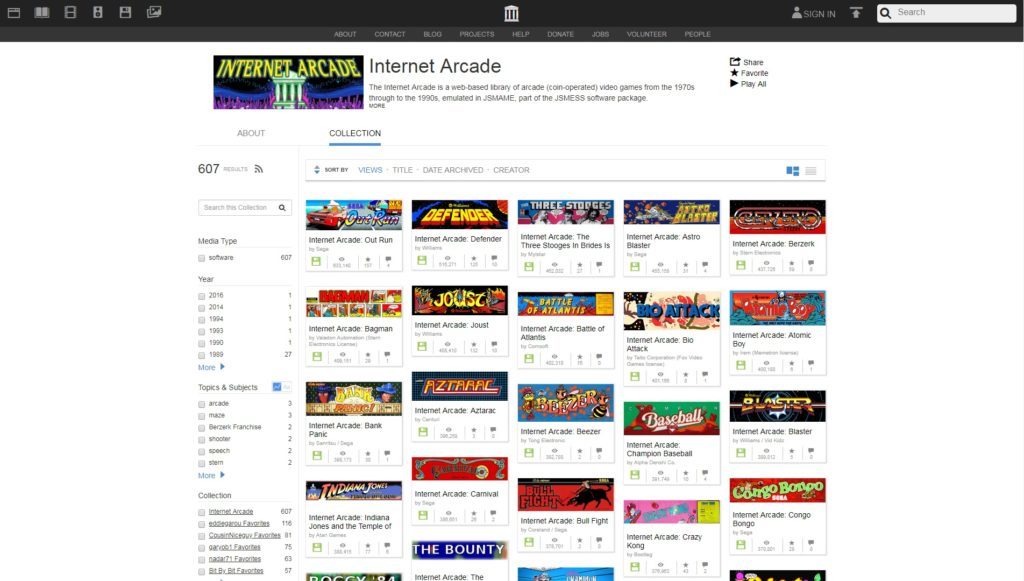
It’s pretty likely that you know Archive for its music, movies or texts, but did you know that it also has a section completely dedicated to video games? In fact, it has several, but there are two that we’d like to highlight.

The first has to do with MS-DOS, where there are over 4,000 classic video games that you can download completely free. The second is based on playing old games directly in your browser, i.e., without needing to install a program or file.

Emulator-Zone

We’ll wrap up this list with Emulator-Zone, one of the most important abandonware sites right now. Why? Well, because it gets constantly updated, so it’s rare for them not to upload a new console video game that’s 20, 30 or more years old.

Be careful with what you download: some programs are abandonware or freeware, but other risky ones are in circulation at the moment too.

5 uses for an old tablet you no longer use

You’ve got an awful old tablet, and you can’t do anything with it, right? This is more common than you’d think since we all keep buying gadgets and racking them up without a second thought. When we finally notice, our shelf is full, and we haven’t used half of what’s on it.

Today at Softonic, we’re going to use our imagination – but not stretch it too far, honestly – to see the possible uses for an old tablet you no longer use.

5 uses for an old tablet

1. For your kids

This option is one of our favorites: give it to your kids. If you have little ones at home, an old tablet is an excellent way to start introducing them to the world of technology. They’ve surely already had previous experiences, we don’t doubt it, but this way the tablet will be their property, i.e., you’ll be creating a sense of ownership.

If you do decide to go this route, don’t forget to enable parental controls on the operating system. Thanks to this, kids can’t access inappropriate content (and needless to say you should also keep an eye on tablet usage; controlling the amount of time they use it is critical.

2. As a small hard drive

It’s likely that your old tablet has good storage capacity, plus a micro SD included. If this is the case, consider using it as an improvised hard drive.

It’s not the same as those HDD laptops that are everywhere on the market, but at least you’ll have solved more than one problem (especially if you don’t have the means right now to afford one).

To watch movies and series

This is key. If you have an account with Netflix, HBO or another video streaming service, your old tablet may work to watch all movies, series, and documentaries that these platforms offer.

Imagine that you’re traveling and want to enjoy a healthy dose of screen time, but without bringing the latest model, you’ve bought. Your old tablet is the best tool for doing this. Get as much content as possible by using the download feature that services like Netflix have. In this way, you won’t need Internet, and you can still explore all the possibilities with just a few clicks.

As a picture frame

We bet you know all about digital picture frames. They’ve replaced traditional ones, becoming increasingly popular in many homes worldwide. Have you stopped to think that your old tablet may be good for this?

If you feel like having a digital picture frame, use that tablet in your drawer. You can configure it using the image display, so it rotates between photos or stays on a selected one. It’s up to you.

Google Photos Download Google Photos
7

How to activate the “panic button” on Android in case of emergency

You’re browsing casually with your smartphone, and suddenly ad pages start to appear (all of them suspicious, let’s be real). One, two, three… and so on until your cell phone basically stops responding. Did you know there’s a way to stop this process, so it doesn’t freak you out again? At Softonic, we want to help you the next time this happens, so we’re going to show you how to enable the “panic button” on Android in case of emergency.

What it’s for

Before showing you how to use it, we think it’s important to explain what it’s for. As we’ve mentioned before, the “panic button” is an option that Google developers introduced in the Android Nougat for when your cell phone isn’t responding as you’d like.

This can happen for several reasons: ad pages open in the browser as we’ve noted; an app has gotten control of the device without permission; some program isn’t working correctly and got stuck, etc.

The idea of the “panic button” is, as the name suggests, so we don’t start to panic. With it, we won’t freak out when we see our Smartphone isn’t working right.

How to enable it

As we’ve pointed out, this feature is only available on Android Nougat, and more specifically from the 7.1 version onwards. So, the first requirement to be able to use this “button” is, of course, to have this version of Android or above.

If you fulfill that requirement, enabling the “panic button” is so easy it’s scary. In fact, you’ve probably done it at some point: you just have to click repeatedly on the back button (more than four times in three seconds, which seems like a lot but isn’t really).

After clicking, Android will take you to the start screen. In fact, all the processes running will stop automatically, and you can uninstall that app with malware, close the problematic browser or see what’s going wrong.

Now that you know how to enable this “panic button,” we urge you to use it every time you think there’s an emergency on your device. Of course, remember that when you use it, it will cut off the processes you’ve got open at the time (no exceptions).

7 tips to get lucky online

If you’ve celebrated Valentine’s Day alone more than once, don’t worry: there’s a solution. Here at Softonic, we’re hoping you find somebody special for your next February 14. So, there’s nothing better than seven tips to get lucky online.

Get your Tinder and other apps ready, since with these tips you’ll find a boyfriend/girlfriend before you know it.

7

1. A good profile photo

As the saying goes, nobody is as ugly as their ID nor as attractive as their Facebook profile photo. The idea, of course, is to lean towards the second, so choose the image that will appear by your name carefully. The first thing you see is the most important on social networks.

2. Don’t lie

Though your profile photo is a way of twisting reality – let’s not play dumb – where we can’t lie is our info. Making our name and details public is very important since that little trust builds the possibility of striking up a conversation (or not).

3. Hone in on your interests

If you like to party and the other person doesn’t, you’ve got a little problem. To avoid this possible compromising situation, the best thing is to search for contacts related to your interests. Not only will you get more chances at good matches, but also the conversation will be more natural because you share interests. It’s something that we often overlook, but we think it’s essential.

4. Search by city

Although it seems like a sick joke, it isn’t: people looking for contacts who aren’t in their region. If you want to have more chances of getting lucky, we recommend that you try to find somebody in your city. It may seem logical and obvious, but there are often matches that come from people who are hundreds of miles away. Refine the radius, so you don’t end up chasing a pipe dream. It works.

5. Careful with jokes

Sometimes we forget an essential detail: online we don’t have non-verbal language available, which can cause lots of confusion, especially with jokes. What we say one way, another person can take in another, since we don’t see body language or tone to know if it’s a joke. Think carefully about every word before you say it.

6. Style counts

If we have to be careful with non-verbal language, there’s no doubt that our writing is what makes the difference. It’s not the same to have somebody who writes correctly and without errors, and another who requires a translator for every sentence because you don’t know if you’re both speaking the same language.

7. Cats and dogs rule

Again, it seems like a joke, but it’s not. Studies from different universities have shown that people who have pets (cats and dogs) get lucky more often online, especially if the pet appears in their profile photo. It could simply be a statistical blip, but the fact that cats and dogs are adorable isn’t.

How to see your chat history on Facebook Messenger

More and more people around the world are using Facebook to communicate. We’re not talking about the social network for liking, uploading photos or commenting on posts, but rather the platform’s chat system. Useless at first, it was given more importance in recent years, causing Facebook Messenger to now have more than 1 billion active users.

Messenger’s increasing popularity has led to a common problem: many people don’t know how to use it. Today at Softonic, we’ll show you how to see your chat history on Facebook. Pay attention; it’s easier than you think.

How to view your Messenger chat history

Step 1

The first thing you should do is click on the icon between Friend requests and Notifications. This symbol in the middle represents all available conversations to date, as well as those users who have been recently added or have installed Facebook Messenger.

Most likely you knew how to do this. From here, you have to go lower down, right where it says See all in Messenger.

Facebook Access Facebook
7

Step 2

The screen will change dramatically, and before you, Facebook’s chat will appear, but in full screen. Here you can see all the users you’ve had a conversation with. Scroll down to see all chats since the beginning.

Note: If at any point, you see the name Facebook User, this means one of two things have happened. The first is that this person has deleted his/her account and the social network has changed it by default, or this person has blocked you, and you can’t get in touch with him/her. That’s all.

Step 3

Here’s the good stuff. Have you seen the gear icon that appears on the upper left-hand side? Click there to see several settings. The ones that interest you are the following:

  • Message requests: people that have tried to get in contact with us, but aren’t Friends in our circle. This section is one of the most forgotten aspects of Facebook. You may be surprised by the people who wanted to contact you, and you didn’t even know until now.
  • Archived conversations: those chats that you want to send to the back of our memories, ideal if you want them to stay there forever.
  • Unread conversations: you may have left a chat unread at some point. Here you’ve got your answer.

Messenger Download Messenger
7

Now that you’ve got the main points to make the most of Facebook’s chat don’t forget that you can also use all these features we just mentioned from the mobile app too.