How to use YouTube to save money

The arrival of the Internet has brought many negative things, but we think the positives outweigh them. One such positive is easy access to information for millions and millions of people around the world. You won’t become an engineer or a doctor by reading online – in fact, that’s a pretty standard issue – but you can find solutions to your everyday problems.

Today at Softonic, we’ll show you how to save money on activities you can learn to do on Youtube. In other words, a series of channels for doing simple tasks by yourself and without the need of a professional.

YouTube Go Download YouTube Go
8
YouTube Go is a free, official app from Google that provides a variety of features that make the YouTube more bandwidth-conscious and help avoid buffering while on the go.

Learn how to do things yourself with YouTube

Set up a PC

It’s one of the most feared activities for non-techies. But thankfully, setting up a PC is more straightforward than it first seems. Good evidence of this is that there are thousands of online tutorials for undergoing this endeavor, though some are so detailed that we can only offer them a slow clap.

Of course, a professional will always know better than you (and is faster), but if you want to cut costs, paying attention to some of these videos should see you right.

Cooking

One of our weaknesses. Cooking seems inaccessible at first glance, but on YouTube, there are so many cooking channels that in a few weeks, you’ll quickly learn to make some dishes that will have you licking your fingers.

Previously, Softonic put together a list of the best places on the internet for finding nice recipes, so take a look here to learn a little more.

Physical exercises

Be very careful with this one. Online, there are plenty of people who advise on physical education but don’t know anything about it. Every movement or exercise has a correct technique behind it. Doing it wrong can trigger a lot of problems, especially with your health.

Rely on sports channels where those giving advice have a degree or lots of experience in the industry. If you’re doing it right, you can even mine a cryptocurrency just by exercising alone!

10

Fashion

Learning basic fashion concepts is possible with Youtube. There are dozens of stylists on Google’s video platform that will tell you the best outfit for every situation.

Though it may seem trivial, these types of videos may help you out in a tight spot. If you’re not so sure, check out the first video tutorial about how to tie a tie for your suit.

Practice a language

Needless to say, you won’t learn a language by just watching Youtube videos, but it might help if you’re in the process of learning one. For example, there is Alissa, a Russian woman who learned Spanish thanks to Youtube.

Language channels help to teach or strengthen knowledge of a language. Thanks to the ease of conveying information, you can learn the basics of pronunciation or grammar as if you were in an online class.

YouTube Go Download YouTube Go
8
YouTube Go is a free, official app from Google that provides a variety of features that make the YouTube more bandwidth-conscious and help avoid buffering while on the go.

For us, it’s a wonderful tool to enhance previously acquired skills.

What about you? What have you learned thanks to Youtube?

How to check if your used phone is clean

Every day, more and more cell phones are bought secondhand. When you buy a phone from a provider, there’s no problem: the phone is standard and is ready to receive all the info you want. Now, what happens when you buy one used? The best thing would be to reset factory settings and never see data from the former owner. Unfortunately, however, some might stick around.

We’ll show you how to check if your recently purchased used phone is clean. In other words, if you can reset factory settings, something you should do once you get the phone in question.

On iPhone

The most famous apple in the world has a straightforward reset system. To use it, you only need to click on the button Settings and go to the tab General (located at the top of the fourth section).

Once you click on that section, the next step is to go straight to the bottom and select the second-to-last option called Reset.

As soon as you do that, many options will appear, but the one that interests you is the second, i.e., Erase all content and settings.

From here, it’s easy: it will ask you for the security code and then an option to Erase iPhone will appear. We’ll take both steps, wait a few minutes and voila your phone will be just like you had bought it new.

On Android

The ease of resetting factory settings on Google’s operating system is second to none (not even to Apple). At best, its success lies in the simple fact that Android has an increasingly greater share of the market, as well as many customization options, making each phone different from the rest. However, we’ll try to use Android’s basic model, so you completely clean your phone.

First of all, go to the Settings icon. Once inside the operating system machinery, you have to find System or General settings (depending on the model). Once you’ve done that, you’ll click to enter and select Reset.

Like on the iPhone, you’ll be asked for a PIN, lock pattern or password,  as Google points out on its web page. Enter the password and it will open an option called Factory data reset. Click here, and finally, you’ll end up at the last option, predictably: Reset phone. It may ask you for the password again, so enter it and the option Erase everything will appear. Click on that… and wait a few minutes.

It’s that easy to get your used phone as good as new. This is the best way to make sure there isn’t any data from the previous owner.

How to watch YouTube videos from other countries… if you dare

Do you listen to a lot of music on YouTube? If so, at some point you’ve undoubtedly seen a message like the following: “This content has been blocked in your country on copyright grounds.” Unfortunately, record companies run a fierce campaign to restrict content depending on where you are. Germany, for example, typically has many restrictions, while other places like the U.S. hardly ever face issues.

YouTube Download

Whatever country you’re in, the funny thing is that you can view all blocked content. Yes, it’s possible to watch blocked YouTube videos if you want, of course. We’ll teach you some different ways to do so, so you can choose the method that best suits your use of online content.

Through basic online proxies

This is the best option since it won’t change your PC or router configuration. The problem? It won’t work with other external audiovisual content platforms (i.e., Netflix or HBO). Through the site VPN Book, we just have to enter the video URL and select the proxy we wish to connect to (in the U.S., Canada or the U.K.).

On the other hand, the site Hide also offers this same service, but instead, you can select Germany, the U.S. or the Netherlands.

Through specialized proxies

Specialized proxies work not only for YouTube but also Netflix and HBO, among others. These tools are exclusively created to change our DNS and simulate that we’re in another country.

Unlike the previous method, having this type of paid VPN service guarantees that it will almost always work. Yes, it’s that easy: paying ensures that we can view content from other parts of the world (and it has a free trial version). For example,  VYPRVPN is one of the most well-known platforms for changing our DNS. Also, it’s available for numerous services, from Windows to iOS, Android, Linux and even Smart TVs (which is pretty essential if you have Netflix, Youtube or HBO on yours).

VyprVPN Download

Through browser extensions

This is the third option we recommend, though it usually doesn’t work, due to constant changes in audiovisual platforms: browser extensions. The most famous is SwitchyOmega, a plugin that you can install on both Google Chrome and Mozilla Firefox.

Getting it to work is as easy as adding the country’s configuration you would like to connect to  – and voila! Now, after doing this correctly, it’s not guaranteed to work. Though these add-ons are updated continuously, the services don’t last long before dying out (as we mentioned in the paragraph above, platforms like Netflix add updates to block VPNs almost every week).

We hope that one of these three tips will help you watch blocked Youtube videos. In general, the first method is the most common; the second is the most successful, and the third is a wild card.

What are the best ways to organize your photo collection?

There comes the point in the year when our cameras start to smoke (in a good way, of course). The family gets together, holidays come along, and of course, you take lots of snapshots that will be saved for all eternity. The problem comes later: hundreds of photos of all those moments and you don’t know what to do with them. Hours and hours to organize every picture, right? Well, we’ll make it easy for you: here are four programs to easily organize your photos.

Best photo editors and album organizers

1. Google Photos

The best search engine in the world has one of the most comprehensive photo apps out there. With Google Photos (the old Picasa), not only can you upload photos that interest you most, but you can also label them, catalog them for years, organize them as you like, and a long list of other options that you can take advantage of and learn within minutes.

Google Photos Download Google Photos
7

Also, and this is really important, it has a powerful photo editor. This way, if you want to touch up some of the snapshots you’ve uploaded to the platform, you only have to enable the specific option and voila! Not bad at all.

2. JetPhoto Studio

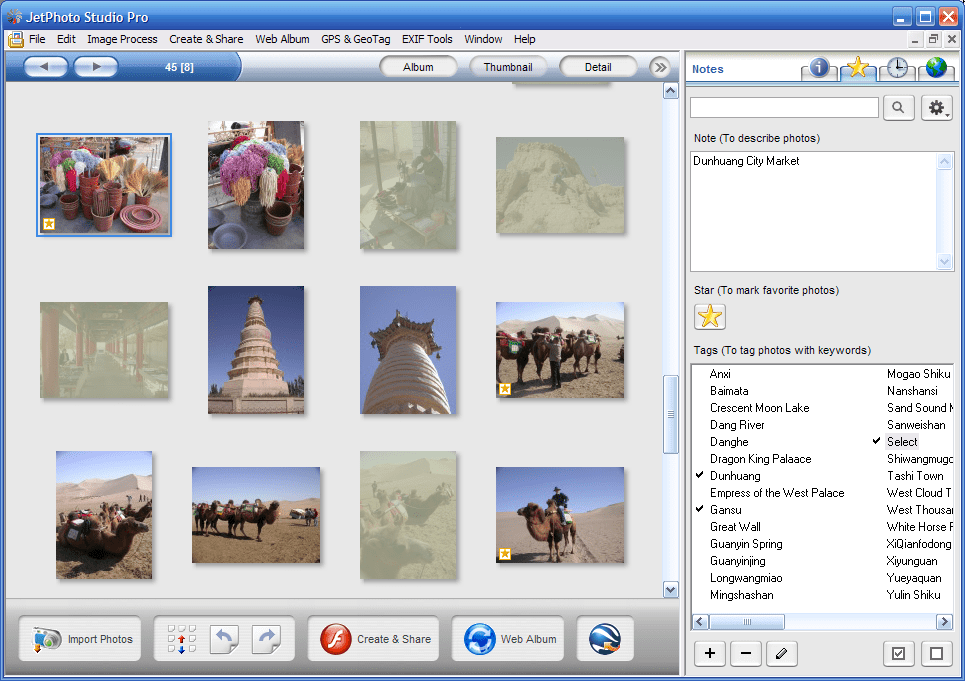
With two available versions (one free and one paid),  JetPhoto Studio is one of most straightforward programs for organizing photos on the market. In fact, you could say that’s its strong point: it caters to all who don’t want extra stuff getting in the way when cataloging their snapshots.

JetPhoto Studio Download Now
7

On the other hand, it also allows the editing of photos, though we should note that, in this respect, it is quite basic. The only problem we see is that JetPhoto Studio doesn’t let you open RAW photos (to do this you need to go to checkout and install the corresponding PRO version). 

3. XnView MP

Between Google Photos and JetPhoto Studio, we have XnView MP, a pretty good program for editing photos, as well as image cataloging. However, since this article is about the latter, this cataloging feature is more important than editing.

Its biggest problem is its interface, which is a little clumsy and complicated (very similar to what you see in very basic office software). However, if you learn to use it well, you’ll enjoy it, since it has numerous options for cataloging.

XnView MP Download Now
8

By the way, it’s free, and available for almost all operating systems and has a mobile app that works very well.

4. SunlitGreen Photo Manager

We’ll wrap up this overview of photo organizing programs with SunlitGreen Photo Manager. This completely free software even includes its own search engine to find all the photos we’ve taken.

SunlitGreen Photo Manager Download Now
8

Its interface is relatively simple and direct, so it won’t be too hard to catalog albums, organize them, label them, and a long list of other options that we suggest you explore yourself.

Beyond WhatsApp: the most secure messaging apps

At the moment, WhatsApp is the most used messaging app in the world. According to recent figures, more than 2 billion users have it installed on their cell phones, a number that speaks to its importance in day-to-day life and in our way of communicating.

Despite this relevance, WhatsApp isn’t the only app for this. In fact, there are much more comprehensive ones. At Softonic, we’re bringing you this post called Beyond WhatsApp: 

Today’s most secure messaging apps.

Telegram

Though it’s not stepping on WhatsApp’s toes, Telegram gets more users every day. This increase is due to a large range of options, making communication between users easier, more enjoyable and, of course, fun.

For all that, we must add something many people don’t know about: Telegram is one of the most secure services that exist. Telegram encrypts all chats and groups with 356-bit AES, which guarantees a very high level of security.

8

Line

Telegram and WhatsApp are sometimes used in Asian countries, but there’s an app that undeniably leads the pack: Line. If you ask a Japanese, Korean, etc. about messaging systems, it’s likely the first thing they’ll say is Line. Is this tool secure? The answer is yes.

Line encrypts all sent messages and chats. Likewise, if that weren’t enough, we must note that Line has received three international security certificates. Your information is in good hands with Line.

7

Signal

With Signal, we get a messaging service that stands out for its security: or at least, that’s its most emphasized feature. Recommended by Edward Snowden, the famous ex-analyst of the NSA (National Security Agency), Signal offers us open-source software developed by Open Whisper Systems.

Signal’s main feature is that it is doesn’t store sent messages on a server, but rather the information is sent encrypted and is received the same way, i.e., it goes from one device to another without previously being recorded. Also, it has an option for self-deleting messages after a time.

7

Confide

We’ll wrap up this list with one that goes to an almost paranoid extreme: Confide. This app doesn’t store sent or received messages either, so nothing gets recorded on a server. Likewise, messages are also deleted after a while or even after being read.  

If you thought that was enough, wait for the best part: it’s necessary to put your finger on the message to see it. Forget about taking screenshots, unless you have mad Smartphone skills. Confide is by far the most secure app, though it’s a little cumbersome for saying “hi” to mom or dad.

9

How to perform a clean install of Windows 10

If you currently have a PC that isn’t running the latest version of Windows, you probably want to update your device. So, do you know how to install Windows 10 cleanly?

Windows 10 Download Windows 10
8
The latest and greatest version of Microsoft's operating system.

In today’s article, we’ll give you some pointers on how to install Windows 10 on your PC cleanly and safely, i.e., without any hiccups. However, first, we’ll give you some advice.

Details to keep in mind

We don’t call it a “clean install” for nothing: all the apps that aren’t integrated into the operating system will be deleted. So, any program that you have downloaded, even those that belong to Microsoft but are secondary (such as Office), you’ll lose. Make sure you have the download keys to reinstall them later.

On top of this, you’ll also say goodbye to all apps, support programs, and drivers. This also refers to “digital licenses, digital content associated with apps and other digital rights relating to them.”

We don’t want to scare you with those last two paragraphs. We just want you to be aware that if you decide to install Windows 10 cleanly, this is what’s going to happen. Be mindful.

Step by step

After this “disclaimer,” as we’re calling it, it’s time to install Windows 10. First of all: free up the necessary space on your hard drive. You need about 3 GB, though our advice is that you make more space available (in fact, a lot more space).

Once you’ve got the necessary space (delete files and programs if not) and made a backup copy just in case (not mandatory, but recommended), you have to download the installation tool. To do this, you only have to click here.

Once you start, the standard Licence terms will pop up. Read and accept everything to continue with the installation.

When you complete the previous step, a new message will show up on the screen. This is where you will select what you want to keep; if you want to save your personal files, click on Keep only personal files. Instead, if you want to delete everything, click Nothing. 

Click the Ok button and start the installation. From here on, the process is completely automatic, though you can cancel it if you get scared. When can you do this? Well right before the computer restarts. If it does, your previous operating system will be completely wiped.

After a few minutes, you’ll have your Windows 10 cleanly activated. Remember to go to Settings -> Updates and security -> Windows update if you’re missing a driver (which we bet will happen at some point, we admit). Also, don’t forget to visit the company websites to install the latest drivers, especially having to do with those coveted graphics cards.

The best templates for Google Sheets

It’s very likely that you use the online office services that Google offers. Yup, we’re talking about the Word and Excel files that are available without even starting up Microsoft software, since they’re in the cloud thanks to Google.

If you’re an avid user of these tools, pay attention: here you’ve got the…

10 best templates for Google Sheets

From Google Drive, you can access your files on the cloud and create all kinds of new files: spreadsheets, documents, presentations and much more.

Google Drive Download Google Drive
7

Chores

To make everything a little more organized, we’ve created five categories with two templates each. The first one has to do with “Chores,” something key to our daily lives.

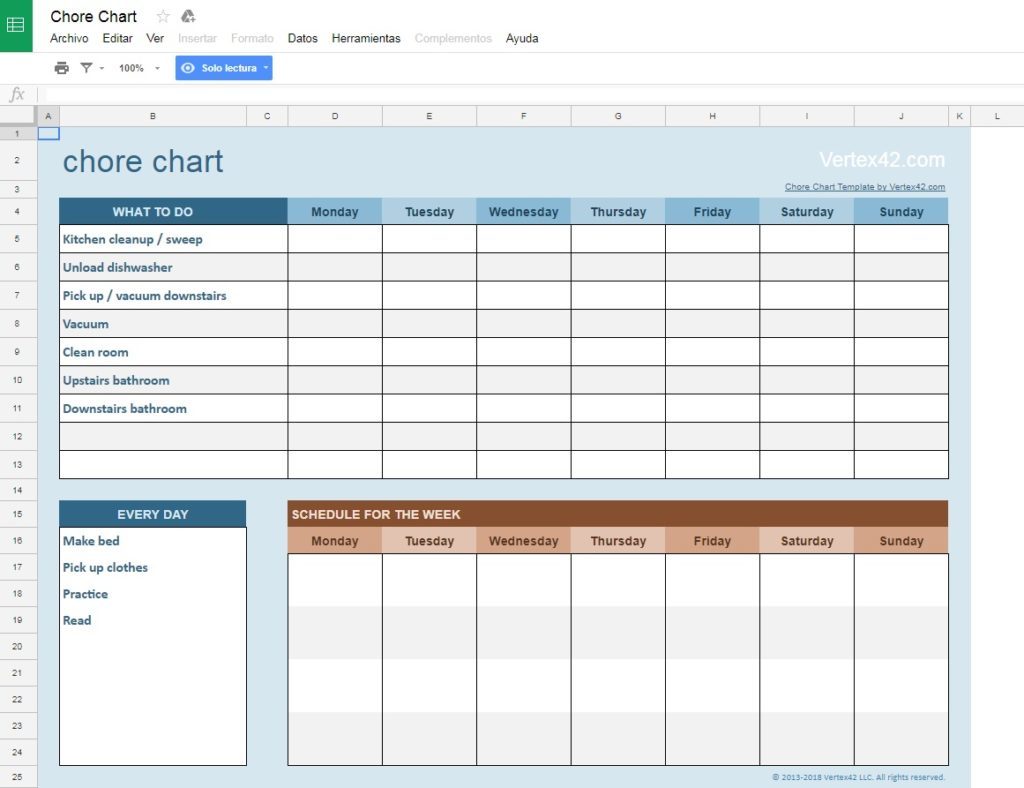
Chore list: This is the most basic of all, but perhaps it’s increasingly necessary? With this template, we have a column for if the action has been completed, the second with the task to do and the third with additional info (for example, the date). Easy-peasy.

Weekly chores: If the previous template was simple, this one definitely isn’t. With this spreadsheet, we can write weekly tasks in a detailed fashion. It’s the template’s greatest virtue and greatest vice that you have to keep updating it every time you get to Sunday. Mind you; it’s great for the family.

Budgets

For trips: This is a spreadsheet designed for trips, i.e., to record expenses. It may be a little rough at first, but it serves its function well. For us, it’s a keeper.

For day-to-day life: This spreadsheet is key to having a well-organized household. Likewise, it’s also designed for those who are independent right now. Great for tracking income and expenses.

Exercise and sports

For exercise routines: If you love exercising and would like to track your habits accurately, this spreadsheet is for you. It’s basic from start to finish, but it will keep you well organized. It’s worth it, we promise.

For teams: We’re crazy about this template. Google has enabled this sheet by default, which keeps your team organized, no matter what sport you play. Soccer, basketball, tennis, sports clubs… It all fits into this simple, but effective, sheet.

Calendar

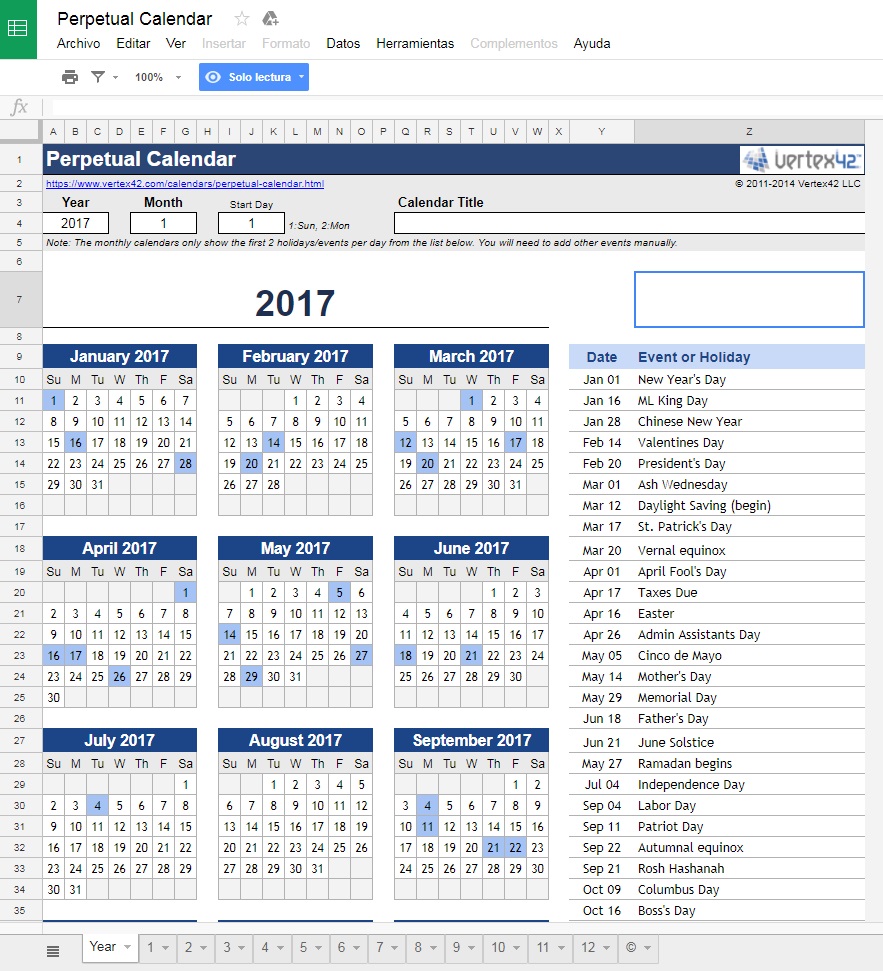
Basic: This is Google’s default template… and it offers exactly what we need. With this sheet, we have access to a yearly calendar. However, in the lower section, you can see months as well, so you can fill in the blanks in the same traditional style as a paper planner.

Complex: We call this one “complex,” but it’s not really. With this calendar, you have all the previous features, but with some of the most important events of the year added. Obviously, you can change them to put in your region’s holidays.

Random

Resume: We’ll wrap up with two “random” templates, i.e., those that don’t fit into a category. The first has to do with resumes. You can quickly and directly add your employment and educational history to this lovely template. Designed for those who need to share their resume online.

Health and weight: We’ll end the list with a template that works reasonably well if you want to track weight loss, sleeping hours, vitamins, etc. Give it a shot if you need to monitor your health.

How to protect your devices from water

You and I both know it: there’s nothing more annoying than your cell phone falling into water. Though many gadgets already have protection against liquids, it’s best not to put them to the test. In fact, we recommend adding an additional security layer to protect against liquids, so your devices last even longer.

Here at Softonic, we’re thinking of you: there’s nothing better than a series of tips about…

How to protect your devices from water

For iPhone

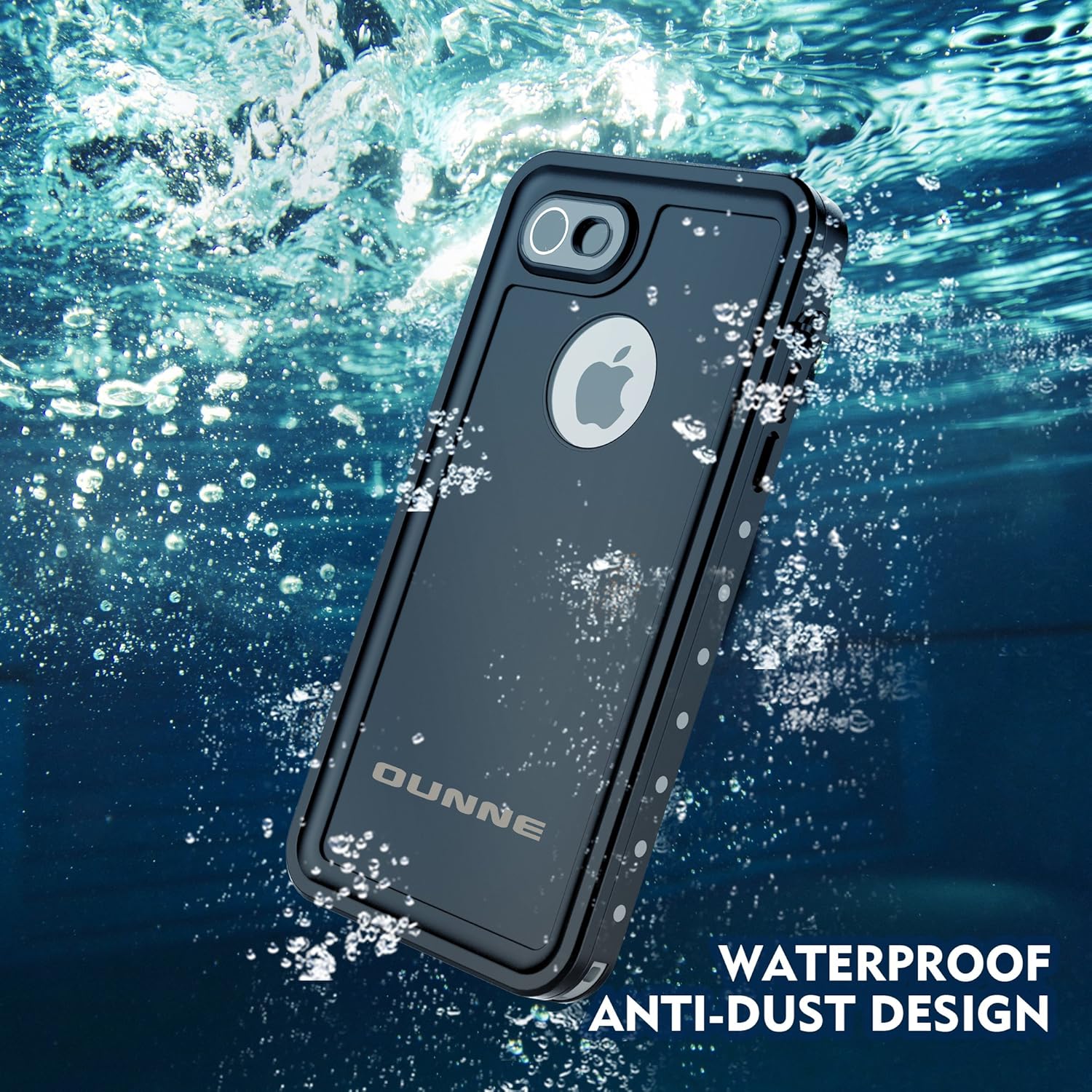
There are dozens of cases, and each one has a different size (just like the iPhone). However, we really like the Ounne brand. They usually come with IP68 certification, which guarantees industry standard quality. Also, the cases have excellent protection against dust, scratches, hits, lousy weather, spills, ice and even dirt.

Check out all the available models. Here, we’ll leave you with one for the iPhone 7.

For Samsung Galaxy

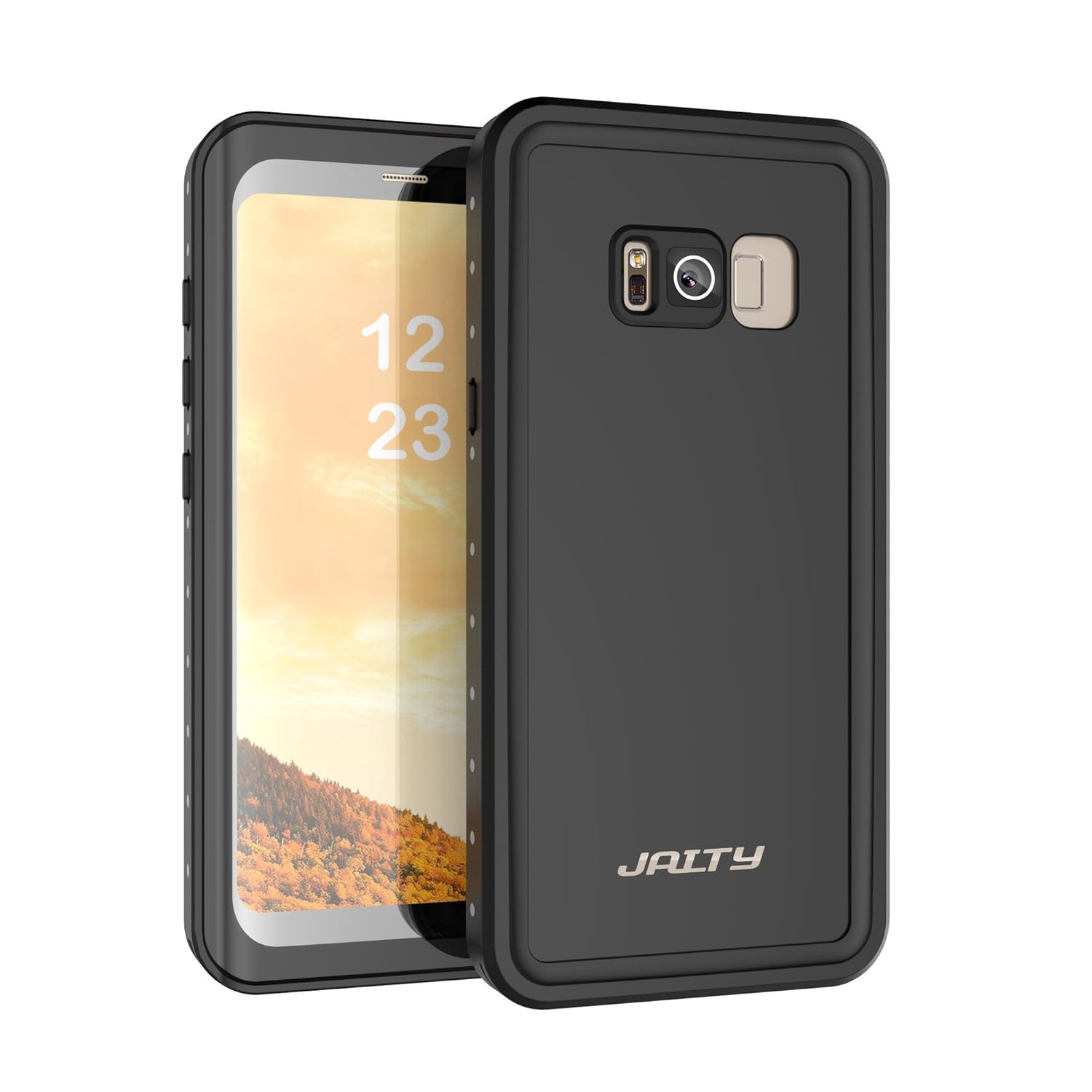
In the previous section, we gave you the option to protect your iPhone; the Galaxy is no different. The waterproof Jaity case responds pretty well when it comes to protecting against water. Are there better ones? Yes, of course, but many of them aren’t designed to protect against liquids, but rather hits, scratches, etc. That’s why this waterproof case is a great option.

It also has IP68 protection, as well as a great design that lets you access all the smartphone buttons without any trouble. By the way, it’s also attractive and doesn’t usually clash with the device’s design, for which we’re thankful…

For sports cameras

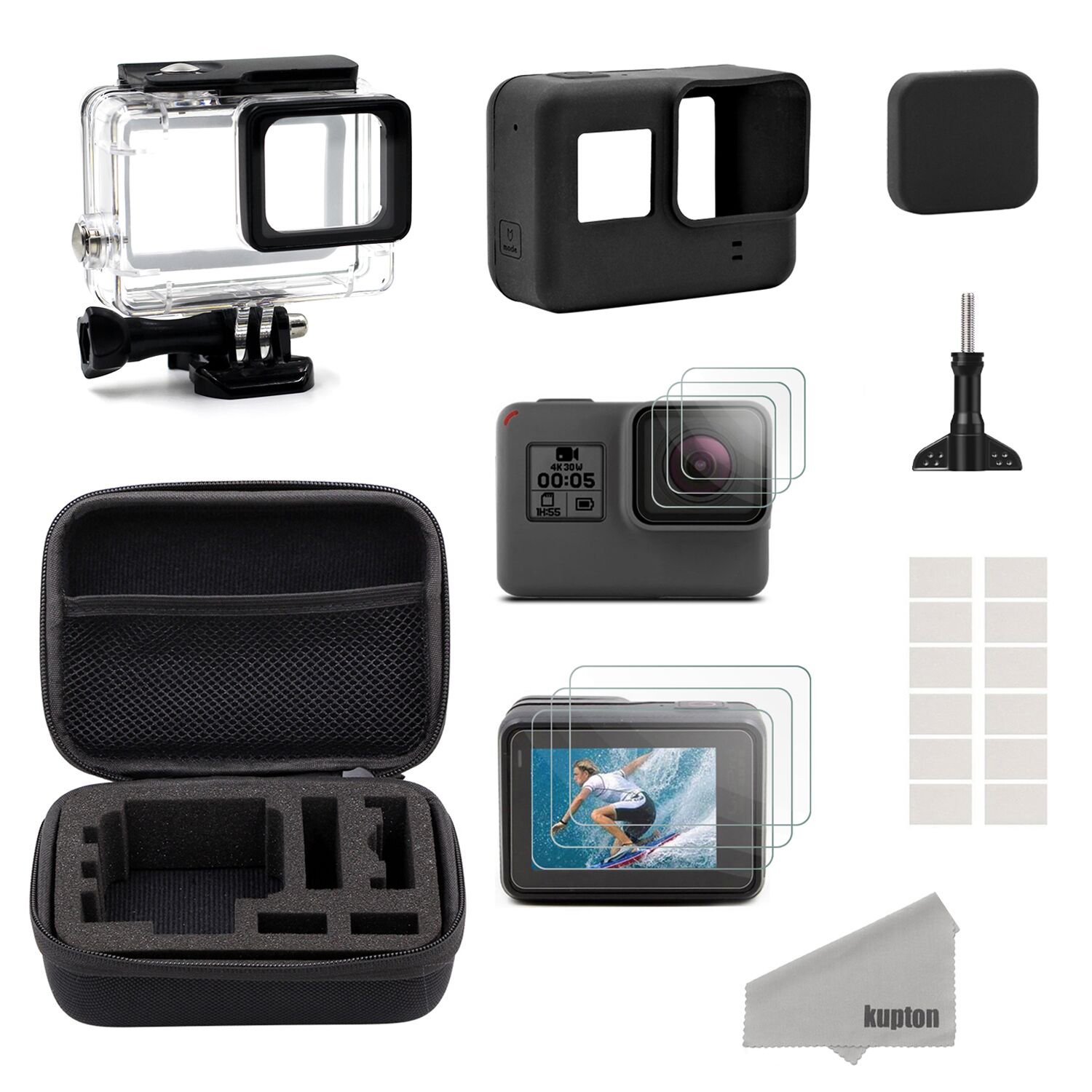
What’s a sports camera without the possibility of using it underwater? Though in most cases these gadgets already come with a standard case for protection, it’s convenient to have a backup or even to buy a better one. Here’s where the Kupton case comes in.

Considered one of the best by users, it can be submerged up to 45 meters in the case of scuba diving, i.e., pretty deep. Also, it’s designed for surfing or snorkeling, since the quality doesn’t change the image or video quality: it stays clear and crisp as if nothing it isn’t even there.

For tablets

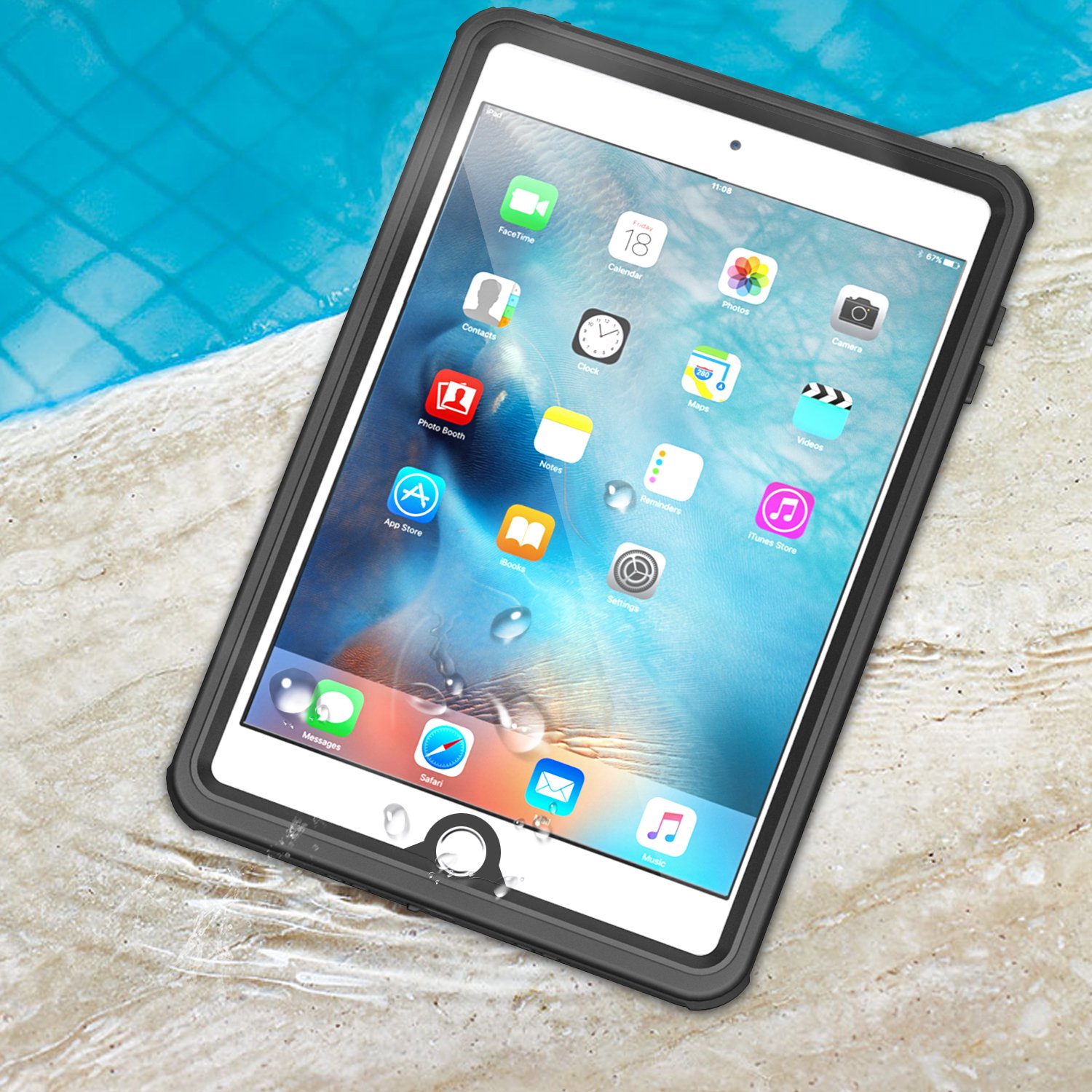
Do you have an iPad, a Samsung Tab or another popular tablet? The MoKo case fits the major market brands perfectly. And yes, it’s completely waterproof, so you can bring your device to the pool or the beach, for example, and not worry about its safety one bit.

The material of the case lets you maintain 100% control of the touchscreen. Likewise, it also has all the features of rear and front cameras. Though, we must note that it doesn’t protect against extreme temperatures, so use it carefully this summer.

Are you looking at other devices?

How to get Windows 10 working smoothly on a Mac

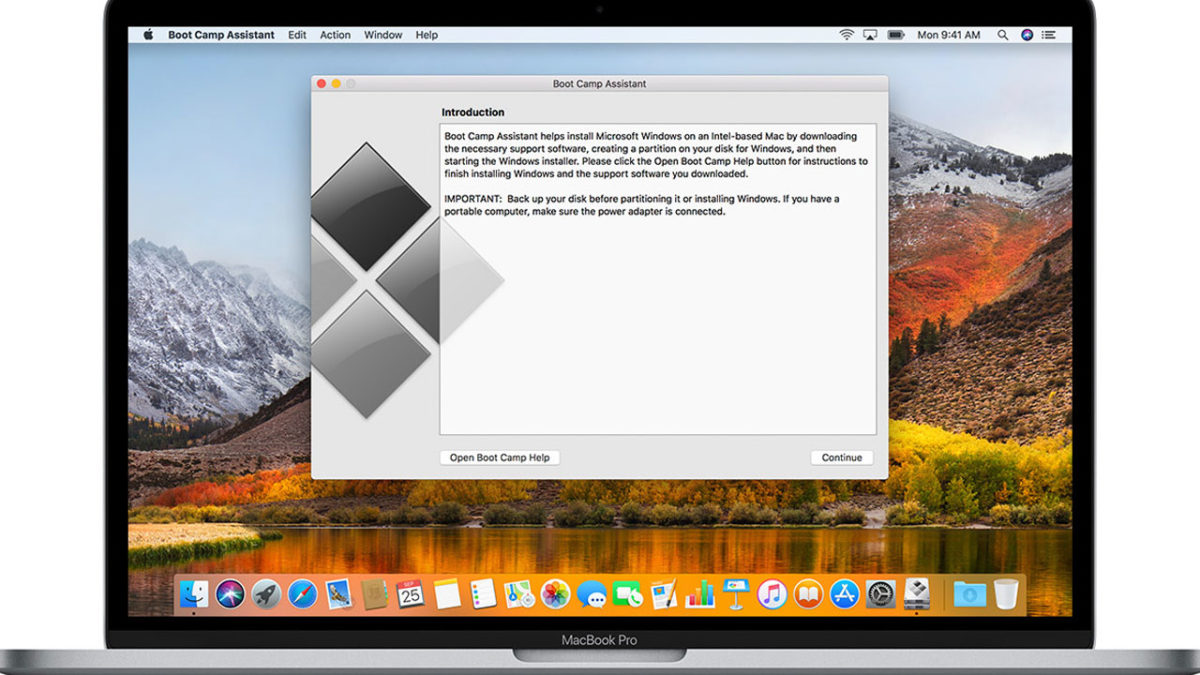
One of the greatest myths on the Internet is that you can’t install an Android operating system on an iPhone, or the latest version of Windows 10 on a Mac. We say myth because it’s just that: you can make Windows 10 run on a Mac problem-free using Boot Camp.

Today, we’re not going to tell you how to do everything, but rather focus on how to get Windows 10 running smoothly on a Mac. In other words, those key steps so your operating system runs problem-free.

For A+ performance

The first thing you should keep in mind so Windows 10 runs smoothly on your Mac is that you need to have compatible versions with Boot Camp. For this, you should have OS X Yosemite or a later version installed. Forget about installing Microsoft’s system if you don’t have this.

Starting from here, the next step is to have the compatibility software – drivers, c’mon now – to make Windows 10 run. How do you get these drivers? Well, they’re automatically downloaded when you use Boot Camp Support, which supports the 64-bit version of Windows 10 Home and Windows 10 Pro.

Once you’ve completed this step – perhaps the most important one – the next is to get Windows 10. The operating system can be obtained from the Microsoft website as an ISO file or by adding it via a USB drive. However, we’ll make it easy for you, thanks to this Softonic download here.

Windows 10 Download
7

Just as the guys at Apple point out on their official web page, you must be careful with an ISO file or a flash-drive used to install the operating system. Why? Well, because it has to be a base installer, i.e. the system from scratch and not an update installer. This point is very important since it will likely give you errors if not.

Another very important tip for Windows 10 to run smoothly on your precious Mac has to do with the size assigned to the partition. When you download Boot Camp Support on your device, it will request a partition from Windows 10. Though on paper it requires about 5 GB, we admit that with this capacity you won’t have much space. So, go higher and configure enough space exclusively for Windows. You’ll thank us later.

Now that you have the main requirements to install Windows 10 on your Mac, the question we have is simple: do you dare to take the plunge and have two operating systems on the same device? It’s a good idea, we promise.

How to encrypt your Android phone

If you don’t think your cell phone has enough security, this post is for you: we’ll teach you how to encrypt your Android phone. However, beforehand we’ll explain what encryption is and its pros and cons.

What encryption is

Encrypting your cell phone prevents all your content from falling into somebody else’s hands. Does that mean it’s inaccessible even to the FBI? The answer is no, but we can assure you that security is much higher with encryption than without.

When your smartphone is encrypted, it forces you to enter in a password every time images, videos or documents are accessed. In other words, everything is restricted by that password only you know (this also can be a PIN or lock pattern, by the way).

“But if it’s so secure, why don’t more people use it?” You may be asking yourself this question right now. Obviously, there’s an answer: because not everything is rainbows and butterflies. When you encrypt a cell phone, its performance is significantly reduced, since more resources are needed both for the processor and the internal memory.

With this in mind, forget about encrypting devices that are mid-range or low quality, since you’ll get a slow (very slow, to be honest) phone. Likewise, there are devices that undergo the opposite process, i.e. decryption, which causes so much headache it’s best to forget about it.

How to encrypt your phone

You’ve seen the pros and cons above; now comes the important part. Do you want to encrypt your smartphone? If the answer is yes, we warn you that the process may take longer than you think (about an hour or even longer), though it’s not hard to do.

To encrypt it, just click on “Settings” and look for the option “Security” (which appears with a lock icon). Once inside, the category we want is “Encrypt phone.” There you’ll see the terms and conditions that apply after phone encryption begins.

The last point there is important, where it notes that the process may take “an hour or longer,” as we mentioned earlier. Also “you should start the process with the battery charged and keep the phone plugged in. If the process is interrupted, you’ll lose your data fully or in part.” Be careful with this last one. This means if you stop encryption of your phone, you’ll have to reset it to factory settings (losing everything or nearly everything).

We must note that the latest version of Android (Oreo) now allows fragmented encryption, i.e. you can encrypt certain apps or features. This may suit you if you want to protect a very specific part of the system.

Android Oreo Download
9