How to add text on a PDF

Do you need to fill out a PDF form or add comments or text to an already created PDF document? In this video tutorial we’ll show you how to do it.

How to add text on a PDF por softonic-en

To add text, first you will need to have Adobe Reader installed on your computer. If you don’t have it, you’ll find a link to the Adobe homepage here.

Once Adobe Reader is installed, open the program and click on “File” and on “Open…” to look for the document to which you want to add text.

When the document you want to edit is open, click on the “Tools” tab next to “Home”.

Now, to fill out a form or sign a document select “Fill & Sign”. This option will allow you to add text on a PDF form by clicking on the place you want to type something. You’ll even be able to change the font size.

You can also add your signature to the document by selecting a scanned image or by drawing it with your mouse or on a graphic tablet. You might as well just type your name and surname.

If you need to add comments to the document, select “Comment”. With this option you will be able to make comments as well as underline or highlight segments of text.

And, once you’ve edited the document remember to click on “Save”.

How to save passwords in Avast

Avast just added an interesting new feature with its 2016 update that allows you to save the passwords of web pages you visit regularly. These are the main advantages of this new functionality:

–  You just need to remember one password to access all your favorite sites.

– When you fill out a form it will autocomplete with the stored information you previously provided.

– It allows you to sync all of your passwords on all of your devices.

– You can create unique and highly secure passwords for each account.

In this video tutorial we will explain the steps you need to follow to enable and configure this feature.

    How to save passwords in Avast por softonic-en

  1. First, open Avast, click on “Passwords” and then on “Overview“.
  2. On “Overview” select “Check my passwords” and then on “Continue”. Avast will now ask you to type a password. This password will be the primary and the one that allows you to access your profile, which will save you time when accessing your web pages, forms, etc. It’s very important to choose a password that is easy to remember because if you forget it, Avast won’t be able to retrieve it.
  3. As you type the password, Avast will tell you if it’s weak, medium, or strong. We recommend you to choose a password that has capital letters, numbers, and special characters to make as safe as possible. If you want to check if you have correctly entered your password please click on the eye icon.
  4. Once the password is entered click on “Create Main Password“.
  5. When that’s done, select your default browser and install the Avast Passwords extension. Click on “Open now” and allow the installation of the extension.
  6. Now Avast Passwords is enabled and running on the browser you’ve selected. Avast recommends you to delete the passwords that were previously saved on the browser.If you want to do so, mark this box and click on “Start Using Avast passwords” to complete the process.

And that’s it! This new feature will allow you to forget all your passwords for good.

How to download and install Five Nights at Freddy’s 2

If you’re reading this it means that you survived your first frightening Five Nights at Freddy’s experience. So, what’s next? Well, Five Nights at Freddy’s 2 of course. Do you dare return to Freddy’s pizza restaurant once again?

If you do decide to once again put on your security guard uniform, and go back to work you will find that Freddy the bear has evolved, and he’s not alone! Now other terrifying animatronic characters have joined him. This means that you will need to be even more careful, because all of them seem to have a taste for your flesh.

Are you ready to download and play Five Nights at Freddy’s 2? Let’s start! In this video tutorial we will show you how to download and install Five Nights at Freddy’s 2:

How to download and install Five Nights at… por softonic-en

1. First, open Steam. If you don´t this digital gaming platform installed yet then you can download it on steampowered.com

2. Once Steam is running you need to login or create a new account.

3. After you’re logged in, type ‘Five Nights at Freddy’s 2‘ into the Steam search bar and select it among the options presented. It should be right near the top.

4. Next, on the Five Nights at Freddy’s 2 product page, select the ‘Add to Cart‘ button to begin the purchase.

5. Once purchased, Five Nights at Freddy’s 2 will appear in your Steam library list and you’ll be able to download it. To find it, just go to the ‘Library‘ tab and select ‘Games‘.  All you have to do then is select Five Nights at Freddy’s 2 on your game library and click on ‘Install‘ to start the download and installation process. Within seconds, you’ll see a window that will tell you the space required on your hard drive and the time needed for the installation.

6. Clicking ‘Next‘ then will continue the installation process.

7. Choose the installations settings you want, then click on ‘Next‘ again to begin the download and installation. If you click on ‘Downloads‘ in the Library tab you can monitor the download’s progress.

Don’t worry if for some reason you need to exit Steam. The whole process will pause and resume when you reopen it.

8. Once the download is finished click on ‘Play‘ to start getting frightened!

Playing Five Nights at Freddy’s 2 is very similar to the original: you have security cameras to keep an eye on what you furry stalkers are up to, and a light to see the hall. This time, however, there are no doors to prevent the animatronics entering your office! On the bright side, the good people at Freddy’s have given you a new security system protect yourself with: a Freddy Fazbear’s mask.

Every time you think a fuzzy fiend is close you will have to don this face gear and pretend to be one of them. You’ll need to be quick though… otherwise… Bwaraahhhh!

Will you make it through the night? There is only one way to find out. Good luck!

How to download and install Five Nights at Freddy’s

Would you like to be a security guard for a pizza restaurant? That doesn’t sound very interesting, but what if we told you that in this pizza restaurant there’s a gang of terrifying animatronic characters? That the job will be the five most horrifying nights of your life? Oh, and did we mention that they like eating brains? It sounds better now, doesn’t it?

In this article we will show you how to download, install and play Five Night’s at Freddy’s.

How to download and install Five Nights at… por softonic-en

You can download Five Nights at Freddy’s 1 from Steam, Valve’s digital distribution platform. All you have to do is follow these steps:

1. First, open Steam. If you don´t have it installed yet, you can download it here.

2. Once Steam is running you need to login or create a new account.

3. After you’re logged in, type Five Nights at Freddy’s into the Steam search bar and select it from the options presented. It should be right near the top.

4. Next, on the Five Nights at Freddy’s product page, select the Add to Cart button to begin the purchase.

5. Once purchased it, Five Nights at Freddy’s will appear on your Steam library and you’ll be able to download it. To find it, just go to the Library tab and select Games.

6. All you have to do then is select Five Nights at Freddy’s from your game library and click on Install to start the download and installation process. Within seconds, you’ll see a window that will tell you the space required on your hard drive and the time needed for the installation.

7. Clicking on Next will continue the installation process.

8. Choose the installations settings you want, then click on Next to begin the download and installation. If you click on Downloads in the Library tab you can monitor the download’s progress. Oh, and don’t worry if for some reason you need to exit Steam. The whole process will pause and resume when you reopen it.

9. Once the download is finished click on Play to start getting frightened!

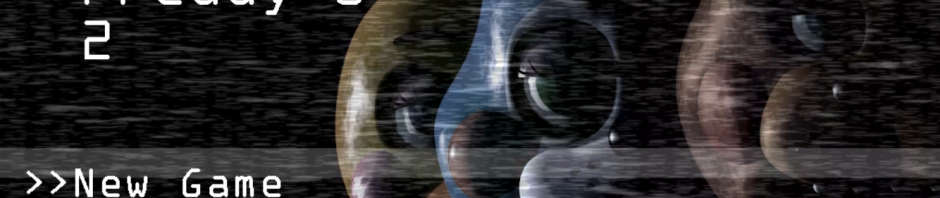
Now, you can enjoy FNAF on your computer. Starting to play is easy, simply select the New game option on the start screen.

Once the game begins, you’ll find yourself in the security guard office where you’ll be able to control the cameras, doors and light switches.

At the start of the game you will get a call of a restaurant employee explaining how the business works and warning you about the animatronic characters mischief during the night. To ensure you’re not completely at the mercy of these creatures, you’ll have to control the security cameras. To use them you’ll need to move the mouse along the bar at the bottom of the screen and click on the camera number that you want to see.

Be careful though, because you have a limited amount of power, and using cameras, closing doors and switching the lights on will drain it. And once you’re run out of power you’ll find yourself defenseless. Just remember that your main role is to watch the restaurant, and you’ll have to check every camera and door to ensure you make it to dawn alive.
How to download and install Google Chrome (64-bit)

Google Chrome is one of the most popular browsers, and it’s available for 64-bit Windows based operating systems. If you don’t know if you system is 32 or 64 bit you can discover it here.

In this video tutorial we will show you how to download and install Google Chrome (64 bit)

How to download and install Google Chrome 64 bit por softonic-en

1. To download Google Chrome visit Softonic and type Google Chrome 64 bit into the search box.

2. When the search results are shown, click on Google Chrome (64-bit) to see the program’s review. In the review you’ll find basic information about the program as well as detailed analysis, providing useful insights and tips.

3. Once you’re on the program page click on Free Download to access the Google Chrome website, where you will be able to download the program.

4. Click on Download Chrome to start the download. Take a look at the terms of service, mark or unmark the check boxes as you wish and click on Accept and Install to carry on with the download.

5. After this you will see the download window. Save the file on your computer, and once the download is completed double-click on the file to start the installation.

The installation process will begin automatically.

When the installation is finished, Google Chrome will open and you will be able to use it.

Did you like this article? Share your thoughts on the comment section below.