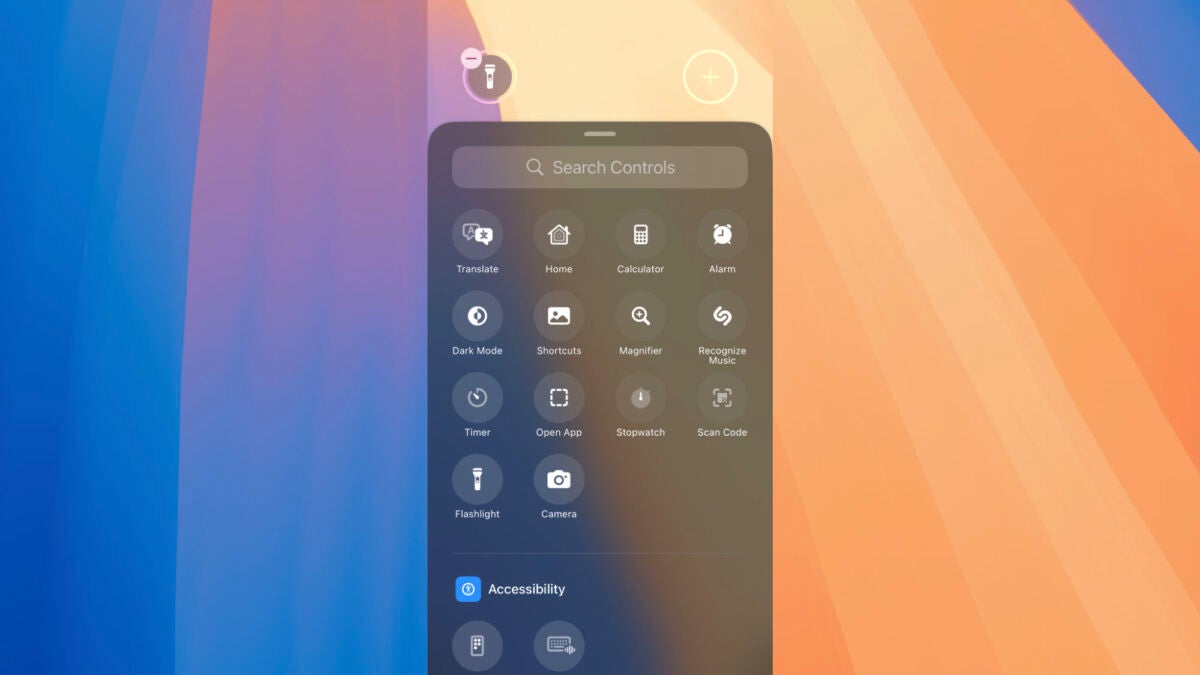
With the release of iOS 18, Apple has introduced a series of new customization features that allow us to adapt our devices to our preferences and needs. One of the most notable innovations in this field is the ability to change the Flashlight and Camera buttons on the lock screen of the iPhone to other actions of our choice. Let’s see how to do it.

How to replace the Flashlight and Camera buttons
The first thing we need to do, since this is an exclusive feature of iOS 18, is to have our iPhone updated to this version of the operating system. Once this is done, we can follow these steps:
- Open the Settings app on our iPhone.
- Go to the “Wallpaper” section.
- Select a new wallpaper on the right side or, if preferred, tap on the currently configured one.
- At the bottom, tap on the “-” button next to the camera or flashlight button.
- Then, tap on the “+” button that appears in its place.
- Choose the action you want to assign to that button.
- Tap on the blue “OK” button at the top right.
In step six, we can choose from a wide variety of options. From quick access to the Translate app to the Home app, Calculator, enable or disable dark mode, the magnifying glass or Shazam’s music recognition. Access alarms, enable or disable airplane mode, enter Siri’s Remote for Apple TV, open any app through Shortcuts, run one of them, mute the phone, and much more.
The truth is that being able to create a quick note from the home screen, start recording an audio note, or open any installed app on our iPhone with just the press of a button is really interesting. Between those two buttons, the ones we can add as widgets at the top and the action button on the iPhone 15 with the Pro surname, there are several actions that we can carry out with just one button.
The ability to change the buttons on the lock screen in iOS 18 undoubtedly represents a very significant step towards the customization of Apple devices. Along with other customization options such as the ability to change the color of app icons, this is an update that significantly advances in this direction.
