
Adobe Firefly’s Crop and Expand feature is one of the fastest ways to resize and rework images for different social platforms and formats, whether you already make content or you’re just getting started. Most of the time, the same image has to work in more than one place, and each platform wants a different shape.
Firefly cuts out a lot of the busywork. You can adapt one image to several formats in a few minutes instead of re-cropping everything by hand. If you’re tired of awkward crops that cut off the subject or leave you with a layout that doesn’t fit, here’s how to do it.

What is Adobe Firefly Crop and Expand and how does it work?
Crop and Expand is a feature in Adobe Firefly that extends your image outward from the edges and fills the new empty space with AI-generated content. Firefly looks at the original photo, then builds outward in a way that matches the lighting, perspective, and overall look of the image you started with.
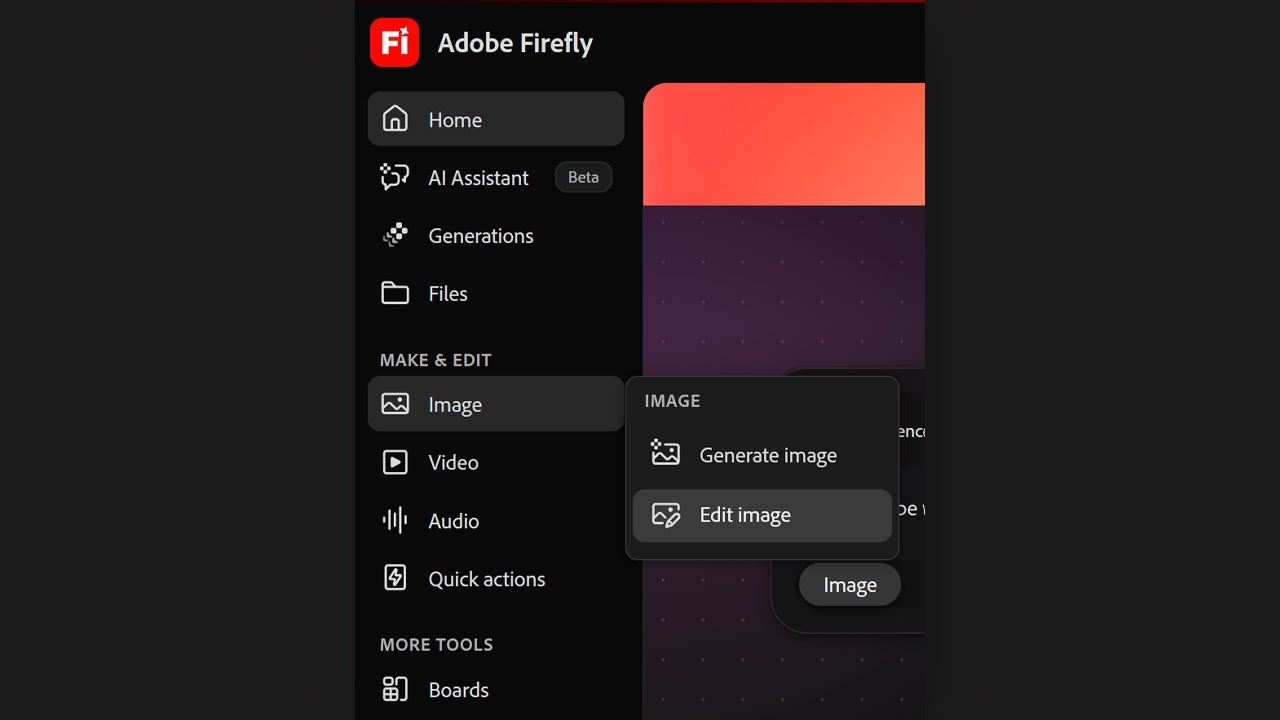
To begin, open Adobe Firefly in your browser if you’re on a computer. In the sidebar on the left, choose Image. Then click Edit Image.
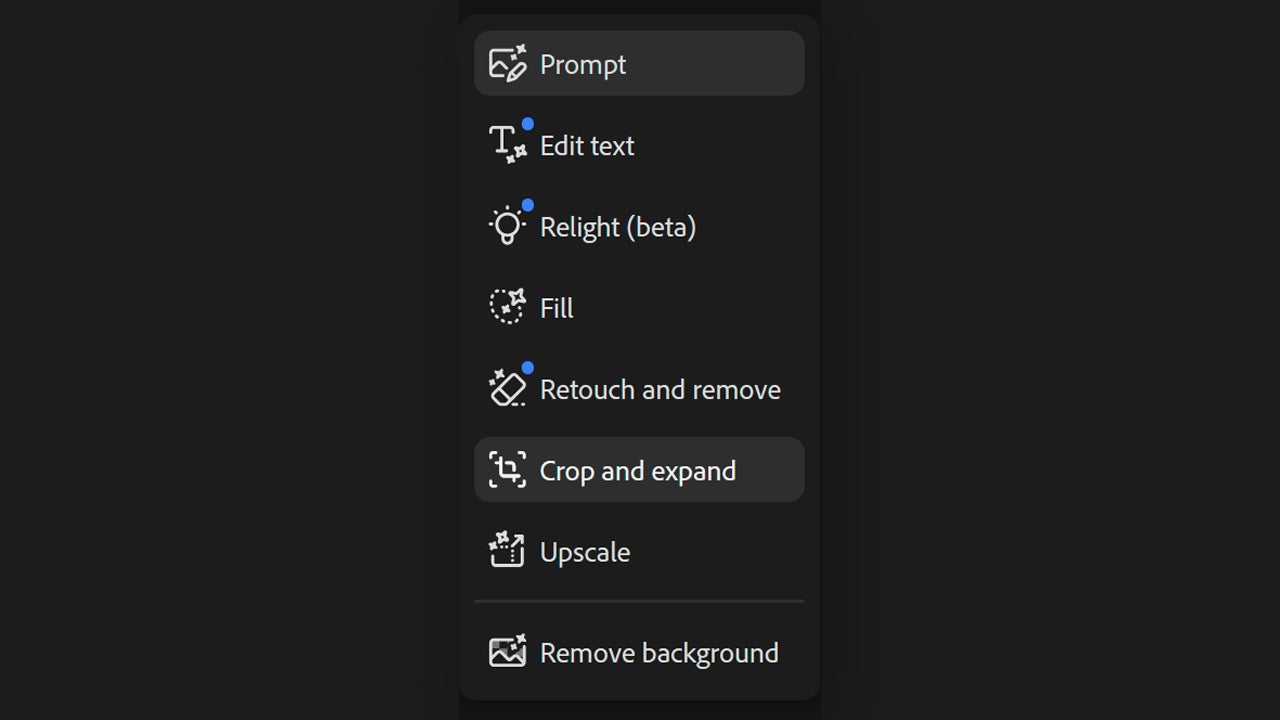
Click Upload to add an image from your computer. After that, pick the Crop and Expand option and drag the canvas out however you want. When you’re done, go to the bar at the bottom and click Crop.
If you’re using the Adobe Firefly mobile app, the path is a little different. On the app’s home page, look for the Generative Expand feature under the Modify images section.
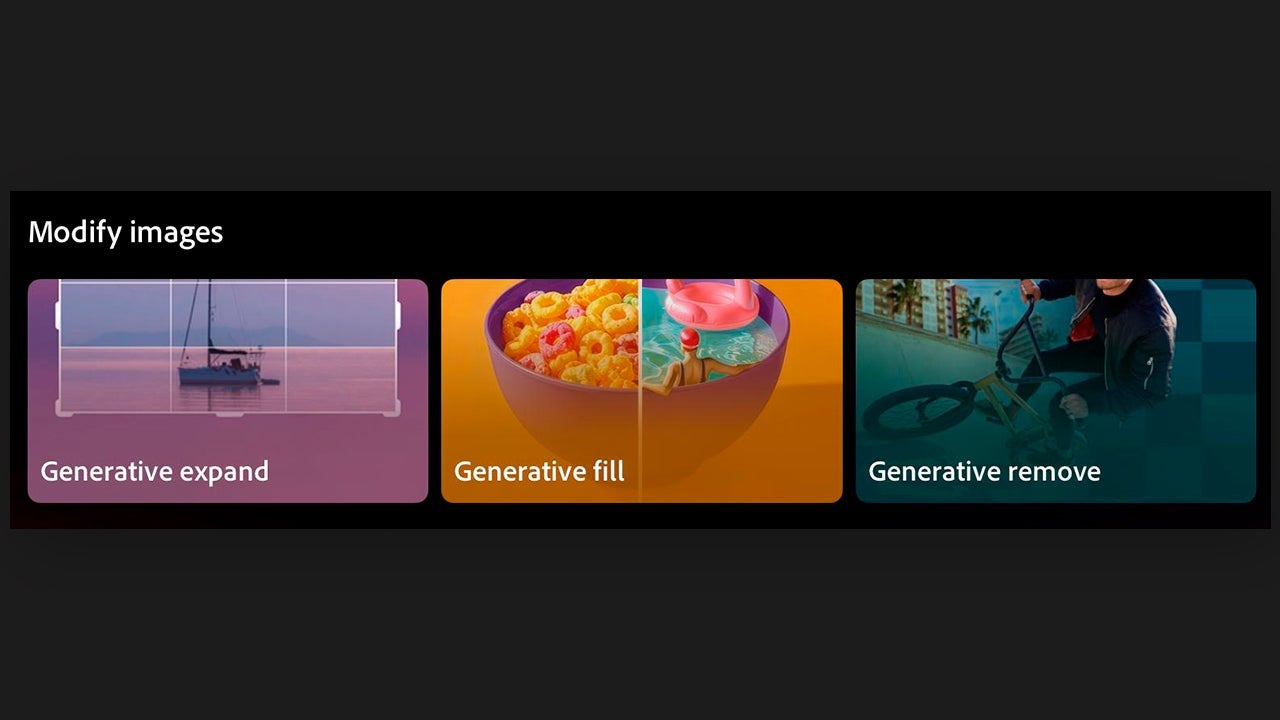
Tap it and your photo gallery will open so you can choose the image you want to expand. On mobile, though, you’re limited to preset aspect ratios such as square (1:1), vertical (9:16), and several others.
How to turn your images into YouTube thumbnails
Adobe Firefly can also take a 4:3 image and reshape it for a YouTube thumbnail. Here’s the process:
- Head to the Adobe Firefly website.
- In the panel on the left, click Image, or Quick actions, and then choose Expand Image.
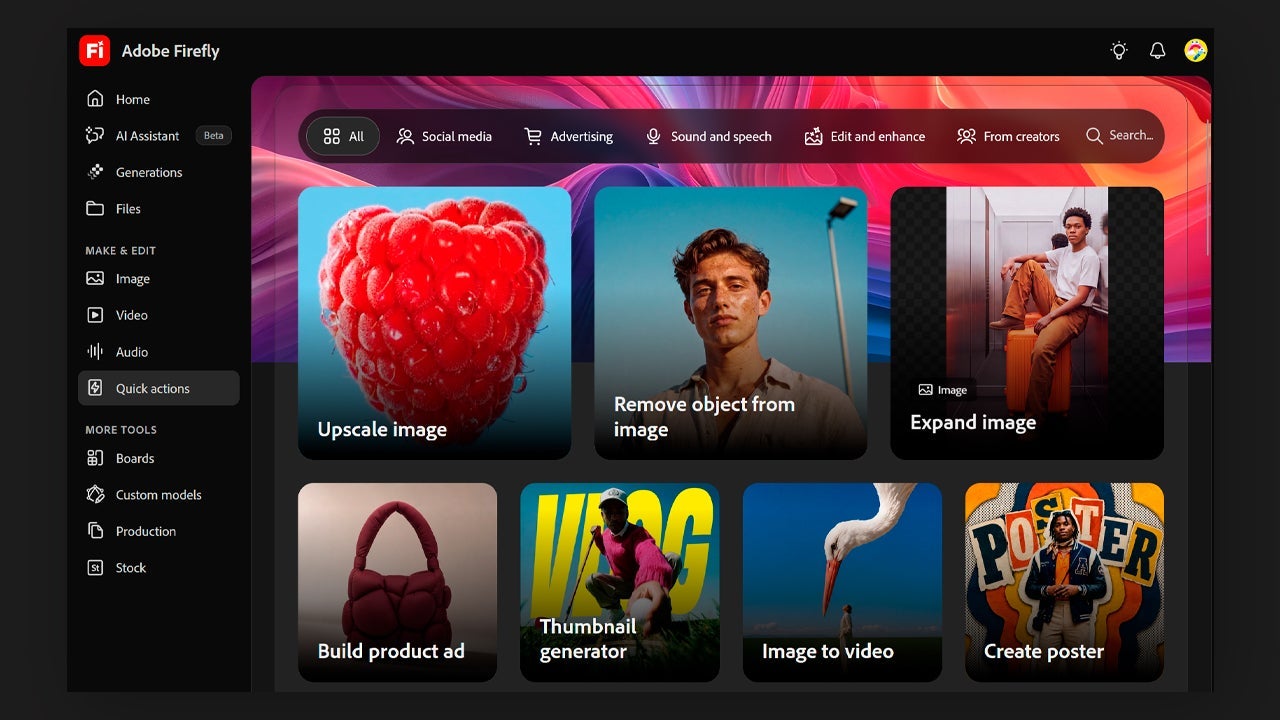
- Click the Upload your image button and add the photo you want to change. Then choose 16:9, which is the aspect ratio YouTube thumbnails use, and click Generate.
How to turn the same image into an Instagram Story
Expand Image works just as well when you need extra space at the top and bottom as it does when you need more room on the sides, so the process here is almost the same:
- Choose Expand Image again and upload your photo.
- The main thing that changes is the ratio. For a vertical format like an Instagram Story, select 9:16.
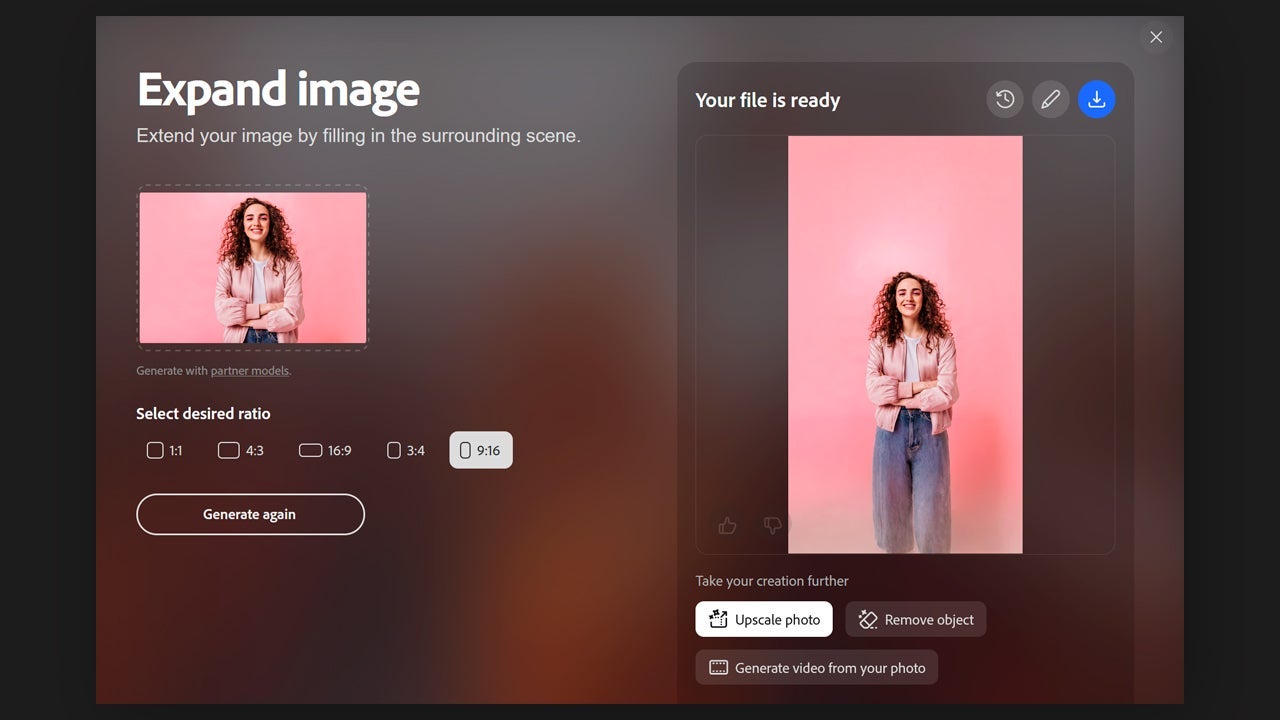
For Stories, the newly generated space is often a good place to add text, links, and other on-screen elements.
How to use Generative Expand in Photoshop
A lot of Adobe Firefly’s generative tools also show up inside Adobe’s best-known apps, including Photoshop. That means you can expand the edges of an image there too, using Generative Expand:
- Open your image in Adobe Photoshop, then go to the toolbar on the left and choose Crop Tool, or press C.
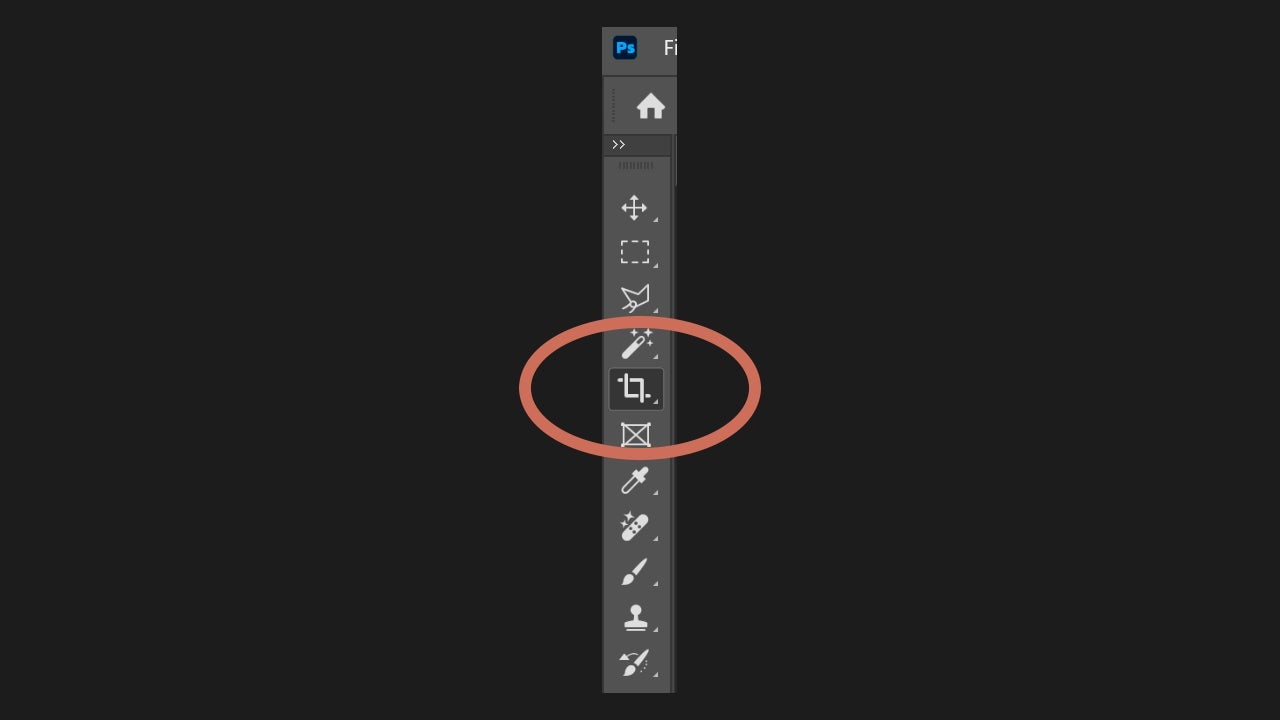
- Next, expand the canvas. A contextual bar should appear with the Generative Expand option. If that bar doesn’t show up, click Window > Contextual Task Bar.
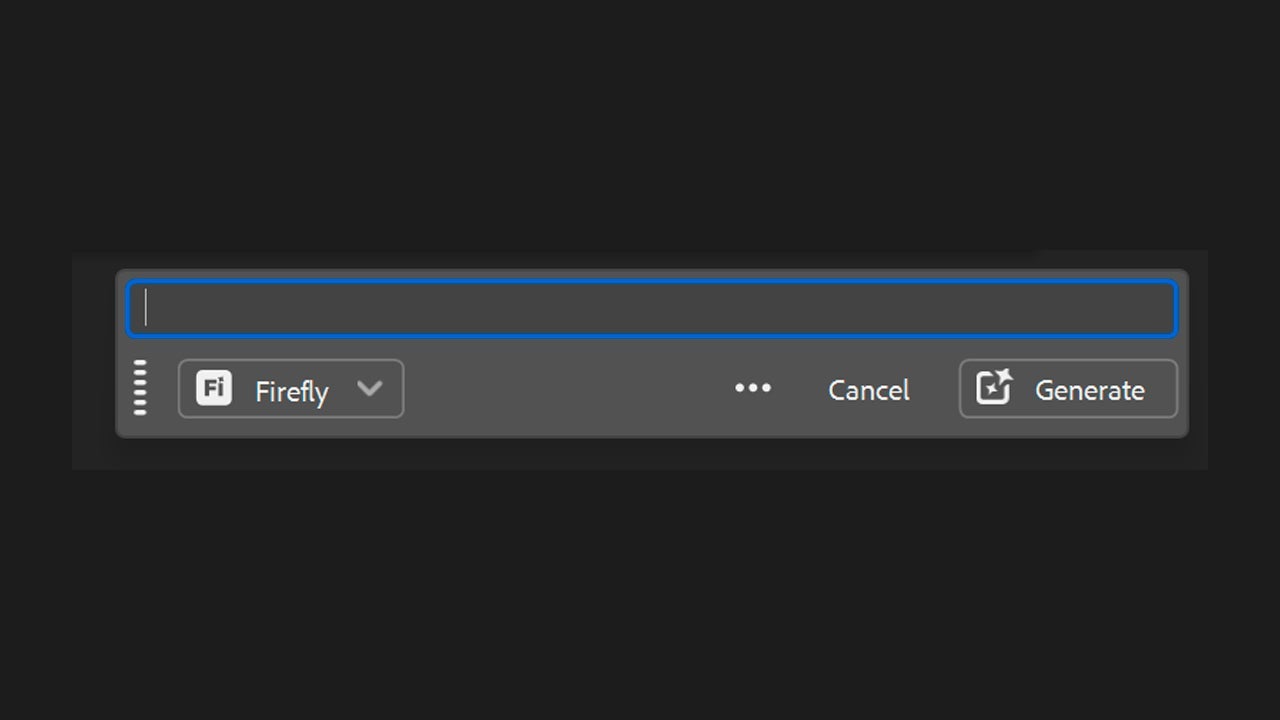
- You’ll then see a small text box where you can describe what you’d like to appear in the expanded area. Once you’ve written it, press Generate.
- In the Properties panel, you’ll get three different variations generated by Adobe Firefly based on your prompt. Pick the one you like best. If none of them looks quite right, you can run it again. For better results, keep the prompt short and direct. You can also try expanding the image without typing anything first. Firefly often does a good job on its own because it analyzes the existing image and continues from what’s already there.
Can I use Adobe Firefly for free?
Yes, you can. To use the Adobe Firefly platform, you just need a free Adobe account. According to Adobe, that gives you a set number of free daily generations for creating and editing images, video, and audio.
That also means you don’t have to pay to use Crop and Expand, since it counts toward those free daily generations, according to Adobe. If you plan to use it more heavily, you’d need one of Adobe’s paid plans.
