Skip to content

Softonic English

Just another Softonic Sites site

Optimizing Your PC for the Holidays with CCleaner Free

December Is Here: Lights, Gifts, and the Magic of an Optimized PC. The holiday season has arrived! It’s that time of year filled with lights, gifts, and, of course, family gatherings. Whether hunting for the best online deals or enjoying video calls with loved ones, nothing can ruin the mood faster than a slow computer cluttered with unnecessary files.

CCleaner Free
CCleaner Free Download

Don’t worry—CCleaner Free is here to help. With a few tweaks, your computer can be ready for the holiday season, running at peak efficiency. In this article, we’ll show you how to clean and speed up your PC with CCleaner to enjoy a stress-free and uninterrupted Christmas.

Why Optimize Your PC with CCleaner for the Holidays?

During the festive season, your computer becomes an essential tool. From browsing and shopping for gifts online to organizing family video calls, it’s crucial to ensure your device is running smoothly. Over time, computers tend to accumulate temporary files, cookies, and unnecessary programs that slow down their performance.

This can result in slower browsing speeds, prolonged loading times, or even crashes at critical moments. For example, a shopping page may take too long to load just as you’re about to finalize a great deal, or a video call may drop due to performance issues.

CCleaner Free is the perfect solution for these problems. This optimization software for Windows helps you remove unwanted files, manage background programs, and keep your system in top shape. By optimizing your computer with CCleaner Free, you’ll not only improve its speed but also ensure a seamless experience for all the activities that matter most during Christmas.

Get Your Computer Ready for the Holidays with CCleaner Free

Like decorating the tree or planning family dinners, preparing your PC is a key part of the holiday season. With CCleaner Free, this process is simple and effective. Follow these steps to optimize your computer’s performance:

1. Free Up Space with the Analysis Tool

Instead of manually searching for files to delete, let CCleaner’s analysis tool do the work:

  • Open CCleaner Free and select the “Health Check” tab on the left panel.
  • Allow the program to automatically identify unnecessary files like app caches, old logs, and temporary data.
  • Once the analysis is complete, click “Clean” to free up space and speed up your computer.

This step not only enhances overall performance but also provides more space to store holiday photos and videos.

2. Manage Cookies for Faster, Safer Browsing

Rather than deleting all cookies from your device, use CCleaner Free to manage them selectively:

  • Open “Options” and click on “Cookies.”
  • Select cookies from your favorite shopping websites, move them to the “Cookies to Keep” column, and delete the unnecessary ones.

This way, you can enjoy faster and more secure browsing without losing access to frequently visited sites.

3. Scan and Adjust the System Registry

Over time, the Windows registry collects unnecessary data that can slow down your system. CCleaner Free offers a specific tool to address this:

  • Go to “Tools,” select “Registry,” and click “Scan for Issues.”
  • Review the list with “Review selected Issues” and repair the entries either one by one or all at once.

This step can significantly improve your PC’s performance, especially when opening programs for virtual gatherings.

4. Use the Scheduled Cleaning Feature

To keep your PC optimized throughout the season, take advantage of CCleaner’s scheduled cleaning functionality:

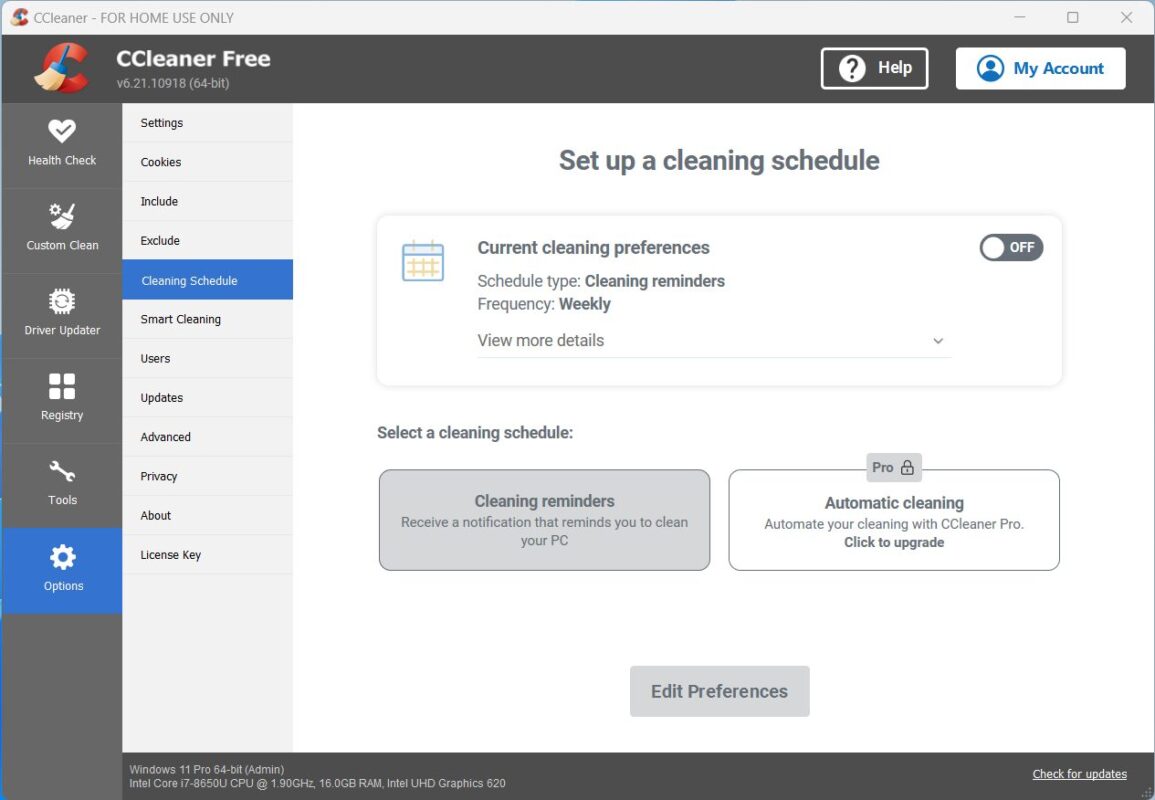
  • Open “Options” and select the “Cleaning Schedule” option.
  • Enable “Cleaning reminders” and set your preferences to receive notifications for future cleanups.

Practical Tips for a More Efficient PC

Optimizing your computer isn’t just about using CCleaner Free—there are other habits and tricks you can adopt to ensure a smoother experience during the holiday season:

Keep Drivers Updated

Outdated drivers can cause performance or compatibility issues. Take a few minutes to update essential drivers, such as those for your graphics card and network, using Windows Update, the Device Manager, or manufacturer websites.

Organize Your Desktop

A cluttered desktop with too many shortcuts can slow down Windows’ startup. Clear unnecessary items, organize documents into folders and keep only frequently used shortcuts.

Run a Malware Scan

Complement CCleaner with reliable antivirus software, such as Avast Free Antivirus, to check for no threats affecting your PC’s performance.

Choose a Lightweight Browser

If you plan to spend hours browsing for gifts, use a browser optimized for performance and disable any extensions you don’t use.
Activate High-Performance Mode in Windows

Maximize your computer’s resources for demanding tasks by enabling the high-performance power plan:

  • Go to “Settings” > “System” > “Power & sleep.”
  • Click “Additional power settings” in the right column and select the “High performance” plan.

These adjustments, combined with CCleaner’s tools, will prepare your PC for any activity during the holidays.

CCleaner Free
CCleaner Free Download

Enjoy a Stress-Free Christmas Season

The holiday season is the perfect time to enjoy online shopping and virtual gatherings without interruptions. CCleaner Free is the ideal tool to make it happen. With just a few simple steps, you can clean up unnecessary files, manage cookies, and optimize your PC’s performance. This ensures your computer is ready for anything—from snagging great deals to sharing special moments with your loved ones.Don’t let a slow computer ruin the festive spirit. Download CCleaner now, prepare your device, and make the most of this magical time of year. Happy Holidays!

Author: Pedro Domínguez

{ "de-DE": "", "en-US": "Publicist and audiovisual producer in love with social networks. I spend more time thinking about which videogames I will play than playing them.", "es-ES": "Publicista y productor audiovisual enamorado de las redes sociales. Paso más tiempo pensando a qué videojuegos voy a jugar que jugándolos.", "fr-FR": "Publicitaire et producteur audiovisuel passionné par les réseaux sociaux. Je passe plus de temps à penser aux jeux vidéo auxquels je jouerai qu'à y jouer.", "it-IT": "", "ja-JP": "", "nl-NL": "", "pl-PL": "", "pt-BR": "", "social": { "email": "", "facebook": "", "twitter": "", "linkedin": "" } } View all posts by Pedro Domínguez

Author Pedro DomínguezPosted on December 16, 2024July 1, 2025Categories News

Post navigation

Previous Previous post: How to Avoid Malware Infections from Holiday Greetings and Electronic Christmas Cards
Next Next post: TikTok has run out of time in the United States: what will happen now?

Recent Posts

  • We’ve already seen Netflix’s GTA 6 gameplay and we can say it’s everything we were hoping for
  • Michael Biehn is ready to return for FX’s Far Cry series: even for a cameo
  • Alien lands on Netflix US on September 1, 2026
  • The Girl in the River lands a September 2026 release date: limited theatrical and digital debut
  • ‘Toy Story 5’ already has a release date on Disney+! If you missed it, you’ve got no excuse now

Archives

  • August 2026
  • July 2026
  • June 2026
  • May 2026
  • April 2026
  • March 2026
  • February 2026
  • January 2026
  • December 2025
  • November 2025
  • October 2025
  • September 2025
  • August 2025
  • July 2025
  • June 2025
  • May 2025
  • April 2025
  • March 2025
  • February 2025
  • January 2025
  • December 2024
  • November 2024
  • October 2024
  • September 2024
  • August 2024
  • July 2024
  • June 2024
  • May 2024
  • April 2024
  • March 2024
  • February 2024
  • January 2024
  • December 2023
  • November 2023
  • October 2023
  • September 2023
  • August 2023
  • July 2023
  • June 2023
  • May 2023
  • April 2023
  • March 2023
  • February 2023
  • January 2023
  • December 2022
  • November 2022
  • October 2022
  • September 2022
  • August 2022
  • July 2022
  • June 2022
  • May 2022
  • April 2022
  • March 2022
  • February 2022
  • January 2022
  • December 2021
  • November 2021
  • October 2021
  • September 2021
  • August 2021
  • July 2021
  • June 2021
  • May 2021
  • April 2021
  • March 2021
  • February 2021
  • January 2021
  • December 2020
  • November 2020
  • October 2020
  • September 2020
  • August 2020
  • July 2020
  • June 2020
  • May 2020
  • April 2020
  • March 2020
  • February 2020
  • January 2020
  • December 2019
  • November 2019
  • October 2019
  • September 2019
  • August 2019
  • July 2019
  • June 2019
  • May 2019
  • April 2019
  • March 2019
  • February 2019
  • January 2019
  • December 2018
  • November 2018
  • October 2018
  • September 2018
  • August 2018
  • July 2018
  • June 2018
  • May 2018
  • April 2018
  • March 2018
  • February 2018
  • January 2018
  • December 2017
  • November 2017
  • October 2017
  • September 2017
  • August 2017
  • July 2017
  • June 2017
  • May 2017
  • April 2017
  • March 2017
  • February 2017
  • January 2017
  • December 2016
  • November 2016
  • October 2016
  • September 2016
  • August 2016
  • July 2016
  • June 2016
  • May 2016
  • April 2016
  • March 2016
  • February 2016
  • January 2016
  • December 2015
  • November 2015
  • October 2015
  • September 2015
  • August 2015
  • July 2015
  • June 2015
  • May 2015
  • April 2015
  • March 2015
  • February 2015
  • January 2015
  • December 2014
  • November 2014
  • October 2014
  • September 2014
  • August 2014
  • July 2014
  • June 2014
  • May 2014
  • April 2014
  • March 2014
  • February 2014
  • January 2014
  • December 2013
  • November 2013
  • October 2013
  • September 2013
  • August 2013
  • July 2013
  • June 2013
  • May 2013
  • April 2013
  • March 2013
  • February 2013
  • January 2013
  • December 2012
  • November 2012
  • October 2012
  • September 2012
  • August 2012
  • July 2012
  • June 2012
  • May 2012
  • April 2012
  • March 2012
  • February 2012
  • January 2012
  • December 2011
  • November 2011
  • October 2011
  • September 2011
  • August 2011
  • July 2011
  • June 2011
  • May 2011
  • April 2011
  • March 2011
  • February 2011
  • January 2011
  • December 2010
  • November 2010
  • October 2010
  • September 2010
  • August 2010
  • July 2010
  • June 2010
  • May 2010
  • April 2010
  • March 2010
  • February 2010
  • January 2010
  • December 2009
  • November 2009
  • October 2009
  • September 2009
  • August 2009
  • July 2009
  • June 2009
  • May 2009
  • April 2009
  • March 2009
  • February 2009
  • January 2009
  • December 2008
  • November 2008
  • October 2008
  • September 2008
  • August 2008
  • July 2008
  • June 2008
  • May 2008
  • April 2008
  • March 2008
  • February 2008
  • January 2008
  • December 2007
  • November 2007
  • October 2007
  • September 2007
  • August 2007
  • July 2007
  • June 2007
  • May 2007
  • April 2007
  • March 2007
  • February 2007
  • January 2007
  • December 2006
  • November 2006
  • September 2006
  • August 2006
  • June 2006
  • May 2006
  • July 2001
  • January 2001
  • November 2000
  • September 2000
  • August 2000
  • July 2000
  • April 2000
  • March 2000

Categories

  • Affiliate post
  • Expert Review
  • Gaming
  • Guides
  • How to
  • Legacy how To
  • News
  • Noticias
  • Software>Security
  • Sponsored
  • Trucos y Consejos
  • Uncategorized
  • Windows software

Meta

  • Log in
  • Entries feed
  • Comments feed
  • WordPress.org
Softonic English Proudly powered by WordPress