
Skip to content

Softonic English

Just another Softonic Sites site

Smart filters and adjustment layers: A complete guide

If there is one thing that Adobe Photoshop is characterized by, it is its large number of options and adjustments. Thanks to them, any user can materialize what they have in their head, as long as they know how to handle these tools. Today we will focus on two in particular: Smart Filters and Adjustment Layers. Imagine, for example, that you want to edit some photos you took of yourself. Maybe you want to adjust your skin tone, improve the contrast, or soften the background with a slight blur. Thanks to Smart Filters and Adjustment Layers, you can modify your photo with a […]

If there is one thing that Adobe Photoshop is known for, it is its vast array of options and adjustments. Thanks to these, any user can materialize what they have in their mind, as long as they know how to handle these tools. Today we will focus on two in particular: Smart Filters and Adjustment Layers.

Imagine, for example, that you want to edit some photos you took of yourself. Perhaps you want to adjust your skin tone, improve the contrast, or soften the background with a slight blur. Thanks to Smart Filters and Adjustment Layers, you can modify your photo with a couple of clicks and change any adjustment on the fly, without having to start from scratch constantly.

If you don’t know anything about them, don’t worry: we will see what they are, what they are for, and how to use them to make your edits much better.

Adobe Photoshop
Adobe Photoshop DOWNLOAD

What are Smart Filters and how can I use them

The Smart Filters are filters applied in an “intelligent” way to a layer. This means you can modify, adjust, or remove the filter at any time without damaging the original image. This is known as non-destructive editing.

In summary, if we apply any filter (like Blur or Noise, for example), it would directly affect the layer, making it impossible to change later (only with our beloved CTRL + Z). With Smart Filters, everything is reversible.

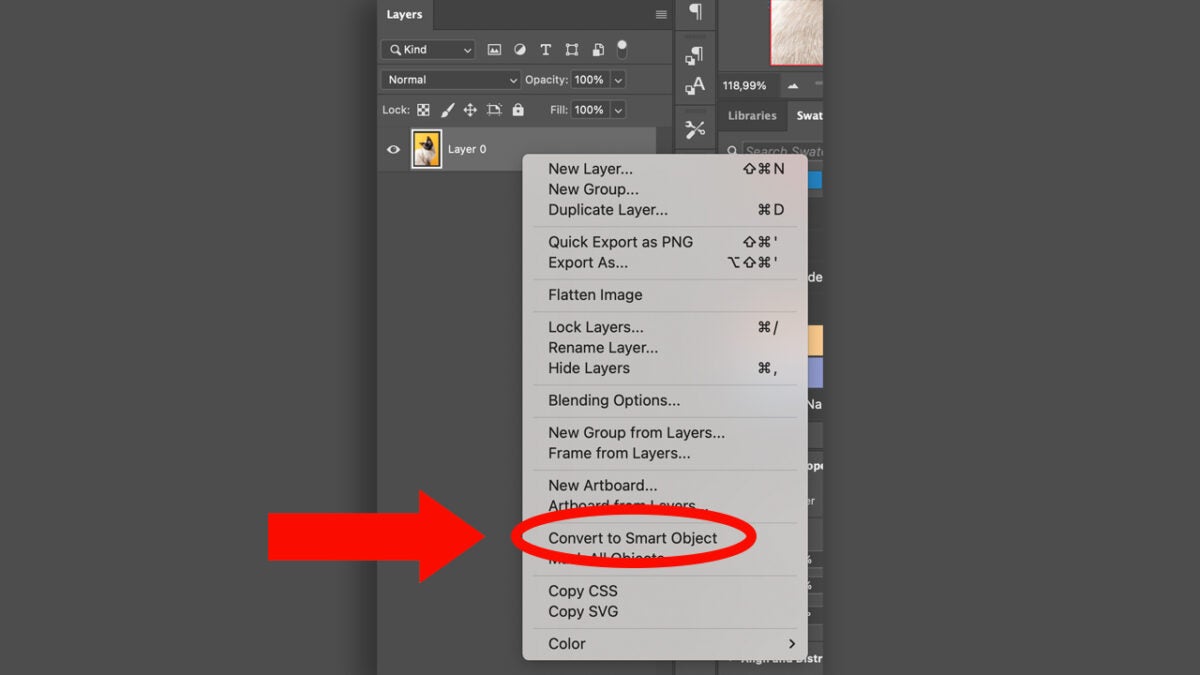
  • To start, convert the layer into a Smart Object. To do this, right-click on the layer and choose Convert to Smart Object.
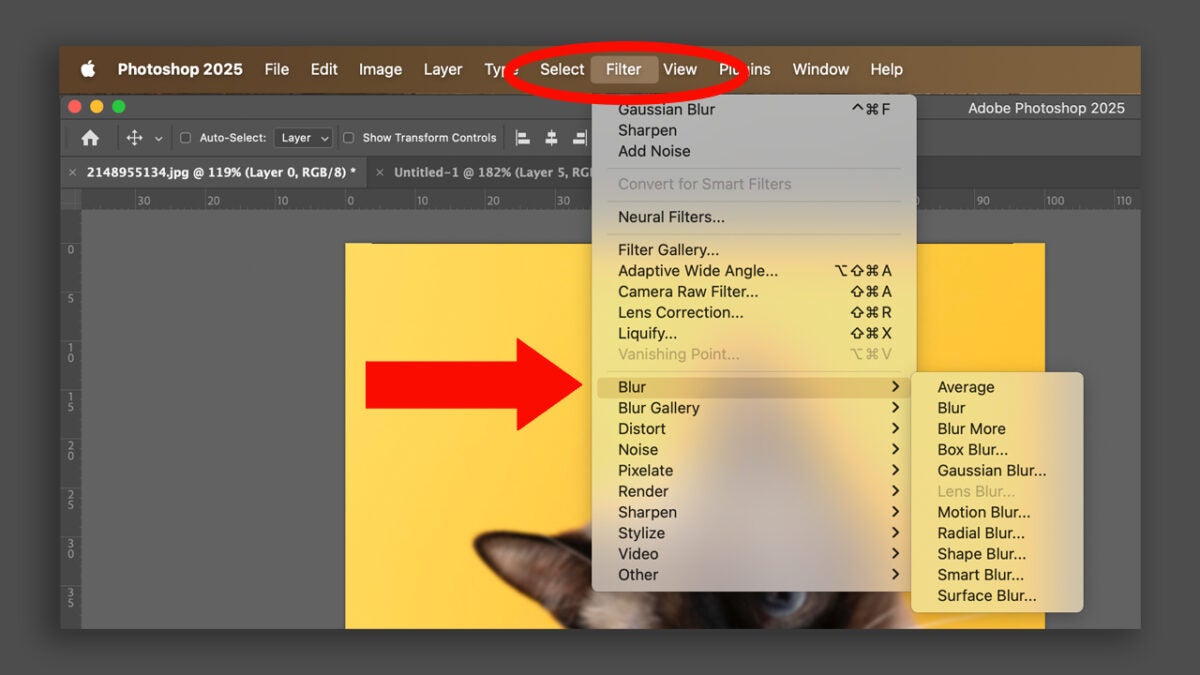
  • Then, go to Filter, which is located in the top menu and choose the effect you want (Blur, Distort, Pixelate, etc.).
  • Automatically, the filter will be applied as a Smart Filter. You will see it right below the layer in the Layers panel.
To modify it, you can double-click on the filter. You can also hide it as if it were another layer.

Adjustment layers: This is how they work

The Adjustment Layers or Adjustment Layers are another tool that, like Smart Filters, will help us to edit without altering the original image. With them, we can change things like brightness, contrast, hue, saturation, levels, curves, and much more. It will be very useful for experimenting with different light and color effects without affecting the base photo.

To use them, you just need to follow these steps:

  • Click on the icon of New Adjustment Layer at the bottom of the layers panel (it is a circle half white, half black). If you can’t find it, you can also go to Layer > New Adjustment Layer.
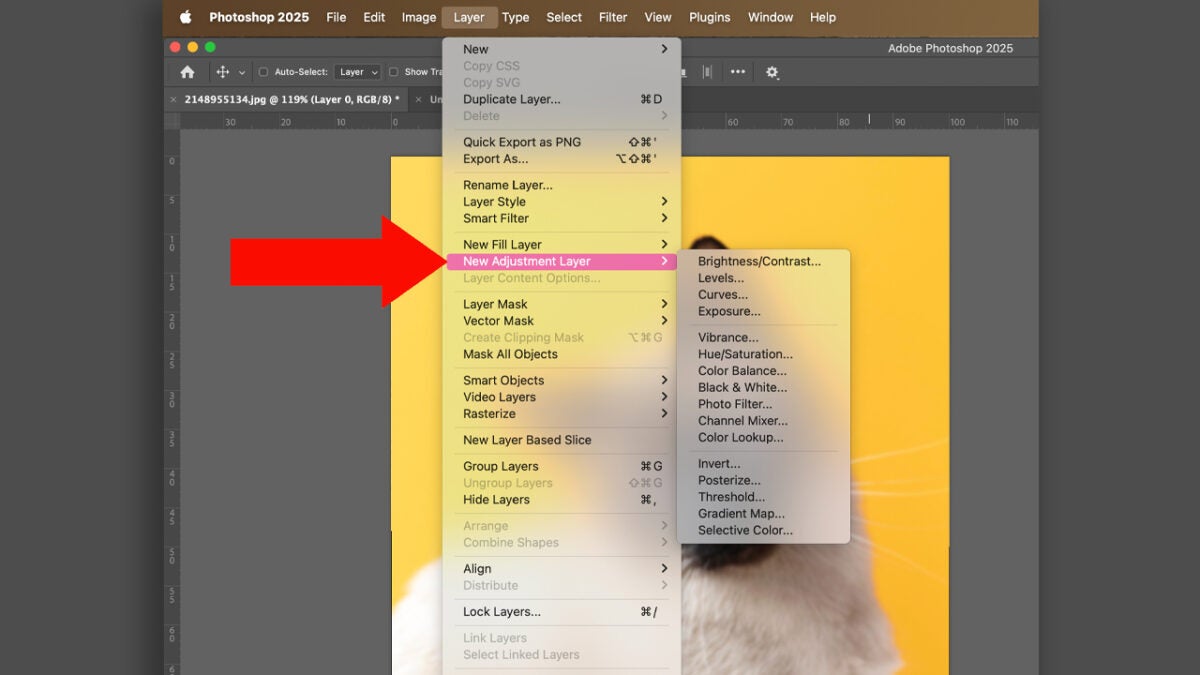
  • Choose the type of adjustment you want: Brightness/Contrast, Hue/Saturation, Levels, Curves, Black & White… The list is long.
  • Next, a new layer will be created on top of your image with the adjustment you have chosen.

Just like with Smart Filters, you can edit the adjustment by double-clicking on the layer icon. You can also use the layer mask that is automatically created to control where the effect is applied.

If you have never used them, you will see that Adjustment Layers will be very helpful when editing, designing, or drawing in Adobe Photoshop. Some of their advantages are:

  • They are reversible: you can change your mind at any time.
  • They give you more control: adjust each filter or setting without touching the original.
  • They facilitate experimentation: try combinations of filters and settings without fear.
  • They improve your workflow: you will work faster and more organized.

A practical case: use Smart Filters and Adjustment Layers step by step

Imagine you want to give your photos an older, vintage touch. Here’s how you could do it:

  • Convert your photo into a Smart Object.
  • Apply a Gaussian Blur filter as a Smart Filter and lower the opacity to your liking.
  • Then, add an Adjustment Layer of Hue/Saturation and reduce the saturation levels a bit. Alternatively, you can also use the Black & White option.
  • Finally, an adjustment layer of curves is applied to give a soft contrast.

At any time, you can adjust any of these steps without destroying your original photo. Additionally, you can group all the effects in a folder to keep everything well organized. Below, we leave you some tips that will also be helpful:

  • Name your layers: Labeling your layers will make your design, editing, or drawing much more organized and easier for you to work on.
  • Grouping layers will also help you with this.
  • You can use the layer mask of Smart Filters to apply the effect only in the areas you want.
  • Duplicate your layers to make quick variations and see other alternatives without risking losing the original photo.

As you can see, Smart Filters and Adjustment Layers are two essential tools for any self-respecting Photoshop user. They not only allow you to work non-destructively, but they also open up a world of creative possibilities. Experiment with them to achieve more interesting effects, knowing that you won’t lose your photo.

Adobe Photoshop
Adobe Photoshop DOWNLOAD

Author: María López

{ "de-DE": "Künstler aus Berufung und Technikliebhaber. Seit ich denken kann, habe ich gerne an allen möglichen Gadgets herumgebastelt.", "en-US": "Artist by vocation and technology lover. I have liked to tinker with all kinds of gadgets for as long as I can remember.", "es-ES": "Artista de vocación y amante de la tecnología. Me ha gustado cacharrear con todo tipo de gadgets desde que tengo uso de razón.", "fr-FR": "Artiste de vocation et amateur de technologie. J'aime bricoler avec toutes sortes de gadgets depuis que j'ai l'usage de la raison.", "it-IT": "", "ja-JP": "", "nl-NL": "", "pl-PL": "", "pt-BR": "", "social": { "email": "", "facebook": "", "twitter": "", "linkedin": "" } } View all posts by María López

Author María LópezPosted on April 30, 2025July 1, 2025Categories News

Post navigation

Previous Previous post: Clair Obscur: Expedition 33 is not so unique: 6 games that also have different turn-based combat
Next Next post: Reddit users were “psychologically manipulated”. An AI was behind it

Recent Posts

  • ‘Practical Magic 2’ is going to be a hit, but Sandra Bullock doesn’t forget: nobody went to see the first one
  • If you’re an ’80s kid, the movie Adam Wingard has been working on for years is going to shoot nostalgia straight into your veins
  • Firefox for iPhone now gets native ad blocking
  • Nvidia DLSS 5 arrives September 3: NBA 2K27 gets it first
  • Nvidia DLSS 5 arrives September 3: NBA 2K27 debut, but a big frame-rate hit

Archives

  • September 2026
  • August 2026
  • July 2026
  • June 2026
  • May 2026
  • April 2026
  • March 2026
  • February 2026
  • January 2026
  • December 2025
  • November 2025
  • October 2025
  • September 2025
  • August 2025
  • July 2025
  • June 2025
  • May 2025
  • April 2025
  • March 2025
  • February 2025
  • January 2025
  • December 2024
  • November 2024
  • October 2024
  • September 2024
  • August 2024
  • July 2024
  • June 2024
  • May 2024
  • April 2024
  • March 2024
  • February 2024
  • January 2024
  • December 2023
  • November 2023
  • October 2023
  • September 2023
  • August 2023
  • July 2023
  • June 2023
  • May 2023
  • April 2023
  • March 2023
  • February 2023
  • January 2023
  • December 2022
  • November 2022
  • October 2022
  • September 2022
  • August 2022
  • July 2022
  • June 2022
  • May 2022
  • April 2022
  • March 2022
  • February 2022
  • January 2022
  • December 2021
  • November 2021
  • October 2021
  • September 2021
  • August 2021
  • July 2021
  • June 2021
  • May 2021
  • April 2021
  • March 2021
  • February 2021
  • January 2021
  • December 2020
  • November 2020
  • October 2020
  • September 2020
  • August 2020
  • July 2020
  • June 2020
  • May 2020
  • April 2020
  • March 2020
  • February 2020
  • January 2020
  • December 2019
  • November 2019
  • October 2019
  • September 2019
  • August 2019
  • July 2019
  • June 2019
  • May 2019
  • April 2019
  • March 2019
  • February 2019
  • January 2019
  • December 2018
  • November 2018
  • October 2018
  • September 2018
  • August 2018
  • July 2018
  • June 2018
  • May 2018
  • April 2018
  • March 2018
  • February 2018
  • January 2018
  • December 2017
  • November 2017
  • October 2017
  • September 2017
  • August 2017
  • July 2017
  • June 2017
  • May 2017
  • April 2017
  • March 2017
  • February 2017
  • January 2017
  • December 2016
  • November 2016
  • October 2016
  • September 2016
  • August 2016
  • July 2016
  • June 2016
  • May 2016
  • April 2016
  • March 2016
  • February 2016
  • January 2016
  • December 2015
  • November 2015
  • October 2015
  • September 2015
  • August 2015
  • July 2015
  • June 2015
  • May 2015
  • April 2015
  • March 2015
  • February 2015
  • January 2015
  • December 2014
  • November 2014
  • October 2014
  • September 2014
  • August 2014
  • July 2014
  • June 2014
  • May 2014
  • April 2014
  • March 2014
  • February 2014
  • January 2014
  • December 2013
  • November 2013
  • October 2013
  • September 2013
  • August 2013
  • July 2013
  • June 2013
  • May 2013
  • April 2013
  • March 2013
  • February 2013
  • January 2013
  • December 2012
  • November 2012
  • October 2012
  • September 2012
  • August 2012
  • July 2012
  • June 2012
  • May 2012
  • April 2012
  • March 2012
  • February 2012
  • January 2012
  • December 2011
  • November 2011
  • October 2011
  • September 2011
  • August 2011
  • July 2011
  • June 2011
  • May 2011
  • April 2011
  • March 2011
  • February 2011
  • January 2011
  • December 2010
  • November 2010
  • October 2010
  • September 2010
  • August 2010
  • July 2010
  • June 2010
  • May 2010
  • April 2010
  • March 2010
  • February 2010
  • January 2010
  • December 2009
  • November 2009
  • October 2009
  • September 2009
  • August 2009
  • July 2009
  • June 2009
  • May 2009
  • April 2009
  • March 2009
  • February 2009
  • January 2009
  • December 2008
  • November 2008
  • October 2008
  • September 2008
  • August 2008
  • July 2008
  • June 2008
  • May 2008
  • April 2008
  • March 2008
  • February 2008
  • January 2008
  • December 2007
  • November 2007
  • October 2007
  • September 2007
  • August 2007
  • July 2007
  • June 2007
  • May 2007
  • April 2007
  • March 2007
  • February 2007
  • January 2007
  • December 2006
  • November 2006
  • September 2006
  • August 2006
  • June 2006
  • May 2006
  • July 2001
  • January 2001
  • November 2000
  • September 2000
  • August 2000
  • July 2000
  • April 2000
  • March 2000

Categories

  • Affiliate post
  • Expert Review
  • Gaming
  • Guides
  • How to
  • Legacy how To
  • News
  • Noticias
  • Software>Security
  • Sponsored
  • Trucos y Consejos
  • Uncategorized
  • Windows software

Meta

  • Log in
  • Entries feed
  • Comments feed
  • WordPress.org
Softonic English Proudly powered by WordPress