How to use the crop feature and move layers with Alight Motion

Alight Motion is a robust resource for motion graphic designers. This free Android app allows you to craft custom images or make professional edits to individual layers within your animation projects on the go.

Alight Motion Download

The user interface is, overall, easy to use but can be a bit overwhelming at first. Simple features like cropping a video or moving individual layers are straightforward enough once you know where to look within the UI.

  1. Cropping images and videos in Alight Motion
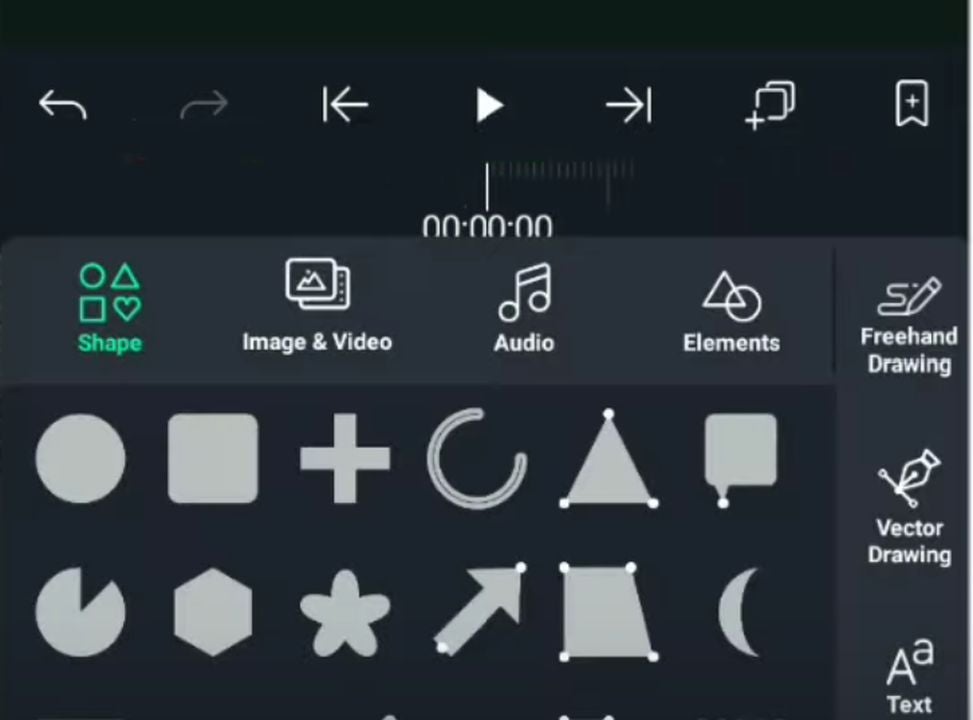
    Choose the shape of your cropping window here

    When you wish to only use a portion of the screen when editing images or video, you can crop out the unwanted space. With a project open in Alight, click on the button with a plus icon on the bottom right of the app. Within the menu of new options that appear, there is a list of shapes you can choose from. Tap on any shape to select the perimeter for your cropping. A square or rectangle is the easiest to work with though you may use other shapes like stars or triangles for fanciful edits.

    With your desired shape selected, drag a perimeter around the area of the image or video that you would like to keep using your finger. Everything outside of the green shape you created will be removed from the display when you hit the crop button. After making any final adjustments to the boundary, select which layers you wish to apply to the crop. Your project layers are listed on the left of the app screen. Tap on each layer to include it within the crop. Once everything is finalized, tap the button labeled crop that appears above the project viewer. You should now see only the area that you designated when dragging the mouse.

  2. Creating a project with multiple layers in Alight Motion
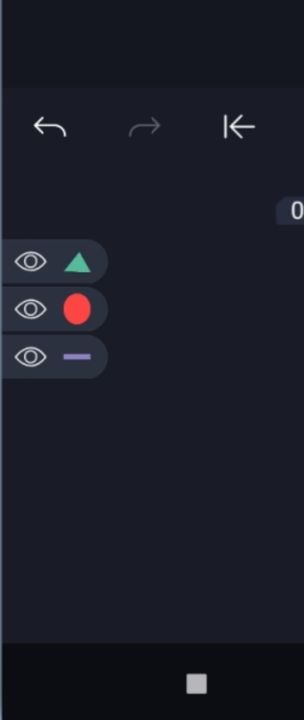
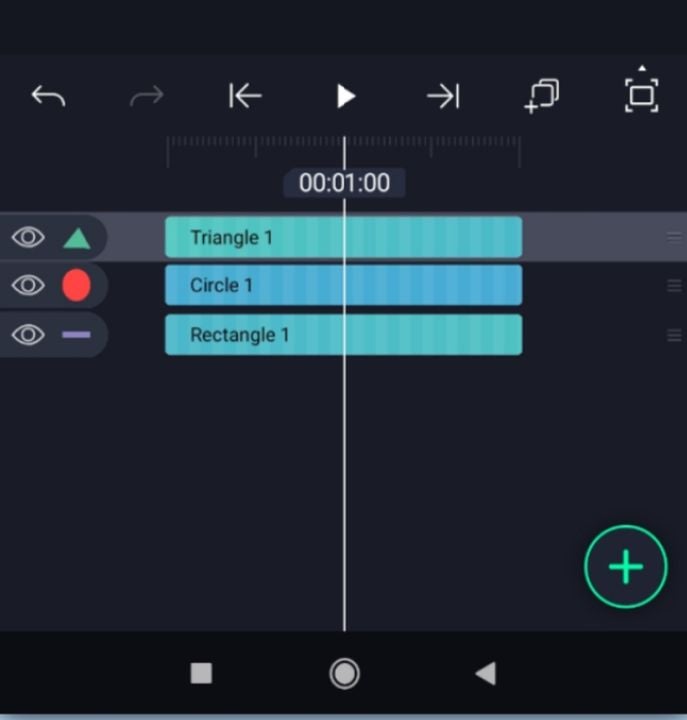
    Your layers are stacked on the left side of the screen

    If you do not already have a project with multiple layers, you can make one in just a few minutes. Open a blank project in Alight Motion. You can do this by tapping the plus button and selecting “create new project”. Next, tap on the plus icon again to see many additional options, including a bunch of shapes to choose from. Tapping a shape will add it to your project and create a unique layer for it. Create two more shapes so that you have three total layers for the next section.

  3. Moving layers up and down

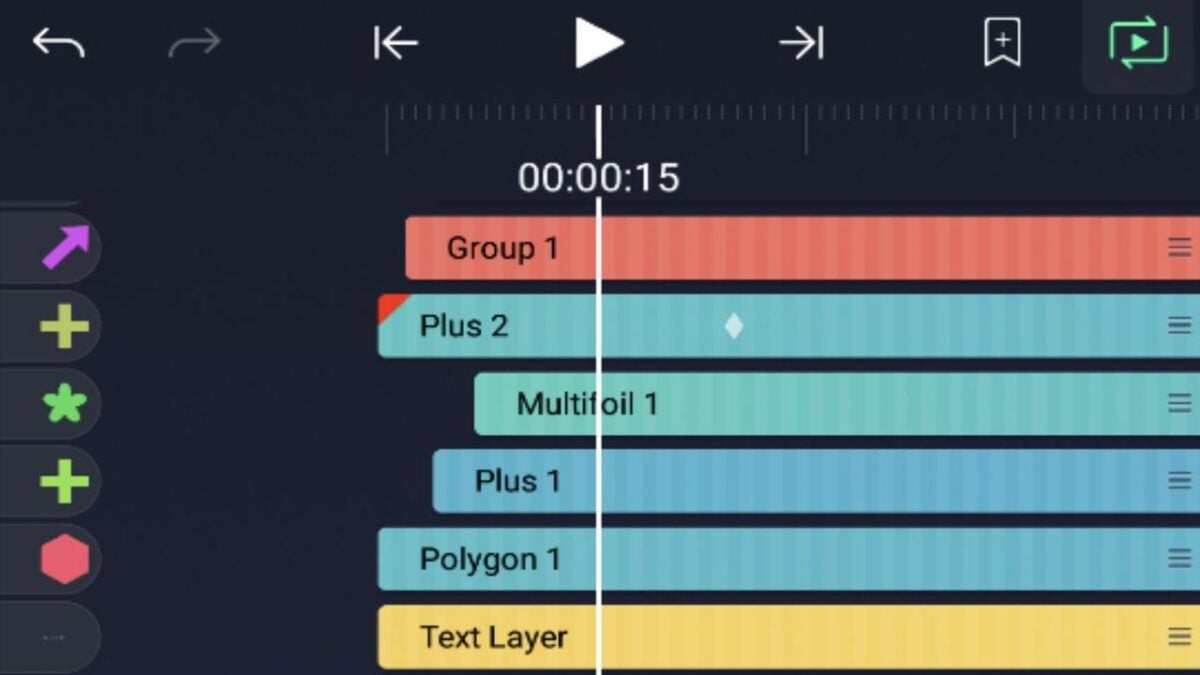
    The blue highlight indicates when you can move each layer

    The ability to position each layer allows you to reconcile every part of an image while animating it. To move a layer, go back to the timeline of your project by closing the plus button menu. The timeline is the main screen that shows each layer and displays where it appears within the video clip. To select a layer for moving, place your finger near the far right of the layer in question. Tap and hold the button with three dots that appears when your finger is in the correct spot. Drag your finger to select each of the layers you would like to move. Using the example from the previous step, select all three layers by dragging your finger.

    With each layer highlighted in blue, simply tap on the layer you wish to move, and drag it up or down until it is in the desired slot. The top layer will be the first visible element on the foreground surface, and the bottom layer will be the deepest background component.

Doing more with mobile video editing

Alight Motion is great for graphic designers who work with simple animations and short video clips. However, your longer video projects will require the full editing treatment. Luckily, there are several effective video editing solutions for Android devices. One of the best mobile applications for augmenting your clips is Video Star. By combining apps like Alight Motion and Video Star, you can make professional quality clips anywhere in the world.
A beginner’s guide to using Alight Motion for Android and Windows

Alight Motion is a powerful editing and graphic design app that works with iPhones but has grown widely popular among Android and Windows users. As a top video editor and animation design solution, perhaps the best thing about Alight Motion is that it is completely free. Here’s a look at how to download and get started with Alight Motion.

Alight Motion APK Download
  1. Download the Alight Motion software to your PC or mobile device

    Start by downloading the Alight APK app for Android

    A robust and highly capable app, Alight Motion produces surprisingly professional results, handling everything from video splicing and animation design to color correction and bold visual effects. To start using Alight Motion for free, simply download the pro-motion graphics app to your Android phone or Windows-based PC.

    While Android, iOS, and iPhone users can access software from all major mobile app stores, developers have not released an official edition of Alight Motion for computers. However, if you want to run the program on a laptop or PC, you can accomplish this by deploying an Android emulator. Nox App Player and Blue Stacks are suitable emulators that let you run a .apk file on your PC to enable the Alight Motion on your laptop or computer. Just remember that, when you launch the program, you must open it inside the Android emulator before it can work.

    Once you’ve downloaded the Alight Motion software, you’ll have access to several impressive editing and design features entirely free of charge. Of course, if you want access to the more advanced design and editing features, you can always purchase a VIP membership at a low monthly subscription fee.

  2. Create a new project in Alight Motion

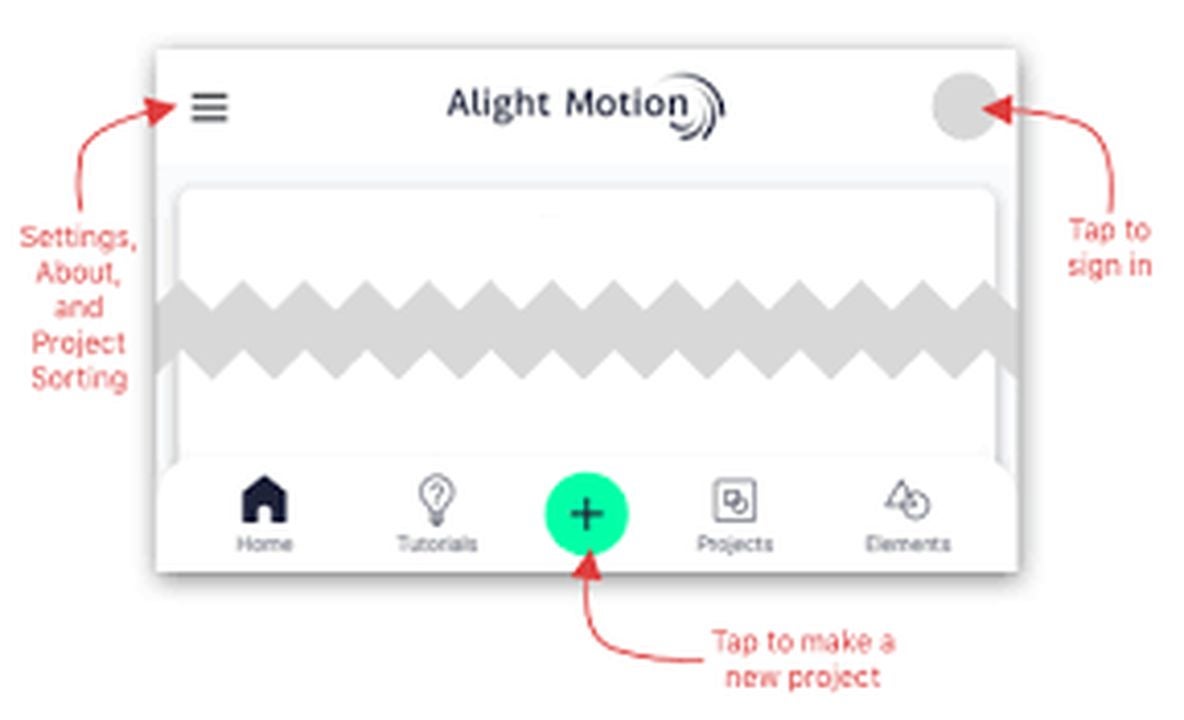
    Tap the green button in the lower center of your screen to start a new project

    If you’re new to Alight Motion and graphic editing software in general, starting a new project is simple. To launch an initial session with the videos and photos from your device, you’ll need to create a New Project in Alight Motion. The program lets you export videos in several formats like HD video, GIF files, and Image Sequence. Alight Motion also supports project package and PNG images.

    To initiate a New Project, open the Alight Motion app, and locate the green plus button at the bottom of your device. It is just above the home button on your Android phone and at the lower center of your laptop or PC screen. The next step is to select the display ratio. Choose from 16:9, 9:16, 4:3, 1:1, or the customized view setting.

    Next, adjust your resolution and frame rate. While these settings are similarly customizable, the best practice is to ensure that they match the properties of the scratch media you captured. If you recorded your video in 1080p at 30 frames per second, ensure the resolution and frame rate are the same in the Alight Motion app. Below the frame rate and resolution settings, you’ll find an option to set your background tones. Pick your desired background color, and click the Create Project button, just beneath the background settings to the right side of your display.

  3. Start photos and videos in the Alight Motion app

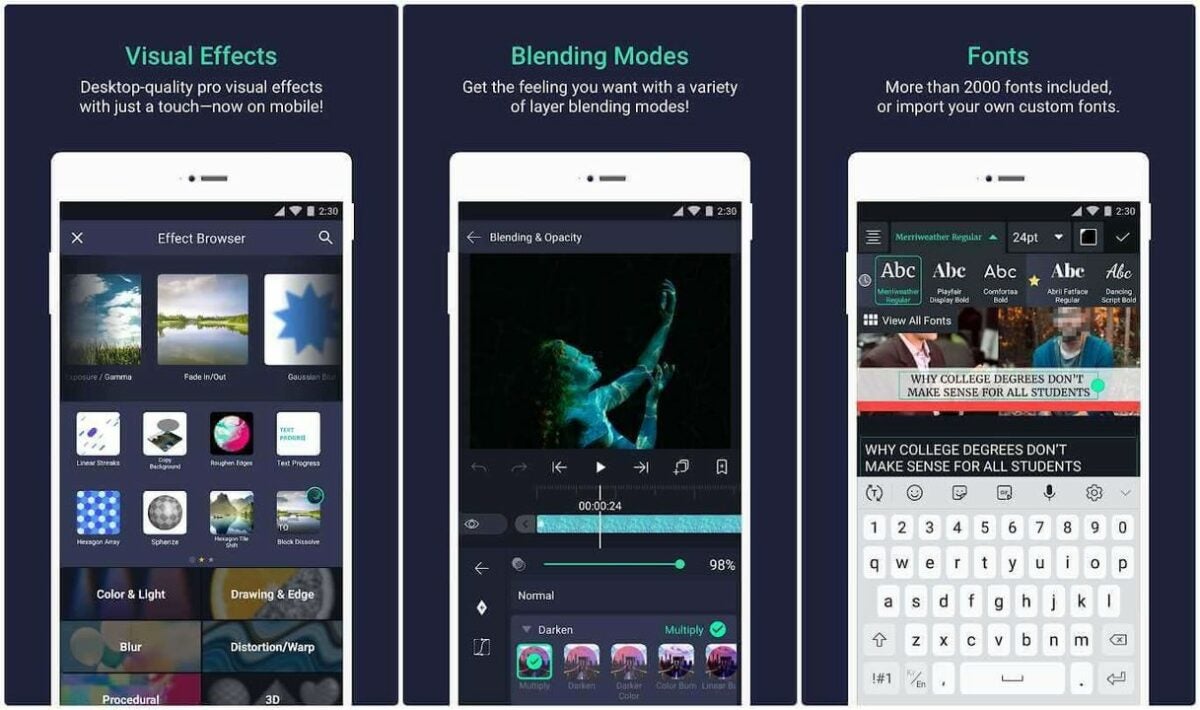
    After importing your media you can start editing your files with over 100 editing tools and filters.

    Now, upload your favorite photos and videos by clicking on the Choose files button. The application lets you select your files individually or import them in groups. You can also apply the same edit to multiple images simultaneously. After uploading your photos and videos, you can begin using the editing tools in Alight Motion to crop your files and apply filters from an exceptional library of options.

    Alight Motion lets you add overlaid text and objects to your pictures and video clips, including various stickers, emojis, shapes, and other graphics incorporated into the software. You can even create your own elements with Alight Motion with an Edit Shape tool that allows you to hone and adjust the properties of a shape. The program allows you to easily share your creations online with others while providing over 100 high-quality tools and powerful visual effects.

Start using Alight Motion today with no experience

Alight Motion was engineered with the beginning user in mind. The software makes it easy to immediately start editing videos and images on your Android device or PC. The program uses automated technology, providing users with more than 100 options for rendering quality visual effects, motion graphics, and gorgeous image filters after just a few clicks. Curious to learn more about photos filter and image editing software? Check out this list of the 10 most popular filter options for Photoshop.