Best Chromecast apps

Have you just bought a new Chromecast? These are the must-have apps you need on your Android or iOS device to get the most out of your purchase.

The Google Chromecast is a fantastic little device that makes it possible to wirelessly “cast” media from your Android and iOS mobile device onto your TV. You simply plug the Chromecast into one of your TV’s spare HDMI ports, hook it up to a USB-based power supply, and then you’re good to go. The connection then works over Wi-Fi, which means you can control apps on your phone that are then run through the Chromecast.

The way the system works then relies on compatible apps. Not all apps will stream wirelessly from your mobile device your TV via the Chromecast. Instead, you need to find Chromecast compatible apps and that is what we’re here for today. Today, we’re going to walk you through all the best Chromecast apps.

Best apps for Chromecast

These are the Chromecast apps you need to download right now. They will help you stream your content wirelessly from your mobile device to your TV.

Google Home
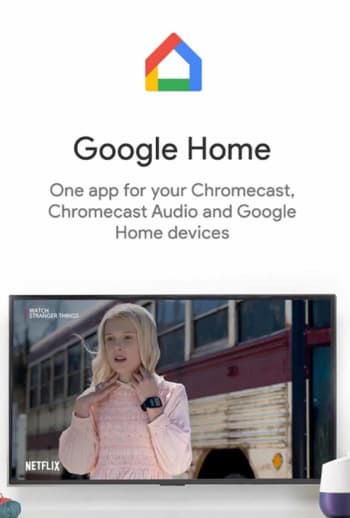
This list will mostly revolve around media. The Chromecast is a fantastic little device that makes it really easy for you to take the media content you have or are streaming onto your phone and have it display on your much bigger TV. In truth, however, there’s more to the device than that and the Google Home app is how you unlock what else the Chromecast has to offer.

The Google Home allows you to run all your smart home connected devices and also allows you to enjoy features such as content discovery, universal search, and app recommendations. If you’ve just got your first Google Chromecast, you should definitely download the Google Home app as, in truth, it is more like the official companion app to the Chromecast. In fact, the app used to be called the Chromecast app.

Google Home Download now
8

Netflix

Netflix in the living room

So, we’ve already mentioned that one of the top uses for the Google Chromecast is casting media such as videos and photos to your big screen TV. You’ll no doubt be relieved and in no way surprised then to learn Netflix is compatible with your Google Chromecast and is one of the best Chromecast apps around today. You can, of course, download Netflix on Android smartphones and iOS iPhones.

What’s great about the Netflix mobile app is that it allows you to cast your movies or TV shows to the TV and then use your mobile phone as a remote control. You can control playback, skip scenes, and of course browse the Netflix library all while sat on the sofa using your phone. Other great Chromecast media playing apps include HBO Go, Hulu, Roku, Plex, and if you’re in the UK, the BBC iPlayer. By connecting your phone to your TV the Chromecast turns your television into a smart TV.
8

YouTube

YouTube on the TV really is a treat. In truth, the platform has long been a big-screen platform with well-produced content that’s easily able to compete with more established networks coming from a wide variety of professional media outlets as well YouTube’s army of popular bedroom content producers.

The YouTube Chromecast app is simple yet effective and it couldn’t be easier to cast any video you find onto your TV. YouTube also has a premium model now too that includes being able to download videos but that also gives access to premium content, much like Netflix has Netflix Originals.

8

AllCast

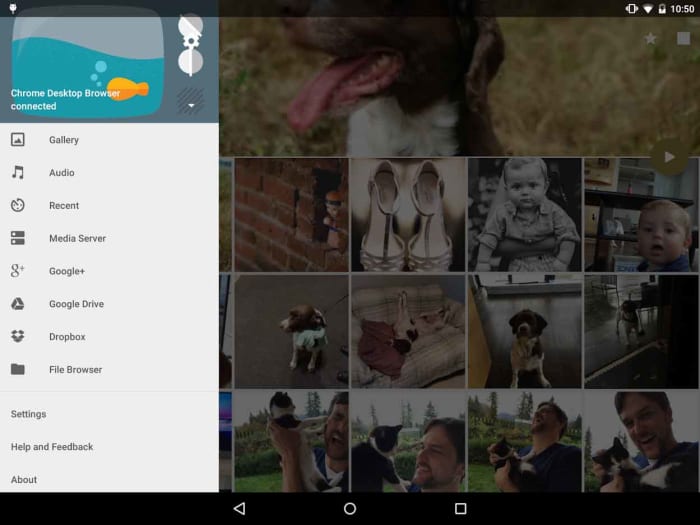
AllCast is probably the most versatile Chromecast app out there and is available on both iOS and Android devices. AllCast offers an easy and effective way to cast all the photo and video media you have on your phone onto your lounge TV. The app also makes it possible for you to cast photos you have stored on cloud storage solutions like Dropbox.

You can try AllCast for free, but all the best features are hidden behind a paywall. Furthermore, you can only cast videos up to five minutes in length on the free version, which means you’re going to have to pay to get any real value out of the app.
AllCast Download now
7

TED

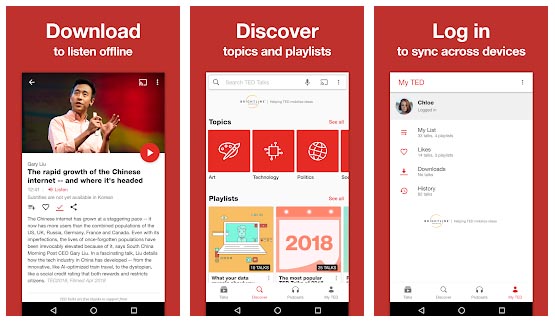
TED talks are a cultural phenomenon these days. Instantly shareable and infinitely inspiring, everybody has watched and shared at least one TED talk. That’s what makes the TED app so perfect for using with your Chromecast. TED talks can inspire you on a personal level, but so often you want to share the experience with somebody else and that is the Chromecast comes in.

Whether you’re watching a brand-new lecture on your living room TV or sharing one of your old favorites with your family, the Chromecast-enabled TED app makes it easier than ever to watch TED talks as a group.

Google Photos
How to Breathe New Life into your Old Phone Get a cloud based photo sync app google photos

It probably comes as no surprise that there are many great Google apps that are Chromecast compatible. We’ve already mentioned YouTube and Google has recently made its native Files app for Android Chromecast-compatible too, which offers another great way for you to display the photos and videos you hold on your phone on a much larger screen.

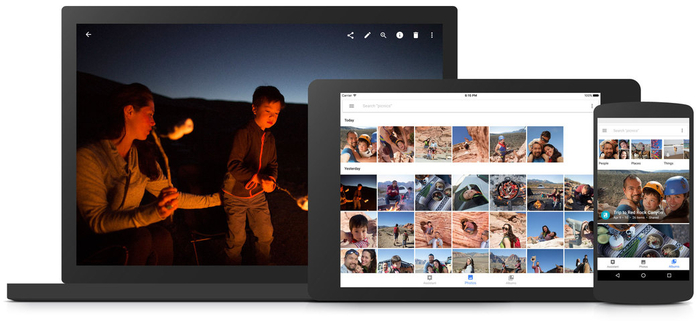
The final app we’re highlighting today, though, is Google Photos, which deserves a special mention all on its own. As well as turning your TV into a giant picture frame, the Chromecast compatible Google Photos app can also help you broadcast all the magical creations you can build on the app. As well as slideshows and albums, Google Photos can help you turn the photos and videos you’ve captured on your smartphone into dynamic movie-like experiences, complete with transition effects, music, and even special integration elements from other Google apps such as Google Maps.
Google Photos Download Google Photos
7

5 apps to get the most out of Chromecast

Google’s Chromecast can make any TV a Smart TV. By just plugging a dongle into your screen’s HDMI port, you can start enjoying apps and streamed content in moments.

There are loads of fantastic apps for this service. Some of these – like YouTube, Spotify, and Netflix – you undoubtedly already know, but there are plenty of other must have apps. Here are five of our favorites.

AllCast (iOS|Android)

One of Chromecast’s best features is its ability to mirror your phone’s screen on your TV. This is where AllCast comes in. This app lets you send pictures, videos, music, and everything else you can see on your device, to the big screen. Now no one can escape your collection of cat photos!

Big Web Quiz (iOS|Android)

The next app is our favorite on the list, Big Web Quiz. This pub quiz style game allows six people to play. After everyone connects with their phone, a range of general knowledge questions are presented on your TV. The goal is simply then to answer faster than your friends. Great, competitive fun.

CastPad (Android)

While it’s a fairly simple app, CastPad has a range of uses. By turning your phone or tablet into a sketchpad, you are then able to draw whatever you want on your TV screen. Great for impromptu games of Pictionary or explaining to your friends why the Panthers offensive line struggled against the Brocos’ defense.

Driver Speedboat Paradise (iOS|Android)

There are loads of games that you can send from your phone to your TV, but few look as good as Driver Speedboat Paradise. This makes it perfect for playing on the big screen, because you get to enjoy its visuals in all their glory – without having your thumbs covering the action.

FitFlap Motion (iOS|Android)

Many people use Chromecast to send YouTube exercise videos to their TV so they can more easily follow the instructions. But a more entertaining and interactive way to stay in shape is FitFlap Motion. Using your phone’s camera, this game has you avoid obstacles by controlling the up and down the movement of your flying pig by flapping – lots of flapping.

That’s if for another 5 apps. Next week we will be back with 5 Valentine’s Day survival apps – see you then!

Related Stories

Five fantastic free alternatives to Microsoft Office

Three Kickstarter games that delivered

Top 5 battery saving apps for your smartphone

How to set up Chromecast

Follow me on Twitter: @DoFuss

The best apps for Chromecast

Google’s Chromecast has almost reached its one year anniversary. The HDMI dongle serves as a bridge connecting Android and iOS compatible apps to your TV, with the ability to cast tabs from the Chrome browser.

If you’ve never used Chromecast before, the dongle itself doesn’t have any direct function other than to stream media. Even the Chromecast app for iOS and Android is only used to set up the device on a Wi-Fi network, as well as to control everything you see on screen.

Chromecast never positioned itself to replace set-top boxes or become the primary platform for streaming services, something that’s reflected in the small number of official apps on offer. Since Google opened the developer API, however, developers are able to code support for various apps. In reality, thought, Chromecast isn’t going to be a device you use all the time.

Still, the few official apps that are available prove useful for Chromecast. Below are the apps that cover the most common ways people use Chromecast (there are, of course, more apps, but some are from unknown developers and I’m hesitant to install them).

Best app for Chromecast: YouTube

YouTube is the reason I own a Chromecast. The fact is that there’s a ton of video content on YouTube, and a lot of video content producers release long-form videos with Let’s Play for games and video podcasts, which I watch often. I also discovered some TV networks who release full episodes of shows on YouTube, giving me the chance to catch up when I have time.

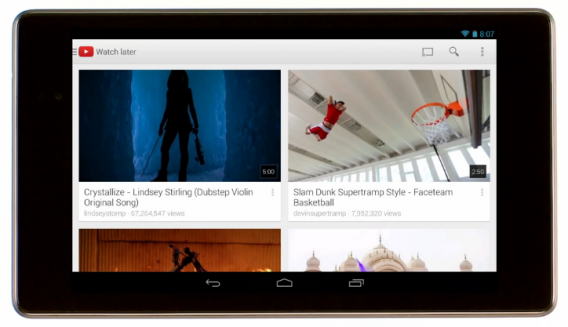
YouTube for Android Chromecast

It’s more common for me to use YouTube and Chromecast rather than watching on a computer. YouTube on other platforms doesn’t work anywhere near as easy as it does through Chromecast, mainly because of the app. If you have subscriptions or use the Watch Later feature, it’s even easier to have a collection of videos to watch.

Paid streaming services: Netflix/Hulu Plus/HBO GO

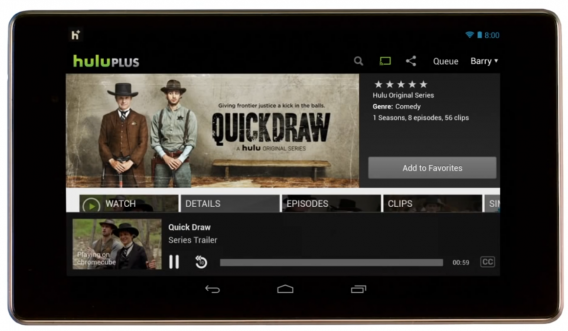
You probably have a subscription to at least one of these paid services. The most logical is Netflix, but Hulu Plus and HBO GO have a lot of subscribers too. In fact, you may have subscriptions to all three. With these apps, you get access to the online libraries of streaming content, including TV shows, movies, documentaries, and original content.

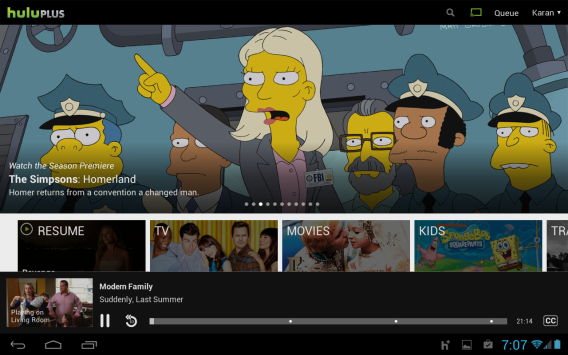
Hulu Plus on Android Chromecast

There’s service-specific exclusive shows and movies, depending on which one you have. There is a noticeable difference in video playback, at least on Netflix. Streaming through the Chromecast, the high definition video is crisp, but it can’t display the 1080p Super HD that I see when streaming Netflix on the PlayStation 4. It’s not noticeable on newer videos, but older movies that are “HD” have some issues.

All of these services have options on other platforms, but they work well through Chromecast as long as your Wi-Fi network is stable.

Music streaming: Google Play Music/Pandora/Rdio

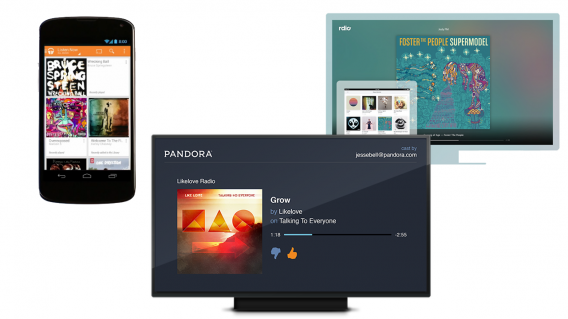
An obvious exclusion is Spotify, which doesn’t have official support, but Spoticast is a good alternative. As for the official apps, Pandora is available, though I personally don’t find the service all that helpful. Rdio also has Chromecast support, but Google Play Music is my favorite because it lets me stream my music. Depending on how you have the Chromecast set up (directly into the TV or through a mixer), you’ll be able to stream music from your Google Play Music account.

Google Play Music Pandora Rdio Chromecast

Another nice thing about Chromecast is that multiple people can use it as long as they’re on the same wireless network. This could lead to arguments, but if your friend has a Rdio account, they can stream their music to the Chromecast, which is great for parties.

Music streaming doesn’t take advantage of  the space offered by the TV though, and the apps all have sparse interfaces. It works when you need background music, but having the TV turned on to play music is a little bit annoying.

Personal media streaming: AllCast/Plex

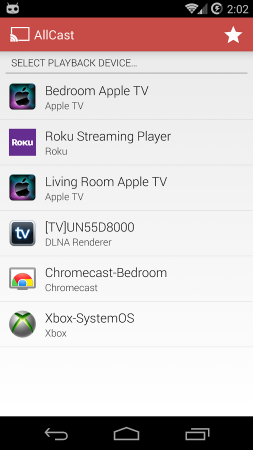
Plex and AllCast are built around the same idea – streaming personal media. Plex is an official app requiring a Plex Media Server to connect to your media, while AllCast is an app from ClockworkMod, a team that makes utility apps for the advanced Android user. AllCast is designed to be easier, and also supports multiple devices like Amazon Fire TV, Xbox 360, and some Smart TVs.

AllCast for Android Chromecast

Plex is a more developed platform that allows you to stream media from a lot of sources like Google Drive or Dropbox. The basic premise is that Plex will access your Plex Media Server and load the content through the Chromecast for streaming. The important aspect of Plex is that it’s your music, movies, and photos.

Using these apps is the perfect option for people with a lot of personal videos that they can’t find anywhere else.

A growing ecosystem

If you’re unsure if you need a Chromecast, then you probably don’t. It can serve as an excellent quick option to play media, but the number of officially supported apps remains small.

Since I use Chromecast mainly for YouTube or Netflix, I get a lot of use out of it, but only for those two services. It’s good for Google Play Music when I need background music, but my computer serves the same function.

WIth Google I/O coming at the end of June and the expected announcement of Android TV, the Chromecast may lose its purpose with the arrival of a new device–  unless Google has a way of implementing Android TV on the Chromecast with a firmware update.

Follow me on Twitter: @chrislikesrobot

Find out more about the excellent Google Play Music for iOS in this article: Google Play Music for iOS can replace the Music app

Apple TV vs. Chromecast: which one’s better for you?

iOS and Android continue to be the main competing platforms for mobile devices. Both Apple and Google have taken steps entering the set-top box world. The Apple TV remains a secondary device next to its family of iOS devices, and the Google TV and Nexus Q were both products that didn’t live up to the promise.

While Apple continues to produce the Apple TV, it hasn’t shown a lot of support for the device with third party apps. Apple TV is securely tied to your iTunes account and the use of AirPlay to display or mirror content on the device.

Google’s Chromecast is essentially a mixture of the features of the Google TV and Nexus Q. It streams content to the device through supported apps. What this means is that all the content on Chromecast is streamed through a wireless connection and controlled through the compatible app. Like Apple TV, Chromecast-supported apps are still a bit shallow, but now that developers are free to work with the device, there should be more apps available in the future.

But like Roku and Amazon Fire TV, some apps require separate subscription fees to access content. So, which one is best for you? Let’s take a look at these streaming services to find out.

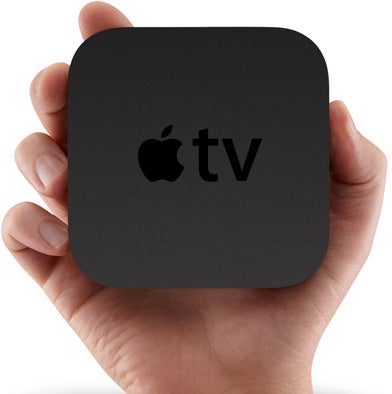
Apple TV

Apple TV is securely locked into the iTunes ecosystem. Apple wants you to use your iTunes account to stream your purchases, but it doesn’t ignore the biggest streaming services, so it also supports Netflix, Hulu Plus, and HBO GO as featured apps on the Apple TV.

Apple TV

If the app isn’t directly available, you can use AirPlay, which lets you stream or mirror your iOS device on the TV. This gives Apple the ability not to include apps on the Apple TV dashboard. The list of AirPlay supported apps is much larger and expands beyond streaming movies and TV.

Flipboard for iPad, Sketchbook Pro, Spotify, and Pandora Radio are apps that aren’t available on Apple TV, but can be streamed to the device. AirPlay is also available for some gaming apps which can take advantage of two screens. You can also use AirPlay on a Mac with mirroring. Considering the $99 price of the Apple TV, however, is it worth it to have access to your iTunes account to stream music to your TV, or to have to use AirPlay to gain more functionality?

If you have a lot of iTunes purchases, the Apple TV is a great way to be able to watch them on a bigger screen. Unfortunately, the lack of third-party app support on the Apple TV is disappointing.

Chromecast

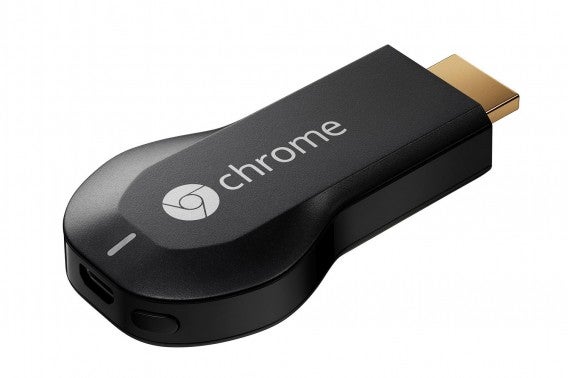
Chromecast isn’t a set-top box at all. It’s a HDMI dongle that fits into your TV whose purpose is to control content streams from apps. You can also mirror a tab within the Chrome browser on Chromecast using an installed extension.

In comparison with Apple, Chromecast is using the same idea as AirPlay by letting you stream content wirelessly. The difference is that all the content is being streamed directly to Chromecast and can be controlled through the app.

Connecting an Android tablet to Chromecast within your wireless network through Netflix and streaming the content directly to the TV is just one example of its use. Netflix on the tablet would be considered the remote control, but it’s not playing the video at the same time. This effectively lets you do other things on the tablet while Netflix is running via Chromecast.

chromecast

Another great feature is that Chromecast supports both iOS and Android devices, making it up to the app developer to add support. Google opened up access to developers, meaning that there should be more supported apps being released and updated soon.

Currently, app support is still a little sparse, with Google Play Movies & TV and Google Play Music offering Google’s store. Considering third-party services, all the majors are again supported, including Netflix, HBO GO, Hulu Plus, Pandora, and Rdio. Of course, there’s also support for YouTube, which makes watching longer videos more enjoyable than on smaller screens.

Even though Chromecast’s selection of supported apps is still small, now that all developers can code apps to support the device, there should be updates coming soon.

Which is better?

If you consider first party support, iTunes is much more developed as an ecosystem for movies, TV, and music. The ability to stream your library is a strong reason for Apple TV. The hesitation would come from the lack of support from Apple to further develop the device. AirPlay feels like a stop-gap solution rather than an expansion to the library of apps on the device itself.

Chromecast is also somewhat weak because it’s a streaming device that extends from Android apps. It requires direct support from developers to have greater usability. On the other hand, a $35 price tag and potential expansion from its open development make it really compelling. Google isn’t making a giant leap with the Chromecast, but its supplying a cheap and useful feature for TVs with an extra HDMI slot, although that could all change when Android TV is finally launched.

Of course, you’re not limited to these two options. Set-top boxes are an alternative to streaming with services like Roku and Amazon Fire TV.

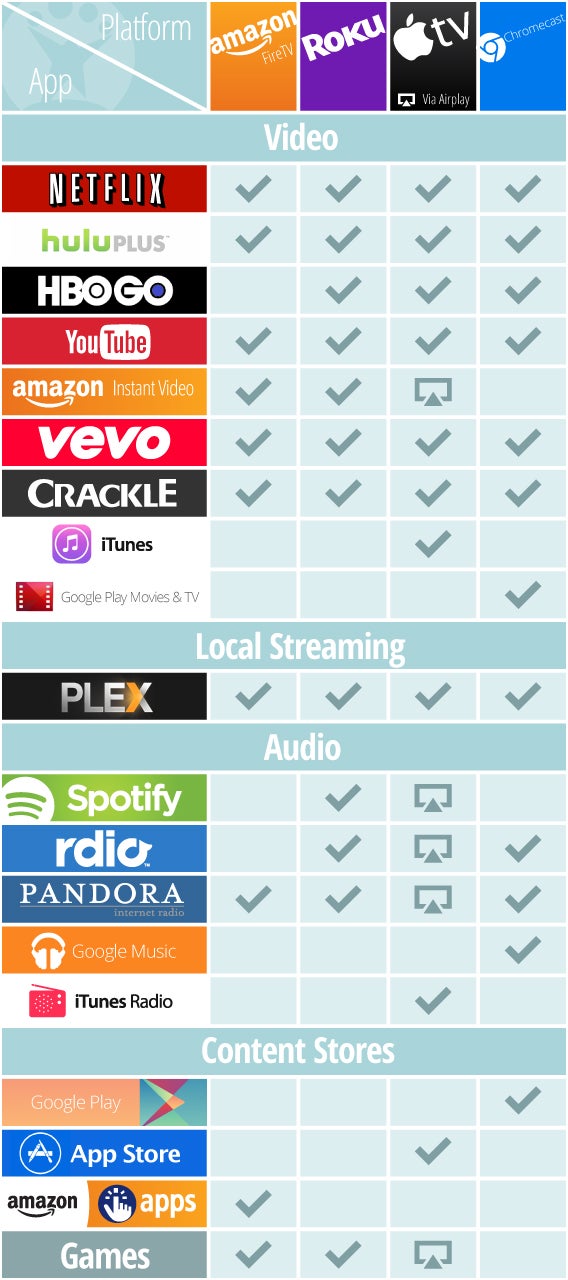
Check out this chart comparing Amazon Fire TV, Roku, Apple TV, and Chromecast to see which one might be the best for you, and check out my analysis of Amazon Fire TV vs. Roku to see if either of these services are a better fit.

Apple TV, Amazon Fire TV, Chromecast, Roku comparison

Related Articles

Photowall Chromecast app lets you share photos on your TV

Since its release, the Chromecast never supported photo sharing to your TV. That changes today with Photowall for Android and iOS.

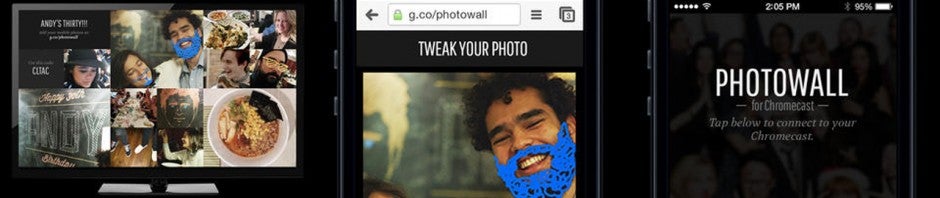
With Photowall, you can share photos from your phone on your television. You can even doodle on top of them to create funny photos.

Photowall even allows your friends to contribute to your Photowall using a web app to upload pics. Only one person needs the Photowall app to establish a connection with a Chromecast.

Default player


brightcove.createExperiences();

Once you and your friends are done adding your photos to Photowall, a YouTube video will automatically be generated for you to share. This is similar to the Auto Awesome feature of Google+.

Google classifies Photowall as an “Chrome experiment” so expect some bugs. Looking at the mediocre reviews for the app, there are plenty of bugs for Google to sort out.

Photowall is now available for Android and iOS.

RELATED STORIES

Chrome for Android beta includes Chromecast video streaming

The latest Chrome for Android beta includes support for Chromecast video streaming. While the desktop version of Chrome supports Chromecast streaming via a plug-in, this is the first time the feature has been baked into the Chrome browser.

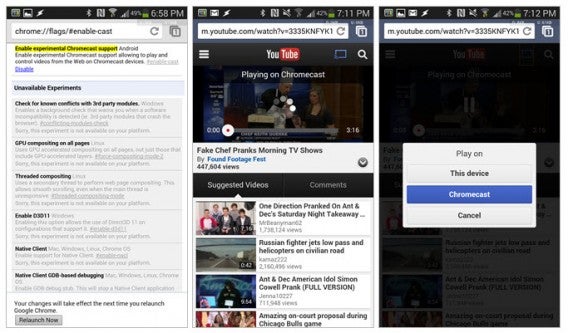
Chrome beta for Android Chromecast support - via Android Police

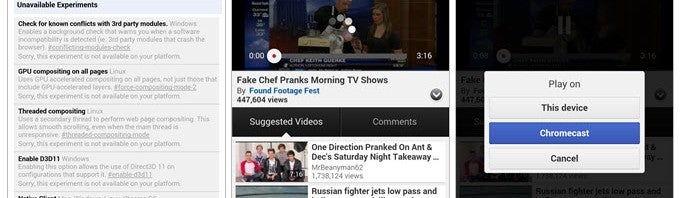
The Chrome beta currently only supports YouTube videos viewed in the browser. When a user taps on a YouTube video, a popup appears with options to view the video on the device or on a Chromecast. This makes it easy to send a video to a television without needing to use the YouTube app.

To enable the feature in Chrome beta for Android, type in chrome://flags/#enable-cast into the address bar. You’ll then be able to manually enable the experimental feature. Relaunch the browser to save your changes.

Since the feature is still experimental, expect plenty of bugs and crashes.

Source: Android Police

RELATED STORIES

Chromecast SDK now available to developers

Google’s $35 media streaming stick has been a hit since its release but there are currently only a handful of apps that support it. That’s all about to change as Google has released the Chromecast SDK to developers, which means we could be seeing a ton more apps with Chromecast support in the near future.

The Chromecast SDK will support streaming from Android, iOS, and the web, using Google’s Google Cast Chrome extension. Currently, popular apps like Netflix, HBO Go, Hulu Plus, Plex, and Pandora are supported but the selection could be better.

A published SDK may also mean apps like AirCast will be allowed in the Google Play Store again. AirCast was an app created by ClockworkMod developer, Koushik Dutta, which allowed users to send photos and videos stored locally on a device and from cloud storage sites like Google Drive and Box to the Chromecast. Google eventually killed AirCast’s functionality with a Chromecast update, citing the company’s reluctance to allow apps into its whitelist until a public SDK was released.

Well the SDK is here and we should be seeing more Chromecast support apps in the future. Be sure to check out our hands-on with the Chromeacast in the meantime.

Source: Google Chrome Blog

RELATED STORIES

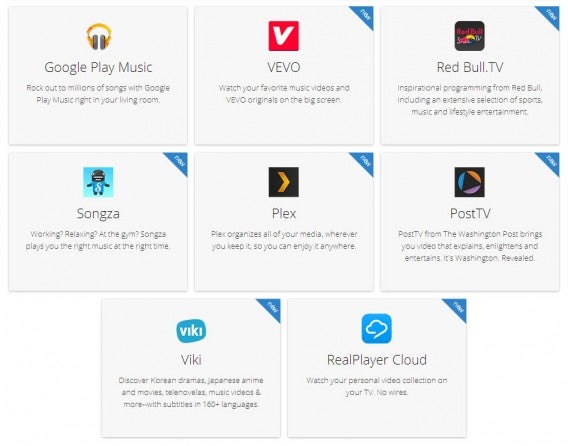
Vevo, Plex, Songza and more get Chromecast support

The Chromecast launched this summer but only supported a few apps like YouTube, Google Play Music, and Netflix. Today, Google announced many more apps that will support the company’s $35 streaming media stick.

Major apps like Vevo, Plex, and Songza are now supported, letting you stream more video and music content to your TV. Plex is perhaps the most interesting inclusion as it will allow users a way to play video and audio files from a Plex media server. While streaming of local content from your phone still isn’t supported, Plex will at least help you play files from your networked computers.

New Chromecast apps

Other notable apps that gained Chromecast support today include Revision 3, RealPlayer Cloud, Red Bull.TV, and The Washington Post. Look for updates to these apps in the Apple App Store or Google Play today.

Google promises to bring support to more apps on Android, Chrome, and iOS soon.

RELATED STORIES

Source: Google Chrome Blog

Hulu Plus joins Chromecast apps list

The limited number of apps at the launch of the Chromecast still exists months after the device launched. The core apps at launch were Google Play Music, Google Play Movies & TV, and Netflix.

Developers found a lot of other services within the SDK like HBO Go, Pandora, Vimeo, and Amazon Instant Video that shows potential support, but hasn’t resulted in more apps updating to cast to the dongle.

Now, Hulu Plus has updated its Android and iOS iPad app to support the Chromecast. Like the other apps, you can push content from your device to the dongle which will take over an stream the selected media.

Hulu Plus does require a $7.99 subscription to use the service, much like Netflix, but now you can stream media over Wi-Fi to your television.

It’s unknown if other apps will update to support the device, but with two months since launch there’s still not a huge reason to need the Chromecast yet.

Source: Google Play Store

Download Chromecast: Android/iOS

Download Hulu Plus: Android/iOS

How to set up Chromecast

Setting up the Chromecast is easy, but performance depends greatly on the strength of the network it’s connected to. Casting quality also depends on the device used. This doesn’t matter as much for Android devices, but casting from the Chrome browser can cause a big performance dip as it tries to stream and buffer what’s being transmitted. The dongle won’t function without the associated Chromecast app and Google Cast extension.

Set up the Chromecast through Android or iOS

Setting up the Chromecast without the accompanying app or extension is much more time consuming. An iOS version of the Chromecast app has just been released, and Google has released a how to here.

Plug the dongle into the HDMI port on your television. You will probably need to use the included mini-USB power cable unless you have a new television that can power the Chromecast. Make sure you’re on the right HDMI channel – when you see the opening menu on the Chromecast, you’re at the right one.

Open the Chromecast app to start.

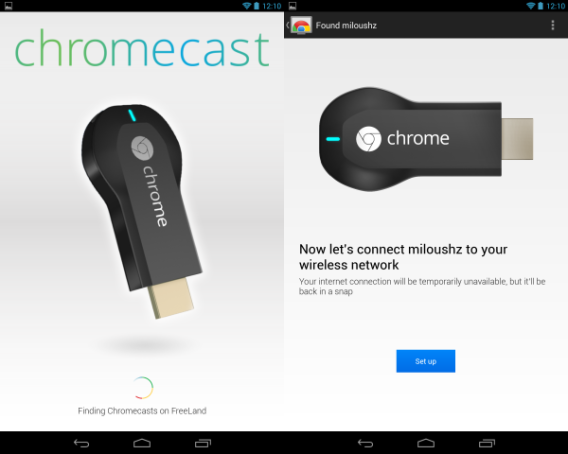
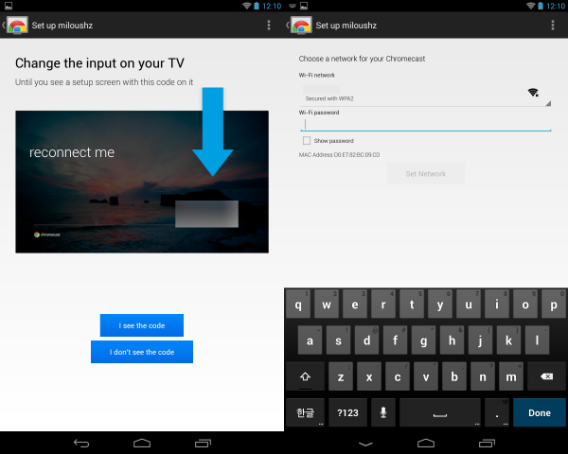
The app will search for the dongle to access its settings. If you ever take the Chromecast to another location, you will have to set up the device again through the app to connect to that network.

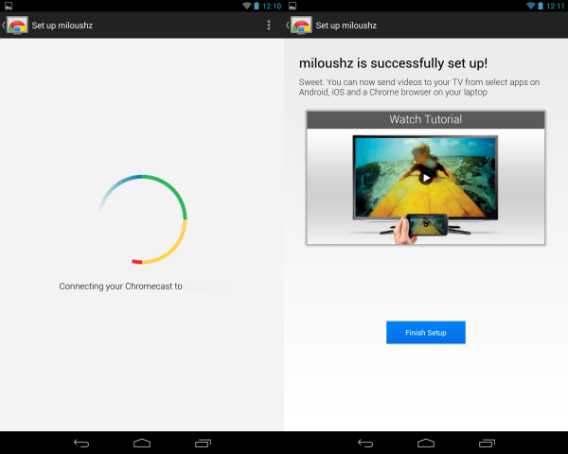
The app will access the dongle and display an access code that should be mirrored on the television screen. This will give you access to settings in the Chromecast so you can add it to your wireless network. It’s it’s correct, tap “I see the code.” Make sure your Chromecast is on the correct wireless network and enter your password.

Once the Chromecast is authorized to access your wireless network, you can stream content from supported apps like Google Play Music, Netflix, and Google Play Movies & TV. You can also mirror Chrome tabs to the Chromecast if you want to use it as a pseudo second screen.

Have you tried Chromecast? What do you think?