Apparently, Microsoft Outlook stores and analyzes emails

According to the latest news, some of the big websites have found a possible flaw in the new Outlook app.

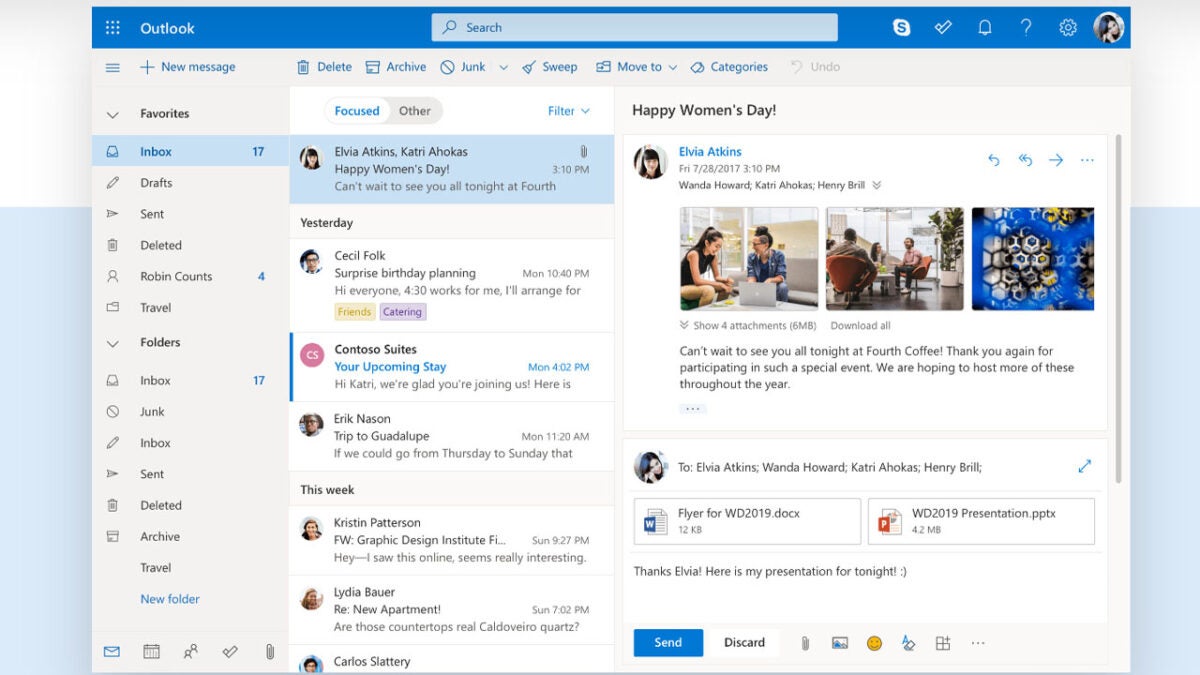
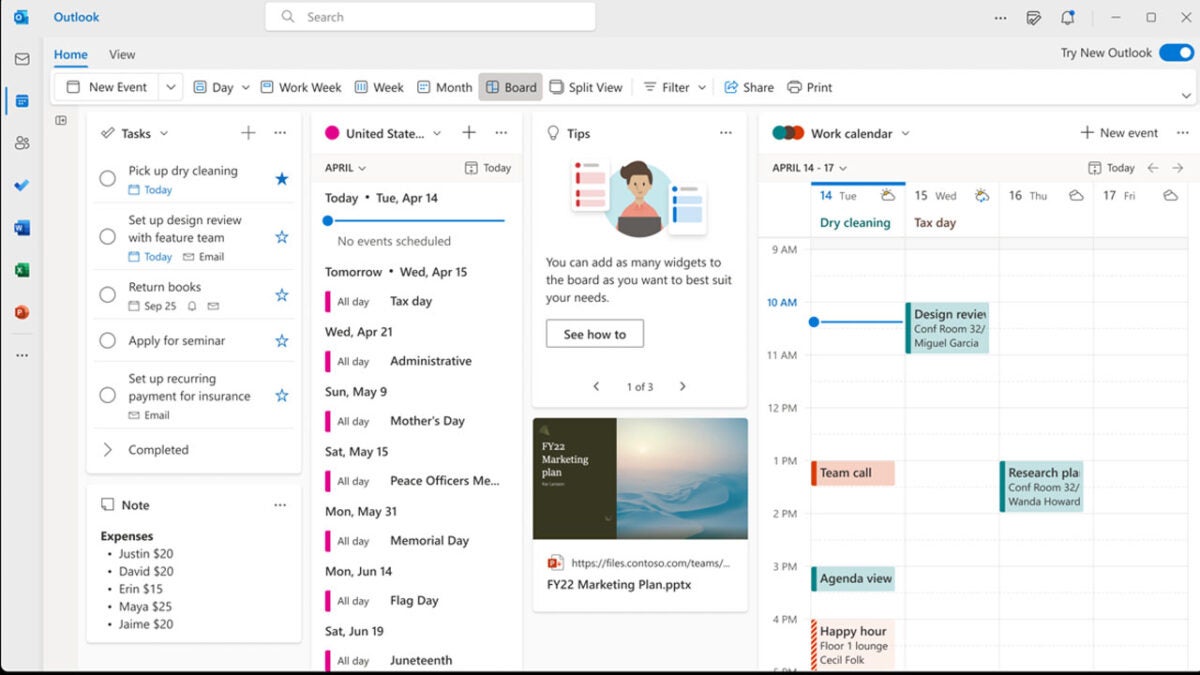
Microsoft has recently unveiled its revamped Outlook on Windows PCs, ushering in a new era for email and calendar management. The updated version not only bids farewell to the aging Windows Mail and classic Outlook but also boasts a sleek design and enhanced cloud integrations. It’s a fusion of convenience and aesthetics, promising users a seamless experience by consolidating email and calendar functionalities within a single application. However, beneath the glossy surface lies a shadow of privacy concerns, bringing us to question the extent of Microsoft’s data collection practices according to two reliable sources.
Microsoft Outlook DOWNLOAD

Outlook under fire

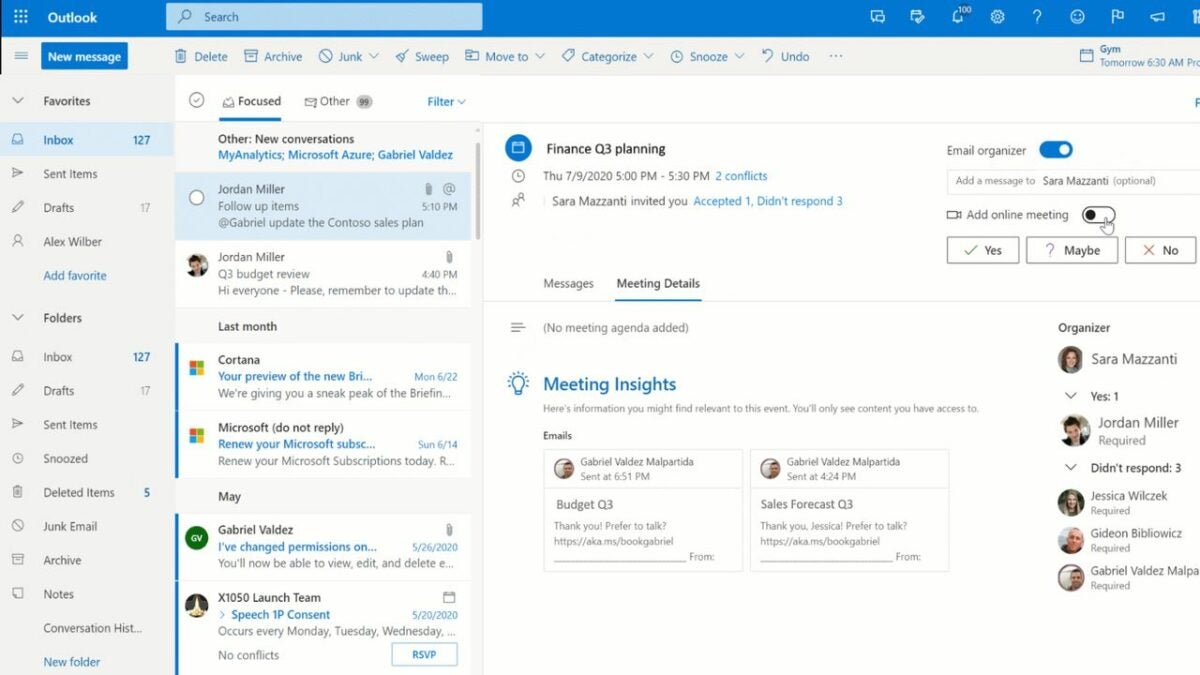
Heise.de highlights a significant privacy red flag – when configuring the new Outlook with accounts not hosted by Microsoft, such as Gmail, Yahoo, iCloud, or IMAP accounts, the app synchronizes data between the user’s email provider and Microsoft’s data center. This synchronization raises concerns about user data privacy, as it allows Microsoft to read and analyze emails. While Microsoft states that this is to offer enhanced functionalities not provided by other email services, it prompts questions about user expectations and the extent to which Microsoft should have access to personal communication. XDA Developers later published the news, and the folks over there have also reproduced it.

According to these two sources, the integration becomes particularly pertinent when setting up the new Outlook with external accounts like Gmail or Yahoo. The process involves the synchronization of data between the user’s email provider and Microsoft’s data center. While Microsoft asserts that this facilitates the provision of advanced functionalities, it simultaneously introduces a significant privacy dimension. The ability of Microsoft to read and analyze user emails, albeit purportedly for service enhancement, underscores the necessity for a meticulous examination of the implications on user privacy.
Outlook recently announced new themes for Macs

Microsoft’s roadmap showcases an exciting advancement for Outlook on Mac. Soon, users will gain access to a feature that has been gracing Windows Outlook with its presence. Dubbed feature ID 189805, this functionality enables users to set pictures as themes in their Outlook for Mac application. It’s a simple yet stylish feature that adds a personal touch to the user experience.

Microsoft Outlook’s theme palette to expand for Mac users

For all the Mac users who love to tweak their Outlook, here’s some good news. Right now, you can change the colors, but there’s something missing – you can’t put pictures as themes, like Windows users can. But don’t worry; Microsoft is fixing that!

According to the latest roadmap that Microsoft has shared on its official website, Mac users will have the opportunity to use a very basic but stylish feature that Windows users are already enjoying right now. The upcoming feature is tagged as feature ID 189805. Starting March next year, you can finally pick pictures as themes on Outlook for Mac. That’s pretty cool, right? Here are the official notes for the upcoming update:

“Outlook for Mac will soon support image-based theming, allowing users to choose an image from a selection available in the General settings.

  • Feature ID: 189805
  • Added to roadmap: 11/22/2023
  • Last modified: 11/22/2023
  • Product(s): Outlook
  • Cloud instance(s): GCC, GCC High, Worldwide (Standard Multi-Tenant), DoD
  • Platform(s): Mac
  • Release phase(s): Current Channel”

Microsoft released Pride themes for Outlook on Mac a couple of months ago

If you’re an Outlook user on macOS, you probably love personalizing your email client. Microsoft understands that, and a couple of months back, they added something special for you. In addition to the six regular themes in Outlook for Mac, there are now five vibrant Pride themes to choose from.

Applying these Pride themes is pretty easy, once you know where to find them, especially if you’re familiar with changing themes on the Outlook macOS client. Here’s a quick guide:

  1. Launch Outlook application on Mac.
  2. Look at the top of your screen, find “Outlook” in the macOS menu bar.
  3. Click on “General” in your Personal Settings.
  4. From the variety of Pride themes available, select the one that speaks to you.
  5. As soon as you’ve chosen your favorite Pride theme, voila! The changes appear instantly.

Once you’ve set your theme, you’re good to go. Close the Outlook Settings window, and your chosen Pride theme will be the new face of your Outlook client. It’s worth noting that your Pride theme will stick around until you decide to switch things up and try a different theme.

Once the new themes come out for Mac users, they will also be pretty easy to integrate.

Microsoft Outlook will soon help you keep on top of your contacts

Microsoft Outlook has received several updates recently, including a redesigned app and integration with a new Microsoft To Do app. We also recently covered a host of email contact-management updates and today can bring you news of a further update in this manner. It looks like Microsoft is working on an update for Outlook that will automatically remove all duplicated contacts from your address book.

Microsoft Outlook Download Now

A new entry has been spotted on the Microsoft 365 roadmap, which Microsoft uses to announce upcoming tweaks and minor updates to Microsoft 365 apps and programmes. The entry describes a new feature called Contact Deduplication, which will roll out to Outlook for Web users.

According to the entry, the move is designed to help users stay on top of their email contact lists and stop them from getting out of control with duplicated contacts. It says:

“People are at the center of our lives, and we start every digital connection via contacts. Hence, a clean, up-to-date contact list is critical for better collaboration and productivity. We are happy to announce that cleaning up duplicate contacts just got a lot easier with the de-duplication feature in Outlook Web App (OWA).”

The new feature should already be rolling out on a Worldwide General Availability basis as the entry says that it will be available in September 2022. However, unless you know that you have duplicated contacts in your address book there will be no way to check if you have received the update or not. This is just one of those quality-of-life features that will work away in the background.

In other recent news, you may want to think about augmenting your security details on Microsoft Outlook.

It may be time to bolster your login security on Microsoft Outlook

Recently we reported on a Windows 11 update that was designed to make brute force attacks, which see scammers setting up algorithms to methodically check every password combination possible until they get the right one, much harder to pull off. Unfortunately, the reasoning behind that move has become even more apparent as the software giant has released details about a rise in password spray attacks, a particular type of brute force attack, against Microsoft Outlook users. Here is what you need to know.

Microsoft Outlook Download Now

Microsoft has reported in one of its Tech Community blog posts that it has noticed a distinct rise in the number of password spray attacks being targeted at Microsoft Outlook. To combat these attacks the team has disabled the basic authentication features of the service.

If you are unsure about what exactly a password spray attack is or how it may affect you, check out the explanation below, which Microsoft included in the Tech Community blog post:

A password spray attack is a type of brute force attack in which the attacker tries a large number of usernames with a list of common passwords against a target system to see if any will work. It’s often hard to detect as the username keeps changing; accounts don’t get locked because the account being attacked keeps changing. Attackers also distribute their efforts over their targets and keep changing their source IP.”

Basically, it is like throwing a load of passwords and login details at the system and seeing if any of it sticks. Although it might sound like a haphazard methodology, what it comes down to is being a numbers game and the fact is that computers are good at numbers.

The surest way to protect against these types of attacks is to enable two-factor authentication and set up an authentication app like Microsoft Authenticator or Google Authenticator or add a second email address for confirming your identity when logging into your Outlook services.

You should also check out our cybersecurity guide to help you stay as safe as possible when you are using online services.

Outlook is getting a host of new contact-management features

As the default email client of the Microsoft 365 productivity suite, Outlook is one of the most popular email apps, particularly among business and enterprise users. A set of new and updated contact-management features will therefore be useful to many users. Let’s take a look at what you need to know.

Microsoft Outlook Download Now

Microsoft has announced via a Tech Community blog post that it is rolling several new features that will help us stay on top of our email contact lists.

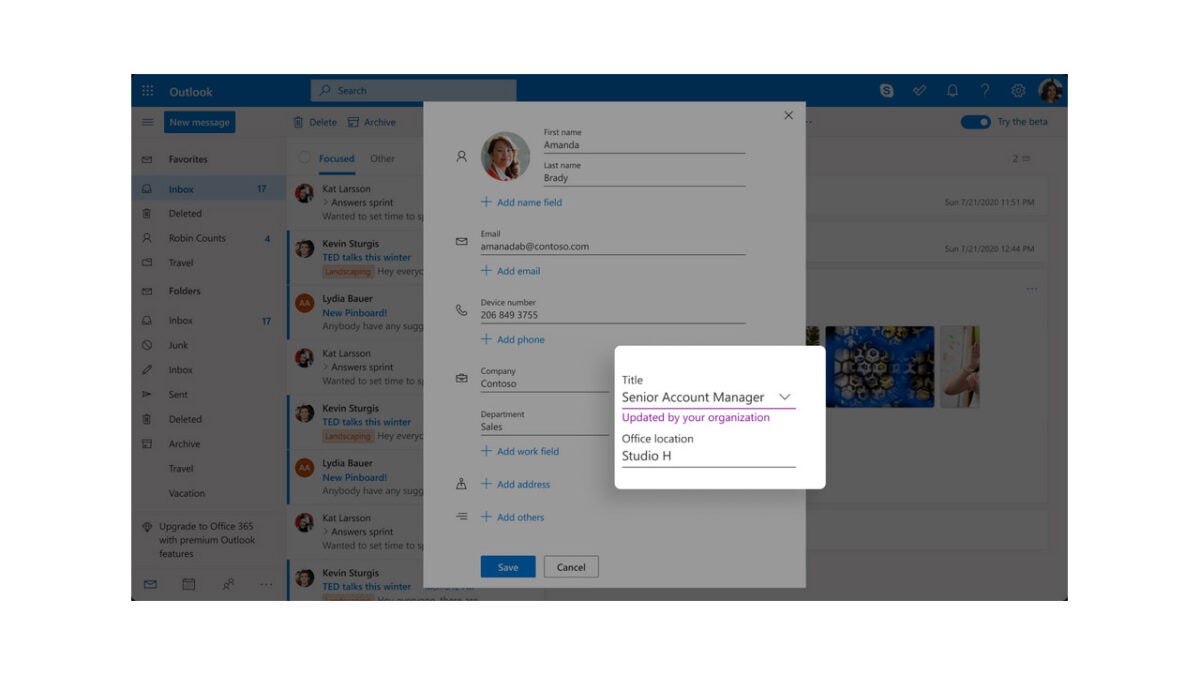
With our contact lists constantly evolving and people changing email addresses and contact details, over time our set of contacts can become out of date and filled with useless entries.  To address this situation, Microsoft is rolling out a Self-updating contacts feature as well as several other contact-management features such as Contact categories, a New contact editor, and an Upgraded People hub.

The Self-updating contact feature will only work for Enterprise users, with Microsoft describing it like this:

“All the new contacts you add from the people card of a person belonging to your organization will be self-updating contacts. These contacts automatically stay up to date based on the organization directory. Any modifications made to contact details, such as phone number, department designation, etc., will automatically be updated in the contact.”

The new Contact categories feature will replace folders and will work in a similar way to tabs. This means that rather grouping contacts into folders you will be able add search markers to them that will make them easier to find. All existing folders will automatically be migrated to categories. The Content editor will allow you to quickly and efficiently create and edit new contacts and will also include the new features outlined here. The People hub will bring all of these features together into a new home for your Outlook contacts.

In other recent Microsoft news, the company is finally rolling out an update to Windows 10, but you shouldn’t expect any new major feature upgrades.

How to create your own signature in Microsoft Outlook

Microsoft Outlook is a massively popular service for sending emails in a business setting. Companies of all sizes can take advantage of the advanced communication features available in the software. Of course, professionalism is paramount when sending messages to your boss or colleagues.

Microsoft Outlook Download

An effortless way to display a professional tone is to add your personal signature to important emails you send to other people in the office. The process is incredibly easy and is achieved in just a few steps. Afterward, your custom signature will automatically appear in the emails you send. If you do not want to sign each message, you can also leave your mark on a case-by-case basis.

  1. Logging in to Outlook

    Log in to Outlook with your Microsoft Account.

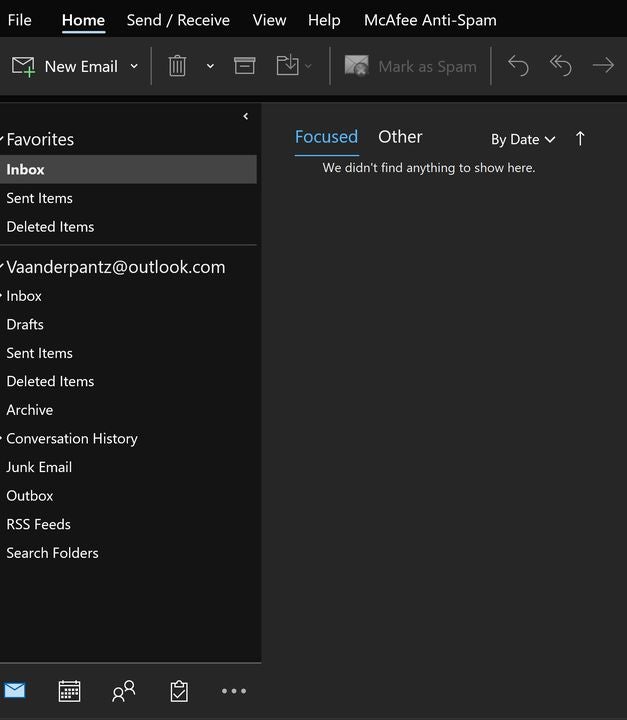
    Successfully logging in will result in Outlook’s home screen appearing. You will need to draft an email before adding your signature to it. To create a new message, click on the “New Email” button to open a new window for your message. The new window works just like any other email application. Select your recipient, title the message, and say your piece in the body field.

  2. Drafting your email

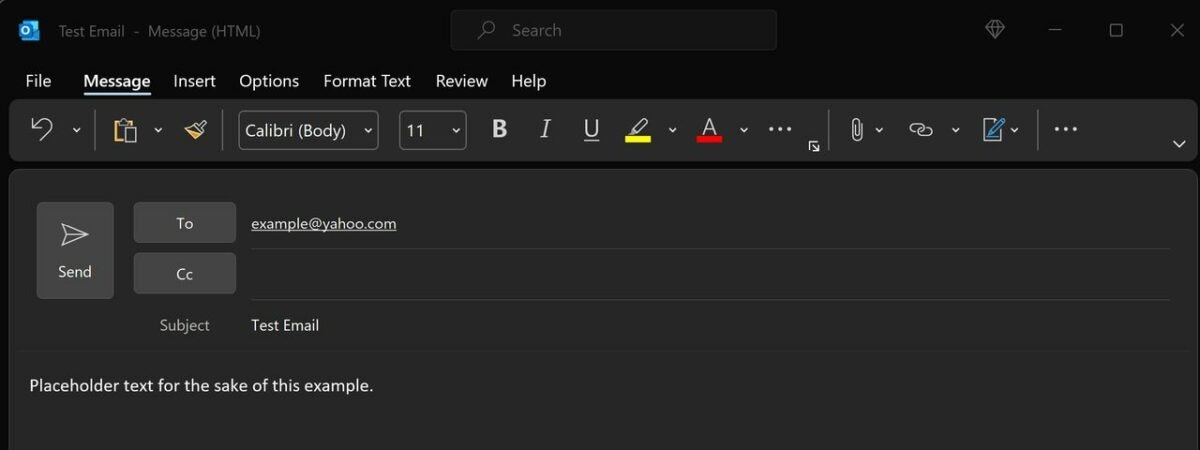
    Create a new message before adding your signature.

    Successfully logging in will result in Outlook’s home screen appearing. You will need to draft an email before adding your signature to it. To create a new message, click on the “New Email” button to open a new window for your message. The new window works just like any other email application. Select your recipient, title the message, and say your piece in the body field.

  3. Adding a signature to your message

    Ensure you are on the messages tab so that the signatures button will appear.

    Upon drafting your email, there is simply the matter of signing it before the sendoff. To do this, you will need to ensure the messages tab is selected at the top of the screen. On the far right of the message toolbar is the signatures button. Click the pen and paper icon to open the signature options screen. If there is no data on this panel, click on signatures to make your first one.

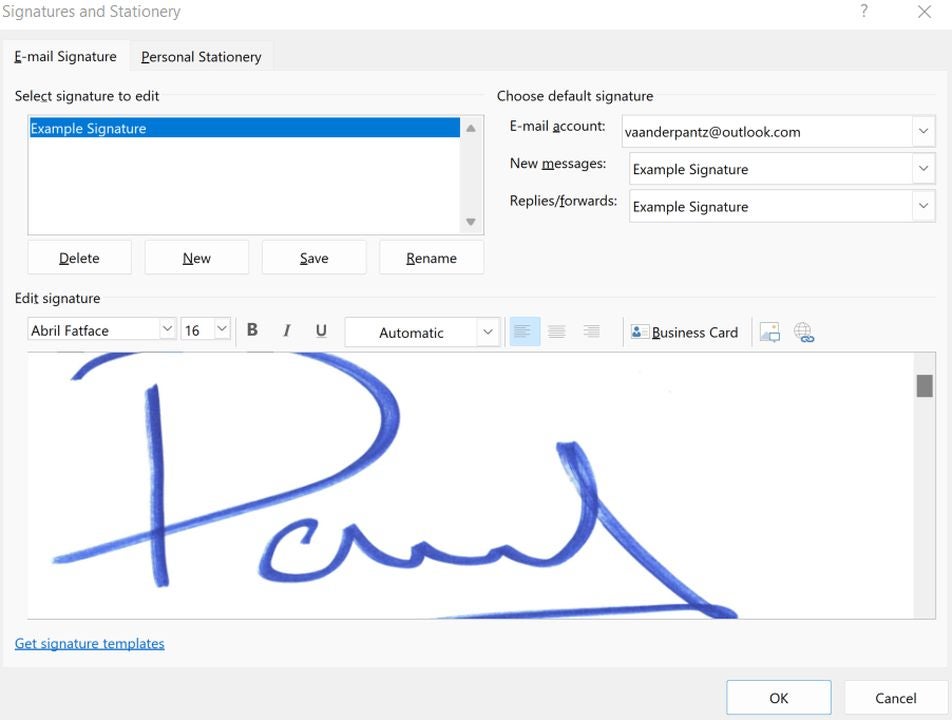
    In the new window that appears, locate the box labeled “select signature to edit.” Since this is your first signature, the box should be empty. Click the new button to sign your name. Type whatever you desire into the field though leaning toward professionalism is recommended.

  4. Editing signatures and advanced functionality

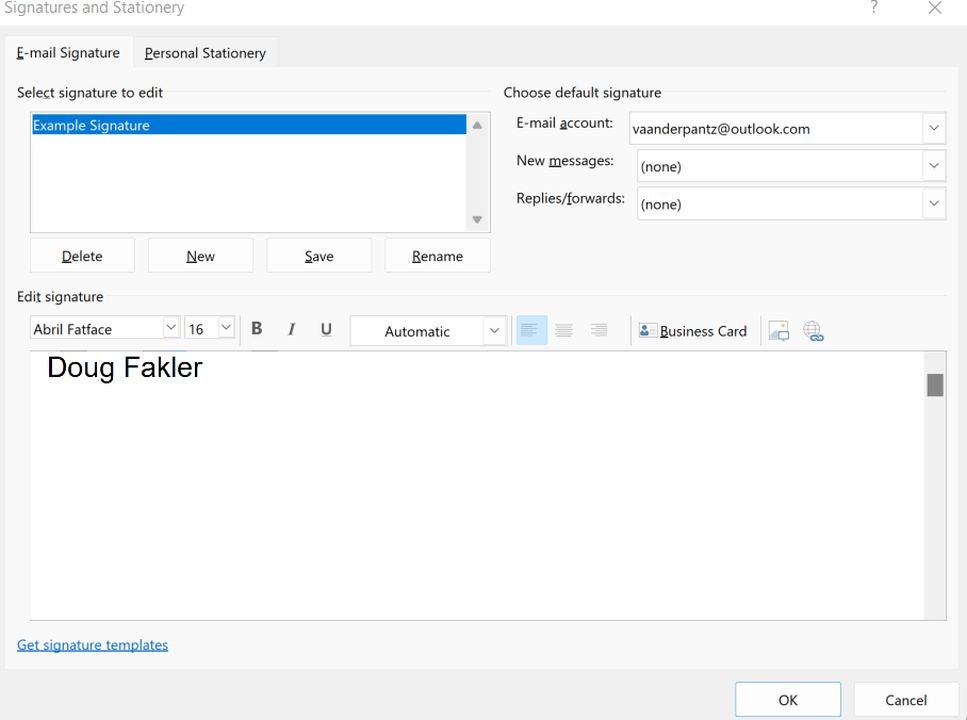
    Edit signatures and add images on this screen.

    Outlook allows you to add way more to your signature than only plain text. You can add images, a business card, a logo, or even your personal handwriting. Click on edit signature and select the name you created in the previous step. This screen allows you to adjust font size, color, and all the word processor bells and whistles you have come to expect in modern software. Copying robust text from another program can help you with formatting bullet points and other complex strings.

    This same screen allows you to add logo images or business cards to your signature. Click on insert and select images to choose a picture from your device. Or click the business cards button to add a scan of your physical documents.

  5. Selecting signature frequency

    Determine how often your signature is added to emails.

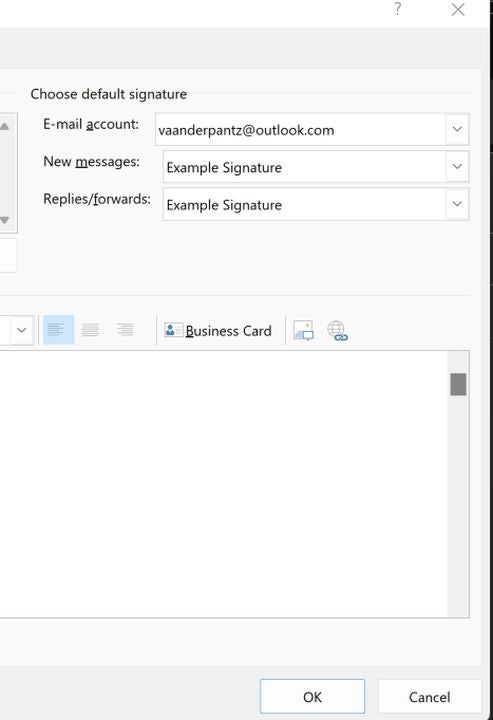
    With a signature selected, you can set how often it applies to the emails you send. To the right of the edit signatures box are the email settings. Ensure your desired account is listed in the top box. Then, select what happens with new emails and replies/forwarded messages. The (none) option will keep the signature off by default. Otherwise, click on your desired signature template for both new messages and replies.

Another option for emails

If you prefer not to create a Microsoft account or pay for the subscription service, there are free alternatives for sending your emails. For instance, Mozilla Thunderbird has taken the world by storm thanks to its ease of use and low barrier to entry. To learn more, read our guide on how to set up end-to-end encryption for Thunderbird emails accounts.

Latest Microsoft Outlook retro update brings some nostalgia

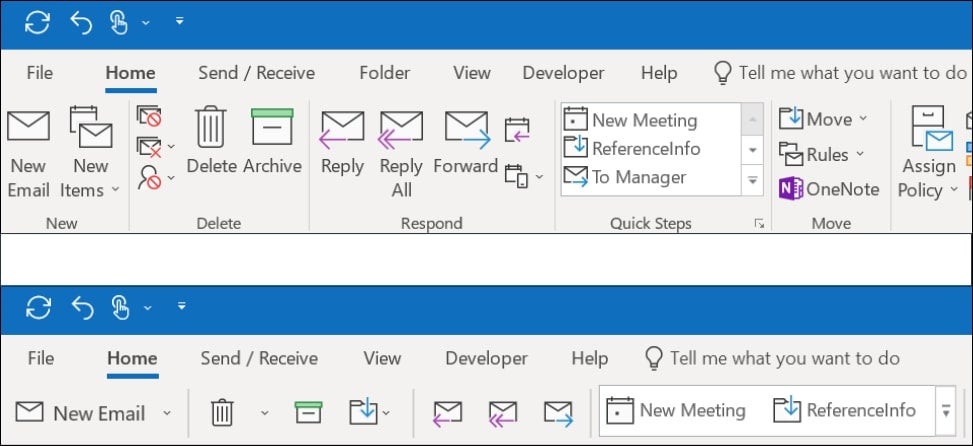
Why move forward when it’s more fun to go backward? Microsoft seems to be looking to the past with the latest Outlook update. There will be new additions to the ribbons, which are on the main menu. You’ll be able to switch between classic and simplified views, the former presenting the retro appearance for emails. We’re not sure if it will also make changes to meetings and the calendar.

Microsoft Outlook DOWNLOAD

The Microsoft 365 Roadmap received a new entry that has to do with this update. While not much information is available at this point, it’s clear we should see it sometime in September 2022. It’s not a massive change, but it will let you switch to the old view in Outlook, giving you that sense of nostalgia. It’s uncertain what prompted this update; perhaps the tech giant is missing the good old days.

It’s strange to be going backward when Microsoft should be working on changes that take us forward. I get the same feeling when developers and publishers put so much energy into rehashing old games. They could be spending all that time making a new phenomenal title, instead. Imagine I went back and republished my novels with the initial grammar mistakes I made with my first books.

Latest Microsoft Outlook retro update brings some nostalgia

Despite my opinion on this matter, there are some people that like to go down memory lane. Perhaps you miss your Pentium 5 with Windows NT. Remember the ribbons that Microsoft Word and Excel had back then? I’m wondering if we should expect similar updates for these programs. Or perhaps I’ve missed them.

In any event, I’m more excited about Outlook receiving a To-Do list in the email section. I receive so many emails per day, it will help me be more productive with how I organize the content and plan my day.

Microsoft builds To Do app right into Outlook

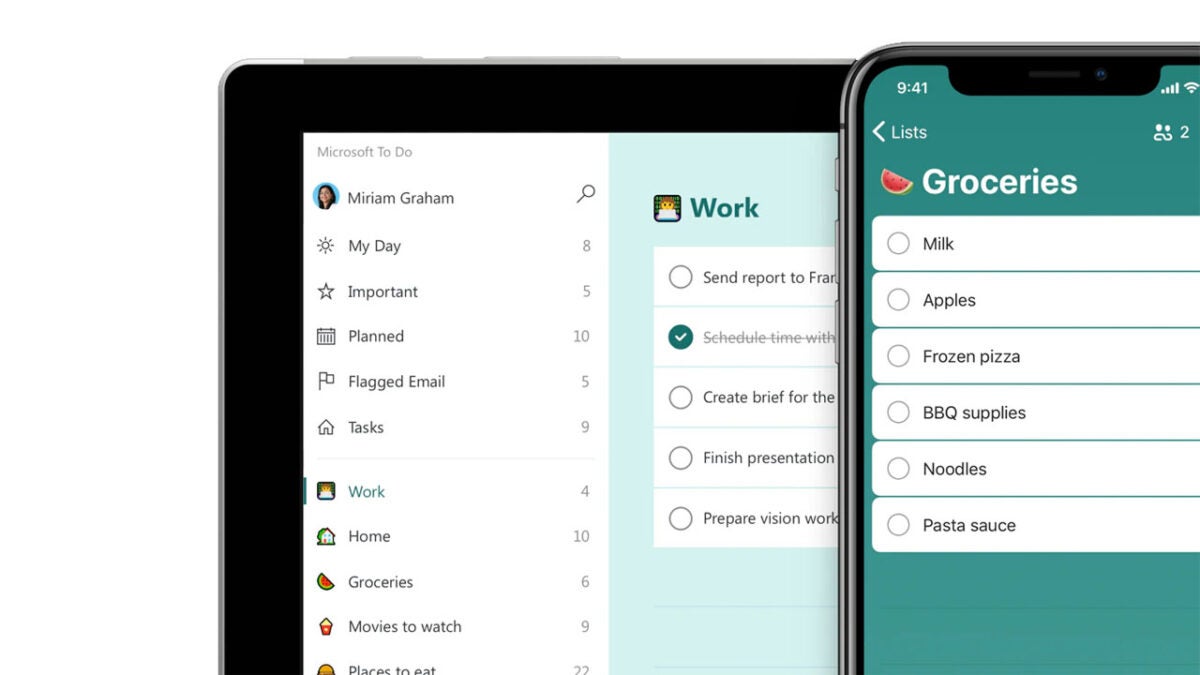
The Microsoft To Do app is designed to help you focus on the tasks at hand as well as help you rack basic lists and projects in your life such as what you need to buy the next time you go grocery shopping. As when we are working many of the tasks that we need to add to our To Do lists come from emails from managers and colleagues, Microsoft has today announced that it is integrating the To Do app directly into Outlook. Here is what you need to know.

Outlook Download Now

The integration will give Microsoft Outlook users full access to the To Do app from within Outlook. Furthermore, as well as being able to use the full features of To Do, Outlook users will also be able to take advantage of several optimization features that become possible thanks to both apps coming together.

The first major integration feature is flagged emails. The feature automatically creates a to-do list relating to all flagged emails received in the user’s inbox, with the tasks that make up the app allowing the user to quickly access the email, bringing together both the To Do list functionality and the Outlook inbox functionality together for quick and easy access.

There will also be increased integration with Microsoft Planner, which is the software giant’s project management tool. Planner offers much wider project management features on top of basic to-do list functionality but there is no doubting the utility that to-do lists offer project managers, which again makes this a very sensible integration indeed.

The new updated feature should be rolling out to Outlook users as we speak meaning it could already be active on your version of the app. However, Microsoft does report that the feature will not be on by default for all users so it could be worth heading to Outlook settings to see if you need to switch it on before using it.

In other recent Microsoft News, the company has been working hard to bolster security on the Microsoft Edge browser.

Microsoft is attempting to patch an Outlook bug causing systems to freeze and crash

Microsoft has recently launched Outlook Lite, which is a more barebones version of its flagship email app, designed for use on lower-resource devices. Unfortunately for the software giant, however, customers have been reporting a bug in the full version of Outlook that has been causing it to freeze and crash. Let’s take a look at what Microsoft is doing about the issue.

Microsoft Outlook Download Now

According to a report by Bleeping Computer, Outlook users have been airing their frustration at an unknown bug that has been causing the app to freeze and crash. In the error report Microsoft describes the issue as, “When you start Outlook Desktop, it gets past loading profile and processing, briefly opens, and then stops responding.” The bug seems to be related to the EmailAddress key not setting properly, which, fortunately, Microsoft is able to offer a workaround for users to take advantage of.

While the company attempts to work on an official patch for the bug, it recommends working around it in one of several ways. If your version of Outlook is freezing and crashing in the manner described above, you should try signing in and out of your Office account as this will repopulate the identity registry settings. If this doesn’t work you should try turning off the Support Diagnostics, which will bypass one of the steps that lead to Outlook freezing. The final option is to try and manually set the email address to the user’s identity.

Although some of these options may sound a little complex to carry out, don’t worry as Microsoft has compiled them all together in the error report document for the bug, which you can access here. The other option is to wait for Microsoft to release the official patch but as yet there is still no news from the software giant about when we can expect that to roll out.

In other recent Microsoft News, OneDrive is getting a new and improved homepage for its 15th birthday.

The best keyboard shortcuts that enhance productivity in Microsoft Outlook

When you send an enormous number of emails each day, the amount of time you spend in Microsoft Outlook quickly adds up. Over the course of a year, hours of life can be wasted by inefficient communication processes. Conversely, you can earn additional hours of free time by mastering the plentiful keyboard shortcuts offered by Outlook. Efficient keyboard use is vital for all online workers to develop over time.

Microsoft Outlook DOWNLOAD

With the following shortcuts, you will be back up to speed in no time.

Basic navigation shortcuts

Quickly navigating through each section of Outlook should be your first priority. Each navigational shortcut incorporates the Ctrl key, so the collection is fairly easy to remember.

  • Mail View – Ctrl + 1
  • Calendar view – Ctrl + 1
  • Contacts view – Ctrl + 3
  • Task plane – Ctrl + 4
  • Notes viewer – Ctrl + 5
  • Folder view – Ctrl + 6
  • Shortcuts viewer – Ctrl + 7
  • Journal view – Ctrl + 8

You can also navigate to the previous section you were in by pressing Alt + B or Alt + the Left arrow key. To navigate forward one page, use Alt + the Right arrow key.

Access all the navigation tabs with ease

Returning to the home tab

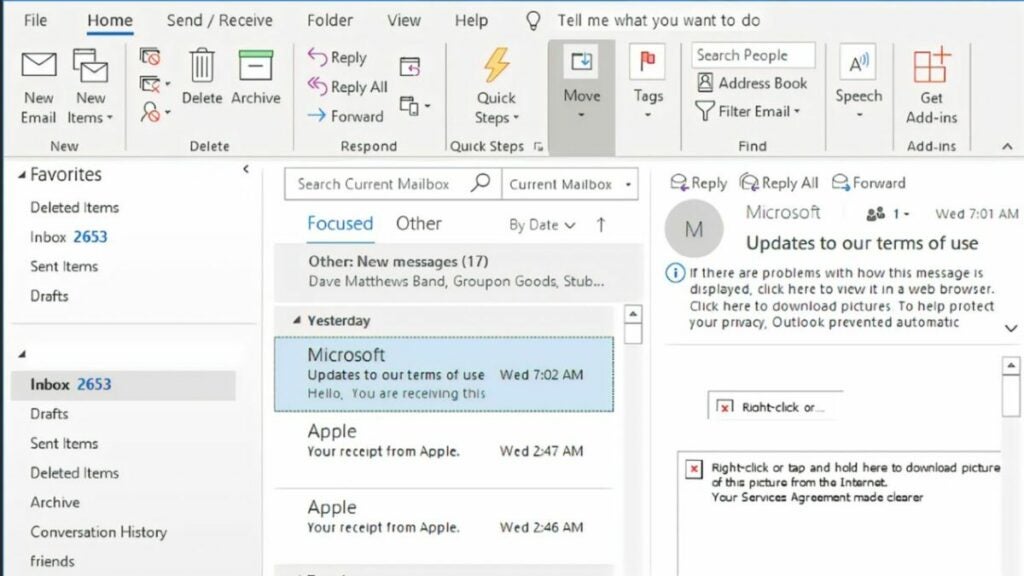
In addition to the pages listed above, you can also quickly return to your home tab with the shortcut Alt + H. Now you can swiftly navigate between all sections of Outlook.

Home task bar in Microsoft Outlook.

Creating a new message

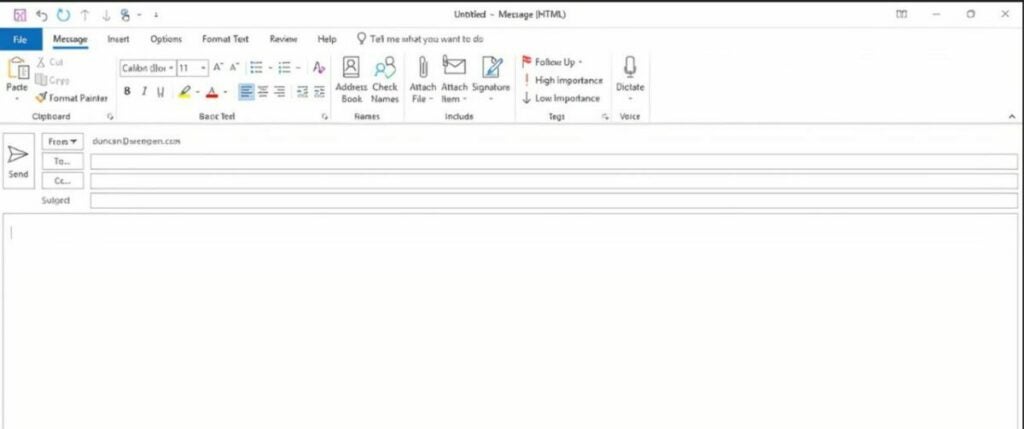
Writing numerous emails per day facilitates the need to simplify the process required to pen a new message. To pull up the draft window, use the shortcut Ctrl + Shift + M. Then, you can fill out the subject line, add recipients, and type an email as normal.

Creating new messages is simple

Sending a message

The fastest way to send a message is to use the keyboard shortcut Alt + S. Be sure that the correct email and recipients are on the screen first. This key binding sends only the message highlighted on the screen.

Adding attachments and inserting files

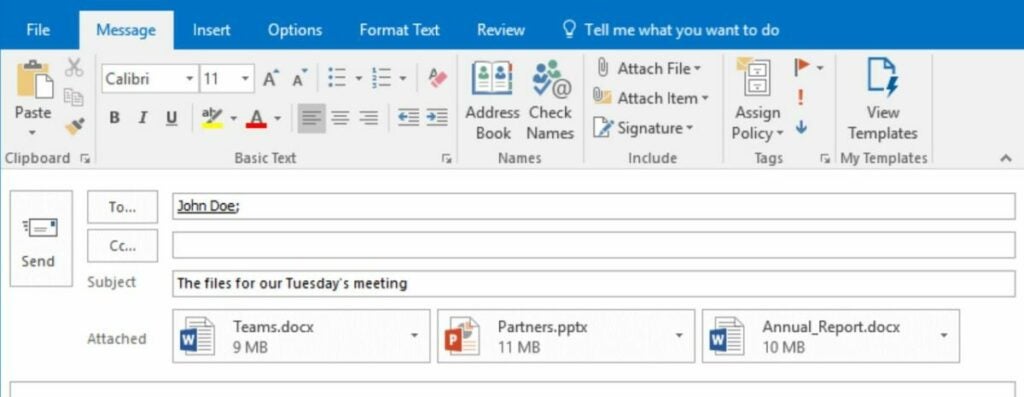
Before sending a message, you may wish to attach a file to it. To do this, use the shortcuts Ctrl + A, Ctrl + N, or Ctrl + F. Each combination shares the same functionality, so feel free to use whichever one is most natural.

Attach files like this

Replying to messages

Typing up a response email is just as easy as creating your own. It can be done by using the shortcuts Alt + H, Alt + R, or Alt + P. Again, you may use any shortcut you desire as they each produce the same result.

Deleting emails, files, and folders

Like in most programs. Outlook allows you to delete highlighted files simply by pressing the delete key. To highlight an email, file, or folder, click on it and a blue box should appear around the icon.

Forwarding messages

You can also forward emails to people on your contacts list with the shortcut Alt + F or Alt + W. Forwarding allows you to share messages without creating a brand-new email yourself.

Forwarding messages just got easier

Create an appointment

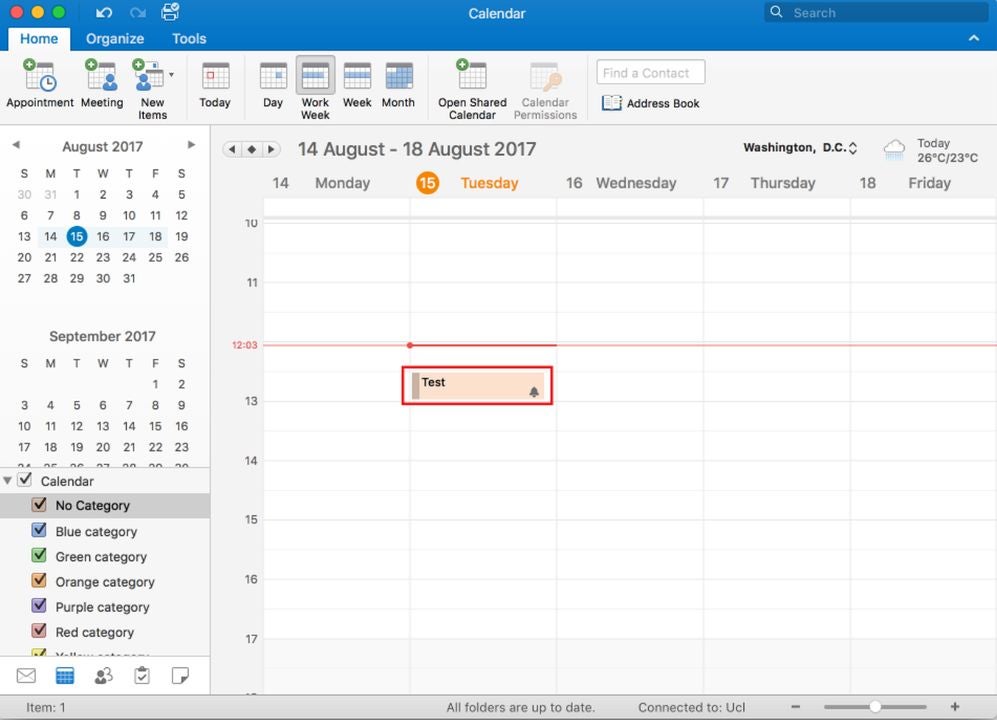
Creating appointments can be time-consuming when you start each one manually. To speed up the process, use the keyboard shortcut Ctrl + Shift + A.

Create and view appointments here

Checking for new messages

Although Outlook will automatically update your inbox when it is ready, sometimes, you are eagerly anticipating a response from someone. You can force Outlook to reload your inbox and check for new messages with Ctrl + M or the F9 key.

Check for new messages on your own time

Additional ways to increase computer productivity

Revamping your email setup is just the beginning. There are plentiful ways to optimize the time you spend on your computer. You can install better desktop applications, add web browser extensions, and take courses on the programs you use most often. As an example, check out this list of helpful extensions for Google Chrome. By adding some extensions to your browser, you gain tons of functionality without having to leave Chrome and open another tab.