4 Tips and Tricks for PhotoScape

So, you’ve tried out PhotoScape and you’ve discovered it’s simply awesome. Now you want to learn how to do even more with this incredibly powerful free software. Fortunately, it’s jam-packed with fun and interesting features. Here are a few you’re definitely going to want to try out with your own photos:

1. How to Add Text to Photos

No photo editor makes it easier to endow your photos with sentimental thoughts, explanatory notes, or just something hilarious. You can select either the T or the TT features.

Clicking on either of these brings up a dialog box where you can type any text you like. It will also give you the options to change the color of the text, alter the font size, or select a different font style, text alignment (center, right or left justified), and more.

If you click the TT button, it only gives you the basic tools to work with. The T button offers you more features, including outline and shadow, as well as the ability to adjust the opacity of your text.
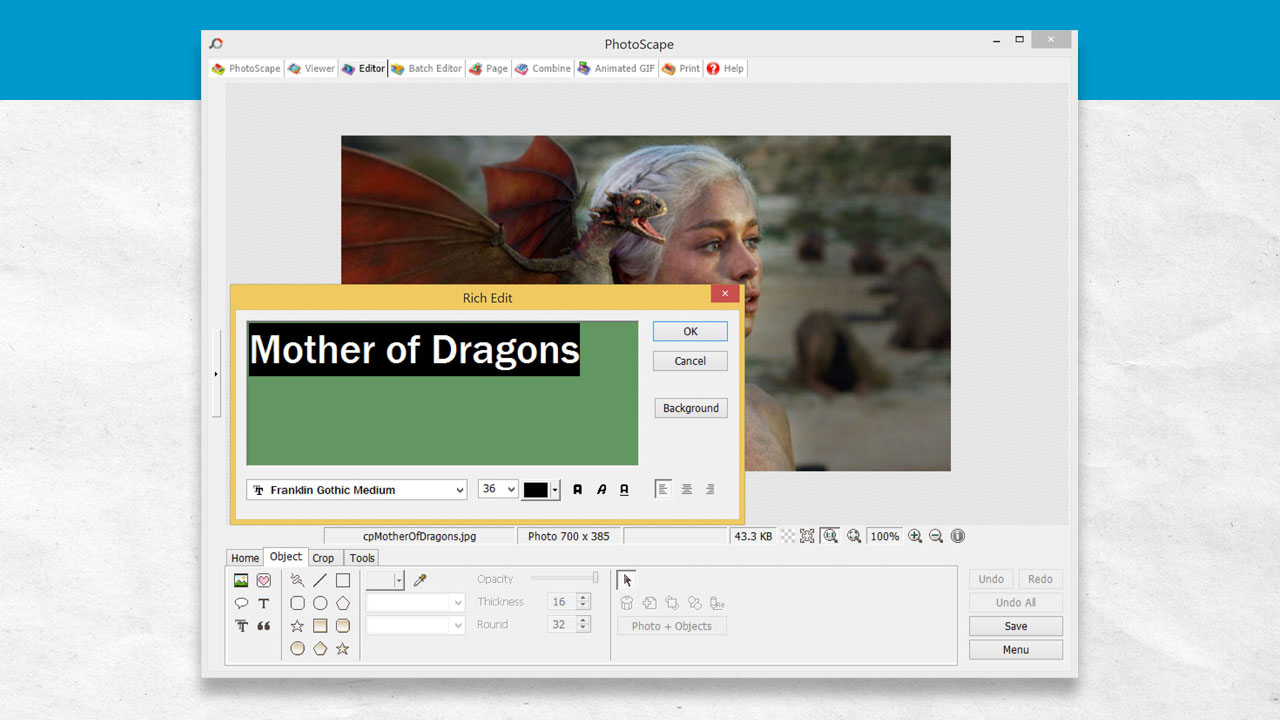
Photoscape - Text Tools

2. How to Sharpen Your Photos

There are two simple steps to make your photos clear and sharp. Select Home, then choose Sharpen. From there, select the level of sharpening you like.

You can set the Radius of the sharpening to any number between 0.1 and 8.0 and the Amount of sharpening between 10% and 500%. You can also choose one of the present combinations by clicking on the button marked “Default” and changing it to one of the 13 pre-selected values.

In most cases, go easy on the sharpening! Applying too high of an Amount can lead to very unflattering results, especially in portraits of people.
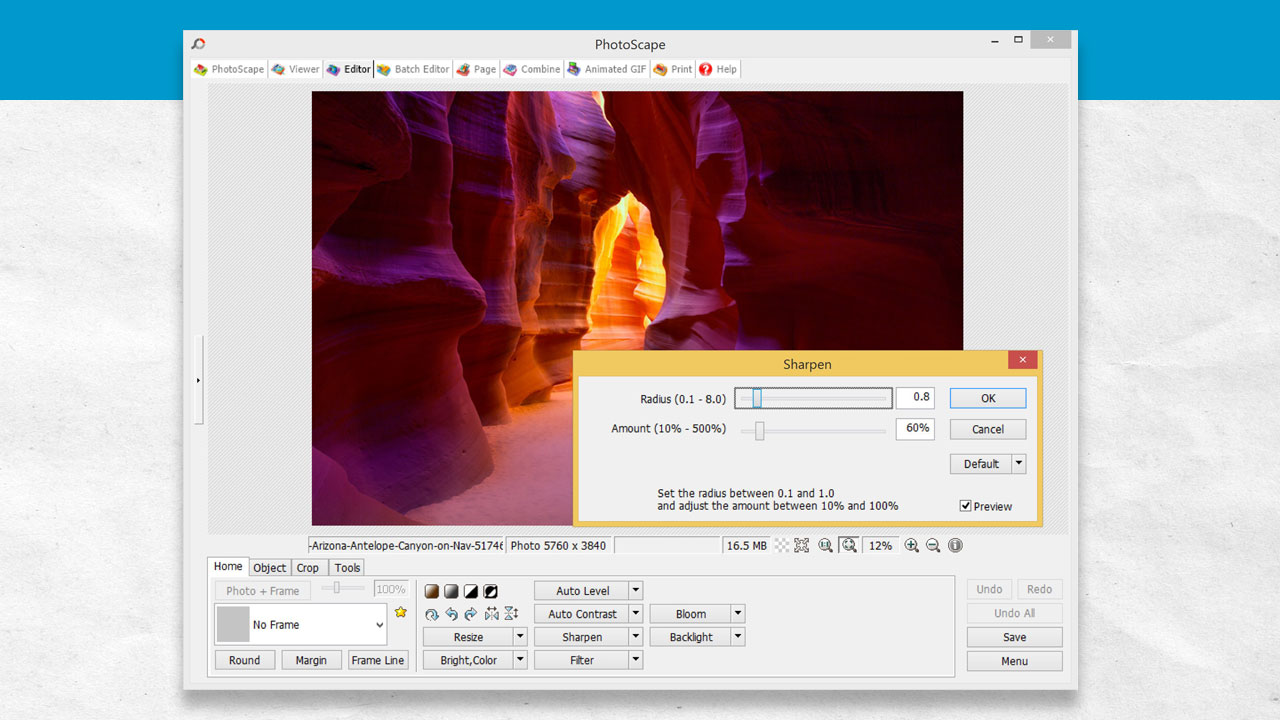
Photoscape Sharpen Tool

3. How to Use the Photo Splitter

Using the Splitter tool, you can slice and dice your photos into multiple parts. Just set the size of the rows and columns (width and height) along the right side of the screen. Broken lines will appear to show you where the cuts will be made. When you get it adjusted like you want it, just click the Split button. This will pull up a box so that you can choose how and where to save your split photo. You can also choose multiple photos and split them all the same way.
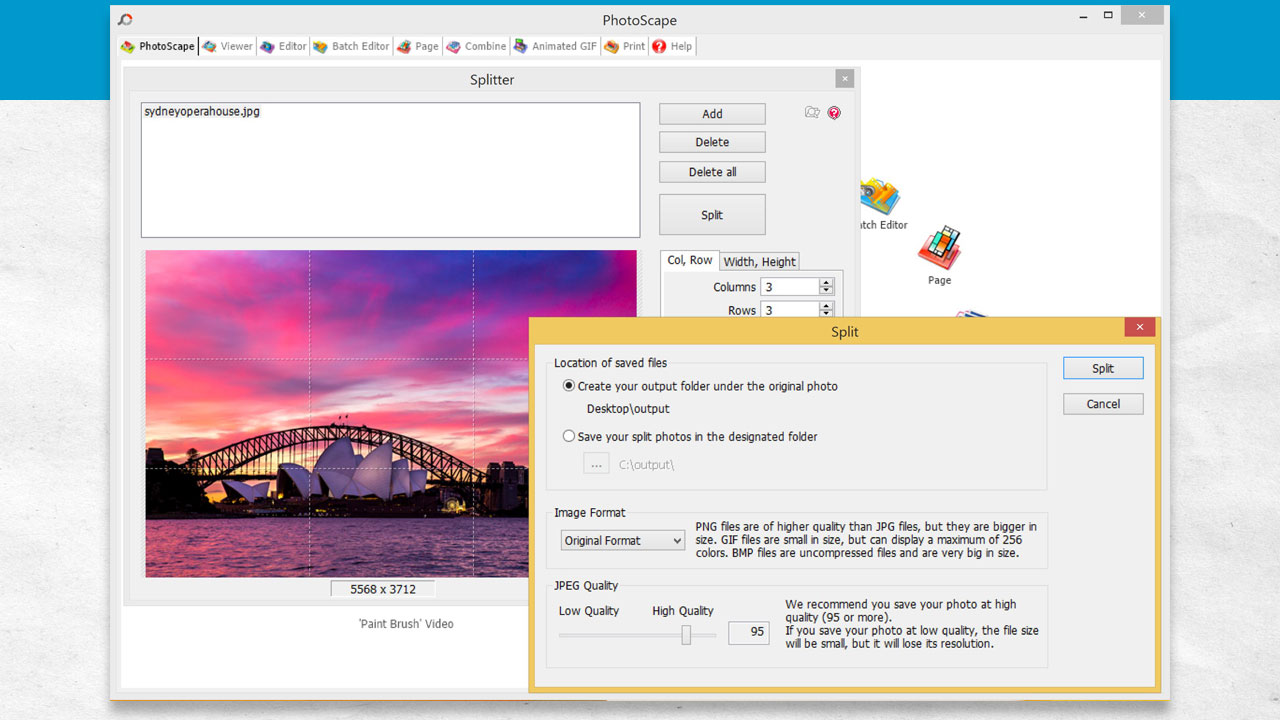
Photoscape Splitter Tool

4. How to Combine Photos

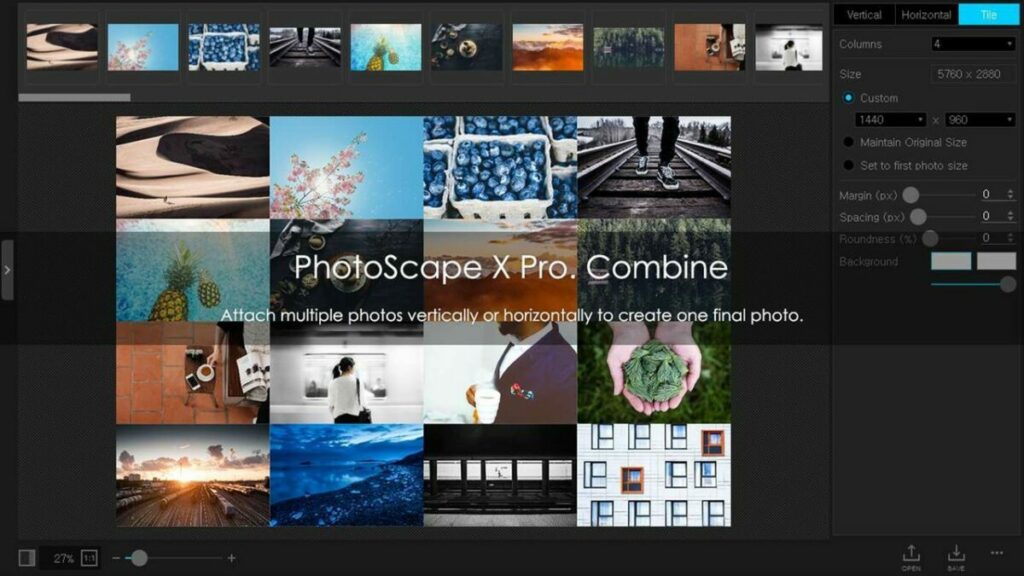
If you want to combine multiple photos into a single shot, use the Combine tool. Once you select that tool, drag the photos you’d like to combine to the window. Along the right side of the window, set what size you want the resulting photo to be.

You can also set the arrangement of the photos there. It will also give you the option to set the margins and even change the color of the margins. You can also change the interval of the photos or round off the sides of the photos. Be sure to click Save so you don’t lose your work. After saving, you can continue to edit your combined photo using the other editing tools in PhotoScape.
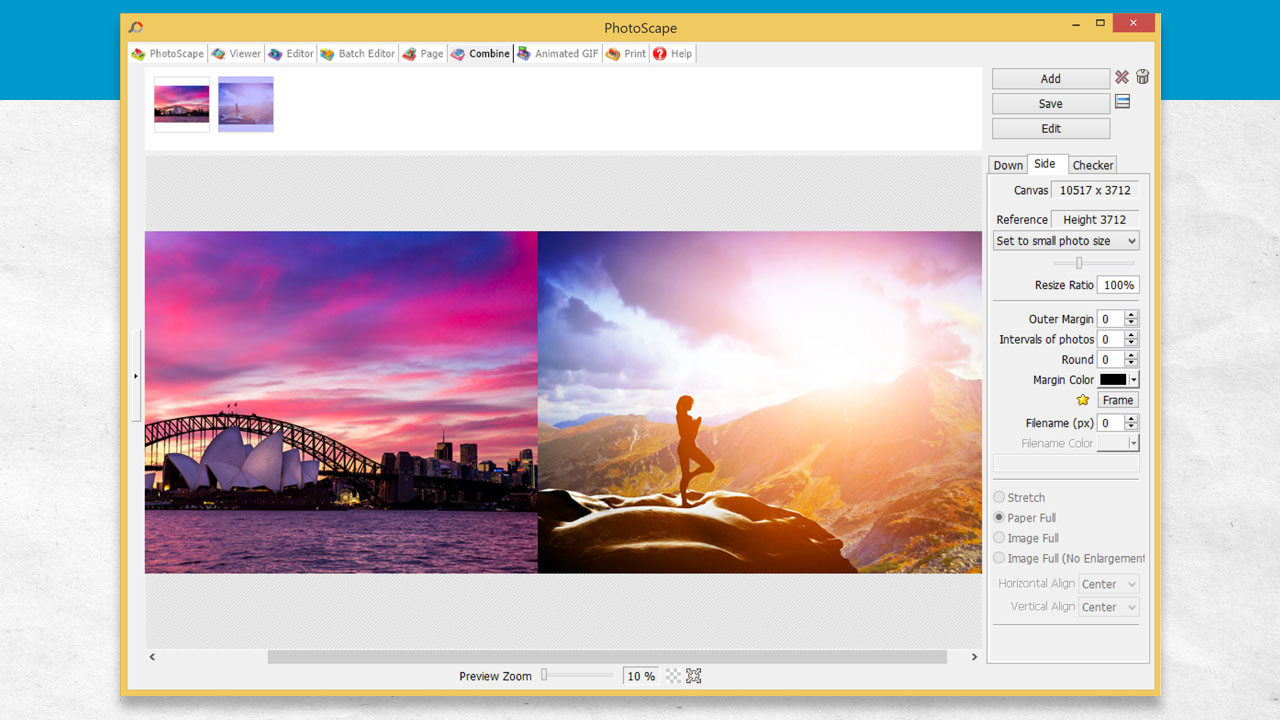
Photoscape - Combine Images

Want more tips, techniques and tutorials for Photoscape? We’ve got a list of 10 extra Photoscape tips to read, and you can check out this PhotoScape Effect Brush Tutorial for even more creative fun!
Exploring All That You Can Print in PhotoScape

Beside all of the cool features, like sharpening tools and special effects, PhotoScape’s print function also gives you some powerful features so that the finished product is exactly what you want. Here are a few of the printing options to make your PhotoScape-printed photos look like professional quality work:

When you select the Print function at the top of the window, it will bring up a menu. There, you can find and select printing options.

Stretch Photos Before Printing

The Stretch feature enlarges your photo by distorting and stretching it as large as it needs to be to fit the paper. Please note, however, that using the Full Paper option does not print any part of the image that exceeds the size of the printed material.

Choose the Printed Photo Size

All of the common photo sizes are there for you, including wallet size, 3×5, and 4×6, but you can also choose your own custom size. Just realize that the software can’t print larger than your printer is capable of handling and that you have to have the right size photo paper. When printing photos, it’s always best to invest in photo-quality paper for the best possible results. Choose between glossy and matte, depending on the effect you would like the images to have.

Choose the Direction of the Photo to be Printed

Here is where you select Portrait (higher vertically) or Landscape (wider horizontally).

Filename Height

This option allows you to print the name of the file you have chosen for the photo image right on the printed copy.

Intervals

Intervals (measured by PhotoScape in millimeters) lets you select how much empty space there will be between the photos you print on a single page.

Draw Outline

As the name entails, this feature lets you set an outline for your photos. Often, an outline makes the photo appear more “finished” and professional than having no outline.

Auto Rotate

This feature allows you to rotate the photo 90 degrees before printing. If you do not want to save the image rotated, but you do want it to print rotated, this feature lets you do that without changing how the image is saved on your computer.

Rows Per Page & Columns Per Page

When printing multiple images on the same page, this feature allows you to establish how many rows and columns to print per page.

You can also create some nifty effects using the print menu, including:

• Gamma
• Grayscale
• Sepia
• More

Don’t forget to check out: Top 10 Tools for a Photo Retouch!

10 unique features and functions for optimizing PhotoScape

While PhotoScape may not serve as an outright replacement for robust dedicated graphic design programs like Photoshop, it nonetheless provides a highly capable solution that accomplishes more than just basic image retouching. PhotoScape is also one of the best free all-in-one photo editing products available.

PhotoScape DOWNLOAD

PhotoScape is an effective and comprehensive photo editor that performs the most common digital image enhancements like contrast control, color adjustments, cropping, exposure, resizing, GIF animation, and photo printing. The application provides you with more than enough tools to create memorable images that reflect your distinct approach to visual design. Here, we explore 10 unique functions and features that help you get the most out of this free graphic design tool from PhotoScape.

The quick menu

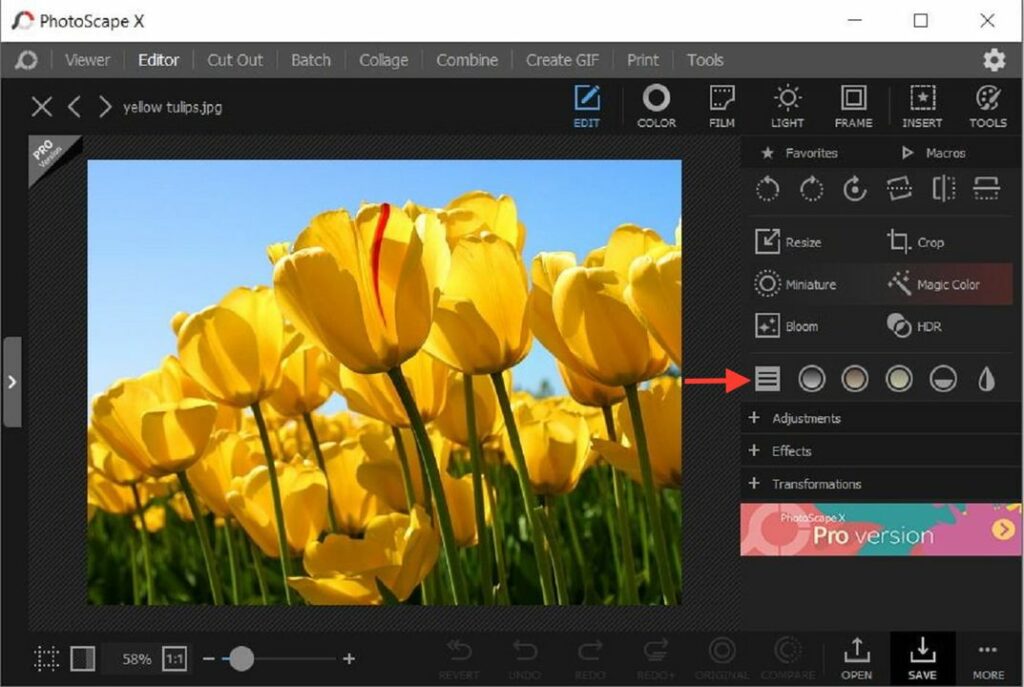
Beginning with the menu options, PhotoScape offers a Quick Menu feature. Just beneath the Edit tab, you’ll discover the Quick Menu where you’ll find most of your editing functions contained within separate sections under an easy-to-access interface. PhotoScape includes dozens of editing features, many of which aren’t readily accessible from the home window. The Quick Menu from PhotoScape is the quickest way to encounter these options. To open this menu, navigate to the Edit tab, and then, select the Quick Menu.

The Quick Menu in PhotoScape reveals the range of editing tools and features included with the program

Undock editing tools

PhotoScape offers several advanced image editing tools, but you may not need every one of them. On the main Editor screen, you’ll notice all the tools and effects opened along the right side. Not unlike the docking system on your PC or mobile device, you can reposition program functions to your preferred location. If you want to undock a specific tool, click on the Undock icon at the top right of the main screen. To re-dock a specific editing option, click the same icon when the feature is in an undocked position.

PhotoScape offers several editing tools and functions, but you can use the undocking feature to highlight your favorite

Crop utilities

PhotoScape includes a crop utility tool that allows you to complete the most essential crop functions. You can reframe your images to different sizes or access various circular or perspectival crop presets that you can save directly to your device. You can also copy any cropped images you save to the PhotoScape clipboard.

Access various popular crop settings with this advanced crop tool from PhotoScape

Transparent backgrounds

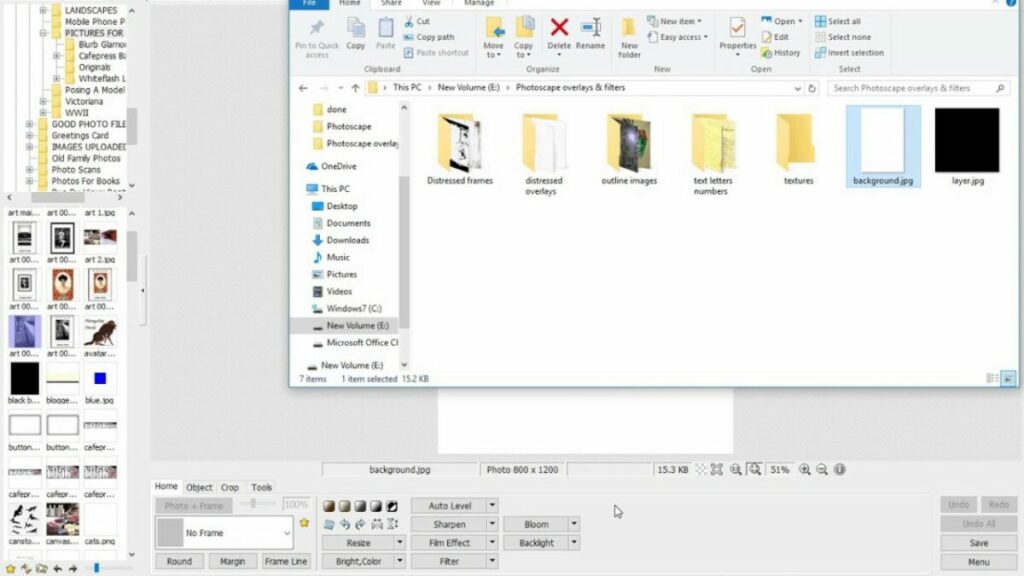
PhotoScape ventures beyond the basic color and theme offerings by letting you set the background as transparent. To add a transparent background, find the Background label function and choose Transparency. Transparent backgrounds come in handy if you want to contrast a busy-looking Text layer mask against a plain, colorless background.

PhotoScape offers a convenient tool for creating transparent backgrounds against your colorful images

Add duplicate objects

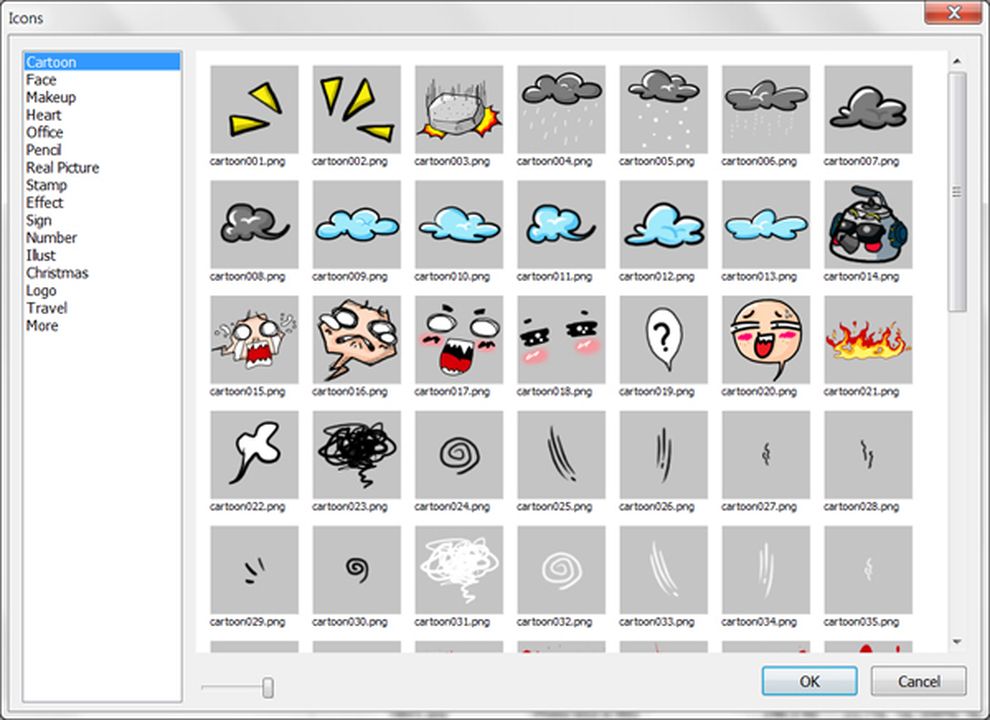
If you’re fond of inserting objects like stickers, images, and animated graphics into your pictures, you’ll know that not all applications let you add the same one more than once. PhotoScape, however, allows you to apply the same object as many times as you wish. Instead of repeatedly clicking on the menu option to add the object again, find the Duplicate icon in the same window to use the figure multiple times.

PhotoScape lets you add more than one object by selecting the Duplicate function

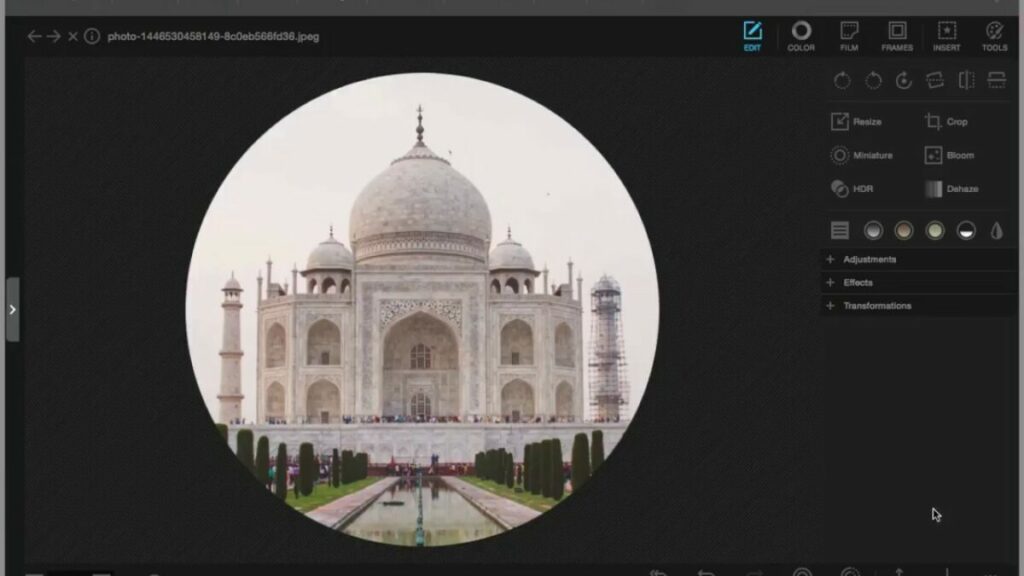
Circular crop backgrounds

We’ve already touched a bit on circular cropping, but PhotoScape gives you the unique ability to change the background of your images when you’re in Circular Crop. You can choose background colors for the four surrounding corners by checking the Circular Crop box under the Crop function. The feature will then let you select from various solid colors, gradients, and themes.

Insert vignette or a unique gradient around the edge of your circle crop with PhotoScape

PhotoScape layers

Most reputable graphic design applications provide users with a Layers option, and PhotoScape is certainly not excluded among them. Layering is the most effective approach to adding objects and applying edits to your photos. While Layers isn’t necessarily a default feature, you can find this function at the left of the Editor screen. When you check the Layer function, it combines all your individually edited layers to display the composite image.

Remove backgrounds, adjust colors, and change opacity by selecting Photoscape's Layers option

Batch editing

The Batch editor gives you an efficient path to editing multiple photos simultaneously. If you want several images resized to a specific dimension, or wish to apply the same filter to several image files, the Batch editor allows you to achieve this after just a few clicks.

Edit multiple images at once with Batch Editing

Remove backgrounds

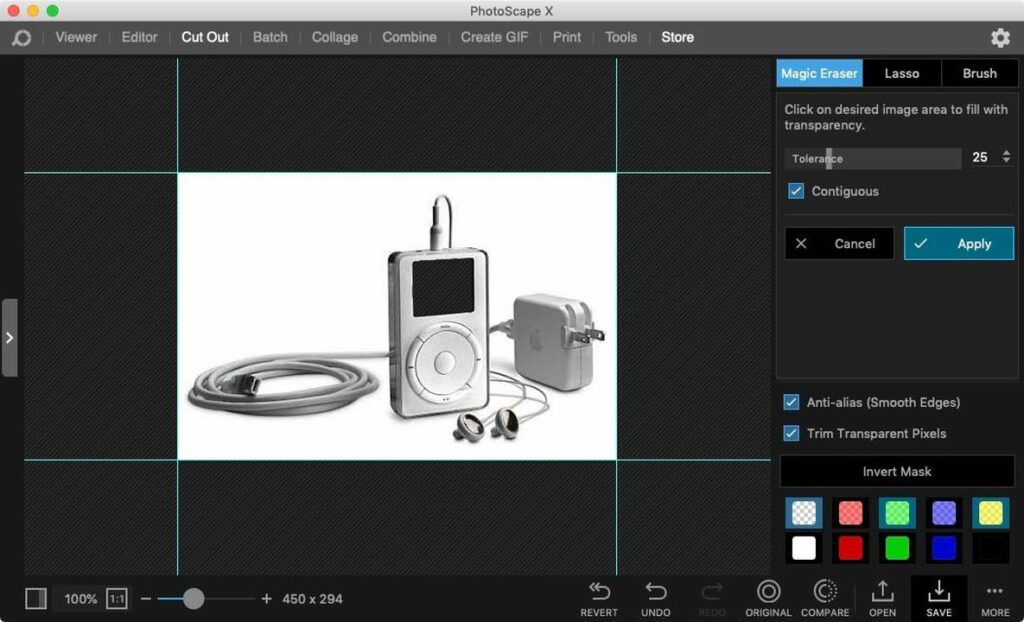
When in Viewer mode you can remove unwanted backgrounds with PhotoScape. Start by selecting the image with the background you want to eliminate. Drag this file to the Cut Out mode and use the Magic Eraser tool to select the areas you wish to remove. Save to file in the PNG or TIFF format to maximize image transparency.

Access Photoshop-like features with PhotoScape's background removal tool

Collage editing

PhotoScape is an excellent choice for those who enjoy creating collage images from their digital photos. The Page Mosaic Creator furnishes you with a tool to merge multiple pictures onto a single collage frame. Once you’ve created the perfect mosaic, you can continue perfecting your image with the several high-quality filters and effects supplied by PhotoScape.

Easily create and edit collage images with PhotoScape

Getting started with PhotoScape

PhotoScape offers a very accessible graphic design tool with several impressive features, and the best part about them is that most are available at no cost. You can unlock the benefits of these 10 unique photo editing features by downloading PhotoScape for free. To learn more about image editing software, check out this list of the top 7 photo editing tools for macOS.

Easy Tips for Photo Editing in PhotoScape

Editing in PhotoScape is fast and easy. Take a look at the following tips to get your photos looking their best:

Straighten Up!

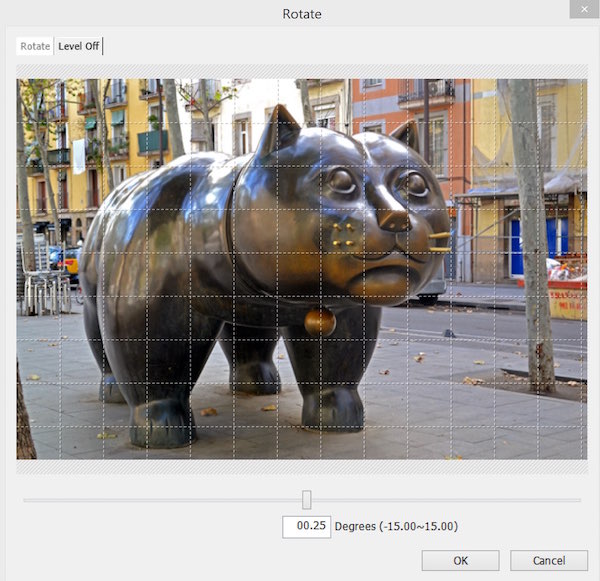
Even the best photographers have trouble keeping all their photos straight, especially when shooting without the benefit of a tripod. Under the PhotoScape Home tab, choose the little curvy arrow icon for Rotate Arbitrary. Click it to open it, and then you will be able to slide back and forth until you get the photo nice and straight. A grid will open up with this feature so that you can use the lines and don’t have to trust your eye to get your pics straight. Be sure to click OK when you’re done to save the changes.

Photoscape - Rotate Image

Photos are Like Teeth: They Need to Be Brightened and Whitened

Under the Home tab in PhotoScape, you’ll see a whole host of options like bright, re-size, sharp, filter, bloom, and backlight. Using these tools, you can clean up pictures that didn’t come out so good or spruce up photos to take them from good to excellent.

Play With Your Pictures

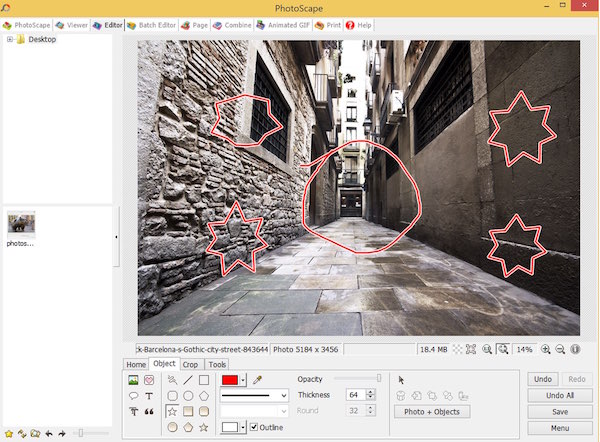
For many purposes, you might want to add shapes, lines, arrows, or even text boxes to your pictures. It’s really easy to do this in PhotoScape. Under the Object tab, you can select the Draw feature. This allows you to draw a whole array of shapes and boxes. You can make the shapes opaque or add color to them. You can also type text directly into the boxes and even select what font you want to use for the text.

Photoscape - Object Draw

Rename Your Photos Before Opening in PhotoScape

When you have lots of images saved on your computer, it’s really easy to forget which have been edited in PhotoScape, which are the originals, etc., especially if you create and save multiple versions of the same photo in PhotoScape. Create your own naming system for keeping these straight. For instance, re-save a photo with a different name when you bring it into PhotoScape so that you can keep a copy of it as an original before any editing. Then save using different names along the way, such as “Red Bird Bright” or “Red Bird Cropped”. You can hone your naming system to suit your needs, as long as you have one that you can easily follow along with.

Using this system, you can stay organized and find your edited photos fast without having to open file after file to find the right one.

If you’d like more tips, take a look at: Introduction to PhotoScape!

How to Make an Animated GIF in Photoscape

Even if you’ve never heard the term “animated GIF” before, you’re already familiar with them. These are the simple animated pictures you see on the Web and in chat programs. They’re usually simple and funny, and you can find them on many web sites and forums. Giphy.com is one of the most popular places to search for them.

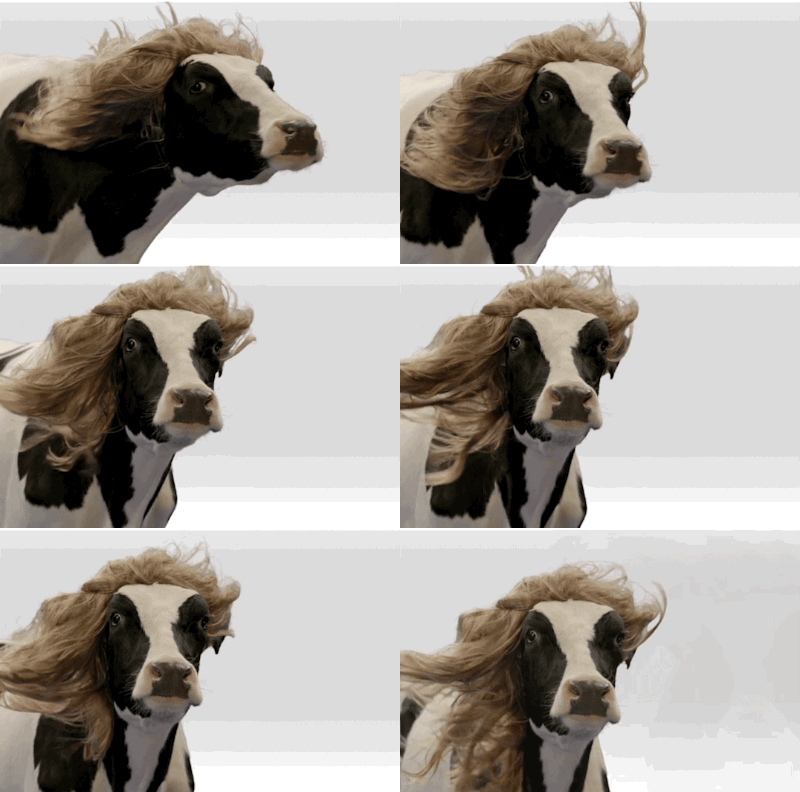
There are thousands of famous animated GIFs, like one of our personal favorites, Fabio Cow:fabioCow

The format isn’t really all that new. GIF stands for Graphics Interchange Format and was debuted on the ancient CompuServe online service in 1987. You can read all about GIFs in Mashable’s history of the format.

Since then, animated GIFs have seen a resurgence online, and you can find them everywhere.

But did you know that making your own animated GIFs is a breeze if you have a copy of Photoscape? In just a few clicks, you can have an animated GIF ready to put on your website, share on social media, or email to your friends and family for a special occasion.

Here’s how to do it:

  1. Start by opening PhotoScape. Then choose the photo(s) you would like to animate.
  2. Edit your photo using special effects, different text fonts and text colors, different text messages, grayscale, sepia, and others — whatever effects you would like to use.
  3. Remember that you need to create a different image for each “frame” of your animated GIF. So if you want to have four different frames in the final version, you need to create four separate images.
  4. Save each frame out as a different file name, and be sure to keep up with the images as you name them. You’ll need to select them when it’s time to assemble your animated GIF.
  5. It’s usually best to save your different images with sequential numbers (i.e., image01.gif, image02.gif, etc.)
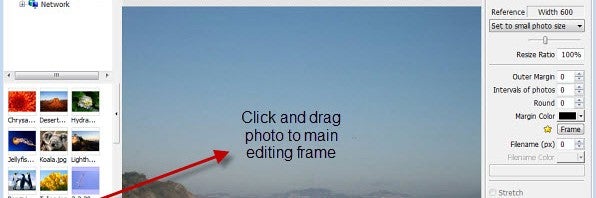
  6. Once you get the images created as you want them, stay in the PhotoScape program but go to the option Animated GIF on the home screen. Or, click on the Animated GIF tab.photoscapeAnimatedGIFTab
  7. Next, add the photos you have created for the animated GIF by dragging and dropping them across the top of the screen in the open white space there.

And that’s all there is to it!

Be sure to save your final animated GIF file with a new filename.

photoscapeAnimatedGIFChangeDisplay

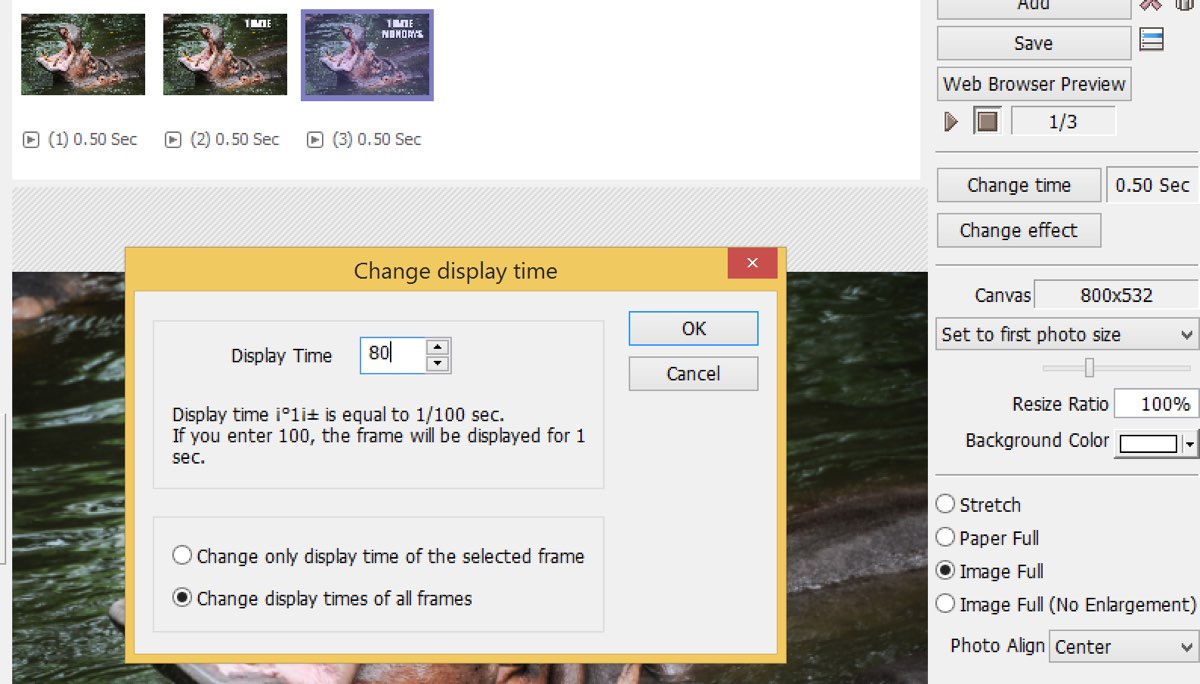
You can also make more adjustments here, such as changing the speed of the animation. You can find that option along the right side of the window, towards the top. Here, you can also play around with the various effects you can apply to the GIF, as well as discover the other options

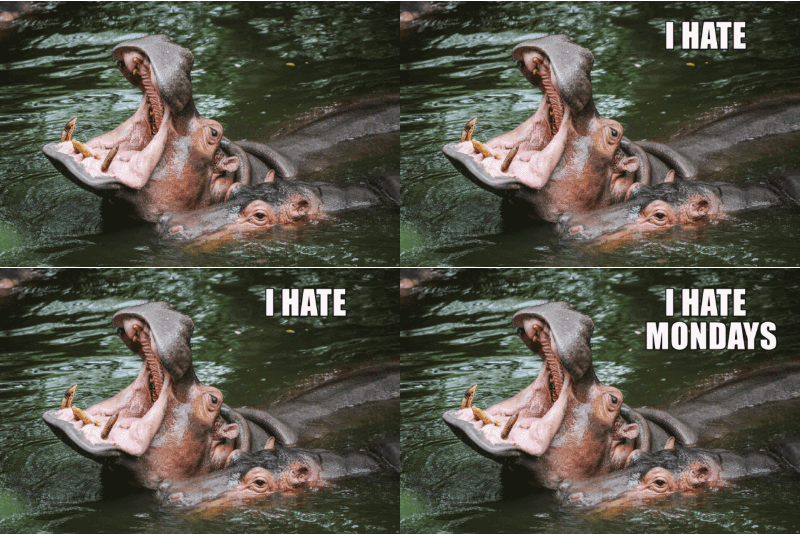
Here’s our final result, created in just a few minutes with Photoscape.

aniGIFFinal

Once you master the process, it’s easy!


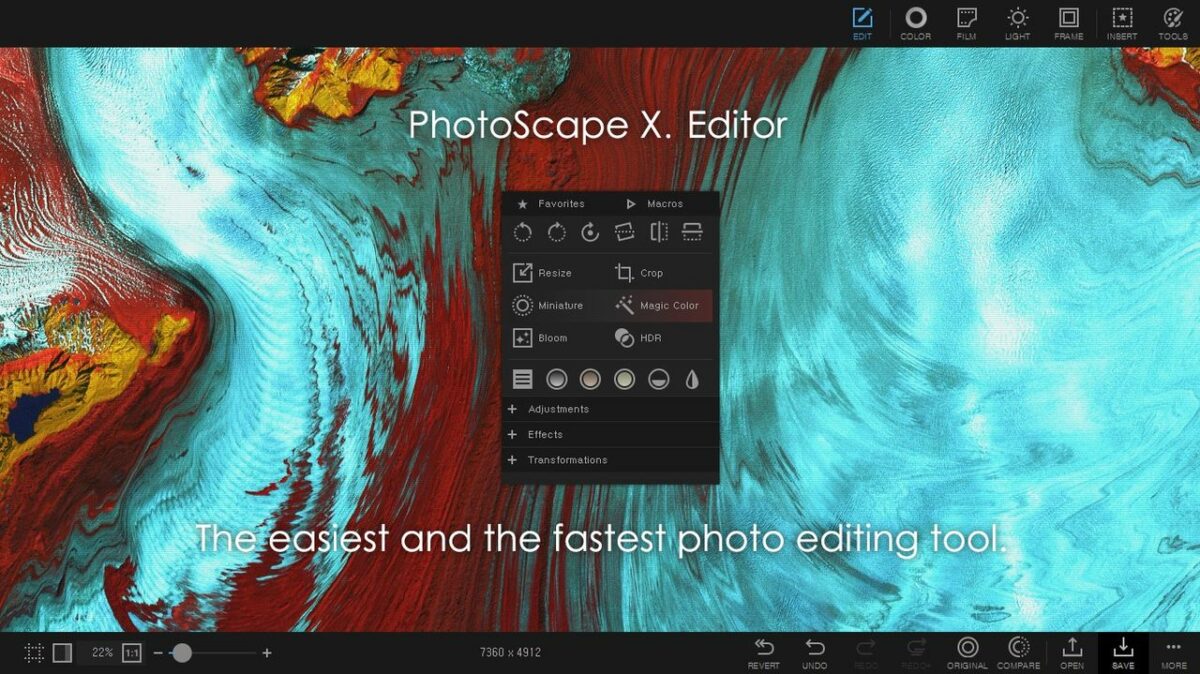
Photoscape X for Mac: we try it out

Finally, the world’s favorite alternative to Photoshop is released for Mac. It’s called Photoscape X, but it’s not what we expected.

Ok, we agree, Adobe Photoshop is an one-off: it’s more powerful, elegant, and fully-featured than any other piece of photo editing software out there. But that doesn’t mean its counterparts don’t deserve some consideration.

Photoscape X, for example, has been all the rage on the Windows platform. And deservedly so, because beyond the ugly interface, it’s a quality program that’s packed full of features. And now for the first time, Mac users can try it out as well…which is exactly what we did!

When you first open Photoscape X, it looks a lot neater than it did when we used it on PC, but then you notice right away that there are fewer tools. For example, neither the Batch Editor, Page (with which you can create collages according to preset layouts), or the Combine tool are present.

Photoscape X Overview

The first thing you can do, by clicking on Themes, is change the theme of the program. There are five available.

Photoscape X for Mac Change the theme

From the home page, you have access to the Viewer, the Editor, and the area for creating GIFs.

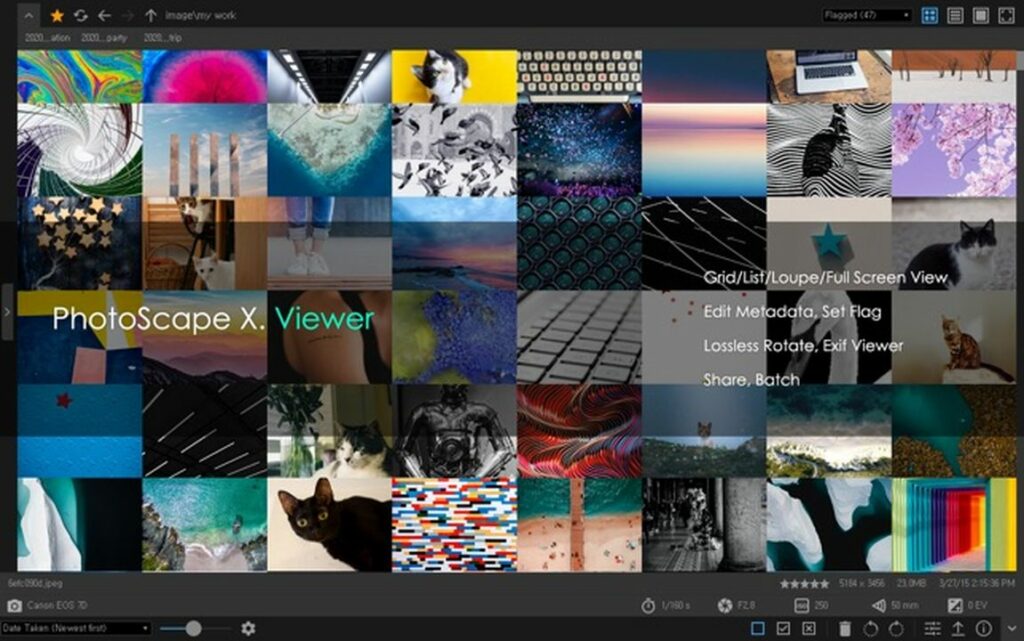
The Viewer

The Viewer offers the classic browser on the left, where you can scan the contents of the Mac to search for images.

Photoscape X for Mac Viewer browser

In the main part of the interface, Photoscape X shows thumbnails of the photos in the selected folder, but there are also other possible views (list view and full screen).

Photoscape X for Mac Viewer

Selecting one an image lets you see some information about it (file size, dimensions, and file name). By double clicking on a thumbnail, you can enter full screen view.

Here, moving the mouse to the bottom of the interface allows you to see the available tools (various tools for rotation, some for magnifying, reducing the preview, and deleting the photo). To exit this mode, press the Esc key on your keyboard.

Editor

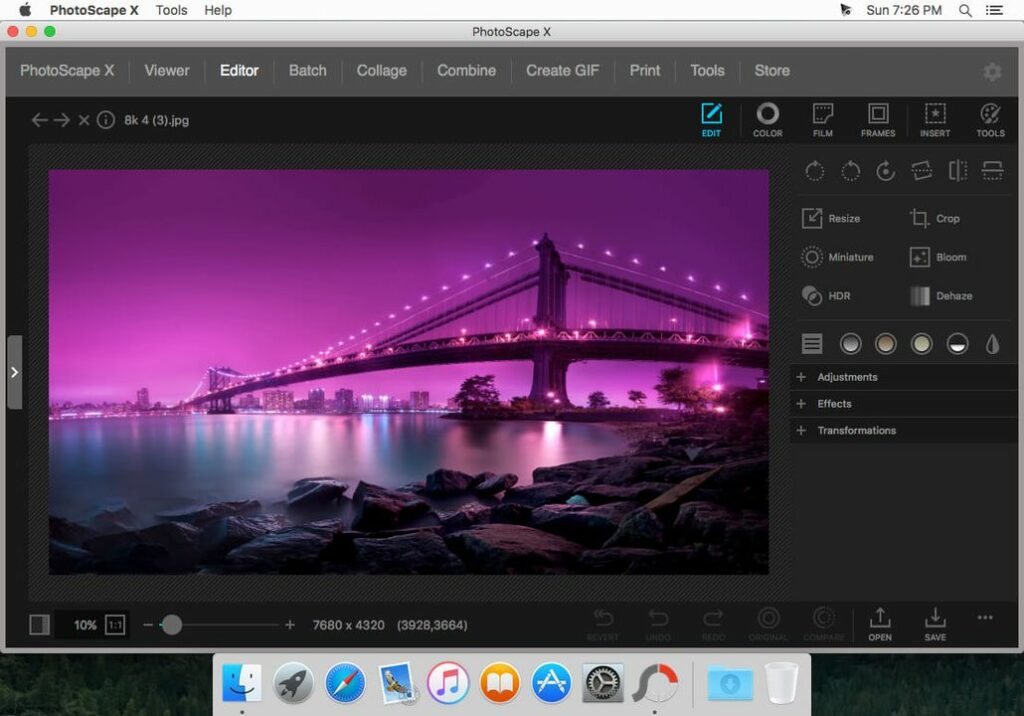
This Mac version of Photoscape has a much improved interface (albeit not Mac style!). The amount of filters, effects, and instruments present in the Windows version is something else entirely.

Photoscape X for Mac Editor

In the Mac version, however, there are very few tools available. Among them is a good color editor with a fair number of parameters, including color temperature.

Photoscape X for Mac Color

Others are Resize, Crop, Film Effect, Auto Level, Auto Contrast, Blacklight Correction, Bloom, Vignetting, Sharpen, Blur, White Balance, Sepia, Grayscale, Black/White, and Negative.

You can also compare the retouched image with the original if you hold the mouse button over the Original key and then rotate them. And that’s where Photoscape X’s editing abilities end.

Create GIF

This function is very basic and allows you to create animated GIFs by adding several photos and then choosing the speed of the slide transition and the transition effect.

Photoscape X for Mac Create GIF

You can also zoom in or out of the picture using the appropriate pull-down menu.

A little disappointing

Photoscape X is not a Windows-to-Mac port of the same program. Rather, it seems a very, very downsized version of the original. Or put simply, it’s something completely different. If in fact the original Photoscape can be considered an alternative to Photoshop, then you certainly can’t say the same of this Mac version.

It’s not that the product itself is bad, actually quite the contrary, but it is a collection of mostly automated tools to retouch photos, and even then, they’re no great shakes. That’s why we were a bit disappointed, especially since we were expecting to see a new and comprehensive photo editor that could replace Photoshop – instead we found ourselves with a simple package of photographic filters. If that’s what you’re looking for, though, you’ll love Photoscape X.

If you’re looking for a photo editor for the Mac, then here are some alternatives to Photoscape X!

Batch edit your photos with Photoscape

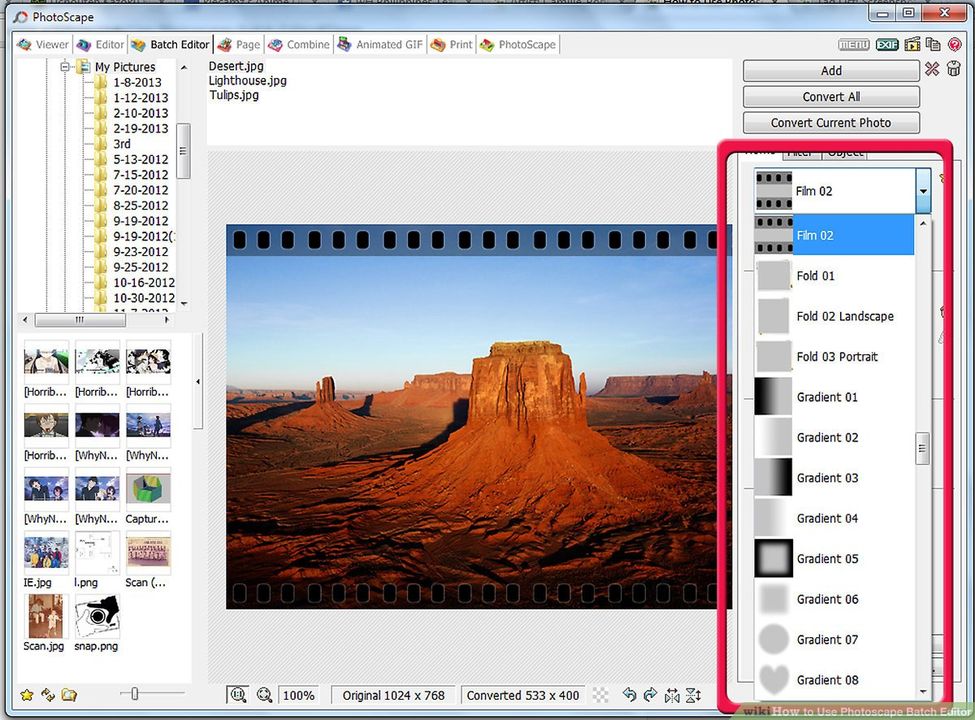
Batch editing is a quick way to quickly make an album of photos look great, by cropping, resizing, adding filters and more. Here we’ll show you how to batch edit your photos with Photoscape.

Photoscape is our favorite free photo editor. It’s not as powerful as GIMP, but it’s much more user friendly, and has lots of neat editing tools that are enough for most users. Read on for how to save time by batch editing your photos.

Continue reading “Batch edit your photos with Photoscape”

How to: Blend images in Photoscape

Photoscape is an excellent free alternative to commercial photo editing programs like Photoshop. It includes a wide variety of filters, tools and special effects that help you touch up and edit your digital images.

Blending one image over another to create a combined image is a great way to add an artistic effect to some of your photos. It’s also convenient for people who take multiple photos in quick succession and want to add certain objects in one photo to another with a similar backdrop. With Photoscape, this is quite simple to do, once you learn the process… Continue reading “How to: Blend images in Photoscape”