
Your music isn’t playing, your printer refuses to work, and your wireless keyboard ignores whatever you type. All of these problems can often be attributed to a simple problem: you have driver issues. Luckily, they can easily be fixed.
Many common computer problems are caused by faulty device drivers, programs that allow Windows to communicate with your PC’s components. If drivers are missing or out of date, you may find that you won’t be able to use your devices properly or you may be missing out on new features added by the manufacturer. In some cases, the resulting conflicts may even trigger the dreaded Blue Screen of Death.
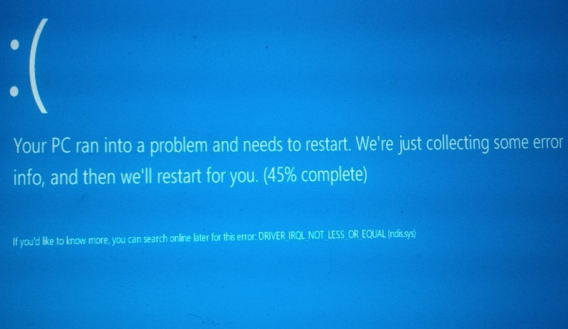
The BSOD (Blue Screen of Death) in Windows 8, triggered by a defective driver (source)
Drivers can also be responsible for some of the performance issues you encounter with your machine, especially when it comes to graphics and sound. More often than not, only the most recent drivers will be able to harness all of the power of your graphics card; especially if PC gaming is your thing.
Consider the case when you install a new graphics card only to have your display move at a snail’s pace. This happens a lot, and the most likely cause is the fact that you haven’t installed the latest (and best) device driver. When Windows is forced to resort to using a generic driver, your devices won’t be able to function at full speed.
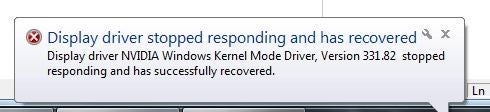
Unstable or incompatible drivers will slow down every operation
Another common problem after reinstalling Windows is the lack of up-to-date sound (or audio) drivers. The only way to fix this and get the sound back is to find and install a matching device driver. Unfortunately, Windows does not help, and rarely finds good drivers in its database. Determining the “best fit” driver is actually hard to do. In some cases you need the driver from the device manufacturer’s website i.e. Nvidia, Realtek, etc. While in other cases you may actually need the driver from the computer manufacturer’s website instead, i.e. Dell, HP etc. This is because some manufacturers have special OEM builds of the devices in question.
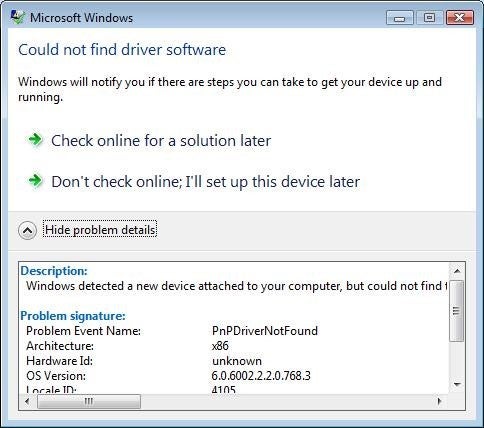
A common error message: Windows does its best, but it’s not enough
Installing proper drivers is enough to solve these issues but finding them can be a daunting task. Official websites are a pain to browse and Windows’ built-in Device Manager is far from helpful, pointing out what devices are malfunctioning with a yellow icon next to them.
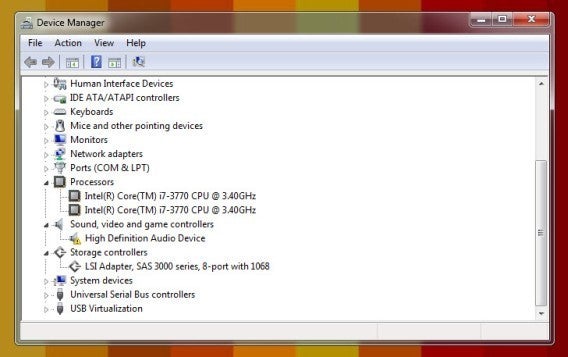
Windows’ Device Manager won’t help you find the required drivers
Here’s where driver scanners come into play. These specialized tools collect data on the installed devices and compare it against their own databases — which are usually bigger than Microsoft’s — in order to find the best available driver. At the same time, they scan the PC for hardware conflicts and other anomalies.
An example of driver scanner: Driver Support
Driver Support is a good choice if you’re considering a driver scanner. The company launched in 1996 and boasts a database of more than 26 million device-associated drivers. Its driver researchers update around 10,000 drivers each month, collecting them from a variety of sources, including directly from manufacturer websites. Each driver is checked before it’s uploaded to make sure the driver installs correctly and has the correct device attributes in place. Driver Support also leverages its cloud data to help match correct drivers to machines and devices, leveraging millions of installs and user feedback to deliver the most accurate and “best” driver for the user. In some cases manufacturers may even release corrupted or inaccurate drivers, Driver Support flags these and keep the user safe from them until the manufacturer is alerted and the driver is fixed.
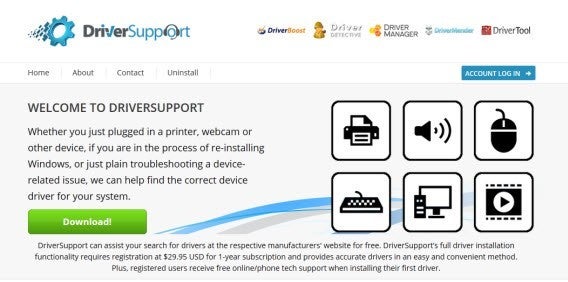
Driver Support has been around since 1996
Once installed, Driver Support starts with a full system scan. In a matter of minutes, the utility detects all of your connected devices and sends the data to the main servers with the goal of finding the most appropriate drivers for your devices, some of which may be outdated.
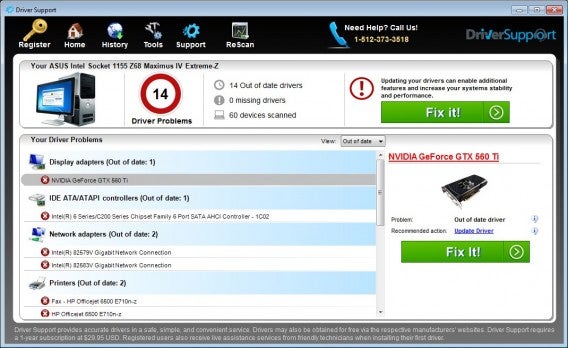
Driver Support has more than 6 million registered users contributing to its database
Tip 1: don’t panic
After getting a response, Driver Support presents all hardware issues along with suggested solutions, ranging from unknown devices to obsolete drivers. If Driver Support manages to figure out the brand and model number of your PC, it’ll pick drivers recommended by the manufacturer instead of the more generic ones.
Don’t let the number of problems scare you: these problems can be fixed!
Tip 2: try for free, pay when you need it
If you want Driver Support to fix the problems it finds, you can pay $29.95 for a 1-year subscription. Registration gives users access to unlimited driver downloads and technical support options, as well as a first driver installation guided by phone or online chat, which is very nice for beginners.
Before signing up, check the results of the scan. Do they make sense? For instance, if you couldn’t listen to music and Driver Support tells you that the sound card drivers are not installed, that’s probably your problem. Search online for the information to confirm whether the problem is critical or not.
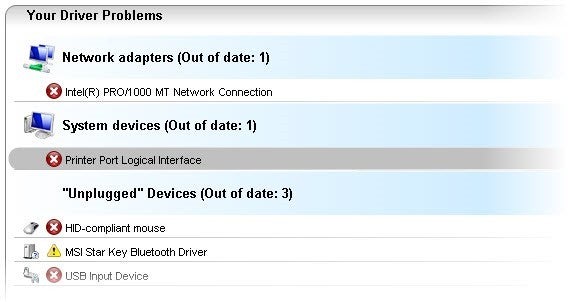
You can search this information easily to confirm the nature of the problem
If you click on each issue, Driver Support offers an explanation about what the problem is. If the device driver is either missing or obsolete, you can search for the device name plus the suggested version number to find a free download. Then it’s just a matter of grabbing the right file (normally, a ZIP or an EXE) and manually installing the driver.
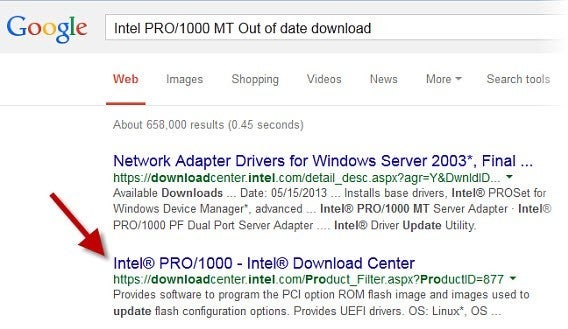
Device name + Issue: a useful Google search for the tech-savvy
If you don’t want to go through all the hassle of finding the right driver version yourself, consider purchasing a subscription. Driver Support will resolve all the driver issues for you in just a few minutes.
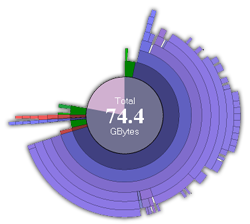 No matter how many external hard drives I buy, no matter how big they are, I always end up getting that stupid Windows warning message: “Low Disk Space. You are running out of disk space on Local disk. To free space on this drive by deleting old or unnecessary files, click here…” How is that possible? I had tons of available gigs just some weeks ago… Well, I guess it’s the logical consequence of having a few fully working P2P apps installed on my PC, together with an incomprehensible dislike towards the Delete key. So, what can I do now?
 This one goes straight to the top of the “It’s so simple, I can’t believe I never thought of it!” pile. If you’ve ever needed to get an image onto your PC, you’ll know how frustrating it can be to be without a scanner. Johnny at Drawn.ca has an