Use Snagit to transform screenshots into videos within 5 easy steps

When you’re trying to demonstrate a particular process, function, or utility to someone who has no previous experience with it, the best way to do so is by using visual aids. If you have to do this on a daily basis like we choose to do with our how-to guides, much like the one you’re reading, you need a proper screen recorder and media management tool. Surprisingly, Snagit can help in that regard.

Snagit DOWNLOAD

In the tutorial below, we’ll show you how to use screenshots you’ve taken with Snagit to create a compelling and informative video.

  1. Select your images

    Use Snagit to transform screenshots into videos

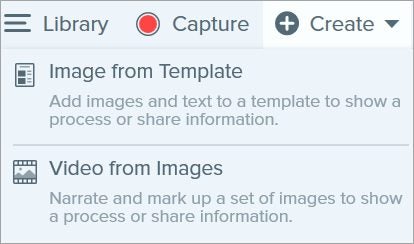
    Head to your library or tray where all your images are stored, and then Ctrl-click on all of the images you want to use in your video. If you’re using a Mac, you’ll need to Command-click. Next, you need to hit Create, and then choose Video from Images from the drop-down menu. Click Create Video from Images to confirm this step.

  2. Organize images

    Use Snagit to transform screenshots into videos

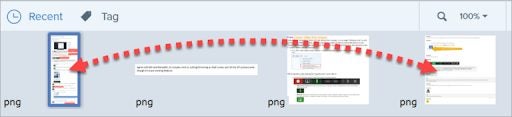
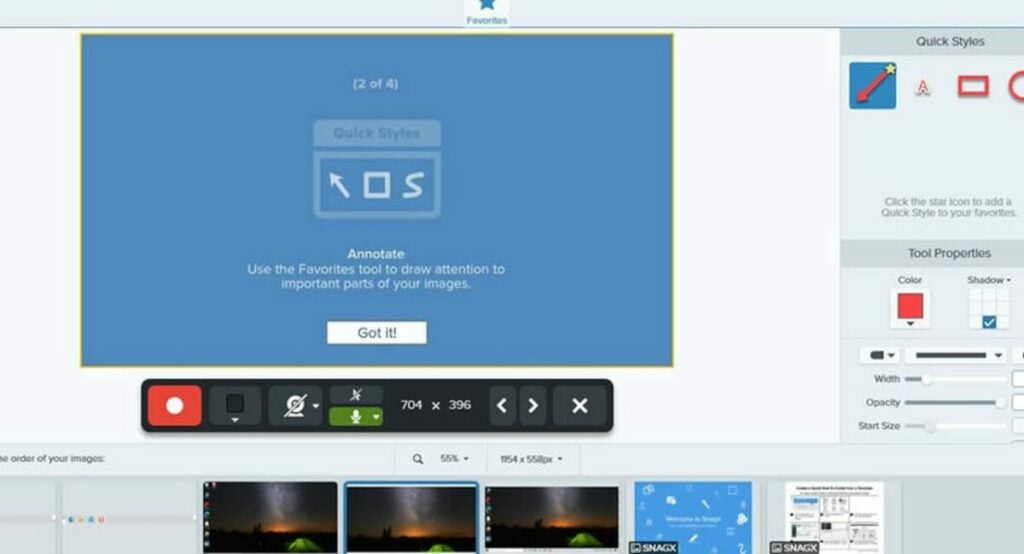
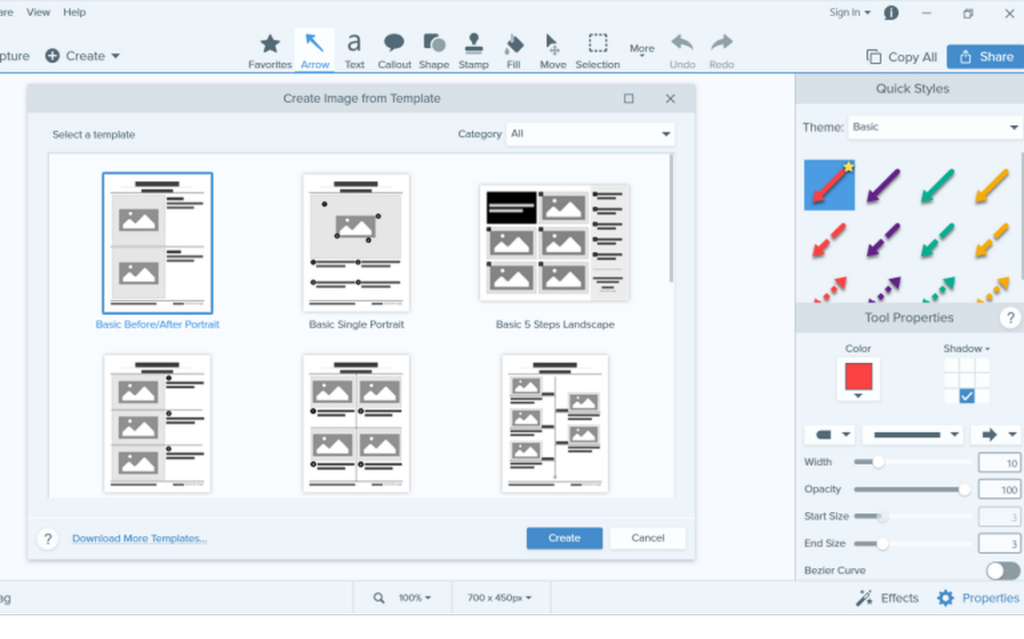
    Once you’ve confirmed your selection of images in the previous step, you’ll see the Recording toolbar appear. You’re essentially recording a video composed of the images you’ve selected, so don’t be alarmed by the recorder’s sudden appearance. You’ll also see an interface where you can drag images around to reorder them within the tray.

  3. Change settings

    Use Snagit to transform screenshots into videos

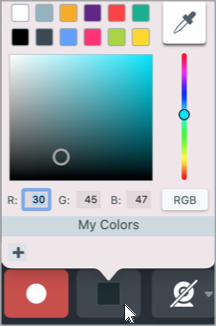
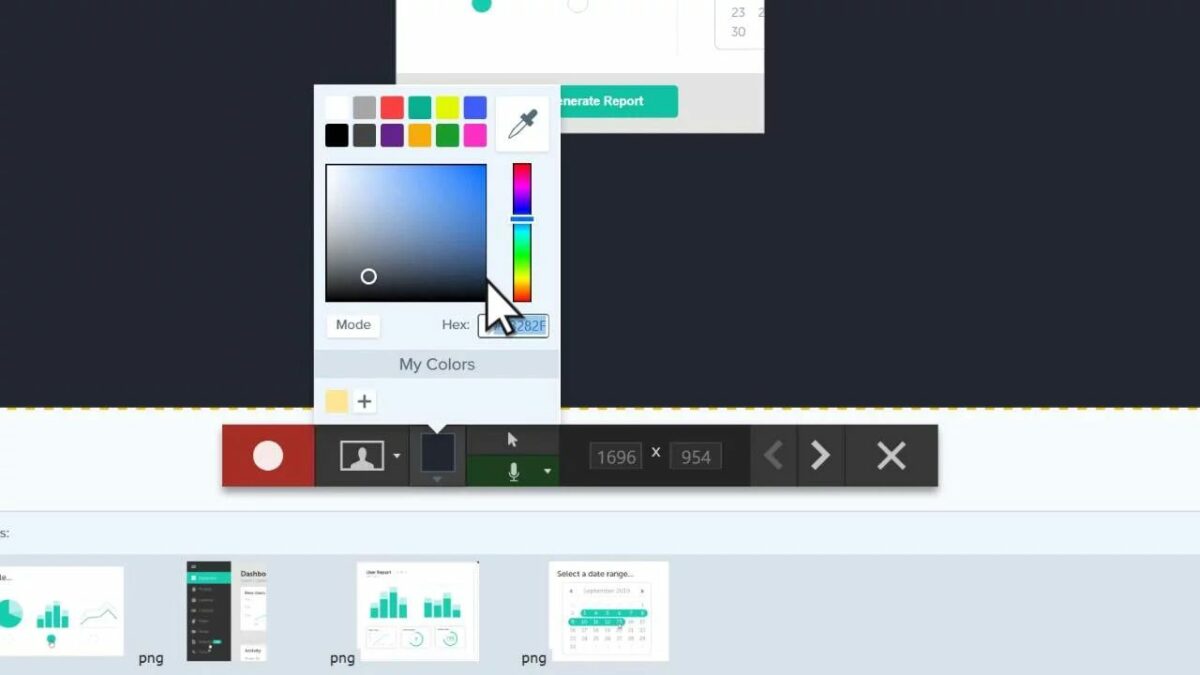
    Now, you’ll need to head to the Recording toolbar and select the recording options. From here, you can change the color of the resultant video’s background, among other options. 

    Pro tip: If you want to increase the contrast of the video, use dark or light colors such as dark blues, pure black, or stark white instead of colours like red or green. 

    You can also choose whether or not to record the movement of your cursor during the video. Another option is whether to record audio from your PC’s built-in microphone or a third-party external input device such as a microphone connected via USB. 

    The last options you’ll want to review in this interface all revolve around the actual visual recording. Here, you’ll be able to choose to display the feed from a connected or buit-in webcam during your recording, and whether you want the webcam footage to display as picture-in-picture. If you choose to display your webcam feed this way, you’ll also need to confirm where the picture-in-picture display should appear. You can do this by dragging the sample display to the desired space and then dragging one corner to alter the display’s size.

  4. The recording phase

    Once you’ve finalized all the necessary settings, you’re ready to begin recording. All you need to do to initiate a recording is press the red record button picture above. Alternatively, you can also hit Shift+F9 on Windows systems or Control+Shift+Space if you’re using a Mac. 

    Recording speed

    While you’re recording, you have full control over the speed at which the images will change during the video. This is helpful if you’re trying to create a visual asset to use during a speech or presentation. All you need to do is hit either of the arrows pictured above to cycle forward or backwards between your selected images. 

    Pausing

    You can also pause the recording at any time by simply hitting the pause button, also pictured above. Alternatively, you can press Shift+F9 again to pause your recording on Windows, or Control+Shift+Space if you’re using a Mac. 

    Quick Style banner

    There are a few additional features you can use to create a more compelling or demonstrative video. All of these features appear under the Quick Style banner in the toolbar. From here, you can add arrows to specifically direct viewers’ attention to a particular portion of the frame, or you can highlight various parts of the resultant video by encircling them or placing them within a frame. You can also add a whole host of other annotations to increase the visual impact your video has and ensure that viewers focus on what you deem to be the most important parts of the video. 

    Top tip: Add Quick Styles to your Favorites collection before you begin a recording. This way, you’ll have all your favorite annotations at your fingertips during a recording. 

    Adjust zoom

    If you’re using Snagit within Windows, you can alter the zoom factor or the dimension of the current image if you deem it necessary. Unfortunately, you cannot do this on Mac

  5. Finish recording

    Once you’re happy with your initial recording, you can press the Stop button to cease and save your progress. Alternatively, you can hit Shift+F10 on Windows or Control+Shift+V if you’re using a Mac. 

    When you’re done, your newly recorded MP4 video will appear in your tray.
How to use Snagit to capture your screen

Lightweight image editing software is an incredible asset. Especially within a professional context, having access to a small but powerful tool that lets you edit images on the go is an irreplaceable convenience. You can make notes directly over an image to highlight key features or make on-the-fly corrections that someone else in your team can implement into a document or media file. But what about the software that lets you actually capture the image to edit, like Snagit

Snagit DOWNLOAD

Screen capturing is nothing new. It would be incredibly ignorant to try and frame this article as a guide to using a revolutionary new tool. While Snagit is nothing novel or particularly innovative, it is still essential in the pursuit of peak productivity. There are many applications you can use to that end, but the one we’re focussing on in this article is Snagit. Below, we’ll explore how to use Snagit to capture what’s on your screen.

How to capture your screen with Snagit

  1. Buy Snagit

    How to use Snagit to capture your screen

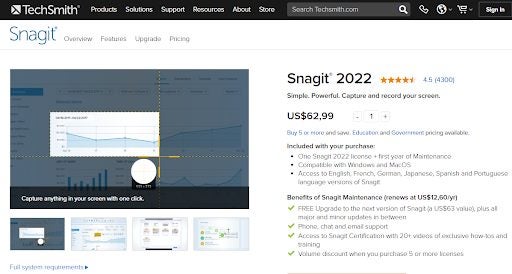
    Yes, you read that right. Snagit doesn’t come free, and as far as other small, lightweight tools go, it doesn’t come cheap. You’ll need to pay if you want to “snag” this tool. However, buying Snagit does give you certain perks and there is a Snagit free trial version you can use. In addition to a license for the 2022 version of the software, you also get the same software in French, German, Spanish, Japanese, and Portuguese.

    You also get the first year’s maintenance completely free. Additionally, included in the price for the 2022 version of the software is one free upgrade to the next version of Snagit. 

  2. Open the page you want to snag

    How to use Snagit to capture your screen

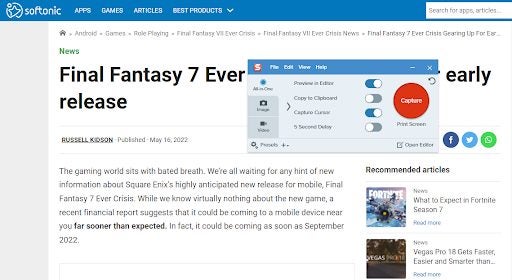
    Once you’ve purchased and installed Snagit, head to whichever web page or document you’d like to capture. Snagit opens in a small window you can display over other pages, so when you’re at your destination page, just head to the taskbar and click on Snagit.

  3. Hit the screen record button

    How to use Snagit to capture your screen

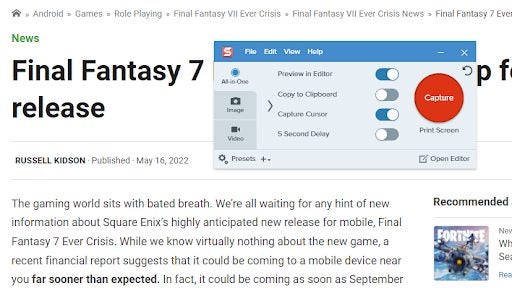
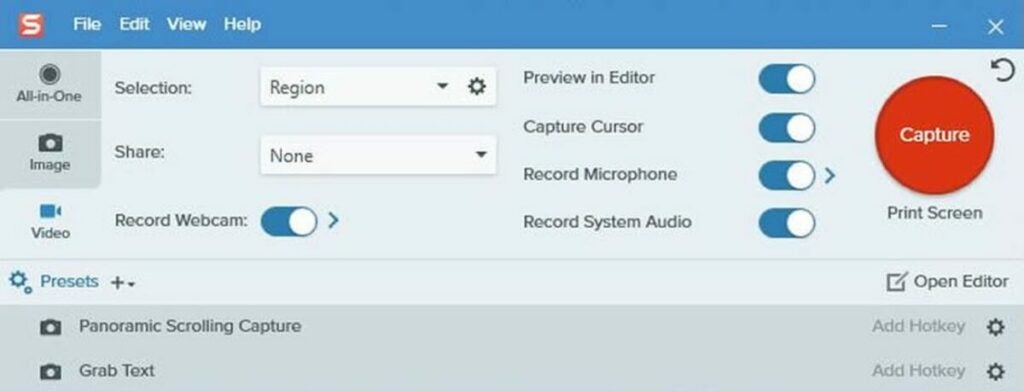
    Now, you’ll notice that there’s a big red button on the Snagit window. This is the screen capture button. Hit it once to capture whatever is on your screen. If you’ve opted for the free trial, it’s at this point you’ll need to sign up to access the functionality of the app.

    Instead of going through the motions of actually entering any information, click on Continue with Google Account, select the Google account you’d like to continue with, and wait a few moments for the registration to be confirmed.

  4. Setup

    How to use Snagit to capture your screen

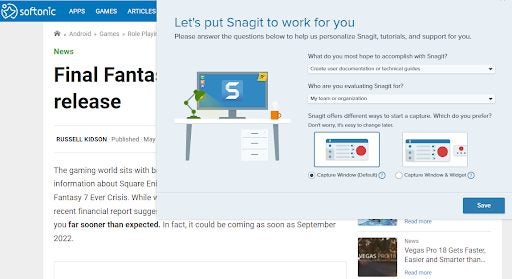
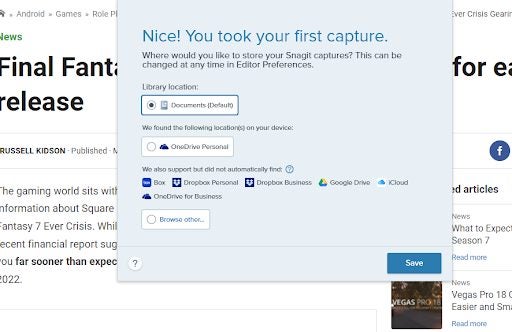
    Personally I feel it’s a little odd to place the setup screen anywhere other than directly after you’ve installed the product, but Snagit does things differently. Once you’ve signed into your account, you’ll notice a bigger interface opens up with the title “Let’s put Snagit to work for you.” Here, you’ll need to choose the layout and what you want to achieve with the utility.For layout, I’ve selected the default option. Once you’re happy with the layout, hit Save.

  5. Image or Video?

    How to use Snagit to capture your screen

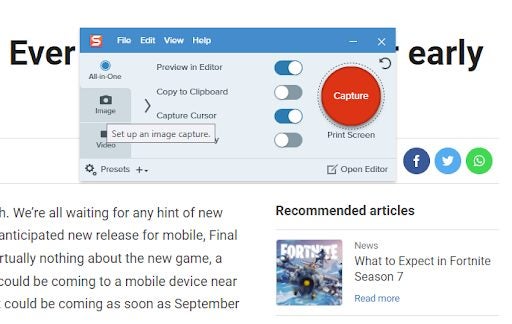
    You’ll see that the Snagit interface has two buttons on the left-hand side of the interface, just below the ‘all in one’ toggle. Click on the classic camera icon to capture a screenshot. If you want to take a video of the contents of your screen, hit the video recorder button. Once you’ve made your choice, hit the big red Capture button once more.

  6. Drag your snag

    How to use Snagit to capture your screen

    You’ll notice the rest of your screen outside of the screen capture or recording interface has dimmed. At this point, you can adjust the size of the screen recording.

  7. Save your snag

    How to use Snagit to capture your screen

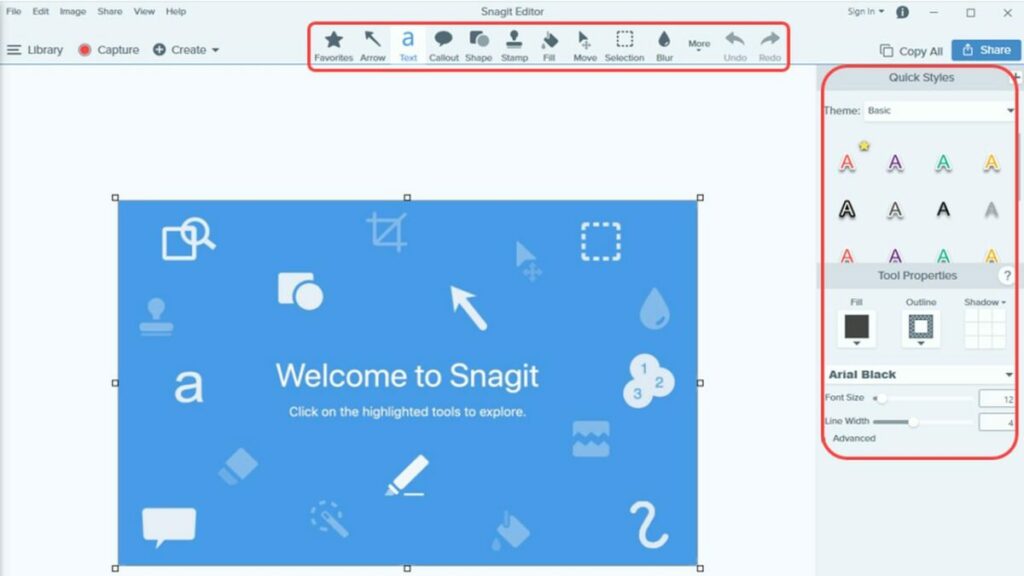
    The last step is simply to save your snag. Within the Snagit software interface, you can also now edit your image. This includes cropping the image as well as blurring out particular parts of the image. You can also add all sorts of assets like arrows, icons, shapes, and text to your image. Once you’re satisfied with the resulting image, save it to your desktop so that you can distribute it to whichever platform you desire.

Why snag when you can snip?

Yes, we’ve just given you an entire 6-step tutorial on how to use Snagit. But let’s be honest, the price you’re expected to pay for this tool seems a little greedy if you look at what’s already available. Yes, Snagit does have a few additions that might make it a slightly more streamlined tool, such as in-app editing and blurring, but there are other alternatives that don’t cost as much or anything at all. To Snagit’s benefit though, you can initiate some really cool processes like scrolling screenshots in three directions and intelligent screen parameter suggestions. 

Snagit review | What’s new with this screenshot tool? READ MORE


If you want to create still captures of your screen and don’t want to pay a single cent, Microsoft has you covered. All you need to do is hit the Windows key + Shift + S on your Windows 10 or 11 PC. This will dim your screen and launch the Snipping Tool. All you do then is drag out whatever you want to capture and click save.

Similarly, if you want to create a screen recording, the Xbox Game Bar has you covered. The best thing is that both of these utilities are standard issues with Windows 11, so you don’t need to download anything extra, and you definitely don’t need to pay an exorbitant fee for a lightweight third-party app.

Snagit review | What’s new with this screenshot tool?

The basic free screenshot tools that come included with your operating system undoubtedly get the job done. But for business presenters, forum posters, bloggers, journalists, and meme creators, Snagit’s enhanced screen-capturer from TechSmith offers so much more. TechSmith is known for developing streamlined, reliable, and user-friendly software with countless easy-to-understand features. This latest release of Snagit is no exception.

Snagit’s revamped toolset exceeds any reasonable expectations you can have about a screen capture utility product. Most screen-capture tools do not let you do much more than just clip the entire screen (or segments of it) before saving the image as a PNG or JPG file on your desktop. The majority of users won’t need much more than these basic functions. However, if screenshots make up a regular part of your workflow, Snagit allows you to do significantly more than just screen-capture.

Snagit - Screen Capture and Recording Software Buy Now
Snagit - Screen Capture and Recording Software

What makes Snagit so unique?

If you’re a working digital creative professional, Snagit is a must-have utility. Several premium screen recording features from TechSmith make screen capture more flexible and versatile. Despite costing more than some of its competitors like Droplr and Windows Snip & Sketch, it delivers a more streamlined and polished interface along with an advanced toolset. This makes Snagit one of the best values in the current market.

While screen capture is Snagit’s main feature, what distinguishes the software from other similar screen-recording utility products is that it allows you to capture webcam video and audio. Loyal users of the application appreciate it for its simple, yet streamlined editing tools that can be used to develop a diverse array of content. Now, let’s take a detailed look at how the screen capture tool and comprehensive file editor work and what kind of media you can generate with them.

Snagit's easy-to-understand interface displays its unique screen-capture features.

How Snagit’s screen capture tool works

Snagit’s simplified interface consists of two main elements, the screen-recording tool and an advanced editor that lets you get creative with the media you capture. TechSmith continually updates its software to supply you with an endless string of improvements while revamping existing features. At first glance, it might seem like any other screen-capture utility, but the ease of editing, notating, and highlighting your screengrabs makes it distinct.

Unlike other screengrab utilities, Snagit allows you to create and edit videos and GIFs from your captured media. You can give life to your screenshots by animating your image recordings while adding audio and text at the same time. Snagit’s picture-in-picture recording feature lets you capture your computer screen and your own face simultaneously. More visual aids mean business presenters can explain their graphics more readily while spicing up their recordings with more creative originality.

Snagit recently enhanced its Cloud sharing capabilities for both Windows and macOS. The software still lets you select your preferred storage service, and any edits you create and save are more stable in the current release. When you open the content with a different operating system or PC, the image presentation is more consistent, making the app more flexible and adaptable than its competitors.

Annotate your screenshots with Snagit's versatile toolset.

Using Snagit

When you launch the application, you’ll see a small control box at the top corner of your display. The large red icon is for taking screenshots, and you use the smaller buttons to control your settings. The red screen-capture icon is only one of the multiple ways to generate a screenshot. To capture your screen, Snagit uses the default PrtSc key as a shortcut, but you can create your own shortcuts.

To record a section of your display, you simply drag the crosshairs across the screen to select a given area. After highlighting a segment of the screen, Snagit lets you either clip the image or engage the app’s unique panoramic scrolling mode. This feature simplifies the process of capturing images that are either too tall or too wide to fit on your screen by allowing you to scroll horizontally or vertically to clip the exact image you want. This tool makes it easier to clip items from infinite-scroll sites.

Snagit supports up to 4K resolution, and you can preset your crop aspect ratios to 4:3 or 16:9. Most other screen-capture utilities lack this feature, and you’re not likely to encounter one that can record cascading menus and content that isn’t directly visible on your display. The software offers another original function in its delay counter. Instead of the standard three or four seconds of delay, you can set the delay counter to your preferred interval, up to 60 seconds.

With Snagit, you can access a range of image filters and special effects like grayscale, text, arrows, and borders. For users who capture a lot of screengrabs, these features are particularly convenient because they do not have to import the image into another application like Adobe Illustrated or Photoshop to apply effects. Snagit lets you record video, but you can also insert previously recorded audio tracks from an external interface or your computer’s microphone.

Sangit's templates and special effects ensure your business presentations look professional.

Accessing, editing, and saving files

Snagit’s editing tool is simple to use and serves two primary functions. Foremost, you use the editor to open all your captured screengrabs. Secondarily, the editor houses all your screenshots. The nice thing about managing your files with Snagit’s application is that all your screenshots are retained in the program cache, just in case you forget to save one of them. Other applications have this same feature, but Snagit’s straightforward interface allows you to access the files much quicker.

The image editor gives you the option to save your screenshots in 19 different file formats. The application supports all the major formats, including JPG, GIF, PNG, and PSD. Snagit even has its own format, SNAG. You can add hotspots that serve as hyperlinks when you save your images in PDF, SWF, MHTML, or SNAG. Competitors like Ashampoo and Snip & Sketch support fewer image file types. Ashampoo interfaces with only nine file formats and Snip & Sketch from Windows only supports PNG, JPG, and GIF.

Access all your files from Snagit's enhanced editing tool.

Video recording and file sharing with Snagit

Snagit used to record exclusively in AVI format, but versions 11 and beyond capture in MP4. Other competing applications let you save in WMV or AVI, while programs like Sketch & Snip do not offer video recording features at all. Snagit, however, has adopted advanced video capture functions that let you shift between different feeds. You can switch your recording between your main display and webcam or capture the two simultaneously.

Not unlike your screen grabs, all your videos are previewable in the video editor. Once there, you can create freeze frames and trim your video down to eliminate any unwanted segments. Each piece of video you capture is sharable to popular web applications like Dropbox, Google Drive, Camtasia, TechSmith Relay, and YouTube. Shared images give you more options with the ability to export them to PowerPoint, Word, Clipboard, Excel, and as email attachments.

Snagit: A top screen capture and communication tool

Snagit’s real value is determined by how much you intend to use it. If you are only creating occasional screenshots at home and do not have any special format requirements, then using default tools should work just fine. However, if you’re looking for a robust creative tool that lets you work wonders with your captured media, consider trying Sagit out for free.

Pros

  • Lightweight software
  • Cloud-sharing feature
  • Supports 4k
  • Simple, user-friendly interface
  • Picture-in-picture screen recording
  • Panoramic scrolling

Cons

  • Lacks advanced editing functions
  • Too many features for some users
  • Application is buggy at times

Developer: TechSmith

Platform reviewed: Windows, macOS

Up for grabs: 10 free licenses for Snagit 10

Released last week, Snagit 10 is the latest version of the greatest screen capture tool on the market. The Softonic editors love Snagit so after testing and reviewing version 10, we thought we’d share this excellent program with a few of our readers.

snagit-10-1.png

Techsmith, creators of Snagit, have given us 10 licenses for the full version of Snagit 10 to give away free. All you need to do is join Softonic’s Facebook group and leave a message on our wall saying why you think you deserve a free copy!

Jing – the SnagIt equivalent for Mac

JingOne thing I really miss about Windows is using SnagIt because it makes capturing screenshots and adding special effects so easy to do. Unfortunately, there is no version for Mac but developers TechSmith have created Jing which works on both Windows and Mac.
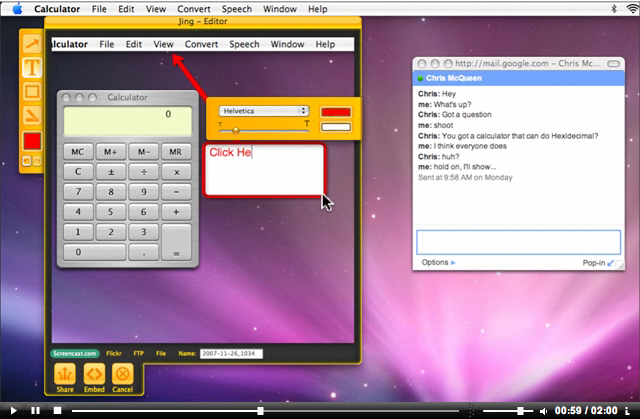
Firstly however, let me state clearly that Jing is no way near as rich in features as SnagIt. In fact, it’s still very much a work in progress and as yet, you can’t even resize images let alone create transparent ones or add drop shadow effects. However, it looks great and it does allow you to take simple screenshots, video casts and share them online immediately which SnagIt doesn’t.

Jing screenshot

Once you’ve opened Jing, it sits in the top right of your screen like a little quarter sun waiting to spring into action. There are three options immediately available – one is a the screen selection cursor which allows you to drag and select the part of the screen you want or alternatively, it auto detects open windows and allows you to save them instantly. The second option is a window showing you the history of your screen grabs and the last option is the settings tab. To make a screenshot, simply drag the Jing cross hair over the space you want to select and you’ll see it highlighted in colour (the rest of the screen will appear black and white) and release the mouse button. You’re then given four saving options – save to file, upload to FTP, upload to Flickr or upload to screencast.com. You’ve also got a bar on the left which allows you to annotate the screenshot a bit with arrows and text.

PC users have certainly been impressed by it – Jing was rated in the top 100 products of 2008 by PC Magazine (although it did only sneak in at number 100 in a list that saw Lifehacker as low as number 99 so I’m not sure how high praise that really is!). In fairness, Jing shouldn’t really be compared to SnagIt! because it’s designed more for developers that want to create screencasts, tutorials or those that just want to share images quickly rather than spend time editing one particular screenshot. That said, would it really be so hard TechSmith to just add some of SnagIt’s basic features to Jing to make it a truly awesome tool?

Convert documents to PDF in SnagIt

Convert documents to PDF in SnagItIf we’ve already mentioned SnagIt quite a few times on this blog, it’s just because it’s one of the best capturing tools out there, and that’s coming from someone who takes about 120 screenshots a week!

However, SnagIt doesn’t only work as a screen capturing tool. In spite of having used it for years now, I recently discovered a new function in SnagIt I didn’t know about: the ability to use it as a virtual printer for any other app. This function comes in especially handy when you need to print a webpage exactly as it looks on your browser, or you’d like to convert DOC files to PDF to ensure other apps and systems will display them just like you designed them.

The PDF exporting tools in SnagIt are really easy to use. Launch SnagIt and then open the document, image or website you want to convert to PDF. The only requisite is that you open the file in a program that has printing capabilities. Go to the printing menu, open the ‘Printer’ drop-down menu and you’ll see ‘SnagIt’ among the available options. Select it and click on OK.

This will send your document to SnagIt no matter what it is: a webpage, a document or an image. Once it has been fully imported into SnagIt, you’ll be able to work on it just like any other image captured with SnagIt. When you’re done, click on ‘Save as’ and select ‘PDF’ as the target format. Your file will be saved as a PDF document.

Adding watermarks in SnagIt

SnagItSnagIt is often considered the reference in screencast software. A while back, we had compared it to another very good screencast application, HyperSnap-DX and came up with the conclusion that SnagIt offers more advanced editing tools like image stamping, RGB color values and annotations. One thing you have to consider if you’re going to produce a screencast though is to protect your creation. The simplest way to do this is to add a watermark. SnagIt lets you do this really easily, and you can select any image you want to use as a watermark, and place it anywhere on your video.

What about if you want to add your watermark to multiple videos and images at once? Well, SnagIt also lets you do this. We found a video on Tech Talk News that shows you how to use the batch conversion wizard in SnagIt to add a watermark to your productions in a snap.

Download of the Day: SnagIt

Those of us who take screenshots everyday need to have a powerful, reliable tool with which capturing images is simple, quick and produces good results. And if there is a program that meets our expectations, that’s SnagIt, one of the best options available amongst capturing tools.
SnagIt allows you to not only capture anything on your screen, but also add special effects to it in its featured editor, send it by email or drop it onto another application such as Word or Powerpoint.

SnagIt vs HyperSnap-DX

hypersnap.jpgAlthough many image editors offer screenshot capture facilities, if you’re regularly taking grabs of your desktop, applications or web pages, then it’s probably worth investing in a stand-alone capturing tool. There are dozens of them around, and believe it or not, there are considerable differences between most of these programs.

We’re called upon to nab screenshots on a regular basis, and the two most popular apps in the Softonic offices are SnagIt and HyperSnap-DX, both of which have their own merits. Both programs can be picked up and used very easily and include a variety of different methods for capturing screenshots, including time delays, full-scrolling web page screenshots, and the ability to define an area of the screen to shoot.

HyperSnap includes an amazing voice capture mode, allowing you to perform program functions just by speaking into your PC’s microphone. Although you’ll need a decent mic and must speak slowly and clearly, it’s a great addition and perfect for people who have difficulty using a keyboard or mouse.

Continue reading “SnagIt vs HyperSnap-DX”