Windows 7: This is bad news for anybody still using the classic Microsoft operating system

Microsoft will charge up to $200 for a year’s worth of support for Windows 7

windows 7

There was good news for Microsoft recently when it became clear that Windows 10 had overtaken Windows 7 as the most used desktop operating system on the planet. Microsoft is clear in its aim to unify all of its Windows users onto one OS (Windows 10), and the news at the turn of the year showed the software giant is making clear progress towards achieving that goal.

Windows 10 Download Windows 10
8
The latest and greatest version of Microsoft's operating system.

There is still a long way to go, however, as the same stats that crowned Windows 10 as the most used OS also showed that there are still over 35% of all desktop users around the world using Windows 7. A new leak shows that Microsoft is prepared to act aggressively as it tries to squeeze the remaining Windows 7 users enough, so they’ll make the jump to Windows 10.

Microsoft will charge up to $200 for a year’s worth of support for Windows 7

We’ve known for a while now that Microsoft was planning to charge for the Extended Security Updates period it has granted Windows 7 users. The extension will see support for Windows 7 last until 2023 if users are prepared to pay for it. Thanks to a report from Computer World, it is now clear just how much that support will cost.

Computer World was able to get their hands on a document that laid out Microsoft’s thoughts and plans regarding the Extended Security Updates period. “We believe that the vast majority of customers who need to purchase Windows 7 ESU will need only one year of coverage… The annual price increases help cover our additional engineering costs of providing the support and are intended to incent customers to continue their momentum on Windows 10 deployments.”

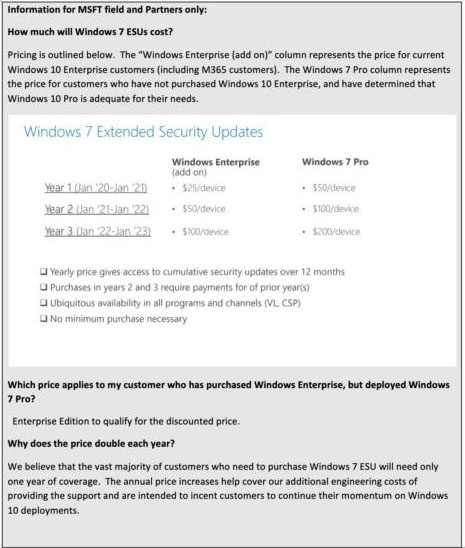
There is no new news in that statement. We already know that Microsoft is trying to cut down on the costs needed to provide support for Windows 7 users. The charges are designed to both cover costs and push users towards Windows 10. With a little more digging though, Computer World was able to discover just how much those costs would be. When they reformatted the word file into a PDF the price list appeared.

How much will Windows 7 support cost?
Image via: Computer World

Starting at $25 a year per device for Windows Enterprise users and $50 a year per device for Windows 7 Pro users, the price then doubles each year. This means that for the period January 2022 to January 2023 Windows Enterprise users will have to pay $100 per device to receive security updates for Windows 7 while Windows 7 Pro users will have to pay a massive $200 for a single year’s worth of support.

Shockingly, three years of support in total will cost $375 per device for Windows 7 Pro users. With recent news hitting about Microsoft gutting Windows Media Player on Windows 7, it looks like the classic Microsoft operating system’s days are numbered.

Microsoft to start charging monthly fees for Windows 7 users

If you have Windows 7, Microsoft just made a decision that could put your data at risk.

Microsoft famously called Windows 10 a “service” rather than an operating system, and now it seems they’re thinking about their older software in the same way. In a new blog post, Microsoft writes:

“As previously announced, Windows 7 extended support is ending January 14, 2020. While many of you are already well on your way in deploying Windows 10, we understand that everyone is at a different point in the upgrade process.

With that in mind, today we are announcing that we will offer paid Windows 7 Extended Security Updates (ESU) through January 2023. The Windows 7 ESU will be sold on a per-device basis and the price will increase each year. Windows 7 ESUs will be available to all Windows 7 Professional and Windows 7 Enterprise customers in Volume Licensing, with a discount to customers with Windows software assurance, Windows 10 Enterprise or Windows 10 Education subscriptions. In addition, Office 365 ProPlus will be supported on devices with active Windows 7 Extended Security Updates (ESU) through January 2023. This means that customers who purchase the Windows 7 ESU will be able to continue to run Office 365 ProPlus.”

What this means is that starting in January, Windows 7 users will no longer receive security updates or patches, effectively leaving their computers and data vulnerable to hackers and malware unless they pay the monthly fee.

Over 40% of all computers in the world run Windows 7. This potentially leaves huge amounts of data exposed and ripe for exploitation. The fact that Microsoft is willingly exposing their Win7 users to risk despite them making up such a huge portion of computer users worldwide is disappointing, but not entirely surprising.

It should also be noted that being able to pay for your security is an option offered only to Windows 7 Professional users who have Volume Licensing (a.k.a. big businesses that buy the software in bulk for their office). Small businesses and individual users don’t even have the option to buy their security.

For these users, their data is at risk unless they switch to a newer operating system, which Microsoft hopes is Windows 10. Windows 10 is no longer a free upgrade, being offered instead for $139 on Microsoft’s website. Windows 8 is also no longer for sale if for some reason you were thinking about getting that instead.

It will almost certainly be more affordable to just bite the bullet and buy Windows 10 instead of paying the monthly security fee. The exact pricing has so far not been announced, but Microsoft has announced that the price will increase every year. (Hooray.)

Thankfully, Windows 10 is itself a solid operating system. While Microsoft has received criticism for updating the OS automatically, prioritizing their updates over user control, it is a sleek and functional operating system. It is significantly more user-friendly than Windows 8, so longtime Windows 7 users shouldn’t have too hard of a time adjusting if they choose to upgrade.

3 Secrets You Didn’t Know Existed in Windows 7

Windows 7 is still widely popular, and here’s why:

1. Shortcut to Show Desktop

You might have stumbled across this one by accident, and if you did, it likely scared you silly. But when you realize it’s there (and what it’s there for), it is quite useful. With all of your usual programs up and running, look at the far right side of the task bar (across the bottom of your screen). You will notice a virtually undetectable vertical bar, almost the same color as the task bar. Hover the cursor over it and it’ll give you a sneak peek of your Windows desktop (until you move the cursor). If you click it, it will switch to the desktop. Just click it again to go back to your other programs.

2. Access Secret Windows Wallpapers & Themes

Most users pick from one of the standard Windows themes or wallpapers or use one of their own photos. Instead, you can choose from one of several international themes that are on your computer, but are hidden from view. Find C:\Windows\Globalization\MCT. If it isn’t there, hit Windows + R and search for “systemroot%/Globalization/MCT” in the box. That will bring up several folders: AU for Australia, CA for Canada, GB for Great Britain, ZA for South Africa, etc. Inside each of these files are folders called “Theme”. Open the Theme folder you want and double-click on the file inside that has a file extension of .theme. Now, when you go to your desktop and right-click an empty space, the “Personalize” folder will show the options you opened from the international folders.

3. Shut Down Windows 7 Faster

Somehow, it seems like the faster you need for Windows to shut down or boot up, the slower it goes. For instance, 4:59 on Friday night, or during those times when you’re installing new software packages – then it’s ridiculously slow. You can make Windows 7 close down faster by tweaking the settings in the Windows Registry. Be sure to backup your system first, because a mistake in Windows Registry can be a fatal one and you’ll want to be able to restore the system if necessary.

From the Start Menu, type “regedit” in the search bar and press Enter. This brings up the Registry Editor. Changes you make will show up in real time. Along the left panel, find “HKEY_LOCAL_MACHINE > SYSTEM > CurrentControlSet > Control”. That will bring up “WaitToKillServiceTimeout”. Right-click on “Modify”, because you want to change this value. This will bring up a box called “Edit String”. The values here are expressed in milliseconds, and the default setting will likely be about 12,000. Begin by making a reasonable change, such as to 10,000. If that doesn’t make much of a difference, tweak it down a little more at the time, but don’t go to zero (or terribly close to that), because this could affect the stability of your operating system.

If you like Windows 7, check out the free Windows 10 today!

Tech Geek: 2 Windows 7 Hacks

Mad props to the developers of Windows 7, as this particular operating system has survived three whole new versions of Windows and is still going strong. Released in 2009, Windows 7 remains incredibly popular, with another five years (at least) left to go with Microsoft Extended Support. While development has officially stopped on this product, it’s about as reliable, feature-packed, and useful as an OS is going to get.

Still, if you love your technology, chances are that you love learning about hacks that can make a really good product a really great one. So, you’ll be glad to know that after all these years, Windows 7 still has some surprises to share. Here are some hacks you probably never knew about:

First, A Word of Caution

First, a word to the wise. Most of these hacks involve poking around in Windows Registry, which is a dangerous place to be if you don’t truly know what you’re doing. Even if you do know what you’re doing, a slip of the finger or mental error here can mean certain doom. Back up your system before you start. Then, no matter how hideous an error you make, you can restore the system and there’s no (unfixable) harm done.

1. Keep Windows From Rebooting Your Computer by Force

It’s happened to you: you’ve been working away when Windows Update pops up, demanding to reboot your computer. This always happens when it is least convenient and most troublesome to stop and reboot. There are ways to stop this evil madness. You can open up the Windows Registry using the search box on the Start menu. Search for “regedit.exe”. From there, create a new 32-bit DWORD value, and call it “NoAutoRebootWithLoggedOnUsers”. Establish a value of “1” to keep it from automatically rebooting while you are logged into Windows. If you want to restore it as it was, just delete the value.

2. Cause the Task Bar Buttons to Bring Up the Last Active Window

When you’re working with numerous windows open, but are mostly using just one or two of the windows, you have to click the button on the task bar, select the one you’re working with, and then do this every time you need to switch back and forth. Windows 7’s Aero Peek feature gives you thumbnails of each Window, but if you want the ability to click the task bar to get the last open window to pop-up, there’s a hack for that.

Type “regedit.exe” into the Start search bar. Find the registry key: HKEY_CURRENT_USER\Software\Microsoft\Windows\CurrentVersion\Explorer\Advanced . Establish a new 32-bit DWORD value and call it “LastActiveClick”. Set the value to “1”. Now you must log out and log back in or kill Explorer.exe using the Task Manager. Now reopen it and your changes will be made.

Want to learn about alternatives to Microsoft’s Office? Check out Five Fantastic Free Alternatives to Microsoft Office!

Microsoft to stop selling PCs with Windows 7 and 8.1 in 2016

Do you want to buy a license for Windows 7 or 8.1 or a new PC? Well, do it soon because Microsoft has confirmed that these two operating systems will be discontinued on October 31, 2016.

After that date, no matter what, any new PC you buy will come with Windows 10 pre-installed. The only exceptions will be the license agreements for companies, who can choose the version of Windows they require.

With this measure, that permanently abandons the (not so very) old Windows, Microsoft forces its users to “upgrade or expire”. Of course, in their defense, it should be stated that Windows 7 has been quite slow in going out. Usually, the “expiration date” of an operating system is two years after the launch of the new version. Given that Windows 8 came out in 2012, Windows 7 should have bid us adieu in 2014. However, the lack of acceptance of Windows 8 caused the company to consider extending the life of Windows 7.

That said, if you decide to buy a new PC with Windows 7 or 8.1 don’t be disheartened: Microsoft promises to provide technical support till 14 January, 2020 for Windows 7, and till 10 January 2023 for Windows 8.1.

Not averse to Windows 10 or interested in anything I’m saying? Then take a look at our section on Windows 10.

Google bringing Chrome OS to Windows 7

Google’s browser-based operating system, Chrome OS, may make it to Windows 7 eventually. The latest experimental version of the Chrome browser includes a Chrome OS mode, giving the browser a full screen Chrome OS experience.

This isn’t the first time Google has included its own operating system in a browser. Windows 8 users got the same fullscreen ChromeOS experience at the beginning of this year.

So why is Google doing this? For Google, this is a strategy to get more users onto its Chrome OS. The more users using Chrome and Chrome OS, the more ads they can sell to them. Google also sells Chromebooks, which are basically low cost laptops that run Chrome OS.

Basic users will find Chrome OS a good alternative operating system if they use a lot of Google services or just need to browse the web. Users looking for a lot of local storage, processing power or need to use Microsoft Office will want to use a traditional operating system like Windows or Mac instead.

Still, there’s no harm in giving Chrome OS a try when it does come out on Windows 7. If you don’t like it, you can always quit Chrome and go right back to Windows.

Source: François Beaufort (Google+) | Chromium.org

Via: Engadget

Related Stories

Hole found in Apple’s two-step verification system with iCloud Control Panel

Firefox for Android updated with more customization

Windows 8.1 ‘August Update’ available again, with problems fixed

YouTube adds a tip jar for your favorite channels

Follow Lewis on Twitter: @lewisleong

How to automatically update drivers in Windows 7 and 8

Windows is full of tips and tricks that can still be fairly elusive to the average Windows users. In this edition of our Windows Tip of the Week, I’ll show you how to automatically update all the drivers on your computer.

Drivers are programs that let your operating system properly communicate with the peripherals. Peripherals are devices connected to the system and include things like your keyboard, mouse, and your screen; all peripherals need this common language in order to work in sync with the rest of the equipment.

Unfortunately, drivers can become obsolete over time, and they may even start to cause problems. If you’ve bought new hardware or your operating system has been updated, it might be time to update your drivers too.

Caution

A yellow exclamation point usually indicates the need for an update.

There are different ways to update the drivers:

– You can use a program like Driver Genius or DriverBooster.

You can download the drivers from the official website of the peripheral, as is normally done with graphics cards.

– You can let Windows do all the work by automatically downloading the drivers.

This last option is what I’ll go through below.

How to update drivers in Windows 8

With the arrival of Microsoft’s latest operating system, Windows 8 drivers are no longer a real problem for users: Windows Update takes care of everything, at least for the most common drivers. If you’ve enabled automatic updates from Windows Update, drivers are included, so all the work is basically done.

How to update drivers in Windows Vista and Windows 7

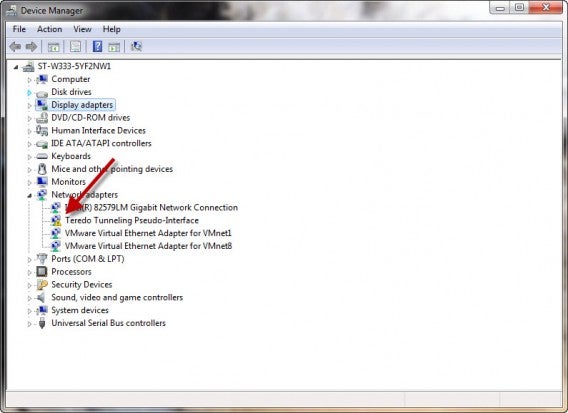
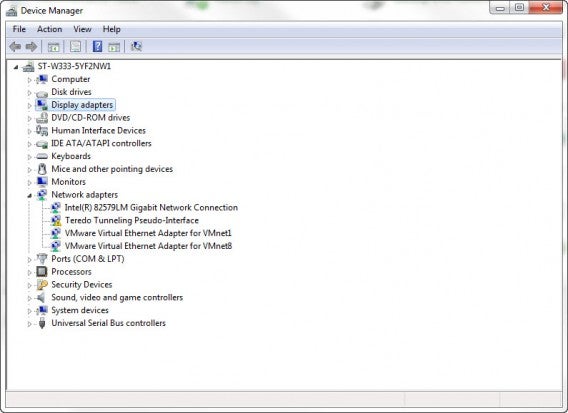
To update your drivers, go to Control Panel> Hardware & Devices> Device Manager. You’ll find the following window.

Device Manager

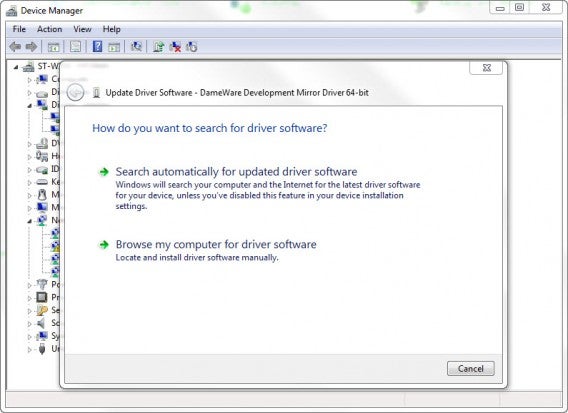
Go to the device you want to update, right-click on it, and choose Update Driver.

The ‘Search automatically for updated driver software’ option does just that: automatically updates the driver software. Windows will search for, download, and install the appropriate driver for you.

Search for Driver

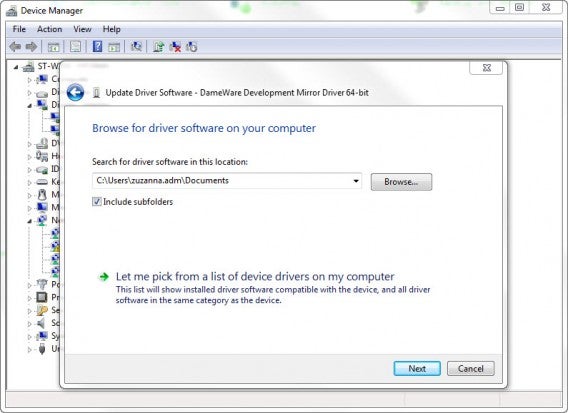
If you’ve already downloaded the driver, you can click on the second option, ‘Browse my computer for driver software’.

Find driver on your PC

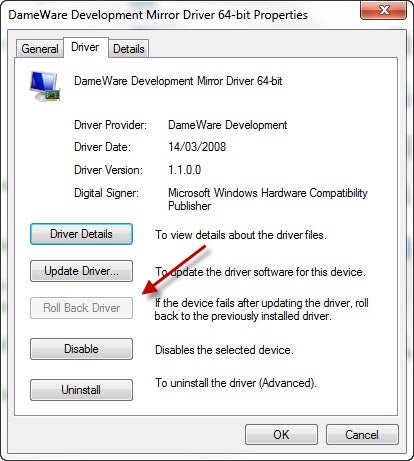
If you experience any problems with the new driver, you have the option to return to the previous state of the driver. To do this, right click on the device, go to Properties, and click the Driver tab. If you want to restore a previous version of the software, click Roll Back Driver.

Rollback Driver

Note, the option to Roll Back Driver will only be available if you’ve updated the driver.

Windows makes it pretty easy to keep your drivers up-to-date, but whether its automatic or manual, it’s now easier than ever to find, update, and roll back drivers in Windows.

Check out all the entries in our Windows Tip of the Week series.

Follow me on Twitter @AntoniNoguera

The Softonic Minute: Android, Minecraft Pocket Edition, Google Maps and Windows 7

avast! finds security issues with Android, Minecraft Pocket Edition gets a huge update, Google Maps lets you map any route, and Windows 7 will no longer get support in 2015. Check out this week’s hottest software news in The Softonic Minute.

Default player


brightcove.createExperiences();

avast! easily recovers user data from wiped Android phones

Security company avast! purchased 20 used Android phones from eBay to see how easily data could be recovered from them. What they found is disturbing. Continue reading…

Minecraft: Pocket Edition receives huge update with infinite worlds and wolves

Developer Mojang has released a massive update for Minecraft: Pocket Edition. Version 0.90 brings infinite worlds, new blocks, pet wolves, and more. Continue reading…

  • Download Minecraft: Pocket Edition for: Android | iOS

Google Maps measures distances

Google Maps now lets you manually measure distances so that you can calculate irregular routes, even if the roads aren’t recognized in Google Maps. If you don’t have the new Maps feature yet, you’ll have to go to the Labs panel to activate it.

Microsoft abandons Windows 7

The world’s most popular operating system will cease support on January 13, 2015. Windows 7 will continue to receive security and emergency updates, but won’t get any new upgrades or options. It’s clear, Microsoft wants you to switch to Windows 8.1.

Make sure to check out all of our past Softonic Minutes.

Video: Switch from XP to Windows 7 or 8 using PCmover

With the end of Windows XP support quickly approaching, Microsoft has released PCmover, software that helps you transfer your files and settings from a computer running Windows XP, to a new computer running Windows 7 or 8. In the video below, we’ll give you a quick overview of the process so that your move from XP to Windows 7 or 8 is as smooth as possible.

Default player


brightcove.createExperiences();

While PCmover helps you transfer files, folders, user accounts and other personal data from one PC to another, it doesn’t help you transfer applications or existing programs. If you want to transfer programs too, you can use PCmover Professional, a paid-version which helps you transfer software and applications.

If you have further questions about transferring from Windows XP to Windows 7 or 8, be sure to check out the rest of our tips and tutorials to help you with the process.

PCmover Express: Moving from Windows XP to Windows 7 and 8

With PCmover Express, Microsoft helps users move from the soon to be unsupported Windows XP, to Windows 7 or Windows 8. Using this guide and PCmover Express, along with our video tutorial, we’ll help you easily transfer from Windows XP and finally move on to newer versions of Microsoft’s OS.

PCmover Express helps users transfer personal folders, files, and even user accounts, as well as passwords and personal data, to another Windows computer via a network connection or using a transfer cable. Existing programs, unfortunately, aren’t transferred and must be manually re-installed. The software does, however, generate a compatibility report to mark programs which only function with Windows XP so that you don’t have to worry about transferring over ones that won’t function properly.

Note, if you want even more support, you can try out the paid version of PCmover Professional, with which certain apps can be transferred to the new system. Before you spend any money though, check out our tutorial below to see if PCmover Express can help you transfer to Windows 7 or 8 smoothly (and for free).

1. Installation and Preparation

  • Install PCmover on your Windows XP computer, as well as on the target computer with Windows 7 or Windows 8.
  • Connect both computers via a Wi-Fi network, LAN cable network or a transmission cable, available at Laplink.
  • Connect your computer to the network cable.
  • Disable the internet connection on your Windows XP computer.
  • Disable the anti-virus software on your Windows XP computer.
  • Select the internet connection on the target computer.
  • Close all background programs.

2. Start PCmover on the XP system

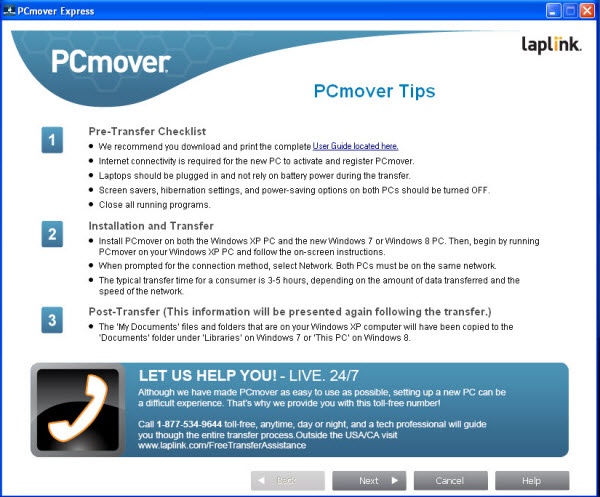
After start-up, PCmover Express displays a checklist and a brief description of the operation. For more detailed information about the process, you can download a manual in PDF format. PCmover Express Tips
3. Select PC to PC Transfer

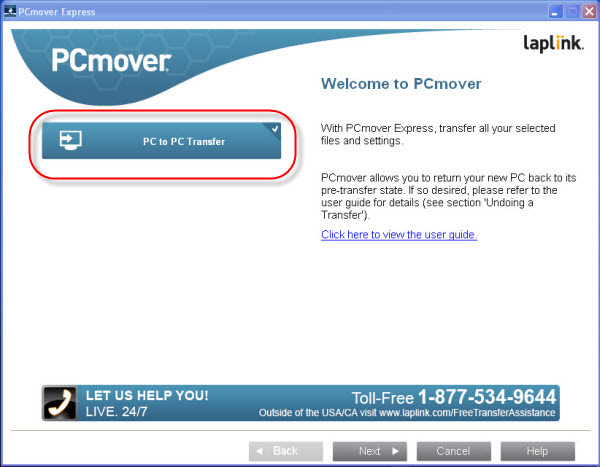
Click on the PC to PC Transfer button.PC to PC transfer using PCmover
4. Select Windows XP

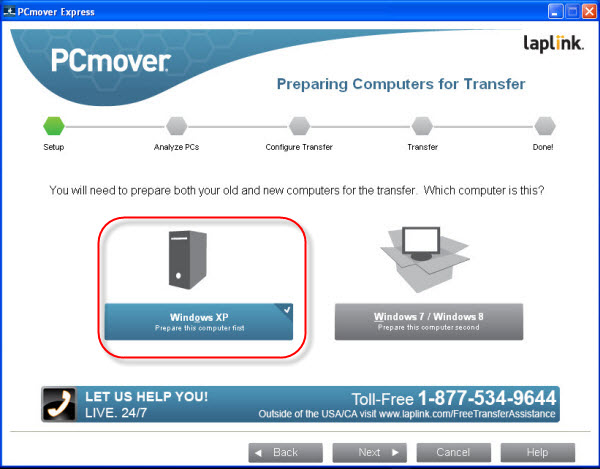
Next, select the option on the left for Windows XP. Select Windows XP
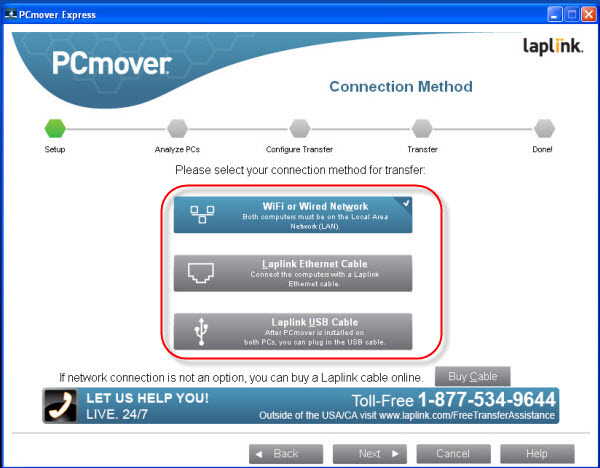
5. Select the connection type you want

With most PCs currently on the market, connecting via Wi-fi or a LAN cable shouldn’t be a problem. In an emergency, you can also purchase a connecting cable at Laplink. It’s still unclear as to whyPCmover uses no external media, such as USB sticks, to transfer data, but since the software doesn’t transfer programs, you can manually copy files later using a USB stick.  Use Wifi or a cable to connect PCs
6. Start PCmover on the target system

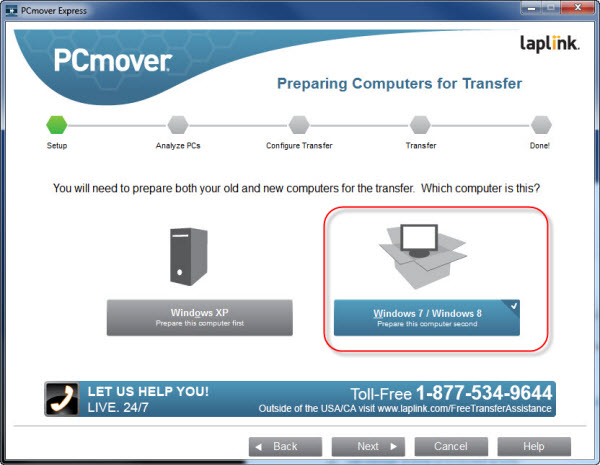
Launch PCmover on the target system, and click on the option to the right that says Windows 7/ Windows 8.Click on Windows 7 / Windows 8 on the new system
7. Enter your name and email address

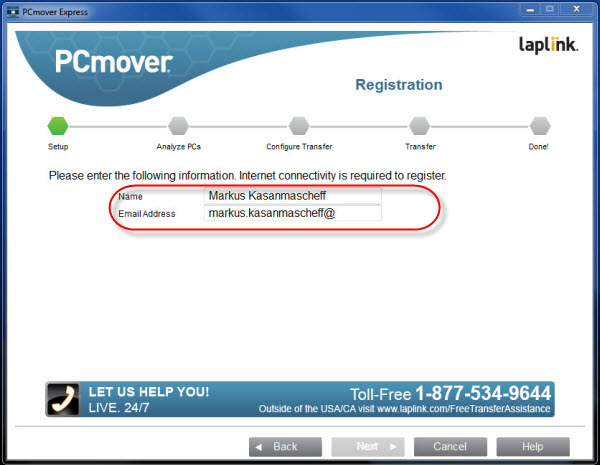
Enter your name and email address in the appropriate fields.Enter your name and email address
8. Select your XP machine

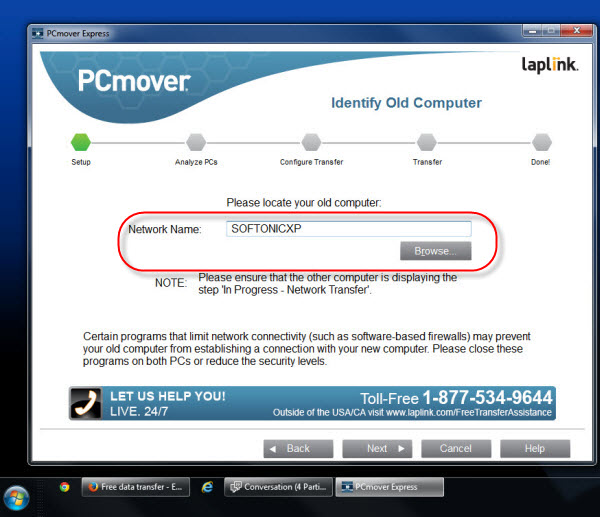
Click Browse and select your XP computer. If you can’t find your PC here, there are probably problems with the network connection. Search for your XP machine
9. Analysis of the target system

PCmover analyzes your Windows system and checks the disk space and existing user accounts. The analysis report previously created with Windows XP will be transferred here– your data transfer happens later.
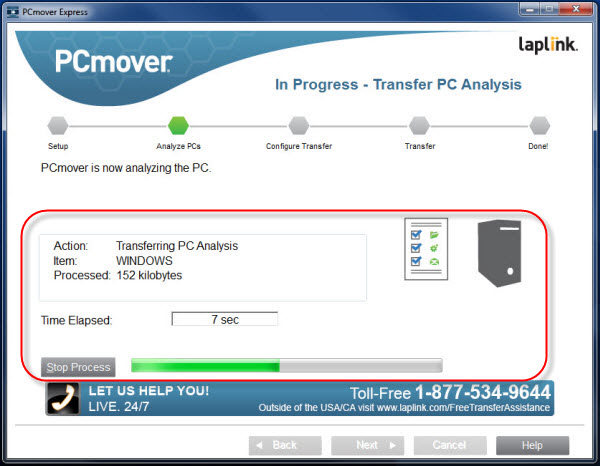
PCmove transfer analysis10. Select transmitted data

Hard drive

Normally, Windows XP will be on the C: drive of your XP system, and you’ll most likely want to transfer everything to the same drive on your new system. You can manually change the destination drive if you use a multi-boot system with multiple versions of Windows, or other operating systems like Linux. Choose the destination drives
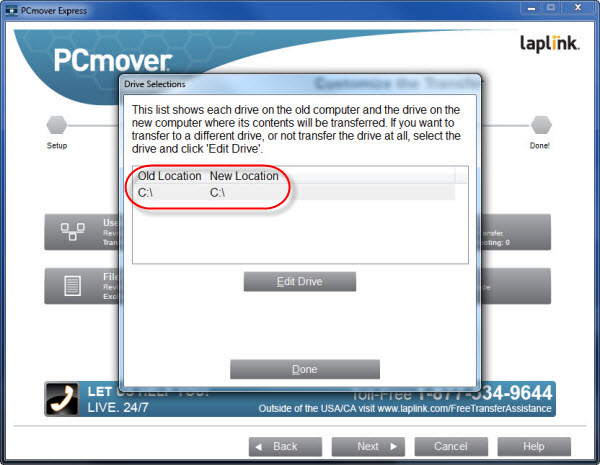
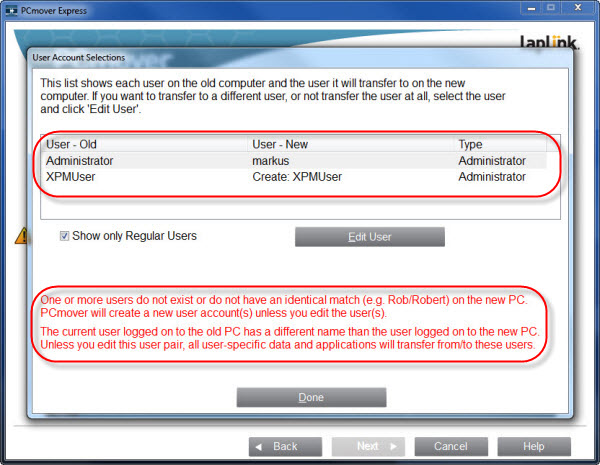
User accounts

UnderUser Account Selections, you can choose which user accounts you want to transfer. You might have some user accounts on your XP computer that you no longer need. If that’s the case, simply remove these accounts. Remove accounts you don't want to transfer
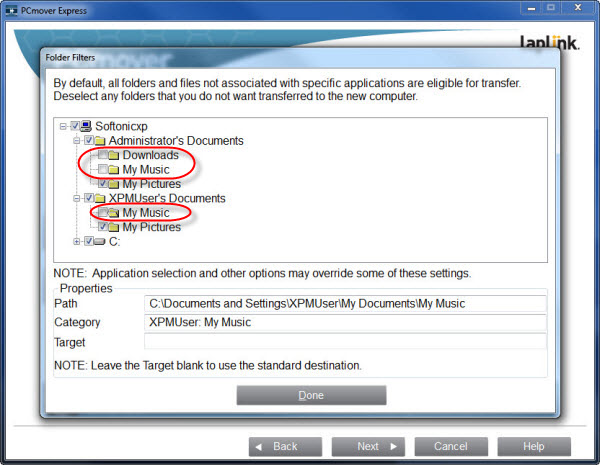
What to transfer

Even within folders, you can manually limit the data you transfer, otherwise PCmover will transfer all private folders from all selected user accounts by default.Manuall select which folders to transferExclude unimportant files
File filter lets you exclude certain file types from the transfer. You can set these file types with three checkboxes in the Common file types to exclude section. Using the last two checkboxes will keep stored backup files and temporary Office files securely on your XP computer.

Exclude file types11. Transmission of data

Depending on the size of your system and the selected data, the transfer can take several hours. It also depends on the speed of your connection. After you’ve transferred your XP system successfully, you’re done, although there are additional, optional steps you can take.

Optional steps

12. Select Microsoft programs

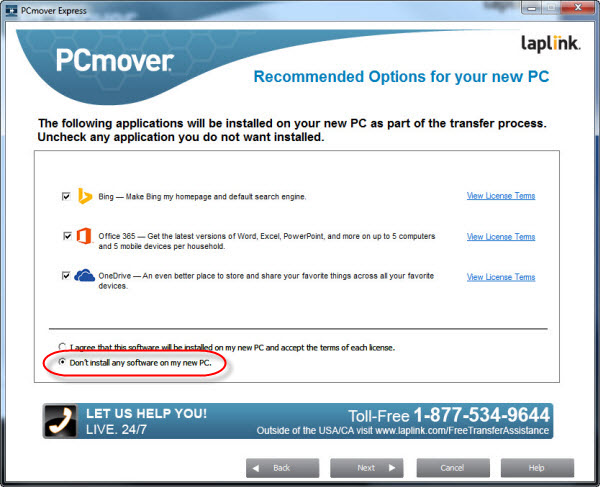
The data transfer should now be complete. After rebooting the system, click on the copied Windows XP user accounts, including files, on the new system running Windows 7 or 8. PCmover doesn’t transfer installed programs, but you might want to transfer some of your Microsoft software to your new computer at the same time. Because you can install these programs easily later, we recommend selecting Do not install any software on my PC. Choose not to install software on your new PC
13. Analysis of Compatibility Report

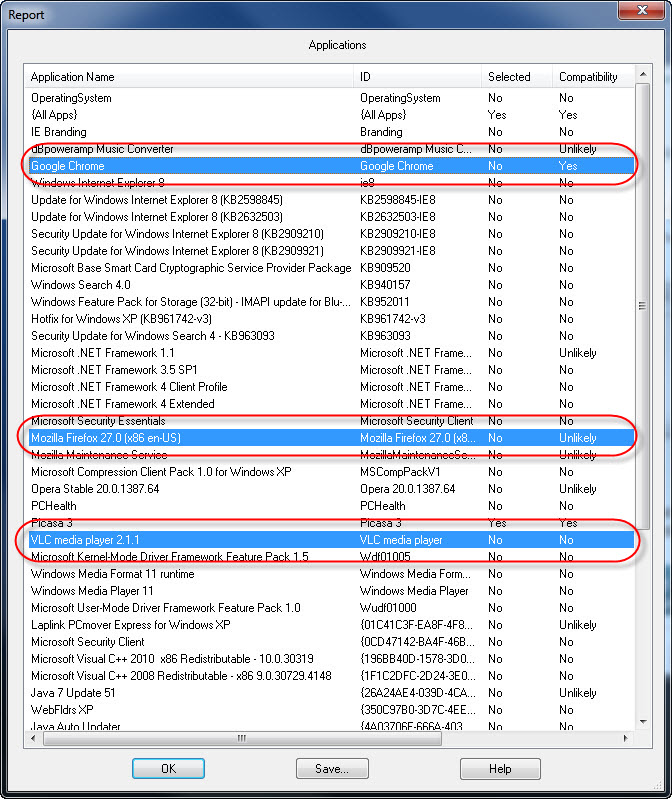
When switching from Windows XP to Windows 7 or Windows 8, you may lose some installed programs that you need to re-install manually. In the compatibility report, you’ll find an assessment of whether the programs work on Windows 7 or Windows 8. Compatibility reportThe information provided by PCmover can sometimes be inaccurate. According to the report, for example, Mozilla Firefox and Skype do not work with Windows 7. Compatibility report are often inaccurate
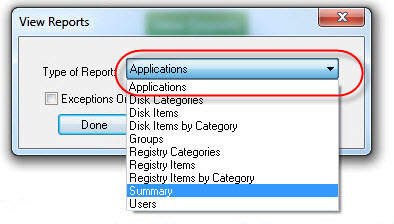
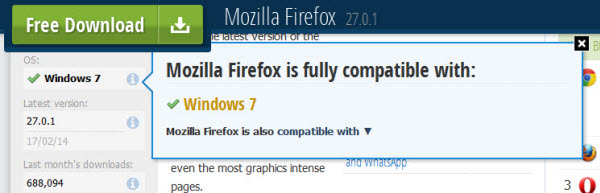
If you want to find out whether one of your applications is compatible, it’s better to check on our website. Clicking on the “i” in the appropriate program page provides detailed information about program compatibility. If you’re installing many programs at once, we recommend our practical software catalog, Softonic for Windows. Mozilla Firefox on Softonic shows Windows 7 compatibility
Whether or not you choose to follow these last two steps, your transfer to Windows 7 or 8 should be more or less complete.

More support for the end of Windows XP

Download