Canva vs Adobe: The battle heats up as Canva unveils new AI-powered features

Canva, at Canva’s Create 2023 event, has announced all kinds of new features especially useful for marketing and branding.

One day we’re going to come home and discover that our refrigerator has artificial intelligence. The world is changing at full speed and introducing AI into literally everything from video editing to programming. The latest to take the plunge has been Canva, which has announced an update full of little details that are going to make all the difference… And that should worry Adobe and its Photoshop.

More features, it’s war

Experts are already warning: it’s not that AI is going to replace your job, but that, in the future, you will be replaced if you don’t know how to work with the tools AI gives you. You can see it perfectly in the case of Canva, which at Canva’s Create 2023 event has announced all sorts of new functionalities especially useful for marketing and branding.

Canva DOWNLOAD

The idea is to form a simple way to create a unified visual identity in order to create images for social networks or presentations very quickly, leaving graphic designers to focus on more pressing issues. Using logos, fonts, colors and style guides, reusable templates can be formed and assets can be grouped for specific campaigns, projects and events.

Forget about those files that appear in Google Drive and you don’t know where they came from because they don’t match the rest of the brand image: in Canva you will be able to restrict them by colors and fonts. In addition, the different versions will become a single one and you can activate the workflow within the application itself. In other words: forget about whether the correct one is V2 or V2_OK_DEF, in Canva you will always have the latest one (and you will be able to review all the changes made).

Canva DOWNLOAD

There’s a lot more hidden inside the new Canva, like the Magic tools, which change a part of all your designs (an outdated logo, a color you no longer use, a layout) with just one click, or remove anything you don’t want in an image, from an unnecessary object to a dog in the background. In fact, by proxy, you can even change one object to another like magic.

Canva has said it has used a mix of different AI tools, wanting to become the ultimate app for making layouts, presentations and even international marketing campaigns. We’ll have to see what Adobe‘s next move is after this check on the king.
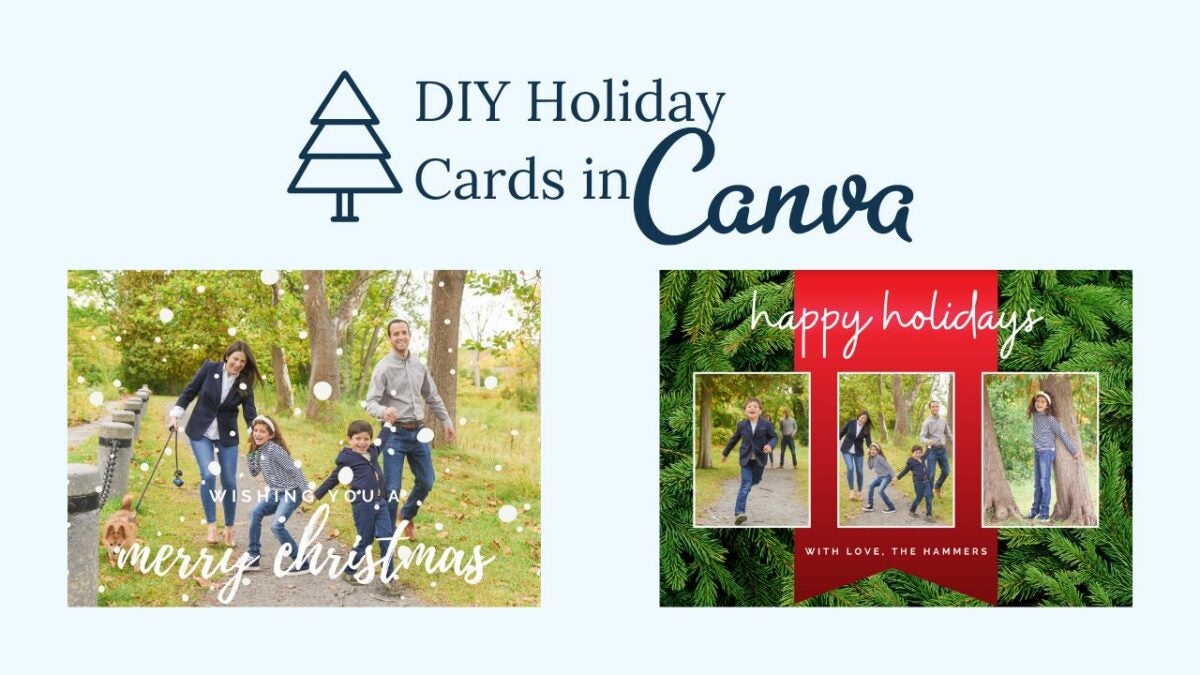

How to create beautiful Christmas Cards with Canva Pro features

Make this Christmas special by creating Christmas cards for family and friends to treasure. Why buy generic Christmas cards when you can use your favorite photos to create custom cards with Canva Pro features?

Canva Free Trial

It is easy to upload photos to Canva; you simply drag and drop the image you want to use from your desktop and add it to your design. With Canva’s built-in photo editor and filters, you can transform your photos in seconds and have a Christmas card masterpiece in no time!

Design your custom Christmas Card with Canva

You can share your festive cheer with family and friends with Canva’s custom Christmas cards. Whether you want to upload and use your holiday photos or explore Canva’s various seasonal templates is up to you. But with further adieu, let’s get down to it, shall we?

How to make a Canva Christmas Card

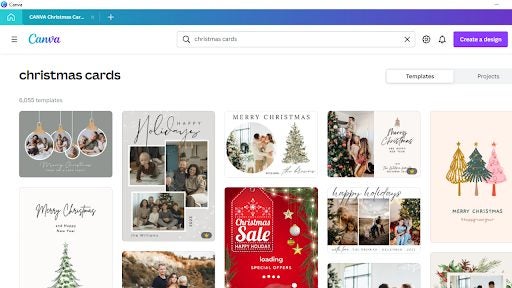
  1. Search for a design

    create beautiful Christmas Cards with Canva

    Open Canva in your browser or desktop app if you already have a Canva Pro account, and in the search box, type “Christmas Card” to start your design.

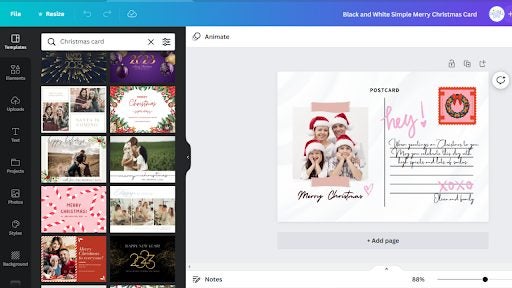
  2. Select a template

    create beautiful Christmas Cards with Canva

    Choose a Christmas card template to suit a mood and style featuring family portraits, illustrated holiday scenes, candy canes, polar bears, snowflakes, Christmas trees, and Santa. Once you have decided, click on your favorite template and start designing. 

    Canva Pro offers you more features and images you can utilize as you wish. You will notice a gold crown in the bottom right corner.

  3. Explore features

    create beautiful Christmas Cards with Canva

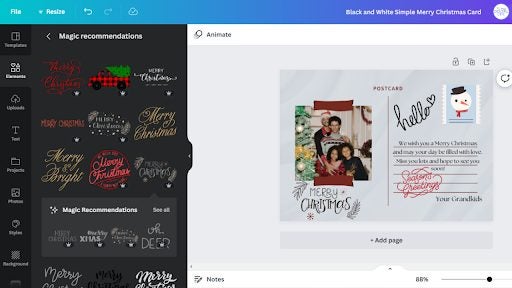
    Once you decide which template to use, you can explore the Canva features. You can use the drag-and-drop tool to move stickers, shapes, icons, images, photos, and any other elements onto your design and rearrange them as you please.

    Canva Pro allows you to choose from various elements and animation features.

  4. Customize your Canva Christmas card

    create beautiful Christmas Cards with Canva

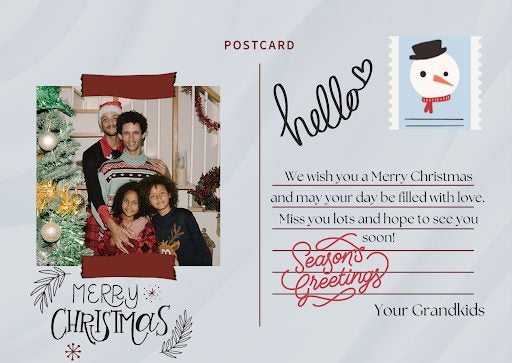
    It is all about making the person feel special when they receive your unique Christmas card design that you created for them. Adding a personal touch will give it more meaning, so upload family photos and play around with the Pro features to create something magical.

    Once you are happy with your Christmas card design and feel it is complete, you can either share it as an e-card or you can share it on social media if you want to share it with more than one person with just a few clicks. Ultimately you can enjoy high-resolution prints through Canva Print.

What size are Canva cards?

You don’t have to make your Christmas card a generic size Canva offers you the following sizes to choose from, and you can design your card how you want to:

  • 7 x 5 inches – Flat cards
  • 7 x 5 inches – Folded cards
  • 5 x 5 inches – Square cards
  • 5.5 x 7.1 inches – Postcards

Make Christmas extra special this year!

If you have family and friends that live abroad, then making a customized Christmas card can make them feel special, and you don’t have to send it by post. You can simply send it as an e-card. And for those nearby, you can hand deliver your gorgeous design for them to hang on their mantle, or you can place it on yours to give your home that Christmas feeling.

We hope you have fun creating beautiful Christmas cards for one and all. And may your home be filled with love, happiness, and Christmas cheer!