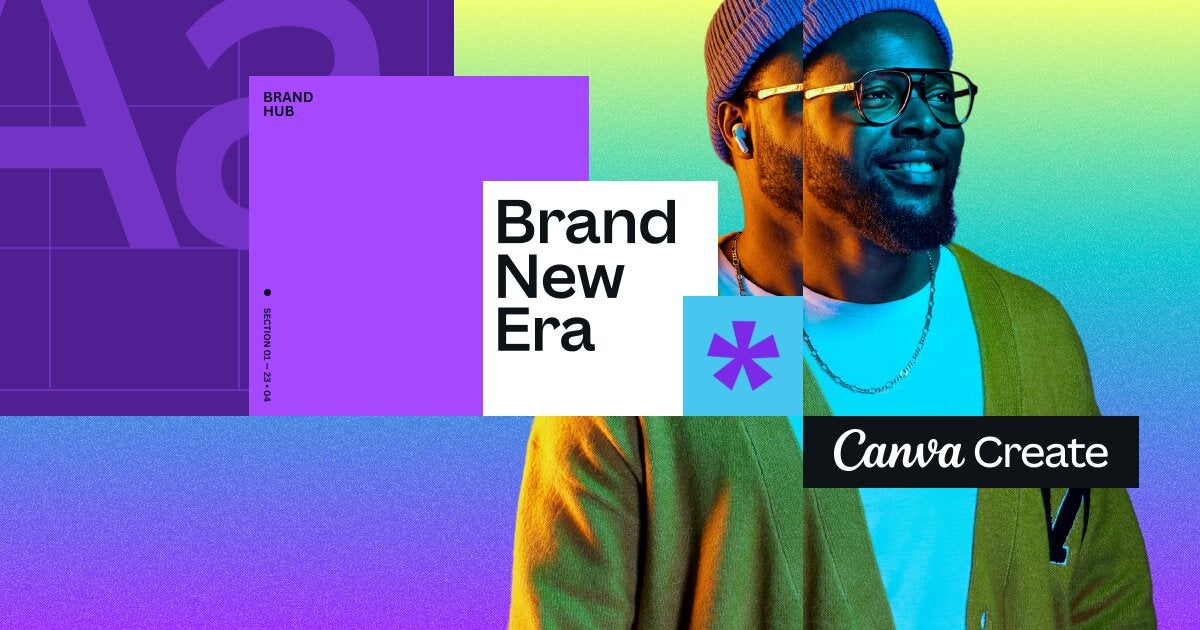
Canva, at Canva’s Create 2023 event, has announced all kinds of new features especially useful for marketing and branding.
One day we’re going to come home and discover that our refrigerator has artificial intelligence. The world is changing at full speed and introducing AI into literally everything from video editing to programming. The latest to take the plunge has been Canva, which has announced an update full of little details that are going to make all the difference… And that should worry Adobe and its Photoshop.
More features, it’s war
Experts are already warning: it’s not that AI is going to replace your job, but that, in the future, you will be replaced if you don’t know how to work with the tools AI gives you. You can see it perfectly in the case of Canva, which at Canva’s Create 2023 event has announced all sorts of new functionalities especially useful for marketing and branding.
The idea is to form a simple way to create a unified visual identity in order to create images for social networks or presentations very quickly, leaving graphic designers to focus on more pressing issues. Using logos, fonts, colors and style guides, reusable templates can be formed and assets can be grouped for specific campaigns, projects and events.
Forget about those files that appear in Google Drive and you don’t know where they came from because they don’t match the rest of the brand image: in Canva you will be able to restrict them by colors and fonts. In addition, the different versions will become a single one and you can activate the workflow within the application itself. In other words: forget about whether the correct one is V2 or V2_OK_DEF, in Canva you will always have the latest one (and you will be able to review all the changes made).
There’s a lot more hidden inside the new Canva, like the Magic tools, which change a part of all your designs (an outdated logo, a color you no longer use, a layout) with just one click, or remove anything you don’t want in an image, from an unnecessary object to a dog in the background. In fact, by proxy, you can even change one object to another like magic.
Canva has said it has used a mix of different AI tools, wanting to become the ultimate app for making layouts, presentations and even international marketing campaigns. We’ll have to see what Adobe‘s next move is after this check on the king.
Looking for free templates for Adobe Photoshop? You’ve come to the right place. These files are a perfect resource for anyone who, without having much experience in Adobe’s image editor, can get professional results. There are Photoshop templates to make buttons, customize your icons, create business cards, generate menus, design a web page and much more. But… Where to download them?
In today’s article we are going to offer you a selection of the best sites from which you can download free Photoshop templates. All of them include a complete selection of resources in PSD format. All you need to do is download the template, edit its layers and give shape to your creative project. Here we go!
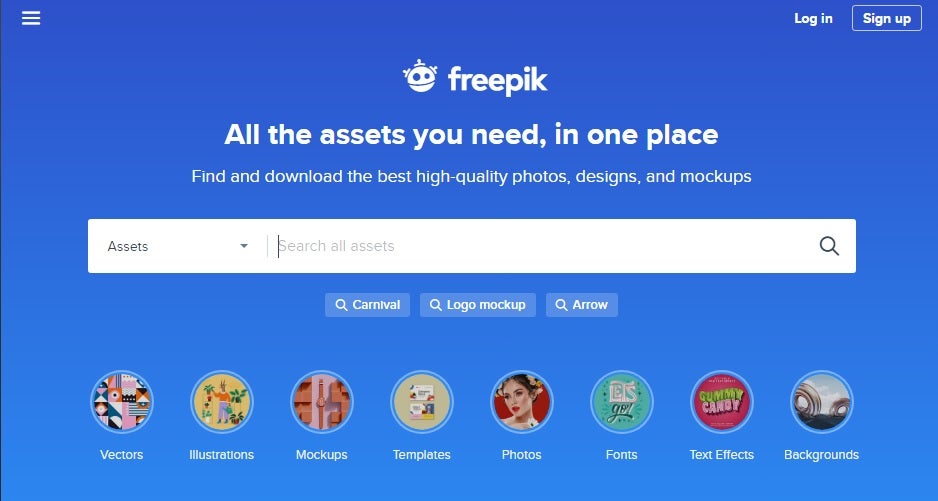
Freepik is, for many, the best website to download free Photoshop resources. It has more than 150,000 templates in PSD format with which we can make brochures, icons, triptychs, posters, web page designs and much more. The best thing about it? With its filter system you can find the template you are looking for in a jiffy.
Using Freepik is really easy. From their website it is advisable to sort the templates according to their publication date and popularity. This way you will be able to see which are the most downloaded files of the moment. You will see that some templates have a small crown on it, these are the so-called premium files and you will only have access to them for a fee. Don’t worry though, they are a real minority.
To download a template, click on it and access its information page. Here you will see a preview of the file, basic information about it (license, format, etc.) and its terms of use. Most of them can be used commercially, as long as you credit the author. If you like the template, simply click on the green “Download” button and in seconds you will have it on your computer.
PSDGraphics is a large repository of free Photoshop templates where you will find literally everything you need to make a project or improve an image. Unlike other similar sites, PSDGraphics has a large-scale preview of the template, so it will be easier for you to decide whether you want to download it or not. In the long run, this saves you a lot of time because everything you download will be useful to you.
At PSDGraphics you will find free templates to create buttons, business cards, banners, stamps and all kinds of icons. The only downside is that finding your template on the site may not always be easy. To do this you will need to use the search engine or make use of one of its categories. Once you have done this, you will need to scroll page by page until you find the template you like the most.
To download any of the PSDGraphics resources you will need, first of all, to click on the template you like the most. On their page you will see a preview of the template, its actual size and the possibility of downloading it in either PSD or JPG format. Finally, click on the template to download it easily to your PC. It’s that simple!
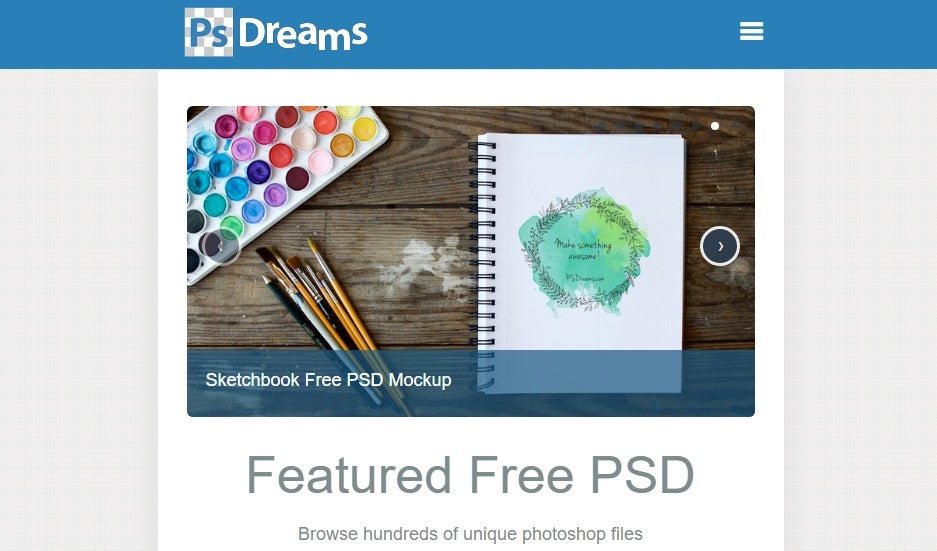
PSDreams stands out for offering a large number of free and perfectly classified PSD templates. These are divided into a total of 50 categories among which we find web design, music, buttons, app creation and much more. That is why it is the perfect website if you know exactly what you are looking for.
As we have already told you, the easiest way to find your template in PSDreams is through its categories, but if you are not sure what you want, don’t worry! The site incorporates the option to browse the most popular creations of the moment, so it is a very good idea for anyone looking for inspiration.
To download their templates, simply click on their image. On their page you will be able to see a preview of the file as well as its size. It is recommended that before downloading any resource, you read well all the data on the page, as some of the templates require you to add a link to its author. As a final point, it is interesting to note that each template comes with a list of tags so that you can find similar resources.
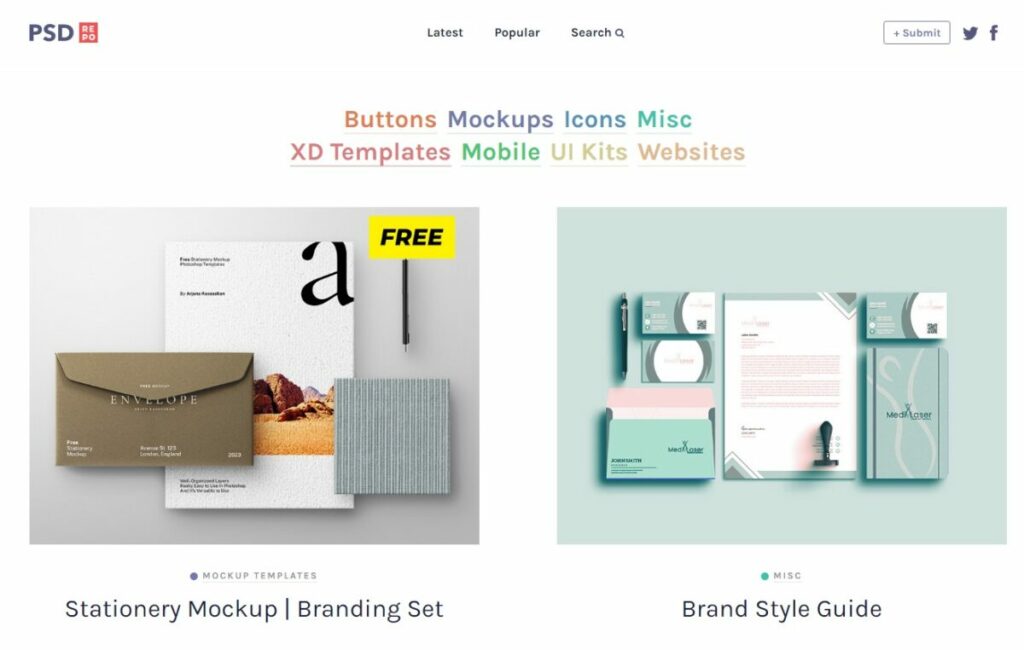
For many, one of the best sites that exist to get Photoshop templates. This portal does not stand out for having as many PSD as the two previous ones, but for having all the material well organized, labeled correctly and with such a simple design that facilitates the user’s task. Besides, it is an excellent resource especially for those who are looking for PSD files to create icons, buttons or web pages with Photoshop.
Using PSD Repo is very simple. You can browse and browse templates either by their different categories (buttons, mockups, icons, Adobe XD, mobile, UI kits, web pages or miscellaneous) or by their popularity or when they have been uploaded to the web. If you still can’t find what you want, choose to use their search engine.
Once you find the desired file, access its file. There you will see a preview of the template or texture, and you can also consult a selection of tags to find similar resources. To download the template, just click on the orange “Download” button.
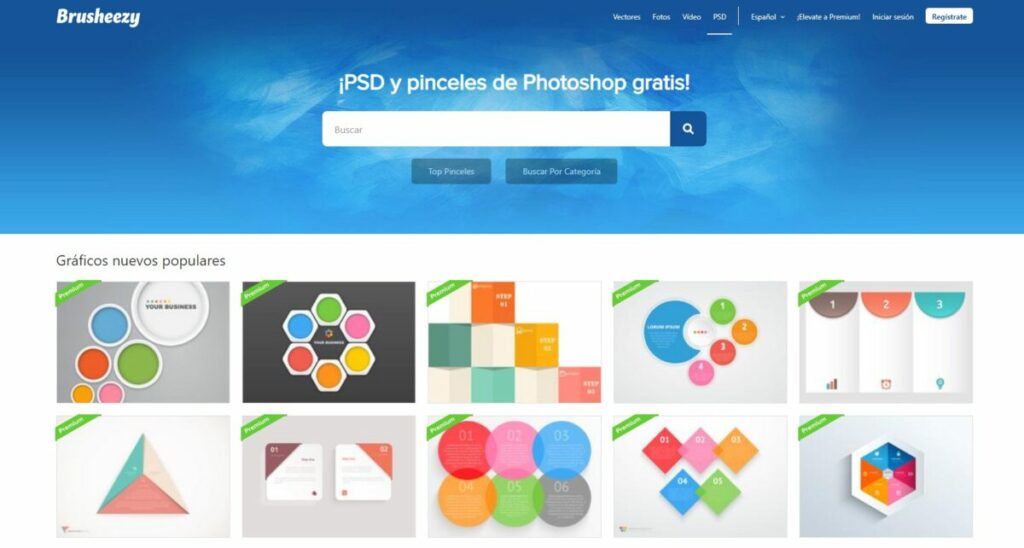
We close our list with Brusheezy, an excellent site to download not only free Photoshop templates, but also resources such as brushes, designs, vector images or textures. Although Brusheezy does not have as much content as the other pages and portals that we have recommended, it stands out for being very varied and always of quality.
Once in Brusheezy we will be able to see both the most popular files of the moment and those recommended by the team responsible for the website. If at first glance we do not find anything we like, we can search by category, where we will be offered the possibility to browse files either by format or by color, shape, texture and many other options. If we still can’t find anything, we can also use its internal search engine.
To download any Brusheezy file you will first need to access the template page. There you will see a small preview accompanied by the file’s licensing information. Although most files are completely free for both personal and commercial use, most of them require you to add a mention to the website. If you like what you see, all you have to do is download the template by clicking the blue “Free Download” button.
How can I use PSD files without Photoshop
Don’t worry, even if you don’t have Photoshop installed you can still enjoy our selection of PSD templates. We understand that even though it is the most widely used image editor in the world, its price is still prohibitive for many users. That is why we want to offer you an alternative list of programs with which you can enjoy this format without having Adobe’s program.
Want more? Don’t hesitate to take a look at our selection of the best free Photoshop alternatives.
The best Photoshop templates at your fingertips
We hope that our selection of the best sites to download free PSD templates for Photoshop has helped you. And remember, if you liked what you read, don’t forget to share it with your friends on social networks.
Whether you’re an amateur illustrator or a professional in the digital art world, you need the right tools on your PC to create the perfect image.
But selecting the best software isn’t always easy. There are countless programs for drawing and editing images at your fingertips, and each one promises to deliver everything you need to succeed. Which one should you choose?
Regardless of your drawing style, a good illustration program will turn any sketch you have in mind into a true masterpiece. Today’s article contains a roundup of what we consider to be the best drawing programs on the market today. We hope you find them helpful!
What should good illustration software be like?
Before we start our list, let’s go over a few of the characteristics we look for in good illustration software.
It should be versatile- First, a good drawing program needs to be versatile and give the artist full control over the medium. That is, it must have a number of tools and effects that emulate the real media that the author wants to use to create works of art.
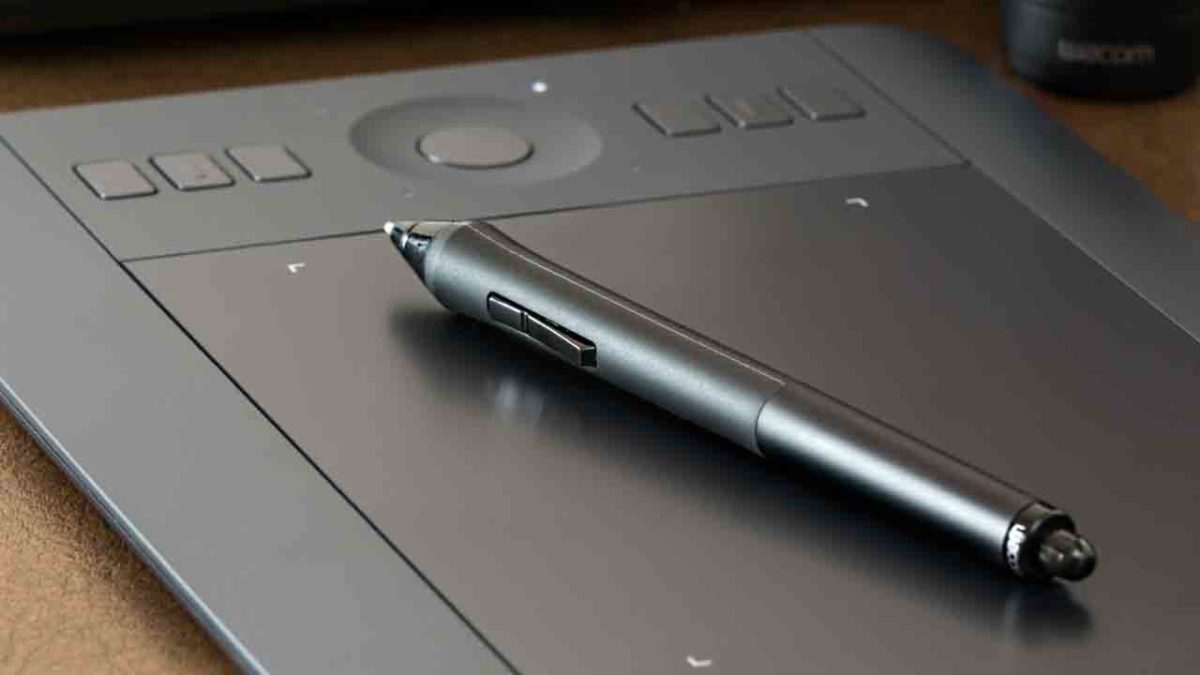
It should be optimized for tablet use- Every self-respecting artist or aspiring illustrator uses a drawing tablet. Although there is a wide range of drawing software on the market, not all programs are optimized for use with a pen and tablet.
It should have tool shortcuts- A good drawing program is so complex that its features can seem overwhelming. To make life easier for the artist, the program needs to include shortcuts for both the keyboard and the tablet buttons to perform tasks such as undo brush strokes, create layers, etc.
The best drawing programs of 2020
Without further ado, here is a selection of what we consider to be today’s best programs for creative minds. All of them are accompanied by a description and corresponding download button.
Adobe Photoshop
At the top of our list is a classic among illustration and image editing programs: Adobe Photoshop. Many people are unaware that Photoshop is not only an excellent photo editor, but also an amazing drawing program.
Photoshop has all the tools you need to create professional-quality illustrations. What’s more, it offers a wide range of filters you can use to play with your creations and give them a spectacular look. Of course, as everyone knows, Photoshop has a bit of a learning curve. If you want to take full advantage of this software, you’ll need to spend many hours learning how to use it.
You can download Adobe Photoshop quickly and safely below.
While Photoshop is the undisputed king of photo editing software, Corel Painter has the same status when it comes to illustration. With decades of experience, Corel Painter is the quintessential program for professional illustrators.
One of Corel Painter’s strengths is that this program was specifically designed for drawing and creating any illustration you could imagine. That’s why it offers an impressive selection of color palettes, brushes and drawing tools.
Like Photoshop, Corel Painter is not an easy tool for newbies, so you’ll need to spend hours learning about it before you can start drawing. Of course, the results are well worth all the effort you have put in.
Peter Blaskovic is the mind behind Rebelle, a great drawing program that stands out for its versatility and impressive results. Unlike similar programs, Rebelle was created by and for artists specialized in techniques such as watercolor, acrylics, pastels, ink or traditional drawing on paper
Among the strengths of Rebelle, already in its third edition, are its countless tools designed to offer the most realistic results possible. It especially stands out for its color-mixing tools, which you can use to achieve amazing results.
Unlike other programs, Rebelle is very simple and intuitive to use. This program is not only for expert artists, but for anyone who wants to draw. That makes it an excellent option for novice illustrators.
You can download Rebelle quickly and safely below.
If you’ve been working in the digital art world for years, the name Artweaver will surely ring a bell. This is one of the longest-standing and most widely used drawing programs in the sector. The key reason for its success is that unlike other software, Artweaver is truly easy to use.
Boasting a clear and intuitive interface, Artweaver has a countless number of brushes you can use to create the perfect work of art. What’s more, you can design your own brushes and edit them to your liking
An interesting point about Artweaver is that this software was designed for team projects. That is, if you are used to creating illustrations or paintings with other people, with Artweaver you have the option of drawing at the same time with its online mode.
Artweaver’s only weakness is that it’s not a cross-platform program, and it’s only available to Windows users. If this isn’t a problem for you, we recommend that you download it and check it out. We promise that it’s really worth your while!
ArtRage is a powerful drawing program that stands out for its ultra-realistic results. This software was designed to turn the screen of your PC or tablet into a real canvas where you can unleash your artistic side.
With many years of experience, ArtRage has finally debuted in its sixth edition, which is loaded with improvements. Among them we find a much larger selection of brushes, an extraordinary system to emulate oil painting, and of course, the possibility of creating your own brushes.
If you have a methodical creative process, you’ll be pleased to know ArtRage has a system to record your actions. This makes it much easier to repeat long processes without wasting time, allowing you to finish your illustration much faster.
Another strong point: unlike programs such as Photoshop or Corel Painter, ArtRage has a competitive price. Most drawing programs are quite expensive and unaffordable for many. Fortunately you won’t find a triple-digit price tag on ArtRage, so it’s far more accessible to everyone. In addition, there is an even cheaper Lite version!
If you want to try it, you can download the free version of ArtRage quickly and safely below.
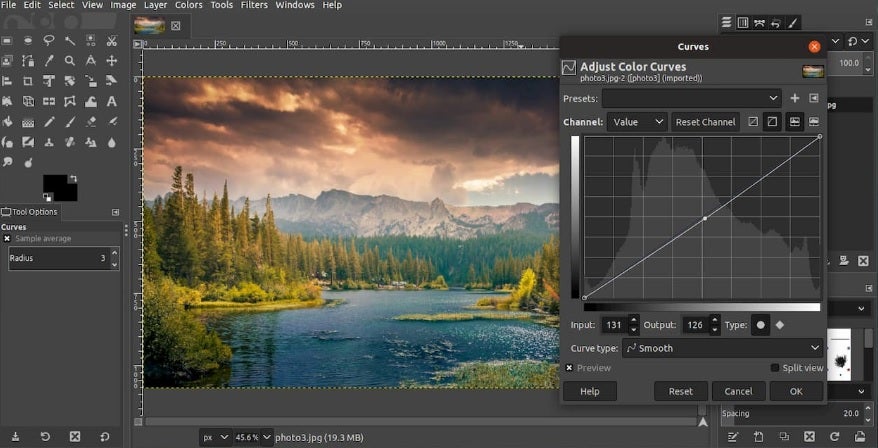
GIMP is popularly known as free Photoshop, and for good reason! This software for editing images and creating illustrations has no reason to envy to the most expensive programs on the market
GIMP stands out for being a versatile program you can use to create professional illustrations for free. It has all the basic tools of any illustration program, from its wide range of brushes to the possibility of drawing using layers.
GIMP’s only weak point is its complex interface. This program is quite unintuitive, so you’ll have to invest hours learning how it works. If you can get past its steep learning curve, you’ll be able to use an excellent drawing program without spending a dime.
If you want to check it out, you can download GIMP quickly and safely below.
Our final recommendation is Paint Tool SAI. Along with GIMP, it is the most widely used free tool for creating digital illustrations and also one of the most popular for novice artists.
Paint Tool SAI is a comprehensive drawing program you can use to create the most beautiful illustrations in the blink of an eye. It includes all the basic tools to create an illustration, but unlike GIMP, it displays them in a very intuitive format. That makes Paint Tool SAI a fantastic choice for novice illustrators or anyone who wants to take their first steps in the digital art world.
Finally, although Paint Tool SAI can be used with a keyboard and mouse, it also has an optimized interface for a graphics tablet. It’s therefore the perfect choice if you want to get used to using one of these devices.
We hope you liked our selection of programs for illustrators. Do you use software we didn’t mention in this article? Tell us about it in the comments section!
After a strange start to the year due to COVID-19, we can finally say that summer is here. The sun, the beach, the mountains, seeing the world… It doesn’t matter where you’ve decided to spend your vacation this year, the important thing is for you to relax, take a break from your routine, and of course, snap lots of photos to make all your friends green with envy on social media!
It’s probably happened to you more than once: you take a ton of photos on your phone, but you never do anything with them because you’re too lazy to edit them on your PC. But did you know that you can improve them right on your phone? Google Play has hundreds of great apps that you can use to edit any image in a matter of seconds, and many of them are free!
To help you find the best app, in today’s article, we’re going to share a roundup of the best photo-editing apps for Android phones. We hope you find it helpful!
Adobe Photoshop Express
When we think of photo-editing software, for many of us, Photoshop immediately comes to mind. This program has literally everything you need to turn an ordinary photo into a work of art. That said, the software is expensive, you have to use it on a desktop, and there’s a learning curve if you want to get the best results. But did you know that Photoshop has a completely free version for your phone?
Photoshop Express, a simplified version of this photo editor, maintains the basic tools of Photoshop so you can use it on your Android phone. You can do all the essential tasks to modify your photo however you want. For example, you can crop images, adjust the exposure, and even create predetermined settings to edit your photos much faster.
Photoshop Express is a useful app that achieves optimal results, and it’s completely free, so… what are you waiting for? Download it today!
Snapseed is a revolutionary photo-editing tool for your phone. This app, designed by Google, has a wide range of options, tools and filters that will make your summer photos the envy of all your friends on social media.
One of Snapseed’s main advantages is the fact that it was developed by Google. This guarantees not only quality, but also great performance on any Android device. It’s so easy to use: just select a photo to improve, crop it, transform it, draw on it, or use the sliding controls to make all kinds of edits. For instance, you can sharpen or blur the image, change the temperature, etc. Another cool feature lets you repair sections of your images, and there’s an interesting selection of filters to put the finishing touches on your photo.
Snapseed is an easy app to use, and the results are truly amazing. What’s more, it’s completely free, and it barely uses any of your phone’s resources. What more could you want? Download Snapseed quickly and safely below.
VSCO is a professional app that will make your summer photos look magazine-worthy. Although it has integrated purchases, they are completely optional, and the app works perfectly without them.
If you check out Google Play, you’ll see that VSCO is one of the highest-rated photo-editing apps on the platform. This is because the app is user-friendly, comprehensive, and capable of achieving professional results. It has a wide range of filters to improve your photo, and you can compare them easily by using its menus.
What’s more, VSCO’s active community of users includes professional photographers who, in addition to sharing their work, will give you all kinds of tips to improve your technique. If you’re interested, you can download VSCO for free below.
Lightroom is, along with Photoshop, one of today’s most popular photo-editing programs. You can use it to edit photos in RAW format en masse, adjust the exposure, add watermarks, and use a number of interesting features to achieve the perfect photo. You’re probably familiar with the desktop version of Lightroom, but not everyone is aware that it has a version for phones. What’s more, it’s free!
Adobe Lightroom for Android lets you do the same tasks as the PC version. So get ready to improve your beach photos or that cute selfie from your hiking trip. Lightroom for Android is completely free, but to use some of the features (for example, synchronize your photos), you’ll need a subscription to Adobe Creative Cloud.
Adobe Lightroom is an excellent complementary tool if you regularly use Adobe Photoshop Express. If you’re interested, you can download Adobe Lightroom below. It’s completely free.
Lens Distortions is an app for anyone who wants to improve their photos by adding filters or special effects. In fact, many of these effects are used regularly by top advertising agencies and in the film industry. So, this simple yet powerful and free app is an excellent option if you want to wow your friends with the best photos.
In the mobile version of Lens Distortion, all of the program’s features have been adapted to be intuitive and easy to use on a touch screen. You’ll find a variety of overlays, shimmers and light hits to give any photo the focus or mood that you desire.
Lens Distortion is completely free to download. This version comes with five filters that you can use as much as you wish. If you want more, you can purchase the premium version, which has a total of 250. Download the free version of Lens Distortion below.
If you’re looking to do more than just improve image quality or add filters, check out PicsArt. It’s not only an excellent photo editor, similar to Photoshop, but also a tool that lets you paint, decorate, and add all kinds of cute details to your picture. And it’s completely free!
PicsArt is an easy app to use: just open your photo and make all the changes you desire. You can crop it, adjust the color, make it brighter, or add a glossy effect. Also, the app has tools such as a pencil for drawing on the photo, adding text, or adding drawings and stickers.
This app is comprehensive and fun, and it’s ideal for anyone who wants to make their summer photos light and colorful. You can download PicsArt quickly and safely below.
Hypocam is the perfect app for anyone who enjoys taking black and white photos. Instead of taking a photo and removing the color, you can use it to take black and white photos directly.
Hypocam adds a monochrome filter to your phone’s camera and has a good selection of photo-editing tools. They range from classics like crop and rotate image to a range of textures you can use to enhance your photo. Another interesting thing is that the app regularly shares news about the world of black and white photography so you can stay on top of the latest trends.
Hypocam is a free app that offers built-in purchases. If you find the free version too limited, you can purchase new tools to improve your photos. Download this app quickly and safely below.
I don’t like any of the above apps… Do I really need one to edit my photos?
All Android phones have a built-in photo editor that you can use to make simple edits to your photo. Just open “Gallery” in your phone, select the photo you want to edit, and tap the pencil icon.
When you open your phone’s photo editor, you can crop the image, adjust the brightness, draw, add text, or rotate the photo. Don’t expect special effects or magazine-worthy results, but it’s a useful tool if, for example, you just want to crop your photo a bit. Then simply save the image, and you’ll find both the edited photo and the original in the Gallery on your phone. It’s that easy!
We hope you liked our roundup of apps to improve your vacation photos. Where are you going on vacation this year? Tell us about it in the comments section!
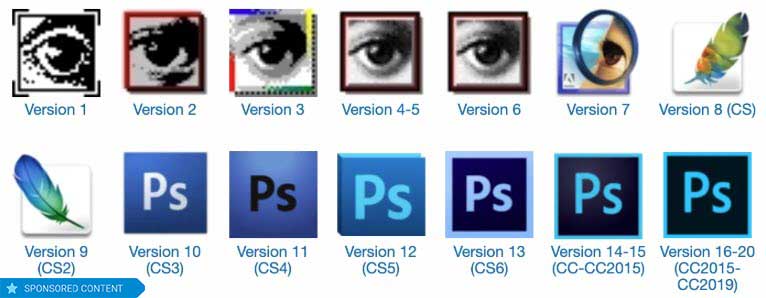
Happy Birthday, Photoshop! 30 years after its creation we look back into history and show you Adobe Photoshop’s progress.
Disclosure: Our team is always looking for things we think our readers will value. We have received compensation for publishing this article.
When we think about image retouching, one word inevitably comes to mind: Photoshop. There are many programs for editing image files, but Adobe’s software has become on its own merits a benchmark for professionals and amateurs who want to improve their photos.
2020 marks the 30th anniversary of the first version of Photoshop, a piece of software that came into our lives in February 1990 and hasn’t left since. To celebrate this milestone, we’ll revisit the history of Adobe’s most famous program.
Happy Birthday Photoshop! Find out the best plan for you
Although Photoshop was released on February 19, 1990, its history goes back a bit further: the predecessor of this software was Display, a program created in 1987 by Thomas Knoll, a student at the University of Michigan, to process monochromatic images on Macintosh.
The project caught the attention of his brother John, who at the time worked at Industrial Light & Magic (yes, the creators of the special effects in Star Wars, Indiana Jones and Ghostbusters). The two siblings worked side by side to turn Display into a program with many features that could be used on color monitors. And so Imagepro was born and later evolved intoPhotoshop, which was only available on computers with Mac OS.
Want to see how the first Photoshop version in history worked? Check out this computer archeology video!
Photoshop 2.5: the king reaches Windows
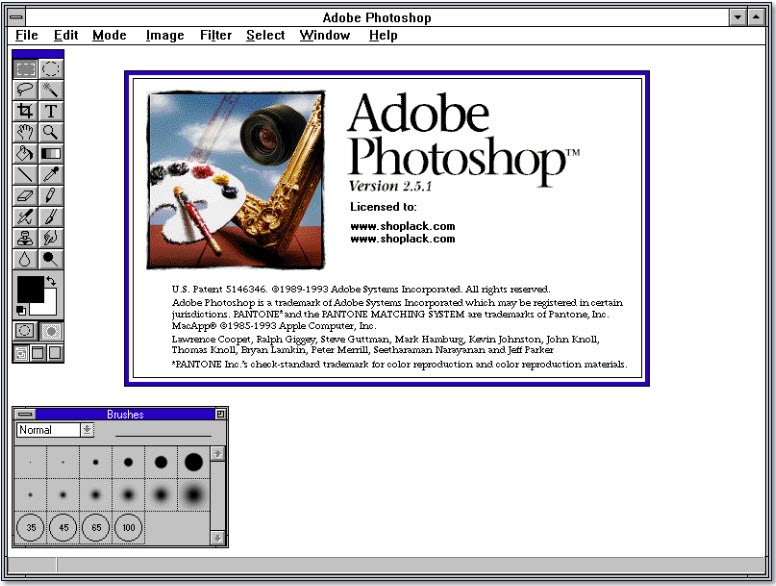
It wasn’t until the end of 1992 that Photoshop reached computers with Windows. In this first version for Microsoft’s system, a widely known feature made its debut: Filters. With it came the famous predefined filters that could dramatically change the look of photos with minimal effort, an option that is still around today: as you may have guessed, Instagram filters and other current apps are the grandchildren of these early Photoshop “presets.”
Photoshop 3.0: More layers than an onion
Photoshop wouldn’t be the same program today without layers. It wasn’t until version 3.0, released in 1994, that the software gained this essential feature.
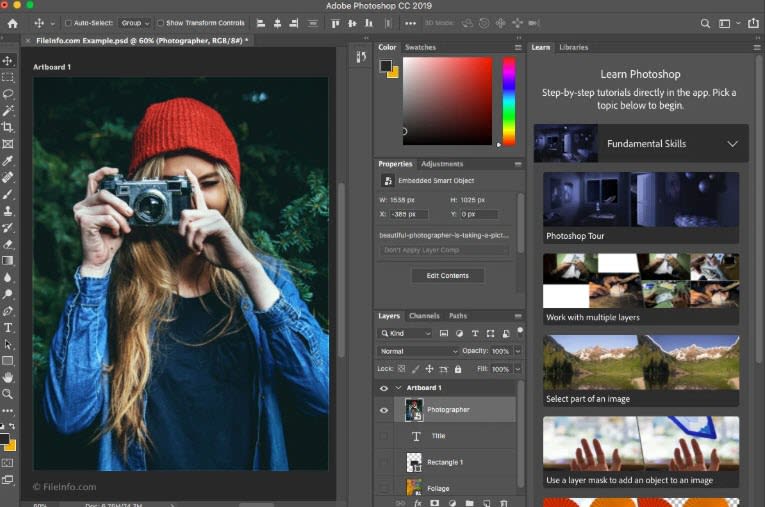
Although the Photoshop interface in the mid-1990s was a far cry from the current one, the features we use today were starting to appear.
Photoshop 5.0: thank goodness for “undo”!
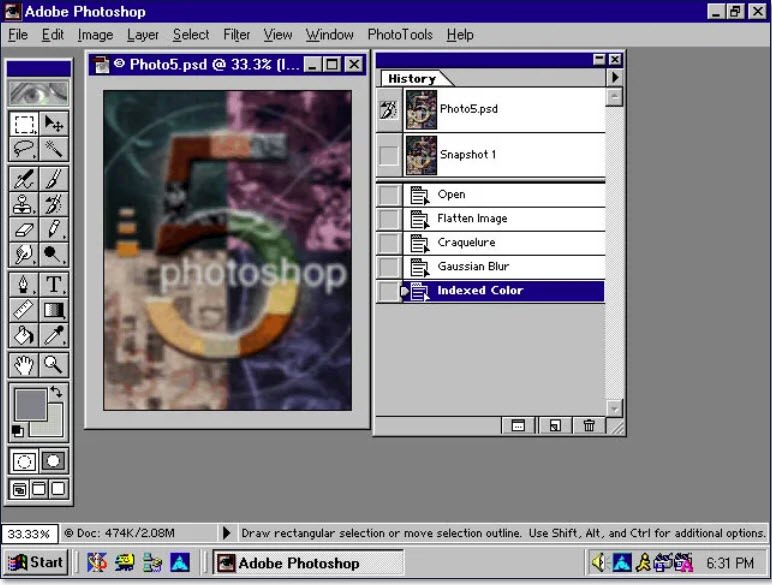
It’s hard to believe, but it wasn’t until 1998 that the program gained a function that we find completely essential today: the ability to undo multiple edits at once. This feature came with the fifth version of Photoshop, appearing in the “History” window. We could finally stop saving multiple versions of the same file in case we messed up!
Photoshop 6.0: new century, new life
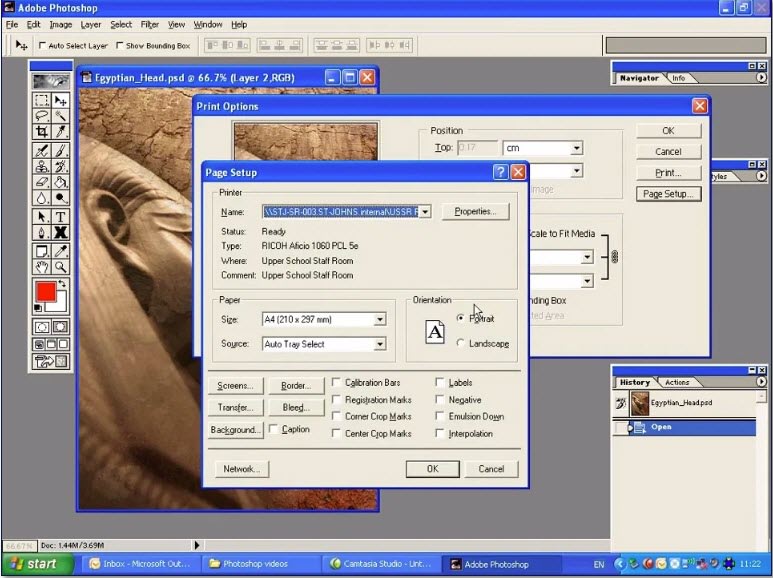
With the turn of the millennium, Photoshop celebrated its first decade, a time when Adobe significantly upgraded its photo-editing program with a more modern interface. The qualitative leap of Windows XP (which, according to some nostalgic users, is still the best Windows) had something to do with it.
Happy Birthday Photoshop! Find out the best plan for you
The Photoshop versions of the early 2000s saw some of the biggest improvements: the essential “liquify” button and the red-eye tool.
Also, the days of retouching scanned photos were over: with the advent of digital photography, images could be directly accessed on the computer. And so, in the early 2000s, Photoshop gained RAW image-processing options, the standard for professional photographers.
Photoshop Express: the age of online photo editing
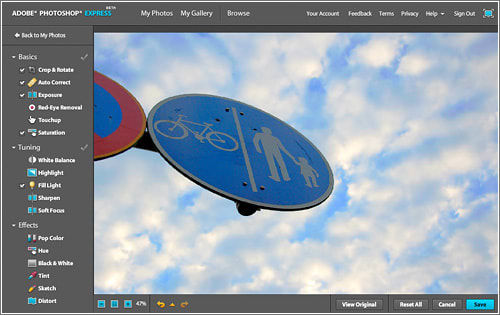
When it came of age in 2008, Photoshop debuted in an online version: Photoshop Express. This meant we no longer had to download anything to do basic photo editing.
Although Photoshop Express wasn’t the first online image-editing tool, Adobe managed to differentiate itself from the competition by offering free cloud space to its users, integration with the different photo services of the era and a simple interface that made image retouching accessible to even the most novice users.
Adobe Creative Cloud: a subscription that changed everything
As Adobe’s family grew, traditional Photoshop also significantly upgraded during the 2010s. After 20 years, Adobe’s software was no longer just the benchmark for image editing, but also an essential tool for creators in all sectors and at all professional levels: designers, photographers, artists, filmmakers and much more.
That’s why Adobe continued to improve the integration between Photoshop and the rest of its Creative Suite products (Illustrator, After Effects, Premiere, etc.) and launched a new product in 2011: Adobe Creative Cloud.
And so the traditional model of buying a program in a certain version gave way to the software as a service model: instead of buying the program one time, you purchase a subscription. That way, you only pay for what you need and always have the latest software updates.
Happy birthday, Photoshop! To infinity and beyond
While continuing to upgrade its program for desktop, Photoshop has expanded its brand in recent years, adding versions to meet every need and powerful mobile editions that have no reason to envy the ones for PCs.
In fact, the old Photoshop Express has been an app for iOS and Android for a few years now, and the mobile app family has grown with Mix, Fix and Sketch, created for all graphic uses.
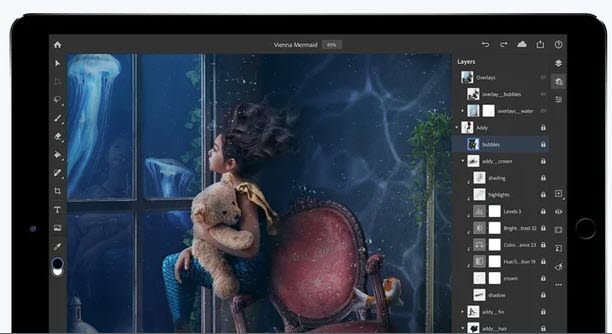
In addition, the paid version of Photoshop for desktop can also be used on an iPad. It’s no wonder, as a growing number of professionals use Apple’s tablet as their main work tool.
What does the future hold for Adobe Photoshop? That remains to be seen, but we have no doubt Adobe will keep innovating and staying ahead of the competition with its flagship software, the king that nobody has ever managed to dethrone.
Happy Birthday Photoshop! Find out the best plan for you
Check out this guide and introduction to all the best Adobe Photoshop resources available on the internet.
Photoshop is the best photo editing program there is. It has so many tools and features that imagination is the only thing limiting what graphic designers and high resolution photographers can do with the Adobe program. Photoshop is a big beast though. If you don’t know what you’re doing, it is just a dark screen with lots of buttons and toolbars. It can be hard to know where to start, especially if you don’t know the difference between a PNG file and a JPG.
There are tools and resources out there though, to help you get to grips with all that Photoshop has to offer and teach you how to do whatever you need to get done. Furthermore, Photoshop is a customizable piece of software, which means you can add extra Photoshop actions to the mix by downloading plugins. Many of these are freebies too. This is why today we’re walking you through a roundup of all the best free design resources for Photoshop.
You don’t buy Photoshop; you subscribe to it. You pay for it each month and then use it as a service. Some people will complain about this and say it is expensive but for web designers who subscribe this gives two beneficial outcomes. The first is that Adobe will regularly update Photoshop and the second is that Adobe offers free access to a huge amount of Photoshop step-by-step guides covering every aspect of the massive image editing program.
As well as an extensive user guide that will walk you through how to use every tool on the program and introduce you to a number of key photo editing and graphic design techniques, Adobe will also give you access to Adobe TV. Adobe TV has plenty of videos, which will show you many different tricks and tips and also TV shows and webinars walking you through many different Adobe design products.
Before you do anything, you’re going to need to learn how to use Adobe Photoshop. This is where Photoshop guides and tutorials some in. You can teach yourself how to do anything on Photoshop with the right guide.
PSDFAN has a wide variety of easily searchable Photoshop tutorials from the very basics all the way up to advanced photo editing techniques including light manipulation and blended multi-exposure shots. This is a very cool place to start.
The envano tuts+ website offers a wide variety of different design focused tutorials. Many of these are Photoshop tutorials, including their very handy Photoshop in 60 Seconds series, which gives quick guides on many Photoshop tools. You’ll also find guides here for other Adobe programs too like Illustrator and InDesign.
PSHero has many different Photoshop tutorials that’ll help you find your feet and then develop your skills all the way up to a professional level. The tutorials are split into four categories: Graphic Design, Photo Effects, Text Effects, and Tips & Tricks.
Best places for Photoshop tools (Brushes, Plugins, and Textures)
As well as the extensive set of design tools that come pre-loaded on Photoshop, you can download specialized tools for your particular needs. These include specialized brushes, textures, and plugins, which could be anything from tools to shave a few seconds off your workflow to more advanced versions of standard Photoshop tools.
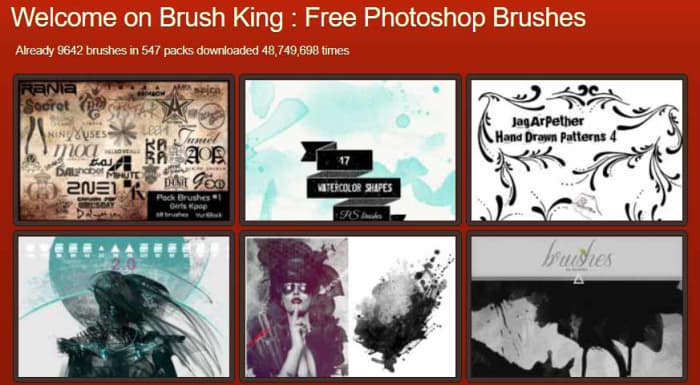
BrushKing is a Photoshop brush marketplace where you can choose between thousands of free Photoshop brushes available via hundreds of different brush sets. You will have to pay for some of these but fortunately, most are available for free.
Another excellent Photoshop brush marketplace worth your attention is BrushLovers. You’ll find all sorts of different types of high-quality Photoshop brushes here and they’ll be easy to find too, due to BrushLovers’ impressive advanced search features.
CC-Extensions have brought to the internet a variety of different plugins that add more high-end and pro-level features to Photoshop. These are mostly for experts only but if you’re at that level, they’ll add some serious swagger to your game.
Digital Anarchy has a lot more to offer than just its Photoshop plugins but its cool list of add-ons is definitely worth a look. You’ll find tools here to help you design backdrops for your images, draw up borders, and more.
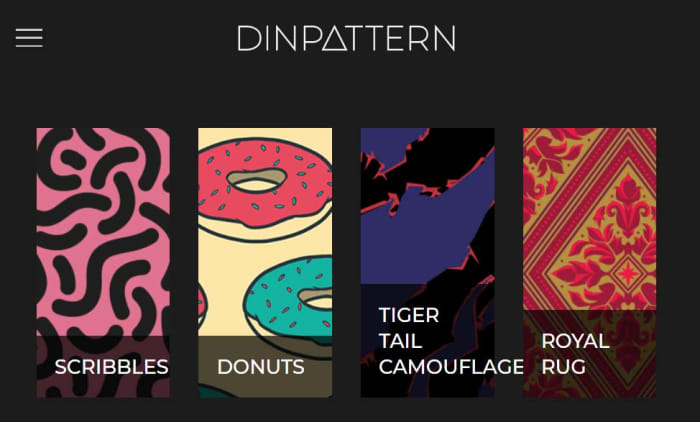
DinPattern offers Photoshop users almost endless libraries of patterns, textures, wallpapers, and backgrounds. This is your one-stop-shop for all your Photoshop patterns and texture needs.
Best place to find Free PSD files and Photoshop templates
There are a LOT of places online where you can find Photoshop templates. The best of these comes in the form of the standard Photoshop file. PSDs are the format type Adobe developed for Photoshop. They save all the composite parts of a photo editing project so you can stop what you’re doing and then pick up exactly where you left off later on. This also means that you can download PSD templates that have images already built, complete with individual layer styles that you can edit to make the overall image your own.
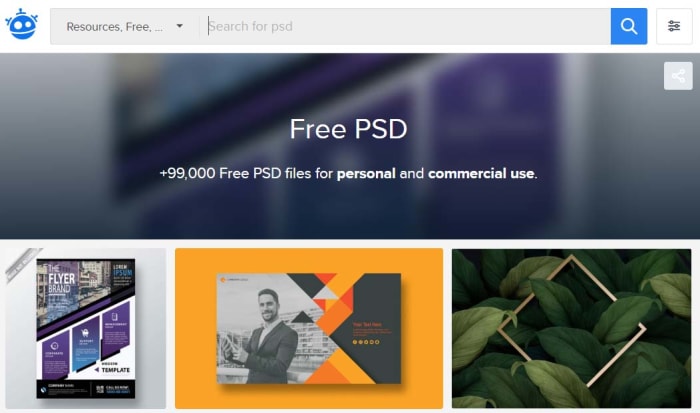
The best place to find thousands of these ready-made PSD file templates is Freepik, which has almost 100,000 files for you to browse through and then download for free. There are all sorts here too including t-shirt mock-ups, business cards, flyers, and even smartphone templates. Keep an eye out, however, as sometimes you might need to attribute the author if you’re going to use the file publicly or for commercial purposes.
Wrapping up
Adobe Photoshop really is its own world. From the first second you launch it you realize that there is a lot to get lost in. To put it bluntly, you need Adobe’s extensive tutorials and video guides and then once you’ve familiarized yourself with all the tools the design suite offers, you’ll need the more creative tutorials we’ve offered too. Once you know what you’re doing though, there is still more exploring to do with all of the potential templates, textures, brushes and plugin-free downloads available for Photoshop. We’ve shown you some of the best but if you want to go deeper, you could see this guide as just the start.
These are all the best software deals you’ll find this Black Friday.
When Black Friday comes around, we’re inundated with limited-time special offers for all sorts of products like headphones, wearable tech, charging cases, video games, SSD hard drives, smart home devices, and iPads. With so many deals from the likes of Amazon, Walmart, Best Buy, Newegg, and Samsung, however, it can be hard to know where to start. Well, at Softonic, we’re specialists in software so you can trust us to bring you the best Black Friday sale software deals. Let’s get into it then, these are the best Black Friday deals for software and online subscriptions.
Disclosure: Softonic may receive a referral fee if you click or buy any of the products featured here.
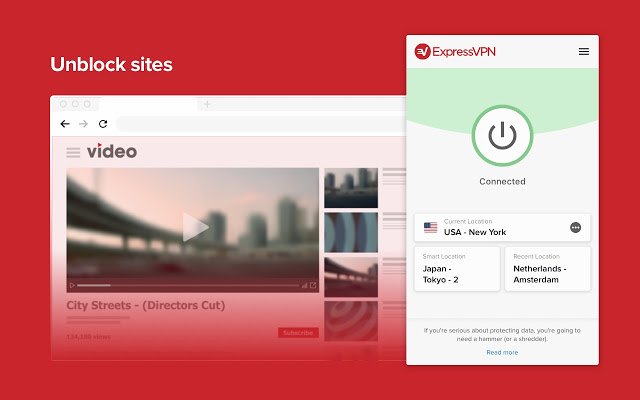
Virtual Private Networks (VPNS) allow you to mask the IP address of your Microsoft PC, Macbook, iPhone, or Android phone and encrypt all of your internet data. They have become essential for anybody who wants to surf the web safely. Add to that the fact that VPNs open up global content that would normally be locked due to your geographic location and you quickly realize that you need a powerful VPN on your machine.
The problem with VPNs, however, is that many of them are not that reliable. This is simply not the case with ExpressVPN though, which is widely regarded as the best VPN in the business. An ExpressVPN subscription will give you reliable access to over 3,000 servers round the world allowing you to protect your data and simulate your location in over 160 locations spread across 94 countries. If that sounds like something you want, act now to get three months free subscription to ExpressVPN.
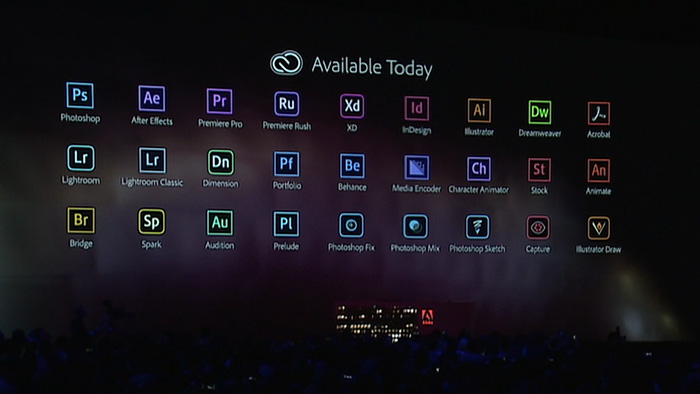
If you’ve never heard of Photoshop, then you must have been living in a cave or something. Photoshop and all the other programs in the Adobe Creative Cloud design suite are the best in their class. No matter your design job, the Adobe Creative Cloud will give you the best tools available to get it done.
Now’s your chance to get yourself a full subscription to the Adobe Creative Cloud package with massive savings of 40% off the normal price for all and 80% for students. Take advantage of early Black Friday savings that could end up saving you hundreds of dollars every year.
Black Friday Special: Get over 30 creative apps at 40% off!
Keeping yourself safe online is a tough job these days. Online threats and more advanced types of malware hit the internet all the time. As well as online threats, as software gets more and more complicated we can experience inexplicable slowdowns on our PCs. This is why it is more important than ever to have a robust cybersecurity suite protecting you every time you’re online and to keep your PC working as well as it should.
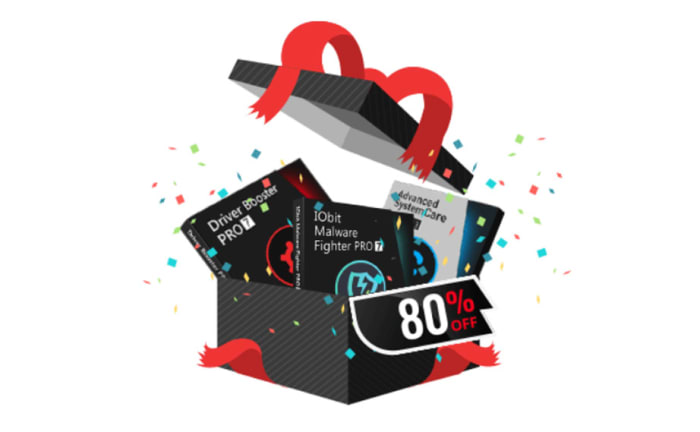
With that being the case, you do not want to miss out on the eye watering discounts that iOBit is offering on its line of PC optimization and protection software. You can save up to 80% on complete packages of iObit cyber security software. iObit is also giving away $60 worth of software for free with every purchase made. Check out these deals now and save yourself some money.
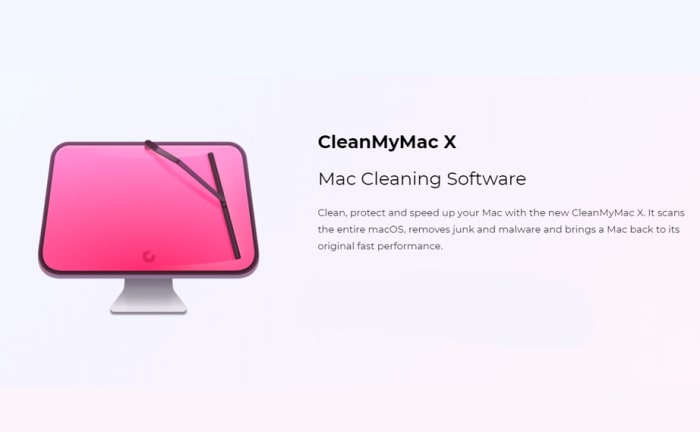
MacPaw’s CleanMyMac optimization suite offers the industry standard that all other Mac cleanup programs try to match. CleanMyMac makes it a quick and simple process to clear up space on your Mac and get your Apple Mac back to its best. With MacPaw’s amazing Black Friday deals, you can save 30% on a CleanMyMac subscription. You need to act fast, however, as MacPaw discounts are rare, and it won’t be Black Friday forever.
CCleaner Professional is a veritable institution in PC optimization. It has been around for years and is well-known for offering a quick, safe, and reliable disk cleaning service. Regularly regarded as the most efficient tool for identifying gigabytes of erroneous files and delivering noticeable boosts to your PC’s performance every time you use it. If your PC needs a boost, act now and save 50% on a CCleaner subscription.
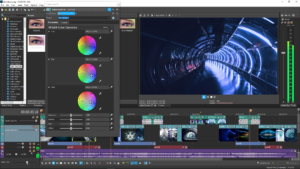
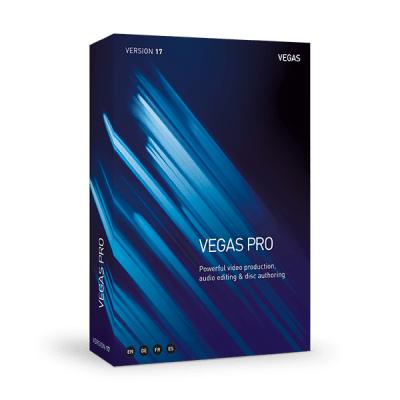
If you’re a video editor you need a feature packed video-editing suite offering full video production capabilities, audio editing, special effects, and more. Sony Vegas has all of these and more. If you’re an Instagram or YouTube video blogger then you should think seriously about this Sony Vegas Black Friday deal. Act now and you could save yourself hundreds of dollars and massively upgrade your video-making capabilities.
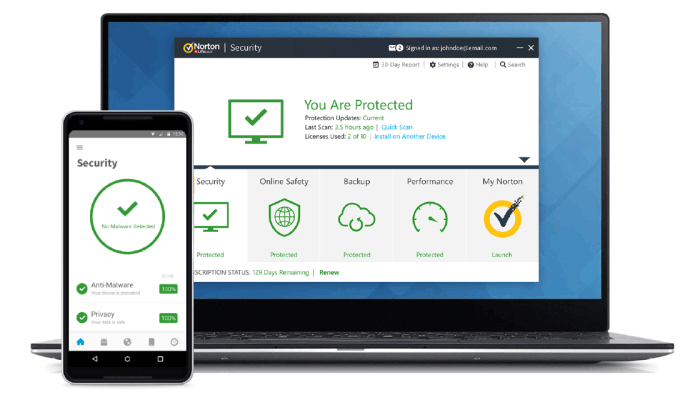
Our final Black Friday deal comes from Norton Antivirus, which is offering savings of up to $60. Protect yourself from threats including ransomware, malware, spyware, and more. Norton will also protect your identity from potential hacks and potential online scams and phishing attempts. Act now to save a massive $40 and protect your PC or Mac for an amazingly low $19.99. Protect up to 5 devices with the full Norton package and save a massive $60. Don’t wait to stay safe and save money.
You don’t need to fork out lots of cash to get Photoshop like editing features. These are the best free alternatives to Photoshop
Adobe Photoshop’s established position as the number one image editing and photo-editing program for Windows and Mac is so strong that many people don’t even bother searching for alternative options. It is Photoshop or nothing. It doesn’t have to be that way though. Many Photoshop features are pro-level features, which means many of us will never know or understand how to use them. Furthermore, there are plenty of alternative photo editing programs out there that can do all the basic editing you need to do.
It isn’t just about getting simplified versions of Photoshop neither. There are great alternative programs out there that can offer comparable tool sets to that offered by the Adobe program. Oh yeah, we forgot to mention. A lot of these alternatives to Photoshop won’t cost you a penny. They’re completely free. Let’s not waste any more time then, these are the best free alternatives to Photoshop.
We’re starting off with a big dog here. GIMP, which stands for Gnu Image Manipulation Program is the most fully formed and arguably most well-known Photoshop alternative there is. GIMP is like an open source Photoshop developed by a global team of volunteer developers to work on Microsoft Windows, Linux, and Apple Mac. It has an extensive set of features to rival what even Photoshop has to offer and can edit a wide range of file formats including RAW files. This means GIMP is a pro-friendly alternative to Photoshop with features like layer masks and filters enabling photographers and graphic designers to get their work done. GIMP is also a customizable photo editing software as users can download add-on packs to add the extra features they need.
The PIXLR editor is an interesting photo editor because it is browser based, which means you can use in on all platforms via a modern web browser like Google Chrome or Mozilla Firefox. Impressively, despite this PIXLR offers a photo editing experience that rivals and indeed betters many of the downloadable alternatives. The PIXLR image editor also has a very similar layout to Photoshop meaning you’ll likely pick it up quickly, if you’re used to using the Adobe program. PIXLR also comes as a mobile app for Android and iOS iPhones and iPads.
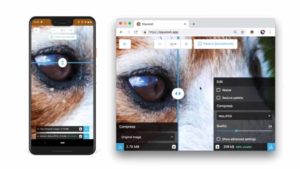
Squoosh is another browser-based photo editing program, although it offers a much more limited set of features than PIXLR or Gimp. Designed by the Google Chrome Labs team, Squoosh is designed to help you convert and optimize your images for publication across a wide variety digital platforms. If all you need to do is resize your image or make basic changes to the color palette then Squoosh is a good option that won’t intimidate you with a huge number of unknown features and buttons.
Say goodbye to Photoshop: Meet the 5 best online photo editing alternative
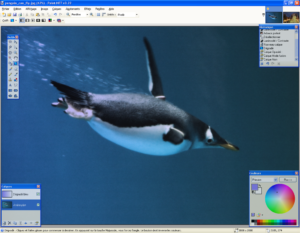
Another good free alternative to Photoshop that isn’t overly complicated is Paint.NET. If you’re an amateur photographer or if you’re looking for an image manipulation tool for a one-off project, then Paint.NET could be the option you’re looking for. That is unless you have a MAC as Paint.NET is only available on Windows. Paint.NET has a much gentler learning curve than GIMP while still offering, via plugins, access to a wide range of features including filters, masks, and layers.
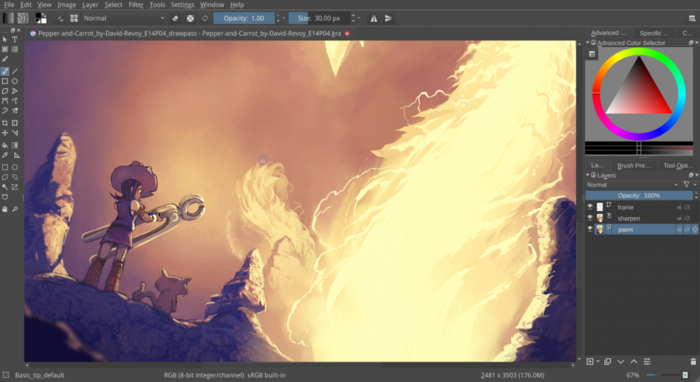
Like GIMP, Krita is another piece of open-source editing software. Krita works on Linux, Windows, and Mac but offers a lighter experience than GIMP even though it has received a lot of new features in recent years. Krita features include the ability to create and edit HDR images, which is a rather advanced feature and a wide array of brush customizations. This makes Krita a great program for digital illustrators.
SumoPaint is a very popular and very capable alternative to Photoshop. One limitation, however, is that it can’t work with the standard Photoshop PSD file. SumoPaint has all the usual features including text gradients, brushes, and whatnot and works with many different types of images including JPEG, BMP, GIF, and TIFF.
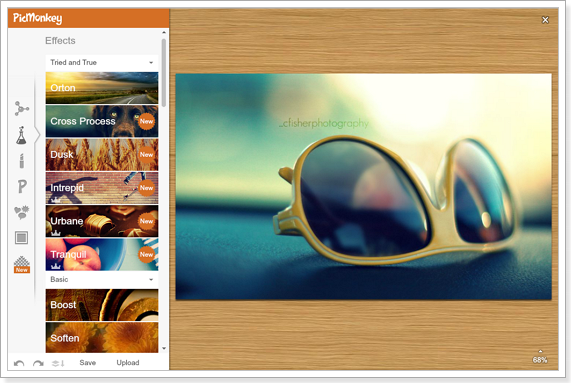
PicMonkey is another online photo editor that aims for the more socially-minded users. The interface is very simple and makes it very easy to perform basic edits and add text overlay and filters. PicMonkey isn’t going to rival Photoshop but it does offer simple editing mechanics and so isn’t too hard to get into. You can download it as an app on Android or iPhone and it also has a Google Chrome extension too.
A much more professionally minded piece of software built with graphic designers in mind is Inkscape. Inkscape is great for illustrators as it is optimized to work with vector images. Inkscape provides a great way to transform photos into vector images but it also has a range of more customary features like cropping and cutting and pasting. Technically, Inkscape is more of an alternative to Adobe Illustrator rather than Photoshop but it is still worth a mention.
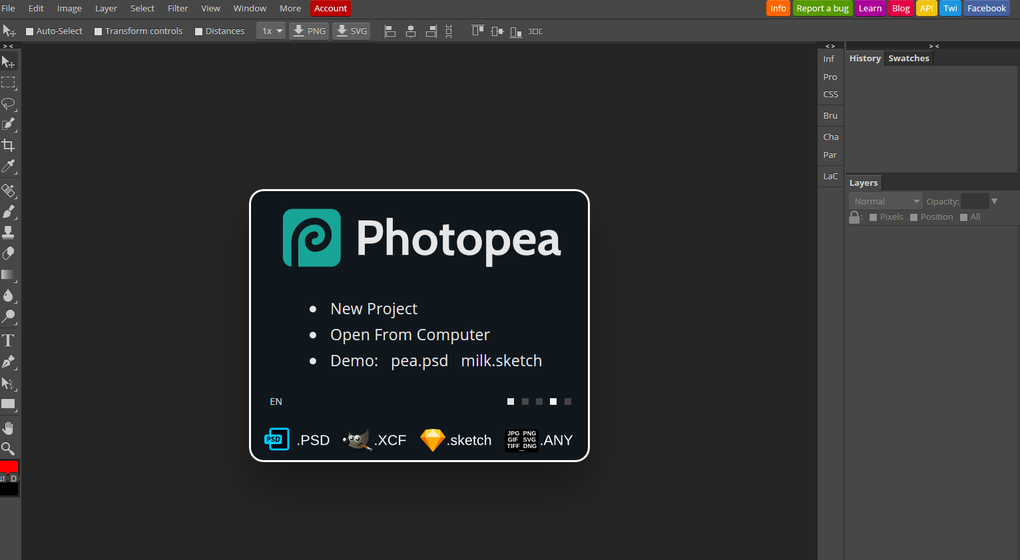
Our final entry into this list is Photopea, which is another online photo-editing tool. Photopea looks very similar to Photoshop and even works with the standard Photoshop PSD file meaning you could work across the two platforms if needs be. Photopea also has many advanced features like vector graphics support and advanced layering meaning it is a credible alternative to Adobe Photoshop. The main problem, however, is that the program is funded by ads. This means you’ll either see a lot of ads that will encroach on your work surface or you’ll have to pay a $9 per month subscription to get rid of them.
There you have 9 great free alternatives to Photoshop. The important thing here is to consider what type of photo editing project you need to work on. If you’re looking for a program to perform basic image editing for social media then a program like Squoosh, PicMonkey, or Paint.NET could be all you need. If, however, you need a more rounded experience that you could use professionally, you should definitely look into the likes of GIMP, Krita or PIXLR.
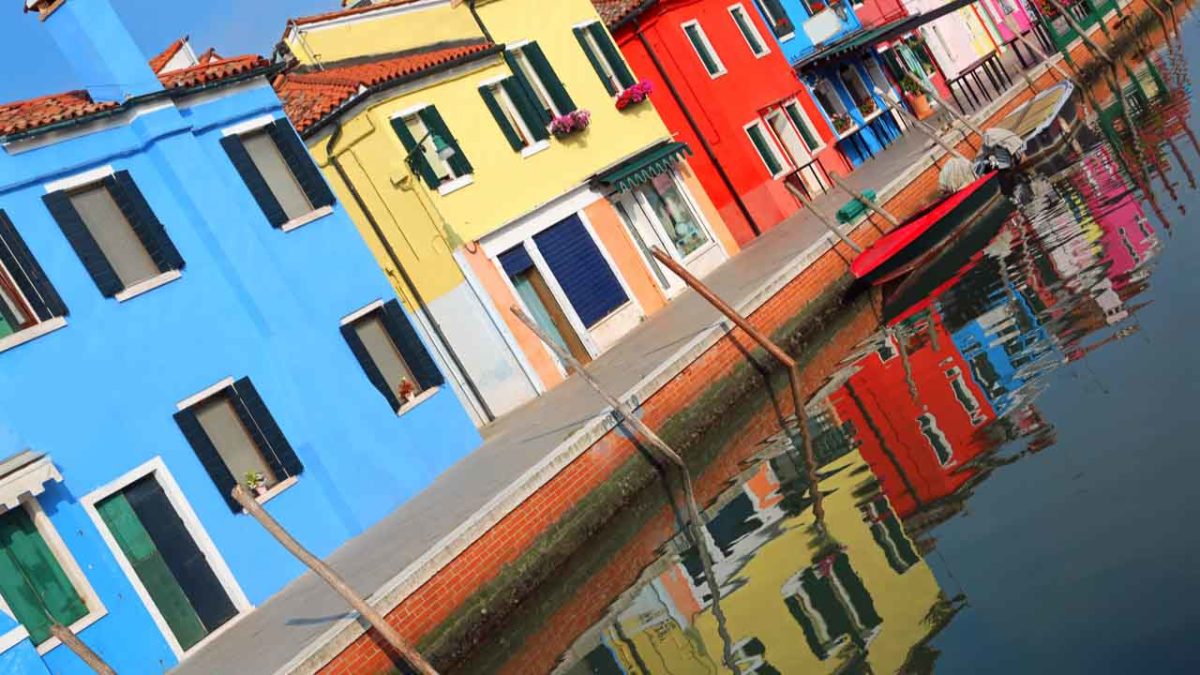
Maybe you’re in a hurry to snap a sunset photo. Maybe your tripod wasn’t quite level. Maybe you handed your camera to a stranger and they tilted at the last moment. Whatever the reason, you’re stuck with an angled picture.
Thankfully, there’s a quick and easy way to straighten that image horizontally or vertically in Adobe Photoshop! Just follow these simple steps.
1. Import your photo in Photoshop: File > Open > select your image
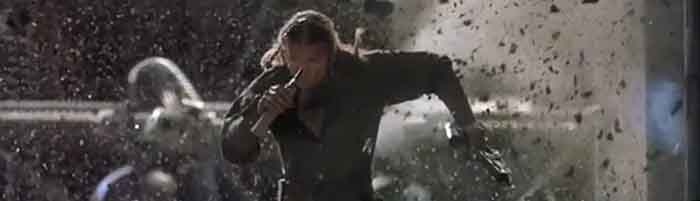
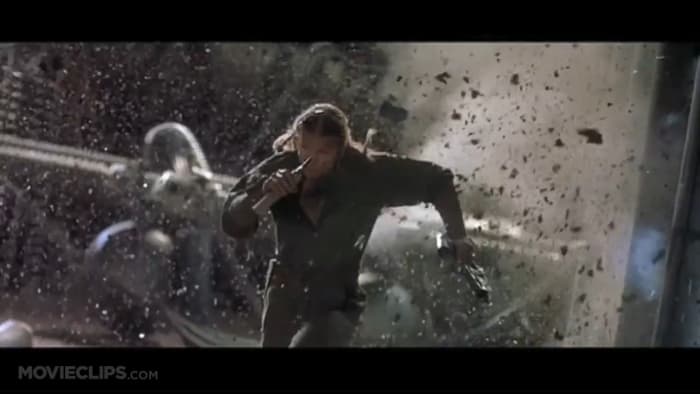
For the purposes of this tutorial, we’ll use a screenshot from “Battlefield Earth” because that entire movie was shot at a Dutch angle for some reason.
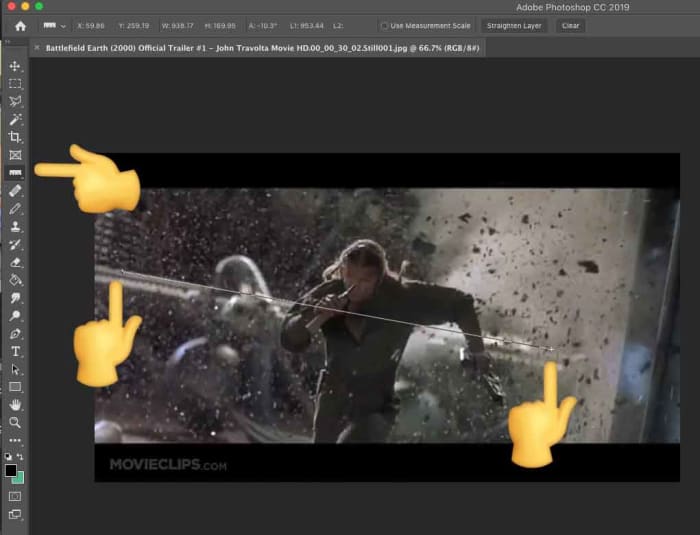
2. Left-click the Eyedropper Tool on the left side and select the Ruler Tool
3. With the Ruler Tool selected, you’ll simply make two clicks. See if you can find a horizontal straight line in your image. Maybe it’s a windowsill or a door frame. Anything that is level in real life will work.
It can also work with a vertical straight line – the side of a building or a flag pole can come in handy here. We’re going to draw a line along anything straight.
Click on one point of the line that should be horizontal, then click on another point in the image that should be horizontal, like this:
After your second click, a temporary line is left behind. That’s what Photoshop will use to straighten the image.
4. Go to Image > Image Rotation > Arbitrary
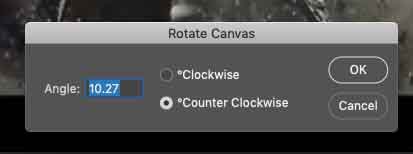
When you click it, it does the math to rotate your image perfectly.
Click OK.
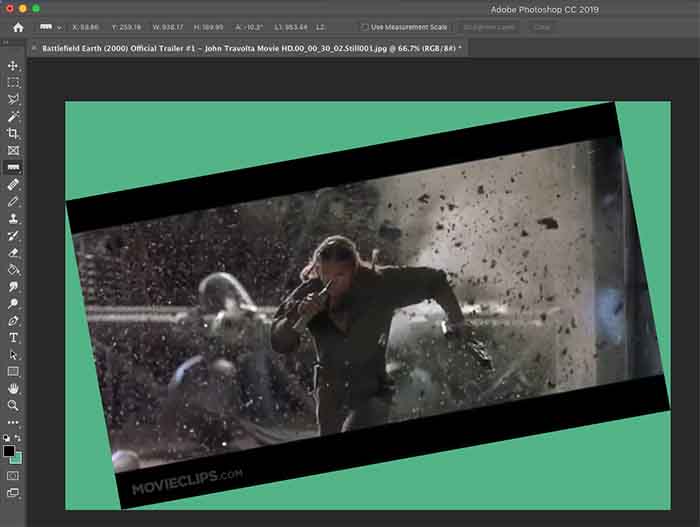
5. Boom! Your image has been rotated. Photoshop expanded the canvas to fit the whole image. Because we made our line along that metal rail in the back, it is now level.
6. Obviously, we don’t need all that extra image, so let’s crop it down. Select the Crop Tool, then click and drag a box around just the image you want to keep.
7. Press Enter and all the distracting stuff goes away.
Look at this beautiful final result of Barry Pepper running away from what could have been a bright future in Hollywood!
If you’re stuck without a horizontal or vertical line to get your photo straight, you can always free rotate that bad boy until your crooked image looks right. In that case, select your entire canvas, then go to Edit > Transform > Rotate. You’ll be eyeballing it, but at least you can come close!
Before you post your next photo online, run it through Photoshop Express to make it stand out!
Photoshop Express makes your photos pop by enhancing the lighting, sharpening edges, providing clarity, toning down harsh colors, and bringing out vibrancy. It’s a great app for photo collages, too! If you’ve been on any social media site for a while, you’ve probably seen photos that could use this treatment: legitimately well-taken pictures that are just plain hard to see!
If you enjoy taking pictures on the go, don’t let this happen: grab Photoshop Express – a free photo editor app from Adobe’s Creative Cloud – and start improving your photos in no time!
Once you’re finished, you may need to create an account before starting your photo editing. After that, you’re all set!
Moving on…
On opening the app
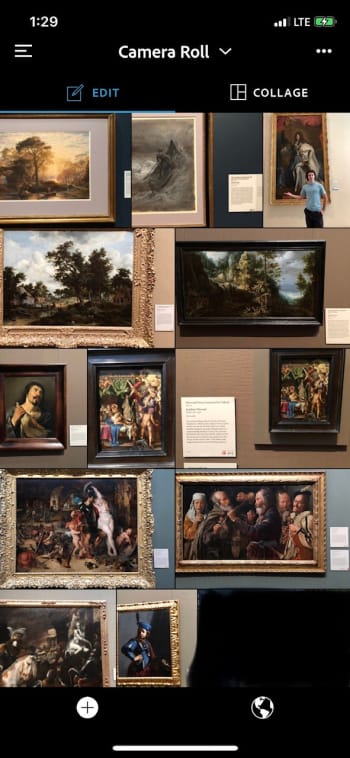
Welcome to the camera roll!
If you allow Photoshop Express to view your pictures, this environment will have a number of snapshots to choose from; in this case, a selection of pictures from our trip to The Getty Museum. Good times!
A few more things:
If you want to select multiple images for a collage, you’ll need to go from “Edit” to “Collage”. This will allow you to choose multiple photos for organization.
The menu bar at the top left will have account details, preferences, and info on Photoshop Express. If you’re looking to change an accessibility aspect, enable push notifications, or something else of that nature, head to this location first.
Clicking the world icon at the bottom left opens the “Discovery” menu. Search through pictures, collages, and other photographic creations from people around the globe! We don’t visit often, since we generally use Photoshop for specific photos, but maybe you’re the type of person to be inspired by impressive, user-generated content!
If you have your photo selected, let’s move on to:
The real important stuff
Let’s not beat around the bush, shall we?
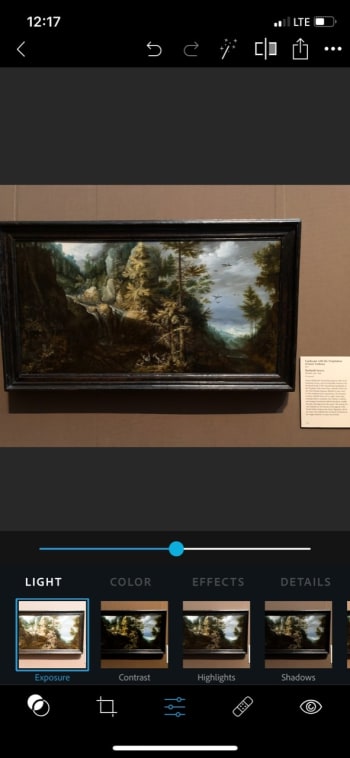
We recommend heading to the menu that looks like a triple slider: the lighting and effects tab. These options allow for the greatest control over your picture’s general quality, from lighting to color and definition.
(We’re operating on the assumption you already resized the photo in Apple photos. If not, there’s an expansive menu for this just left of the sliders.)
As you can see, the first group of settings influences light, and the premier option in this group is exposure. We recommend going from through each and every one of these details! Play with the sliders, see what the effects look like, and decide what works.
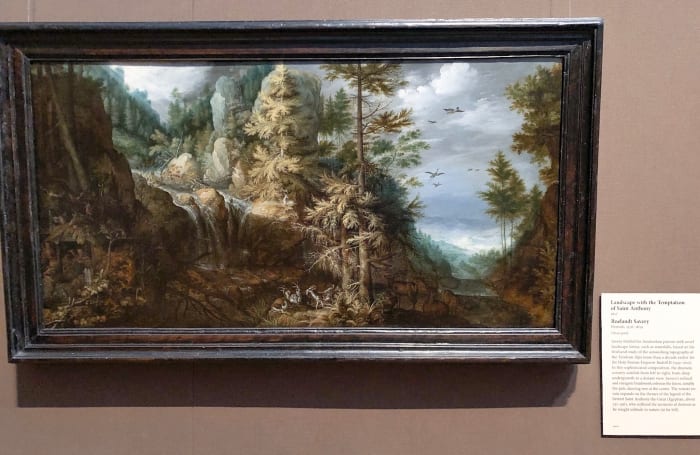
From the photo above, we brought out a lot of detail in Roelandt Saver’s “Landscape with the Temptation of Saint Anthony.” In the original, many parts are so dark it seems the sections have lost their clarity altogether. But after a little work, it looks far better and, most importantly, closer to the painting’s actual appearance:
Congratulations! With the slider settings alone, you vastly improved the quality of a photo and gave it a more realistic appearance!
But wait! There’s more…
A lot of other things
Photoshop Express has even more tools on hand. Let’s discuss them!
Just remember: these functions are designed to improve the quality of a photo, not for “shopping” it. You’ll have a far more difficult time removing that one relative to insert Chris Pratt than you would in Full Photoshop.
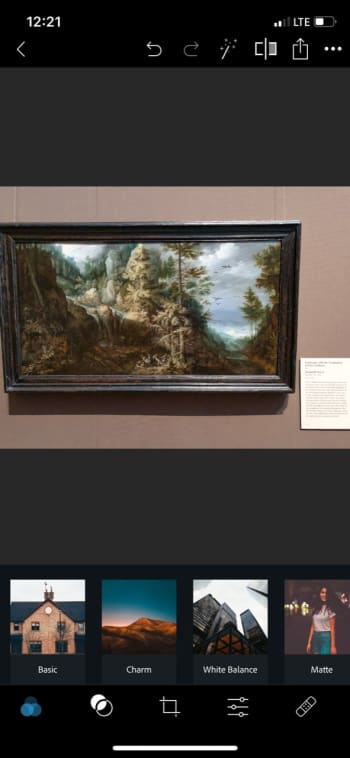
Before the slider tools, we’d like to highlight three things. The very first menu has your “looks.” These are preset filters much akin to Instagram’s tools.
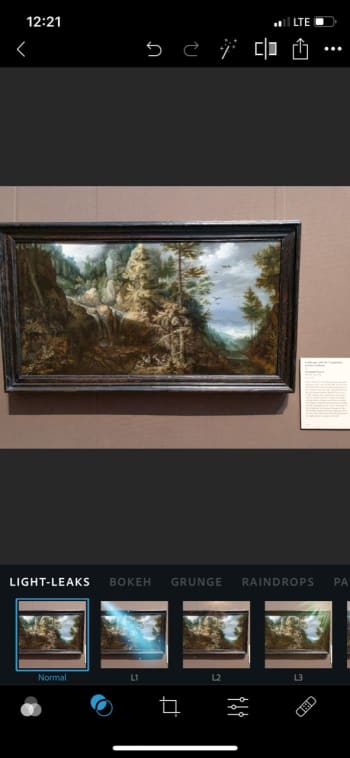
The next menu has light effects: add a spotlight, sparkles, raindrops, cosmos, and more! These are fun and silly, much like the snapchat things you can find.
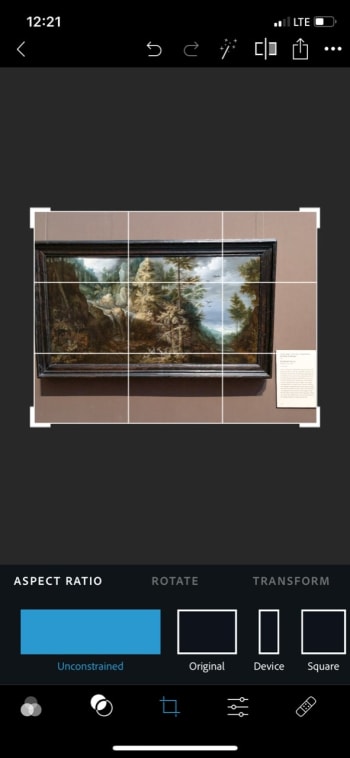
Finally, you have the crop tool! In addition to resizing, rotation, and transforming services, Photoshop Express has numerous photo ratios. Size your picture inside of anything from a square (great for Insta and icons) to profile covers for various web resolutions.
After the slide tool, there are even more options! At this point, we’re usually finished with our photo enhancements, but for the curious…
Bandage: remove unwanted areas with the blemish remover. At this time, the tool appears to be a bit finicky and difficult to use with a finger. Be careful, and use the undo tool as necessary!
The Eye: remove red eye and pet eye. You can do an auto-detect sequence, or click the eyes to select them.
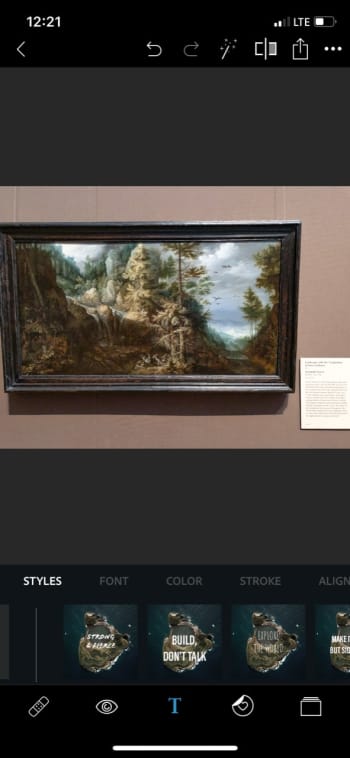
The T: add text! Are you creating an inspiring quote? A pretty aesthetic? A meme? Whatever the case, adding captions and quotes has never been easier! Choose your style of letter, then select the font, color, alignment and more.
Finally, at the very end, there are EVEN MORE OPTIONS. Aren’t you glad we focused on the most important stuff first?
Let’s run through these real quickly:
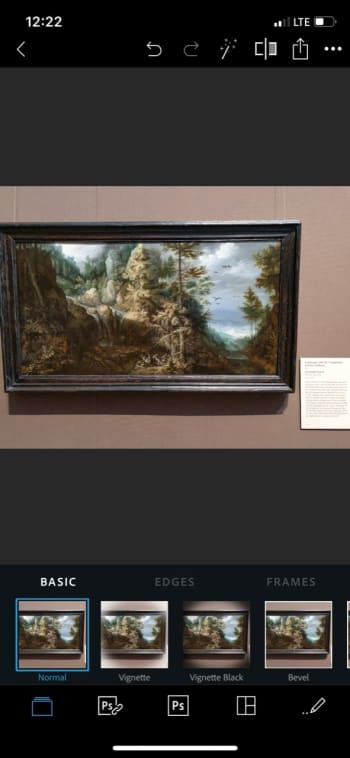
The stickers menu has stickers (surprise surprise), the frame tool allows for a vignette effect alongside multiple bevels and fancy edges – borders and frames, the two Photoshop tools respectively open a library of impressive effects and link to your Creative Cloud (these require a full subscription), the layout tool has a number of collage-esque inerts, and the pencil allows you to send your picture to other mobile Adobe apps for further development.
And that’s all, folks!
Conclusion
Adobe Photoshop has an enormously wide range of abilities. We use it to increase photo quality and hope you’ll decide to as well. However, for the projects that plan to go further, Express might just have those specialized tools you need. We hope you enjoy the process with this quick guide!























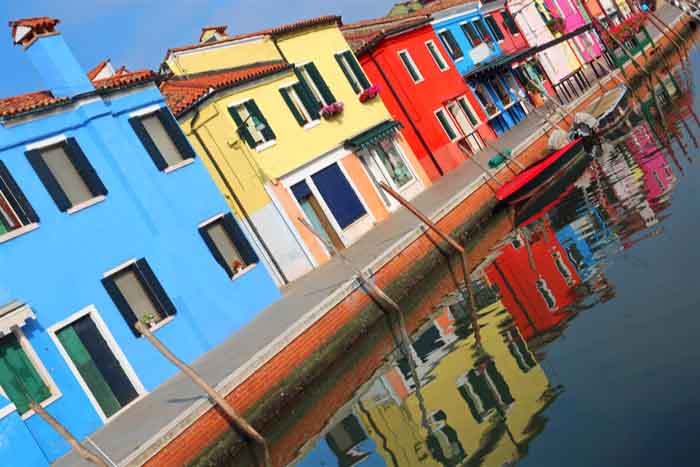 Maybe you’re in a hurry to snap a sunset photo. Maybe your tripod wasn’t quite level. Maybe you handed your camera to a stranger and they tilted at the last moment. Whatever the reason, you’re stuck with an angled picture.
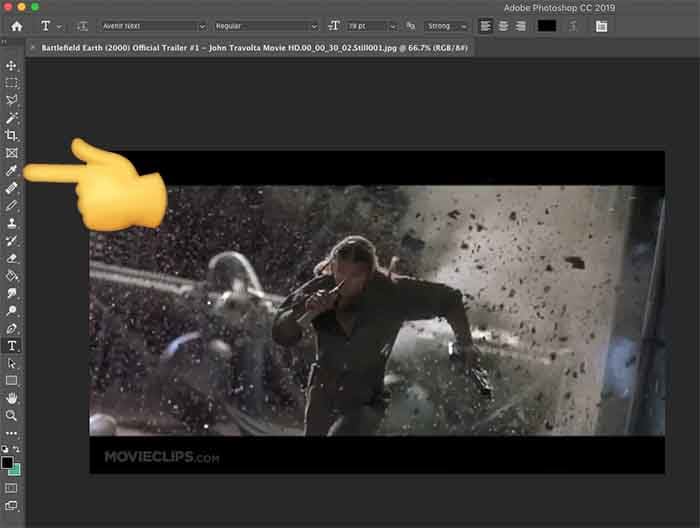
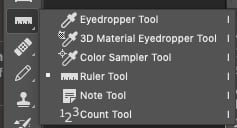 3. With the Ruler Tool selected, you’ll simply make two clicks. See if you can find a horizontal straight line in your image. Maybe it’s a windowsill or a door frame. Anything that is level in real life will work.
 After your second click, a temporary line is left behind. That’s what Photoshop will use to straighten the image.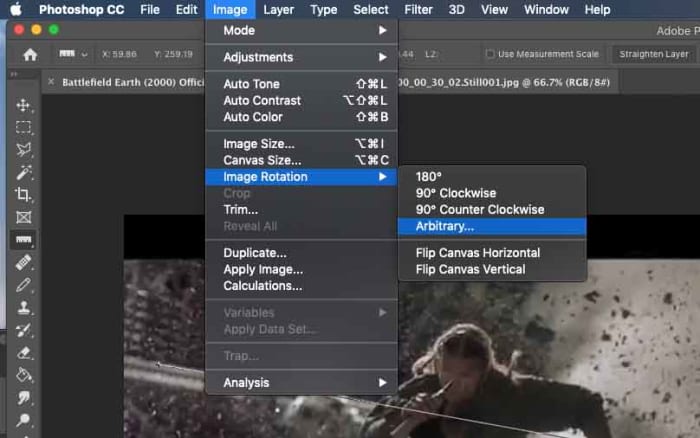
 Click OK.
 6. Obviously, we don’t need all that extra image, so let’s crop it down. Select the Crop Tool, then click and drag a box around just the image you want to keep.
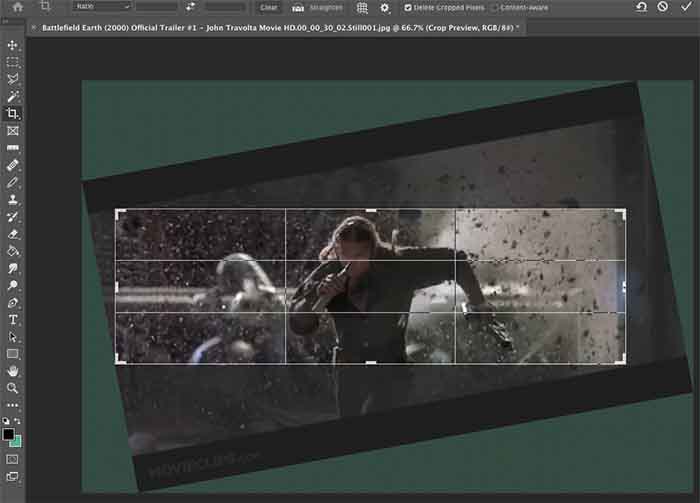 7. Press Enter and all the distracting stuff goes away.