With more than one billion active users every month, Google Chrome is inarguably the ultimate browser in the market today. While there are other critically acclaimed options such as Mozilla Firefox, Microsoft Edge, and the recent Brave, Chrome is still the default browser for most people who spend long hours on the internet. The reasons for its success are simple: it’s fast, it uses few resources, it allows easy synchronization with your Gmail account while obviously giving you the peace of mind that comes with using a Google product.
While many of us use Google Chrome on a daily basis, not everyone is thoroughly familiar with all of its features. In addition to being a truly efficient browser, Chrome comes with many tricks you can use to boost performance and make your hours in front of your PC far more productive. And not to mention all the improvements that come with its updates! Want to learn more about them?
In today’s article, we are going to review the new features on Google Chrome and some tricks to help you take full advantage of your browser. We hope you find them helpful!
First, make sure to update your browser
Before we dive into the best tricks and new features on Chrome, it’s important to make sure your browser is updated to the latest version. We recommend installing the Chrome Beta or Chrome Canary versions of Chrome, because most of the new features are only available on these versions for now.
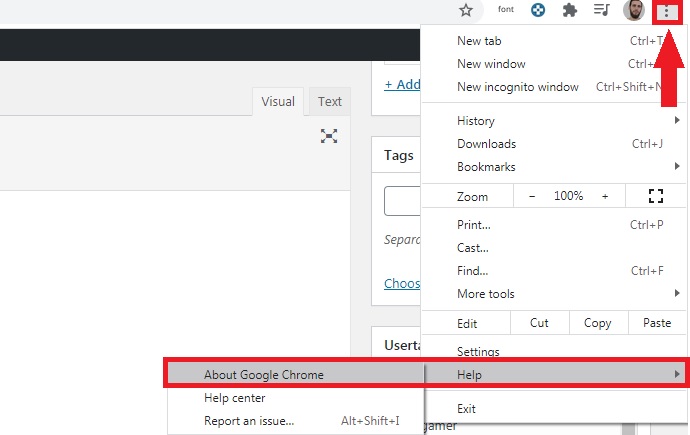
Updating Google Chrome is simple, just complete the following steps. First, click on the “Customize and control Google Chrome” button, which you can find in the upper right corner of the screen (three vertical dots). Once the drop-down menu appears, click on the “Help” option followed by “About Google Chrome.”
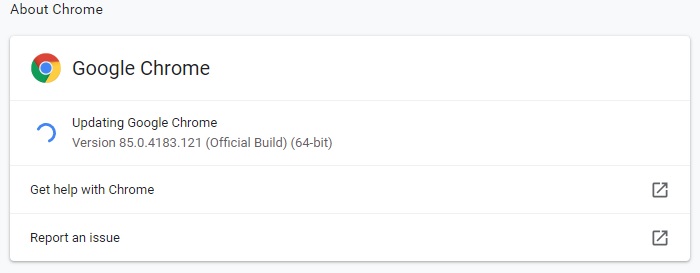
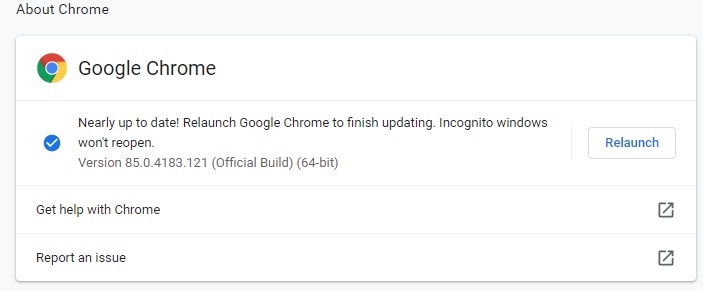
After that, a new window will open, and your version of Chrome will be analyzed. If a newer one exists, it will be downloaded and installed automatically.
If you wish, you can also choose to download and install the latest version of Chrome, Chrome Beta or Canary manually. Download it to your computer quickly and safely by using the links below.
- Google Chrome (official build)
- Google Chrome Beta
- Google Chrome Canary

Learn to access Chrome’s experimental features
Chrome constantly adds experimental features to both its Canary version and its official build. As they are tested, Google adds them to its build definitely so they can be used easily by all browser users.
To use some of the features we’ll mention in this article, you’ll first have to enable them through the experimental features menu. Want to know how to access it? It’s easy, just type “chrome://flags/” in your browser’s address bar and hit the Enter key.
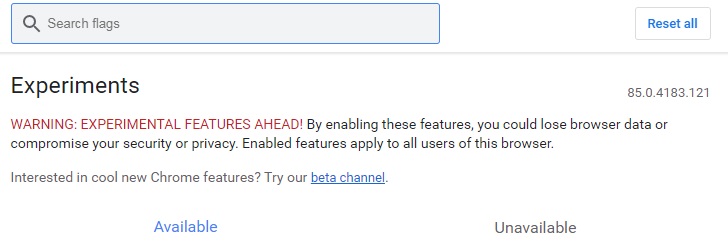
From the experimental features window, you can view a list of all the new features being tested in Chrome, which are disabled by default. To enable them, simply click the drop-down menu and select the “Enable” option. After that, you must restart Chrome for the changes to take effect. It’s that easy!
New features and tricks on Google Chrome
Now, without further ado, the following are some of the useful features on Google Chrome that you may be unaware of and that will exponentially improve your online browsing experience. Let’s have a look!
Tab groups
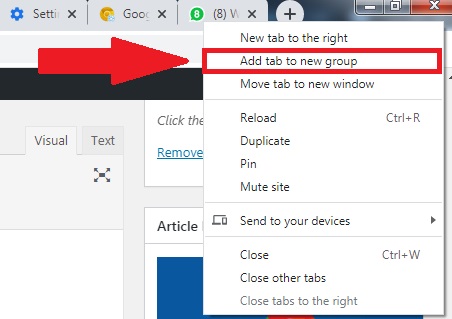 To access this feature, you have to first enable it in Chrome’s experimental window. You can find it under the name “Tab Groups.” This new feature lets you organize as many tabs as you want under a single tab, which you can give a name and a color. That way, you’ll always have your tabs handy at the click of a button on Chrome, whether or not you close the browser. This feature is especially useful for separating all the tabs you use every day at work; that way you won’t have to waste time searching for them among your favorites.
Quickly open any file
To quickly open any image, music or video file, you don’t need to open a player. Simply drag the file onto a Chrome page and the browser will take care of playing it.
Incognito mode
Browsers save by default a history of your searches and activities while you browse the internet. In theory, this gives you much faster access to pages you have already seen and also lets Google offer you personalized content tailored to your interests. However, not everyone likes having their browser constantly spying on them, and for this type of situation there is the so-called “incognito mode.”
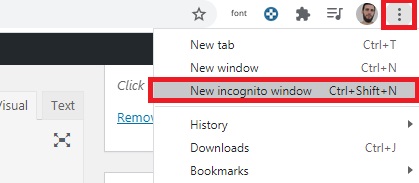 Accessing incognito mode in Google Chrome is easy. Just click the “Customize and control Google Chrome” button (the three vertical dots in the upper right corner of the browser) and then select “New incognito window.” Alternatively you can use the keyboard shortcut Ctrl + Shift + N. Now your browser will stop collecting information about what you do online.
Task manager
Just like your operating system has a task manager to check which programs are using your computer’s resources, Chrome has its own. To access it, click on the “Customize and control Google Chrome” button (the icon with the three vertical dots in the upper right corner of the screen) and click the “More tools” option. After that, a drop-down menu will appear where you must click the “Task manager” option. Or you can use the keyboard shortcut Shift + Esc.
Guest mode
Google Chrome is designed to synchronize with your Google account with all that this entails (access to your email, passwords, searches, use of YouTube, etc.). This is really useful if you are the only user of your computer, but it can be dangerous if you share it with other people.
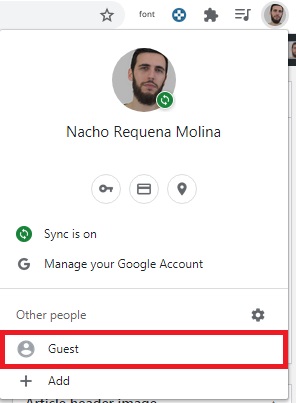 If someone asks you to use Chrome for a few minutes and you don’t want them to have access to all your private data, you can use guest mode. To do this, click the icon with your avatar in the upper right corner of the screen and, once the drop-down menu opens, click the “Guest” option. This will allow the person to whom you lend your computer to freely use the internet without snooping on your accounts.
Cast your screen to other devices via Chromecast
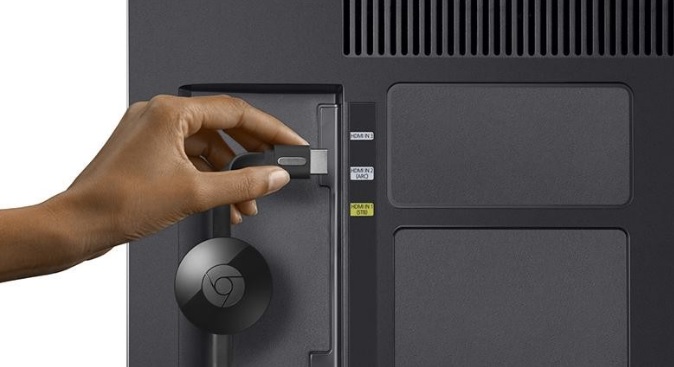
At one time or another, we have all wanted to send our computer screen to another device (whether it’s another PC or a smart TV) without much fuss. This is possible on Chrome thanks to the “Cast” option and its compatibility with Chromecast.
To use it, simply click “Customize and control Google Chrome” (the icon with the three vertical dots in the upper right corner of the screen) and select the “Cast…” option. Chrome will search for all Chromecast devices near your computer. Just select the one you want and your screen will magically appear on the other device.
Never heard of Chromecast? Don’t worry, we have an in-depth article about Google’s USB device. Just click the link below to read it.
Best Chromecast Apps
READ MOREControl YouTube from any tab
Google Chrome lets you control YouTube from any tab you have open. To do so, you only need to have a YouTube video open in one tab. In the upper right corner, you’ll see bubble-shaped icon appear with a musical note inside. If you click this button, you can play the video or go to the next track.
 This feature is especially interesting if you frequently use YouTube to listen to playlists while you work. You’ll no longer have to keep clicking on the tab with the video open; now you can pause the music or select a new track directly from the new button on your browser.
Search with your mouse
While browsing the internet, it’s likely that you’ll come across a word or a topic that you want to learn more about. Many of us go back to the Google page and type in the word, but there is a much easier way to do it in Chrome. Simply underline the search term with your mouse and right-click on it. When the drop-down menu appears, click on the “Search Google for X” option, where X is the underlined term. It’s simple as that.
Recover closed tabs
When you work on your computer, it’s normal to have many browser tabs open, whether you’re writing reports or searching for information. It also happens very often that you inadvertently close the tab that you needed the most, and you don’t know how to get back to it. Instead of tracking your entire history, you can recover a tab you just closed in a few clicks. Do you find that hard to believe?
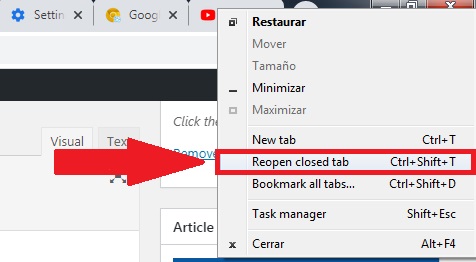
Right-click on the tab section of the browser and, once the drop-down menu opens, click the “Reopen closed tabs” option. Alternatively, you can also use the keyboard shortcut Ctrl + Shift + T.
Pin a tab
Continuing with tab-related features, if you usually work with many tabs open, you know that it can be a real hassle to find the one you need. To keep track of your most important tabs, you can pin them to your browser. This will make it easy for you to view them, and they will appear whenever you open the browser.
To pin a tab, simply place your mouse cursor over it and right-click. When the drop-down menu appears, select the “Pin” option. Now your tab will become an icon at the top left of your browser. When you want to get rid of it, follow the same steps as above but select “Unpin“.
Clean up your browser
Chrome is one of the fastest browsers on the market, so if yours starts to go slow, it’s a good idea to make use of its internal cleaner. To do this, click on “Customize and control Google Chrome” (the icon with the three dots in the upper right corner of the screen) and, once the drop-down menu opens, click the “Settings” option.
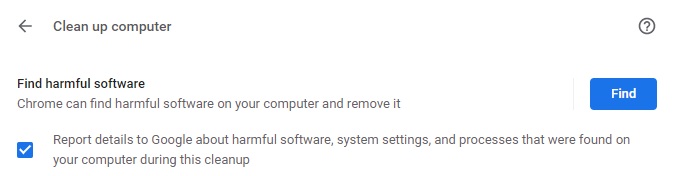
In the Settings window, go to “Advanced” and click on the “Clean up computer” option. Then Chrome will analyze your browser to search for harmful software that might be affecting its performance or jeopardizing your security and that of your data.
Create a desktop shortcut
In addition to being able to store websites in your favorites and pin them under tabs, Google Chrome allows users to create desktop shortcuts. To do so, just open the website you want to link to and click on “Customize and control Google Chrome” (the icon with the three vertical dots). Once the drop-down menu opens, select the option “More tools” followed by “Create shortcut.”
When you go to your desktop, you’ll see a new icon with the name of the website. Double-clicking on it will open Google Chrome directly to the page you want to visit.
We hope our selection of Chrome tricks and features has helped you. Don’t forget you can find many more features on Chrome’s “Experimental” menu. Remember they are still in the beta phase, and Google does not guarantee that they won’t cause glitches in your browser’s performance.
Do you know of any other hidden Google Chrome tricks or features that didn’t appear on our list? Tell us about them in the comments section!
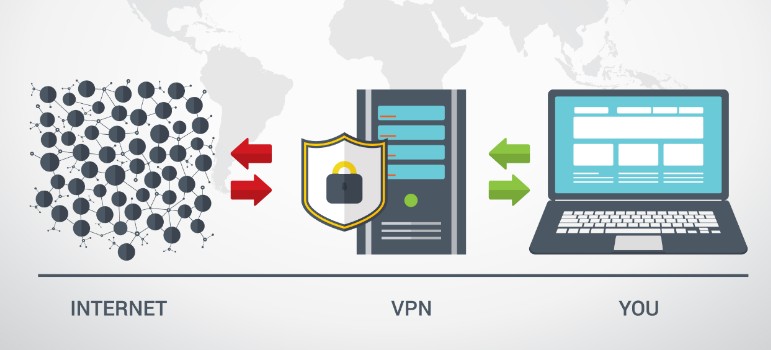
Best Chrome VPN extensions
READ MORE