How to identify fonts in any photo

“I love the font in this photo, but I don’t know what it’s called.” As you step into the exciting world of design and creative work, this question has definitely popped up in your head. And that’s completely normal: we all want to know as many font styles as possible, since they could be useful for future work and create a better end product.

If this question continues to puzzle you, don’t worry: we’re here to help. We’ve brought you the three best webpages or apps to find out the type of font used in a text, image or video.

What Font Is

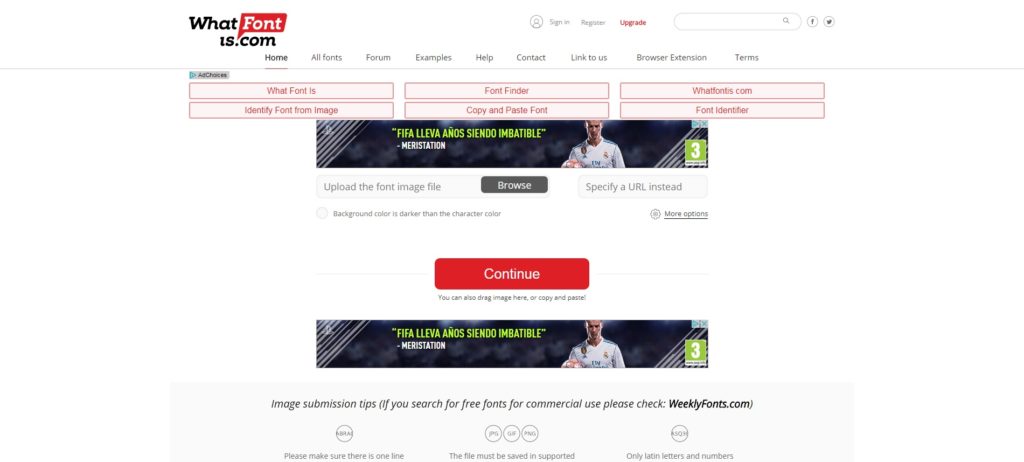
It may seem a bit uninspiring to just look it up, but it’s the best suggestion if you’ve got little time to write and/or design. What Font Is is a website that accomplishes the mission of this post, i.e. finding out the type of font we don’t know at the moment. The best part? It’s free and works well. Very well, in fact.

All you have to do is upload an image with text from your PC (or paste a link to the website in question) and the website will take care of the rest. Of course, we’ll give you a few tips to narrow the search.

Also, and this is important, it has a browser extension for Chrome and Firefox that lets us send over the font we want to look up. In other words, we’ll save time going to the website, since it will send the font directly through the browser extension.
My Fonts

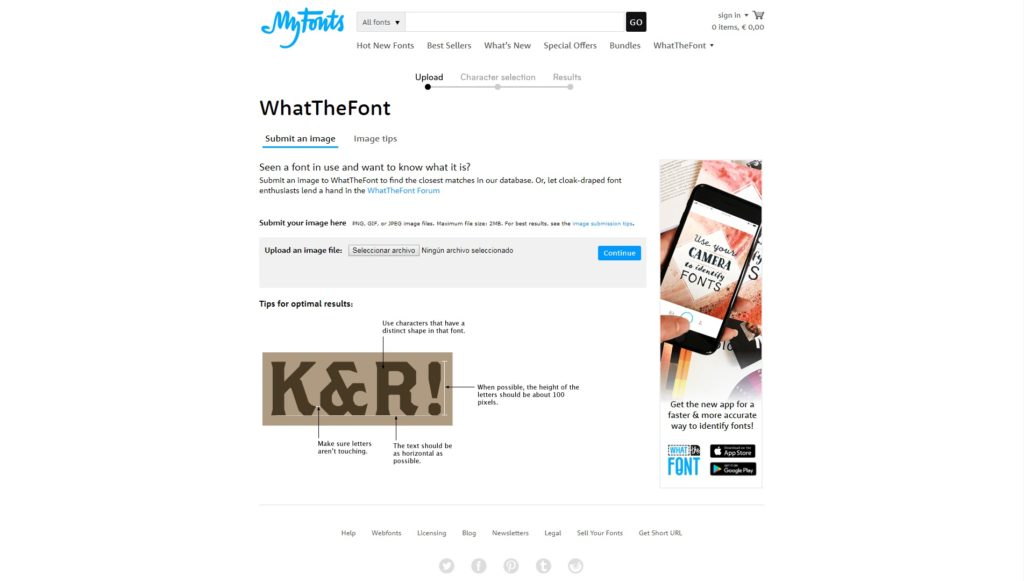
This one is almost identical to What Font Is, so we also recommend it for its high success rate: My Fonts. The mechanism is the same: we take a photo and upload it to the website. Once there, it gives us some results with the font in question used in the text.

We’ll point out that if the system doesn’t find the font we’re using, it will offer a series of alternatives that try to get at the result we want (ideal if it’s needed urgently).
Matcherator

This is the last, but not least on the list: Matcherator. Unlike its two rivals above, this website has the benefit of being regularly updated, which makes it easier to search for fonts more accurately.

Currently, for example, it has an advanced mode, an image editor and can detect less common font types within standard templates on the internet.

Also, its system is similar to the previous two: you upload an image to the platform and it comes back with the font to download. Moreover, it lets you detect typeface on websites with a higher success rate than the other two rivals (especially in this area).

Now you’ve got this complete guide for detecting fonts, so you won’t be in a rush when looking for the design that’s just right.
How to display Unicode languages in Windows

Languages like Chinese, Korean, and Vietnamese, based on symbols as opposed to letters, can frequently run into display issues on Windows.

Displaying these language symbols requires a standard system called Unicode, which according to Wikipedia, “is a computing industry standard for the consistent encoding, representation and handling of text expressed in most of the world’s writing systems.” The standard includes a big set of languages including right-to-left scripts like Arabic.

If you want to display foreign languages in Windows, however, the operating system isn’t always the problem. Some programs aren’t designed to display different languages. On the web, browsers take encoding information from the website, but if the browser can’t read the correct information, then Unicode won’t display properly.

This doesn’t mean that you can’t display them though. To get Unicode to display in Windows and your browser only takes a few steps.

Windows Region Settings

A frequent problem is programs that don’t support Unicode, but making it work is actually quite simple.

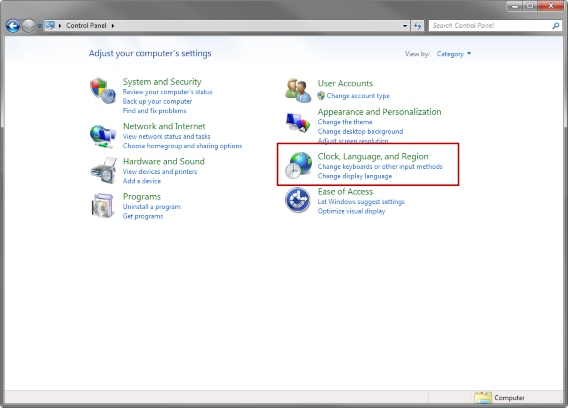
Go to Control Panel and locate Clock, Language, and Region.

windows control panel clock language and region

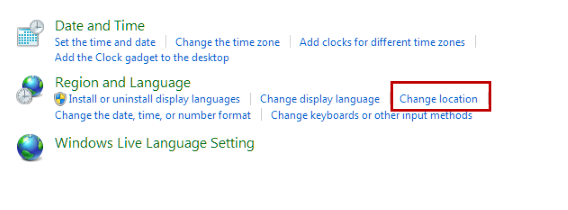
Select Change location.

Change location

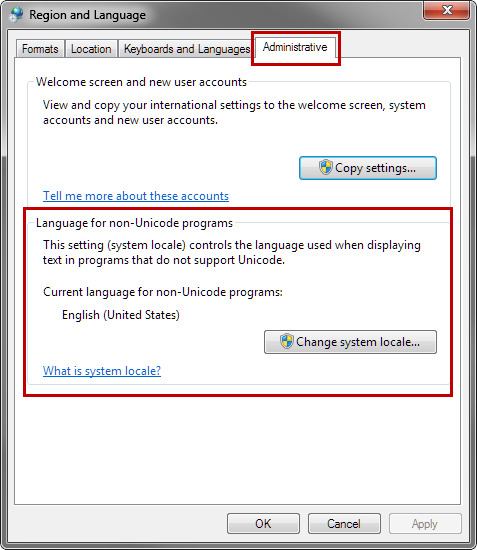
The Region and Language menu will open. Choose the Administrative tab. In this tab, you’ll see Language for non-Unicode programs. Select Change system locale. Note that you need to be the administrator to change the system locale.

Region and Language

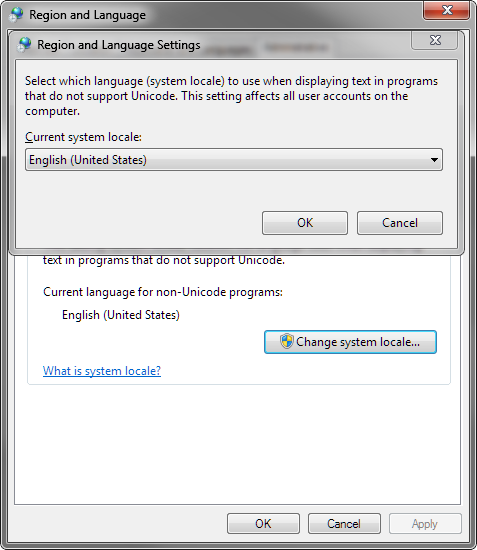
Choose the appropriate location for the language you want to display. You may need to restart Windows for the changes to apply. Now, you should be able to view the language that wasn’t previously displaying in the program.

Region and Language Settings

Generally, you won’t ever need to change this setting for recent programs, but older programs may have problems.

Check out the video tutorial below for changing language in Windows 8.

Default player


brightcove.createExperiences();

Google Chrome

If you upgraded to Chrome 64-bit, there may be a bug within Chrome that’s causing errors when displaying Unicode. I found this problem when trying to read Korean. The fix that appears to be working is disabling DirectWrite within the developer section of Chrome 64-bit.

If you’re using an older version, you may still have some problems, but here’s how to display Unicode within Chrome.

Auto-detect encoding in Chrome

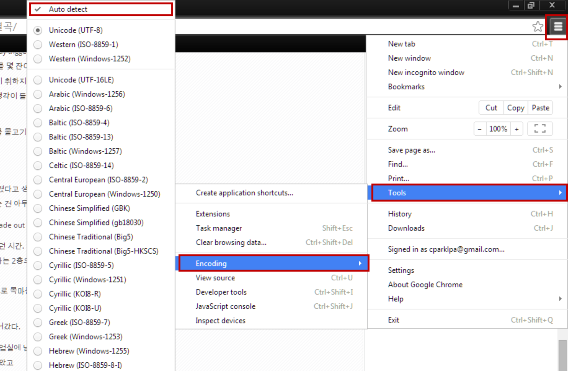
Chrome has built-in support for a lot of languages, and it can get annoying to switch between them. The best option is to set Chrome to Auto detect language encoding. Follow this flow to select the auto detect option:

Chrome Menu (three bars) > Tools > Encoding > Auto detect.

google chrome auto detect encoding

This can impact Chrome’s speed because it has to check every site you visit, but it shouldn’t get to the point where you notice a huge drop in performance.

Mozilla Firefox

Recent versions of Firefox don’t have direct options to control Unicode. Instead, the browser can allow sites to choose their own fonts. This is active by default, but here’s how to make sure the option is enabled.

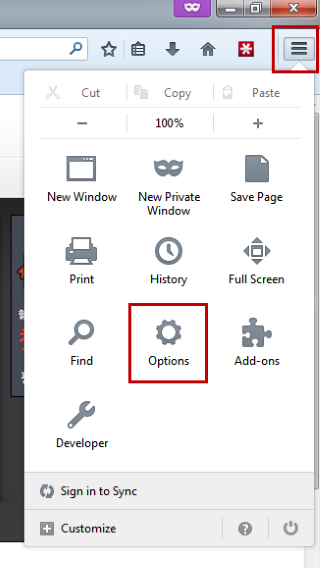
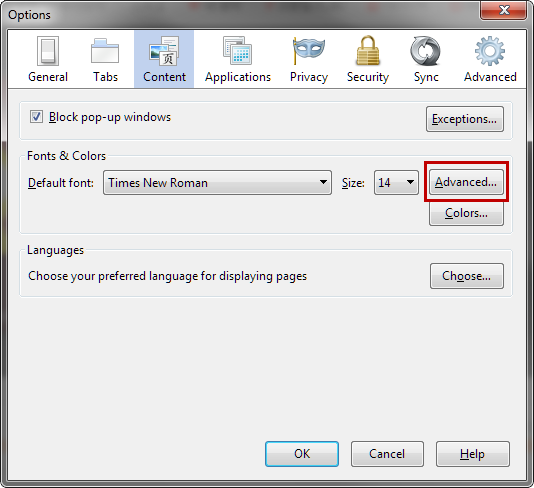
Select the options menu (three bars) and click on Options. Under the Content tab select Advanced.

firefox options

Under Advanced is the Fonts option, where you can set default fonts.

firefox options content advanced

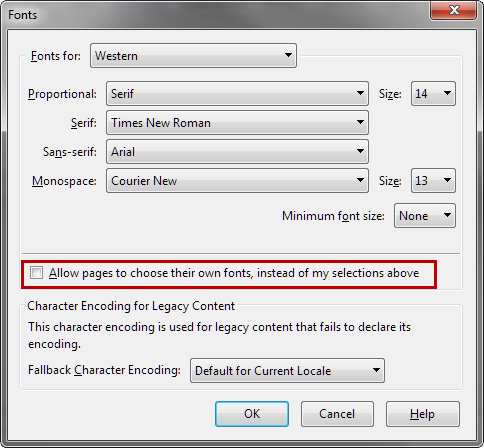
Under the set of fonts, check to see if Allow pages to choose their own fonts, instead of my selections above is selected. If that option isn’t checked, Firefox will display the fonts selected above that, which can make pages display incorrectly.

firefox options content advanced choose your own fonts

With the option selected, Firefox will display the site’s fonts. In the case of Unicode, Firefox should be able to display any Unicode fonts that exist.

Internet Explorer

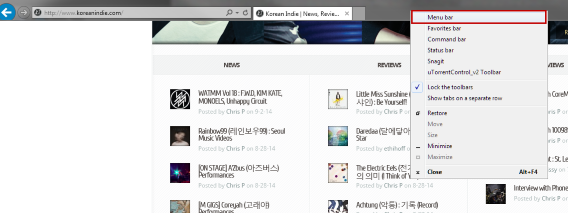
If you use Internet Explorer, then you have a similar option like in Chrome. You will need to use the Menu bar, which isn’t shown by default in Internet Explorer 11. Enable the Menu bar by right-clicking with the mouse in the header.

internet explorer menu bar

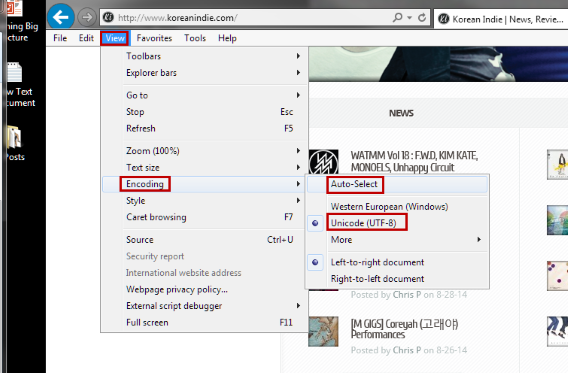
Click on View, then find Encoding. By default, Internet Explorer 11 has selected Unicode (UTF-8) and that should cover most languages. If you ever run into a problem, you can enable Auto-Select. This option will automatically choose the correct encoding for the page.

internet explorer menu bar view encoding auto select

Unicode compatible

Unicode isn’t something people think about if they view the same pages all the time, but if you know another language and browse other sites, you can run into this problem. Although most programs support multiple languages, and web browsers are designed with Unicode support, the problems can emerge with older programs or sites that don’t push the right information.

You shouldn’t have issues with Unicode if you’re running the latest software, but there are always possible problems like the case of Chrome 64-bit. Make sure that when you update your browsers, you check the settings to make sure they aren’t changed, or you could run into problems.

Related Articles

What you need to know about syncing photos in iCloud

Office Tip: access your Word, PowerPoint and Excel documents online

Stop ignoring Android app permissions

Follow me on Twitter: @chrislikesrobot