
6 best tips to stay safe while shopping online

Don’t let your data leak. Use these tips for a safer shopping experience.

online shopping

We buy just about everything online these days. If you’re not careful, your financial data could end up in the wrong hands. If you’re worried about the safety of your private information, we have a few tips that will help put you at ease. It may be as simple as making the right browser choice.

How to stay safe while shopping online

1. Be careful with Autofill

Honestly, autofill is probably one of the best things to ever happen to people who shop online often. Having to add your information to a website repeatedly in order to check out on different websites is pretty annoying, and auto-populating really helps out. Even so, autofill requires some of your data to be saved and can leave you open to dangerous activity.

Choosing the right browser is one way to protect yourself. For example, Firefox ensures your safety by never saving your CVV number, allowing you to set a password before your information can be autofilled, or you can forego having your information saved altogether. Learn more about the autofill feature here.

2. Check for the padlock

Before sending any private information over the internet, especially banking or credit card information, make sure that there’s a green padlock in the address bar.
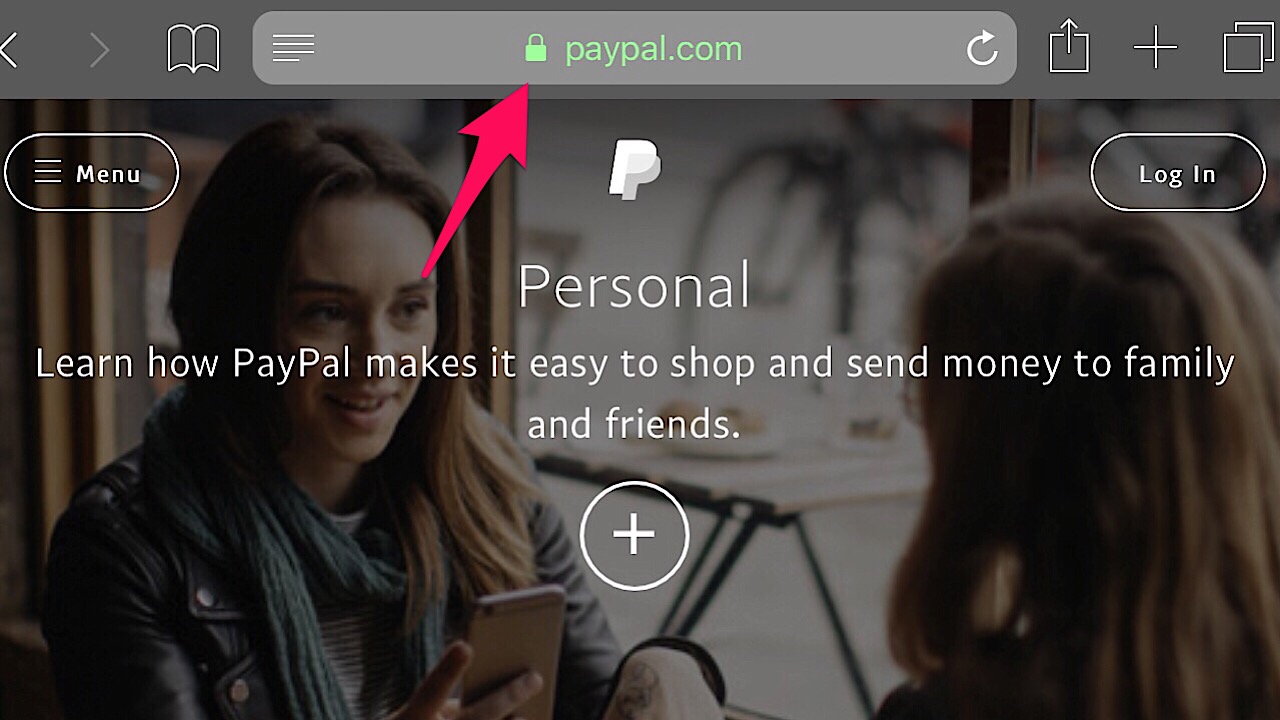
Paypal screenshot

If there’s a green padlock then you’re all good to go because it means that the website is encrypted, but if it’s grey or red, the site isn’t secure.

3. Stealth Browse

Shopping in private is the best way to go. Firefox can help here, too. With their Private Browsing Mode, your entire browsing history will be erased when you close the window. This includes your passwords, searches, and cookies. Private Browsing Mode also blocks any site’s trackers keep tabs on you after you’ve left the site. Click here for more info on the Private Browsing Mode and to download Firefox.

Mozilla Firefox DOWNLOAD FREE
8

4. Save money with Price Wise

Instead of going back and forth from website to website to compare prices, Firefox’s Price Wise does all of the work. Price Wise collects and tracks the prices from the top five U.S. retailers: Amazon, eBay, Home Depot, Walmart, and Best Buy. Just add the item that you want from each site to the extension’s wish list and you’ll be able to see if the price increases or decreases. Learn more about Price Wise and other cool extension experiments in the Firefox’s Test Pilot Program here.

5. Screen for hackers

Even if you’ve been exposed to a data breach, all hope isn’t lost. One way to check to see if this has happened with Firefox Monitor. Over on the website, you can enter your email address and it will let you know who, when, and where your information got spilled. If your information is in the open, the page provides some really helpful steps so it doesn’t happen again.

6. Keep track of all your tabs

While shopping, you’ve probably added a ton of different products to your wish lists and it’s easy to get a little overwhelmed. Firefox’s Email Tabs takes the stress out of shopping by giving you the ability to add all of the links to your tabs to one email. After you’ve downloaded the extension, just select which of your open tabs you’d like to send, and bam – done!
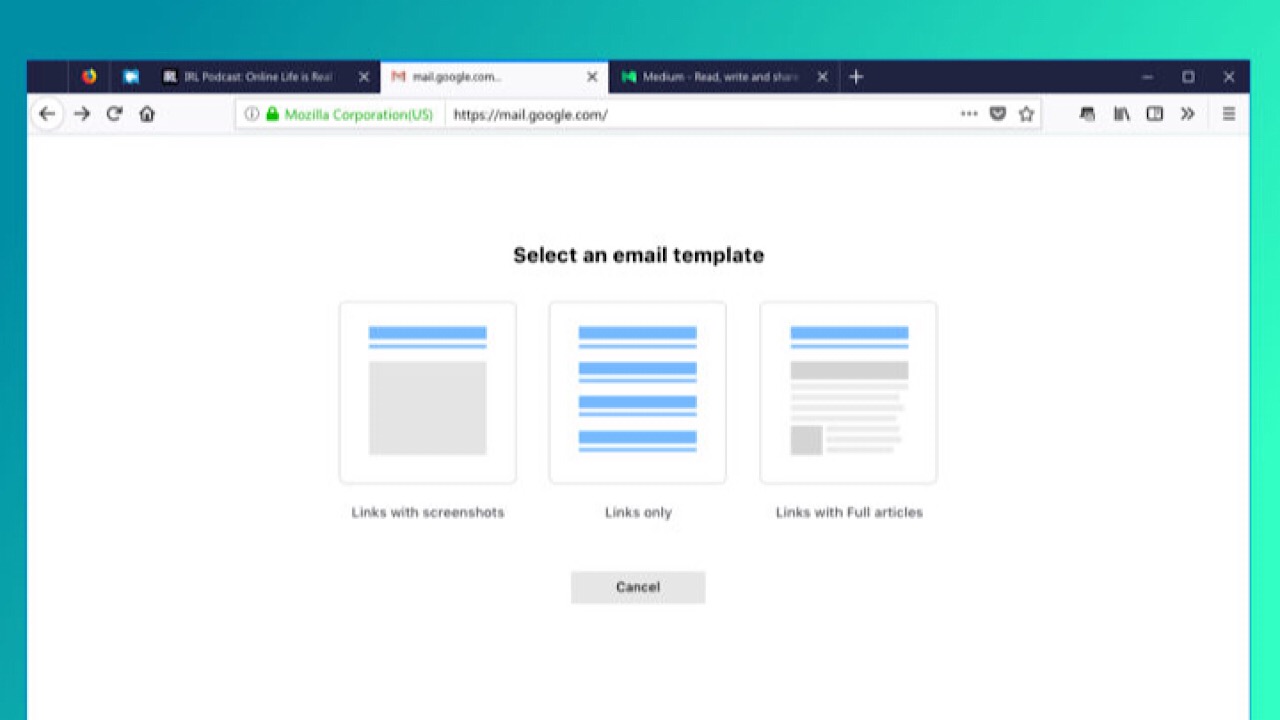
If you don’t want to send the links, you can send a screenshot of the web page instead.

With these simple precautions, you’ll keep the bad guys at bay and make sure your future transactions go as smoothly as possible. Happy shopping!
12 ways Firefox can defend your data against internet threats

Discover how these Firefox tools can keep your data safe.

firefox security

There are a ton of different things we can do to secure our privacy online, but if you’re like us, you probably want the simplest, safest solution. Thankfully, Firefox has many different add-ons to choose from to customize your browser and create your own unique type of safety.

A closer look at Firefox’s enhanced security options

Multi-Account Containers

If your browsing habits are different at work and home, you should look into Multi-Account Containers. Create a tab and group your favorite websites together (for example, travel websites or vegan recipe blogs) for convenient access. No more having to open 10 tabs one at a time. Each tab is a different color, and cookies aren’t shared between tabs so you can answer your work emails in one tab and visit a few dating profiles in the other. This way, if a friend or family member wants to use your computer, they can visit a webpage that you might also have an account for and it won’t automatically sign you in. This is the ultimate extension for multitaskers.

Mozilla Firefox Free Download
7
Mozilla Firefox is a free, open-source web browser. Now with new features, faster and more secure.

Facebook Container

Do you ever get on Facebook and see an ad for something that you Googled yesterday? Everyone has a Facebook page, but for the last few years, it seems like the social network has been playing fast and loose with our data. Downloading Firefox’s Facebook Container extension will make it difficult for Facebook to track your online activity by isolating your identity into an entirely separate container.

Bloody Vikings!

No matter what we sign up for, usually it will require giving our email address even if we don’t need to receive emails to use the service. With the Bloody Vikings! extension, you don’t have to worry about sharing your private data because you won’t have to. Right click on the box when you’re prompted to enter your email and Bloody Vikings! will give a temporary email address and open that email in a separate tab in case you have to verify it to use a service.

Cookie AutoDelete

This is as simple as it gets, but it’s incredibly useful. When you close a tab, Cookie AutoDelete will delete any cookies from the web pages that aren’t being used anymore. You’ll reduce the amount of data being held by web pages, and you can also whitelist sites that you trust.

Decentraleyes

Decentraleyes logo

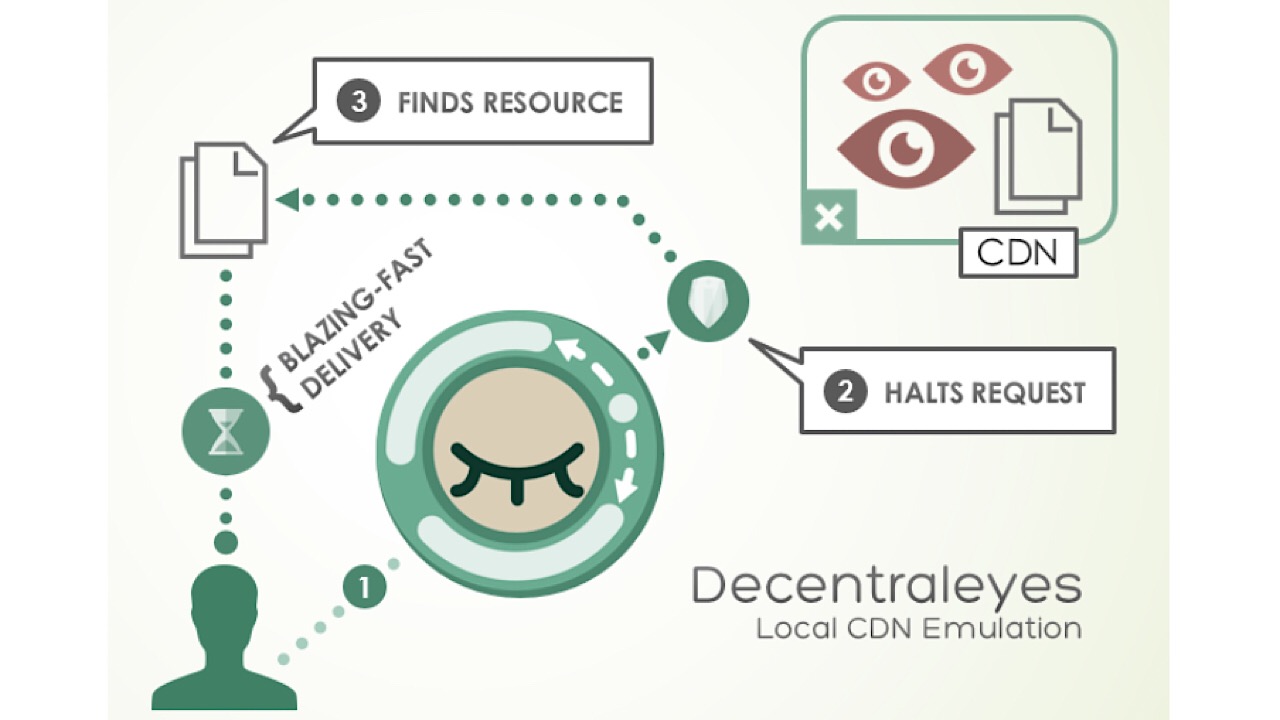
Surf the web privately and don’t leave a single footprint. Decentraleyes protects you against tracking by third-party web pages by canceling the requests from those pages for trackers and ads. When you receive content from a website, this extension bundles them and delivers them quickly to keep your downloads private.

Disconnect

Disconnect was named one of the best privacy tools by the New York Times, and for a good reason. Get an alert when a website is attempting to track your movement and browsing history, then block them. Some of the websites that you trust the most could be retaining some of your information.

Disconnect for Facebook

All of the protection from the original Disconnect extension, but this time specifically for Facebook. This version of the extension is a firewall that blocks third-party websites from accessing your information and Facebook activity. Even though Disconnect for Facebook will be running while you’re using the website, it won’t affect any of the functions.

DuckDuckGo Privacy Essentials

DuckDuckGo logo

Block tracking, ensuring smarter encryption, and using a special private search are just a few of the things that are included in DuckDuckGo’s Privacy Essentials.  This collection contains tools  to help you take control of your private information, no matter what you’re doing on the internet. A toolbar included will give you a privacy rating for each website that you visit, and you can simplify the tons of paragraphs that make up a service’s privacy policies before you take the plunge and sign up for that service. There are a ton of things you can do with DuckDuckGo, and everything is made simple so you aren’t stuck at your computer, reading the fine print.

Mozilla Firefox Free Download
7
Mozilla Firefox is a free, open-source web browser. Now with new features, faster and more secure.

History Cleaner

With History Cleaner, you can choose how long your computer keeps your browser history before it is deleted. If you want to turn off or pause the extension, just set the number of days to zero.

Link Cleaner

Long URLs in a tweet or Facebook post can make them an eyesore. Use Link Cleaner and your URLs are transformed into a link that is short, sweet, and without tracking parameters.

Privacy Badger

Privacy Badger logo

No more keeping track of what to block. Privacy Badger watches closely as you browse and automatically learns which domains are tracking you and deletes them. If you have Do Not Track enabled already, some sites might ignore your request not to be tracked, but Privacy Badger is built to catch and block those domains as well.

Privacy Possum

Similar to Privacy Badger, but a bit more mischievous. When a third party attempts to collect your data, Privacy Possum makes short work of the activity by reducing the data being taken and falsifying it. Take that!

Smart HTTPS

Smart https photo

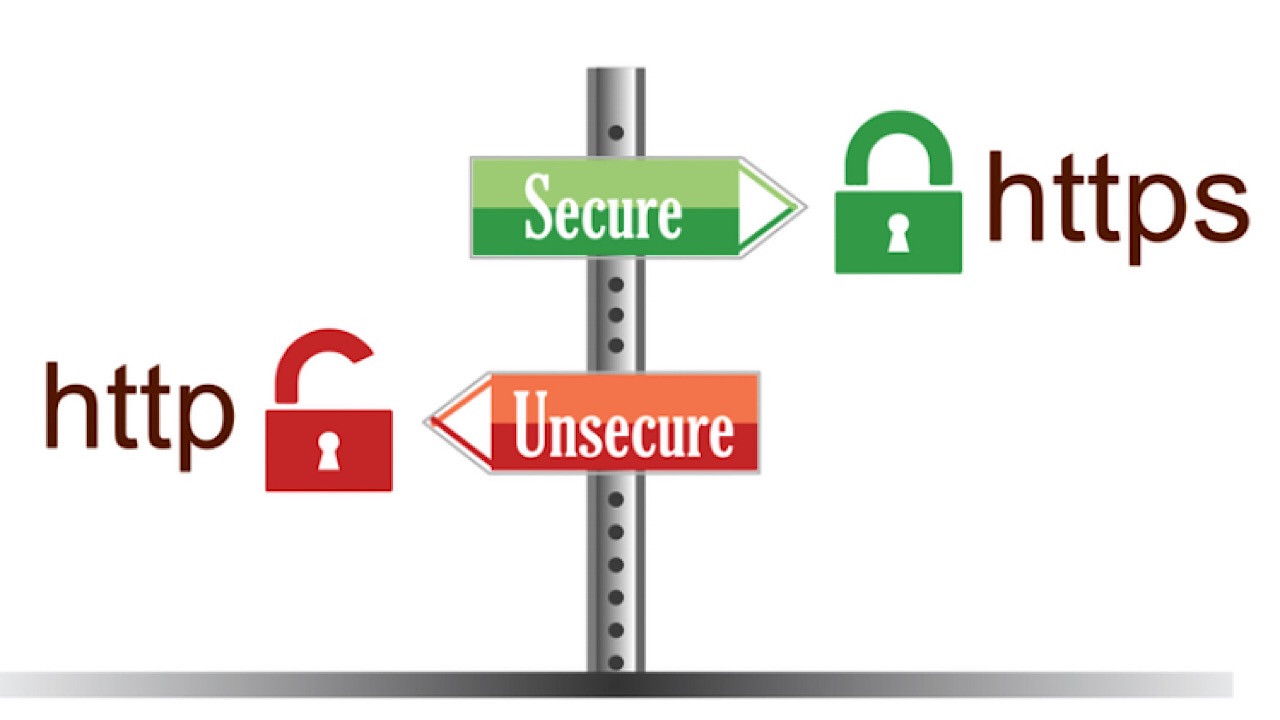
Servers and browsers communicate and send information back and forth by way of HTTP, which stands for Hypertext Transfer Protocol. Enabling Smart HTTPS will automatically change HTTP addresses to HTTPS, which is the more secure way of sending information.

Whether you’re using the internet extensively or just to browse social media from time to time, you’ll be able to pick which of the large variety of extensions that Firefox has to choose from in order to customize your privacy.

Mozilla Firefox Free Download
7
Mozilla Firefox is a free, open-source web browser. Now with new features, faster and more secure.

How to join Test Pilot and try new Firefox extensions before everyone else

See the future of the web with cutting-edge features available only on Firefox.

With any product or service that we use, we hope the company takes our voice into account. Take Twitter, for example. Recently, the characters per tweet increased from 140 to 280, but there still isn’t an option to edit a tweet in case of typos, which users have been asking for since Twitter was created. Wouldn’t it be useful to have the ability to choose what we want most in our services?

Mozilla Firefox DOWNLOAD FREE
8

Enter Firefox’s Test Pilot. Essentially, Firefox creates product concepts called “Experiments” in the form of browser add-ons and features. Users get to test-drive them for a short period of time. Concepts are created by Firefox team members, but anyone can submit ideas that could be a good addition to Firefox. Once beta testing is complete, some Experiments graduate to become official features.

The Test Pilot Wiki shows every single step taken by the Firefox team, and is completely transparent about how they come up with ideas for features with the Test Initiator Journey. As users, an in-depth A to Z timeline really makes us feel involved with the process and that our contributions, like feature submissions or just giving general feedback, are appreciated.

Once you’ve joined Test Pilot, you’ll have access to cutting-edge new features that will make browsing better. Do you remember life before tabs? It was brutal. Now, every browser has them. As Firefox continues innovating, Test Pilot gives you access to new features that are likely to become the essentials of the future.

If you’d like to see what Experiments are happening now and take part in building a great browser, head over to the Test Pilot page.

5 new browser features available only on Firefox

Try them now on Firefox before every browser scoops them up.

Want a glimpse of the future? Firefox offers a program called Test Pilot that lets users test features and add-ons called “experiments” for a short period of time to see if they’re worthy of becoming an official part of the browser. With this program, you can try out new features from the Firefox team, or even submissions from other users that help the Firefox browser become even bigger and better than it already is. Check out the experiments below that you can test out right now!

5 cutting-edge features from Firefox

1. Price Wise

Who doesn’t love a bargain? Especially during the holiday season, it’s a hassle trying to keep track of who has the best prices and when they change. Fortunately, Price Wise does all of the work for you.

Price Wise tracks prices from the top five U.S. retailers: Amazon, Best Buy, The Home Depot, eBay, and Walmart. To start tracking, add the Price Wise extension to your browser. Every time you’re online shopping and you see something that you want to track the price for, click the Price Wise icon to add it to your watchlist and Price Wise will notify you every time the price drops or increases. Add the same item from multiple retailers and compare. A green arrow next to the item means the price dropped, and red means an increase. It’ll be such a relief not to have to keep tabs open to check on items repeatedly throughout the day. Check out more about Price Wise in Test Pilot here.

2. Email Tabs

This feature is one of our favorites. If you’re a big planner, the person heading up a group project, or the family member who always ends up making the reunion itinerary, the Email Tabs feature will make your job a breeze.

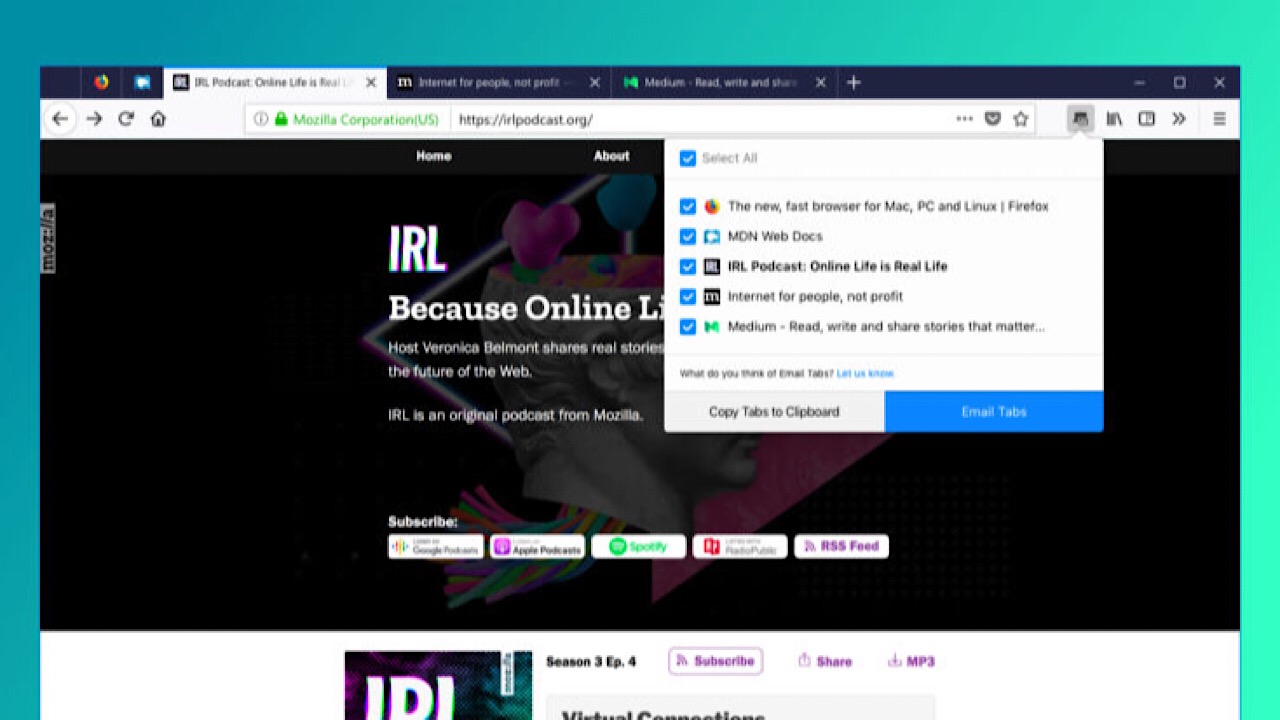
In the family reunion scenario, imagine you have a ton of tabs open because you’re trying to decide which hotel to stay at. Instead of copying and pasting all of those links into an email, just click the Email Tabs icon. It lists all of your open tabs, and once you pick the ones you want, it creates an email with all of the links for you.

email tabs screenshot

If you expect Grandma might only opening the email instead of the link, you can include a screenshot of the entire web page. Don’t worry Grandma. We’ve got your back. Check out more information on Email Tabs here.

Mozilla Firefox DOWNLOAD FREE
8

3. Side View

We bet you’ve never multi-tasked like this before.

Side View is a feature where you can see two browser tabs at the same time, within the same window. This feature is amazing for literally everyone you can think of: college students writing end-of-year papers, your dad comparing his fantasy football stats, or writing your grocery list inspired by online recipes.

You don’t have to resize one tab to see two simultaneously, and it makes everything so much easier. More about Side View here.

4. Color

Everything is made better when you can customize, and the Color feature lets you do a lot of that in a bunch of different ways.

Make all that text that you have to analyze for that big work project a little more pleasant to look at by making your Firefox browser neon orange. Sprinkle your theme texture with purple flowers, or channel your inner Harry Potter nerd and throw in a few lightning bolts. Icons, toolbars, tabs, search bars, and more can all be Bubblegum Pink, and nobody can take that away from you.

If you’re not sure what you want, you can always choose from the preset themes until you’re ready to utilize all the functions of Color. Save themes that you like for later, and share them by sending the link to friends. Learn more about Color here.

5. Screenshots

What’s unique about Screenshots is that it isn’t part of the Test Pilot program anymore. It was so popular that it became a built-in part of the browser, and we can see why.

There are a lot of reasons why we take screenshots: to post a picture to social media, to add a picture into a document for your boss, or to highlight the most important part of an article instead of sending the link for the entire thing.

Screenshots skips the steps of having to save to your desktop, then drag and drop or upload somewhere else by giving you the ability to copy the screenshot directly into a document. This feature also supports Private Browsing mode, so if you want to keep your guilty pleasure meme collection out of the cloud, all of your downloads are deleted when you exit that mode.

And as the Test Pilot program rolls out, Firefox gets better by the day. With a continual flow of great new features that you can’t find anywhere else, Firefox becomes a better browser by the day.

Firefox Monitor is the internet bodyguard that alerts you to data breaches

Discover how Firefox can alert you when your data has been compromised.

In recent years, privacy on the internet has been a hot topic. With data breaches happening nearly every week, your personal data is at risk in more ways than ever before.

Mozilla Firefox DOWNLOAD FREE
8

Pretty much everything can be done on the internet now: check your account balance with your bank’s app, have Siri tell you what the weather will be like during your vacation in Greece next week, or buy a custom-made cowboy hat in China and have it shipped to your grandma in Florida. Most apps now don’t even require you to enter your password – just scan your thumbprint and unlock.

But there’s a simple rule on the internet: if it can be hacked then someone has probably tried. Taking quick action after a security breach is vital. Thankfully, Firefox Monitor is here to watch your back.

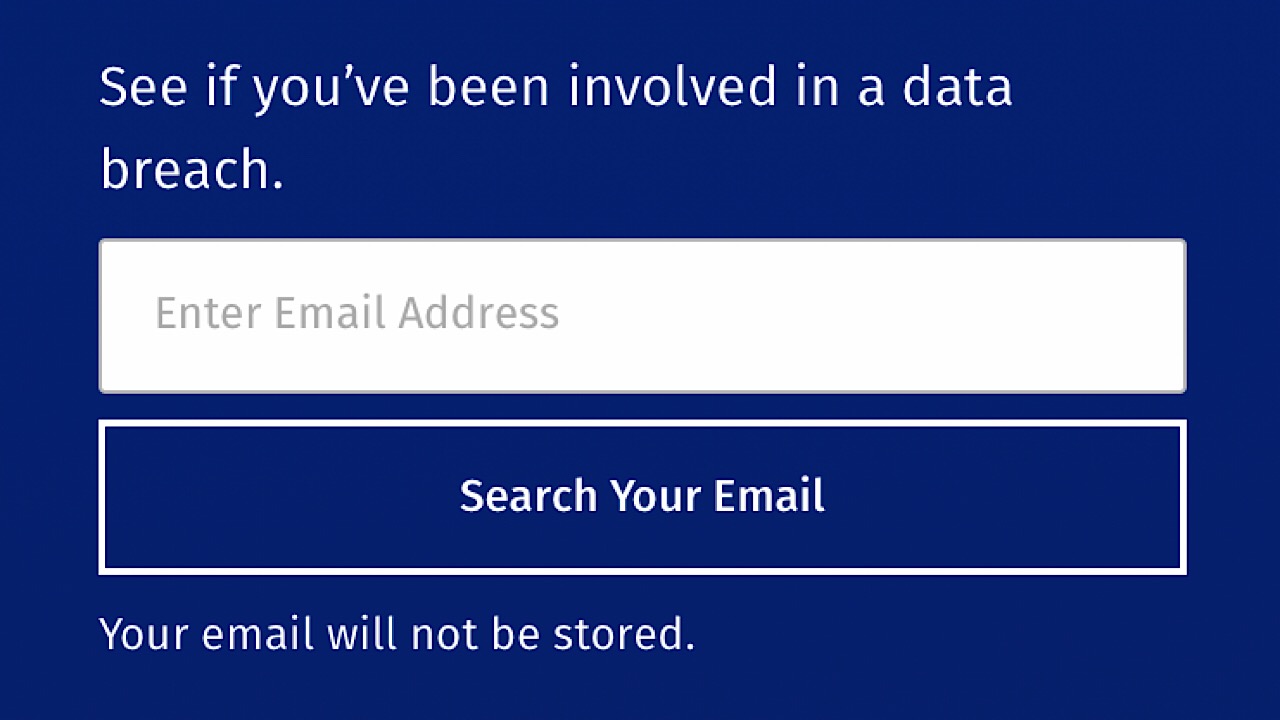
Firefox Monitor is a free service that gives you alerts whenever your email is associated with a business or service that has experienced a data breach. To find out if your information was at risk in the past, visit Firefox Monitor’s website and enter your email. Your email will not be saved, and the Firefox’s servers won’t retain any other bits of your information either.

Firefox Monitor screenshot

If your email was associated with a breach, Monitor will let you know what was leaked, where it was leaked from, and when.

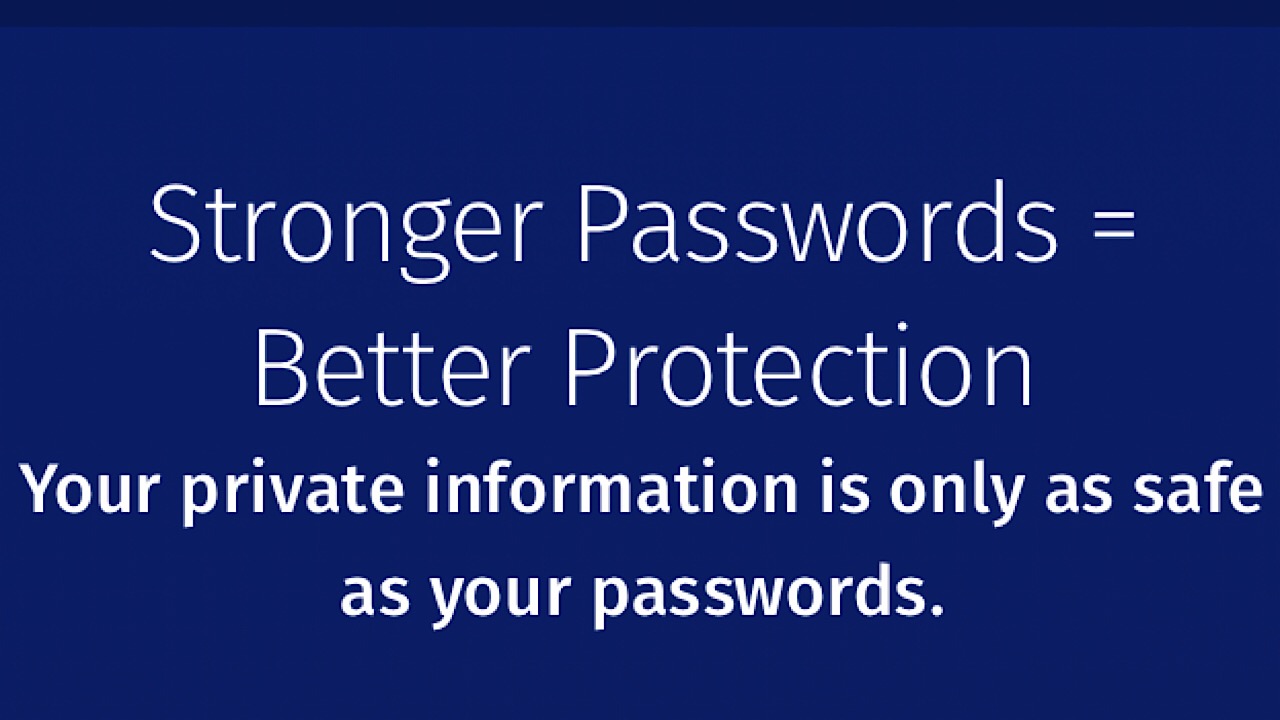
Firefox Monitor passwords

On the website, you’ll find tips on what to do next, like making sure that your passwords are unique and not easy to guess, and that you have a different password for every website. Change your old passwords, and passwords with services that you’ve recently signed up for if it is one that has been recycled.

When you add Monitor to your browser, it will let you know every time your email address or password has been part of a breach so you can take action immediately. Your safety is most important, and Firefox Monitor is a must have to make sure that your personal information is secure.

Hackers find a scary new way to target new Windows 10 users

The Bing search engine is showing up malicious and dangerous ads for search terms like “download chrome”

Microsoft Edge is a good browser. It is miles ahead of the Internet Explorer it replaced and Edge even does well when compared against modern browsers like Google Chrome or Mozilla Firefox. For many users though, this won’t matter.  Years of familiarity with their browser of choice means they’re unlikely to change to a browser like Edge, which was quite late to the game. This means that whenever they buy a new PC or laptop, or update their operating system to Windows 10, the default Edge web browser has one task: to download Chrome. This is a problem.

The Bing search engine is showing up malicious and dangerous ads for search terms like “download chrome”

Windows 10 bug Microsoft Edge Google Chrome Download
Be careful if you’re going to use Microsoft Edge to download Google Chrome

The issue arises because we’ve all become accustomed to typing basic phrases into the address bar when we want something rather than typing in complete domain names. Hackers know that we’re like this and they set up traps accordingly. They can set up fake sites on authentic sounding domains like GoogleOnline2018.com and place legitimate sounding download files like ChromeSetup.exe. It all looks and feels fine until your PC falls victim to the malware these fake domains and files contain.

For more tips on avoiding phishing scams like this one check out our infographic below:

This exact scam is what almost tripped up Gabriel Landau. He bought a new laptop and opened up Microsoft Edge so that he could download Google Chrome. Fortunately, he stopped himself from downloading the fake ChromeSetup extension when he noticed that the digital signature was linked to Alpha Criteria Ltd. and not Google.

The real issue here is that this is a problem that Chrome and Firefox deal with automatically. The fake phishing sites, which show as normal on Edge, show warnings on both the Google and Mozilla browsers. Even worse for Microsoft is that this is not a new problem.

According to a How-to-Geek report, a similar issue on the Bing search engine was reported way back in April. Microsoft removed that ad, but the fact that an almost identical ad appeared over six months later means it hasn’t addressed the underlying issue. This lack of action is putting Bing users who are looking for Google Chrome at risk. Could it be spite?

In the same report, Microsoft responded to say, “Protecting customers from malicious content is a top priority, and we have removed the ads from Bing and banned the associated account. We encourage users to continue to report this type of content so we can take appropriate action.” This almost feels like an abdication of responsibility as it puts the emphasis on users to report false ads rather than on Microsoft itself to filter them out.

This is just one more issue in a long list of problems Microsoft faces at the moment. It is also likely to hit the credibility of Edge that, default search engine aside, is an otherwise capable web browser.

To protect yourself against this particular threat you are going to have to take action that Microsoft isn’t going to like. To download Google Chrome or Mozilla Firefox, click either of the two download buttons below.

7
7

If you do want to continue using Microsoft Edge, however, we recommend changing the default search engine from Bing immediately. Google is an obvious choice but there are plenty of other options out there.

This free browser extension will save you money on more than 100 websites

You’re at the grocery store. You’ve got your cart full and are at the checkout lane when suddenly you hear a voice behind you. You turn. To your surprise, you see your friend rushing towards you, waving his arms with a fistful of coupons gripped in his hand.

That friend is Honey.

9

What is it?

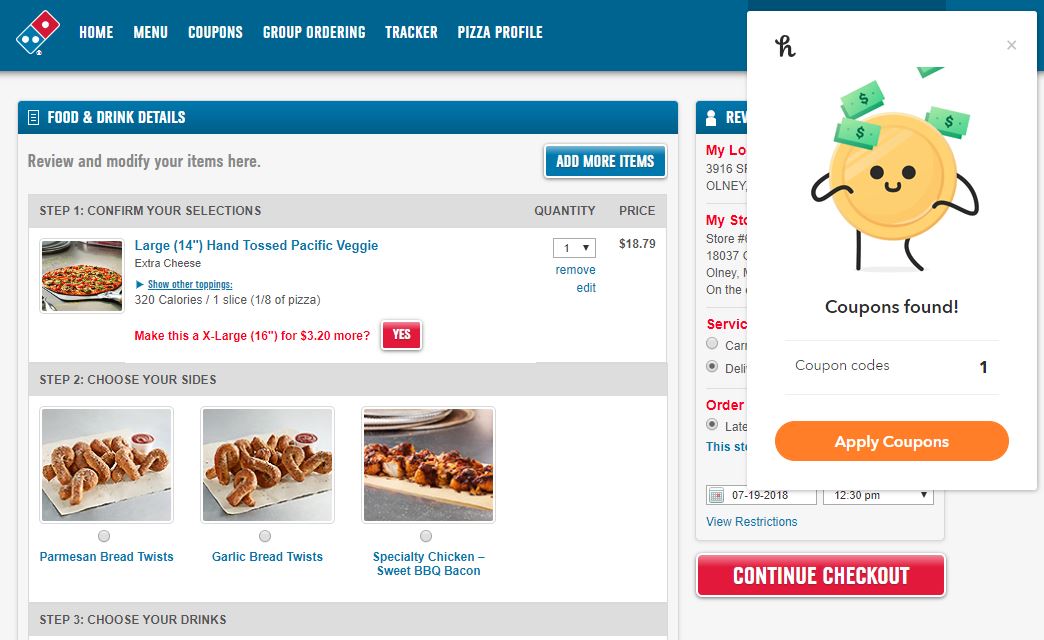
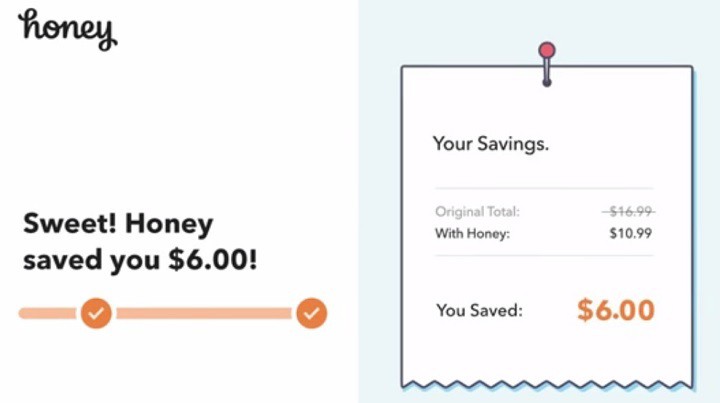
Honey is a free extension for Google Chrome, Safari, Firefox, Opera, and Edge, and its sole job is to find any relevant or applicable coupons for what you’re purchasing. It then tacks them onto your order and saves you the money. Honey looks up those coupons quietly and automatically, and you’ll honestly forget it’s even there until you’re right at checkout.

So what’s this like in action? Let’s say, for example, that you’re on Amazon about to order a new deck of cards. Browse until you find it, then add it to your cart as usual.

Amazon.com

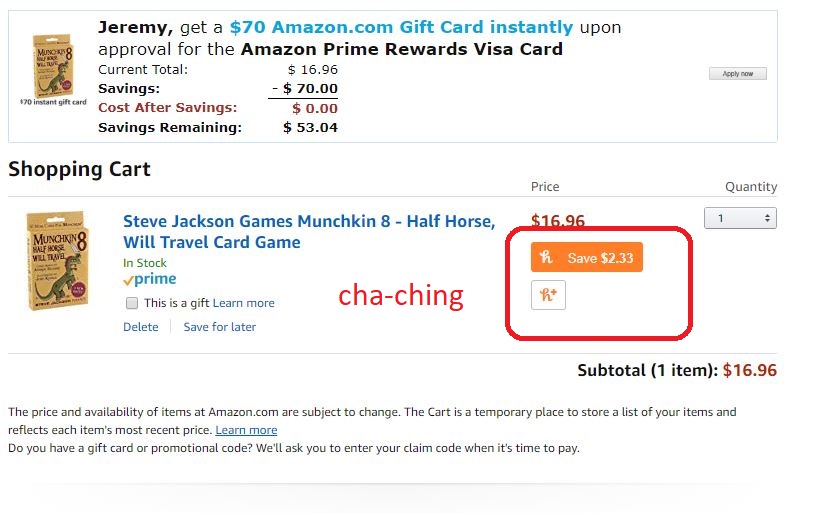
Once you’re in the cart ready to buy them, a little Honey blurb (like the one pictured above) will appear directly below the item’s cost. Honey scans through any potential coupons pertaining to your order, and automatically shaves off the most money it can. Why spend extra money, right?

This isn’t just for Amazon.com either. Honey’s got you covered for discounts with over 100 online stores. That includes things like Gamestop, Safeway, Timex, Motorola, Vonage, even Dominos. If there’s a coupon for it, Honey will find it and instantly apply it.

How can you install it?

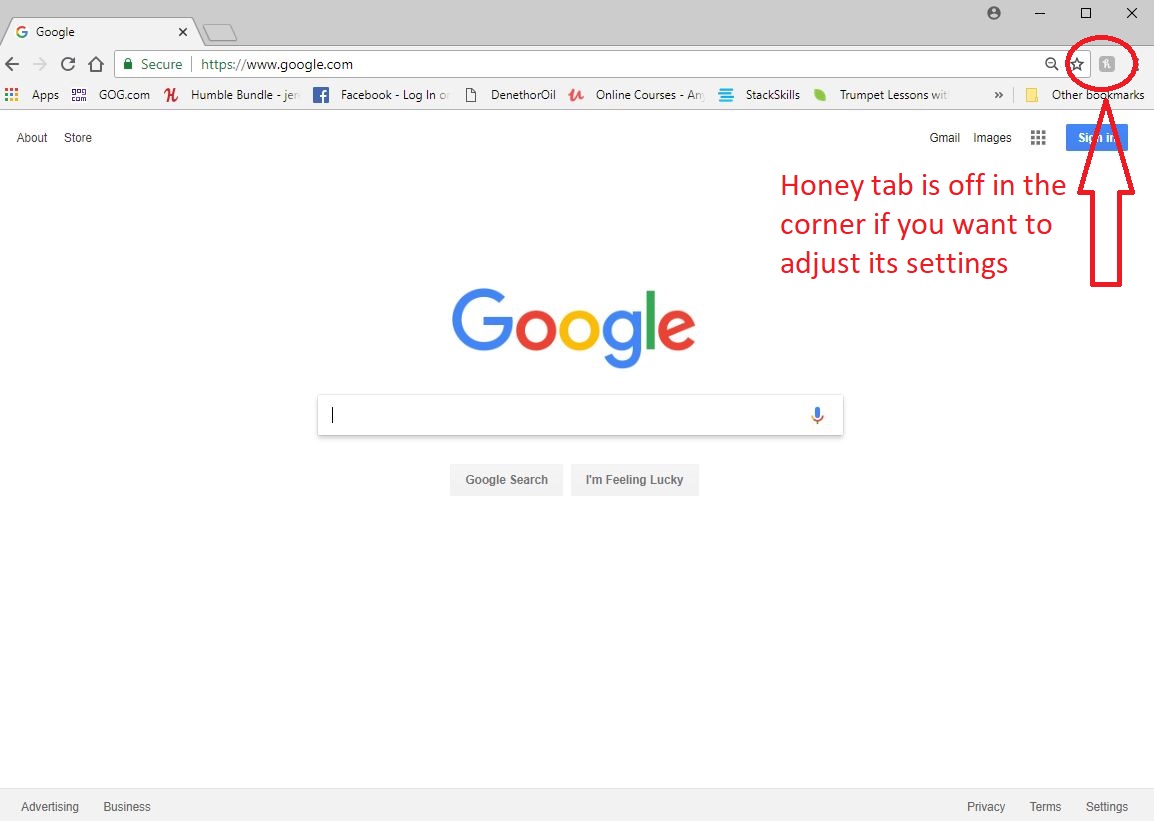
Right here. Go through the quick process and Honey will appear above your bookmarks bar in your Chrome browser. Once you see it, you’re done. If you so choose, you can click on the Honey icon at the corner of your browser if you want to see what stores are trending, or if you want to share codes that you find with the Honey community. Here’s a step by step on how to install the extension:

Once it’s set up, Honey does the work for you from here on out. No need to click anything extra or subscribe or anything.

This sounds too good to be true

If you’re wondering how Honey makes any profit, here’s the short answer: In some cases, when you use a coupon code or earn Honey Gold, the extension earns a small commission from the store you’re buying from. Some of those earnings go to members.

https://windowsreport.com/honey-extension-shopping-coupons-online/

So there you have it. There’s a free extension available right now that’s always looking to save you money. Get out there and download it.


Error 404, etc: what the most common errors mean on Chrome, Firefox and other web browsers

Image via: Pexels

Error 404, error 401, error 500… Sound familiar? If you regularly browse online, you may have encountered them, since they are the most common errors that appear on Chrome, Firefox, Opera, and other web browsers. To help you out, we’ve made a list of the top errors and explained what they mean.

7

Before we get started, what’s an HTTP error?

HTTP errors occur when you want to go to a web address and the browser isn’t able to access it, which can happen for different reasons.

The most common types of errors start with the numbers 4 and 5. Although there are error codes that start with 1, 2 and 3, you’re unlikely to encounter them when browsing.

These error numbers are usually followed by a short explanation, but they don’t give you much information. So, we’ll give you the full scoop on each of them below.

What the most common HTTP errors mean

Error HTTP 404 (Not Found)

This error means that the page you want to access doesn’t exist at the moment. This may be because you incorrectly entered the web address or because the page owners deleted it. It’s possible that a page showing a 404 error won’t have one later on, which means it’s come back online.

Error HTTP 403 (Forbidden)

This error shows up when you try to access a prohibited web page, i.e. one that isn’t accessible to the public. For example, a database, a backend code (that programmers work with) or a page exclusively for subscribers.

Error HTTP 401 (Unauthorized)

This one is like the 403 error, but it happens when there’s an authentication failure (for example, on the form to access editing of a website). No page should ever show this error, unless it’s for internal use only and isn’t public-facing (for example, a company’s intranet).

Error HTTP 400 (Bad Request)

This error appears when the page you’re trying to access isn’t able to make sense of your request. This usually happens because of a client error or a web address with an invalid format.

7

Error HTTP 500 (Internal Server Error)

This refers to an error with the internal server you’re trying to access. It could involve different issues related to that server, such as incorrect configuration or an overflow of requests.

Error HTTP 503 (Service Unavailable)

The server can’t respond to the browser’s request because of too much traffic or maintenance. This is usually fixed after a few minutes, especially in the second case.

Error HTTP 504 (Gateway Timeout)

This error means the wait time to return the web page has run out. This may be due to a server error (for example, it’s gone offline) or because the web page has a code that never finishes executing and produces a loop.

Error HTTP 509 (Bandwidth Limit Exceeded)

This error indicates that the web page you want to access has exceeded its bandwidth. This primarily happens on web pages with a cheap “hosting” service that doesn’t allow large volumes of traffic.

So there you have it! May all your webpages load flawlessly and may you never encounter these numbers. And if you do, feel free to refer back here so you know why you’re disappointed.


5 reasons to use Firefox over Chrome

When it comes to internet browsers, there are two clear leaders: Mozilla Firefox and Google Chrome. Each has its own quirks and it’s not unusual to use both for various reasons. However, if you only want to choose one right now, we’ll give you 5 reasons to use Firefox over Chrome.

7
Mozilla Firefox Quantum is a free, open-source web browser that offers numerous features and customization options. Its performance is excellent, and it's designed to protect your privacy.

Privacy

With the current mass hysteria regarding privacy, especially after Facebook’s scandals, having a browser like Mozilla Firefox is a complete guarantee of privacy. The program is open-source, so it doesn’t have a multinational company behind it trying to monitor our every movement. So, that’s a plus for Firefox.

By the way, we should add that the browser has important tools when it comes to privacy. They have small apps or extensions available that can be added to enhance privacy.

Consuming fewer resources

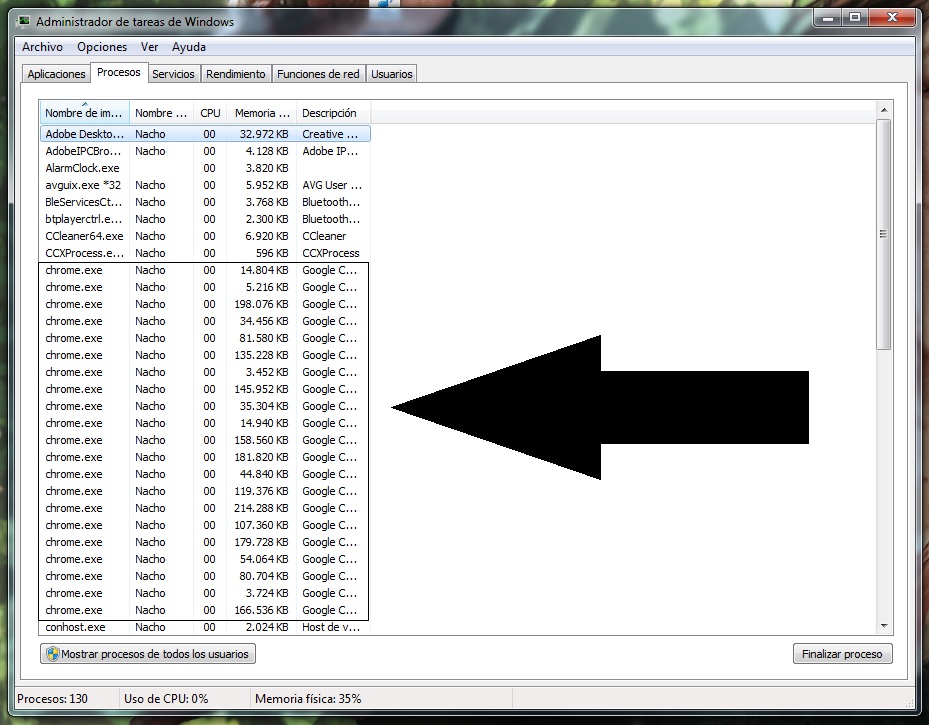
This is by far Google Chrome’s weak spot and where Firefox comes out on top: the resources it consumes. If you open the task manager while you’re using Google Chrome with a few tabs, pay attention to the processes. Almost certainly, you’ll have several fields dedicated exclusively to the Google browser. That absolutely kills performance.

Both Firefox and Google Chrome have multiprocessing, but the difference is that while Google Chrome opens one process per tab, Firefox allows three tabs per process. This makes a subtle (but significant) difference.

Tabs

In the previous point, we mentioned that Google Chrome consumes lots of processes due to open tabs. Now, let’s talk about this at the design level. We like the format of Google Chrome more than Firefox, but it has a problem: when many tabs are loaded… it’s impossible to see each one. Mozilla, on the other hand, has a nice horizontal scroll that lets you always see what’s on screen.

Google could learn a thing or two about how the most famous fox on the internet handles tabs. 

7

Extensions galore

There was a time when Google Chrome was the leader in extensions. However, in recent years, it hasn’t completely kept its place. Firefox has managed both to offer the same (or more) extensions and also maintain high-quality thanks to its community following.

We should also add that many extensions are crossovers, so they will work between browsers problem-free.

Synchronization

We won’t mislead you: if there’s one good thing about Google Chrome, it’s that all of Google’s tools are masterfully interconnected. Luckily, Firefox has gone to work on this issue in latest versions and the synchronization between browsers now works reliably.

Thanks to this, all the content on your PC can be seen later on your cell phone (or other devices, of course). Also, you can use Google’s extensions to get more out of it.

Ultimately, your choice of browser is up to you, but if you’ve tossed Firefox aside for the last few years, it’s worth another look.


Stop Google from spying on your browsing with Google Container for Firefox

Google Container is a new extension for Firefox that stops Google from spying as you browse.

This extension uses Firefox’s Containers technology. Containers are special tabs that isolate everything happening inside the rest of your browser. This technology enhances your security since it prevents pages within a Container from using cookies or buttons to find out other sites you visit.

Google also has its tricks for knowing where you browse. The official description of Google Container explains: “Clicking Google Share buttons passes information to Google about the website that you shared from. The same happens when you log into your Google account. Installing this extension deletes your Google cookies and logs you out of Google. You can log in and use Google normally when in the Google Container. If you click on a non-Google link or navigate to a non-Google website in the URL bar, these pages will load outside of the container.”

If you don’t want Google to “follow” you around when browsing, try Google Container. According to the site GHacks, it works without a hitch. Ready to try it? Click here to give it a whirl.

If they keep making extensions that isolate big names like Google and Facebook, maybe Firefox will turn Containers into an easy-access feature that lets users decide what exactly they want to isolate.