Mozilla Firefox, the well-known browser that competes both on computers and mobile devices, is registering very positive data in the European territory regarding its penetration on iOS smartphones, since, according to records, there are more and more users who are setting Firefox as their default browser.
These data, therefore, reflect that the company is achieving a substantial increase in its traffic through smartphones, a platform in which its competitors have been relentless and have had advantages in infrastructure to develop more quickly on smartphones.
As reported by The Verge, Firefox is detecting highly significant increases in users opting for this browser as their default choice. In fact, according to the data Mozilla has, there’s been a 50% increase in Germany and over 30% in France, two of the European countries with the highest digital presence in terms of device numbers.
This reflects the interest European Apple users have in trusting a browser that, while being efficient, also shows respect for user data and offers valuable functionalities for them. Firefox, thus, has a key opportunity to capitalize on this trend and take advantage to ensure that growth doesn’t stall.
An iconic and powerful browser
We have talked on multiple occasions about how the current browser market is heavily dominated by Chrome, but there is still room for growth from other companies that have always had a presence in that market. One of them, obviously, is Mozilla Firefox, which, although it has not had the same impact on mobile devices as it has on computers, continues to advance so that users choose them as their Internet browsing service.
Firefox, in fact, has released many improvements in recent months with that goal in mind, where their interest in improving the quality of life for users on mobile devices is more than evident. As a result, for example, there is a feature that archives less used tabs to optimize resources, both for the browser and for the mobile phone itself, or the protection it offers against addictive practices of infinite scrolling.
Mozilla Firefox, the well-known browser that also has its own Android version, continues to update itself with the user’s interests as the highest priority. In fact, the new patch of the application will protect against web tracking that is done using infinite scrolling on Android systems.
In this way, Firefox once again shows itself as one of the browsers that cares the most about the well-being of its users, especially considering that a large part of the updates they carry out are to protect them from the most annoying aspects of the Internet, such as cookies, tracking, or spam.
Firefox Update 122
This update of Mozilla Firefox is once again focused on providing the community with better tools to defend their interests. In fact, as detailed by Mozilla in their blog about this new patch, privacy control has been increased for the benefit of the user so that certain websites that take advantage of infinite scrolling to introduce tracking cookies cannot do so without the user’s consent. This feature can also be disabled, if the user prefers.
Also, more improvements have been implemented within this same update, such as the ability to view PDF files without the need to download any additional software. This way, users will have greater ease in consulting this type of files directly without leaving the Mozilla browser. Taking into account that PDF is a globally used format, this represents another attractive improvement for the overall usability of the Android browser.
Other changes for the user
As previously mentioned, Mozilla Firefox is characterized by carrying out improvements and updates that are beneficial for its users. Among other things, Firefox has released some interesting updates in recent months, such as the option to filter spam messages, the ability to detect content created with AI, or improve support for extensions.
However, sometimes Firefox faces unfair competition, as in a recent accusation against YouTube after detecting that many users experienced longer waiting times using their browser compared to Google Chrome, while on other non-Google websites, the performance was not an issue.
Mozilla Firefox, one of the most popular browsers in the world, has a feature on smartphones that many users are unaware of: it saves inactive tabs when they have not been used for a long time to save resources. In fact, if you have ever noticed that a tab has disappeared after several days, it is likely that this is the reason, since Firefox takes care of removing those less used tabs.
However, that does not mean that Firefox will close them for you. Mozilla’s browser chooses to move those less active tabs elsewhere so that resources are optimized as much as possible and so that, whenever you need it, you can recover that tab that most of the time only takes up space and consumes performance on your smartphone.
As explained in zdnet, the disabled tabs in the Firefox browser for smartphones respond to a specific element: reducing the amount of resources consumed by the browser when it is used. Therefore, if a tab is not used for more than 14 days, it will be relegated to the drawer of disabled tabs, where they will remain indefinitely.
These disabled tabs can be easily found through the Firefox tabs menu for smartphones. Navigating through its interface, you will find the “disabled tabs” function, and there you will find again all those contents that had remained inactive for a long time.
Firefox improvements to keep competing
Firefox is, and has been one of the most influential browsers on the Internet. With a long history behind it, it was, and still is the favorite choice of millions of users every day. Mobile convergence made Chrome rise miles ahead of the rest of browsers, but Mozilla Firefox remains one of the toughest competitors that the all-powerful Google faces.
In fact, many accuse Google of bad practices in an attempt to undermine the competition. An example of this was the complaint from users who experienced a delay in video playback when using YouTube, another Google service, which intentionally functioned more erratically if you used Firefox instead of Chrome as a browser.
The controversy surrounding Google and Firefox is alive and kicking. Several users have expressed their discontent through social media, directly accusing Google of slowing down video playback by up to 5 seconds if YouTube detects you’re using their website with the Mozilla Firefox browser instead of Google Chrome.
Apparently, this alleged boycott by Google seems to be active exclusively through the Mozilla browser, as other browsers like Microsoft Edge or Safari don’t experience this 5-second delay after loading any video. This discrepancy has irked many Firefox users who frequently use YouTube’s services.
Through platforms like Twitter or Reddit, users have vehemently shown that YouTube loading times are artificially extended by up to 5 seconds, thus creating a less satisfactory and more bothersome user experience. In fact, as can be seen below, despite the page being fully loaded, the video playback doesn’t commence immediately.
Other users, in fact, have found the command within the website’s code that would intentionally cause this delay. It’s seen as an unfair competitive move, as Google would be deliberately harming a browser that isn’t part of its ecosystem and, under equal conditions, would have a similar performance.
The battle between browsers
Lately, Firefox has made numerous strides in its system to continue attracting a larger audience to its browsing service. For instance, they are enhancing their active support for extensions and have created a spam filter for your email that streamlines your registration on various websites without needing to receive uncomfortable newsletters in your actual inbox. With these improvements, Mozilla aims to keep competing against Chrome’s strong dominance.
Firefox remains one of the most popular browsers on the web.
However, if the users’ accusations are true, Mozilla wouldn’t be competing on equal terms against other browsers. That’s why a part of its community, eager to stay firmly within Firefox’s browsing ecosystem, has rallied to criticize what would be an anti-competitive action by Google, one of today’s most powerful tech companies.
Firefox, Mozilla’s iconic web browser, is working on creating a feature that allows users to identify content that is fake, deceptive, or generated through Artificial Intelligence. This will apply to both texts and news articles as well as product reviews, helping users stay well-informed and find truthful reviews about products they are interested in.
The truthfulness of content on the Internet has always been one of the most controversial aspects of this vital tool in the 21st century. Being connected through the web has brought about a technological revolution on multiple scales, but the lack of control mechanisms facilitates the proliferation of low-quality or fraudulent content.
A tool that is in the works following the purchase of Fakespot
This functionality follows the acquisition of Fakespot by Mozilla. Fakespot’s main service is the ability to verify content to detect whether it is genuine or fraudulent. With this implemented tool, we can determine if a news article is generated using AI or if a product on Amazon has fake reviews, among many other things.
In this way, Firefox continues to pave the way for user-value services concerning harmful practices by companies. In fact, in recent months, we also saw Firefox launching a tool for the browser aimed at protecting users from spam content.
Firefox aims to combat fraudulent online content.
Edge and Chrome, their tough competitors
Firefox has a rich legacy as one of the most popular web browsers on the internet, used daily by millions of users for a wide range of tasks on both PCs and mobile devices. One of its main strengths has always been the efficiency of its browser, with low system resource consumption and optimal performance.
However, the rise of Chrome, especially due to the proliferation of Android systems, and Microsoft’s significant investment in its Edge browser, pose tough competition for Mozilla in both the short and long term. There’s no doubt that both Google and Microsoft have more resources, so Mozilla has no choice but to continue working on these types of improvements for Firefox to attract more users.
Mozilla is well aware that one of the major challenges on the internet today is the abundance of spam messages in email. That’s why their useful Firefox Relay tool will now be available openly within the browser for all users who want to better filter their messages.
In today’s digital landscape, many websites that offer products and services often require email submission to access promotions, discounts, or free content. By doing so, companies gain another contact to send mass content to. However, thanks to this filtering tool, all this low-interest content will be kept out of our personal email.
This Firefox filter works as follows: you’ll have a personalized “filter address” where you can access the spam messages in question, and that will be the address you use when a website asks for your email to access certain content, offers, or discounts. It’s another measure from Mozilla for the benefit of the user, who is constantly bombarded with unwanted emails.
This Firefox service isn’t entirely new, as it used to be available as a browser extension, as they presented in the past (as shown in the video below). Now, the Firefox Relay service is fully integrated into the browser, without the need to download extensions.
Firefox in the face of competition
In recent years, the competition among major web browsers has become more intense than ever before. While Chrome established itself as the most popular browser, and systems like Firefox, Edge, Safari, and Opera maintained a lower profile for years, the landscape has changed. Nowadays, all of them are striving to make compelling improvements to attract users to their respective ecosystems.
For Chrome, its major focus is on integrated and connected work with many other Google services, where it flexes its muscles. Edge, for instance, is heavily investing in Bing and additional services like Bing Chat, its generative AI, which is already integrated into Edge. Firefox, on the other hand, continues to enhance its Firefox Relay service and has recently added support for extensions designed for Android devices.
Step-by-step tutorial to solve the error code “ssl_error_rx_record_too_long” in Mozilla Firefox and thus be able to navigate normally again.
The error code “ssl_error_rx_record_too_long” is very common among browsers, especially Mozilla Firefox. It is accompanied by the message “Secure Connection Failed” and responds to a discrepancy between the security of the data sent by a web server and the data expected by the browser. The result prevents the normal display of the web page, which is very annoying if, for example, we need to use the Internet constantly for work.
What causes the error code “SSL_ERROR_RX_RECORD_TOO_LONG”?
As we have already told you, the main cause of the ssl_error_rx_record_too_long error in Firefox is due to the inability to verify the data received. This can be due to a number of factors, including a misconfigured SSL certificate or some other type of security flaw on the part of the website. As a result, Firefox is unable to complete the connection to the server port, blocking access to the website.
Solution 1: Access the URL with the HTTP protocol
This is perhaps the easiest way to resolve this error. As we have already told you, the error “ssl_error_rx_record_too_long” is due to the fact that Firefox is unable to verify the secure data (SSL) of a page and therefore blocks it. One way around this is to access that same URL by replacing “https://” with “http://”. To do this simply open a new tab in the browser, copy and paste the address and change the beginning of the address to “http://”. If this does not work, try one of the other methods we offer.
Solution 2: Use a connection without Proxy
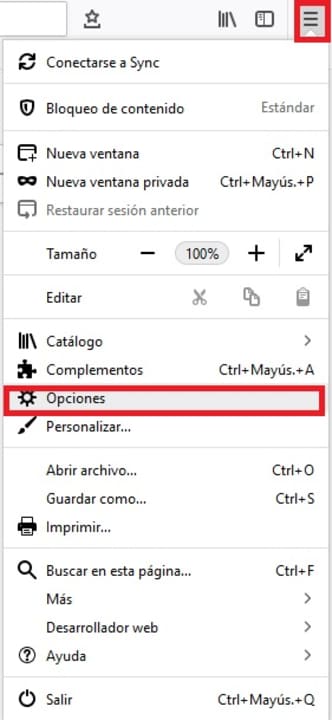
Another simple and usually effective way to solve this annoying error message is to change the settings with which Firefox connects to the Internet. To do this first of all click on “Open menu” (it is the icon of the three horizontal lines in the upper right corner of the screen) and then click on “Options”.
Once in the Firefox options, scroll down to the “Network Settings” section (it is the last one in the list) and then click on “Settings”. Within this menu check the “No Proxy” option under “Configure proxy access to the Internet” and click OK. Restart the browser and try to access the page that gave you the error. If the problem persists try one of the other methods mentioned above.
Solution 3: Use Firefox in Safe Mode
Although many users do not know it, Firefox has a Safe Mode that is able to solve most of the errors that the browser suffers from. This will deactivate all the extensions that you have installed and also all the hardware acceleration options that you have active. In this way, the browser will work only with its minimum options, being able to easily detect what generates the error “ssl_error_rx_record_too_long error”.
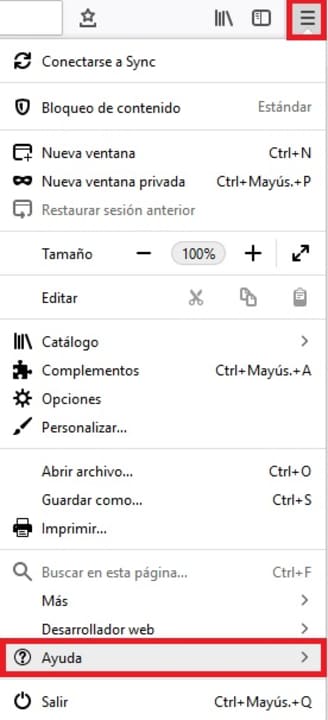
To activate Safe Mode simply click on “Open menu” (it is the icon with the three horizontal lines in the upper right corner of the screen) followed by the “Help” option. You will see this will open a new drop-down menu.
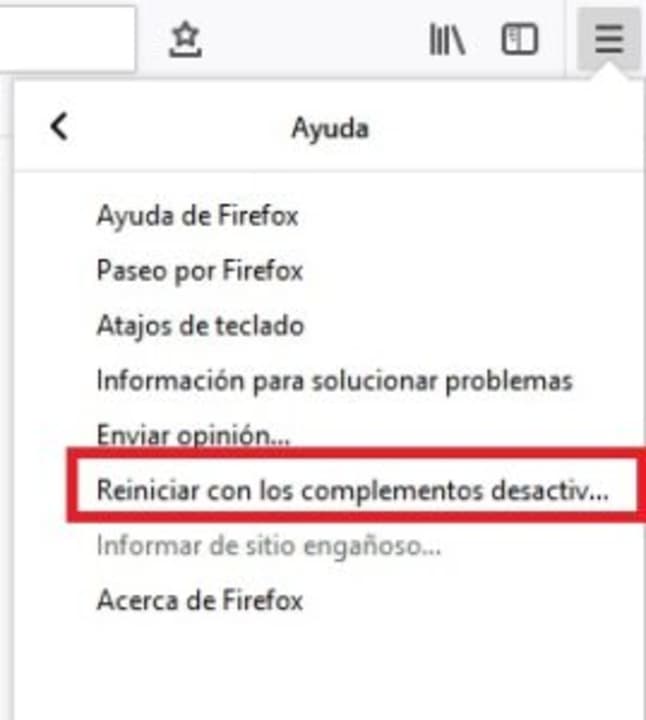
To continue with the process, click on the “Restart with add-ons disabled” option. This will open a new window in which Firefox will ask you to confirm that you want to restart the browser. Click on the “Restart” button.
Finally Firefox will ask if you want to access the browser in Safe Mode. Click the option to restart the tool in safe mode and try to access the page that gave you the error. If it persists try one of the other methods.
Solution 4: Disable Firefox Extensions
If you prefer to disable extensions directly without reverting your browser to Safe Mode, you can also do so. To do this just click on “Open menu” (it is the icon with the three horizontal lines) and then click on “Add-ons”.
Click on “Extensions” in the left side menu of the screen and deactivate all the extensions that you see fit in the right side menu. Once you have done this, restart your browser and try to access the page that gave you errors. If it persists, try one of the other methods.
Solution 5: Reset Firefox to its original settings
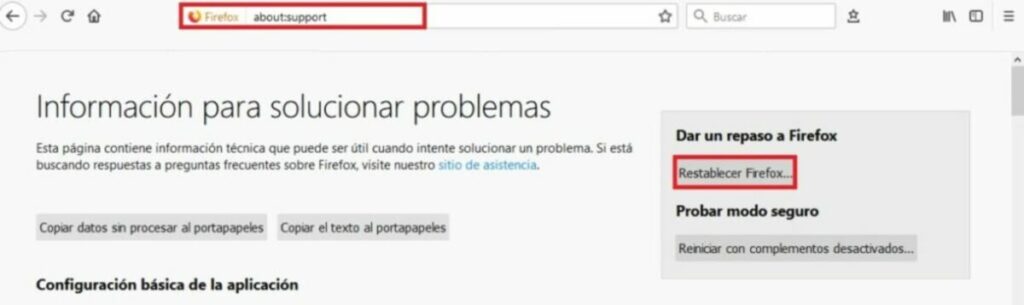
It may be a change you have made to your browser that is causing it to not work as it should. To return Firefox to factory default simply type “about:support” in the navigation bar and press Enter.
In the new window you will see all the technical information about your browser. Click on the “Reset Firefox” option on the right side menu of the screen. After that try again to access the website that gave you errors and if the problem persists, try another of the methods we offer.
Solution 6: Change your TLS preferences
The error code “ssl_error_rx_record_too_long” may appear as a result of a transport layer security (TLS) misconfiguration. This type of encryption, very similar to SSL, protects the transparency of data and information over the Internet. That is why altering your preferences can solve this annoying problem.
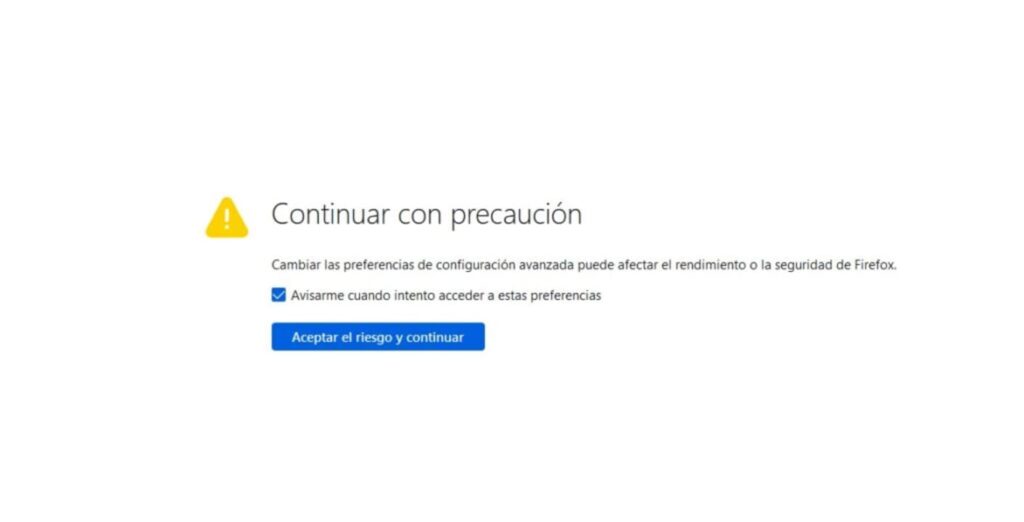
To do so, open Firefox, type “about:config” in the navigation bar and click on the blue “Accept risk and continue” button.
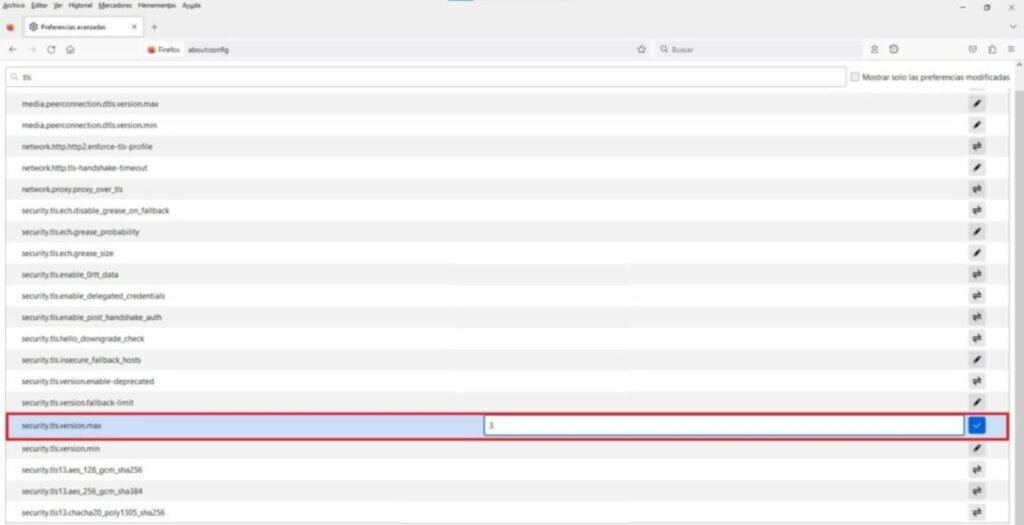
Once this is done, type “TLS” in the search bar and press Enter. Now with the list of addresses displayed, search for “security.tls.version.max”. Double-click on it and change the value from 4 to 3. Now simply restart the browser and try to visit the web page. If it does not work, it is recommended that you leave the TLS value as it was before.
Solution 7. Add the URL to your trusted pages
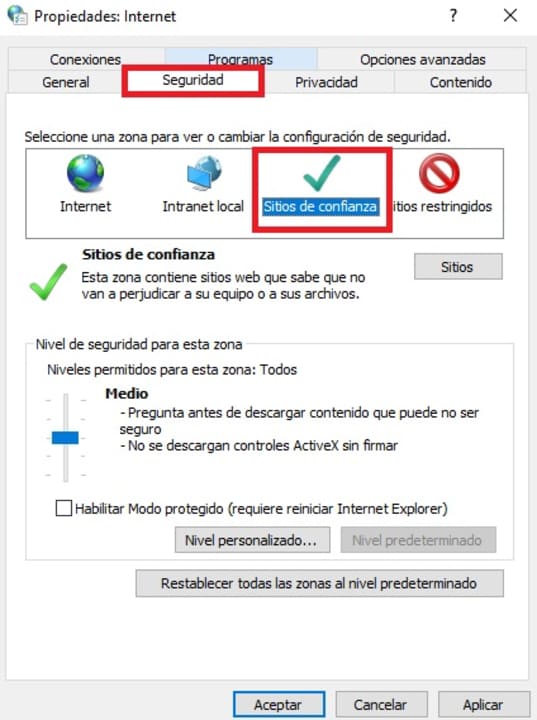
Another effective solution to resolve the “ssl_error_rx_record_too_long” error message is to add the URL that is giving you problems to the Windows trusted pages. For it you will have to accede to the Internet Options inside the Control Panel of your operating system. Once there, click on the “Security” tab and select the “Trusted Sites” option.
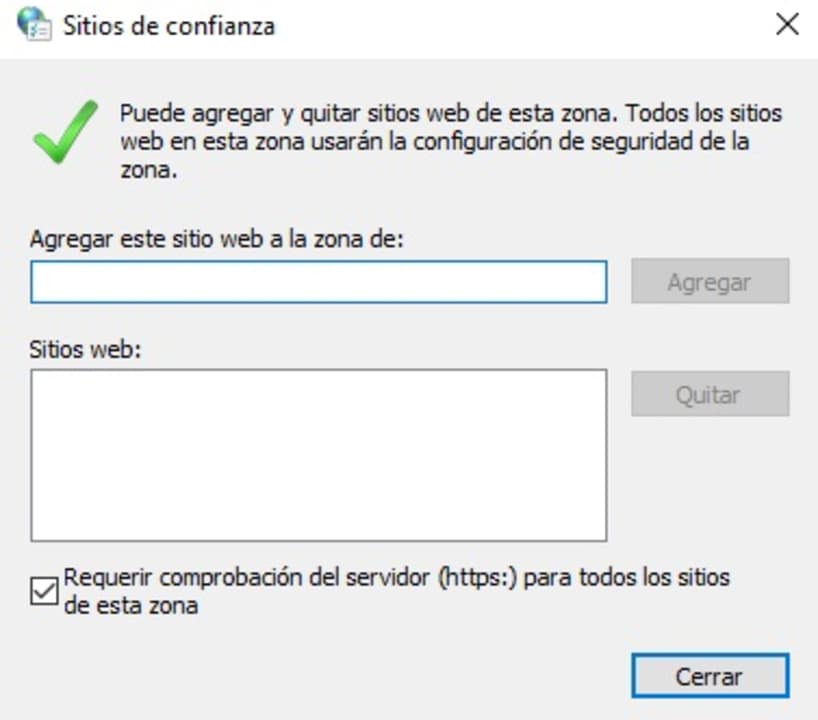
Now simply click on the “Sites” button and, in the new window, type the name of the URL that is giving you problems and select “Add”. Once done, apply the changes and open Firefox to see if it works.
Solution 8: Disable your antivirus
Sometimes this error is due to the fact that our antivirus is blocking secure pages by mistake. One way to detect if this is the case is to deactivate our antivirus software for a few seconds and try to access the web during that period of time. If this works, the problem lies in your antivirus and not your browser, so you may want to consider changing it.
It is very important to emphasize that this step is only recommended if you know that the website you want to access and appears blocked is trustworthy. Otherwise, never disable your antivirus software.
Solution 9: Update Firefox
An outdated version of your browser may be the culprit for not being able to access certain web pages. Updating Firefox is very simple, just click on “Open menu”, “Help” and finally “About Firefox”. A new window will open informing you if you have the latest version of the browser or if you need to update it.
Solution 10: Reinstall Firefox
If the problems persist after trying all the above methods, you may want to reinstall your browser. To do this, first of all uninstall Firefox from your computer and then download the latest version below.
Double-click on the installer and follow the on-screen instructions. After finishing the process, try again to access the pages that gave you an error.
Solution 11: Change your browser
If after performing all the methods we have suggested you are still unable to access most of the web pages, try installing another browser. There are some really good alternatives that will make you not miss Mozilla’s browser at all. These are the ones we like the most:
After installing your new browser, try to access the pages that were giving you errors.
Get rid of the annoying message “SSL_ERROR_RX_RECORD_TOO_LONG”
We hope that our selection of tricks has helped you to solve the code “ssl_error_rx_record_too_long” in Firefox. As you have seen, despite being a rather annoying error, it is easy to solve once you know the steps to follow. Did you like what you have read? We encourage you to share this article with your friends through social networks.
Google Chrome is the most popular major web browser. Here we walk you through all the biggest new features that landed on Google Chrome in 2019.
Modern browsers like Mozilla Firefox, Microsoft Edge, Safari, Opera, and of course Google Chrome are monster programs that can do amazing things. The days of Internet Explorer are long gone. You only have to consider the fact that Google used its web browser Chrome to develop a whole new operating system that runs Google powered laptops called Chromebooks, and rivals the likes of Windows and MacOS. This incredible feat has been made possible by Google’s policy of continually updating the Chrome browser.
It can be hard to keep up with all these updates, however, as they just keep coming. What use is a shiny new updated feature, if you don’t even know that it’s there. Well, that’s what we’re here for today. We’re going to walk you through all the new features that came to the Google Chrome web browser in 2019.
The Google Chrome web browser received a massive 7 updates in 2019 with the first, Chrome 72, landing in January and the last, Chrome 79, arriving just before the new year in December. Let’s look at all the best new Chrome features that these updates brought with them.
Default Flash blocker
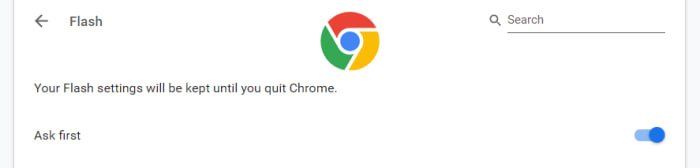
Google has already said that it will remove the Flash plugin from Chrome towards the end of 2020. In 2019, however, Google put the impetus on users to activate Flash in Chrome by making the browser block the plugin by default. You can set the browser to ask you before blocking it, however, on each site you visit. To do so copy and paste chrome://settings/content/flash into the Chrome address bar.
Password checkup tool
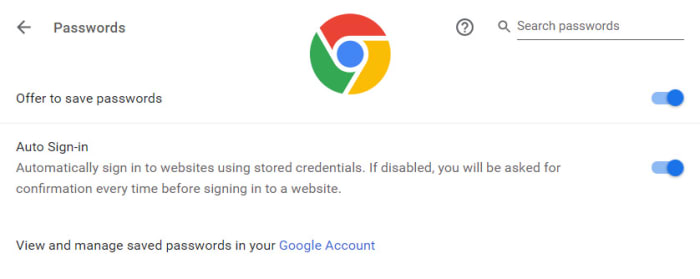
Google has integrated a former Chrome plugin directly into the browser, meaning it is now available for all Chrome users. The feature will scan your passwords and then check them against known databases of leaked passwords. Basically, if any of your accounts and passwords have fallen victim to any of the massive data breaches you hear about all the time, Chrome will now tell you. To activate this feature copy and paste chrome://flags/#password-leak-detection into the Chrome address bar.
Send tabs to other devices
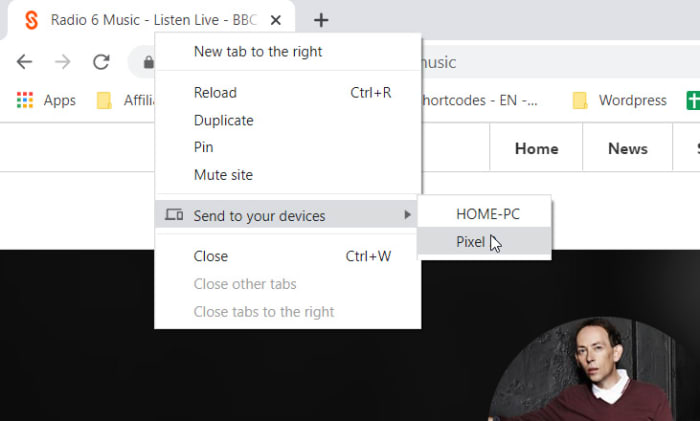
Chrome 77 introduced an interesting feature that allows users to send tabs to other devices that use the same Google account on Chrome. If you use the same Google account on Chrome across different devices, you can now right-click on any of your open tabs on Chrome for desktop and hit the Send to your devices option to see a list of devices you can share the tab with.
Copy and paste across devices
Another cool Chrome Sync feature that was introduced in 2019 is the clipboard synchronization feature across multiple devices. This new feature means you can copy something on one device and then paste it on another that is using the same Google account for Google Chrome. This feature came with Chrome 79, which means both devices will need to be updated to Chrome 79 before it will work. If you have two devices that qualify, however, you’ll be able to right-click anywhere on the webpage and then select Copy to (your device’s name).
Chrome backgrounds and themes
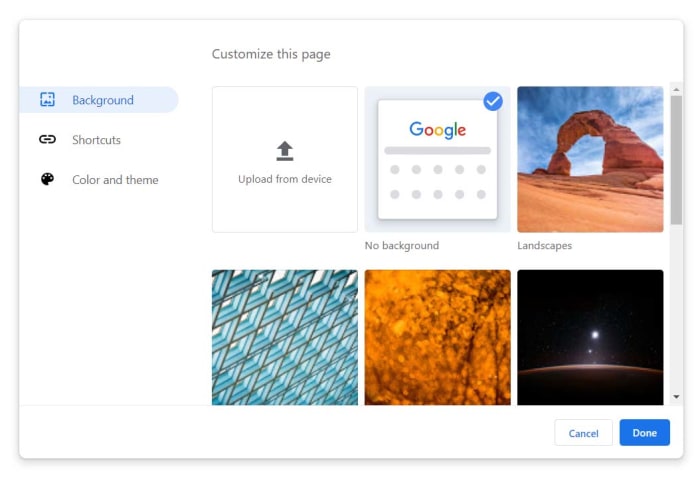
Another cool feature that landed with Chrome 77 is the Customize button you’ll find in the bottom-right corner of the Chrome homepage. Clicking this will give you a series of different customization options including Background, Colors & Themes, and Shortcuts. You can decide on the shortcuts Chrome will show on the homepage, pick from a whole host of interesting background images, and set different themes and color schemes for the browser.
The Dark Mode
Google split the Chrome Dark Mode roll-out over two separate updates with the Mac Dark Mode coming with Chrome 73 and the Windows Dark Mode coming with Chrome 74. Both operating systems now support Chrome’s Dark mode but there are no controls for this on the web browser itself. Instead, Chrome simply copies your system OS color scheme meaning if you’ve set your Mac or Windows system to run in Dark Mode then your Chrome browser will do too. The Chrome support page here shows you how to do so.
Take an early look at WhatsApp’s brand-new dark mode
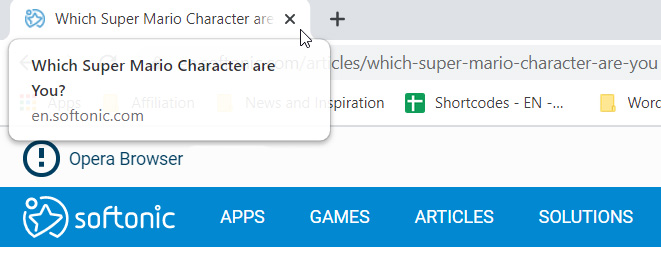
A small but useful change is the introduction of tab info cards. All you need to do here is hover your cursor over an open tab and Chrome will show you the name of the site open on the tab, and its URL.
Dodgy site warning
Chrome’s password protection features were updated again when Chrome 79 landed. Chrome now offers real-time protection and will warn you whenever you enter your passwords on sites that are suspected of phishing.
Hardware support for media controls
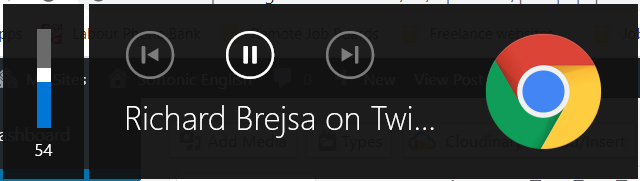
Chrome now supports media control buttons on any hardware you have connected to your device. This means if you have a keyboard with a Play/Pause button, you can now use that button to control playback on any media that is active in Google Chrome. The same goes for other controls and other types of hardware such as headphones etc.
Tab freezing
This updated feature might not sound too exciting, but it will actually make a big difference for laptop users. Basically, Chrome now automatically freezes tabs that you’ve had running in the background for a while. Chrome will no longer load ads or perform other CPU heavy tasks in tabs you’re not using, but will instead pause them and then resume them when you open them again. This is to put less pressure on your device’s CPU and then, accordingly, make your laptop’s battery last longer.
Password manager
Chrome 75 introduced the built-in password manager to Android and iOS devices meaning Chrome can now generate and store strong and unique passwords for you every time you open a new online account. This is an incredibly useful and essential feature as any time you duplicate a password across different accounts you leave yourself vulnerable to hacking.
This is how to delete your browser history on all the major web browsers for Android.
There are many reasons you might want to delete your web browsing history. You might have been buying gifts online or you could need to delete your cache to get rid of some erroneous code that has been causing your browser problems. At Softonic we’re not bothered about the why, we only care about the how.
There’s a good chance you know how to remove your web browser history from your laptop or desktop PC, but on your Android mobile it is a little bit trickier. Mobile browsers are more compact and accordingly, more complicated to navigate. Don’t worry though, because today we’re going to give you step by step instructions on how to delete your web search history on all the major Android web browsers.
How to clear Android browser history
How to clear your Android browser history on Google Chrome browser
#1 Open Chrome on your Android device and hit the ellipsis (three vertical dots) menu in the top-right corner, then scroll down, and go to Settings.
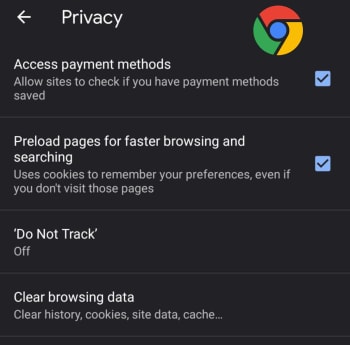
#2 Scroll down to the Advanced section of the menu and hit Privacy.
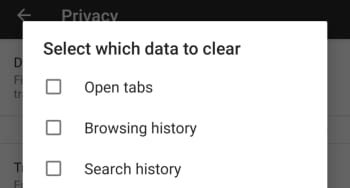
#3 Hit Clear Browsing data and then select the time range you that you want to remove all data from and select the exact type of data you want to remove.
Chrome is a young, fast browser that can browse any web page. It supports all major technologies and standards such as HTML5 and Flash.
How to clear your Android browser history on Mozilla Firefox
#1 Open Firefox on your Android device and hit the ellipsis menu in the top-right of the screen.
#2 Select History and then hit CLEAR BROWSING HISTORY at the bottom of the screen.
#3 Confirm the action by pressing OK.
Bonus – You can set Mozilla Firefox to automatically delete selected data including bookmarks, browsing or search history, and saved passwords every time you stop using Firefox and shut the app. To do so follow these instructions:
A – Open Firefox on your Android device and hit the ellipsis menu in the top-right of the screen.
B – Hit the Settings option and then select Privacy.
C – Select the check mark next to the Clear private data option and then select the data you want Firefox to delete every time you close the app.
How to delete browsing history on Microsoft Edge for Android
#1 Open the Edge browser on your Android phone or tablet and hit the ellipsis menu button in the bottom-right corner of the screen.
#2 Scroll down to the Advanced section of the menu and tap Privacy, which is the first option in the section.
#3 The very last option in the Privacy menu is Clear browsing data. Hit this and then select the data you want to delete.
#4 Tap Clear and then confirm the action by hitting CLEAR.
Bonus – Like with Firefox you can tell Edge to automatically delete all your browsing data every time you close the app. At the top of the Clear browsing data screen, there is a toggle switch for doing this. Simply select all the data you want deleting as normal and then toggle this switch to the on position and Edge will do the rest every time you exit the app.
Starting in October, Firefox will permanently mark all HTTP sites as not secure.
When Mozilla releases the next update to Firefox this October, it will make it much easier to spot sites that are more likely to be insecure.
Firefox 70 will follow in the footsteps of Chrome update number 68 from last year, by adding a permanent “not secure” indicator on all non-https websites. This marks a change from the current policy, which only shows the not secure indicator when a HTTP website includes forms or login fields.
The Firefox team that announced the planned move cited the fact that 80% of all internet pages are now served via HTTPS. This means that rather than HTTPS websites receiving a positive note, it makes much more sense for non-HTTPS sites to be negatively flagged for their added security risk.
Talking to ZD Net, Firefox developer Johan Hoffmann said, “In desktop Firefox 70, we intend to show an icon in the ‘identity block’ (the left hand side of the URL bar which is used to display security / privacy information) that marks all sites served over HTTP (as well as FTP and certificate errors) as insecure.” This move will bring Firefox in-line with Google Chrome that made the same change a year ago.
It isn’t like Mozilla is simply copying Google with this, however, as the privacy valuing foundation has been working on the feature since 2017.