How to use PaintTool SAI: a beginner’s guide

PaintTool SAI is a paint tool for Windows that will help you unleash the artist in you. However, if you’re a beginner you may find this program a bit difficult to use. In this video tutorial we will show you how to get started:

How to use PaintTool SAI – a beginner’s guide

1. First, open PaintTool SAI. Do be aware that during the installation process several additional software will be offered to you, so if you don’t want to install them or change your browser settings please opt out by unticking the corresponding boxes.

2. Go to File and select New to create a new canvas. You will be able to name it and to choose the preset from the drop-down menu. Once selected, click OK.

3. As soon as you see the canvas in the middle of the screen you’ll be able to start drawing! You’ll find a wide range of options available to choose from: including the color you want to use, the tools you want to work with from a range of pencil, airbrush, brush, water color, marker, bucket and more. You’ll be able to select the edge shape and size, density and texture of what you’re working with. You can test every setting on the scratchpad before implementing it on the canvas. While you can use this program with your mouse in order to get the most out of it, we recommend using a drawing tablet.

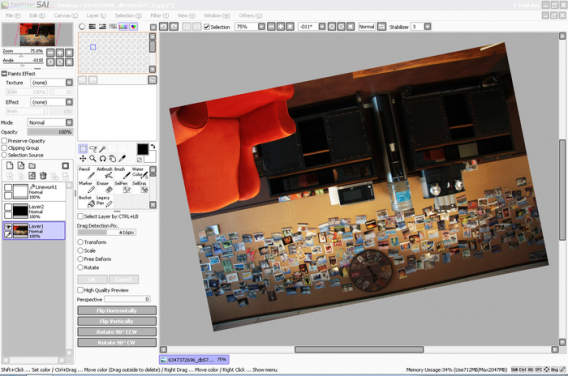
4. You can drag, rotate and zoom the canvas anytime to work more comfortably. In case you forgot a color you previously used, click on Color picker to use it again.

5. If you click on Layer you’ll be able to add more layers to your creations. Just click on Show / Hide Layer to see which one you’re currently working on. You can also clear or delete specific layers if you’re not happy with the results.

6. On the Filter tab you’ll be able to change the hue and saturation as well as the brightness and contrast of the last line you’ve drawn.

7. Finally, on the File tab you’ll find the option Export as” letting you save your drawing in several formats. This will allow you to share your art and edit it with other programs.

8. Don’t forget to save your drawing before closing PaintTool SAI!
 

Get to Know Paint Tool SAI

Paint Tool SAI is one of the most affordable, yet effective, graphic design tools available; however, if you’ve never used a graphic design tool before, you may feel a little bit overwhelmed by Paint Tool SAI at first. To get you used to its interface, here’s a handy guide to some of its main features:

The Canvas

The Canvas in Paint Tool SAI is where your main composition is created. In this area of the screen, you can use the various drawing and painting tools that are found in the Tool List. When working with the Canvas, you can zoom in and out to create finer details using the Zoom Tools located at the top of the screen. In addition, you can rotate the Canvas if you prefer to work on a specific section of your creation in a different way.

Layer List

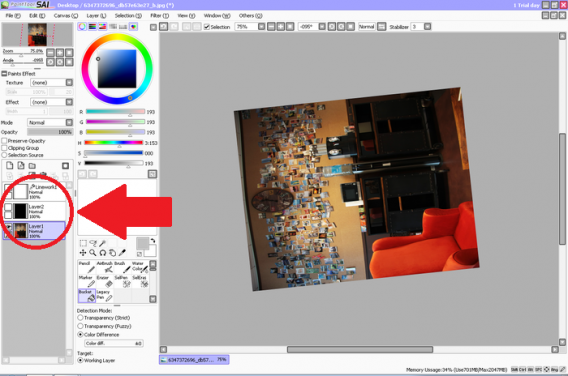
One of the best parts about working in Paint Tool SAI is that you can create layers for your work. Layers sit on top of one another and their order can be changed in the Layer List. You can use layers to create effects, such as shadows, but you can also use them to blend objects. The Layer List also offers you the ability to mute layers or make them solo, giving you the ability to see what each layer looks like separately or what your creation looks like without certain layers.

Layers

Drawing Tools

The Drawing Tools are the main way you create in Paint Tool SAI. You can use things like the Pen Tool, the Airbrush Tool, and the Sketch Tool to draw out your ideas on the Canvas, but you can also use tools like the Blur Tool and the Pixel Tool to create effects. You can customize each tool by changing various options in the Drawing Tools section, adjusting for size, density, texture, and other variables.

Paints Effect

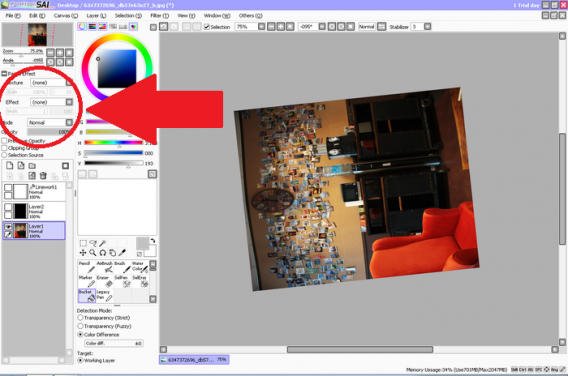
In the Paints Effect section, you can select various effects that change the way your layers look on the Canvas. For example, if you apply the Multiply effect, the affected layer will mix the colors of the layers that it sits on top of. If you select the Overlay effect, the affected layer will create a screen effect and mix the colors of the layers underneath. If you want to go back to the layers simply sitting in the order that they were at first, you can simply choose the Normal option and no mixing will occur.Effects

Ever wanted to animate stick figures on your computer? Now you can with Stykz for free!

Easy Paint Tool SAI Tutorials

Although Paint Tool SAI is intuitive and easy to learn, it always pays to check out tutorials when learning a new program. Below are some easy-to-follow tutorials that can get you up and running fast:

Create a Glow Effect

Creating a glow effect can make ordinary creations look surreal, and thankfully, you can create this effect quickly in Paint Tool SAI. First, create a new layer and set its mode to Luminosity. Next, use the Airbrush Tool to draw over the object that you want to glow. Don’t use 100% opacity, and feel free to experiment with different colors. You should also experiment with mixing colors of the base object and the glow effect.

Use the Stabilizer

The stabilizer is a great help when you need finer controls when drawing with the mouse. In order to use it properly, click on the drop-down box labeled Stabilizer at the top of the screen. You’ll be presented with a range of numbered settings. The higher the number, the tighter the Stabilizer’s control will be.

You may have to experiment with different settings to find what works best for you. You should also try different settings on the Stabilizer with different tools to see how it affects each one. Some tools work better with the Stabilizer than others.

PaintTool SAI

How to Create a Skin Tone

Many people use Paint Tool SAI to create cartoons, but it can be difficult to get an accurate skin tone when creating cartoon people. Although there are plenty of methods to do this, skin tone is subjective. Nonetheless, there are some steps you can take to get the process started. First, create a new layer and set its mode to Normal. Fill in the area of skin for the person you’re creating.

Next, create a new Clipping Group and set its mode to Normal. Use the Pen Tool to color in the area and then use the Water Brush Tool to blur. You can then add a new Clipping Group layer, set to Normal, and use a slightly darker color with the airbrush tool to color things in. You then use the Water Brush Tool to blur things.

Finally, add another Clipping Group, but set its mode to Luminosity. You can then use the Pen Tool to add highlights using a lighter shade. Once again, the colors you choose to use will be up to you, but these steps can give you a basic start in creating an accurate skin tone for your character.