Long gone are the days of PC gamers waiting in line for the latest releases, desperately hoping that the store will have enough copies to go around. Now, with the invention of the Steam platform, gamers can simply log on to a virtual marketplace, select the title they want, and voila! They can enjoy a brand new game without leaving the comfort of their swivel chair.
Running the games on the platform, users also have the added benefit of having round-the-clock assistance if they encounter any problems. There’s a highly social element, too, which means that Steam users can interact and compete with their friends. And with Steam, you won’t have all of the tedious physical parts – things like manuals, fold-out posters, and the occasional soundtrack CD – so you can speed up the process of getting a new game to play.
What’s more, there’s a huge back catalog available on Steam, so you can look forward to throwing yourself back into some classics with complete ease. To help you get started, we’ve put together the ultimate beginner’s guide to Steam.
Get started with Steam
To start with, let’s look at how you can get signed up and in a position to start shopping.
How to download Steam
- Download Steam for PC or Mac. Once you’ve downloaded the file, the installer will guide you through all of the steps necessary to get Steam up and running on your computer.
- You’ll be invited to join the Steam community by signing up for an account. Fortunately, doing so is friendly and straightforward and has many benefits. As a member of the growing and passionate community, users can interact and discover new games that they may not have heard of before.
- Once you have created an account, you’ll be able to browse the catalog that is available on the platform.
How to use Steam
Now that you’re up and running with Steam and you’ve created your profile, you’ll need to find some games that will run on your PC or Mac. Of course, while developers aim to make games as compatible as possible, some games are exclusive to specific operating systems. What this means, of course, is that you’ll need to pay careful attention to the requirements section in the description of each title.
If you’re a bit of a novice and are at all unsure if your device will run a particular game, it’s well worth doing a little searching on Google to figure out the best course of action. It’s always best to be 100% sure before parting with any money.
buying a game on Steam
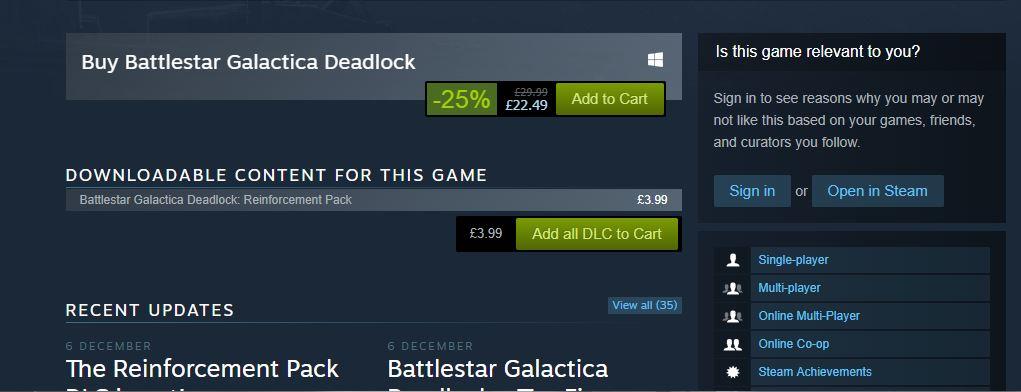
- After finding a game on the Steam store, simply click the Add to Cart button, which is located beneath its description. Just like any other online store, you’ll then need to click through to your cart to evaluate your selection and choose which payment method you’d like to use.
- If you want to keep things entirely digital, you can pay for your game using PayPal – or, if you’re a little more traditional, you can pay with any major debit or credit card. Bitcoin was recently removed as an option, but it may return in the future.
And just like that, you’ve bought your first game via Steam. You’ll receive an email notification that serves as a receipt should anything go wrong in the next few steps leading up to your gaming.
Downloading a game on Steam
Once you’ve purchased a game, you’ll need to download it to your device so that you can get playing. Again, this is a pretty straightforward process:
- Click the Library tab.
- You’ll see your recent purchase and the button download next to it. Click this, sit back, and wait for the game to download onto your computer.
- Once the game has finished downloading, you’ll need to open the file and select the Install option to complete the final stage of the process.
Playing a game on Steam
Now that you’ve installed a game from the Steam store, you’re probably wondering how you can start gaming! All you need to do is return to your library, select the game, and launch it from there.
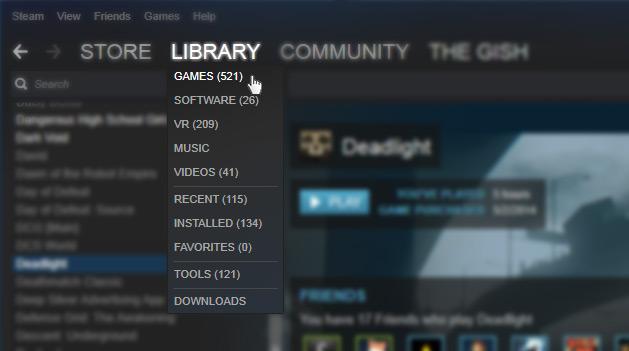
You might also be wondering why you have to play the game on the Steam platform, rather than as a stand-alone program as though you had installed it from a disk. Though it is possible to play your games in this way, there are many benefits to remaining inside of Steam. Indeed, there are some Steam-exclusive trophies that are awarded to players who complete certain tasks. These can be shared with other users of the platform to show off your prowess.
It’s also worth noting that you can select Offline Mode in the top right-hand corner if you want to play a single player game that does not require network connectivity. As your progress is stored locally, you don’t need to worry about losing data.
How to use the Steam controller
While you might be a seasoned PC gamer who enjoys using a keyboard and mouse, it’s a fact that some titles on Steam are more enjoyable when played with a controller.
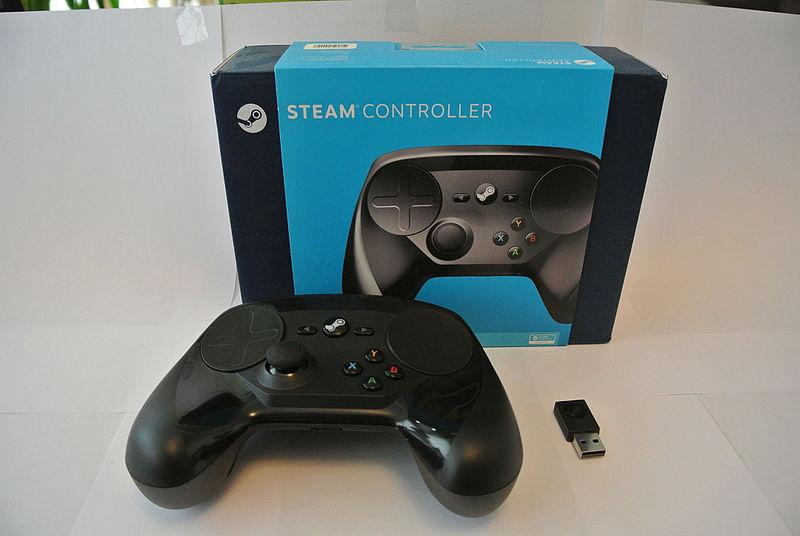
Available to purchase from the Steam website, the flagship controller was designed especially for PC games. As such, its touchpad allows for a great deal of flexibility when it comes to using it with more traditional games. There are other hardware accessories available for use with Steam, and it’s worth taking a look at those for sale on the site.
Providing family access to your Steam account
In the old days, it was possible for an entire family to enjoy playing the same game. Of course, that meant each had to install it on his or her computer with the disk. Steam also makes this kind of sharing possible; up to five computers can be authorized to share the same library.
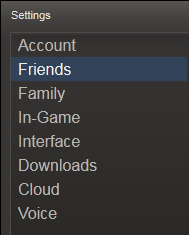
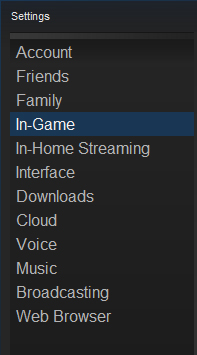
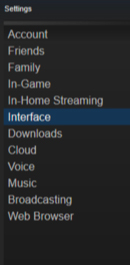
To do this, you’ll need to download and log in to your Steam account on the computer you wish to share with. Then you’ll have to head to settings and then select the Family tab and the Authorize this computer button at the bottom. This can be repeated up to five times, so everyone will be able to enjoy the benefits of the games library.
How to buy a game for a friend on Steam
Totally forgot it was your friend’s birthday? Need a last-minute present for the person who has everything? Steam has you covered, thanks to its gift-giving service.
To buy a game for someone else on your Steam account, you’ll need to follow all of the steps we’ve outlined above, but hit the Purchase as a gift option when it comes to payment.
Making things even better, the recipient doesn’t even need to have a Steam account of their own for you to do this. All they will need is an email address to which the link can be delivered. Once in their inbox, they will be taken to the Steam site to download the software for themselves.
A few hints and tricks before you go
Now that you’re up and running with Steam, we’ve compiled a few hints and tricks that help make your experience even more enjoyable. Of course, more enjoyable often means less expensive, and the best way to sport a bargain on Steam is to download the Chrome extension Enhanced Steam.
Flagging all of the genuine steals to be enjoyed on the platform (and not just the ones that have a 75% sign next to them), this is a handy way of getting some of the best games at prices you’d never get to enjoy in-store.
Another good tip is to consider getting the Steam app on either your iPhone or Android, as this will allow you to make purchases and manage your library while you’re on the move.
Equipped with all of this knowledge, you’ll now be able to get the most out of Steam and all of the services it provides.