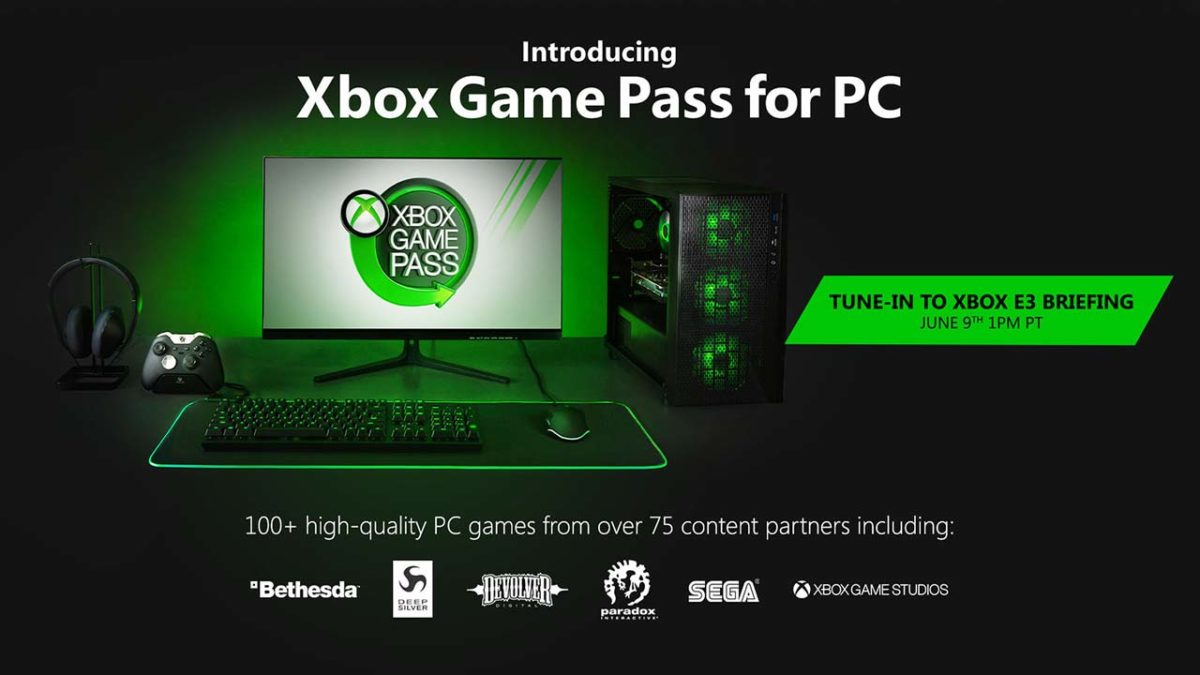
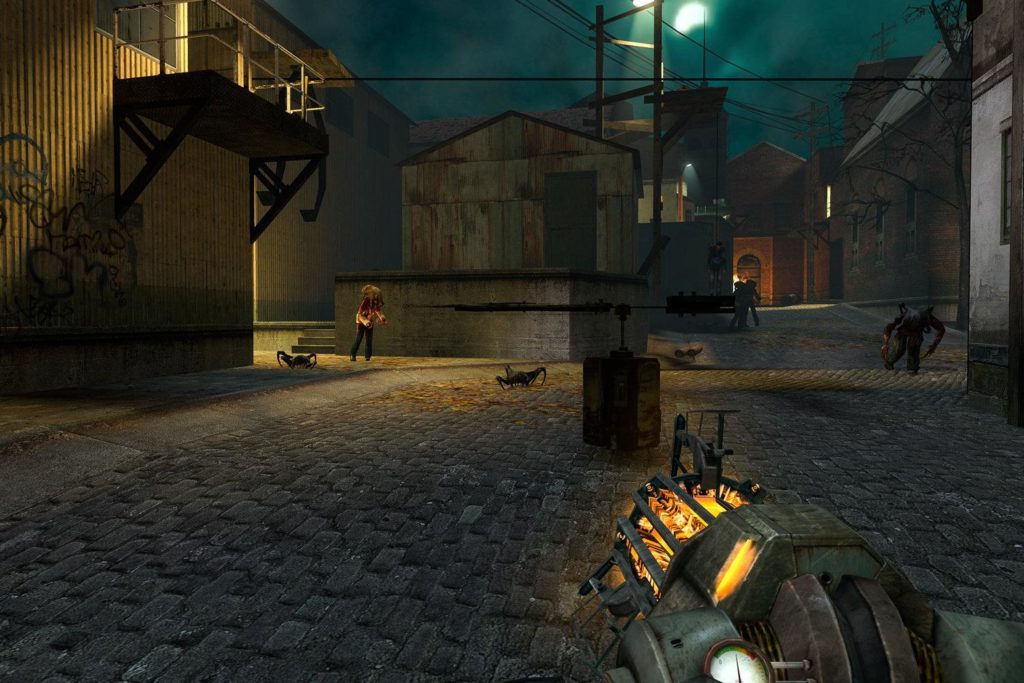
Xbox is bringing its subscription service Game Pass to PC. Soon, PC gamers will have access to more than 100 games from developers like Bethesda, Deep Silver, Devolver Digital, Paradox Interactive, and Sega.
The service will only be available for Windows 10 users.
The latest and greatest version of Microsoft's operating system.
Microsoft typically charges $10 per month for Game Pass, but players can take advantage of a limited time offer and get it for $1 until June 10.
Later this year, Game Pass Ultimate will give players all the benefits of Xbox Gold as well as the vast library of games for $15 per month. That said, it might be in your best interest to wait until then so you can play with your friends online.
The move appears to be an attempt by Microsoft to capitalize more on non-console gamers and boost Game Pass’s subscriber base.
What are the perks?
Aside from the library of games, the subscription comes with other sweet deals. You can get discounts of up to 20% for select games in the Microsoft Store.
The PC-specific version of Game Pass will also have exclusive first-party games. Microsoft announced that they will reveal more details about the subscription service at E3 in June.
More games coming to Steam
Microsoft also announced today that they are bringing more games to Steam. These include Gears of War 5, and the definitive versions of Age of Empires I, II, and III.
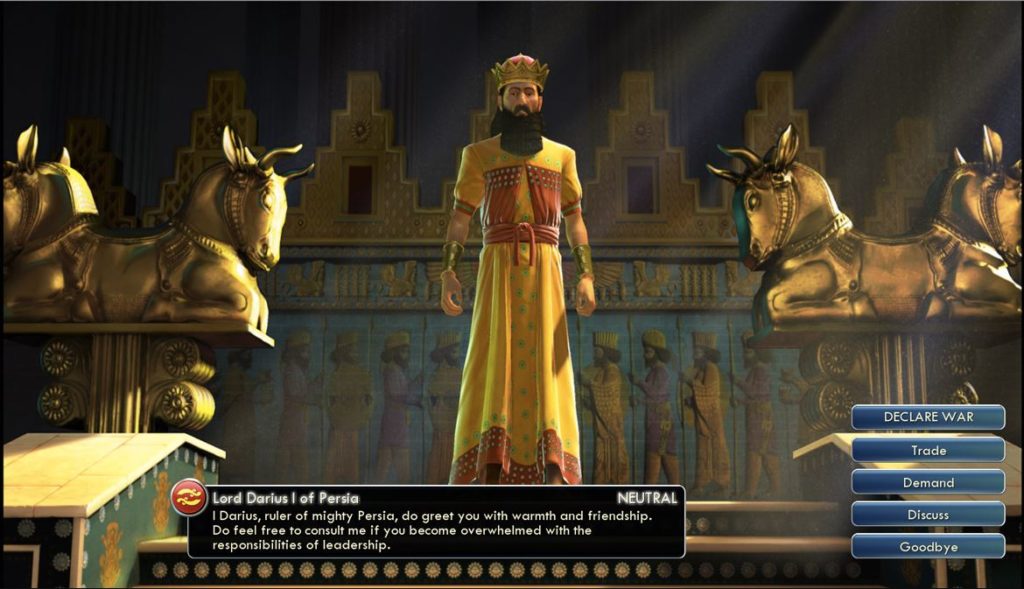
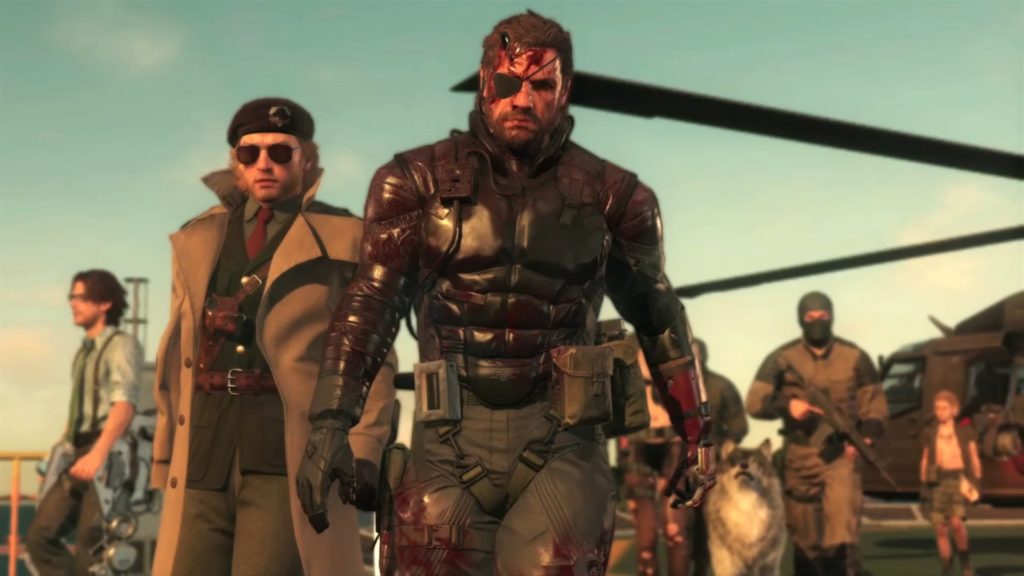
If you want to know whether or not you should subscribe to Game Pass, you should look at the complete list of available games. Sure, there’s a bunch of solid games like Saints Row: The Third and Banjo Kazooie, but there are also some stinkers like Metal Gear: Survive that will be included.
Where Game Pass on PC comes in handy is in that you won’t need to buy an expensive Xbox One in order to play these games.
Potentially, this service could convince you to leave consoles in the dust altogether. However, for those of us who already have the best games the service offers, it’s a pretty hard pass.
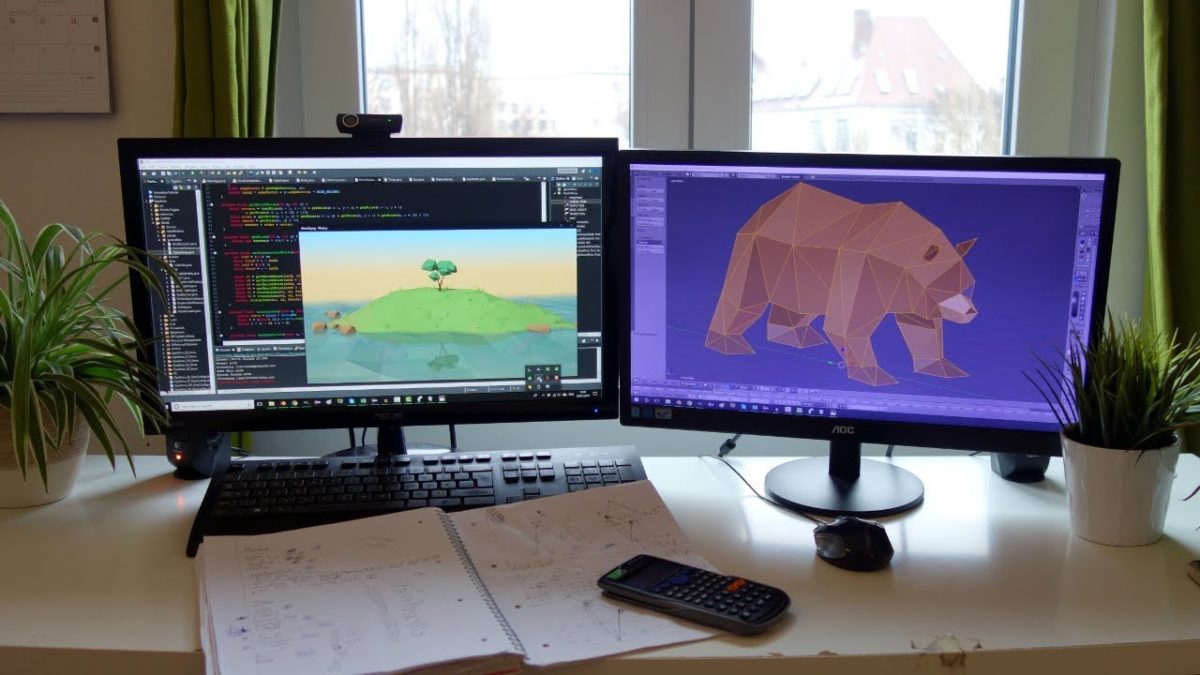
Want to make the next Undertale? These programs can help you!
Over the past decade, indie games have really taken off as viable alternatives to AAA blockbuster games. They are often smaller projects that focus on finely tuned, specific gameplay mechanics. This has led to excellent games such as Superhot, Hotline Miami, and Celeste.
Games like Undertale and Braid have shown that some of the most beautiful, gut-wrenching stories in gaming can come out of small indie teams. Platforms like Steam, the Nintendo eShop, and the App Store/Google Play Store have been filled with hundreds of excellent indie titles. These games feature innovative mechanics and creative storytelling.
We live in a golden age of indie gaming, and if you’re feeling inspired to create your own, here are a few programs that can help get you started:
Best programs to make indie games
Unity
Nearly every indie game dev will tell you that the best program to make indie games on is Unity. An industry staple for years, Unity is one of the most feature-complete and widely used game development programs out there.
Unity offers both free and premium versions, with the free version being feature-complete. There is support for iOS, Android, Windows, Xbox One, PlayStation4,Nintendo Switch, and more. You should have no problem porting your game to your platform(s) of choice.
Unity uses Javascript or C# for scripting instead of a proprietary language, allowing programmers to transfer over their skills in those common languages. The incredible robustness of Unity allows for users to create both 3D and 2D games, with plenty of powerful tools for both kinds of games. You can preview your games within the editor, which saves enormous amounts of time and headaches. This is because you don’t need to compile and run the game every time you want to test something.
Perhaps the greatest strength of Unity is the huge online communitysurrounding it. There is an expansive asset store that allows artistically-challenged developers to create games with pre-made assets. Also, there are thousands of online tutorials, videos, and forum posts made by community members that cover pretty much any topic that could possibly pop up.
The number of games made using Unity nowadays would be too much to list, and the software isn’t going anywhere any time soon.
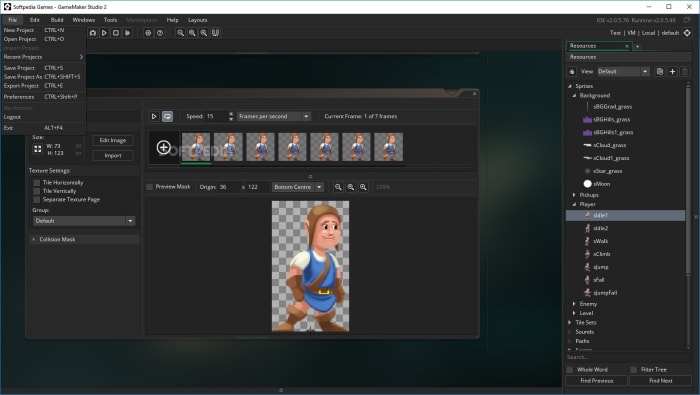
Made for 2D game development, Game Maker Studio 2 is both powerful and easy to use. Like Unity, there is a feature-complete free version, though you must pay to publish your game on different platforms.
Game Maker Studio 2 is unique in that you do not need any coding experience to make your game. Though you can code traditionally in GMS2 (using the program’s proprietary language), the program also includes a drag and drop feature. This feature helps you visualize and simplify coding without sacrificing any of the depth. This drag and drop system makes Game Maker Studio 2 the program of choice for programming beginners, as it allows users to learn as they go along. Like Unity, GMS2 has an asset store that has premade game engines, features, and artistic assets.
The ease of use and versatility of Game Maker Studio 2 is unmatched when it comes to 2D games. Some of the most popular indie games ever, like Hotline Miami and Undertale, were made using the software.
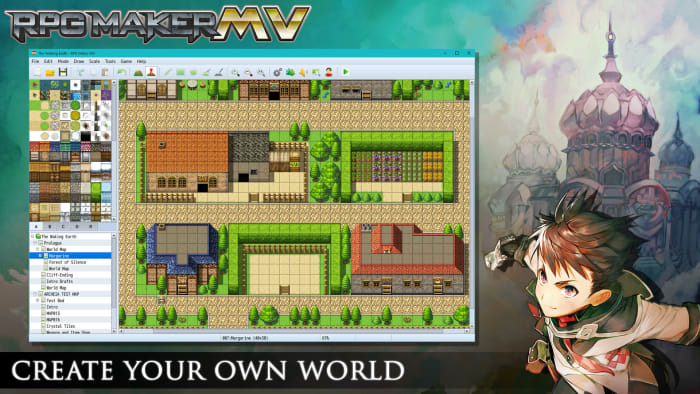
RPG Maker MV is, predictably, a software that allows you to create RPG’s. Ever wanted to make an epic JRPG like Final Fantasy, Dragon Quest, or Earthbound? MV lets you do it with ease.
Like Game Maker Studio 2, it doesn’t require any coding knowledge. MV uses a tile-based interface that allows users to draw locations and tilesets directly into the game world. Users can create turn-based battles that harken back to the golden age of JRPGs.
While the editor may look simple, there are hundreds of fan-made scripts available that you can add to enhance your game. Want to add a Paper Mario-style Action Command system? You can do that. Want to add a Fire Emblem style tactical map? You can do that too. You can even make your game an overhead action RPG like The Legend of Zelda: A Link to the Past. For a program designed to make JRPGs, RPG Maker MV is surprisingly versatile.
The program is available on Steam for the hefty price of $80, though sales are frequent. Fortunately, you can download a free demo directly from the RPG Maker website, or from us:
Ever since Minecraft, survival games have been a popular genre for gamers of all ages. These games test your skills in completely different areas than what you’re probably used to when it comes to your gaming experience. No two games in the genre are alike, and that’s part of what draws people toward them.
Here are some of the best survival games you can find.
7 best survival games on Steam
Don’t Starve & Don’t Starve Together
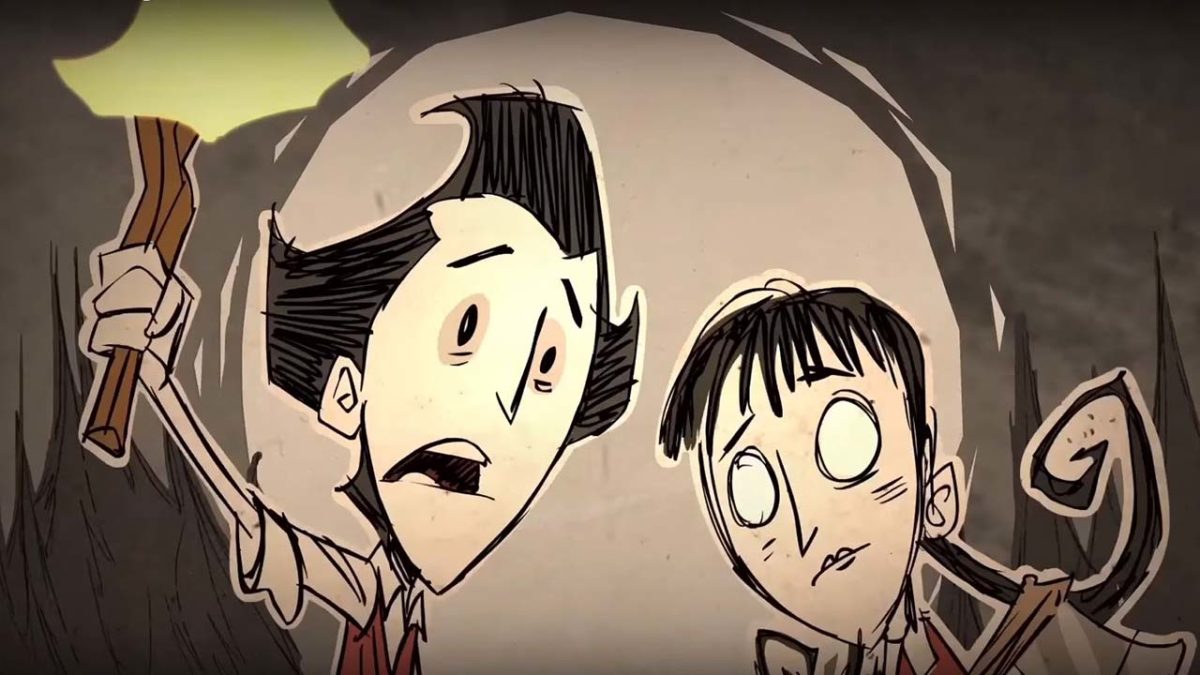
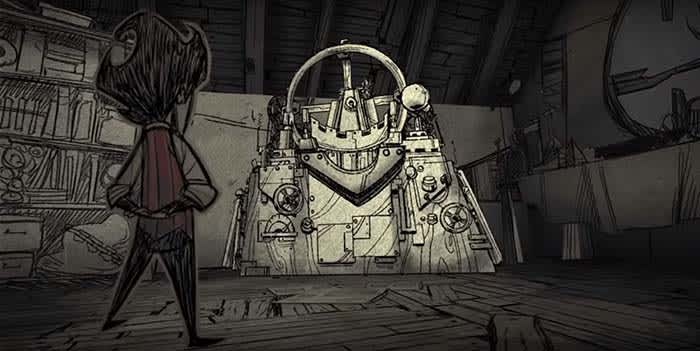
In Don’t Starve and Don’t Starve Together, you travel through a dark and desolate landscape. You must try to survive illness, starvation, panic, and a bunch of supernatural creatures trying to kill you. The games are a challenging but rewarding set of roguelike survival games. You can play as a variety of characters with unique abilities that can help or hinder you in your quest to survive in the wilderness.
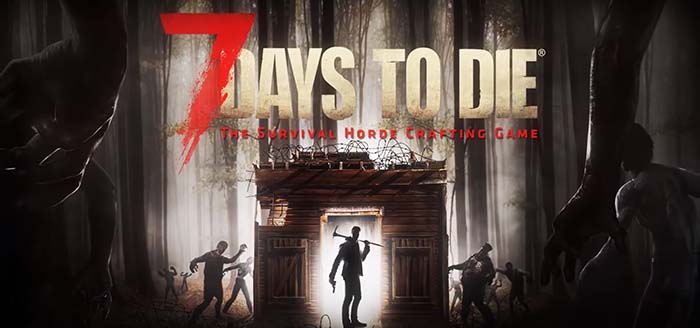
Where zombies meet Minecraft. 7 Days to Die is a unique survival builder game. You have to combat zombies as you build a defensive stronghold. Every so often, the zombies become enraged and you’ll have to face hordes of them at a time. Fans of Minecraft and other builder games will love this intense survival version of the genre.
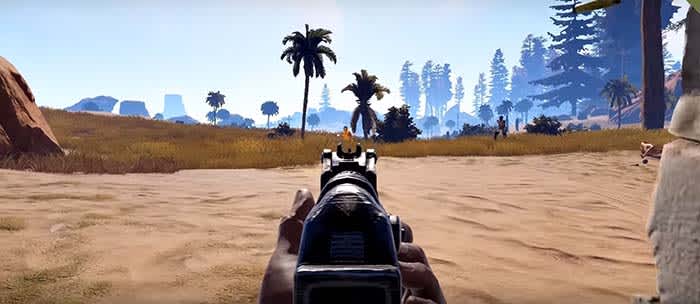
Picture a survival builder game like 7 Days to Die, but with less Minecraft-feel and zombies. Rust follows a more traditional survival gameplay. You have to stay fed, healthy, and safe from the natural threats of the wilderness. You’ll also have to protect yourself from other players, as the PVP of this game can be an intense part of your attempts to survive. Creating alliances can be an interesting and important thing to help you survive.
Instead of just keeping yourself alive, Oxygen Not Included asks you to keep an entire space colony alive and thriving. Each character in the colony can develop attributes and jobs to help with the survival of your colony.
Each of them has different needs, however, so you’ll have to multitask quite a bit to keep them all alive and healthy. While the game is still in early access, the developers are well-known for developing highly successful games at this stage. These are the same guys that made Don’t Starve, after all.
In Scum, a group of prisoners has been brought to a large island where they have to fight to survive. Instead of being purely based on physical survival skills like most games, Scum lets you try a large variety of strategies using their various attributes.
These attributes include mental ones, so you’ll have to balance your physical needs with the mental strain that the prison is taking on you. This game is still in early access, but it’s already worth checking out.
There are surprisingly few survival games that are actually based in horror. Most of them are about post-apocalyptic settings and learning to survive in the wilderness. “Pathologic” takes an entirely different approach, by being a cross between horror, survival and roleplaying.
You play as one of three characters trying to uncover the truth about a plague that is killing a village. You only have 12 days to find a cure, as well as trying to survive the other possible harms that the game throws at you.
A Pokémon-like survival game where you train dinosaurs to help you survive: need we say more? These massive pets can be used for anything from helping you create your own village, to providing a mount that will carry you across dangerous terrain. Outside of dinosaur taming, this game is very similar to other large 3D survival games like Rust and 7 Days to Die. Your main goal is to stay healthy, fed, and hydrated while you traverse the wilderness.
If you’re looking for survival games for your phone as an alternative to Steam, you’ll definitely want to check out our Softonic Solutions page where our community shared some great phone survival games to try. Add your own if we’ve missed any!
See how one game company is fighting against fake negative reviews.
The announcement of the much-anticipated Borderlands 3 has been met with quite a bit of hype in the gaming scene. It’s also garnered more than its fair share of controversy, largely based on publisher 2K’s decision to make the PC versions of the game exclusive to the newly launched Epic Games Store. Fans of the game and users of Valve’s popular Steam store have responded with a practice known as “review bombing,” but Valve is fighting back with new tools that could make a huge difference in the PC game store environment.
Valve launches new tool to fight review bombs
Image courtesy Gearbox Software
Though the Borderlands 3 controversy is only the latest incidence, the practice of “review bombing” has been around for some time. Essentially, users will intentionally leave bad reviews for a publisher’s game as a form of protest. The goal is to systematically bring down a game’s aggregate score on a particular digital storefront. As many online storefronts rely heavily on reviews, large quantities of bad reviews can have a major adverse effect on a game’s success or failure.
In the case of Borderlands 3, the outrage stems from fans who are upset with the decision to make the forthcoming game exclusive to the Epic Games store, bypassing the more popular Steam service. In response to the perceived slight, Steam gamers have review bombed other titles in the Borderlands franchise. Valve is responding to the review bombs by taking steps to rectify the problem.
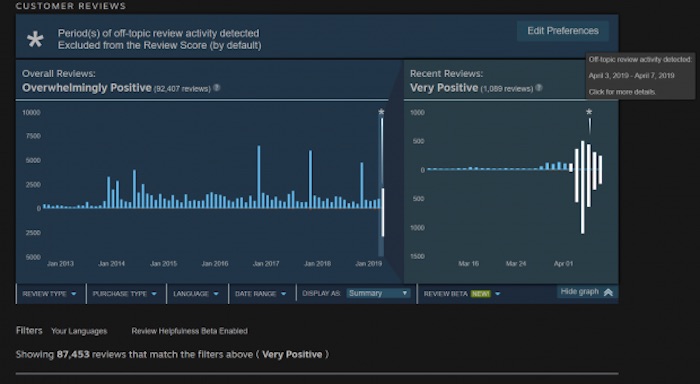
Valve has launched a new tool designed to counter the review bombs. The tool in question automatically scans game reviews for one-sentence or off-topic reviews, and prevents those reviews from affecting the game’s overall score. Reviews are still able to be seen by other users, but won’t be able to have an adverse effect on the game’s rating.
Image courtesy Valve
As seen in the image above, players will be able to see the breakdown of reviews and whether or not they affect the game’s scores. The tool blocked all reviews made from April 3 to April 7, when the majority of the review bombing was occurring. This new tool could do quite a bit to help Valve fight back against the growing popularity of the Epic Games store. Though still the top PC game store, Steam has seen an increasing number of titles migrating to the Epic Store. As major titles become Epic exclusives, Steam loses out on post-release profits, and review bombs also contribute to profit loss. As pointed out by Gearbox Software’s Randy Pitchford, the review bombing practice can have the adverse effect of driving more developers to the Epic Store:
Ironically, that this misuse is possible and that Steam has no interest in correcting this misuse makes me kind of happy about 2k’s decision and makes me want to reconsider Gearbox Publishing’s current posture on the platform.
Only time will tell whether Steam will retain its seat as the king of PC gaming, and taking steps such as these will doubtless help the embattled storefront retain its position.
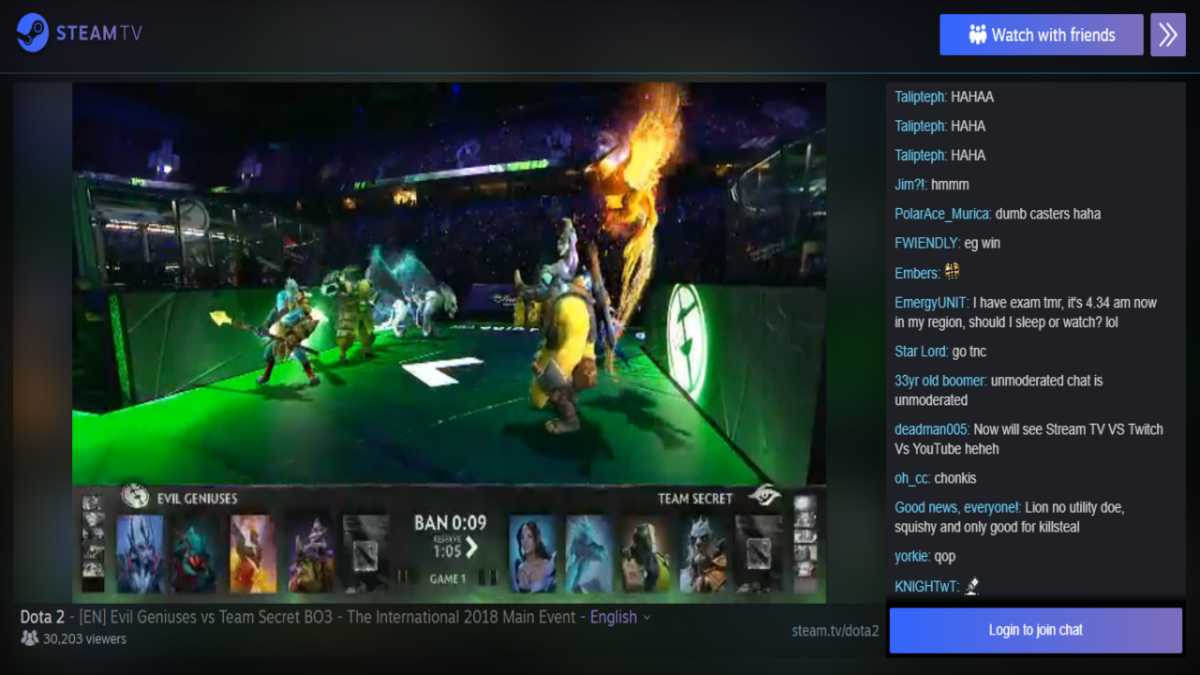
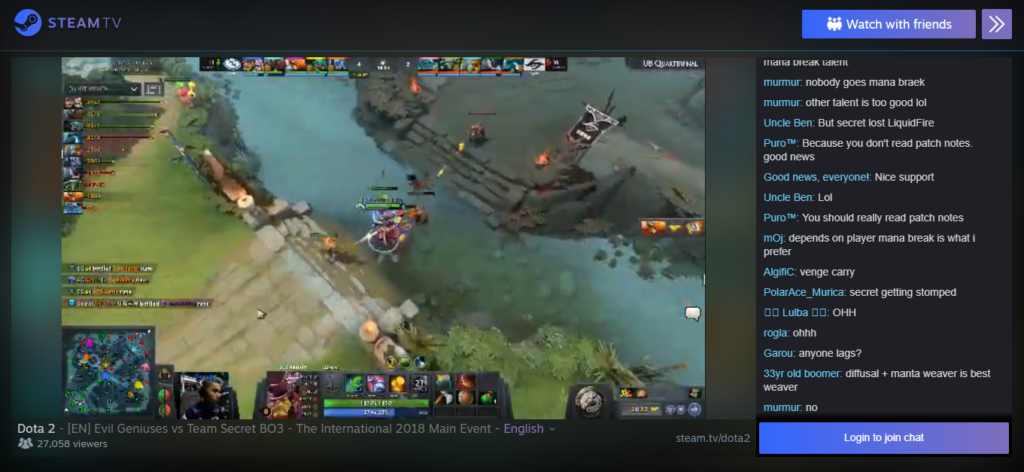
The internet has been buzzing after Valve registered the domain name Steam.tv, causing speculation that the company was entering the game streaming industry against Twitch and YouTube Gaming.
Later the same day the domain was registered, Steam.tv actually went live, broadcasting the Dota 2 mega-tournament The International. The annual event is one of the most-watched eSports events of the year. Valve quickly pulled Steam.tv offline that same day, saying that the website going offline was an error that resulted from an internal test. However, as of now, Steam.tv has officially gone live.
Steam.tv’s unique edge over Twitch is its full Steam integration. When you log in to your Steam account, your friends list will appear on the left side, appearing very similar to Steam’s usual “Friends and Chat” window. From this window, you can message your friends, see what they’re playing, or otherwise interact with them just as you would on Steam. You can also seamlessly hop into a live broadcast of your friend’s gameplay, allowing you to interact with and harass your friends in real-time (this feature can be turned off if you don’t feel like broadcasting your gaming session to the world).
Additionally, you can invite friends to watch broadcasts together. You can chat using the built-in voice chat client (as long as you’re using Google Chrome; browser voice chat is coming to other browsers later).
The website so far seems to be a cool way to tie Steam’s social features with a broadcasting site. While it remains to be seen if Steam.tv will become a serious competitor to Twitch, it looks promising so far.
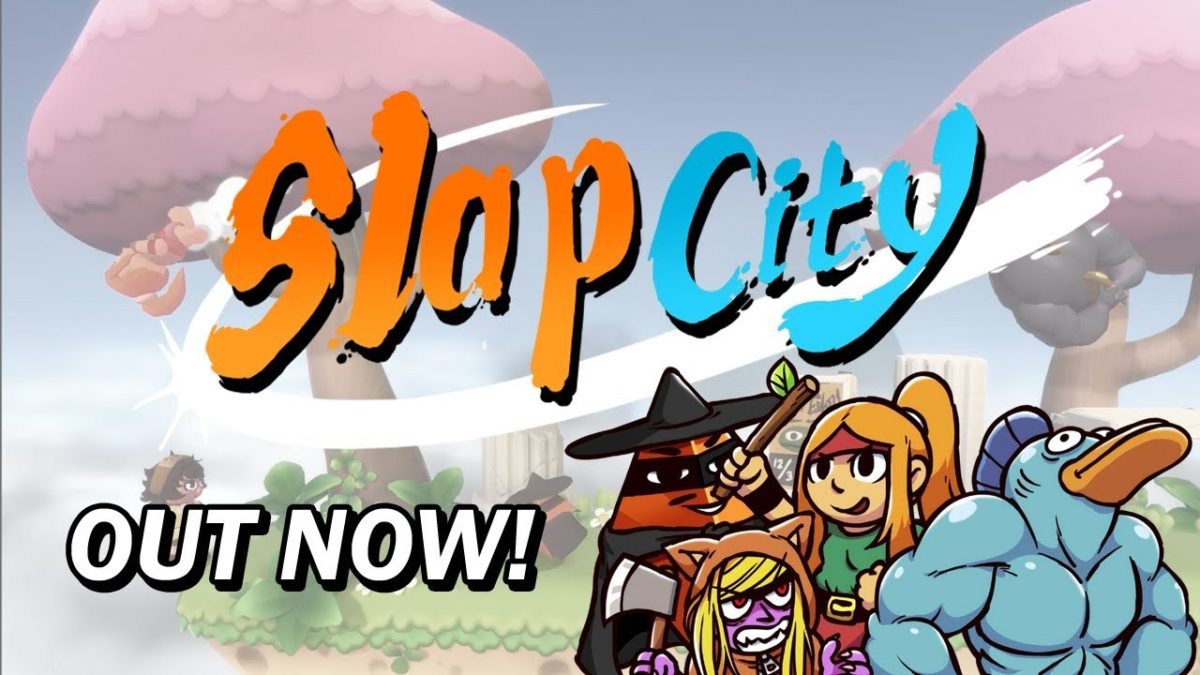
Looking to tide your appetite for Super Smash Bros. Ultimate? Have you played enough Melee and Smash 4 to break your thumbs? Looking for a cheap Smash-like game on PC? Look no further than Slap City:
Developer Ludosity has been updating the game consistently, adding free characters and stages. Currently, there are seven playable characters in the game, ranging from the musclebound fish-man Fishbujin 3000 to the fiery Goddess of Explosions. The characters all play completely differently from each other.
Unlike most other games based on Smash, the characters are not based on any popular Smash archetypes (like Melee’s Fox, Marth, or Captain Falcon). Because of this, Smash fans can pick up the game and be surprised by the characters while still being able to acclimate to the gameplay quickly. Arguably the most unique character in the game is Business Casual Man. As he attacks you with various business-y things like rolling chairs, QR codes, and water coolers, he gains money. If he gets enough money, he can use sell attacks, extremely powerful attacks that use up his money. He does this all while screaming business buzzword nonsense like “VISUALIZE MONETIZATION!”
The gameplay is a nice middle ground between the fast-paced Melee and the floatier, more accessible Smash 4. Certain advanced techniques from Melee are possible, including wavedashing and SHFFLing (short hop fast fall L-canceling). For people who aren’t nerds and don’t care about that stuff, the game is still very accessible and easy to play if you have any familiarity with Smash.
The game also gives each character a chargeable aerial smash, something that has never been included in Smash before, which adds many new options to start and finish combos. The game can be played using a keyboard, arcade fight stick, Xbox controller, and for Smash purists, the Gamecube controller.
While the game may look a little rough graphically, we can assure you it plays much better than it looks. And with charming music, a robust online system, and extra modes like Slap Ball, Slap City is a welcome inclusion in any Smash fan’s library.
Indie games often have some of the most unique and original ideas out there. Some, such as Minecraft, even become popular enough to get bought by larger companies. It can be a bit difficult though to find the great indie games, considering how many there are out there. Thankfully, our Softonic Solutions community has the answer to this question, with a ranking of the best 64 indie games! Solutions is a great site to get answers for any of your gaming or tech-related questions. Here are some of their top indie game choices:
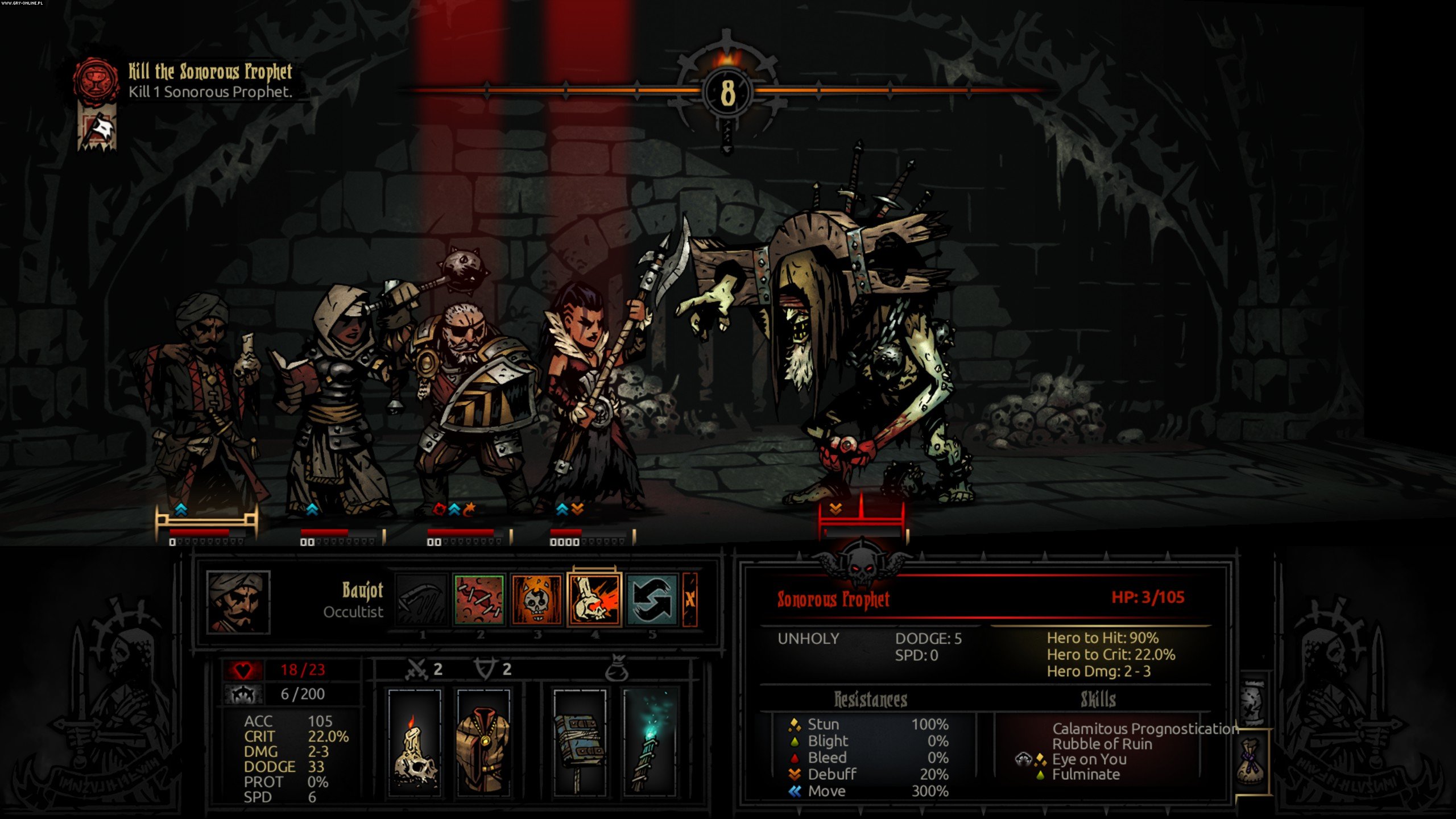
5. Darkest Dungeon
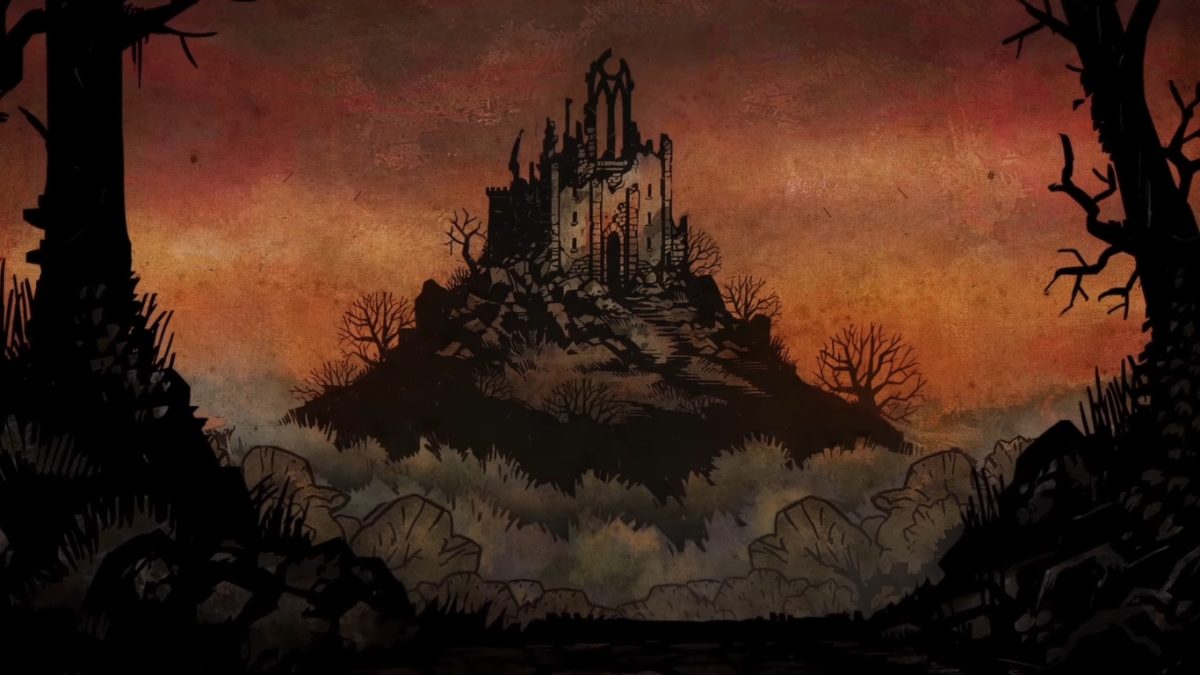
When it comes to unique indie game experiences, Darkest Dungeon really takes it to the next level. It’s hard to find a game to compare this to, other than the broad genre of roguelike RPGs. Difficult, yet incredibly rewarding, this game is great if you’re looking for something a little dark and strategic.
Another dark-themed indie game, The Binding of Isaac is an enthralling roguelike. Play as Isaac as he journeys through his basement and fights his inner demons with his tears. The gameplay of this game is incredibly immersive and addicting, and you’ll soon find yourself looking for all the hidden secrets this game has to offer.
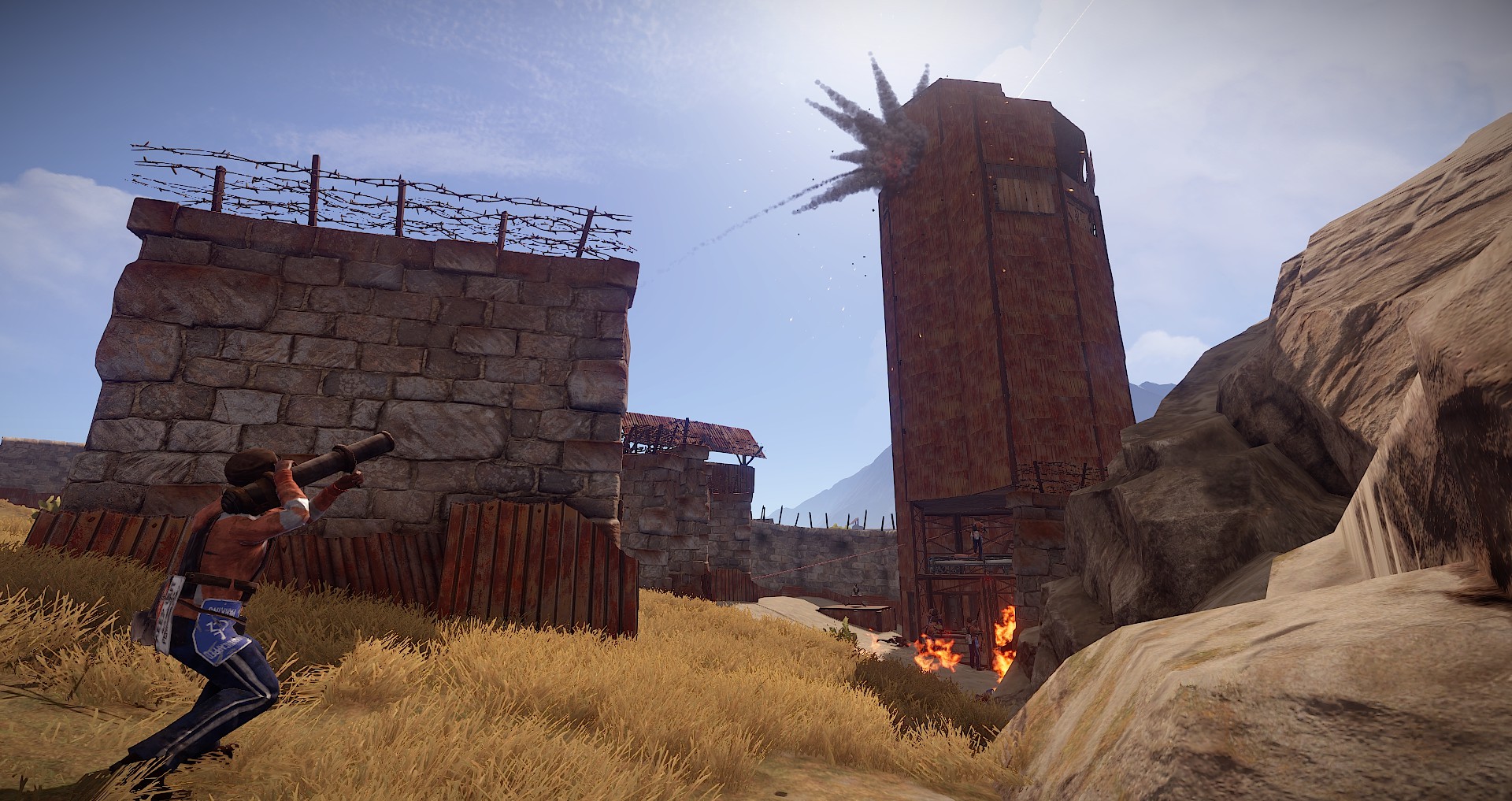
Fans of survival games will definitely want to check Rust out. This game was partially inspired by Minecraft, and you can see some of the elements taken from there. These elements, along with the survival-based gameplay, allow for some deeper and more rewarding survival achievements than other games in the genre.
One of the best parts of indie games is their ability to parody real life in ways that games made by larger studios may be too afraid to do. Broforce parody’s the “bro” archetype in ways that even a bro himself can appreciate. This game is a perfect combination of subtle humor and run-and-gun action.
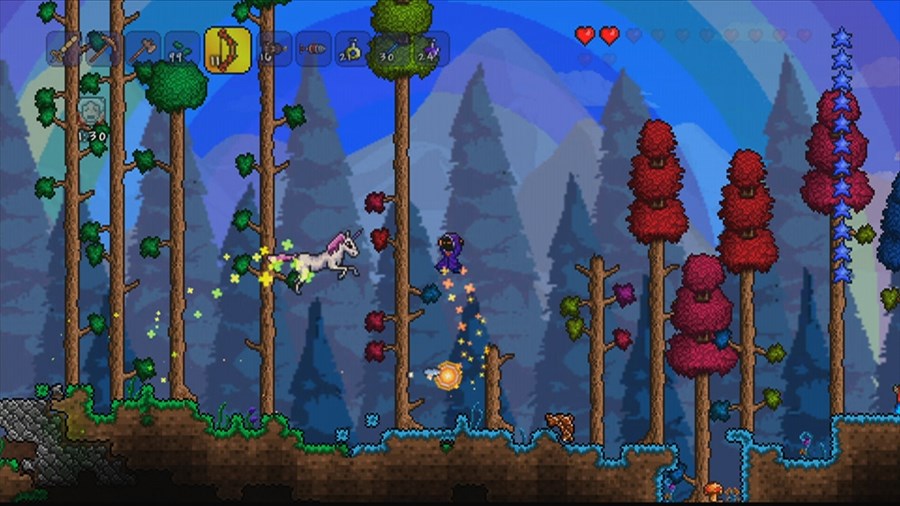
While most people think of Minecraft first when they hear of a sandbox builder, but Terraria has a unique charm that is often overlooked. This game features is in 2D, and features a more fantasy-based setting than Minecraft does. It’s definitely worth checking out if you’re looking for something a little different and unique in the sandbox adventure genre!
You can find out more about these and other great indie games by checking out our Softonic Solutions page and seeing what our brilliant contributors suggest. Or share your own favorites! The Solutions community awaits your input.
Wish you could play the classic Star Wars: Jedi Academy with all-new options? Dust off that old copy and jump back into the game!
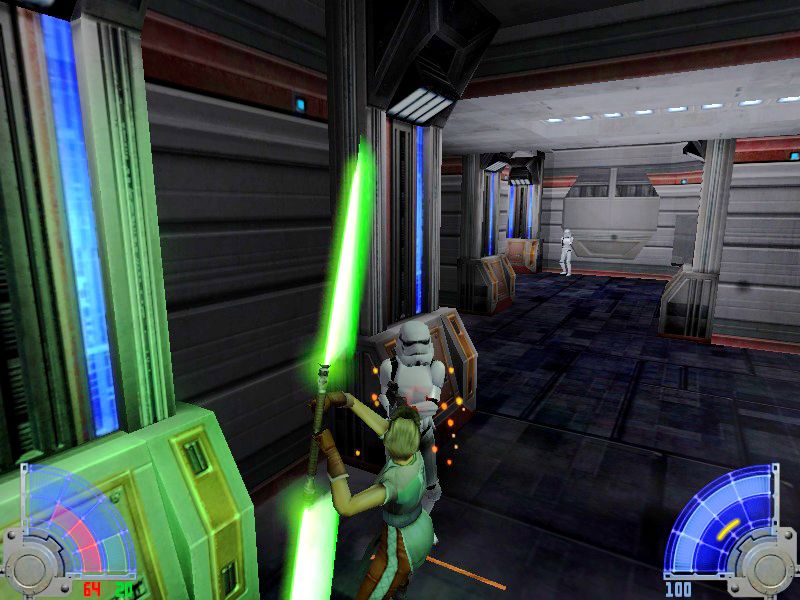
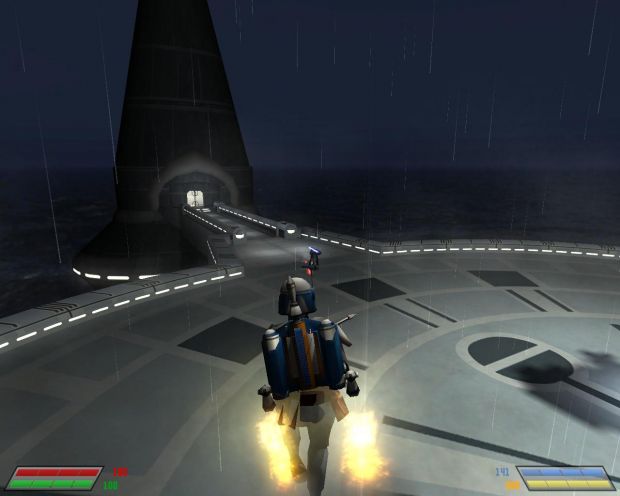
To anyone unfamiliar with Star Wars: Jedi Academy, this 2003 game developed by Raven, Vicarious Visions, and Lucasarts was the final installment of their Dark Forces franchise. Most famous for mixing shooter elements with lightsaber mechanics that were both intuitive and elegant, it was this happy unity of hack n’ slash and FPS that made the game so successful.
For those of you who are familiar with the game, you probably know that the campaign is three acts of non-linear missions separated and punctuated by story-driven multi-part missions that were a little more plot heavy. Upgradable force powers served as the RPG element while the player character (Jaden) also gradually progresses to learn different lightsaber styles, including the option to dual-wield or use the famous doublesaber like Darth Maul.
The first playthrough of this game is a dream: It’s got the exciting combat, the logical level design, the tried and true Star Wars mythos, and even multiple endings for light side and dark side. Despite all that, there’s one modern aspect where this game falls short, and it’s an important one:
Replayability.
We’re not saying the game is short, with the average run through the main story typically taking around nine hours on average. We’re saying that once you’ve completed that story, there’s not much to do other than play the same missions over again. This game came out before the time of ‘Campaign Plus’ or other such modes that increase the difficulty but allow for a second playthrough with your endgame character and stats (something we think would have been a great addition to this game).
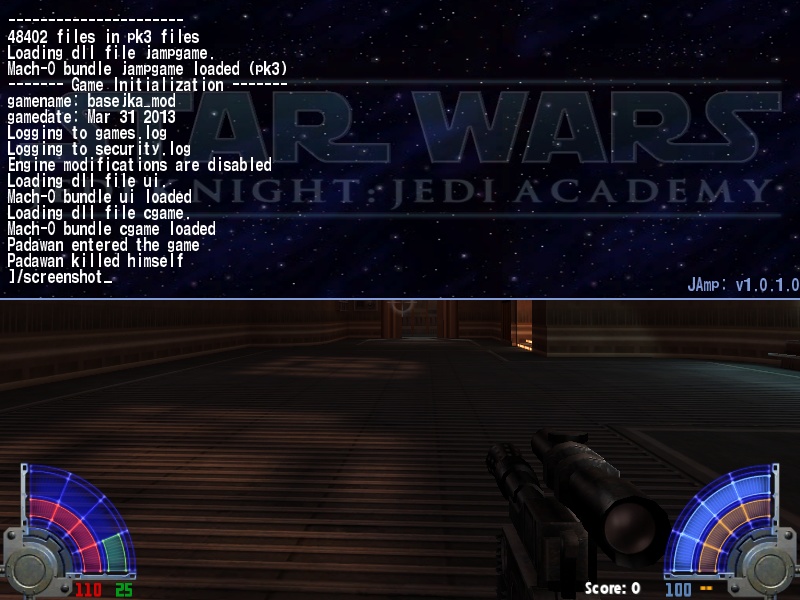
The PC version of this game has a drop-down for console commands if you press ‘Shift + ~‘ during the game. Here’s where the fun stuff begins. Now for those of you pointing fingers and accusing us of cheating, remember that we played this game numerous times before using any of the upcoming commands, and we’d strongly encourage you to do the same. Remember, this is a way to add more hours of replayability to the game, not to cheapen your experience with what we think is a fantastic experience!
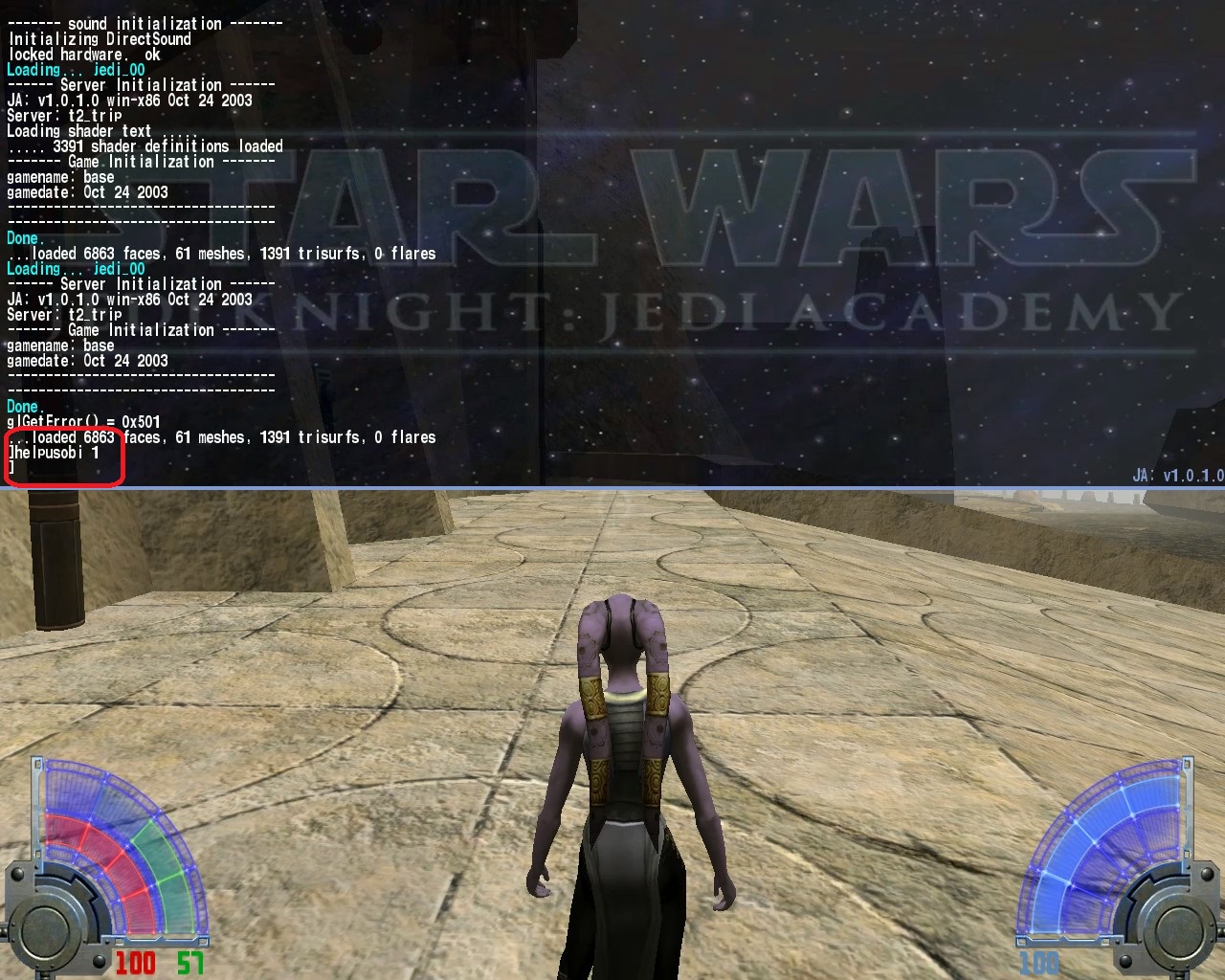
Once you’ve opened the drop-down for console commands, the first thing you’ll need to do is type ‘helpusobi 1’ (haha) to enable the game to register codes. From that point you can enter any of the following to achieve these results:
Jedi Knight®: Jedi Academy
1. addsaberstyle fast OR addsaberstyle strong –
This will allow for you to add the additional lightsaber forms that are only unlocked later in the game. Being able to switch between the given styles from square one makes the experience far more tactical without really altering the difficulty of the game.
2. sabercolor 1 ‘color’ –
While this is merely an aesthetic difference, it means you can change lightsaber colors whenever you feel like a change of pace. This includes the otherwise forbidden red lightsaber, which makes your evil playthrough exponentially more immersive. It may seem like a small change, but when you’re desperate to freshen up your eighth or eighteenth run through the campaign, size matters not.
3. setforceall 3 –
This code will give you all the Force powers at their highest level. By the time you’ve beaten this game as many times as we have, it’s sometimes more frustrating than fun to have to play the early levels without your full arsenal of force powers. While having to pick and choose carefully adds a deeper level of strategic choice, the gameplay from level to level is much more fun when you can Force choke or heal without having to spend level after level building up to it. Plus, you get to do all the neat little acrobatics and flourishes, and that stuff is cinematic no matter what level you’re on!
Jedi Knight®: Jedi Academy
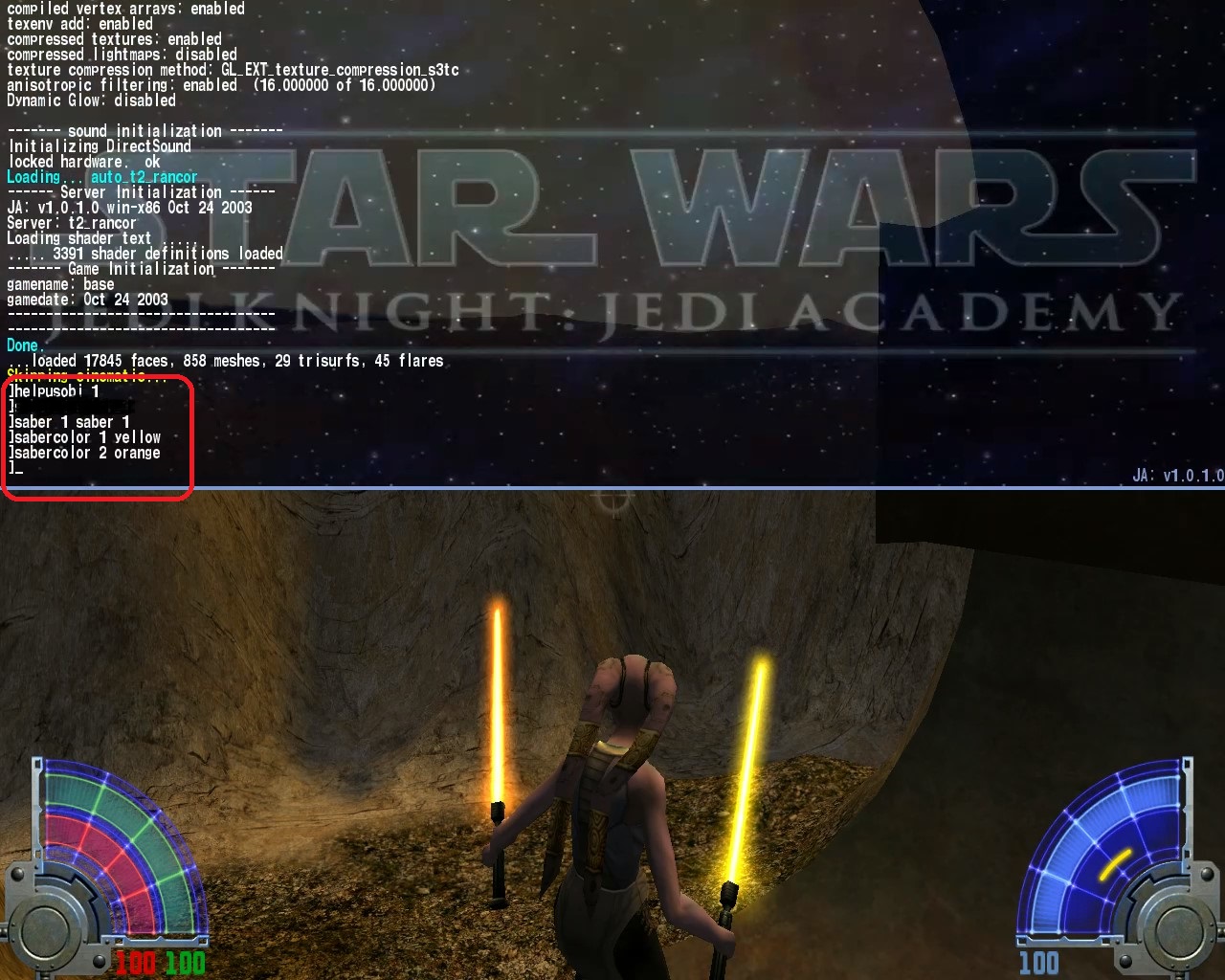
4. saber 1 saber 1 –
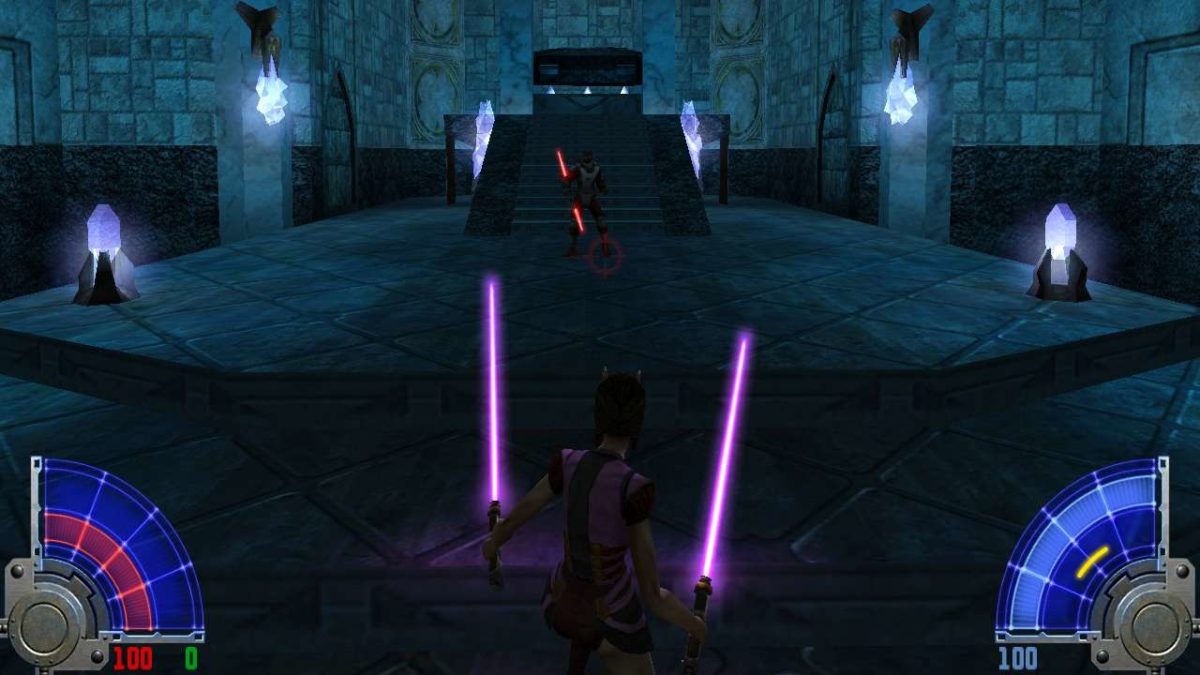
Allows you to use dual lightsabers like the player character can do late game. Usually, this is only restricted to the third act, but we think that’s a shame given the rock-paper-scissors style of combat that depends so strongly on what kind of saber style you pick. Also once you’ve made that choice you are locked in, which means that while a single saber might be better in one level, you might wish you’d chosen dual sabers later on. You can also change the colors of the blades by using the ‘sabercolor’ code above.
5. saber dual_1 –
Similar to the above code, this allows for the player to use a doule-ended lightsaber immediately (and you can change its colors, too). All the same justifications for dual sabers apply here, with the added bonus that you also unlock the option to kick with this. Considering how many pitfalls and catwalks there are early in the game, having a double-ended lightsaber early on may radically change the way you approach each encounter.
And you can find many more codes here if you’re looking to add still more.
If all these codes still aren’t enough for you, we’ve got one more ace up the sleeve: Star Wars: Move Duels 2.
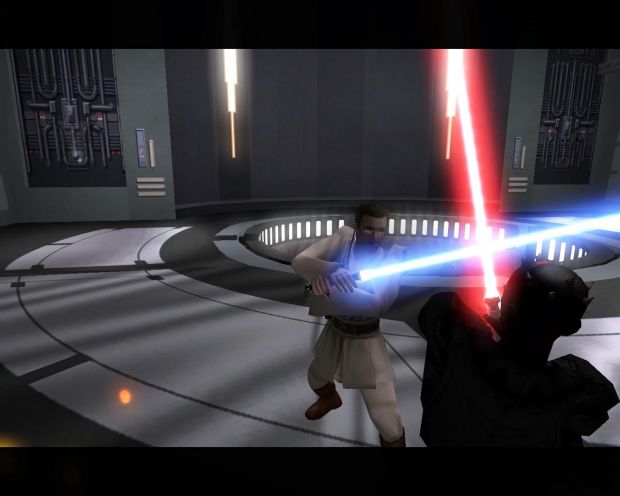
This mod takes you through the climactic fights of the prequel trilogy as well as several battles from the Force Unleashed series (including Starkiller as a playable character). So if you’ve ever wanted to play as Darth Maul against Qui-Gon on Tatooine or test your skill against Count Dooku or General Grievous, this mod makes it all happen and it uses lines directly from the films. Did we mention it’s also 100% free to download? Regardless of whether you like the story campaign of Jedi Academy, the lightsaber combat of this game makes playing these famous scenes extremely fun for any Star Wars fan.
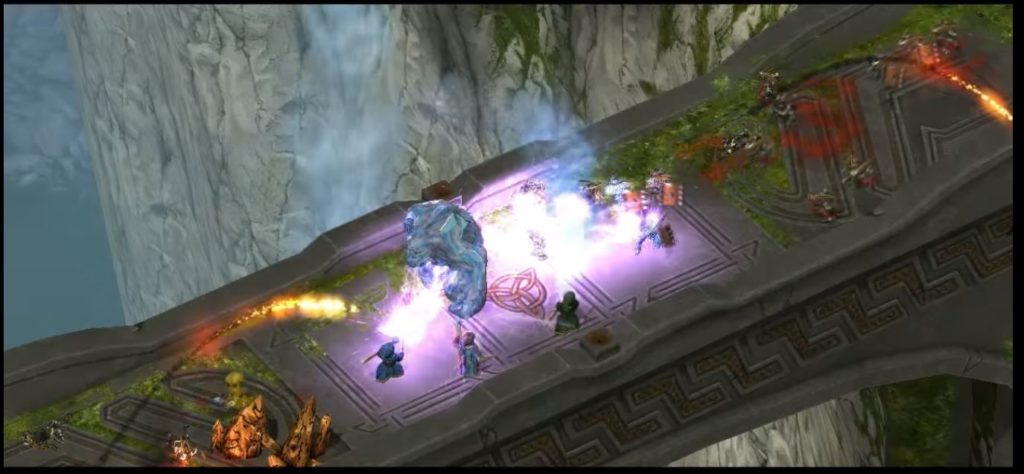
If you’re looking for a fun, comedic multiplayer experience with a huge amount of gameplay variation and creative spell combinations, this is the game for you. Less than three dollars, now is a great time to give this game a chance. Since it was released back in 2011, there’s a ton of content and reviews readily available online if you want to check it out beforehand.
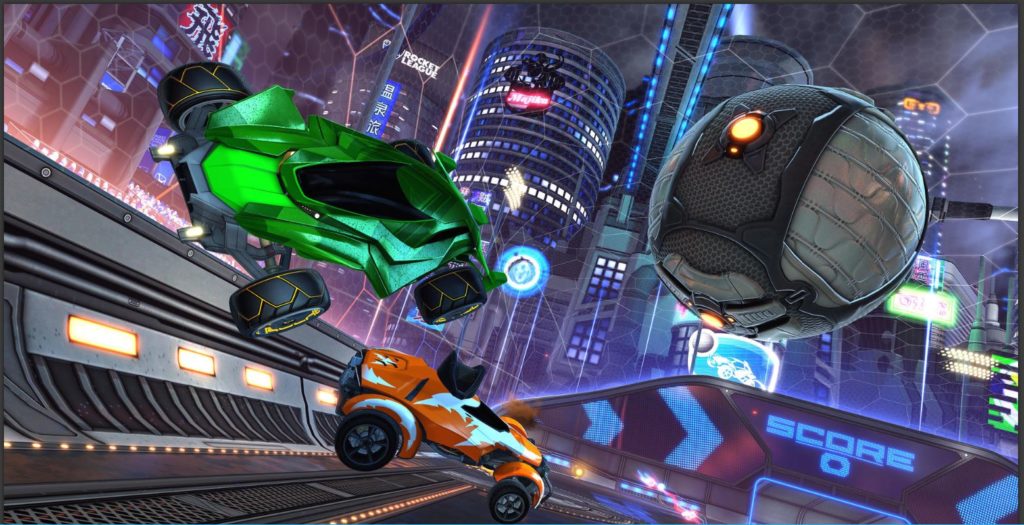
Immensely popular and extremely addicting, see what the hype is all about! Easy to pick up yet difficult to master, join up with a group of friends either online or via splitscreen and try your hand at this fast and furious propane-fueled take on soccer.
Practically every title in this franchise is on sale right now for under ten dollars. For veterans, this is a great time to snag any titles in this series that you haven’t gotten the chance to experience yet. For novices, there’s no time like the present to grab one or two of these games to see if it’s your cup of tea.
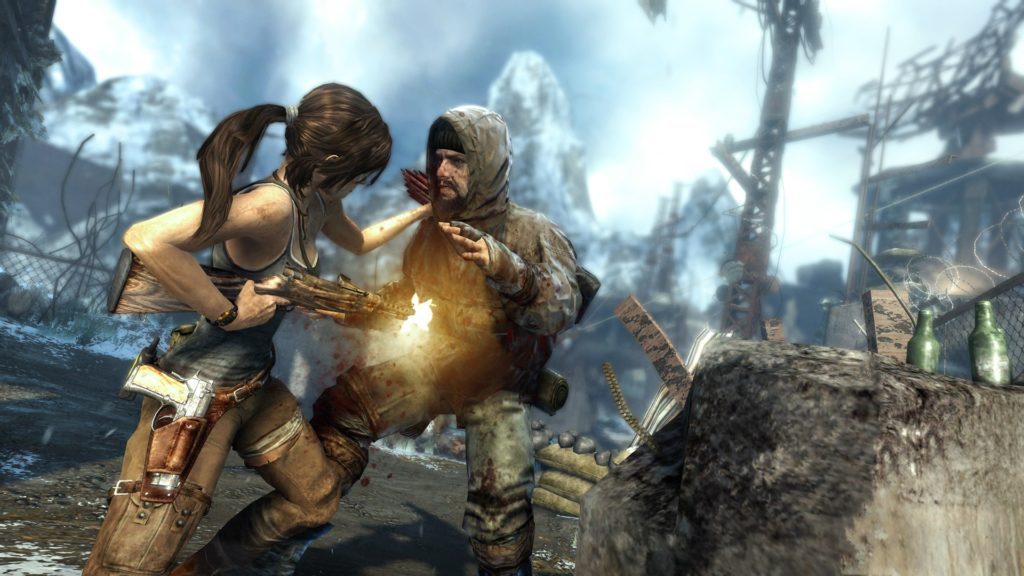
If you’re a fan of the Tomb Raider license (or even if you’re not), for under three dollars, this is an unforgettable experience. Play as Lara Croft as she goes on her first adventure to a mysterious island rife with danger and intrigue. Released in 2013, this game holds up surprisingly well in the gameplay and graphics departments, and features a great mix of combat, exploration, and puzzle-solving.
While EA’s Battlefront 2 had an infamously mixed response, the original Battlefront 2 from 2005 remains a gem of a shooter game. We should know. We’ve sunk well over 300 hours into this game. With its online capability recently restored, highly intuitive gameplay, multiple game modes, and full campaign, it’s a fantastic $4 investment. Did we mention it has mod support too?
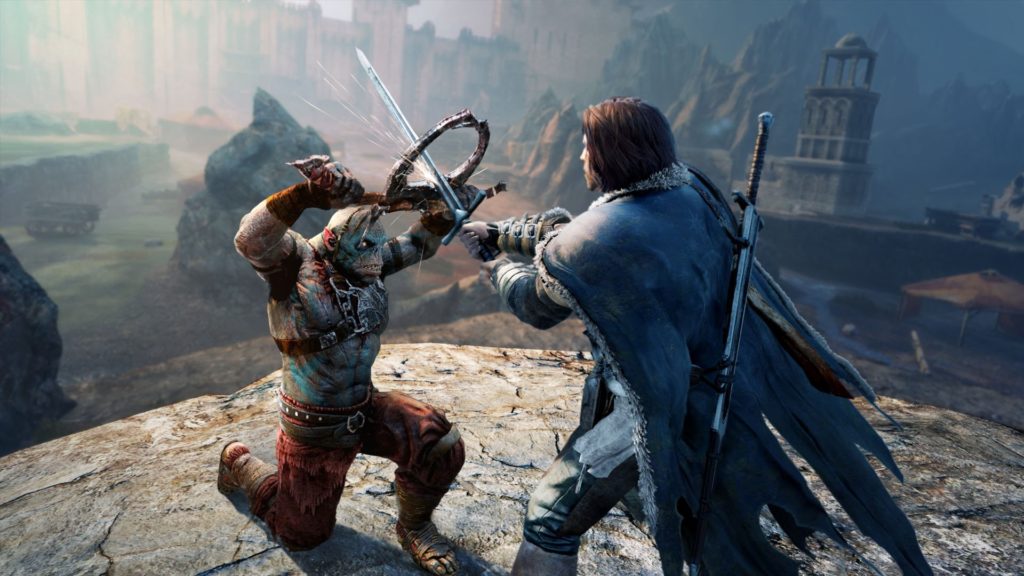
With last year’s release of Shadow of War, anybody looking to get their feet wet before grabbing the game might consider buying Shadow of Mordor first. Though Shadow of War boasts many notable improvements to the formula, Shadow of Mordor introduces the nemesis system and open world gameplay that its sequel improves upon. For the price, this sale is a very economical way to test the waters of this popular series.
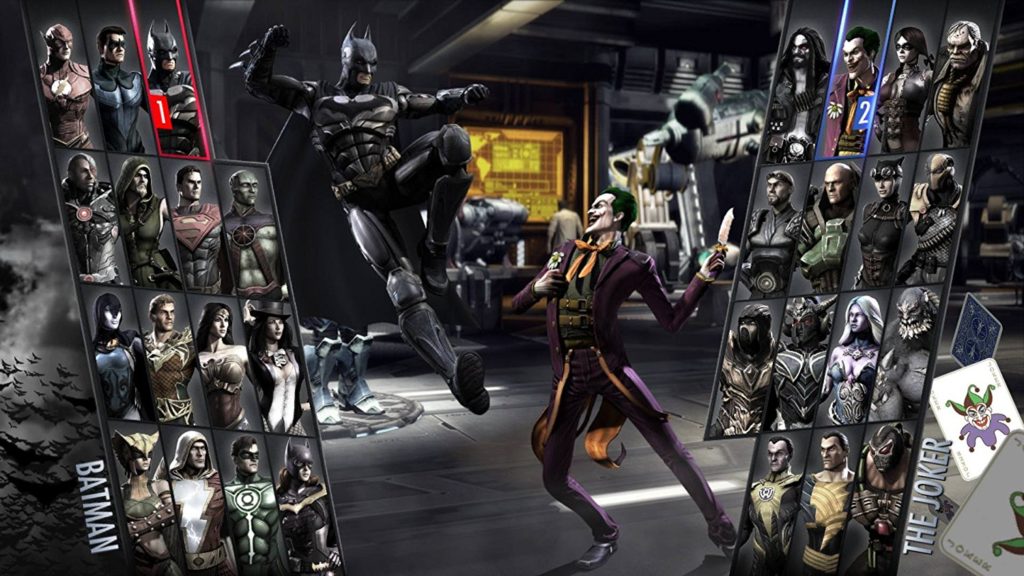
With Netherrealm and WB Games releasing their most recent additions to its Injustice 2 roster a few months back, players who are unfamiliar with the series might consider grabbing the prequel while it’s on sale. For less than the cost of lunch at McDonald’s, the Ultimate Edition of Injustice is a highly replayable game featuring a solid story, a large number of playable characters, and all the DLC costumes and characters. A must-have for any fan of Mortal Kombat and/or the DC universe.
Sid Meier’s Civ series is known for two things: addicting “one more turn” gameplay, and long matches. Those two elements combine to make Civ 5 one of the most engaging and in-depth real-time strategy games on the market, and it’s a title we keep coming back to when we want to really sink our teeth into a game. While the most recent Civ 6 is not priced quite so low yet, for under $8, Civ 5 should sate you and then some if you’re on a budget.
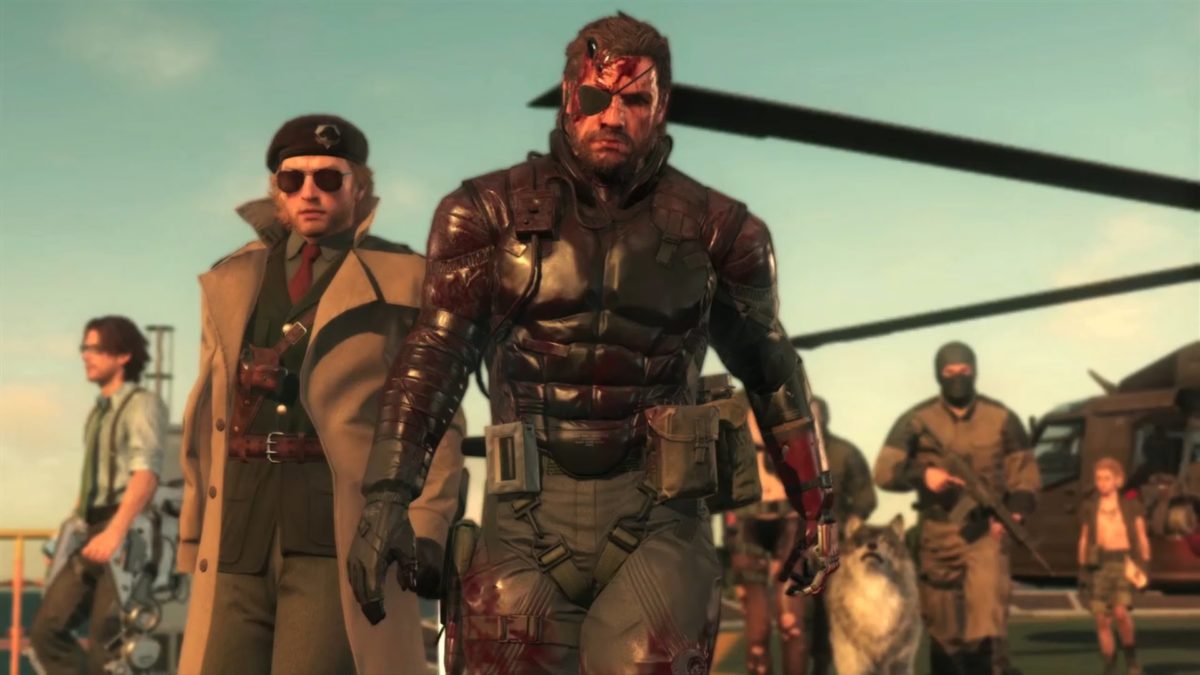
If you’re looking for hours of an excellent narrative story, solid stealth gameplay, tactical espionage, and player freedom that’s through the roof, it’s all here for less than ten dollars. Even if you are unfamiliar with the Metal Gear license, Hideo Kojima’s farewell to the franchise features some of his best work to date. Grab it now while it’s on sale!
It’s summer of 2018 and none of these games are fresh out of the oven by this point. But we can’t overstate the replayability or the charm of ANY title in this bundle. Featuring some of Valve’s best work, grabbing this while it’s a mere $2 is a STEAL, particularly if you haven’t experienced Portal’s excellent puzzles or Half-life’s superb level design and story-telling. Even if you have played them before, the Team Fortress 2 community is still going quite strong, and we guarantee hours of highly entertaining online competitive play. Just boot it up. We promise you’ll have fun.
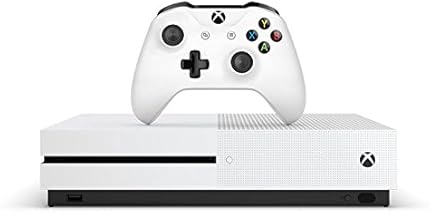
After telling you how not to get random invites on PlayStation Network and then on Steam, now it’s time to talk about the Microsoft console: Xbox One. With its latest update, this entertainment system from the Redmond boys has changed a little regarding its interface. However, the changes have been for the better, since everything is a little more organized, clear and direct (unlike the previous design, which was a little more chaotic and confusing when installing the console for the first time).
In this quick guide, we’ll teach you how to disable notifications for Xbox One so they don’t bug you while you’re playing. Are you ready? Here we go!
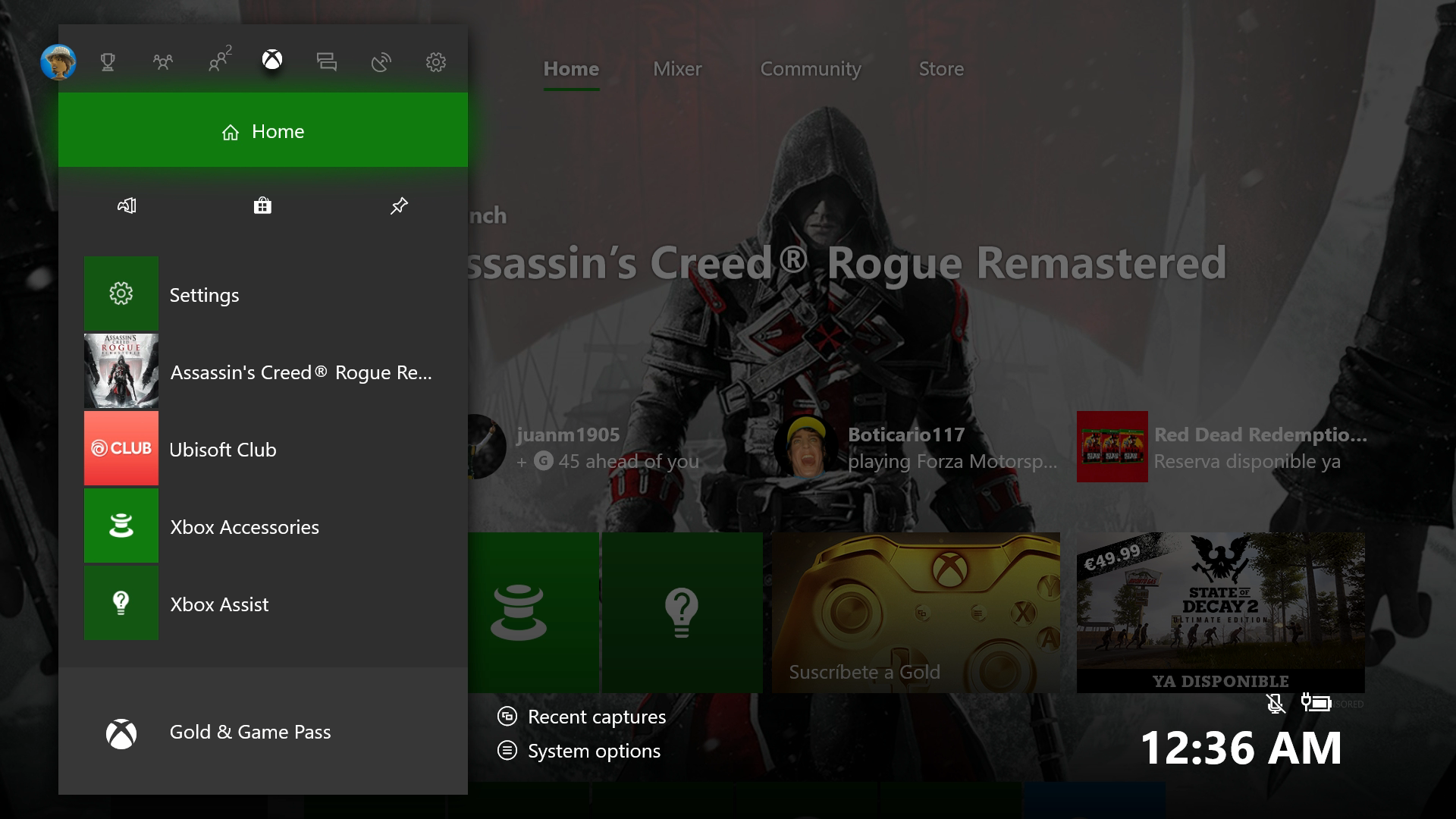
After we’ve turned on the console, the first thing to do is log into our account with username and password. That takes you to the home screen. Next, we’ll click the central command button (on the Xbox) so it opens the task menu, which is now much prettier with the new redesign.
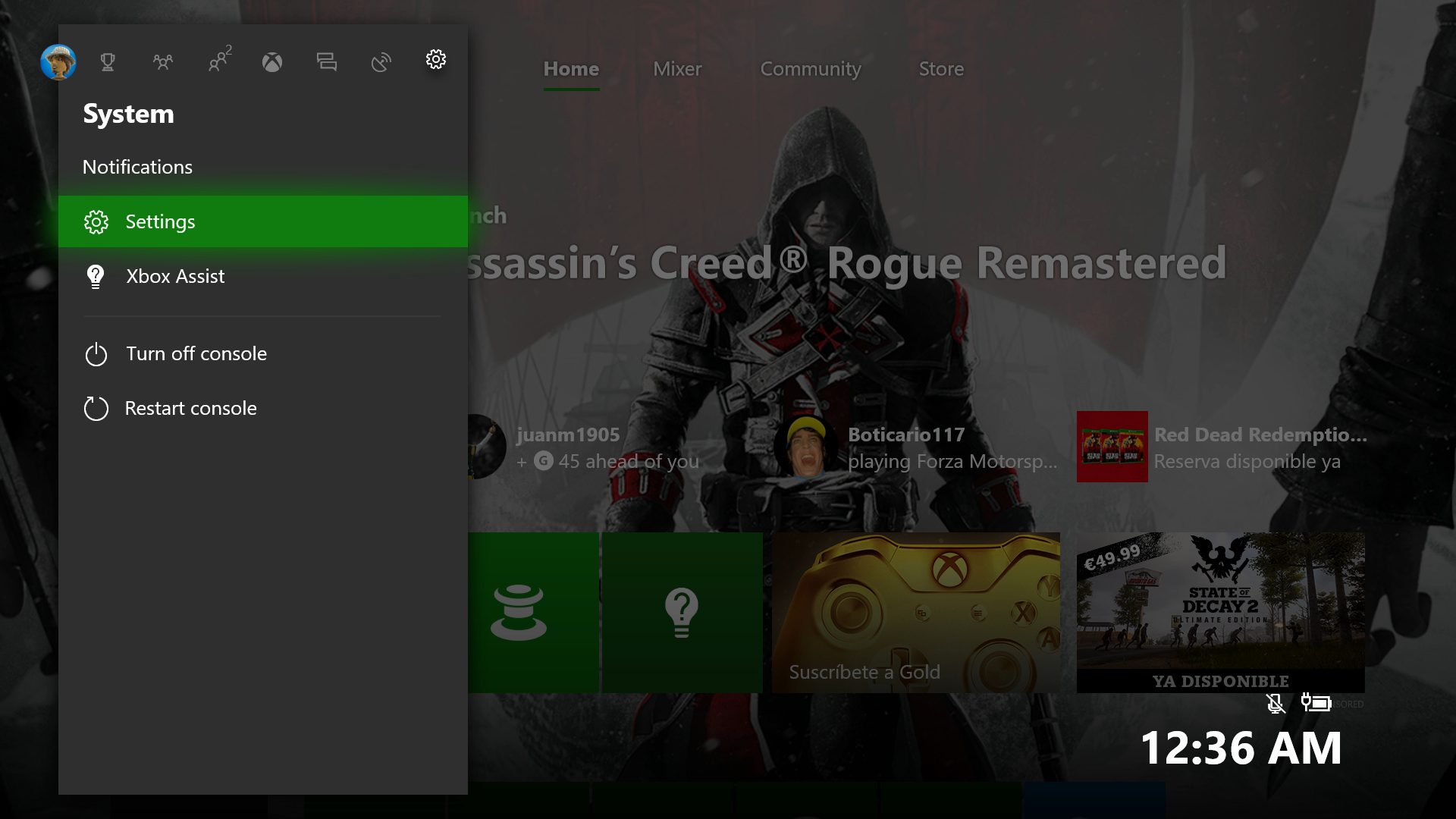
We have to go to the icon to the right of everything in the shape of a gear, called “System,” and within this screen, click onthe “Settings” field.(Careful not to click “Turn off console” or “Restart console,” which are just below.)
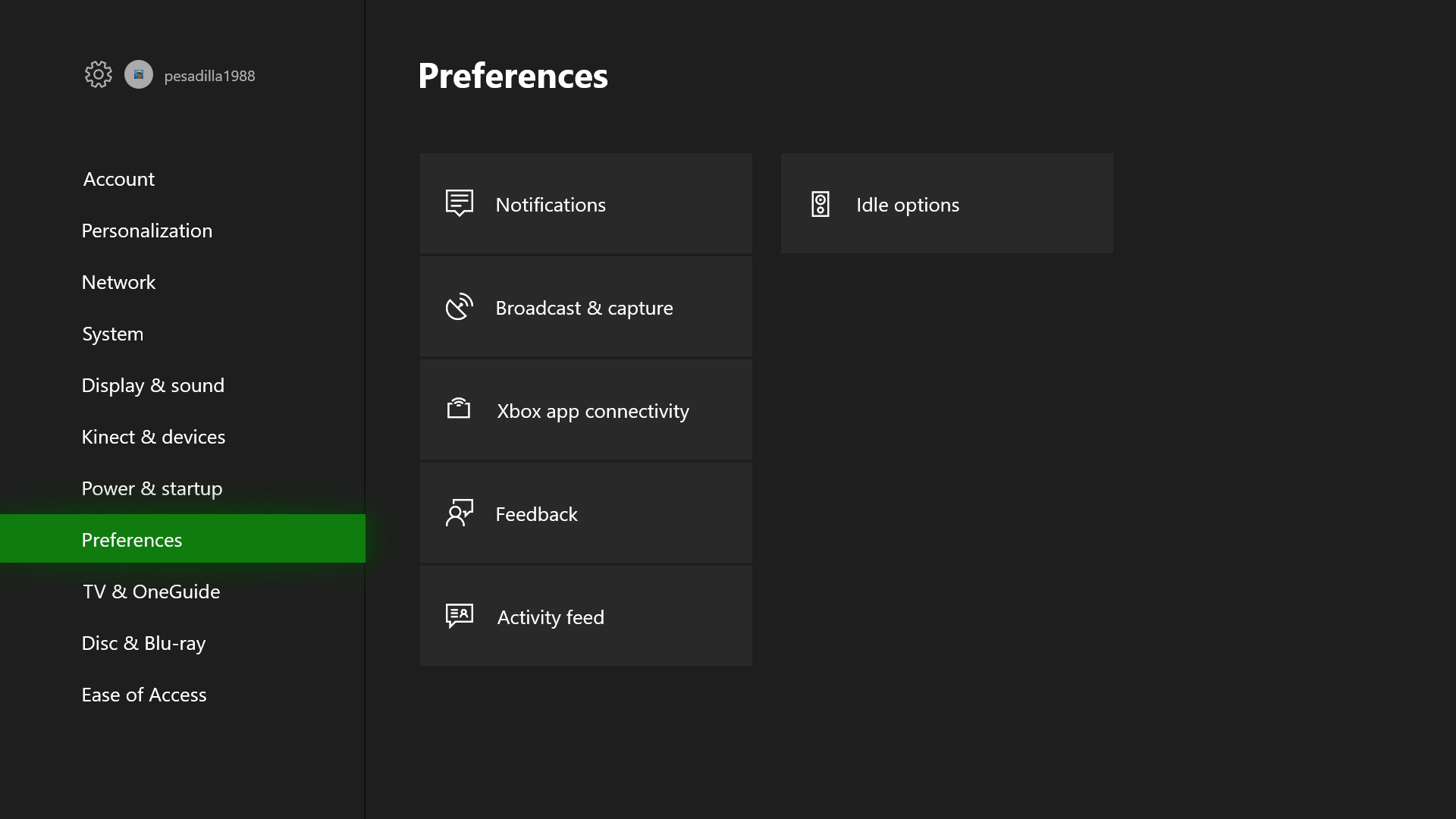
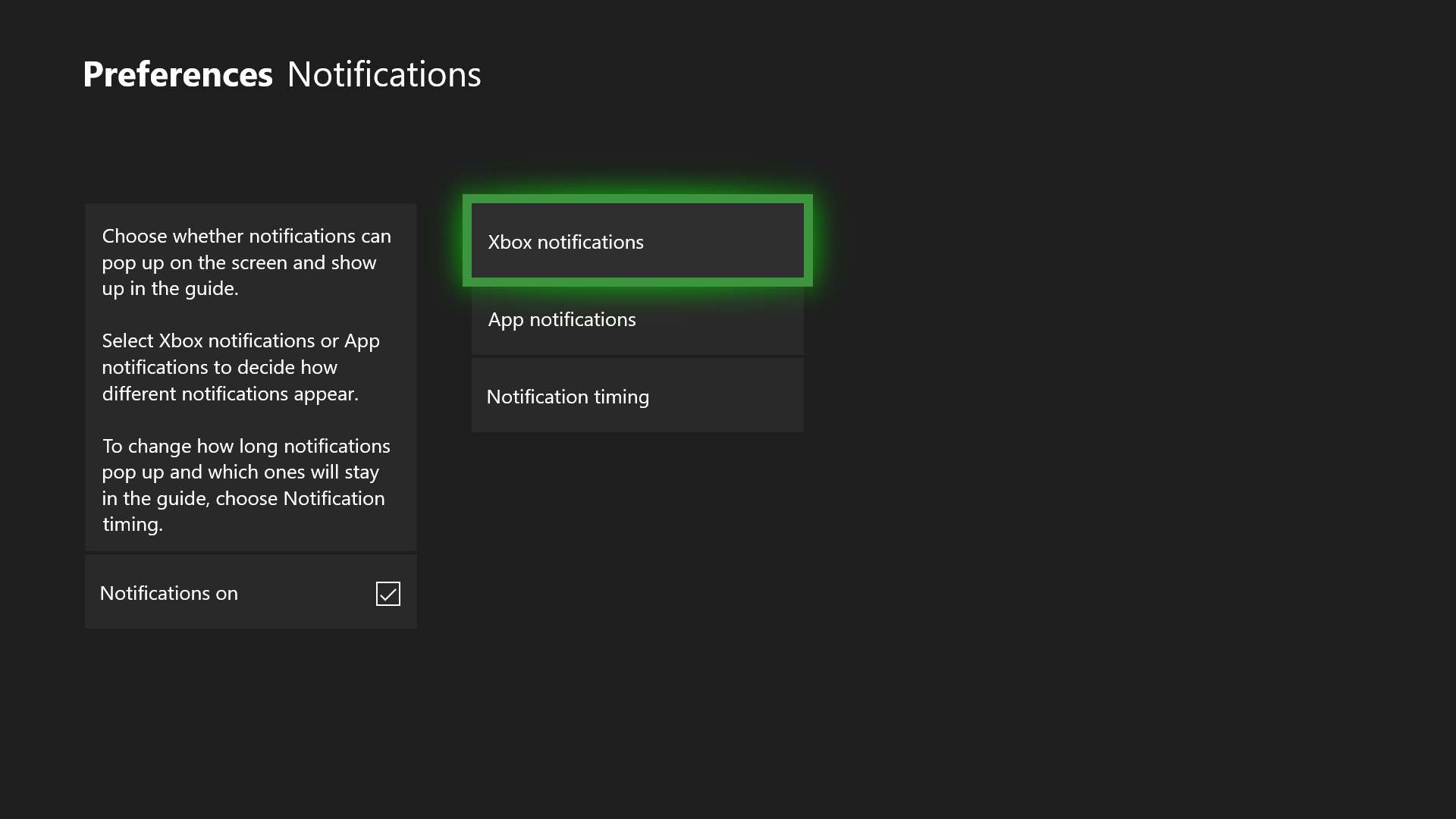
From the options that appear within “Settings,” the one we want is “Preferences.” After selecting that, you’ll see the screen below. Navigate to “Notifications.” Press A to enter it.
For Xbox, like PlayStation Network, you can manage every invitation you get. However, there’s a twist: the system gives you the chance to disable all notifications by default. In other words, if you don’t want any notifications, uncheck the “Notifications on” box on the screen below and you’ll be all set (a drastic measure, but good for accomplishing our mission).
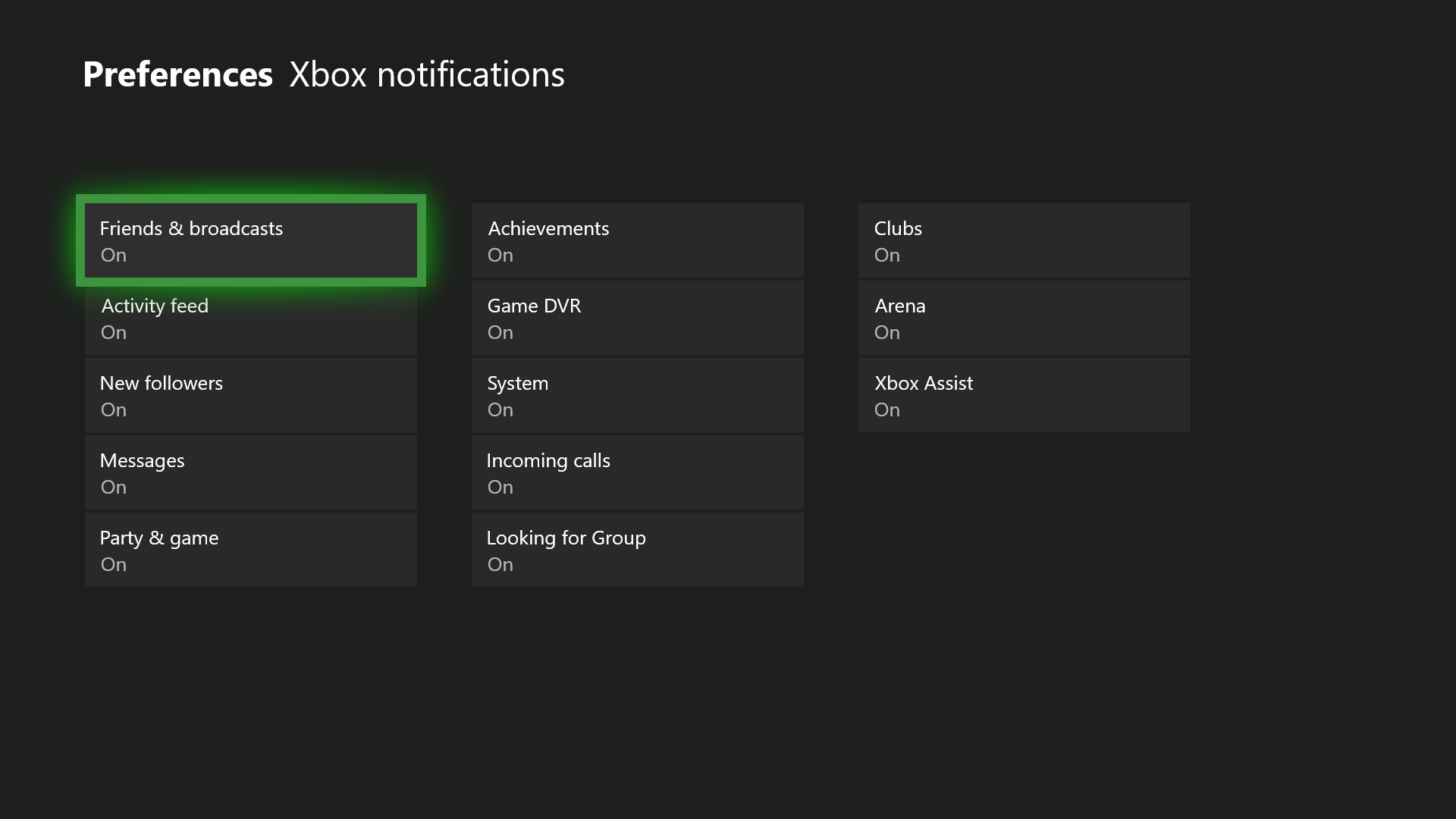
If you want to personalize invite commands, the option you must select is “Xbox Notifications.” Here you’ll have all the possibilities: “Friends and broadcasts,” “Activity feed,” “New followers,” “Messages,” “Party & game,” “Achievements,” “Game DVR,” “System,” “Incoming calls,” “Looking for Group,” “Clubs,” “Arena” and “Xbox Assist.”
What do we recommend disabling? Well, it depends on what’s useful to you on your Xbox One. For example, if you often use Skype on the console, the “Incoming calls” becomes key, so it’s better to leave it activated. Now, if you don’t regularly pick up calls, then you can remove it. Likewise, the “Xbox Assist” isn’t worth it if you’re a platform expert, and you can turn off “Looking for Group” if you don’t play online.