Top Euro 2008 software downloads

Follow Euro 2008 on your PCWith just over a week to go until the big kick-off, it’s time to get your computer kitted out for Euro 2008. Whether you’re rooting for your own country in the European Football Championships, or simply following the tournament as a neutral, there are a bevy of software downloads available to help you maximise your enjoyment of the event. Here are some interesting tools for tracking scores, re-enacting matches, or just decorating your PC with the tournament branding.

Mac Tip: combine Cover Flow and Spotlight

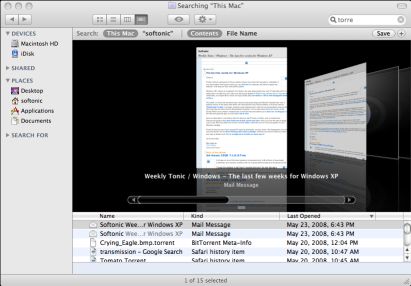
A few months ago I explained how you could make use of Cover Flow to browse through any sort of files. Cover Flow started out as a separate application to preview album covers until Apple bought it, added it to iTunes and then thought, heck, why not use it for everything. I still prefer viewing items in a column view in the Finder, as it always gives me a clear outlook on the path to a file, yet there are times when Cover Flow view is best. That’s pretty obvious for pictures and album covers, but it also works great with iCal documents, PDFs and Mail messages as you can get a real good preview and even read what’s written in the documents without opening them.

preview in Cover Flow

So how do you get only one of type of file previewed in Cover Flow? You can do this very easily with the help of the Spotlight desktop search. Let’s take iCal documents as an example. Open up Spotlight, either by pressing the magnifying glass icon on the top right, or by typing CMD + space bar. Then type kind:iCal. This will show only iCal documents for you. Now choose ‘Show all’ and press enter. Spotlight will open up all the documents it has found in a new Finder search results window. You can now preview all of them in Cover Flow mode.

[Via: TUAW]

Today’s downloads for Windows, Mac and Mobile

Download Ultimate Mortal Kombat 3Windows: If you’re looking for some action-packed fights have a look at Ultimate Mortal Kombat 3. The classic combat game is back again with some new levels, more characters to choose, several play modes, unlockable bosses and, of course, special key combinations to produce the best moves. Are you ready to join the fight?

Spanning SyncMac: What’s the best way to sync Google Calendar and iCal on your Mac? Spanning Sync‘s the answer! I really like this app because it’s simple to use and lets you view what calendars and contact lists you want to sync. You can either merge or replace lists and the app takes care of the whole operation. All you need is your Google login details.

Block unwanted callers the easy waySmartphone: Fed up with having to dodge calls from certain people, or hang up on unwanted callers? Then you need MagiCall, a smart tool for bidirectional calls SMS filtering. With MagiCall, you have the ability to block unwanted callers, automatically hang up on someone bothering you, and more! Stop anyone you just don’t feel like speaking to at the moment from disturbing you.

See photos, videos and extra data in Google Maps

See photos, videos and extra data in Google MapsYou can easily tell I’m a Google fan, at least from my frequent posts about the popular Mountain View brand and its tools (Google Maps, Google Reader, Google Sky, Gmail). The thing is, I use Google products on a daily basis, meaning I often find new tools I didn’t know about and which in turn make me like Google apps even more.

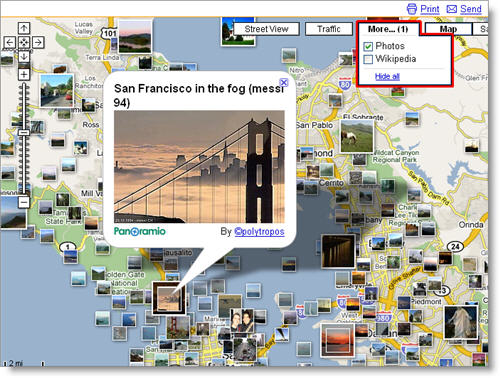
A good example is this feature I recently found in Google Maps. It may have been around for a while, but I got to test it only this morning and I loved it! I’m talking about the “More” button you can see on the top right corner of Google maps, with which you can access extra information about the area you’re currently viewing, namely photos, videos and Wikipedia articles.

Want to see it for yourself? Then open up Google Maps and fly to any location you like. Now hover your mouse over the “More” button to enable Photos, Wikipedia entries or both. If you choose Photos, the map will display all the photos related to that area that are hosted on Panoramio, a Google photo sharing service that allows users to geo-locate their pictures. If you enable the Wikipedia option, you’ll see Wikipedia logos all over the map, linking to Wikipedia articles written about that certain area. Both photos and articles open up on a separate window layered over the map when you click on them.

See photos, videos and extra data in Google Maps

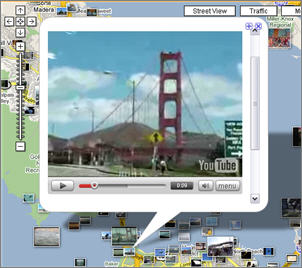
But if what you’re looking for is videos, you need to take a different route. After flying to your favorite location in the world, don’t use the “More” button but focus on the left sidebar instead. You’ll see some photo thumbnails, along with a “Explore this area” link. Click on it and you’ll get an extended sidebar with more photos thumbnails and yes! videos as well. Now click on any thumbnail on the map and you’ll be able to see YouTube videos about that area.

Spotlight alternatives – best launchers for Mac

SpotlightLet me tell you a little secret. I’m addicted to Spotlight. In fact I simply can’t imagine living without it. Well, actually I can. I remember having to open up the Finder and browse through my folders for what I wanted or using the slow search box in Panther. Spotlight is great: a quick CMD+space bar, start typing the name of your file, press enter and it’s there in seconds. You never have to go through your applications folder again.

As many Mac users will know though, Spotlight type programs, specific to applications, existed before Apple released the desktop search. Some features of Spotlight even mysteriously resemble some of them. Anyways most of these apps are still excellent and work great to launch your favorite program. Take a look and see if there’s one you might like:

  • Sapiens – Smart launcher which learns which programs you use most. You’ll get used to the mnemonic way it displays programs on its circular interface for fast launching.
  • ExpressLauncher – In this one I really enjoy the interface, however to be honest it’s essentially a preferences pane item that associates keys with apps.
  • Docktop – This one is like a new and improved Dock that you can customize at will. It can be cloned and moved anywhere on your screen so you have different docks for different needs.
  • Snard – Nostalgic of the good old file explorer view? Snard makes it available straight from your menu bar, so any app is only a few mouse movements away.
  • Quicksilver – Before Spotlight turned up, Quicksilver was the most cherished app of Mac geeks the world around. A powerful and fast multi-app launcher with keystroke support.
  • Valet – Like Bruce Wayne, imagine you had Alfred around to remember everything you needed and launched on your Mac. This is what Valet will do for you (it won’t get you a Batmobile though)
  • Todos – This app is the ancestor of Leopard’s grid view. Type a hotkey and Todos will bring up a full grid of all your applications for you.
  • Namely – Like Spotlight but want to limit it to apps? You can configure it from the preferences. Or you can install Namely. Less hassle.

How to: disable Firefox delay when installing extensions

If you’re anything like me you probably test a few Firefox extensions every week, meaning you’re familiar with the extension installation dialog that makes you wait for a few seconds before actually installing the extension on your browser. Though there are security reasons for this delay (it’s meant to prevent malicious software from installing on your computer without you noticing it), the truth is that after having to wait for it a dozen times, you end up hating that darn dialog. I did, so I decided to do a quick search and found the trick to disable it.

Enter about:config in your address bar and then use security.dialog_enable_delay in the filter field to locate the exact text string. Double click on it and enter “0” as the new value.

disable Firefox delay

From now on, you won’t have to wait when installing new extensions. Just some sensible advice: always install extensions from reliable sources, and do not overload the browser with extensions you don’t really need or use anymore.

Does Windows 7 offer any hope?

Windows 7Just when you thought that things probably couldn’t get worse for Windows, Windows 7 looms on the horizon. Due to be released sometime in 2010, it’s supposed to be the next big Windows evolution (Hmm, where have I heard that before?). As Tom reported last week, Microsoft have announced that within 40 days Windows XP will no longer be on sale. I read about this in utter amazement in view of the numerous compatibility problems Vista has had and the disappointing reception it’s been given by the public. It’s almost as if Microsoft are taking a gun to users’ heads and saying, “Right, you’re going to like Vista or else so just buy it and shut-up!” and putting to death one of their more successful operating system.

As Tom pointed out, Windows XP was a genuine improvement on earlier versions of Windows which felt tinpot in comparison. XP felt and looked more solid, crashed less often and was generally much more intuitive to use. Vista offered none of that – in fact, I’d argue that in trying to be clever and changing age-old Windows descriptions here and there, in some areas they’ve actually succeeded in making it more difficult and annoying to use in places. That’s not to mention the frustrating incompatibility issues and the fact that it hogs at least 512MB of RAM. Anyone buying a new PC which boasts a huge amount of RAM thrown in should bear in mind that Vista will occupy a significant proportion of it – a ludicrous situation considering it’s just an operating system not an application!

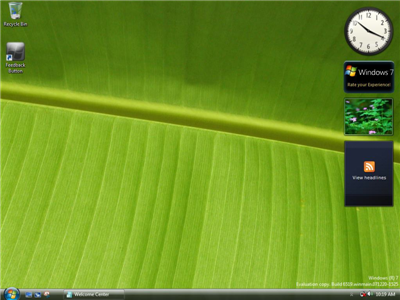
Windows 7

The big question now is will Windows 7 be what Vista should have been? If initial news is anything to go by, then the answer is almost certainly not and might even give those home users wondering whether to change to Mac even more reason to do so. One look at one of the preliminary screenshots (above) to come out of Windows 7 and the word “Vista” springs immediately to mind. Aesthetically, there look to be few improvements and Bill Gates has made no secret of the fact that any “enhancements” will basically be ironing out those issues that Vista has been saddled with saying Windows 7 will have:

The ability to be lower power, take less memory, be more efficient, and have lots more connections up to the mobile phone, so those scenarios connect up well to make it a great platform for the best gaming that can be done, to connect up to the thing being done out on the Internet, so that, for example, if you have two personal computers, that your files automatically are synchronized between them, and so you don’t have a lot of work to move that data back and forth. Continue reading “Does Windows 7 offer any hope?”

The making of TapeDeck

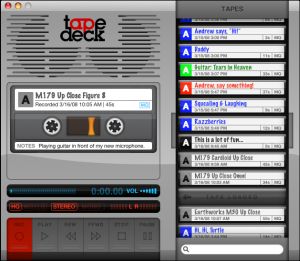
TapeDeckEver wondered how a piece of software was built? Apart from all the technical details, which are not always easy to understand or interesting, the process for creating a program is actually pretty cool, yet something you rarely hear developers taking the time to explain to users.

Over on his blog, SuperMegaUltraGroovy, the developer explains from the ground up how his latest Mac program, TapeDeck, was built. TapeDeck is an audio recorder that looks and sounds just like your old cassette recorder. It even hisses and crackles and has that whirring sound when rewinding or fast forwarding. All your saved recordings are stacked in a pile of cassette tapes.

So how did he go about? The developer first started with a UI sketch, to have an idea of what interface he wanted and see how the program was going to work. Bit by bit he then implemented the different elements of the program using applications like Quartz or Core Animation. According to him the most difficult part was then creating an Objective-C library to handle metadata (all the information like song name, title, track number or artist) of M4A files, the audio format that TapeDeck was going to work with.

More work was then done on the design of the interface and the logo. When the application almost looked like it was finished, the developer realized he want to add forward/rewind and rendering tape image in album art (so it shows in Cover Flow in iTunes). This meant more code rewriting was needed.

The next step was the so important Beta release, which allowed users to test out the program and give feedback, so the developers could add finishing touches and tweaks to TapeDeck, fix some bugs and clean the interface. And then the program was released.

The whole process took the developers eight months and one of them even decided to leave his day job to spend full time working on TapeDeck. This goes to show what sort of dedication most independent developers have. But when you have a great idea, it’s usually well worth it.

Today’s downloads for Windows, Mac and Mobile

Rotation Pilot thumbnailWindows: Got a problem with wonky photos? Do all your holiday snaps look like they’ve been taken standing on your head? If so, then don’t panic because Rotation Pilot can straighten things out in a jiffy. With Rotation Pilot you no longer have to guess on how many degrees you should rotate your image to adjust visual slopes that often appear on amateur photographs. Set a vertical or horizontal axle and the program does the rest!

Virtual Villagers 3 - The Secret City

Mac: Looking for a bit of island adventure? Virtual Villagers 3 – The Secret City is a simulation game where you need to help your tribe survive and grow on a deserted island. Make use of each tribe member’s qualities to develop their skills and complete the puzzles you come across. As you progress you will discover all sorts of exciting areas on the island.

Access video from your phoneJava mobile: Hallelujah for YouTube and all the clips of old TV shows we can now enjoy! What’s more, it’s now possible to access video on the move using a program such as vTap. This smart app provides a means of searching several online video sites, previewing, then watching them from one environment. You can even use it to search Wikipedia more quickly.

Best Mac themes for Firefox

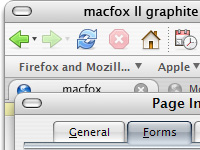
macfox II graphite themeFirefox is known to be highly customizable, but that doesn’t just go with add-ons and search engines, as you can also set up all sorts of themes to make it look a bit more snazzier. Although I’m happy enough with the default Firefox look (and I really like the new one in version 3), I admit I’ve tried quite a few over all the years I’ve been using the Mozilla browser. A while back, I talked about the top 30 Firefox themes and listed some that we really enjoy here at Softonic.

This time, and after reading a post from CyberNet, I thought it would be nice to talk about the different Mac themes you can find for Firefox. The best ones are listed on the Firefox Add-ons page and you don’t need to have a Mac to install them, as the majority also work on PC. Most of them look pretty slick and offer the clear, grey feel you will find in a Mac desktop.

There are 50 different Mac themes for Firefox to be found on the Add-ons page, so I thought I would cut out the hard work for you and select the best ones. One excellent theme designer I found is Aronnax, who develops the GrApple series, in which you will find Delicious (Blue), Yummy (blue) and Eos Pro. These offer a very similar design as that of Apple’s Safari, but with little tweaks here and there.

Another one I enjoy, this time from another user, is Leopardstripe-Revised. As the name suggests this theme has a Leopard feel to it, so you can pretend you have the latest Mac OS even if you don’t. FoxDie Safari is another smart theme and which comes in three tones: dark, grey and white, with, like for the GrApple series, a look very reminiscent of Safari. You should also check out iFox SMooth and its rounded corners and light grey tones. macfox II graphite also offers a clean aqua-style look.

Finally, if you can’t wait having Firefox 3 yet worry about the stability of the current Release Candidate (RC1), how about setting up Proto for Mac OS X 1.0?