Sourceforge.net Community Choice Awards 2008 announced

Sourceforge.netSourceforge.net, the biggest open source software development site, with over 100,000 hosted projects and more than a million users, just announced the winners of their Community Choice Awards for 2008. News of the event was surprisingly quiet, except in open source circles, even though it was open to any open source project, and not just the ones hosted on Sourceforge.net. It’s a shame that the event didn’t get more coverage, as it seemed to differ from what you normally expect of software ceremonies. A simple look at the category listing and you’ll see what I mean.

Most notable categories were ‘most likely to be the next $1B acquisition’, ‘most likely to be ambiguously and baselessly accused of patent violation’ and ‘most likely to get users sued by anachronistic industry associations defending dead business models’. You’ll get it, this event was much more than just about handing out trophies. It was an opportunity for Sourceforge.net and the open source community to speak their mind.

OpenOffice.org and phpMyAdmin were the big winners of the Community Choice Awards, picking up respectively three and two little statues (or whatever it is Sourforge.net handed out to them). VLC, which is clearly the most flexible and easy to use video player, picked up the prize for best multimedia, while Linux was hailed as ‘most likely to change the world’.

If the category titles are making you a little skeptic, just check out the names of the sponsors for the event: Microsoft, Mozilla, The Linux Foundation are but a few that helped make this possible. The finalists also include many applications that certainly would have deserved to win such  as the XAMPP Apache distribution or the Drupal and XOOP content management systems. If you failed to participate this year, make sure at least that you check out some of the winners.

How to: Remove Shared documents from Windows XP

Remove Shared documents from Windows XPHave you ever noticed that Shared documents icon that always shows up inside the My Computer folder? Windows uses it to store media files shared by different users of the same computer, but if you’re the only user in your PC then that icon is simply useless. This is why I’m going to explain a couple of tricks to get rid of it.

The first trick requires downloading TweakUI, a handy Windows app that lets you tweak hidden options in Windows. Run the program, go to My Computer and uncheck the “Files stored on this computer” option. The shared documents will disappear!

The second trick only works if you have Windows XP Professional. Click on the Start button, select Run and enter gpedit.msc to open the Group Policy editor. Here, go to User Configuration > Administrative Templates > Windows Components and click on Windows Explorer. On the right pane list, towards the end, you’ll see the option “Remove Shared documents from My Computer”. Double click it, select Enabled and you’re done.

The best and worst Apple wallpapers

Dawson's CreekThink your wallpaper looks bad? Wait till you’ve looked at the selection Macenstein came up with. I’ve rarely seen a bad wallpaper on a Mac, first because the default ones generally look pretty, and second because Mac users tend to be very concerned with the general appearance of their machine.

Lack of taste, yet, is everywhere. Macenstein’s list is a perfect example. Among the 21 different wallpapers chosen, you’ll find a strangely ‘swastika’ looking crop circle, a seedy casino billboard, and a PowerMac surrounded by two ladies in bikini. Some have gone for the celebrity endorsement style, although in a very awkward way, like you’ll see with the Jake Gyllenhaal and the Dawson’s Creek wallpapers. Worst of all though are the wallpapers that fit in an Apple motto or logo with an image that has absolutely nothing to do it with such as Superman, an Indian chief or a picture of Nelson Mandela and a ‘Think Black’ motto.

Flaming White AppleI hope you are not twisted enough to actually dare use one of these wallpapers. If you really want a beautifully designed desktop background, I suggest turning to UsingMac’s list of 90 wallpapers, all which are discreet variations on the Apple logo itself, with varying colors, viewpoints and contrasts. The bottom of the list pays hommage to the Leopard platform with different takes on the feline creature. A universe apart from the ones mentioned before. With the hordes of Apple crazy designers out there you’re guaranteed to find great looking material from people that love the operating system. It’s hard to pick out a favorite, but my preferences probably go to the Apple Vortex, Crashed Apple and Flaming White Apple.

Anyway, take a look at both lists and see if there’s any wallpaper you’d fancy putting up on your Mac.

Use Outlook to access Windows Live Hotmail

OutlookIf there’s one thing I’ve just about had enough of it’s Windows Live Hotmail. I stated my case in no uncertain terms a while back and although I still haven’t abandoned it, I have found a way of avoiding it’s bloated, unintuitive, RAM sapping, vomit inducing interface. The solution? Use Outlook to access it instead using Microsoft Outlook Connector.
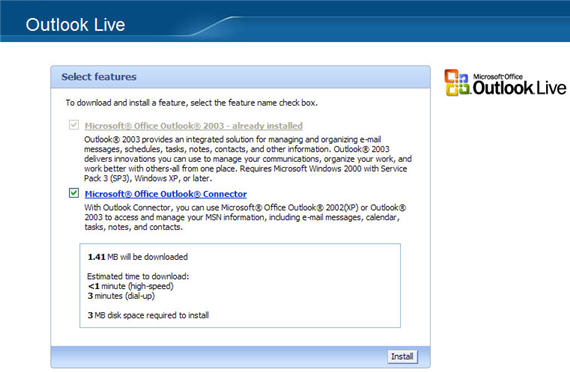
Microsoft Outlook Connector allows you to access any Windows Live Hotmail (and Office Live Mail) account from the far more civilized Microsoft Outlook. With Outlook Connector, you can use Outlook 2003 or Outlook 2007 to access and manage your e-mail messages and contacts for free which is great although rather annoyingly (and typically Microsoft), management of calendar, tasks and notes requires a subscription fee. If you do pay for this, you can synchronize multiple calendars between different Microsoft applications such as Microsoft Outlook and Windows Live Calendar.

microsoft-office-outlook-connecter-screenshot

This little application also means you benefit from Outlook’s spam filter which you can apply to Windows Live Hotmail’s incoming mail so no more mails from fake political exiles requesting you to send your account details so they can deposit a million dollars in your account (I get these constantly and am starting to think that being a political exile must be extremely lucrative). If you’re an Outlook user, you’ll never go back to using Windows Live Hotmail’s own interface after trying this.

How to: Sync your files on Mac

Sync files on MacIf you’re lucky enough to have a MobileMe account, you can keep all your files, whether they’re on your mobile device or on your Mac, perfectly in sync. We’re not all ready to pay up $99 a year though, especially considering the hiccups MobileMe went through recently.

So what are the best ways to easily sync files on your Mac? Unfortunately Apple has never truly released an application to help you keep files up to date easily and quickly. We’ll have to turn our eyes to third party developers then. I’ve found three programs that allow you to easily sync files and make sure you are looking at the most recent piece of information anytime on your Mac.

First up is Picnic. The application is fitted with an attractive rounded interface and simple settings. Using Bonjour, the program ensures that files on one or more Macs are kept in sync. You can subscribe to users on your network, so that Picnic automatically takes care of syncing files that have been modified.

Other more experienced users will probably want to turn to the versatile Cyberduck client. An extremely powerful and intuitive application, Cyberduck allows you to  browse FTP, SFTP, WEBDAV and Amazon S3 servers. Find the file to sync with, open the File menu and select ‘Synchronize’. Then select the file to sync and let Cyberduck do the hard work. You don’t even need any advanced knowledge of Cyberduck.

Third up is ChronoSync. Specifically built for file and folder synchronizations and backups, it’s probably the most effective application of the three. Just select the file or group of files to sync, choose a destination and decide on a specific action. ChronoSync works very well with large batches of files, will analyze files for specific changes and provides detailed logs and data verification.

Automatic translations in Google Talk

Automatic translations in Google TalkMeeting new people and chatting with them on Google Talk can be a very enriching experience. The problem comes when that person and you don’t speak the same language and the communication flow is frequently interrupted by vocabulary lapses and constant dictionary look-ups. Google became aware of this issue and decided to solve it in a really handy way: by enabling a bunch of bots that automatically translate any text you type in into the target language.

The translating bots in Google Talk work in a very simple way. You only have to select the ones you’re interested in from the bot list and add them to your Google Talk contact list, as if they were just another friend. There are quite a few combinations to choose from, and the email address you have to use to add them always follows the same pattern: [source language]2[target language]@bot.talk.google.com. Thus a bot that translates from English to German would be en2de@bot.talk.google.com, one that translates from Spanish to English would be es2en@bot.talk.google.com and so on.

Automatic translations in Google Talk

Once you’ve added a bot, open a chat with it and type in the sentence you want to translate. The bot will reply with the translation, ready for you to copy on your friend’s chat window. Needless to say, you can use these automatic translations for multiple purposes: from being able to communicate in several languages to playing a joke on a friend or – only for the most cheesy ones – saying “I love you” in a dozen different languages.

Adobe Media Player: The killer app for Internet TV?

Adobe Media Player has made some impressive partnershipsMore and more people are turning to the Net to watch television these, with some commentators predicting that traditional TV will be dead within 10 years. Up to now though, the range of programs available through online TV services hasn’t been that great. By that I don’t mean there’s not a lot of shows – there are – it’s just that a huge percentage of these aren’t worth watching.

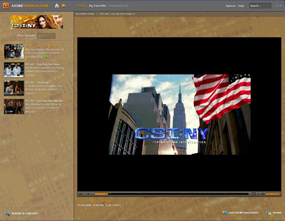
Things are changing quickly though, and the release of Adobe Media Player 1.1 today marks a big step in the evolution of online TV. Now out of Beta, the AIR-based software boasts a slick new interface that makes it easy to enjoy your favourite TV shows without having to switch on your television set. You can use the software to search for streaming and downloadable video content, get alerts when new episodes appear and even download these new episodes automatically.

Adobe Media Player still doesn’t have the sheer volume of content as the likes of Joost, Veoh TV, or Babelgum, but it’s certainly showing signs of carrying more ‘quality’ content. Adobe has partnered with the likes of Comedy Central, MTV, Nikelodeon and Showtime to deliver some truly great shows. It’s even teamed up with Sony Pictures to offer some movies on the site, such as Jerry Maguire and Men In Black.

Unfortunately, Adobe Media Player isn’t quite the finished article yet. Finding some of the best content still requires a bit of digging around, and even when you do it might be unavailable. If you live outside the US then prepare to be disappointed, because a large number of the shows are only available in America. Be warned also, that the RAM-hungry Media Player client has a huge appetite for memory. Hopefully, these issues will be rectified over time and, I’m sure if Adobe can keep making connections with the major content providers, Media Player will be able to play a large part in kicking the TV set into touch.

How to: create a warm, golden sunset in Photoshop

Sunset has a special light that makes really beautiful landscapes, full of warm shades of red and orange. Unfortunately photos can’t always capture the beauty of such an inspiring moment, but you can always rely on Photoshop to lend you a hand with that. Here’s how to fix your sunset photos to make them look as beautiful as the real thing.

1. Open your photo, click on New Adjustment Layer and select Gradient on the drop-down menu.

create a warm, golden sunset in Photoshop

2. Click on the gradient bar and you’ll open the Gradient Editor. Now we’re going to change the colors of the gradient. Continue reading “How to: create a warm, golden sunset in Photoshop”

Synchronize PCs, Macs and phones with Live Mesh

Live MeshHave Microsoft finally come up with something worth getting excited about? Microsoft Live Mesh is an interesting new project that enables users to synch all of their mobile and computing devices seamlessly. This even includes Macs although currently, it’s only available on Windows platforms but a Mac release is imminent. At the moment it’s in pre-release beta stage and only the first 10,000 people who sign-up will be allowed to test it so you’d better hurry up.
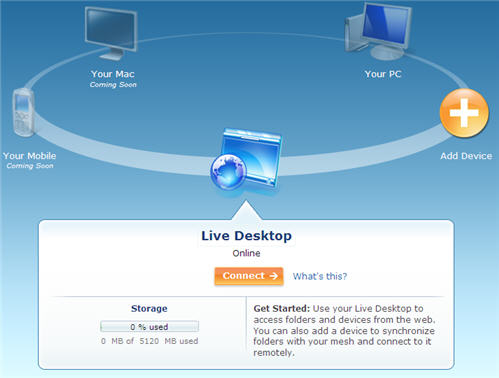
The principle is thus – all of your devices that you include in the Mesh can be synchronised with each other at any time from any location as long as you have an internet connection. So let’s say you’re sat on the beach and want to make sure your documents on your Macbook are synched with your documents on your PC at home, just hit a button and it’s done. The same goes for your mobile device such as an iPhone. In the future, it’s expected that it will automatically synchronize your devices with offline applications which will become increasingly important as Web 2.0 takes off.

Live Mesh screenshot

Refreshingly for a Microsoft product, it’s incredibly easy to use and beautifully presented and designed. It makes backing up essential documents, including videos and photos between devices just a matter of a few clicks. And it works perfectly in both IE and Firefox. The question is, how on earth are Microsoft going to sustain this service as it expands? The bandwidth it requires for millions of users synching across the world must be huge. Will we eventually see a distinct decline in synching times or is this a sign that Microsoft can still do something right? Continue reading “Synchronize PCs, Macs and phones with Live Mesh”

Completely remove applications in Windows Mobile

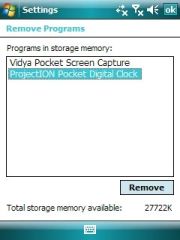
Make sure you remove Windows Mobile apps correctlyThere’s loads of great software available for Windows Mobile, but install too much and your Pocket PC or Smartphone will start to lag. As a result, it’s a good idea to regualrly remove the utilities or games that you no longer use. It’s pretty easy to do this through the ‘System’ menu in Windows Mobile. Click on ‘Start’ and select ‘Settings’. Now click on the ‘System’ tab and go down to ‘Remove Programs’. Highlight the program you wish to get rid of and click ‘Remove’. If you need to restart your phone or PDA you will be notified.

OK, well that’s that taken care of then? Well, maybe not actually. Some apps have preference files that stay on your system, or they don’t show up at all in the Remove Applications menu. As a result, it’s a good idea to run a special third-party installation tool to clean up the bits that get left behind. You could try Remover, which is specifically-designed for uninstalling Windows Mobile apps. However, I personally prefer MemMaid, as it’s good for cleaning bad uninstall data, and also helps you manage many other areas of your system memory.

To completely weed out the rest of your application data get hold of Today Plugin Uninstaller. The handy tool will remove any Today screen plugins you’ve installed and wipe away any traces they often leave behind during a standard uninstall.