The first 5 Android apps you should install

Already there are some quality apps for AndroidTomorrow we’ll get a glimpse of the first ever Android mobile phone, when T-Mobile unveils the HTC Dream. If the device proves to be as smart as we hope it will, Google’s new open source mobile OS could really steal a march on the iPhone. Android is already available to test using the device emulator, and some of the apps around even at this early stage look pretty impressive. Many of the programs produced as part of the Android Developer Challenge have utilised the powerful mapping and location tracking tools inside the OS to stunning effect. Although it’s unclear at this stage whether the HTC Dream will actually go on sale tomorrow, if it does then these should be the first apps you should install:

Opera Mini – Although the browser bundled with Android is OK, the best way to experience the web on your new device will be to install king of the small-screen surfing, Opera Mini. As well as being simple to use and packed with neat features, the application compresses pages via a remote server to give you much quicker page loading speeds.

Locale – Harnessing the GPS technology included in Android, this app switches your phone profiles without you lifting a finger. It can automatically detect whether you are in work, at home, in a meeting, etc. based on your location data. This way, it can switch off inappropriate ringtones or change offensive wallpapers without you even lifting a finger.

TuneWiki – An awesome social media player TuneWiki features synchronized lyrics for audio or video, translation, music maps and a social network. It’s great for organizing your tunes and even better for finding other tracks that you might like thanks to tight integration with YouTube and ‘Top 50’ lists.

PhoneBook 2.0 – One of the best contacts management apps you’ll find on any device, PhoneBook 2.0 links your address book with social networking you to keep track of what your contacts are up to, and even find out exactly where they are via location tracking in Google Maps.

BioWallet – Not only does this app keep your personal data secure, it will also make you feel like James Bond. BioWallet stores sensitive information such as passwords, documents, bank details, etc. and the only way you can retrieve this information is through iris or handwriting-based user authentication, using your Android camera phone.

Get WiFi anywhere with Whisher

WhisherWouldn’t it be great if you could travel anywhere in the world, safe in the knowledge that you’d have a wireless internet connection wherever you are? It may sound like a madman’s dream but that hasn’t stopped the guys at Whisher Technologies going for it. Like Karl Marx and Frederich Engels who more than 100 years ago encouraged workers of the world to unite, the Whisher team are asking WiFi owners of the word to unite in their attempt to create the worlds biggest WiFi network and free the internet.

Whisher diagram

Imagine, no more paying extortionate prices for public WiFi internet access. No more wandering the streets like a hobo searching for a stray wireless connection from someones home. No more worrying whether the place you’re going to will have internet access at all. You can simply log onto Whisher’s Google Maps powered network to see instantly if the location you’re going to has any WiFi sharing comrades in it’s vicinity.

When you install the Whisher client, it takes over your system’s wireless client so if you’ve been using Windows Wireless Network Administrator to do this, Whisher will replace it. This is a little annoying as if you have any WiFi problems, it’s harder to diagnose but generally, it does a pretty good job. Wisher does store your WiFi encryption key although the developers ensure that this is encrypted on their database so it can’t be used by anyone else. Once you’re logged in, Whisher downloads a database of Whisher hotspots onto your desktop so you can see where they are when you’re offline and searching for a WiFi connection.

Whisher Airport list

You can choose to make your network either public or private but of course, it makes sense to make it public otherwise it defeats the object of Whisher in the first place! When you find a network near to you, you can simply double click on it to connect. You don’t need to know the encryption key because it’s already stored inside the Whisher database. Hotspots are divided into “Shared” (Home users that have shared their connection and are free) and Commercial” (areas such as airports and business establishments that have joined Whisher but require payment to be accessed).

Connections are not always perfect and you may experience random disconnection issues. Also, the speed of your connection depends on the type of connection contracted by the provider (in the case of those connections shared by home users). However, the range and spread of Whisher connection hotspots is truly impressive and we hope soon to get a few words from the developers on how they see the project developing in the future. Until then, you can follow the latest developments on the Whisher blog.

Tips for Google Chrome power users

If you’re anything like me, you probably installed the new Google Chrome web browser, thought that it was pretty neat, then went back to Firefox when you realized that many of your favorite sites and web services don’t work in it. I decided it was time to take another look at the Google browser, and really got under the hood to explore some of the more interesting features that sets the app apart from the likes of IE and Firefox. Learn how to master these powerful tools by checking out the screencast.

insertvideo(“outtest21″,”1021″, null , null, true,”false”,url+”images/watermark_final.png”);

Get 1 TB of free online storage space with Oosah

Oosah, 1 TB of free online storage spaceIf you browse this blog’s archives you’ll notice we’re usually quite interested in free storage solutions. We’ve dealt with online apps, desktop clients and we’ve even analyzed one of them in depth. But we hadn’t honestly seen anything like Oosah before.

Oosah.com is a new online storage service that offers 1 TB of free space. Yes, you didn’t misread it: one terabyte for you to upload, store and share files online. But Oosah is not just a file storage; you can connect it with some of the most popular social sites available nowadays (namely Flickr, Facebook, Picasa and Youtube) and seamlessly transfer content between them and your Oosah account. The service has also developed a special version for the iPhone and iPod Touch, which means you can access your Oosah account anywhere with your mobile device.

The Oosah website is developed in Flash and features a clear, slick design that makes it really easy to use. Besides the file manager, there are other tools which enable you to create a photo slideshow and syndicate your contents, and which are also very intuitive.

Oosah, 1 TB of free online storage space

Oosah is specifically designed for multimedia files, meaning you can only upload image, video and audio files. There are also some limitations as regards file size (200 MB for videos, 50 MB for images and 9 MB for MP3) but all in all it’s still an excellent way to manage your media collection.

Add Chrome’s best features to Firefox

Add Chrome’s best features to FirefoxGoogle’s browser Chrome has undoubtedly caused a complete revolution, not only because it means that the almighty Google also wants its share from the web browser cake, but also because the program in itself included some interesting features we hadn’t seen so far in any other browser.

Now that the hype seems to have calmed down, many of us have decided to go back to our dear old Firefox. Google Chrome is good, but I guess I’m too used to Firefox now to switch to another browser without thinking it twice. However there were a couple of features in Chrome that I liked a lot, so I started looking for a way to implement them into Firefox. Here’s what I came up with:

  • Want to have Chrome’s New Tab page (the one with website thumbnails)? Download the Fast Dial extension and you’ll be able to create a thumbnail gallery with links to your favorite websites.
  • Did you like Chrome’s download manager? Get the Download Statusbar extension and you’ll get pretty much the same functionality in Firefox.
  • Those who loved the Incognito feature in Chrome can replicate it with Stealther, a Firefox extension with which you can temporarily disable the browser’s traces (cookies, history and so on).

7 must-have Ubiquity commands

The weather command is one of the quickest ways to check the forecastIf you haven’t tried Ubiquity yet then you’re missing out on something quite incredible. The new browser tool, hatched by the boffins at Mozilla, makes using the Web with Firefox an easier and more enjoyable experience. With the extension installed you’ll no longer be a slave to the address bar and instead can simply type commands in a natural way to perform actions or retrieve information. Checkout Elena’s full review of Ubiquity on Softonic to find out exactly how it works.

Essentially, you control the app by hitting Ctrl-Space (or a pre-defined shortcut) and typing a command. Besides the preset commands built into Ubiquity, there are now loads more third-party ones that you can subscribe to. These help you perform a broad range of tasks in an instant, such as inserting a map into an email, searching for torrents, or updating your Twitter feed. Here are some of my favorite Ubiquity commands. Some of these are built-in and others you’ll have to subscribe to (for free) via the link. If you’re hungry for more commands then head for the biggest oracle on the subject, The Herd.

weather –  Highlight a town or city and use the weather command to bring up an instant weather reading. Altertatively, just type “weather” followed by the name of the place.

map – Want to send a map in an email to a friend? Do it in an instant by typing ‘map’ into Ubiquity followed by the address to insert a map from Google Maps.

email – When browsing a site just type the command “email to” and enter the person’s name. Ubiquity will automatically create a new message to this person in GMail.

translate – Type “translate” when you’re on a foreign language page and Ubiquity will automatically convert the text into your chosen language.

people search –  A truly incredible service where you can find photos, blogs, news stories, documents etc. about anyone, from 123 People Search.

last.fm – Reading about a band or artist on the web? Go to their Last.fm profile and start listening to them simply by highlighting the name and typing “last.fm”.

torrent -This command searches all the big torrent trackers in one hit. Remember though, that downloading copyrighted material isn’t very legal. Actually it isn’t legal at all.

How to: turn your photos into an oil painting

Have you though about creating something special with your holiday photos? We gave you some ideas last year, but if none of them really suit you, here’s another suggestion: launch Photoshop, follow these easy steps and you’ll be able turn your favorite photo into a very artistic oil painting.

turn your photos into an oil painting

Continue reading “How to: turn your photos into an oil painting”

3 ways to diagnose Firefox problems

FirefoxRecently I’ve been suffering from a severe memory and CPU hogging problem caused by Firefox 3. Initially, I thought it was being caused by the Gchat module in Gmail and although deactivating it helped, the problem still persisted. Even the removal of several add-ons did not seem to remedy the situation.
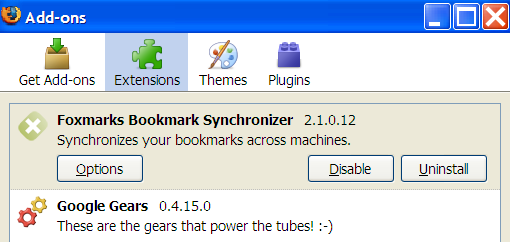
Issues of this kind in Firefox are almost always due to add-on conflicts. A while back, I was arguing that browsers are more important that operating systems due to the huge number of add-ons that you can customise them with to do everything from downloading to FTP transfers. However, add-on conflict is one area where this argument falls down and as browsers go through ever more upgrades, conflicts with old add-ons we’ve come to rely on is bound to become an increasingly important issue. Before you throw your arms up in the air and give up on Firefox though, here are 3 steps to help you solve problems quickly.

1. Create a new profile
– This is probably the single easiest way to eliminiate problems you’ve been having with Firefox. It gives you a pristine new Firefox free of add-ons and anything else that may have tainted the operating of the browser. To create one close Firefox and select the “Run” dialogue in Windows Start Menu and type firefox -p. After that, simply select “Create New Profile”.

2. Selectively remove add-ons
– If you’ve got more than a few add-ons installed then there’s a good chance that one of them is conflicting either with Firefox or with another add-on. Simply select “Tools” from Firefox’s menu bar and select “Add-ons” to see what you’ve got installed. You can either Disable or Uninstall extensions although it’s probably best to uninstall them completely. Remove them one by one until you’ve found out what’s been causing the problem.

Firefox 3 add-ons screenshot

3. Check mozillaZine for known issues – mozillaZine is a huge resource with several forums dedicated to helping Firefox users discuss and bugs, recent builds and add-on issues. It’s also useful for those that are suffering problems with other Mozilla products such as Thunderbird and Seamonkey.

If all else fails, then you can always roll back to Firefox 2 but don’t forget to completely uninstall Firefox 3 as you may end up with an even bigger conflict on your hands!

Watch blocked video sites with Hotspot Shield

Hotspot ShieldI find it really annoying when broadcasters prevent you from watching videos outside your own country. I understand the licensing issues involved but that doesn’t make it any easier to swallow when you want to listen or watch a broadcast from outside your own country.

The way broadcasters block you is by detecting your IP address. If it’s from outside of the country of broadcast, you’ll either receive a standard copyright blurb or simply receive nothing at all. While trying to watch the US Tennis Open on CBS I discovered Hotspot Shield which is a highly useful utility that can help you get round this problem. Officially, it’s designed to protect you while you are surfing in order to prevent personal info being stolen or simply allow you to surf anonymously. It does this by routing your IP through various public and anonymous proxies. In effect, it sets-up a VPN between you and your internet gateway which masks your genuine IP address thus allowing you access to blocked websites.

It won’t work in all cases though and there are a few problems. Once you’ve installed it, Hotspot Shield opens up a new browser window with an address bar which you use to surf to the website of your choice. This works fine if the video you want to watch is embedded in the site itself. However, if it’s a Java applet popup, it often doesn’t work because there’s no easy way to surf to them directly. In addition, it can be painfully slow. Because your internet traffic is being routed through other proxies, it can make accessing sites very slow which isn’t much use when you’re streaming video or audio that requires a high bandwidth. Still, it can help you access that radio commentary or sports broadcast that you desperately want to see when no other options are available.

Customize the “Send to” menu

Customize the “Send to” menuThe right-click context menu usually hides little treasures, that is, shortcuts to basic tasks and frequently used tools that you may not be aware of. One of these underrated right-click options is the Send to menu, which enables you to send the selected file to another folder, open it with a certain app or send it by email straight away.

But the Send to menu is not limited to the options featured in Windows by default. You can easily personalize this menu and adapt it to your needs by adding and deleting shortcuts at will – and all this, without having to install any third-party app.

Before customizing the Send to menu, you need to make sure that hidden folders are visible on your system. Simply go to Tools > Folder options on any File Explorer window, click on the View tab and select the “Show hidden files and folders” option.

Now you’re ready to customize your Send to menu. The contents of this menu are stored in C:\Documents and Settings\your_username, so all you have to do is open this folder (obviously replacing the “your_username” bit with your own username) and tweak its contents any way you like, just like you do with any other regular folder in Windows.

Customize the “Send to” menu

Any changes you make will immediately take effect on the Send to menu. Feel free to remove shortcuts you don’t use and add new ones that make your daily workflow more comfortable. This is how my Send to menu looks like after adding my most frequently used folders.

Customize the “Send to” menu