How To: Make Firefox open an external program

Have you ever clicked on a link in Firefox that’s supposed to open an external application but it can’t for some reason? I recently encountered this problem when clicking on a link for TVUPlayer for Mac. The error message reported:

Firefox doesn’t know how to open this address, because the protocol (tvu) isn’t associated with any program.

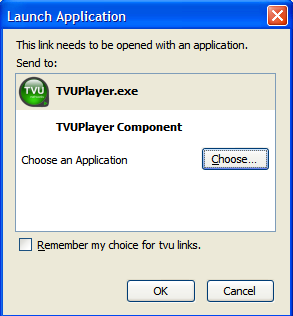
I tried the same thing on Firefox in Windows however and got a helpful “Choose Application” dialog that allowed me to select the correct application to open by browsing to it’s location on my hard drive:

Launch Application dialog

The problem is when Firefox is asked to open something outside of the browsing environment on a Mac, it often needs a protocol which instructs it how to. This should be something that’s easy to address in Firefox Preferences but unfortunately it’s not. You have to access Firefox’s hidden settings to fix the problem. Continue reading “How To: Make Firefox open an external program”

Download from YouTube: the best add-ons for Firefox

youtube-logo.png

Browsing videos on YouTube is great fun, but what happens when you find one you’d like to view offline, keep or transfer? Although you can embed or link to videos you like, YouTube doesn’t actually give you any option to download them. Don’t worry, because some of Firefox’s great add-ons (plugins that you can use to extend your browser) can do the job for you, all without even having to open a second program. Let’s take a quick look at some of the best.

YouTube Video Downloader does exactly what it says on the tin. The ‘keep’ icon, located in the status bar, opens the video details in a new tab, prompts you to chose a format (FLV, 3GP or MP4), name the video and download it. That’s it! Easy, right?

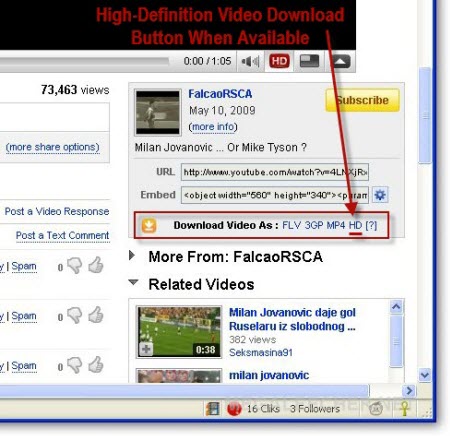
Another discreet option is Easy YouTube Video Downloader – it simply adds a button underneath the information displayed to the right of YouTube videos. Like its predecessor, it supports FLV, 3GP and MP4, but without the new tab is possibly even simpler to use.

easyyt.jpg

NetVideoHunter takes a different approach, opening a window containing a list of the videos you have been viewing. The main selling point is that it ‘collects’ videos as you browse them. At the end of your session, it presents you with a list of the videos you have just seen, allowing you to pick the ones you want to download. It also has the added advantage of being able to download from video sharing sites apart from YouTube, such as Dailymotion and Google Video, and includes a player, so you can view videos even after you have closed the original page.

If you are looking for a little excitement, try YouTube Downloader. This experimental add-on is so thrilling that you have to check a box to say that you understand the risks – although when I tested it, it didn’t seem too wild. Youtube Downloader lets you download videos and music, and not just from YouTube. Like NetVideoHunter, it presents you with a list of possible downloads, and then lets you select the ones you want. It also has a search function which will automatically search for the video title on Google.

If discretion’s not your thing, maybe the Ant.com Toolbar – Tube Downloader is what you are looking for. Although it does install a toolbar on your browser, it’s only to accommodate the extra options it includes – a search tool, download manager, video player, download explorer and a ranking function. It is also more customizable than some of its competitors, allowing you to toggle a small number of options.

Whether you’re a dedicated video downloader or just someone who browses occasionally, you’ll find an add-on to suit. Read the reviews, make your decision and start downloading videos from YouTube today!

Chrome now supports bookmark syncing

If you use Google Chrome and need to sync bookmarks across several instances of the browser (for example, between office and home computers, or between desktop and laptop) you have two main options: either you use a third-party application like Google Chrome Backup or FavBackup or you use the brand-new Chrome’s embedded syncing functionality.

The catch (yes, you knew there would be one) is that this synchronizing tool is currently only available through Chrome’s Dev channel, a special update channel that allows all eager Chrome users to test the latest features when they’re still at a very early stage of development. These updates can sometimes be unstable and are not the best option for those of you who want to have a reliable, safe web browser. But if you don’t mind the risk and want to take a look at Chrome syncing, here’s what you have to do:

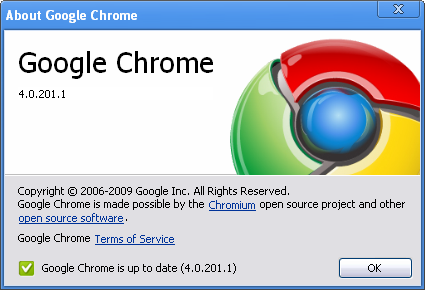
1. If you’re already using the Dev channel, go to the wrench menu and select About Google Chrome. Update your browser to the latest version. If not, download the Dev channel version from this page. Please remember to backup all your data first. You can go back to a stable version of Chrome again any time, simply by downloading the latest stable version from Chrome’s website.

Chrome now supports bookmark syncing

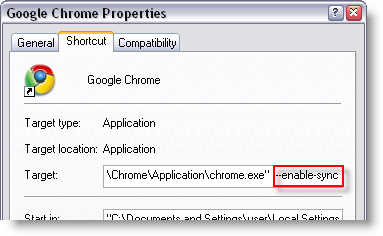
2. Close Chrome if it’s running. Right click the browser’s shortcut on the desktop and select Properties. Add --enable-sync to the shortcut target as shown in the screenshot.

Chrome now supports bookmark syncing

3. Launch the browser again and you should be able to see the Sync my bookmarks option in the wrench menu. All you have to do is enter your Google account credentials and bookmarks will be automatically synced with Google, stored in a folder inside Google Docs. Continue reading “Chrome now supports bookmark syncing”

Manage collaborative projects online with DeskAway

When you start a big project, a good organization is one of the key elements that can make it a success, especially when you work with more people. In that case, you need a tool that’s accessible for everyone, that lets all the project members keep track of all current tasks, and that also provides the team with handy tools to share workload and exchange messages. That tool does exist, and it’s called DeskAway.

Manage collaborative projects online with DeskAway

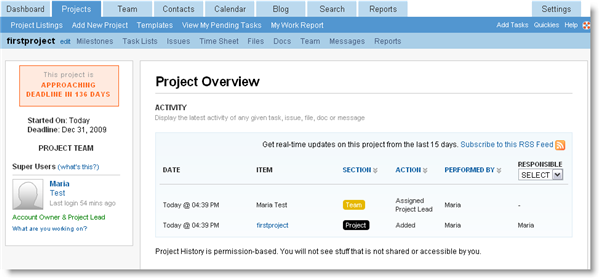
With DeskAway you can easily manage important projects that involve a group of people, include many different tasks and subtasks, and will require quite long period of time to complete. DeskAway lets you keep track of every detail in the project though a clearly designed interface with different tabs for each section: milestones, to-do list, shared files and docs, reports, time sheets and messages. Continue reading “Manage collaborative projects online with DeskAway”

How To: Uninstall McAfee VirusScan for Mac

McAfee VirusScan for MacMaking programs that can’t be uninstalled easily is a software crime in my book. It’s bad enough when applications leave behind folders and files after you’ve dragged them to the Trash (I recommend free AppCleaner helping prevent this) but those that actually leave behind memory sapping and CPU guzzling processes are simply bang out of order.

Which is why if you’ve ever installed McAfee VirusScan (formerly known as McAfee Virex) on a Mac, you’ll need more than the Trashcan to get rid of it. For ages, I had been mystified by a couple of processes running on my system labeled “VShieldCheck” that were sometimes hogging up to 30% of my CPU. A few Google searches later and I realized that these processes were associated with McAfee VirusScan for Mac which I’d tested and uninstalled over six months ago!

The solution I found is to use an uninstaller which comes bundled with the original download. However, I’d obviously deleted the original download a long time ago so my only option was to download McAfee VirusScan, install the darn thing again, and then use the removal tool to get rid of it once and for all. However, even more frustrating, to download it again, I needed to sign-up for a McAfee account!

To save you going through the same ridiculous process I had to, you now download the official McAfee VirusScan uninstaller on Softonic. No sign-ups or wild goose chases needed. Make sure that McAfee Virus Scan is definitely installed on your Mac (if not re-install it) and then run the installer.

McAfee VirusScan Uninstaller screenshot

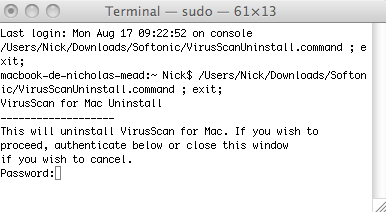
It opens a dialog in Terminal where you have to enter your password. After that, removal takes just a couple of seconds and you’re left with no nasty process remnants.

Incidentally, since removing the VShieldCheck processes associated with this program, my Mac has been running as quiet as a mouse. Especially when using Parallels, the cooling fans would scream like a jumbo jet taking-off and it’s my guess that these virus scanning processes were going into overdrive and putting too much load on the RAM and CPU.

Thanks for nothing McAfee!

Pro Evolution Soccer 2010 review – a return to form

proevo2009.pngThe last couple of years have been a bit disappointing for Pro Evolution Soccer and its fans. The title has been criticized for its failure to innovate, and subsequently it has lost its crown as the king of football games to the increasingly fluid and more realistic, FIFA series.

As a result, this season is perhaps the most important one in the history of PES. Konami must be confident of reclaiming number one status though, as it proudly furnished us with a preview release a full two months before the official release date. Naturally, we were pretty excited to see how it plays and, for the first time in years, the new version of Pro evolution Soccer doesn’t manage to disappoint.

Off the ball

One thing that was widely panned in Pro Evo 2009 was the menu system. The set-up menus looked like they were built in half an hour by a four-year-old. Navigating the in-game tactics and formation menus on the other hand, was like trying to crack the entry code on the front door of the Pentagon. Thankfully, things have been improved greatly in PES 2010. Although the garish pink and black color scheme remains, all the menus are better organized and more ‘professional’ than the previous version.

In-game settings get a complete overhaul

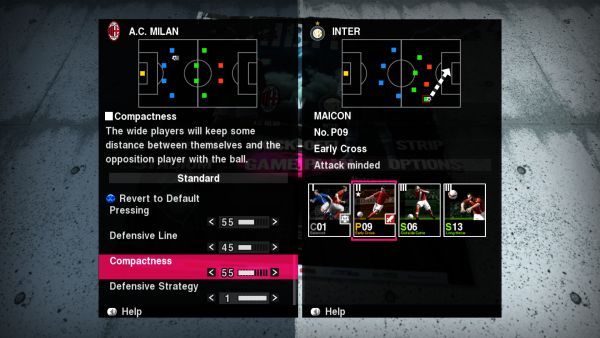
The tactics and formation system has been treated to a complete overall, and it’s a thousand times better than the previous fiddly series of menus. Team tactics are controlled using slide bars, to precisely set elements such as pressing, defensive line, counter attacking etc. Preview windows explain exactly what will happen to your line-up as you make changes to these tactics. Player ‘cards’ are another feature that’s been talked up in Pro Evolution Soccer 2010. Each player has a series of cards when you view his stats that show you instantly the areas he is good in (e.g. free kicks, goal poaching, heading, etc.) This system is far easier on the eye than having to focus on huge lists of stats, like you had to in the previous Pro Evo.

In terms of the team line-ups and clubs included in the game, it’s too early to say from this preview version exactly who, and who won’t be featured. But rest assured, all the major European club leagues (with the possible exception of the Bundasliga) will be included. The international team selection has also been updated and a few new countries have been added. So, if you’ve always wanted to take control of Montenegro, Oman, or Mali, you’ll be in luck. Continue reading “Pro Evolution Soccer 2010 review – a return to form”

Will we ever see an App Store for Macs?

Apple’s App Store for iPhone has revolutionized software distribution for mobile devices. Combining ease of use for end users and simple monetization options for software developers, the App Store has proved to be a great success. But the store has also been criticized by many because of the way it forces iPhone owners into using one place to find all their apps, as well as the fact that Apple has blocked applications which might compete with its own software.

So what is Apple planning for the App Store? In this post, Tom and Jon present wildly opposing views of the future of Apple’s App Store.

Tom: Yes, Apple will roll out that App Store on Macs

The success of the App Store in changing the world of software cannot be underrated. Small applications are cool, desirable and popular. The other key mobile platforms have followed suit, launching their own app stores. And all this despite the fact that software distribution on the iPhone is actually a much tighter-controlled system than anything we’ve ever seen.

My prediction is that within four years, software distribution for Mac desktops and notebooks will occur solely through the App Store. The App Store will be relatively closed (programs will need approval from Apple just like now), and while many developers will be annoyed at Apple’s move, they will finally be forced to embrace it as the only method for getting their software installed on your Mac.

Why would Apple do this? The way I see it, they have little choice. It’s a natural next step from their current position and it will maintain their control of the Mac OS platform. Additionally, controlling the distribution of software clearly generates a massive revenue stream for Apple. I see this move as utterly inevitable, and working for a software download site, I’m looking forward to the challenges this will present!

Jon: No, Rolling out the App Store to other platforms is not inevitable

In short, rolling out the App Store to bigger devices would be costly, dangerous for the cool Apple brand, and put profits above good design.

The iPhone App Store is so successful because it’s a small device, and the well designed program makes downloading and buying applications really easy. Doing so in Safari would have been a pain. Without the constraints of a small mobile screen, the App Store is less necessary. Before the App Store, there was no intuitive software distribution for mobile applications. But on Macs (and Windows PCs), this isn’t an issue. Downloading applications is already easy.

Another issue is Apple approving everything. The iPhone is popular and has tons of applications, but that number will be dwarfed by software for the Macs. There must be a point at which the overheads required to run the App Store undermine any desire for a closed system. After all, it’s not like the current system is broken, and it’s hardware where Apple make the vast majority of their money.

They might introduce an App Store, but to make it closed would really hamper people’s use and enjoyment of their Macs. Would they really stop you downloading programs through your browser? High-end users would hate this, and Apple’s cool quotient comes in part from these users.

The last reason is that the App Store is as much a part of the iPhone experience as iTunes is part of the iPod experience. The software is an integral part of the device, and makes it complete. The Mac has OSX, which alongside the beautiful hardware makes the Mac experience loved by its users. A closed App store wouldn’t improve the OSX experience, and all Apple products are designed primarily around great user experience (from which flows their huge profits).

I can’t see the iPhone App Store model as the inevitable future for everything. It’s still relatively new, and has also been coming under sustained criticism which may even prompt Apple to open it up a little.

What do you think?
Outlook to be released for Mac

msoffice2010 logoOver 10 years after its original release on Windows, Microsoft have finally decided that they’re going to release Outlook for Mac in Office 2010 next year.
Entourage will be ditched in favor of Microsoft’s flagship e-mail client which could prove a real headache for current users although the company have promised to maintain all the functionality – including public folders, managed folders and category syncing – of Entourage Web Services Edition.

However, there is some hope that Outlook for Mac might not be just another ugly awkward Windows implementation on OS X. For a start, it’s going to be developed completely in Cocoa says Microsoft Mac Business Unit general manager Eric Wilfrid:

We’re building on the most modern OS X frameworks to make Outlook beautiful, to make it high performance, and to make it well integrated with the OS.

It’s also going to have a much faster database than Entourage that will integrate with Time Machine backups and Spotlight searches. However, typically, Microsoft have said that Outlook for Mac won’t feature exactly the same functionality as Outlook for Windows. I can imagine it could be a similar frustrating experience as using Outlook Webmail in Firefox compared to Microsoft Internet Explorer as I railed against a while back.

Obviously, Microsoft are targeting this at business users and as Mac usage increases and businesses stay put using Outlook, it could be a smart move. It’s certainly well overdue. However, the fact that it won’t be out until late 2010 and that Apple are already going to make Mail, iCal and Address Book compatible with Exchange servers may make it yet another case of too little too late for Microsoft.

Tips and tricks for Windows Live Messenger

Windows Live Messenger is the most widely used IM client in the world, but even if you’ve been using it for years, there might be some hidden options you still don’t know about. Don’t worry, we’ve analyzed Live Messenger thoroughly and found all those simple tricks that can make your IM life easier. Here they are:

Prevent Messenger from remembering your login details

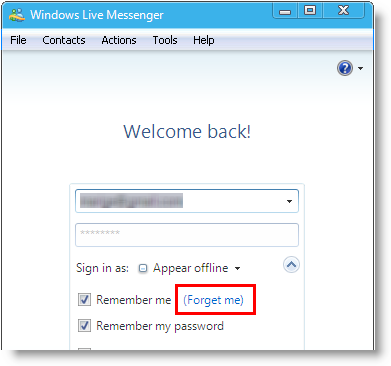
The “Remember my password” option is quite useful, but it can also be a problem. What if you changed your email account, or updated your password, or you just don’t want Messenger to remember it anymore? It’s as easy as clicking on “Forget me“.

Tips and tricks for Windows Live Messenger

If you don’t see this option, it’s because it’s hidden in a drop-down menu; click the rounded arrow button to bring it up.

Completely erasing a contact

Erasing a contact from your Messenger list is as easy as right clicking the name and selecting “Delete contact“. Plus, if you have enabled the “Only people from my Allow list can see my status and send me messages” option in Privacy settings, you won’t see him or her again.

Tips and tricks for Windows Live Messenger

The only problem is that the contact will still appear on the Block list. If you really want to get rid of every single trace, right click the contact’s name on the Block list and hit “Delete“. Note that the Delete option will only be available if the selected contact has also erased you from his/her list.

Avoid Nudges

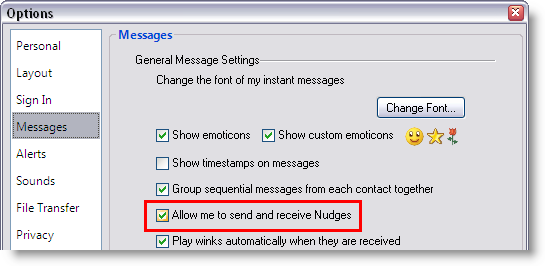
Are you sick of nudges? Does one of your contacts think they’re the coolest thing ever and is constantly using them when talking to you? Well, in case you didn’t know, there’s an option to block them out. Go to Tools > Options, then to the Messages section and untick “Allow me to send and receive Nudges”.

Tips and tricks for Windows Live Messenger

The catch is that this also prevents you from sending nudges. If you’d like to be able to send nudges but block those coming from your contacts, the trick is using A-Patch, a tool that lets you tweak some Messenger options like this one. Continue reading “Tips and tricks for Windows Live Messenger”

Watch live Premier League matches for free

The new English Premier League season kicks off tomorrow and, unless you’ve got Sky Sports, you’re probably wondering how you can watch the games. Aside from finding a pub or a bar the best way to watch live football for free is through your computer. There are several programs and web sites you can use to view some, if not all, of the day’s matches from the Premier League (or, ‘Premiership’ as some still refer to it as). First, we’ll look at the essential software you should download and install, then I’ll tell you about some useful websites that show you viewing schedules or let you stream matches.

Software you need

sopcast.jpg

TVAnts – One of the longest-running P2P live streaming services, TVAnts has become one of the most popular ways to watch live football matches online. Installing the program is easy but load it up and you’ll be bamboozled by a complicated interface and a list of channels in Korean. Don’t panic because you don’t really need to mess around with the program itself. The important thing is just to have it installed. It will be called upon automatically when you access a certain feed from one of the web sites listed below.

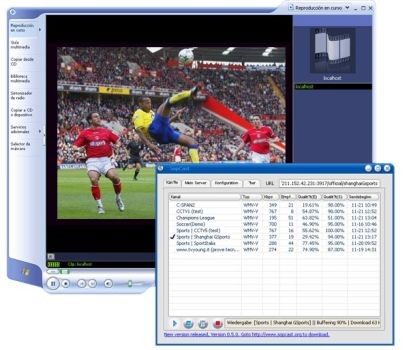
SopCast -This one is a lot easier to manage than TVAnts. Head for the ‘Channels’ section once you’ve installed the program and you’ll find a range of sports stations, many of which cover live Premier League games. Try Star Sports, ESPN Sports, GD-Sports, or ShangHai GSports. Most of the commentaries will be in Chinese but with the sound down and Five Live on in the background it’s perfectly enjoyable.

TVU Player – For sheer ease of use, TVU Player is probably the best of all the P2P streaming apps. Click on the ‘Sports’ tab and you’ll see a huge list of sports channels from all around the World. You can either just flick through them to see what’s on, or use the TV Guide section to help you.

PPStream – Unless you’ve been practicing your Chinese, you’ll find PPStream about as easy to use as a marshmallow hammer. You can flick through the list of channels on the left-hand side but it’s literally a game of hit and miss. Like you did with TVAnts, just install the program so it’s available for the web sites below if you need it. Continue reading “Watch live Premier League matches for free”