Friday Timewaster: Silent conversation


Finally, someone has answered the age old question, ‘what happens when you mix Mario with literature?’ Silent Conversation is what happens – a unique mix of reading and platforming! Each level is a poem, ranging from the super short to really long, and the words are spread out to make platforms for your letter ‘I’ to jump. To score, you have to touch as many words as you can. When you touch the last word of the piece, the level ends, giving you a score and grade. The levels that I’ve played through feature pretty serious poetry – there’s not a lot of humor.

I’ve certainly never played anything quite like Silent Conversation, and it’s an idea that works surprisingly well. Can you concentrate on reading and platforming at the same time?

Ask OnSoftware: How to use a webcam with Messenger for Mac

If there’s one thing that’s still poorly supported on Macs by Instant Messenger clients, it’s the iSight camera. You’d think by now, IM clients would have advanced enough to allow users to make video calls but even major ones such as Adium still don’t. Biggest culprit of them all however is Microsoft Messenger for Mac which left one OnSoftware reader ruing the day he’d bought a Mac:

Hi, I am hoping that you can give me some assistance in how to get the webcam feature to work on MSN Messenger for Macs. I was assured that before I bought my Mac that MSN Messenger works as it does on my old PC. It mentions about being a corporate user and the webcam function working. How do I become a corporate user? If you could get back to me as soon as you can with a solution it would be much appreciated.

I really feel for this user because converting to Mac can be a frustrating experience at first and stupid things like this can really make you wonder whether it was worth all the bother. It’s ridiculously unfair of Microsoft when PC users can use webcams and audio with MSN Live Messenger but Mac users can’t.

Microsoft have obviously decided that, if you’ve got enough money to buy a Mac, then you should have enough to give them some too because as the user suspects, only Messenger for Mac corporate users can use a webcam. If you’re in the same position you have two options. One is to pay hundreds (if not thousands depending on the license) of dollars and upgrade to the corporate edition which also requires Microsoft Office Communications Server 2007. The second, is to use pay nothing and use aMSN instead. Hmm, tough one.

aMSN is an open source MSN Messenger clone so its interface will feel familiar to Messenger for Mac users. The important thing however is that it’s absolutely free and it supports webcams. Starting a webcam conversation is easy.

1. Open a chat dialog with the person you want to chat to:

aMSN chat dialog

2. Click on the webcam symbol:

aMSN symbols

That’s it you’re done! I was using an integrated iSight camera but it should work with any external webcam. Although you can’t do audio conversations with aMSN, you can record and send sound bytes to other users. There are other advantages to aMSN over Messenger for Mac too including the possibility to sign-in to more than one account at once and conduct video conferences for free.

Times: Read your RSS feeds in a newspaper style

TimesThere’s been a lot of talk recently about the best way forward for newspapers in the digital age. Rupert Murdoch thinks the best way is to charge for content, Charlie Brooker thinks a virtual coin is the solution while those at the New York Times think a dedicated subscriber funded reader app is the future.

Murdoch’s idea I feel is, excuse the pun, behind the times. Brooker’s is slightly less mad and so it’s the NYT Reader that gets my vote as something that can realistically sustain newspaper profitability. Which is why I was impressed by the simply named Times RSS reader.

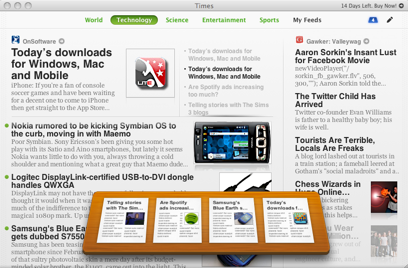
Times features all the benefits of a solid RSS reader but with the elegance of a newspaper style interface. It’s organized just like a newspaper with the page sections along the top such as Technology, Science, Sport and News. You can create your own pages simply by going to “Edit” and “Create Page”. To add an RSS feed, click on the pen in the top right hand corner.

Times main page

Your feeds panel then opens showing all the feeds you have assigned to various pages. Enter a website address for the feed, Times will do a quick check to see if it is has an RSS feed and when the green tick appears, simply enter a name for it. Then you can drag and drop the feeds into position on the blank page in front of you thus creating your own personalized page.

One slick little bonus of Times is “The Shelf” which works on the same principle as Stacks on Leopard. You can drag items of interest onto your shelf for reading later and when you click on the shelf symbol in the top right corner, the shelf appears with the articles expanded Stacks style so you can see exactly what you’d like to read.

Times Shelf screenshot

The overall look and feel of Times is a refreshing change from your average RSS reader. However, navigation can be a little frustrating. Hiding the feeds requires you to access the “View” menu when you should be apple to drag or pop the panel back up when you’re done adding a new feed. It’s also a little annoying how you can’t access the comments on blog posts using Times – you have to go directly to the page itself which will open in your default browser if you just click on the title. You can however share feeds extremely easily on Digg, Facebook and Twitter thanks to integration with all three.

Times is definitely worth trying for those RSS addicts who are nostalgic for newspapers and may even give the newspaper industry itself a thing or two to think about when considering future formats.

Are Spotify ads increasing too much?

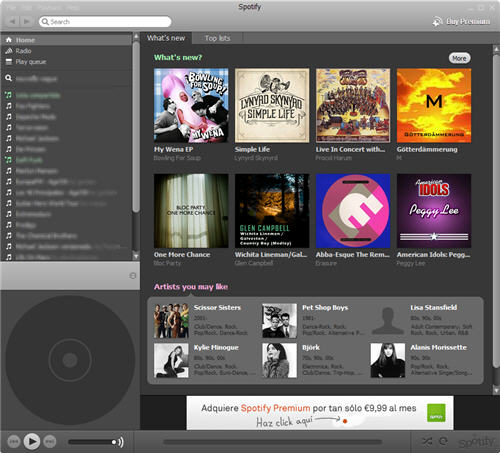
SpotifyAfter being around for a while in Europe, and according to the latest rumors, Spotify will be available stateside in a few months. While I’m sure music fans in the United States are looking forward to testing it, the truth is that all that glitters is not gold. Spotify is a great app, there’s no doubt about it. We’ve raved about it a couple of times on this blog. But there’s also a big catch to it: ads.

Spotify is currently offered in three versions: Premium (€9.99 per month), Day pass (€0.99 for 24 hours) and Free, which is ad-supported. This last version is the one that raises most controversy. I’ve been using Spotify for seven months now, and during this time I’ve noticed an increase in the number and frequency of ads. I understand Spotify needs to make money in some way, and I’m honestly willing to listen to ads from time to time if that means I can access their extensive music catalog for free. But what I don’t like at all is having ads every two or three tracks. Not even standard commercial radio stations have that much advertising!

The funny thing is that I’m not the only one that has noticed this increase. The whole OnSoftware editorial team was also complaining about it, so we decided to conduct a small research project: listen to music on Spotify for a whole hour and count all the ads you get. As a result, Jon, Nick and me got seven ads each, while Tom had six and James, four. Not that bad for just 60 minutes of music. It seems that the more often you use Spotify, the more ads you get: James is almost new to the program and he only had four, while the rest of us, Spotify veterans, obtained higher scores.
Spotify

And what are Spotify ads about? Well, most of them explain new features in the application or encourage you to upgrade to the Premium version. Others are about MP3 download services, or new albums and artists you can find on the program. Some of them are in English, which I find a bit out of place since we’re in Spain. And the vast majority are quite poor in quality, but there’s no way you can skip them: if you turn the volume down so as to not hear them, they’ll be paused until you turn the volume up again.

I used to love Spotify and recommended it to all of my friends. Now I’m not so sure about it. On the one hand, it’s a simple program that offers an incredible amount of music, just a click away; on the other hand, the Free version has become so ad-ridden that it’s a bit too annoying to use. Sorry, but I’m back to Winamp now.


Telling stories with The Sims 3 blogs


The Sims 3 is undoubtedly the best in the series, and it’s so engrossing that people have been inspired to create blog soap operas out of the game. The first one I saw, like most people, was Alice and Kev. This excellent blog follows two homeless Sims, an insane father and his clumsy, shy daughter. It manages to be funny and touching, so it’s a shame the author seems to be taking a break! Read it from the start here.

There are an increasing number of Alice and Kev-a-likes. Unfortunately not many of them are as well written or humorous. There seems to be a split between having no real story, or being really worthy. In His Own World is about an unloved boy with mental problems. There are lots more characters in this story, and the author clearly enjoys creating difficult situations, however it feels forced, and lacks the humor of Alice and Kev. You can also follow Meet Mitsy Kedler, Quinn and Kendra, or Right and Wrong.

TheSims3Blog doesn’t tell a story, but features lots of videos about the various people created in the game, some of them are great! The most promising Sims 3 blog I’ve seen for a while, though it’s still in its infancy, is Left 4 Sims, a blog that recreates the Zombie fighting survivors from the fantastic Valve horror shooter.

I can’t think of another game that has its players blogging about their experiences, but perhaps Battlefield 1943 or Super Mario aren’t such good narrative material….

Provide remote tech assistance without hassle

Sunday evening. You’re comfortably lying down on the sofa, reading a book, when the phone rings. “Hey, could you come over to my place and have a look at my laptop? It’s not working properly and I’m sure you’ll be able to fix it!

If you work in anything remotely related to computers, I’m sure you’ve experienced a situation like this: a friend calls you and asks you for tech assistance, taking for granted that you’ll be able to solve whatever is wrong with their computer – be it a simple Windows configuration issue or a more serious virus problem. You have then two main options: either you refuse to help (which is always a harsh decision) or you comply with the request… but who would like to leave home on a relaxing Sunday evening just to fix a laptop?

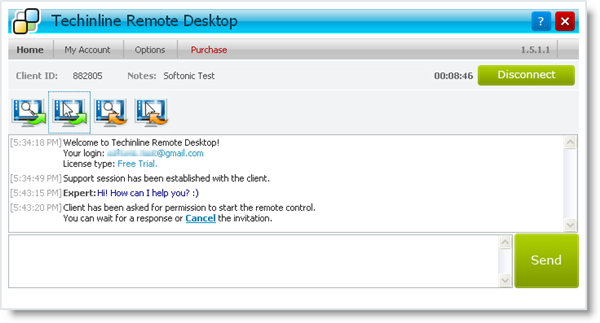
There’s a third option, which is probably the best one: using remote assistance programs that have been especially developed for that purpose. Techinline Remote Desktop is one of those apps: a remote support tool that works as a Firefox plug-in (which makes it a breeze to install and use) and provides you with access to the remote computer in a few seconds.

Techinline Remote Desktop - Remote Support

To use Techinline Remote Desktop you have to fill in a form on the developer’s website to obtain a password, and then download the ‘Expert’ Firefox plug-in. In turn, your friend – or customer – must download and install the ‘Client’ plug-in, which will generate a unique session ID. Now start session in the Techinline website, enter that session ID and you’ll gain immediate access to the remote PC.

Unlike other downloadable desktop sharing tools – such as LogMeIn, CrossLoop or TeamViewer – Techinline Remote Desktop works inside Firefox, just like one more website on another tab, and lets you view desktops in both ways (from Expert to Client and viceversa) with the option to share control of the keyboard and mouse as well. It can be a bit clunky sometimes, especially when opening and closing apps in the remote computer, but it’s definitely better than having to go over to your friend’s and fix their laptop on the spot.

Three free alternatives to Football Manager

The global financial crisis seems to have completely bypassed the world of football. In fact, it seems clubs are splashing out more than they ever. This summer, Real Madrid spent almost €200 on three players (Kaká, Ronaldo and Alonso); Barcelona signed Ibrahimovic for €60 million; while moneybags Manchester City went transfer crazy on the likes of Tevez, Santa Cruz and Adebayor.

Unfortunately, the budgets of most armchair football fans aren’t quite so big. In fact, I’m sure that this season people will be even more reluctant to upgrade to the latest version of Football Manager. If this applies to you, then fear not because there are now some impressive free alternatives to the guv’ner of all soccer sims. These free online football manager games are well worth checking out if you’ve decided not to bother with FM 2010.

Soccermanager.com

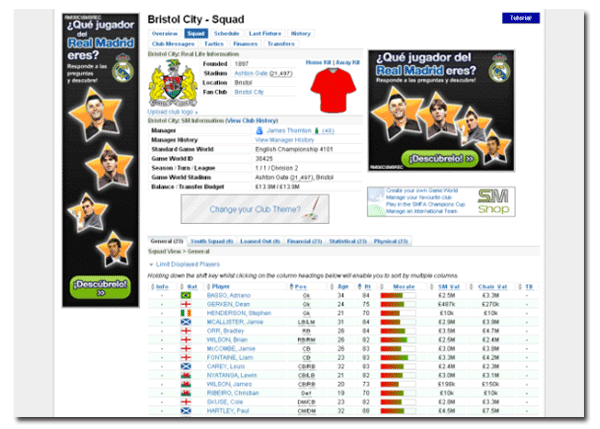
If its realism that you’re after, then Soccermanager.com is the place to be. The game features more than 40,000 real world players, complete with accurate data and profile photos. You can choose to play as one of a choice of 1,500 real club, entering a league against other human managers all around the World. In fact, you might say there’s more realism in Soccermanager.com than the mighty Football Manager due to the fact that player stats are updated depending on real-life performances.

The strategy element of the game is pretty sophisticated, with highly customizable tactics and formations, as well as an in-depth transfer market system. There are loads of social features too, including fan club groups, private messaging and forum. The main problem for me was that there are only two matches per week, so you’ve got a lot of time to wait in between games.

Soccermanager

Continue reading “Three free alternatives to Football Manager”

Today’s downloads for Windows, Mac and Mobile

2t_vlc_portbable_thumb.jpgMac: There’s no doubt that the open source VLC Player is one of the best media players out there. For serious VLC Player fans however, the ability to take your preferences with you wherever go is one thing that hasn’t been possible. That’s all changed with Portable VLC, which is a portable application that allows you to take your preferences with you on any portable device with more than 80MB of free space.

Quick Wikipedia access on your iPhoneiPhone: For many people, Wikipedia is now one of the first ports of call they make when trying to find out about a certain topic online. Wikiamo for iPhone allows you to consult the famous free encyclopedia from your Apple phone. The application is free and allows you to search for and browse Wikipedia entries very easily.

Download JLC’s Internet TVWindows: Are you tired of the usual TV shows in your country? Try something different with JLC’s Internet TV, a nice app that lets you watch thousands of online Internet TV channels for free. It’s very easy to use and features a built-in search tool, support for favorites, channel list organized by country or category and more.

Friday Timewaster: You Only Live Once

Gran Turismo? Call of Duty? You may think they’re pretty realistic, but you’ve never played You Only Live Once. This flash-based browser game shouldn’t take you too long to play – there are no complex controls to learn, just a humorous storyline, some jumping, and the most realism you’ve ever seen in any game. Seriously, this is extremely realistic! It might have great replay value, but you won’t be playing twice…

Find out the meaning of a blue screen of death

All Windows users, at some point of their lives, have experienced a BSOD. The first time you see one it’s kind of terrifying, but as you get used to the system’s up and downs you realize it’s not that terrible. In fact, the worst thing about blue screens of death is actually understanding what they mean and using that information – on Google, mainly – to find a solution.

Find out the meaning of a blue screen of death

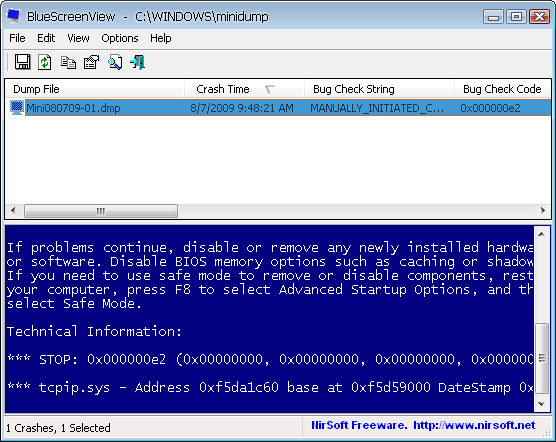
Here’s when BlueScreenView comes in handy. This little standalone app recovers the dump file generated by any BSOD you’ve had lately and displays it again, so that you can take a deeper look at the displayed message, look it up on Google and hopefully find out what’s wrong with your computer. BlueScreenView can display the blue screen as it appears, or simply as a list of failed drivers, which is probably easier to manage.

Oh, and in case you’re wondering how I tested this program: no, I didn’t wait for the BSOD to happen. I managed to provoke it myself with a quick Registry hack. So if you ever want to have a blue screen on demand (I wonder why, but hey, that’s your business) this is what you have to do:

1. Open the Registry editor (Start menu > Run > regedit.exe)
2. Browse to HKEY_LOCAL_MACHINE\SYSTEM\CurrentControlSet\Services\i8042prt\Parameters
3. Now go to Edit > New > DWORD Value and name this new value ‘CrashOnCtrlScroll’
4. Double click the newly created value and enter ‘1’ in the Value Data field. Click OK.
5. Close the Registry editor and restart Windows
6. When the system has restarted, press and hold the Ctrl key on the right side of your keyboard and then press the ScrollLock key twice. Tada! Your BSOD is ready.

Note: As fas as I know, this Registry hack works only on Windowx XP.