How To: Import Hotmail into Gmail

Now you’ve got an even better reason to ditch Hotmail (or “Windows Live Mail” as it’s now known). As the Google Operating System blog reports, in May Gmail rolled-out a handy new feature for new users that enabled them to import mail from other online e-mail accounts such as Hotmail, Yahoo!, AOL and many other webmail or POP3 accounts. The good news is now it’s available to everyone 🙂

Previously, the only way to import Hotmail into Gmail was via third party applications such as Izzymail which could be both time consuming to setup and compromise your security somewhat.

Here is how to do it:

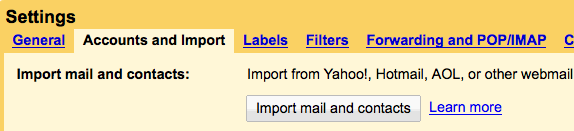
Log into your Gmail account. Click on “Settings” in the top right corner of the screen. Then click on the “Accounts and Import” tab:

screen-capture.png

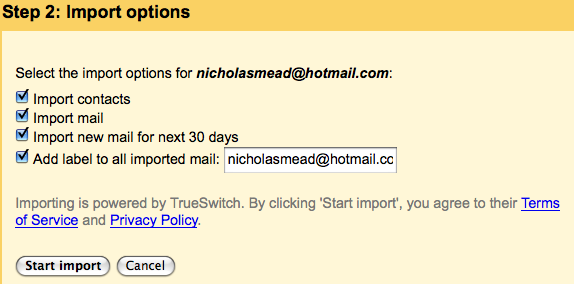
Click on “Import mail and contacts” and then enter the e-mail address and password of the account you want to import mail from. Then select exactly what you want to import:

screen-capture-3.png

Click “Start Import” and you’re done! A hell of a lot easier than using a third party app.

Note that the import process can’t be stopped once it’s started even if you log out of Gmail. You can see the status of the import process by clicking on the “Accounts and Import” tab again at any time. Messages may also take up to 48 hours before they finally appear in your inbox. Once it’s complete, you’ll see a confirmation e-mail in your inbox. Note that this service is not yet available for Google Apps for Your Domain as it’s aimed primarily as non-business customers.

Snow Leopard to be released on Friday

Snow Leopard DiscA little earlier than expected perhaps, Apple have officially announced that the next release of Mac OS X 10.6 Snow Leopard will be released on Friday at Apple’s retail stores and Apple Authorized Resellers. Apple’s online store is now accepting pre-orders. The Unofficial Apple Weblog set tongues wagging earlier today when they noted that the Apple Store was down signaling something big was in the pipeline.

Bertrand Serlet, Apple’s senior vice president of Software Engineering announced:

Snow Leopard builds on our most successful operating system ever and we’re happy to get it to users earlier than expected. For just $29, Leopard users get a smooth upgrade to the world’s most advanced operating system and the only system with built in Exchange support.

To get an idea of what to expect in Snow Leopard, check-out my posts earlier this year about the new features and the sneak preview at the WWDC in June. If there’s one thing that will definitely make Snow Leopard worth upgrading for it can be summarized in one word – speed. For the modest sum of $29, I’m looking forward to an altogether faster and smoother OS X if not a particularly different one visually. For those with an eye to working with Microsoft Exchange, it’s an absolute must since it’s the first Mac OS to support it.

Here are just a few other good reasons to upgrade if Apple’s claims are to be believed:

  • A more responsive Finder
  • Mail that loads messages up to twice as fast
  • Time Machine with an up to 80 percent faster initial backup
  • A Dock with ExposĂ© integration
  • QuickTime X with a redesigned player that allows users to easily view, record, trim and share video
  • A 64-bit version of Safari 4 that is up to 50 percent faster and resistant to crashes caused by plug-ins
  • 7GB extra hard drive space – Snow Leopard is half the size of the previous version and frees up to 7GB

Look out for a full review coming soon!

How to add and remove start up programs

In my line of work, I see a lot of interesting programs that I know I’ll use at home. My only problem is actually remembering to use them! What I needed was a way to remember that I had these programs, applications and documents and, above all, to use them regularly. What better way, then, than to have them appear as soon as you turn on your computer?

The process is simple, but will be really useful, especially when there is something that you should use or look at every day but keep forgetting, such as a calendar like Sunbird or a task manager like Task Coach. The first step is to open up Windows Explorer – do this by right-clicking on the Start button – and choosing explore. The Start Menu folder should already be highlighted. Open Programs and drag whatever program or document you want to run at start-up into the open window. That’s it! I told you it was easy…

Preventing a program from running on start-up is also simple. Many applications automatically run on start-up, and, if you have too many of them, it can slow your system down. There are some programs that target this problem – System Explorer – for example, but if you want to eliminate a program from start-up manually, it’s easily done.

blobg01.png

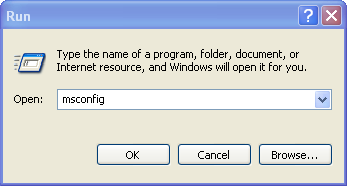
Open Run from the Start menu and type ‘msconfig’ into the box. Press ok, and a window should appear. Select the Startup tab and you’ll see a list of all the programs that currently run on start up. Uncheck the ones you don’t want and click apply, then sit back and enjoy your new, streamlined start up!

blobg02.png

Essential Mac utilities for Usenet downloads

Despite the amount of time they’ve been around, Usenet newsgroups remain relatively unknown to the majority of Internet users. There are plenty of reasons for this, such as the fact that people who know about Usenet generally try to keep it a secret, or if not a secret then not as well known as, say, BitTorrent. Another reason most people don’t bother looking into Usenet is that in order to get a decent, reliable service you generally have to pay a monthly subscription.

But if you’re willing to pay for the extra security, anonymity and speed then Usenet newsgroups can be both a fun place to discuss any topic under the sun and a repository of as many open source apps and Linux distributions that you can think of. Apparently, some people have even found movies, albums and HD-TV shows on them. OnSoftware doesn’t endorse or condone copyright infringement or piracy, though. OK?

Once you’ve set up an account with a reliable newsgroup provider (I use the Giganews Diamond service which offers unlimited downloads via a secure SSL connection), you’ll need some software. Until recently, this was my setup:

Newsgroups reader: Unison

2t_unison_thumb.jpgUnison (full version $25) is a nicely designed native Mac newsgroups reader. In essence, it allows you to browse through the thousands of groups available on Usenet, read and participate in discussions and download binaries (files). Simply configure Unison with your account details (including how many simultaneous connections you want) and you’re away. But if you’re anything like me, you’ll find the wealth of information and groups just a little daunting. So…

NZB search engine: Newzleech

newzleech.pngBinaries are broken up into lots of fragments and you’ll need to download all of them if you want to be able to reassemble them afterwards. For this reason, it’s a good idea to use a search engine to find all the constituent parts of a file before you start downloading them. I use Newzleech because it’s quick, easy to use and generally helps me find what I’m looking for. To use it, simply add your search term (I often stipulate a filesize range too) and select the binary that looks most complete. E.g: searching for Ubuntu Jaunty with a minimum filesize of 700MB, I find one binary that’s tweaked for netbooks. Perfect! I hit the Get NZB button and open the resulting file with Unison. Continue reading “Essential Mac utilities for Usenet downloads”

Spam challenge: the winners!

The votes are in, the polls are closed and the results are ready…

Regular readers will remember that about a month ago, we decided to conduct a spam experiment to see what email providers perform best when dealing with junk mail. Bets were made, stances taken and friendships placed on the line, but NOBODY could have predicted the results. Read on, and prepare to be surprised!

Just to remind people, we took some deliberate risks to make sure the email accounts were given a run for their money. I entered the email addresses into a dodgy-looking Internet competition AND left the poor defenseless little fellas on the blog to be stolen by any passing spambots. We were looking for a challenge, and a challenge we got.

gmail01.png

Many people, including myself, had high hopes for Gmail. When I took a peek, all seemed quiet – 3 emails in the inbox and a whopping 49 in spam. Unfortunately, and unexpectedly, the 3 in the inbox were out-and-out spam, while the vast majority of the ones in spam were actually genuinely from my competition!

hotmail01.pngHotmail received the lowest number of emails overall. We found 11 in the inbox, and 7 in the junk folder. Almost all of the emails in the inbox were correctly classified, but most the ones in spam were actually genuine.
aol01.png

AOL took an interesting approach to the situation. There were only 2 emails in the spam folder, and both were correctly identified as junk. Over in the inbox, all but 4 of the 26 were genuinely related to the competition. Not bad going…

hushmail01.png

Poor Hushmail was very disappointing: all of the 19 messages in the inbox were spam, while the 12 in the ‘pending’ spam folder were actually a mixture of emails relating to the competition and junk. And this from the service provider that claims to have extra-special spam capabilities!
yahoo01.png

Lastly we took a look at Yahoo, one of the oldest webmail services on the block. Although it had the highest number of emails of all the accounts – 78 in total – it did well. All of the 37 emails in the inbox were related to the competition, and all of the 48 in the spam folder were total garbage.

The results were not exactly what we were expecting, but very interesting all the same. To be fair, the Internet competition that we entered generated a huge amount of correspondence and I have to admit that the emails definitely looked like spam. The key point to remember, however, is that although they look dodgy, I did solicit the communication. One of the biggest surprises was the variation in the total number of emails received by each account. Hotmail was best at keeping the numbers down, with a paltry 18, although as I counted a total of over 20 genuine emails in other accounts, it does make me wonder where the others disappeared to.

The main point of the test, however, was to see which provider did best in picking out spam and leaving the genuine – if spammy-looking – alone. To judge this, we looked at both the number of spam mails received AND the number of false positives, and when we did, the winner was clear. Yahoo, would you please step forward!

What can you learn from our little test? Well, bear in mind that the situation we created is somewhat unnatural, and that when picking an email account, there is more to consider than spam capabilities; security, usability and features are all hugely important. It is also worth asking around for the opinions of actual real-life users – even though Gmail didn’t perform great in the test, it always performs perfectly in my real accounts. That said, the test highlighted some definite winners and losers, and even though I have no intention of changing from Gmail, I certainly know which email providers I won’t be recommending to my friends!
Create great videos easily with Live Movie Maker

I love traveling abroad and I usually take my camera with me. That means that I have thousands of photos and videos at home, but I wasn’t not sure what the best way to share those pictures would be. After doing a bit of research, I came to the conclusion that creating a multimedia presentation is probably the best option, and Live Movie Maker the best tool to work with.

Live Movie Maker is part of the Microsoft Live family: a basic and functional video editor with a visually appealing interface that doesn’t require any technical skills to use. Unlike other more professional video editing tools, Live Movie Maker doesn’t feature a timeline or complicated menus. Its interface is divided into two main areas (a built-in player to preview your video, and a library to drag and drop images and videos) and has adopted the characteristic ribbon interface from the latest Microsoft apps, with separate tabs for the program’s main areas: Home, Animations, Visual effects, View and Edit.

Create great videos easily with Live Movie Maker

Creating a video with your photos in Live Movie Maker couldn’t be easier: after launching the program, double click the library pane or drag and dr0p media files onto it, and they’ll be automatically added to the movie. Click the ‘Add music‘ button if you want to have some nice background music, which you can later on adjust to the video length with the ‘Fit to music’ option. Other tools you can find in this Home tab let you insert titles, add credits at the end of the movie and insert text captions for each photo. A special feature that is also worth noting is ‘AutoMovie‘: it creates the complete movie automatically for you, with title, credits and crossfade transitions. Continue reading “Create great videos easily with Live Movie Maker”

Head to Head: Immunet Protect vs. Panda Cloud

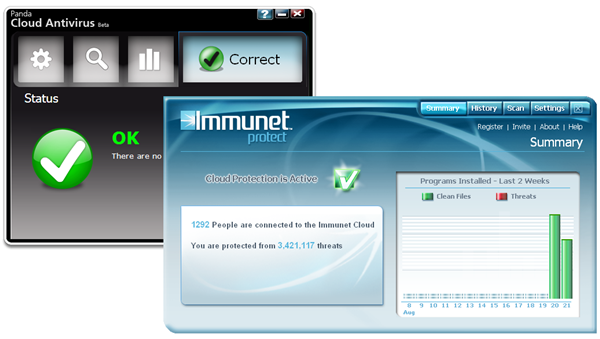
This week I had the chance to test Immunet Protect, a cloud-based antivirus tool that protects your system thanks to the collaborative work of its thousands of users worldwide. Innovative as it sounds, this is actually not the first cloud security app I’ve seen. I tested Panda Cloud Antivirus a while a go, so I thought it may be a good idea to compare these two programs and see whether the cloud trend has any future in security software.

Head to Head: Immunet Protect vs. Panda Cloud Antivirus

As a starter, Panda Cloud is not compatible with other antivirus tools you may have already installed on your system (in my case, AVG 8.5) but this is in fact a typical feature of Panda software – they can’t even coexist with other Panda apps. Immunet Protect, for its part, doesn’t mind working with other antivirus software, though you should generally avoid having two antivirus apps running at the same time.

Both programs have a ‘Summary’ window that shows system’s current status and other data. But there are some differences: Panda Cloud Antivirus has a nicer interface, with visually appealing icons and large buttons that make it easier to use. Immunet Protect, on the contrary, seems to focus more on numbers and statistics, and its toolbar menu is a bit overcrowded with buttons a links. Just after installation, Immunet performs a first system scan, while Panda doesn’t lift a finger. Continue reading “Head to Head: Immunet Protect vs. Panda Cloud”

Friday Timewaster: The Great Flu

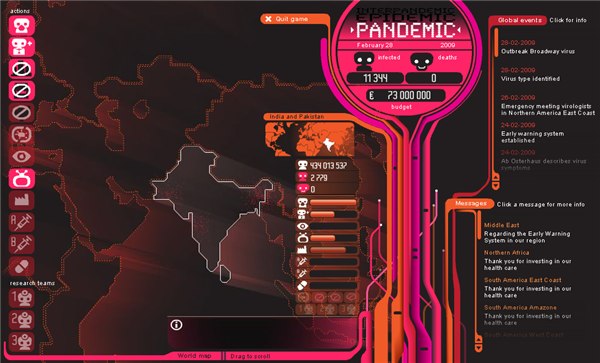
The Great Flu is a short strategy game where you have to try your best to limit a global flu pandemic. The Earth is split into areas, and depending on problems in each part you can direct certain policies at them. Distributing face masks, improving health care, stockpiling vaccines and more are available. As you progress, you’ll receive media stories and messages that help you make decisions. Once the pandemic hits, the growing spread of red dots over the planet is quite disturbing!

The game seems to be based on genuine medical advice, and it’s interesting to see which polices don’t work so well. I contained the Gamers Flu in 25 days, with only 161,746 deaths. OK, that doesn’t sound too good I suppose. This flash game plays in your browser, and is beautifully designed. It’s not the most cheerful concept, but it’s an unusually good mix of entertainment and education, an often cursed mix.

If you need a quick fix of mindless destruction after that, try Max Damage, a really basic physics game where you have to fire a cannon at domestic items, and do the maximum amount of damage possible. It’s not a new idea, or a clever one but it’s still fun.

How To: Diagnose processes running on your Mac

Activity Monitor logoCall me an uber geek but I like to keep a close eye my Mac’s processes. I usually use the iStat Nano widget to keep an eye on the top 5 but OS X’s Activity Monitor gives the most detailed info. Processes are the “engine” behind what’s going on and can be used to quickly identify problems. Every application you use will add another process to your list and of course, your operating system requires to run many processes in order to function.
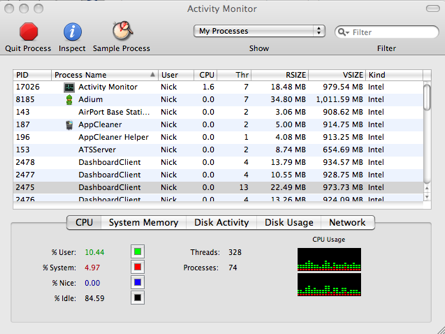
Anything that doesn’t relate to these is either an impostor which could mean a virus, malware or remnant of an application you have uninstalled. Whatever it is, it will be consuming valuable memory and processing power and could be the source of any number of problems you’ve been having. The problem is, reading a process list is like trying to read hieroglyphics. Processes simply labeled “pboard”, “mdworker” and “launchd” make no sense at all to the average user.

Activity Monitor

However, there is a very simple solution to this. While recently trying to work out what a rogue process was, I discovered a very handy online tool from developers triviware. They have developed a simple process anlyser which can take a look at your system and work out exactly what each process on your system corresponds to. All you have to do is follow a simple terminal command which downloads your processes into a list which you can then upload to the analyser for inspection. This may sound a bit dodgy to some but hey, I’ve got nothing to hide on my system so I gave it a go.

Processes are labelled with either a tick, a question mark or an exclamation mark. A tick indicates that the process is a known Mac OS X component and gives a brief description of what it does. A question mark indicates that the process is not part of OS X and provides you with a link which will Google it for more info. An exclamation mark indicates that the process is known to be malicious and should be removed immediately. Continue reading “How To: Diagnose processes running on your Mac”

Top 10 software songs

After I finally stopped laughing at Mashable’s round-up of the best songs about Facebook and Twitter, I’ve had time to compose my own list of the best software-related tunes. It’s amazing how many artists have felt compelled to write songs professing their love (or often their hatred) of applications and operating systems.  Here are the ten that moved me the most.

Free Software Song

The crowd at Richard Stillman’s impromptu ‘gig’ were left dumbstruck by his mesmerizing performance of his self-penned Free Software Song. Don’t expect the founder of the GNU Project and Free Software Foundation to be getting an six-album deal anytime soon, though.

[youtube]http://www.youtube.com/watch?v=1BH7poMtPVU[/youtube]


Photoshop

Check out this extravagant performance of Spark’s Photoshop song, recorded on the band’s Creatures of the Deep tour. Russell, we would never want to Photoshop you out of our lives.

[youtube]http://www.youtube.com/watch?v=QKAZGsVU-Fc[/youtube]


Mac or PC Rap

One of my personal favorites, this Flight Of the Conchords-style hip hop parody debates the nuances of the Windows and Mac OS interfaces. Continue reading “Top 10 software songs”