Select what you want to print and save paper

Here’s the situation: you want to print an interesting article published on a web page, but along with it, and unless the web page has a special printer-friendly version, you’ll get all ads, banners, titles and unnecessary images that are also displayed on your screen. What a waste of paper and ink!

Select what you want to print and save paper

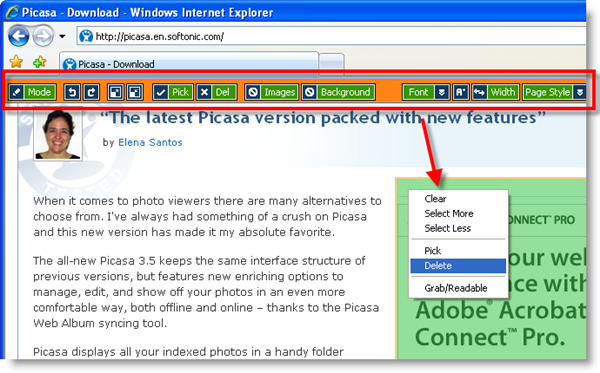
Fortunately there’s a way to fix this mess. Install Printee and you’ll be able to select exactly what specific elements you want to print in a web page, leaving all redundant information aside. Printee is seamlessly embedded in Internet Explorer, and displays a toolbar when you click the app’s button. This toolbar features a handful of utilities with which you can remove the background, get rid of images, tweak text size, adjust the page’s width and delete unwanted items.

You can preview the stripped-down version of your web page before actually printing it, just to make sure it’s exactly what you want to have on paper. In this way, whenever you really need to print something out, at least you can do it in the most environment-friendly way possible.

Friday Timewaster: Icycle

You wake up in some kind of chamber, naked next to a tiny bicycle. As you come to your senses, you see another chamber, but the occupant races off on a motorbike almost before you can see them. That’s how the lovely Icycle begins.

You guide your naked cyclist through barren, but beautifully painted and animated landscapes, in pursuit of the mystery biker. Using the cursor keys to accelerate, brake and jump your way is pretty easy to grasp, although you can’t go backwards at all. You need to learn the events of some areas to beat them – timing your jumps to avoid falling rocks, or cracking icy floors. It occasionally gets trciky. The gameplay is simple, but it looks absolutely fantastic, and you’ll certainly want to play through to the end!

Play Icycle here, which requires Flash.

How to DJ with a laptop: iTunes playlist problems

If you’re looking for DJing tutorials, you’ve come to the right place. We’ll show you how to DJ with a laptop – that is, play tracks from your iTunes library on iTunes (or any other software program) and mix it with music that’s playing through your speakers.

iTunes DOWNLOAD

Nowadays, most people are using laptops for their audio recording and mixing processes. These laptops can play media files directly from the hard drive or a portable flash drive. The main problem is that the iTunes playlist files created on these devices are incompatible with popular DJing apps such as Mixxx.

  1. Using DJing app Mixxx

    How to DJ with a laptop iTunes playlist problems

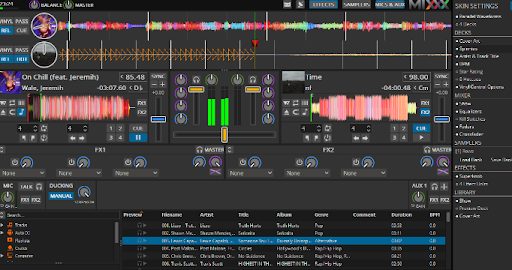
    DJing app Mixxx is a free, cross-platform app with modular effects and an innovative drag-and-drop interface. It’s also available on mobile platforms, meaning you can mix tracks on your phone while you’re out at the club. The app features more than 100 effects and instruments, including reverbs, delays, filters, and more. You can even use it to play real instruments if you want to learn how to play the drums or guitar.

  2. iTunes playlist incompatibility

    How to DJ with a laptop iTunes playlist problems

    The main problem that arises with Mixxx is the playlist format for iTunes is incompatible with it. The best thing to do in such a scenario is to convert the files to M3U format. However, there aren’t too many programs that help with this conversion. This means you cannot use your current iTunes playlist within Mixxx. You need to manually add all tracks to Mixxx and then drag and drop to create a new playlist within Mixxx.

  3. Playlist order

    How to DJ with a laptop iTunes playlist problems

    Once the tracks are added, Mixxx will not necessarily play the tracks in the order you’ve picked. Mixxx will change the order and arrange the tracks alphabetically.

    Another problem with Mixxx is it does not autoplay your tunes. This means you would need to start each track manually. While it may not seem like too much of a hindrance, it does get annoying after a while. You’ll also have to play the tracks manually per your order. You would have to remember the order or write it down. You cannot rearrange the playlist within Mixxx.

  4. External tag editor

    How to DJ with a laptop iTunes playlist problems

    It is possible to sort iTunes playlists by date or name, but this approach has a few problems. First, you must manually change each song’s metadata in iTunes – which can be time-consuming, especially if you have a large music library. Second, you may not always know what metadata to change to sort your playlists.

    For example, if you want to sort your songs by album name instead of the artist name or vice versa, or if all the songs on an album have been given different names from when they were first released (e.g., “The Beatles – Abbey Road” instead of “The Beatles – A Hard Day’s Night”). Instead of relying on iTunes’s built-in tools for sorting your playlist library, try using an external tag editor. If you like coding and want to design your own playlist, an external tag editor can help you sort your iTunes playlist more efficiently.

Why use iTunes if it has so many problems?

iTunes is a software application that allows users to play music and audio files. It has many features, including creating playlists, using filters, and searching functions to find specific songs or artists. It also allows users to organize their music by albums, artists, and genres.

With iTunes on your computer or laptop, you can play music from CDs or downloads directly onto your computer’s hard drive without inserting the CD into your computer first. You can also import MP3 files from your digital music collection into iTunes so that you can organize them by artist name or album title according to how you like them best categorized.

Is there an alternative?

There is no alternative to iTunes for laptop DJs. iTunes has become the de facto standard for managing, organizing, and playing music on computers and mobile devices. It’s an excellent choice for laptop DJs because it’s easy to use and fast, allows you to organize your music library in any way you want, and will enable you to sync your music across devices.

Software and tips to help make you a great reader

book.pngFor the next installment in our series on improving math, reading, spelling and money skills with the help of software, we’re going to take a look at reading. I love reading and would easily say it’s my favorite pastime. The more you read, the more you find out about the world and the easier spelling becomes, so it’s not just an (excellent) form of entertainment. I know that not everybody feels the same way though, which is why I’m going suggest a few tips to make reading easier, quicker, and less intimidating.

The first thing to do is get a book or download a text and start practicing. The benefit of reading online is that you can use a program like Language Reader to help you on your way. You find a text, upload it to the program, and either read along with the speaking Windows characters, or listen to a specific word if you get stuck.combo1.png
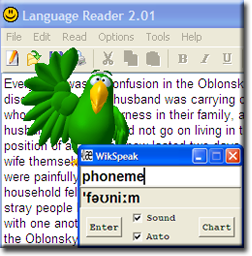
While you are practicing your reading, WikSpeak is a good application to have on hand. If you ever need to look an word up in a traditional dictionary, you’ll notice the weird-looking phonetic pronunciation underneath. Unless you’re a professional linguist, this ‘helpful’ pronunciation guide will probably leave you even more confused then when you started, so put the word in question into WikSpeak for both a phonetic ‘translation’, audio pronunciation and, even better, sound-by-sound guide to phonemes (the sounds that make up words), so you can learn to pronounce them yourself without opening the program the next time you need to look something up.

To get the most out of this practice though, you’ll need a few guidelines. In general terms, pick books suitable for your level, not your age, and make sure you have a private place to practice – somewhere that you won’t mind reading out loud if necessary. Again, the BBC is a great place to look for tips, while there are literally hundreds of reading exercises with questions and comprehension tests sprinkled across the Internet – look here, here and here for inspiration.

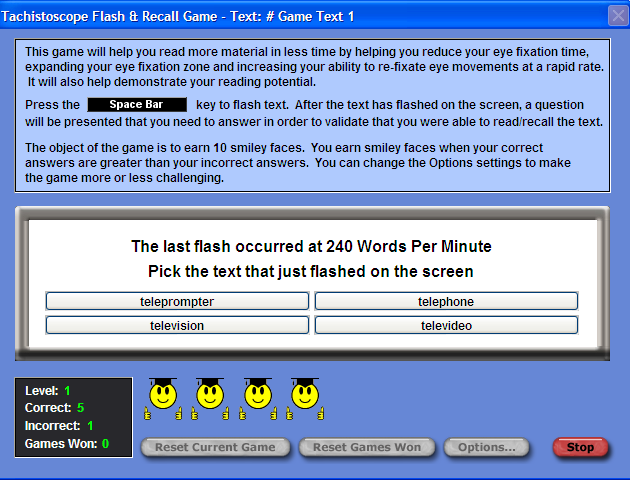
Once you have nailed the basics, it will be time to speed things up. AceReader Pro is a trial program, but even so, it provides really valuable help to speed up your reading and test your progress. As all of these resources keep reminding, the key to being a great reader is short, frequent periods of practice, a positive attitude and a determination to learn. Once you’ve got them, you’re definitely on the path to success!
acereader.png


Part 1: Introduction

Part 2: Math
Try Microsoft Web Apps now!

A few days ago Microsoft started rolling out a Technical Preview of Office Web Apps, the long-awaited online version of the new Office 2010 suite. However the event was so successful that invites quickly ran out and the Preview was closed. As one of the hundred users who were left out, I started looking for alternative ways to try Web Apps, until I finally stumbled upon this simple trick on Cecilia’s blog.

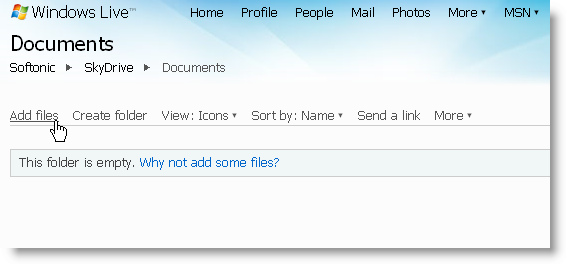
All you have to do is login to Live SkyDrive, the free online storage service provided by Microsoft. If you don’t have an account in SkyDrive, you can easily create one with your Live user (that is, your old Hotmail address or Messenger user). Once, you’re inside SkyDrive, you need to upload at least one Office document to any of your folders.

Try Microsoft Web Apps now!

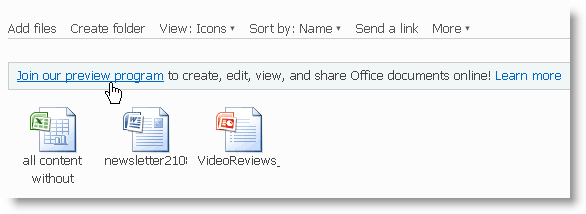
As soon as there’s an Office document in your SkyDrive account, you’ll see a link to join the Preview program to test Web apps. Click the link, accept the terms and you’re in!

Try Microsoft Web Apps now!

Note that Office Web Apps are still under development and have some serious limitations. To begin with, online Word is not available yet. Also, you’ll need to convert old Office files to the newest format (that is, PPT to PPTX, for example), though this seems to be done automatically by the suite itself, while keeping a backup copy of the old document. Continue reading “Try Microsoft Web Apps now!”

Ask OnSoftware: Uninstall Windows Live Messenger

There are few things as annoying as a program that’s easy to install, but almost impossible to remove from your computer. One of them is Windows Live Messenger, which comes preinstalled with Windows Vista and can get a bit stubborn when trying to get rid of it. One of our readers, Jean, had this problem and decided to ask OnSoftware for help:

I already have enough stuff registered in this lousy, abominable pop-up computer. How do I get rid of that WINDOWS LIVE MESSENGER window that pops on my screen??!!

If you’re in the same situation as Jean, you’ll be glad to know it’s easier to solve that it seems. All you have to do is download WLMUninstaller, a handy application that locates Windows Live Messenger on your hard drive and removes it in a couple of minutes.

Remove Windows Live Messenger from your PC

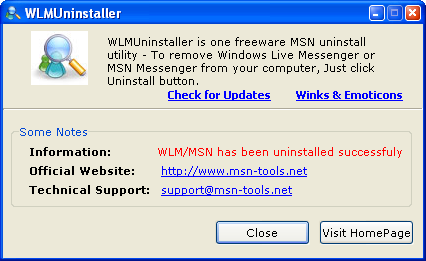
WLMUninstaller is dead easy to use: run the program – no installation required – and click Uninstall to remove Windows Live Messenger from your computer. That’s all! WLMUninstaller does leave some traces behind (a couple of folders and files inside the Windows Live directory) but the actual IM client will be gone forever.

Do you know any other trick to effectively uninstall Windows Live Messenger? Feel free to share it in comments! Also, keep on sending all your problems, questions and doubts to ask@onsoftware.com so that we can provide handy solutions for you and the rest of our readers.

How to add a new user account to your Mac

If you’ve just bought a spanking new Mac and plan to share it with your beloved or another person you should seriously consider adding a separate profile for each person. Adding a new user account means that you’ve got your own desktop and folders which you can deface and manage to your heart’s content without affecting the other user. You can also surf the net and manage your own web browser without worrying what the other person will find or see meaning you’ve both got a greater degree of privacy.

Adding a new user profile is straightforward on a Mac although new users may be initially confused by the fact that they have to unlock their Mac to make changes and also overlook the discreet but all important “+” symbol which allows you to add a new profile. Here’s how to do it:

  • Go to the Apple icon in the top left and select “System Preferences…”
  • Select “Accounts”
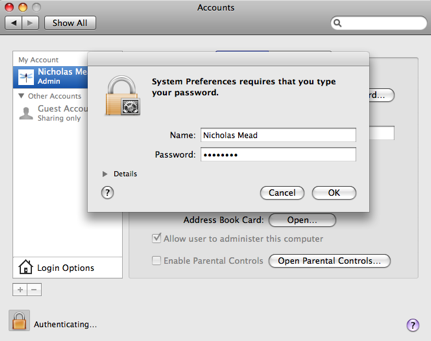
  • If the padlock at the bottom of the panel is locked, click on it to unlock it. You’ll be prompted for your Mac admin password.

Account unlock

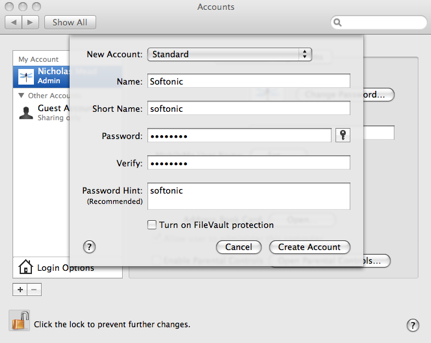
  • Click the “+” symbol near the bottom left corner of the panel.
  • You can choose to select from 4 different grades of account – Administrator, Standard,  Managed with Parental Controls or Sharing Only.
  • Fill in your details and you’re done. If at any point you want to remove an account, just select it in the accounts list on along the left hand side and click the “-” symbol.

Accounts

Banish the math monster with cool e-learning software

Mathematics. The subject everybody loves to hate. You can only ignore it for so long though, because soon enough, it will raise its ugly head. Paying for the groceries, splitting restaurant bills and helping kids with their homework are all things that you’ll have to do at some point. Will you be ready?

As I mentioned yesterday, it was a request from a reader who had problems with math that sparked off this series. Math is a particularly nasty problem area. You can hide your lack of ability pretty easily, and you don’t have to feel to bad about it, because most people agree with you. Math sucks! At some point though, you’ll have to tackle it. It will happen some day when you are least expecting it, when there’s no one around to ask for help, and no calculator for miles. Don’t get caught out. Start working on those skills now!

oldman.pngAs with most things in life, it’s best to start with the basics – addition, subtraction, multiplication and division. Grey Olltwit’s Times Tables is a sweet British-made program that will take you from the beginning right to the very end. It tests you along the way and you even get a certificate of achievement when you complete it. Why the program has an elderly man standing around in his Union Jack boxer shorts is a bit of a mystery, but at least it will take your mind off the multiplication.

Math Ninja is a bit cheesy, but that doesn’t mean it won’t help you learn. It covers all the basics – addition, mathininja.pngsubtraction, multiplication and division – and lets you play at 8 different levels. The program’s pearls of ninja wisdom will keep you motivated, and by the time you are able for level 8’s calculations, you’ll have number skills to be proud of.

Math-A-Maze is definitely one to try AFTER you have revised the basics. It isn’t crazy difficult, but does require concentration and logical thinking. You are given a maze of numbers and mathematical signs and a goal. You then have to arrow key through the maze so that by the time you get to the other side, the number you are left with equals your goal. For a small program, there are actually a lot of options and, best of all, it comes with plenty of tips and solutions. Continue reading “Banish the math monster with cool e-learning software”

Myna, the audio editor from Aviary

Do you think the Aviary suite is all about online graphic tools? Well, you’re wrong. This week saw the birth of a new member in the Aviary family: a complete audio editing application called Myna.

Don’t get me wrong here: Myna is nothing like as advanced as Adobe Audition or GarageBand. But for audio editing newbies like me, it’s the perfect tool for some quick audio mixdowns that can add the finishing touch to a video, a photo slideshow or any other personal creation.

Myna

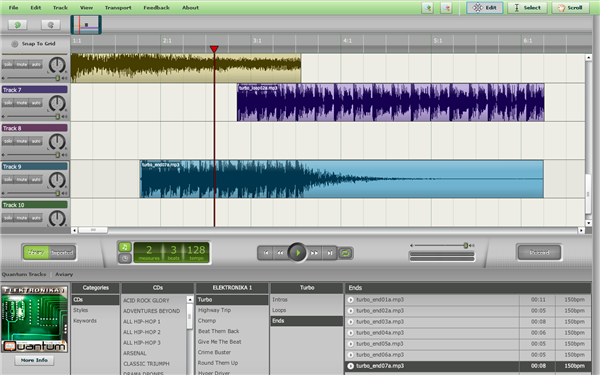
Even if you’ve never used an audio editing tool before, you’ll immediately feel at ease when launching Myna. The program’s interface follows the traditional design of audio editors, with a library of pre-made clips at the bottom, and a top working area with a timeline that features ten different tracks. All you have to do is select the appropriate clip and drop it on the timeline.

You can also drag them around for adjusting or trimming, copy and paste them via the context menu, and even record your own sound samples with a microphone. Myna includes not only a wide variety of audio samples you can use for free in your creations, but also a bunch of special effects such as fades, reverb, flanger, pitch and more. After saving you mix – which requires a free user account on the Aviary website –  you can save it right away and also share it online with your friends on several different social networks

Want to learn more about Myna? Check out this video from Alan at Aviary, and see how powerful this awesome tool can be.

[youtube]http://www.youtube.com/watch?v=_3-VWMKpQiI[/youtube]

Get Tales of Monkey Island EP1 for free!


Leading the resurgence of point and click adventures, Telltale Games have decided to celebrate September 19th, International Talk Like a Pirate Day (what, you hadn’t heard of it?) by giving away the first episode of their new Monkey Island series for free. It’s a one day only offer, and you have to sign up with your email address on their site. They will email you a reminder when the download is available. I really enjoyed the demo, released a couple of months ago, and this is an offer you don’t want to miss! Sign up here!

[Via: Eurogamer]