Friday Timewaster: DadGame


Break Stuff! It’s unclear why the Dad in DadGame likes to break stuff, but he does, and he does it well. In this browser based carnage filled platform game, take control of Dad on a hilarious, but very destructive adventure.

Featuring great cartoon graphics, animation and brilliant story cut scenes, DadGame seems fantastic even before you are let loose at the controls. Thankfully, the gameplay is also really good. It’s chaotic for sure, but as your main task is just to break stuff, using your fists, swords, throwing objects, it’s enjoyable chaos. Creating carnage increases your carnage meter, and when you reach 100%, Dad goes on fire! When on fire, Dad is invincible, and has a range of cool attacks including, of course, lasers coming out of his eye!

What’s not to like?

Today’s downloads for Windows, Mac and Mobile

The best Pro Evo to dateWindows: If you thought that FIFA 10 would be the final nail in the coffin for Pro Evo then think again. Pro Evolution Soccer 2010 proves to be a real return to form for the popular soccer game series. The graphics are more realistic than ever, the controls have been refined, and the tactics section has been completely reworked. Try it for yourself by downloading the six-team demo.

Mac: As mobile devices advance, there’s an increasing demand for software that facilitates closer integration between your phone and your Mac. BluePhoneElite (now updated to version 2.2) is probably one of the most powerful out there, breaking down the barriers between the two devices. Amongst the many benefits of it are that it allows you to extend the functionality of both your Mac and Bluetooth mobile device.

Park cars on your iPhoneiPhone: Parking isn’t the most exciting thing about driving, and yet Parking Mania has managed to create an entertaining casual game out of it! The aim of every level is to move your car into a specified parking space. You do this by tilting to steer, and sliding your thumb up and down to accelerate, brake and reverse.

How to: Create and manage snapshots in VirtualBox

We’ve already written about virtual machines on this blog a couple of times, explaining how easy they’re to use and how handy they come in when testing new operating systems or new software. One of our favorite virtual machine solutions, VirtualBox, has recently been updated to version 3.0.6 which, among other new features, includes now an enhanced way to deal with system snapshots and share them across different computers.

What is a snapshot? It’s similar to the Restoration Point functionality in Windows. VirtualBox snapshots save your current virtual machine as is, with all the software you’ve installed so far, as well as files and personal configuration options. You can create as many snapshots as you need for each virtual machine, and revert the system to any of them at any point. So i, for example, you saved a snapshot just after installing the OS, you can go back to it anytime and have a clean, newly installed system in two minutes and without having to go through the pain of reinstallation.

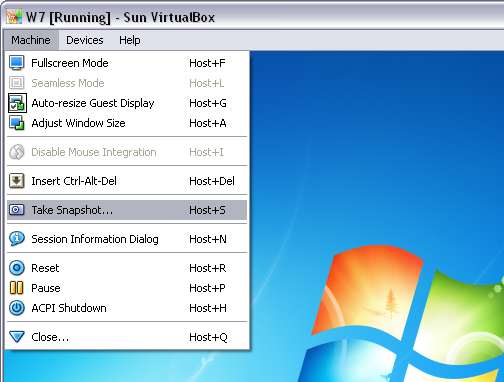
To create a snapshot in VirtualBox, all you have to do is click on the Machine menu in your virtual machine and select Take Snapshot. You’ll be asked to enter a name and a description for the snapshot, so that you can distinguish between different snapshots more easily. Then click on OK and you’re done!

How to: Create and manage snapshots in VirtualBox

To revert your current machine to a previous snapshot, open VirtualBox, select your virtual machine and click on the Snapshots tab. Right click on the Current State icon and select Revert to Current Snapshot, which will bring the virtual machine back to the latest snapshot you took. If you want to revert the system to an earlier state (for example, the first snapshot you took) you can do so by discarding all other snapshots, so that the first one you took goes immediately before the Current State icon. Continue reading “How to: Create and manage snapshots in VirtualBox”

Need a little extra help with math or spelling?

Here at OnSoftware we get lots of emails asking about software. Most of the time they are complicated questions, like how to partition your disc while dual booting on an external drive… or something along those lines. Sometimes, however, we get questions with more human interest.

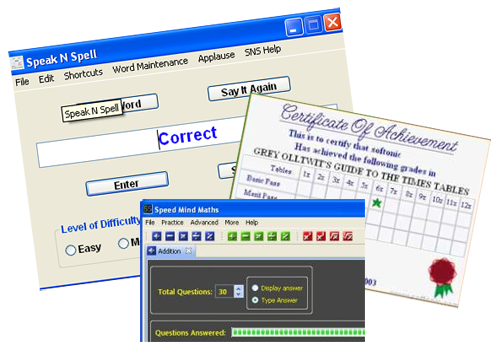
A while ago a reader emailed asking for help with her math skills. She wanted to know if there were any programs or applications that could help her become more comfortable with numbers and less embarrassed by her lack of math skills. The good news is that there are – lots of them! Even better news is that our reader is not alone, and there are many people who have similar problems. Lucky that our reader was brave enough to ask, right?

mathintro.png

That got us thinking here at the office – always a dangerous thing – but this time, we’ve come up with a great idea! We’re going to produce a short series of posts with advice and software tips for people who have problems with numeracy, reading, spelling or money skills. They’ll be of use to lots of people, and best of all, you’ll be able to brush up on your skills without even leaving the house. Whatever your level, you’ll find something useful, so stay tuned and don’t forget to spread the word. You never know who might need the extra help…

Part 2: Math

Part 3: Reading

Good basic password practice

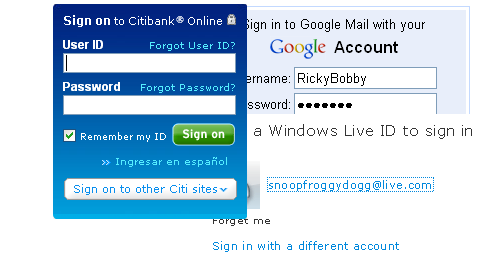
Having a string of passwords for online accounts and computers is part of life today, and they are supposed to be the means for keeping our stuff safe. Despite this many of us use incredibly easy passwords, like the Twitter employee whose Gmail account had the password “password“! You shouldn’t be that stupid.

Much of password hacking isn’t like the movies, but either educated guess work or using programs that fling the entire dictionary at password protected things, until they happen upon the right one.

Here are two simple things you can do to improve your passwords,

1: Don’t use just a word, and don’t use something related to you that anyone might be able to find out or easily guess. So no dates, or names of loved ones! Not doing that will keep the most basic hacks away. Complicated, seemingly random passwords maybe hard to remember, but you’ll be surprised how quickly your fingers learn the routine. Create a random password, and give yourself a week to remember it!

2: For password recovery and internet banking, when a password system asks security questions make the answers as bizarre and uniquely yours as possible: What was the name of your first school? Don’t give the right answer, as that might be discoverable: What was the name of my first school? Monkey Tennis Junior. Not true, but something I will remember. If you can create a question, be as bizarre as you can be – as long as it’s something memorable for you!

Most of us will never suffer from identity theft, but these two suggestions will keep you as safe as you reasonably can be. Of course, all systems are probably hackable by someone with the right resources and persistence, but it’s difficult enough that it’s not worth doing for normal people!

Fix for NVDA(OpenGL): Channel exception! iMac error

 A few months back, I started having problems with my beloved iMac. Lines would appear on the screen, as well as patches of odd color. But worst of all was the series of system crashes I suddenly started suffering, often more than once a day. They’d happen while using Firefox, or opening a stack on the Dock, or just moving my mouse.

imac-nvdaopengl-error-1.png

I tried disconnecting peripheral devices, used TechTool Deluxe to test the integrity of my hard disk and memory, but found no solution. Looking at Console for a clue (I probably should have done this first), I found lots of serious looking errors occurring just before my system crashes. They all took the form of:

21.06.09 22:25:31 kernel NVDAOpenGL: Channel exception! status 0xffff info32 0x3 Fifo: Unknown Method Error
21.06.09 22:25:31 kernel 0000000b

Now, I may not be a Mac expert per se, but my experiences working with OS X, Windows and Linux told me that “NVDA”, “OpenGL” and “Channel exception!” pointed to the fact that something was gravely wrong and that it had something to do with my Nvidia 7300 GT video card. Which begged the question: is this a hardware or a driver issue?

Reading this helpful thread on the Apple Support forums, I’ve found that plenty of other iMac owners are suffering with the same problem. Consensus there is that it’s related to a driver/software fault… but this is confused by there being at least two problems which cause similar issues. User Asrenzo’s comment from yesterday helps to clarify the situation. After carrying out various tests, he feels certain that the software/driver theory is right. It seems that OS X 10.5.7 introduced a new, faulty driver for the Nvidia graphics card which simply stopped it from working properly.

But what about the fix?“, you may be wondering. Well, the solution I’ve found is simple: install Snow Leopard. In my case, I backed up my entire home disk with Time Machine, erased and did a clean install, and then imported my apps, files and accounts from Time Machine. I’m not sure that the Time Machine bit is essential but I can say that not only does my 3 year-old iMac run like new now, I’ve also yet to see any Channel exception! or NVDA(OpenGL) errors.

If you’re suffering with frequent crashes and are at your wit’s end (and your Mac’s compatible, of course), try doing a clean install of Snow Leopard. It certainly seems to have worked for me.


Today’s downloads for Windows, Mac and Mobile

Skype for iPhoneiPhone: Skype for iPhone successfully carries the principles of quick and easy communication across from the desktop to the mobile, allowing users to make free or cheap calls anywhere in the World.You can use it to make free calls over Skype only over WiFi, and SkypeOut calls on 3G to cellphones and landlines using Skype. I think it will be a long time before carriers allow Skype-to-Skype calls over 3G, though.

VirtualBoxMac: Many people use Parallels for hosting Windows inside OS X but VirtualBox (now updated to version 3.0.6) is a free open source alternative that does a pretty decent job too. With VirtualBox, you can install any version of Windows (as long as you have the boot disk), Linux, Solaris and just about any other operating system you can think of.

Download SpotifyWindows: Tired of your old music collection? With Spotify (new version 0.3.19) you can have access to thousands of songs, bands and music styles anywhere, anytime. This awesome app streams high quality music to your computer for free, includes bio data about your favorite bands and lets you share playlists online with your friends.

Keyboard and mouse shortcuts for web browsers

We briefly mentioned a few keyboard shortcuts for Firefox a while ago, but there are many others I’m sure you already know – and which usually work across all main browsers, like Ctrl+T to open a new tab or clicking the mouse’s wheel on a link to open it in the background.

However today we won’t focus on keyboard-only shortcuts; we’ll talk about mouse and keyboard combinations, which enable you to perform different tasks by pressing a given key while clicking with your mouse.

FirefoxKeyboard and mouse combinations for web browsers

Ctrl + Click: Opens the link a new tab in the background
Ctrl + Shift + Click: Opens the link in a new tab in the foreground
Shift + Click: Opens the link in a new window
Shift + Alt + Click: Forces the link to open in the current tab
Alt + Click: Saves link as…

Internet ExplorerKeyboard and mouse combinations for web browsers

Ctrl + Click: Opens the link a new tab in the background
Ctrl + Shift + Click: Opens the link in a new tab in the foreground
Shift + Click: Opens the link in a new window
Ctrl + Alt + Click: Saves page as…

OperaKeyboard and mouse combinations for web browsers

Ctrl + Shift + Click: Opens the link a new tab in the background
Shift + Click: Opens the link in a new tab in the foreground
Ctrl + Click: Saves image as…

Google ChromeKeyboard and mouse combinations for web browsers

Ctrl + Click: Opens the link a new tab in the background
Ctrl + Shift + Click: Opens the link in a new tab in the foreground
Shift + Click: Opens the link in a new window
Alt + Click: Saves page as…

SafariKeyboard and mouse combinations for web browsers

Ctrl + Click: Opens the link a new tab in the background
Ctrl + Shift + Click: Opens the link in a new tab in the foreground
Ctrl + Alt + Click: Opens the link in a new window

[Via: OnSoftware Spain]

Play Monopoly ‘live’ on Google Maps

Being a big fan of Monopoly, I was keen to give Monopoly City Streets a try. This online strategy game is a ‘live’ version of the classic board game, allowing you to trade real life properties using Google Maps. The game proves to be both easy to play and a whole lot of fun.

To get started in Monopoly City Streets you just need to search for a street and you’ll be able to see if it’s been built on or not. If the street is available you just need to pay the face value of it to the bank. If it’s already been bought by someone then you’ll need to make them an offer they can’t refuse. Once you own a street you can start building properties on it, just like in real Monopoly. There are different types of buildings you can construct, ranging from simple houses to huge tower blocks. During gameplay you’ll occasionally be dealt a ‘Chance’ card, which could mean one of your building’s is about to be demolished, or it could give you the chance to destroy another player’s property. Ultimately, the game is just an elaborate marketing vehicle for the new Monopoly City game. However, City Streets is still great fun to play and can prove highly addictive, as you try to hustle your way to the top of the online leaderboard.

Play Monopoly ‘for real’

Following the success of the Monopoly/Google Maps crossover, perhaps we’ll see more tie-ins between classic board games and today’s top web sites. Here are my suggestions, feel free to add your own:

Facebook Guess Who – Who’s that psychotic-looking gentleman who sent you a friend request

Firefox Buckaroo – Keep opening new tabs and see which page will cause Firefox to crash

TechCrunch Hangman – How many letters does it take for Michael Arrington to crucify a site?

Bing Risk – Will Microsoft become the World conquer the World of Search?

Google Trivia Pursuit – The only quiz game with all the answers

Preview: Beneath a Steel Sky for iPhone

Welcome to the Gap

Fifteen years ago, I was 15 years old, ambitious and filled with dreams. Most of these entailed the creation of those fictitious worlds that sucked me in. Adventure games presented me with both worlds of magic (far, far away), as well as dystopian, grim representations of OUR world. Beneath a Steel Sky (1994) belongs to the latter category.

bass4.png

With references to Nietzsche, Huxley and Orwell, BASS came packed with intelligence, leaving us disconcerted by… hiatuses of thought. Of course back then, in The Netherlands, all we got from our English reading list was Watership Down. Don’t get me wrong: I felt sorry for those rabbits. However, I felt even sorrier for those who did not get their hands on a copy of Beneath a Steel Sky.

Your quest

The game takes place in a post-nuclear world, divided in an outside – the Gap – and an inside – a hierarchical city. Or is it the other way around? Robert Foster is a child of both worlds: he finds himself growing up in the Gap, yet feels something from the inside pulling him in.

bass5.jpg

What or who this is and what happens next, are catalysts in Foster’s quest. Find out who you are, where you come from, who put you there and how exactly that fits into the bigger picture. Kind of like ordinary life, wrapped up in a shiny iPhone port of a classic adventure. Continue reading “Preview: Beneath a Steel Sky for iPhone”