Ask Onsoftware: Solving video problems in Windows Live Messenger

We’ve just had a plea in from OnSoftware reader for some help with a problem she’s having with Windows Live Messenger. Shirley writes:

I have MSN Messenger Live 8 (or it might be 8.5) and I have a problem when I try to do video chats with my granddaughter. Sometimes when we both can see each other, but others she will not be able to see me, even though I can see her. Do you have any suggestions for me on how to correct this problem?

This isn’t an uncommon problem, Shirley, and unfortunately there is no straight answer because the cause of the problem could be one of a number of things, related to your webcam hardware or software, or to Live Messenger. Here’s what I’d recommend you try to do, in chronological order, until you find the solution:

  1. Check your hardware – It might sound obvious but you should make sure that your webcam is plugged in correctly and switched on. You should be able to see the device from the ‘My Computer’ panel the Windows Start menu. If it’s not showing up then try reinstalling the driver software that came with your webcam.
  2. Update Live Messenger – It sounds like you’re using an old version of Windows Live Messenger there, Shirley. Download the latest build of the program from here and install it. It could be that there are some compatibility issues with the version your granddaughter is using.
  3. Try Trillian – If you’re still having no luck with the Live Messenger program, try switching to Trillian Astra instead. This is a free application that lets you make video conferences over a range of different instant messaging networks, including Windows Live. It’s a great program, and I find it a lot more streamlined than Live Messenger (note, that your granddaughter wouldn’t have to switch to using Trillian as well).
  4. Switch to Skype – If all else fails, you could always both switch to using Skype as your means of video chatting. The video features of Skype are second to none, and the call quality is excellent. This is the solution I always use for chatting with my friends – even with my buddies who I normally text chat with on Live!
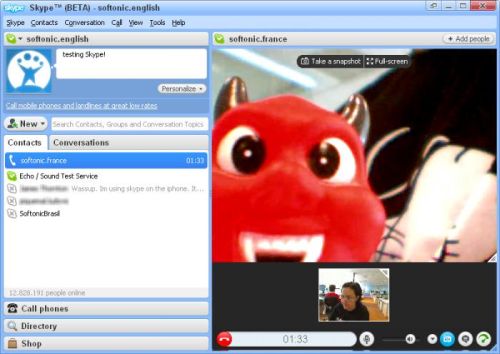
Skype is a better option for video than Live Messenger

Trick or treat? Halloween wallpapers for everyone!

Halloween is just around the corner, and while we start carving pumpkins and buying tons of sweets for our usual trick-or-treat visitors, we thought it would a nice idea to make our computers share the spirit of this celebration. After all, we spend a lot of time together so it’s only fair we help them get into the mood for the upcoming event with these Halloween wallpapers.

Click on the image to download the full-sized wallpaper. Some of them are available in various resolutions.

Halloween wallpapers

Continue reading “Trick or treat? Halloween wallpapers for everyone!”

Windows 7 Starter Pack – 20 free apps you need

Top 20 free apps that work with Windows 7Windows 7 is a fast, stable operating system that already includes high quality software by default. But that doesn’t mean you aren’t allowed to enjoy the advantages of  third-party apps.

Common tasks such as downloading files, chatting with your friends, creating documents or editing photos require tools that you won’t find built into Windows 7. Also, some of the tools you used before may not be compatible with Microsoft’s new operating system. This is why we’ve put together this list of 20 top free apps that work with Windows 7, with which you’ll be able to take full advantage of your brand new system.

Top 20 free apps that work with Windows 7Security comes first. There are many antivirus apps that work with Windows 7, but Microsoft Security Essentials is the one that best integrates with the system. Plus it also protects you from spyware!

Top 20 free apps that work with Windows 7Stability is another key issue. While we wait for the new Windows 7 compatible version of TuneUp Utilities, CCleaner can also do a great job cleaning, tweaking and optimizing your system.

Top 20 free apps that work with Windows 7Don’t be ashamed: we all have deleted files by mistake at some point in our lives. Fortunately we can count on this great tool called Recuva to get them back – and it works like a breeze on Windows 7 as well.

Top 20 free apps that work with Windows 7Need a password manager to deal with all your usernames, passwords, secret numbers and personal codes? Keepass is a great choice, and is also perfectly embedded in Microsoft’s new operating system.

firefox-logo.pngBrowsing the Web is the main activity for most computer users. Windows 7 already features the new Internet Explorer 8, but I’m sure most of you will only use it to download Firefox. Another excellent alternative is Opera. Continue reading “Windows 7 Starter Pack – 20 free apps you need”

Friday Timewaster: Gretel and Hansel


Gretel and Hansel is a surprisingly macabre and grizzly take on the classic Brothers Grimm tale. You play Gretel, who becomes alarmed after overhearing her mother planning to send the children away into the dangerous forest!

Presented in really pretty water-colors, with a perfect soundtrack, Gretel and Hansel isn’t particularly complicated (and there’s a walkthrough linked on the game page if you get stuck). It does feature achievements, and some of them feature very dark humor! It’s not a cute kids game, this one.

Check out Gretel and Hansel here.

[Via: IndieGames.com]

Today’s downloads for Windows, Mac and Mobile

Windows 7Windows: It’s finally here. Windows 7 has hit shelves worldwide! Generally considered as the true heir to XP, Windows 7 brings many new features and enhancements to your computer that make it faster, more stable and easier to use. Take a look at our review and video, and follow our full coverage on the blog about Windows 7.

Play Boulder Dash on your iPhoneiPhone: Boulder Dash is one of the oldest franchises around, and surprisingly the basic format hasn’t changed for 25 years! Boulder Dash – ROCKS! is the latest addition to the family, this time on your iPhone. This Lite version only has 8 levels, but is fun never the less. You control Rockwell as always, and he’s trying to collect all the jewels he can find.

AltitudeMac: It’s no surprise then that Altitude has been developed by two self confessed nostalgics for the good old days of computer games when everything was so much simpler. Altitude is a beautifully put together shoot ’em up where you take control of World War II biplanes and blow the enemy out of the skies. It’s a frenetic game with lots of levels and a breakneck pace.

7 reasons not to upgrade to Windows 7

Windows 7 boxI’ve barely been able to think this week due to the Microsoft marketing machine going into overdrive. Mainstream, and even not-so mainstream media, have been singing the praises of the new operating system like it’s some kind of revelation.

In my humble opinion, it’s clearly not a revelation. It’s yet another blatant copy of Mac OS X by Microsoft and merely the final version of Vista that they messed-up so monumentally 3 years ago.

If you’re in two minds about whether to upgrade, here are 7 reasons not to believe the hype or make the switch:

1. Little difference to Vista

Yes, there are a few juicy new features such as the “Superbar”, Libraries and it’s quicker but it remains essentially Vista. As some people are already realizing, Windows 7 isn’t much more than a Vista Service Pack. If, Vista is Windows 6.0 then Seven is merely 6.1.

money2.png2. It’s expensive compared to other options

A cursory glance at other operating systems shows that Windows 7 is still very expensive. Ubuntu and other Linux releases are free, and Mac OS X 10.6 Snow Leopard costs only around $75 and just $45 for a version upgrade.

Windows 7, depending on the version chosen, costs between $119.99 and $219.99 for the upgrade and between $199.99 and $319.99 full version.

3. XP and Vista work fine

XP was released in 2001 and remains a good option thanks to the service pack. Even though it’s 8 years old, it still remains the world’s most widely used operating system and almost completely dominates the netbook market. As for Vista, despite an awful start, Microsoft updates have served to clean up many of it’s problems if not solved the bloatedness and speed issues which plague it. If you’re happy with your current Windows, why change?

needle2.png4. It’s still built on the same old insecure infrastructure

Compared with previous versions, Windows 7 is more secure, yes. But at the end of the day, it’s still based on the same old vulnerable NT kernel that Windows 3.1x was based on 17 years ago. It’s still also necessary to activate the firewall and make sure antivirus updates have been kept up to date. Other systems are more secure where to install anything you need to be the Administrator.

5. Upgrading XP requires a clean install

While Vista users can choose a convenient “Upgrade” option which takes less than 30 minutes to install Windows 7, XP users  – which is the vast majority of Windows users out there – have to perform a clean install. Even a brief glance at the BBC’s guide to upgrading to Windows 7 tells you that there is no way offices and general home users are going to go to the trouble – or even feel confident – to perform a clean install of a new operating system.

warning.png6. Incompatible programs

Windows 7 will be compatible with far more programs than Vista was on release and most major developers have been updated their software for it. But there will inevitably be tools or small business applications designed for particular businesses which don’t work well with it. The only solution to this is the XP compatibility mode only available in the more expensive editions.

7. Windows remains a closed system

Years ago almost everyone had Windows installed so interoperability wasn’t an issue. Now there are many users sharing Windows with Mac OS X and Linux. While these two operating systems have endeavored to facilitate coexistence, Windows hasn’t. Thus while Mac and Linux can access Windows files and install the two operating systems together, this is not the case in Windows 7, which still reads HFS or EXT3/4 natively.

Will you be one of those that sticks with what you’ve got and doesn’t upgrade to Windows 7? Do you think that Windows 7 is worth upgrading to? Have your say.

Today’s downloads for Windows, Mac and Mobile

Download Ad-Aware 8.1Windows: Are you worried about spyware and rootkits entering your computer? Ad-Aware Free 8.1 is here to protect your system from unwanted malware. This new version features faster scans, improved detection technology, a community-based defense against the most recent online threats and a new Simple/Advanced interface to suit everyone’s tech skills.

Enjoy Spotify on your iPhoneiPhone: Tired of your old music collection? With Spotify (new version 0.3.20) you can have access to thousands of songs, bands and music styles anywhere, anytime. This awesome app streams high quality music to your computer for free, includes bio data about your favorite bands and lets you share playlists online with your friends.

tweetie logoMac: If you’re looking for a twitter client with a distinctly Mac feel, then look no further than Tweetie (new version 1.2.4). Tweetie features a delicious interface and the overall presentation throughout is first class. All of Tweetie’s main functions can be found in the navigation bar along the left-hand side. This includes the search box, personal mail and a shortcut to your timeline.

Windows 7: Is my computer compatible?

compatible.pngOne of the most common doubts when changing operating system is whether or not your computer will work with the new platform. This week, Microsoft finally launches Windows 7, and one of the most important tasks for us at home is to find out if we’ll be able to say “Yup, I’ll be able to install Windows 7 without a problem” when it arrives. As well as finding out if our computer is up to the job, we’ll also want to know if our favorite programs will work with the new operating system.

To get started, Microsoft has developed Windows 7 Upgrade Advisor, which will give you a complete report on your PC’s compatibility with Windows 7. The analysis only takes a few minutes – depending on your computer – but will list everything you need to know about your hardware and software. This is Microsoft’s official solution, but as we saw with the Vista version of the tool, it’s not infallible.

wua.png

Luckily, Windows 7 Upgrade Advisor isn’t the only option. Despite the fact that DMS Clarity Metrics Tracker has absolutely nothing to do with Microsoft, it actually does the same job. The only difference is that it carries out a slightly more in-depth analysis and, as a result, takes a little longer.

Windows 7 itself ensures ‘retro-compatibility’, something that should reassure people thinking about upgrading. If you currently have Windows Vista, you’re likely to be able to use pretty much all of your favorite programs with Windows 7.

If you are running XP, Windows 7 (Professional, Enterprise and Ultimate versions) will have an integrated Windows XP mode. Basically, this makes it possible to run a virtual version of XP, not just for compatibility-checking purposes, but actually using XP’s source code to run a fully-functional system. In order to use this feature you need to make sure that your computer can support 64 bit instructions; SecurAble is a good tool to check if it can.

windowsxpmode.png

Remember that on Softonic, all Windows 7-compatible programs have a symbol to help you identify them easily. Now that all your compatibility problems are solved, there’s just one decision left to make. Will you keep XP/Vista, or upgrade to the new Windows 7?

Boost your productivity with Freedom (from the internet!)

The web’s great, but it’s pretty distracting. Between glancing at incoming email, news feeds, Twitter updates and so on it’s a wonder there’s time for work at all. It’s hard to be disciplined enough to not check these things every few minutes, but it’s not a very efficient way of working. It’s rare to find something totally urgent, after all.

Freedom is a neat little app for Macs that allows you to set a time, e.g. an hour, and from then on your network access will be cut. Harsh, but I tried it and it certainly does the trick! The first few minutes may get a little anxious as you worry about all the emergency humorous tweets you’re missing, but once the cold turkey is over it’s surprisingly liberating. Great for anyone writing (after web research is done!), as it’s really easy to concentrate when all your desktop distractions have gone*.

You can set Freedom to cut your net from ten minutes to eight hours – can you imagine eight hours without the web – and as your productivity during that time will be greater, you’ll have made more time to update Facebook for the rest of the day! It really is a win-win application.

Impressively, there seems to be no way of stopping Freedom unless you actually reboot your system – I tried force quit, but apparently still had no web access! Mac users can download Freedom here.

*Smart phone users are doomed, I’m afraid.